


We have introduced many free online PDF tools in the past, such as:PDFWind、AvePDF 、allinpdf Although they are all very useful, sometimes you may not want to use online tools for some important PDF files, or you may be worried about security issues. This article will introduce another free open source tool “Stirling PDF”, which has many built-in PDF editing functions. I roughly counted at least more than 50, and it is not only the online version, but can also be downloaded and used offline.
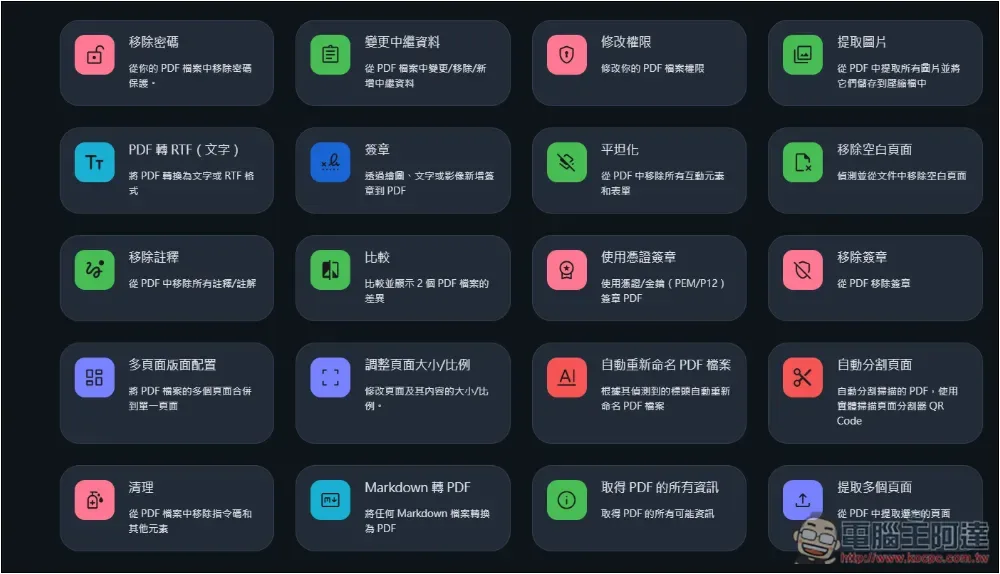
Stirling PDF Free one-stop PDF solution for open source tool operation teaching
Stirling PDF is an open source tool that shares the source code on GitHub and also provides .exe files that can be directly executed by Windows. Therefore, if you do not want to use the online version, you can click the link above to download the offline version .exe.
The interface supports multiple languages, including Traditional Chinese. There are many PDFs provided, such as merging, splitting, rotating, removing, adjusting page size/proportion, cropping PDF, extracting multiple pages, converting PDF to images/CSV/RTF, signing, adding/removing passwords, adding watermarks, viewing PDFs, adding images, removing images, etc.
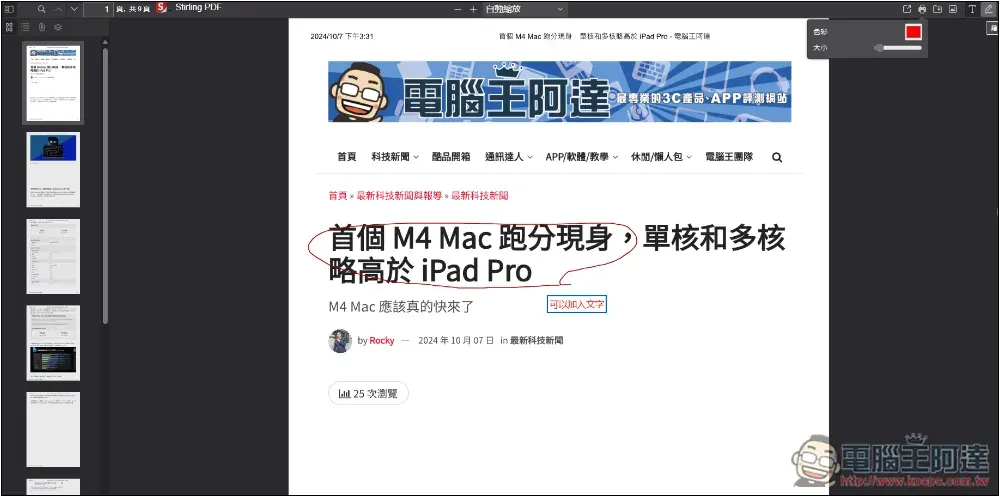
You can also edit PDF, such as adding text, drawing, etc. All operations are completed through the browser.
The functions provided by the online version and the offline version are roughly the same, with only a few missing. I will explain them separately at the end of the article. Here I use the offline version as an introduction example.
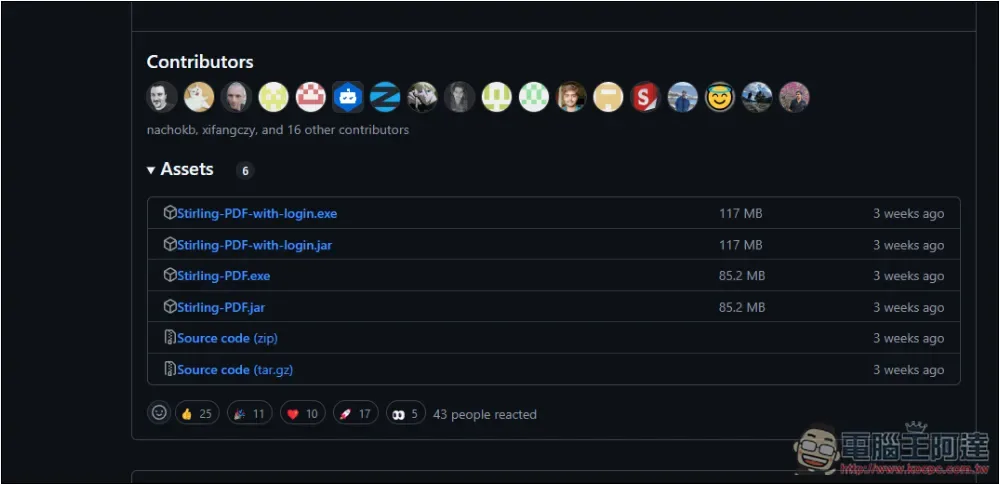
Click the link above to enter the GitHub page, scroll down, find the latest version, and download Stirling PDF.exe:
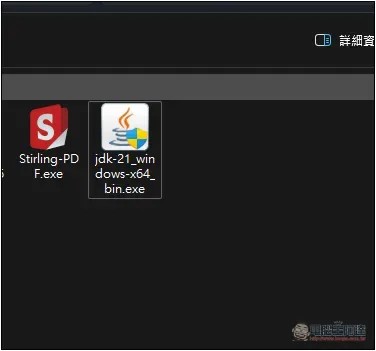
After downloading, click twice to execute. A JAVA installation file will be downloaded. This must be installed before it can be used:
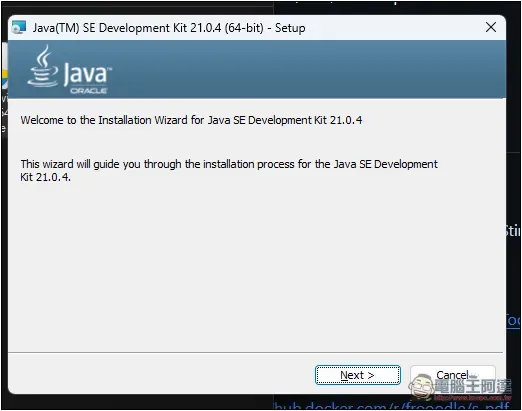
Just keep pressing Next during the installation process:
Then open Stirling PDF.exe again, and the browser will open the Stirling PDF function, and it is local. The default is http://localhost:8080/. Open the globe icon in the upper right corner to change the language:
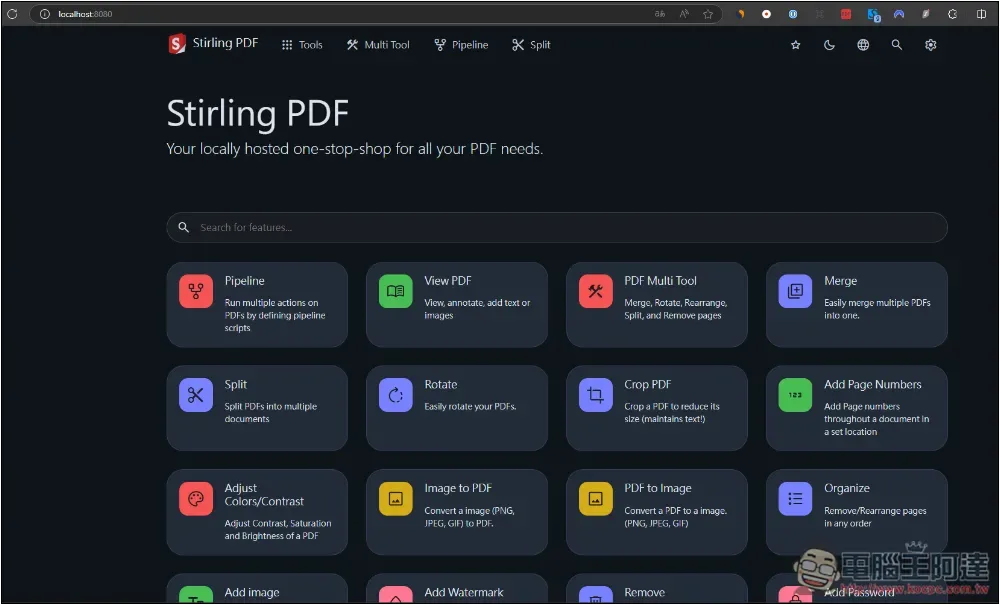
Available in Traditional Chinese. You can directly search for the PDF function you want to use on the main page, or move your mouse to “Tools” above to expand all menus. Also supports search function:
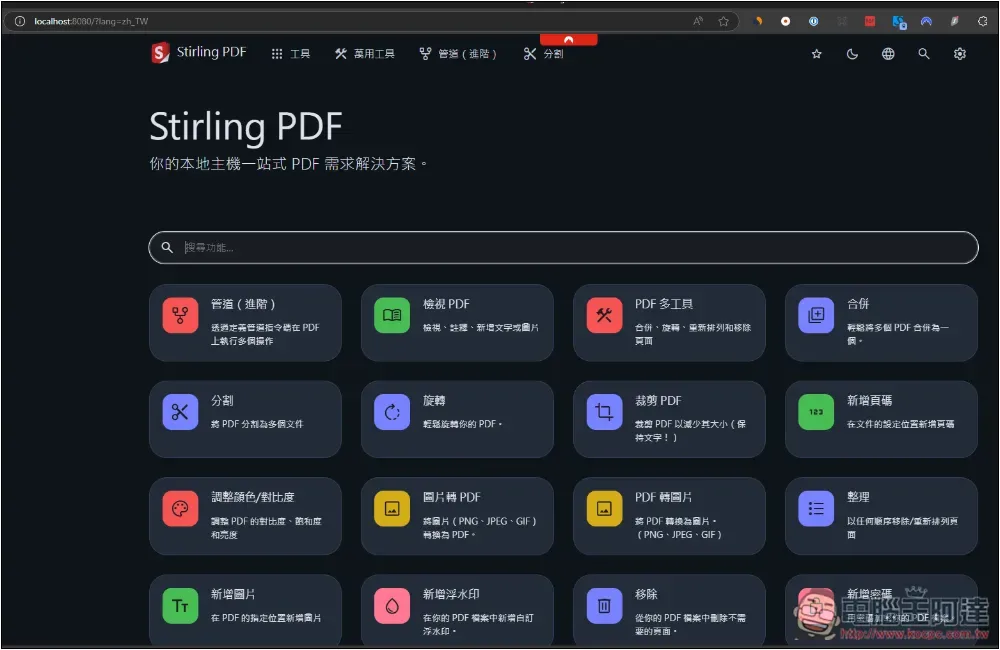
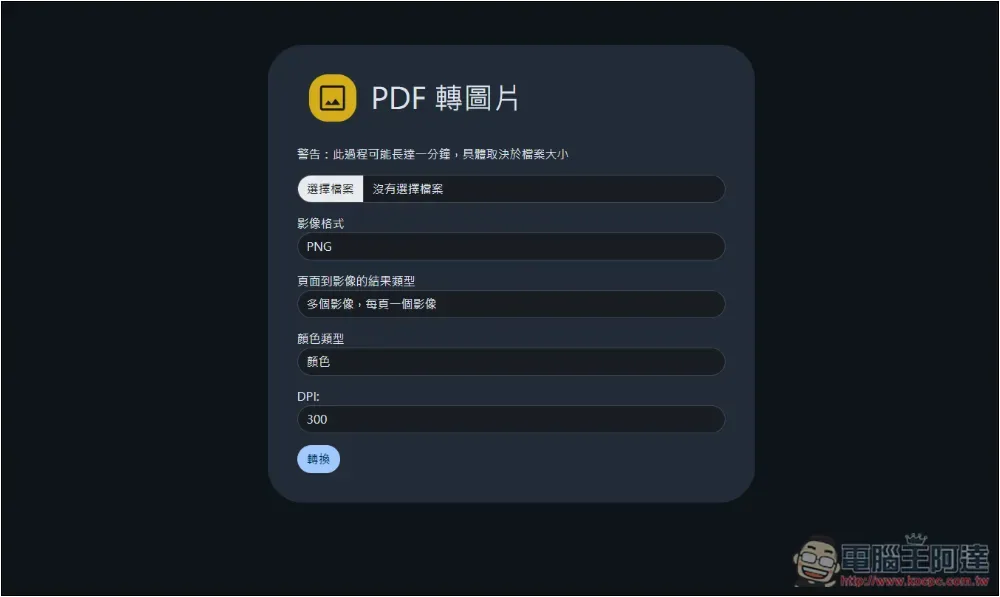
I use PDF to convert images. After entering the function page, I select the PDF file and image format. The color type, DPI and page-to-image result type can also be adjusted:
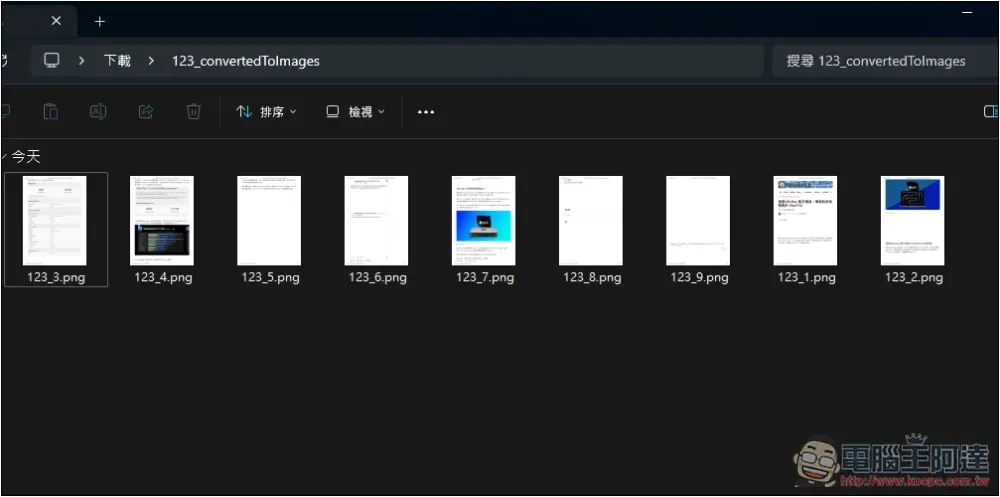
The test is successful and the speed is very fast. After the conversion is completed, all files will be automatically packaged into ZIP and stored in the download folder:
I also have a test signing function:
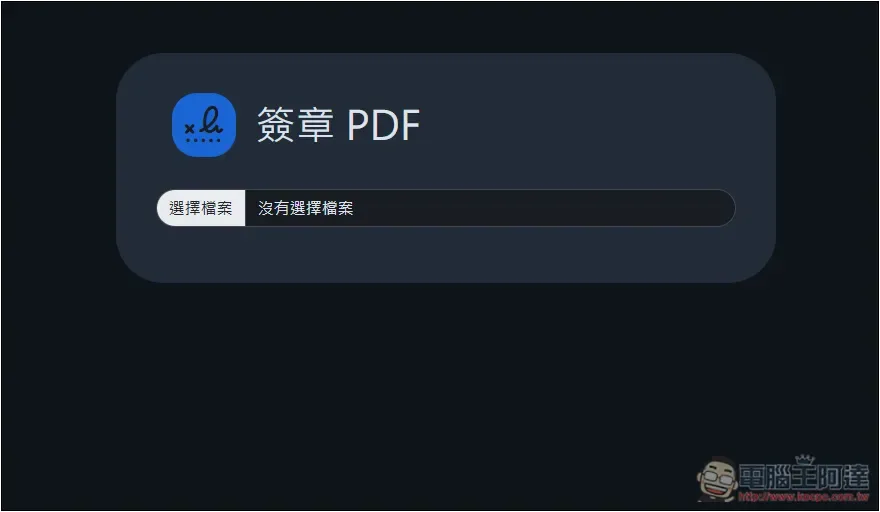
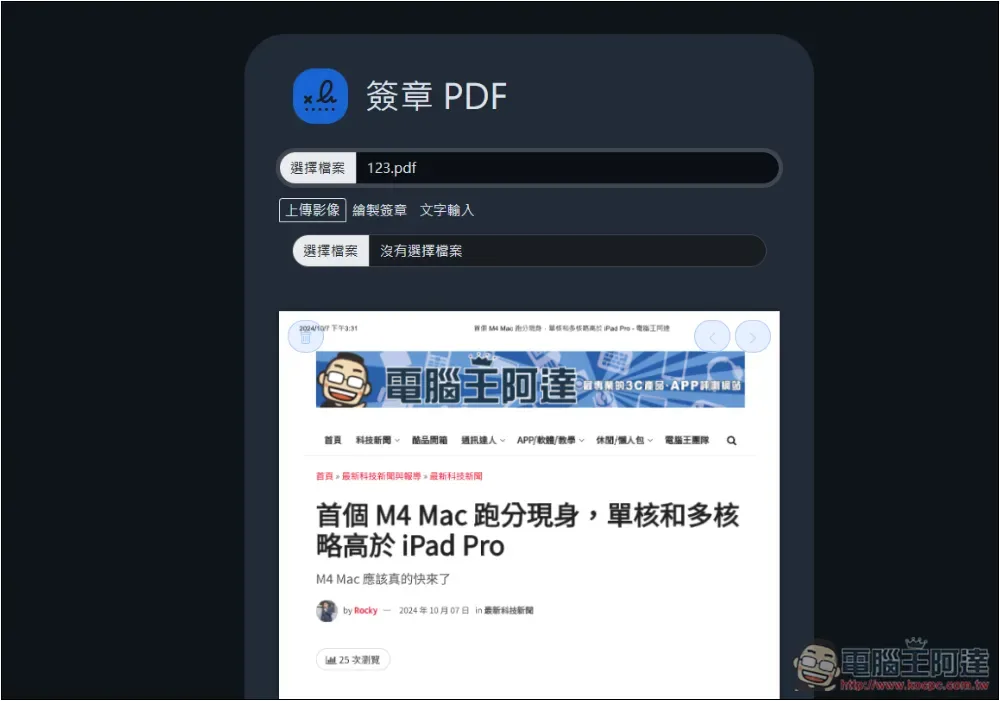
The signature can be drawn manually, entered in text, or uploaded as an image:
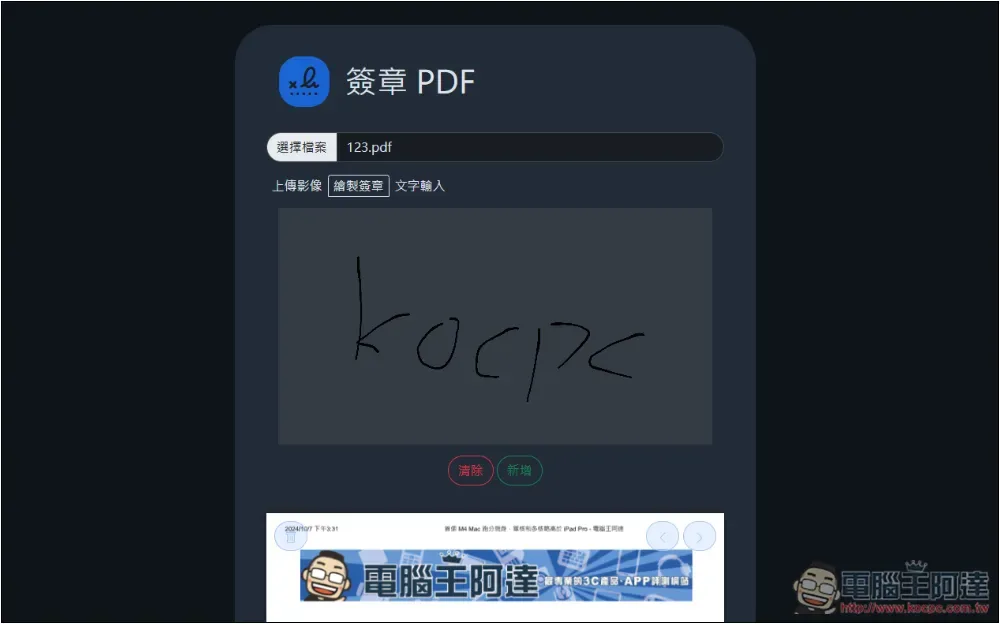
After drawing the signature, a drawing board will appear, allowing me to draw with the mouse, but the color part cannot be changed:
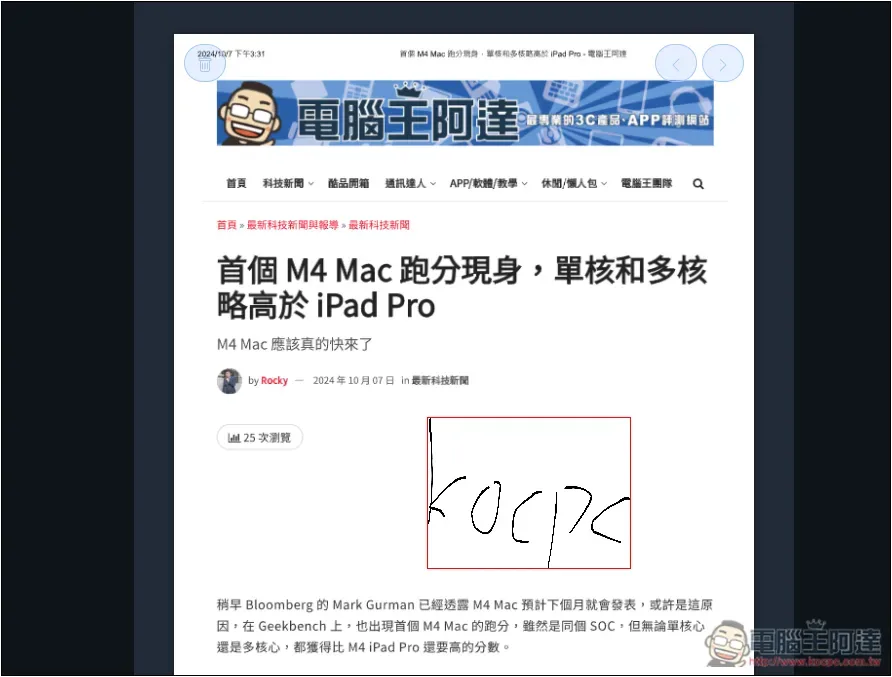
After drawing, it will appear in the PDF file, and the position and size can be adjusted freely:
If you want to edit the PDF, such as drawing and adding text, please use the View PDF function:
What is the difference between Stirling PDF online version and offline version?
The advantage of the Stirling PDF offline version is that it runs locally and can be used without an Internet connection.
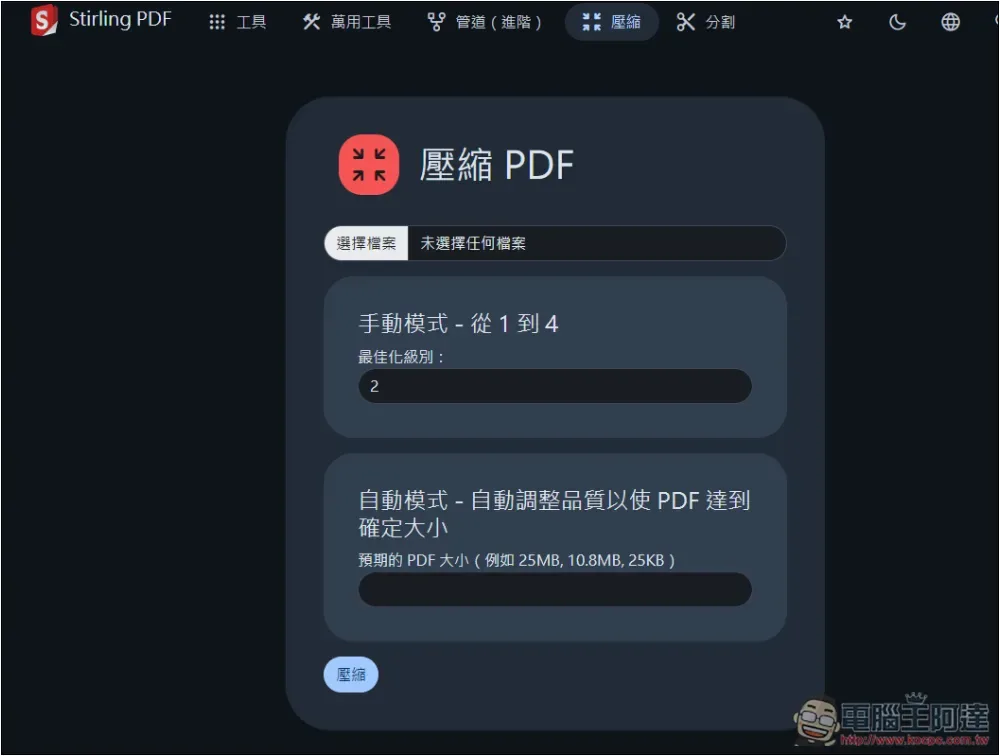
As for the online version, it seems that it only has the “compression” function. I’m not sure why the offline version doesn’t have it. This function should also be available in the offline version. It may be added in subsequent versions:
Source: KOCPC Chinese