


Neat Download Manager is a lightweight downloader that I have recently discovered that is very useful. It not only has fast download speed, can control the speed of each downloaded file, and has a classification function. As long as the main program and extension functions are installed, videos from many social communities and audio-visual websites can be downloaded directly from the web page with one click. There is no need to use other download tools. Windows and Mac are both supported.
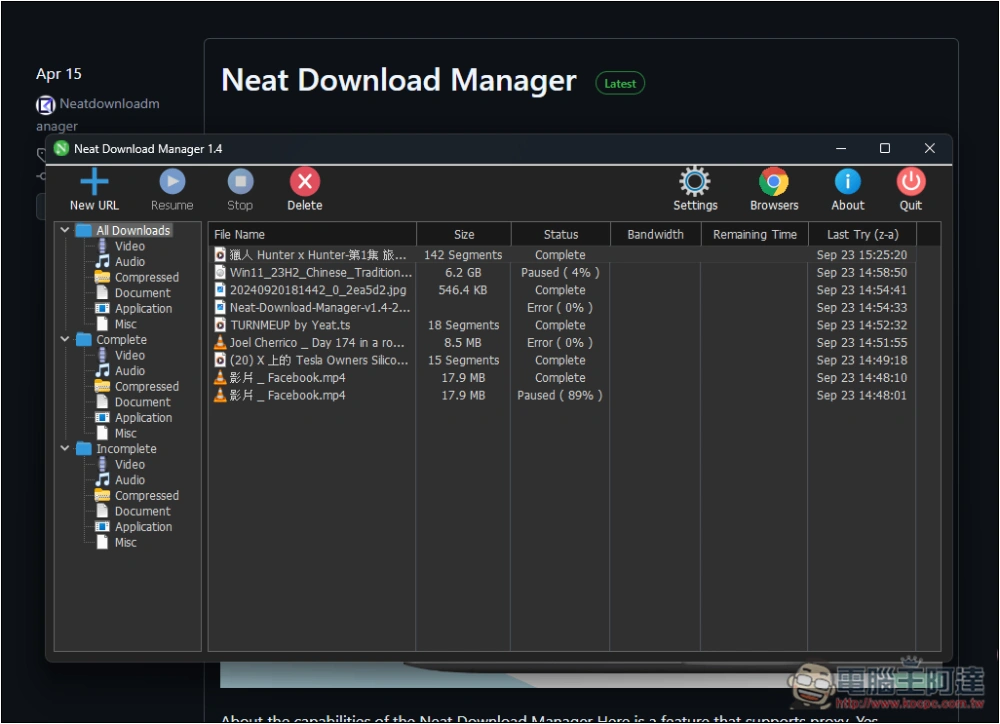
Neat Download Manager lightweight downloader installation tutorial
Neat Download Manager is an open source downloader with a very small file size, the installation file is only 900KB. Although there is no Chinese interface yet, the operation is quite simple, so don’t worry too much about whether it will be difficult to get started.
Here I use the Windows version as a demonstration, and the operations on the Mac version are roughly the same.
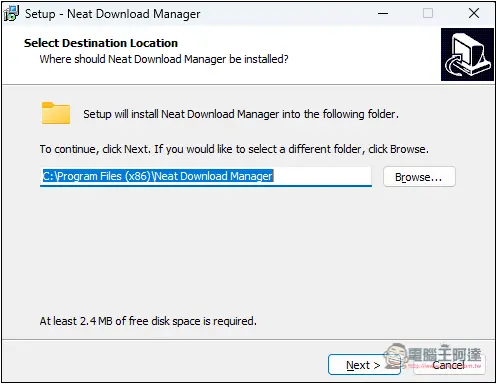
There are no special requirements for the installation process, just keep pressing next step:
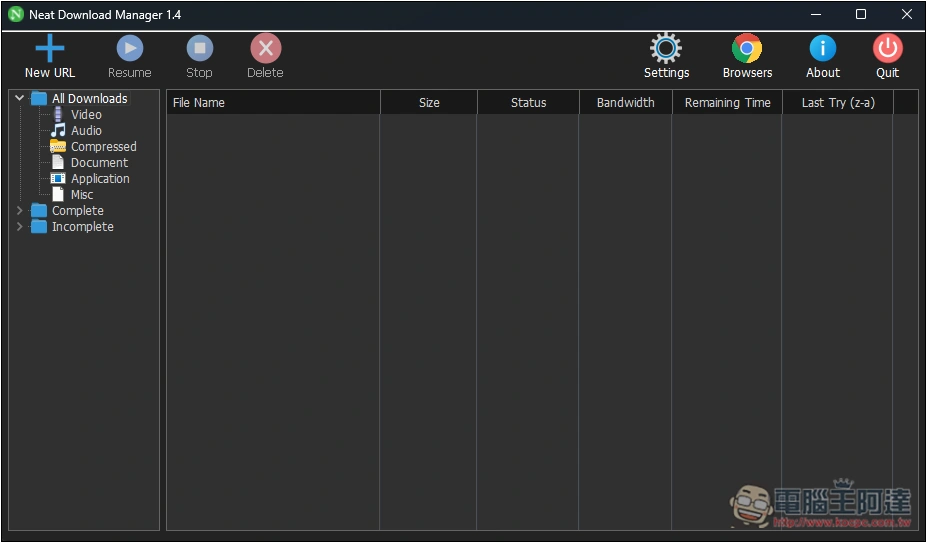
After opening the software, you will see this interface. The left side shows the categories of downloaded files. There are three folders, each with six points. , “All Downloads” can view all download records, “Complete” is to check all successfully downloaded files, and “Incomplete” is to browse uncompleted download records:
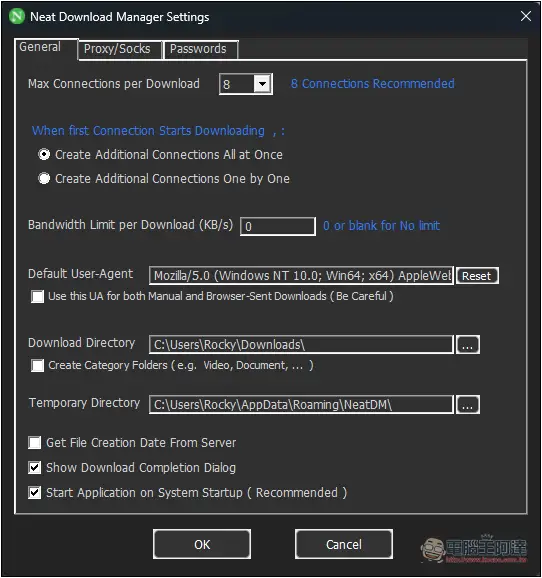
Before you start using it, you can open the settings and adjust the environment you need, such as Max Connections per Download as the number of connections for each download, Download Directory as the download file storage path, and Temporary Directory as the download temporary storage path:
Install the Neat Download Manager browser extension
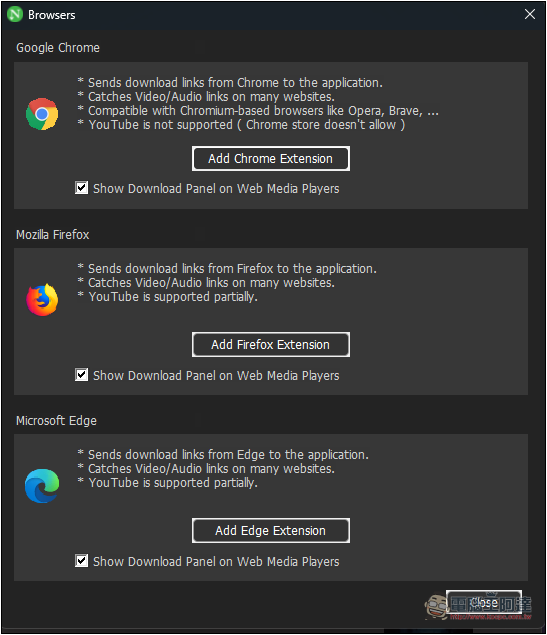
Click Browsers on the upper right side of the tool, and all supported browser extension installation points will be displayed, including Chrome, Firefox, and Edge. If you are using a browser developed with Chromium core, such as Arc Browsers, you can also install the Chrome version:
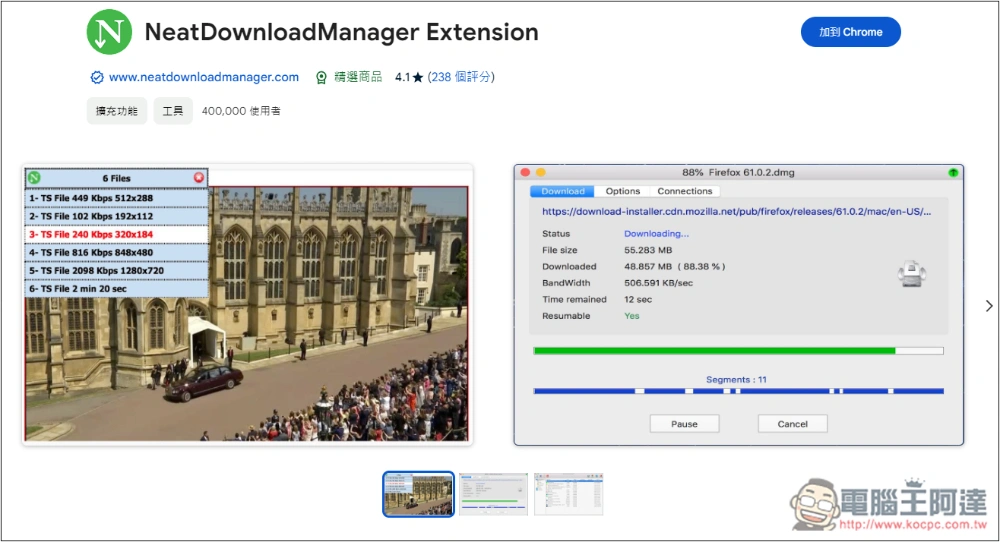
After opening the extension store page, press Join Chrome:
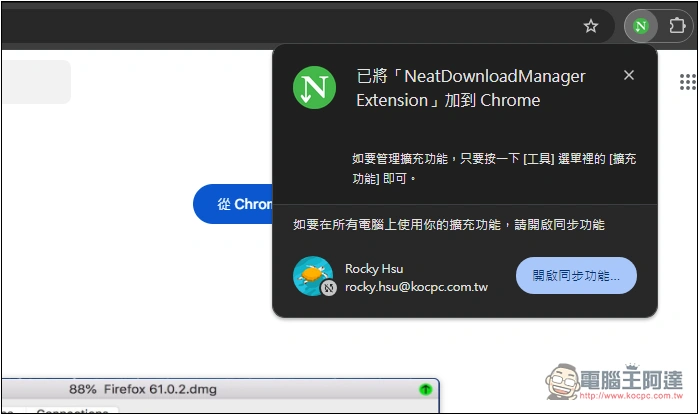
Displaying this message indicates that the installation is complete. The extension icon does not need to be displayed because pressing it will have no effect:
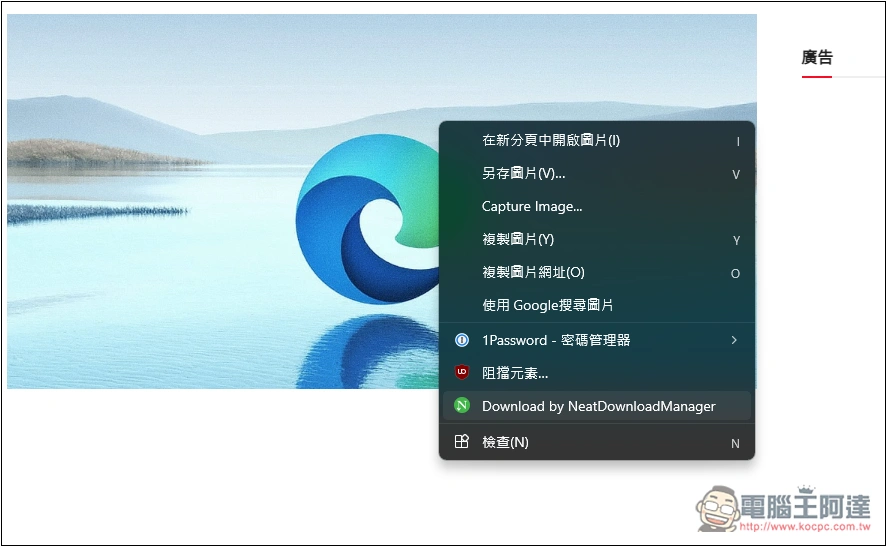
Then, open the right-click menu above any downloadable file or link, and you will find the Download by NeatDownloadManager option:
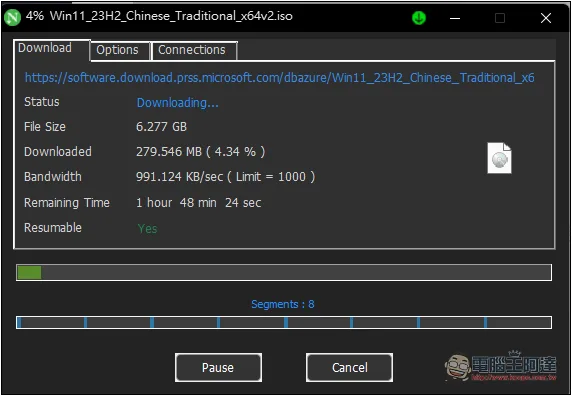
When downloading, the file size, download completion progress, download speed, and remaining time will be displayed:
How to download videos from social networking websites and audio-visual websites
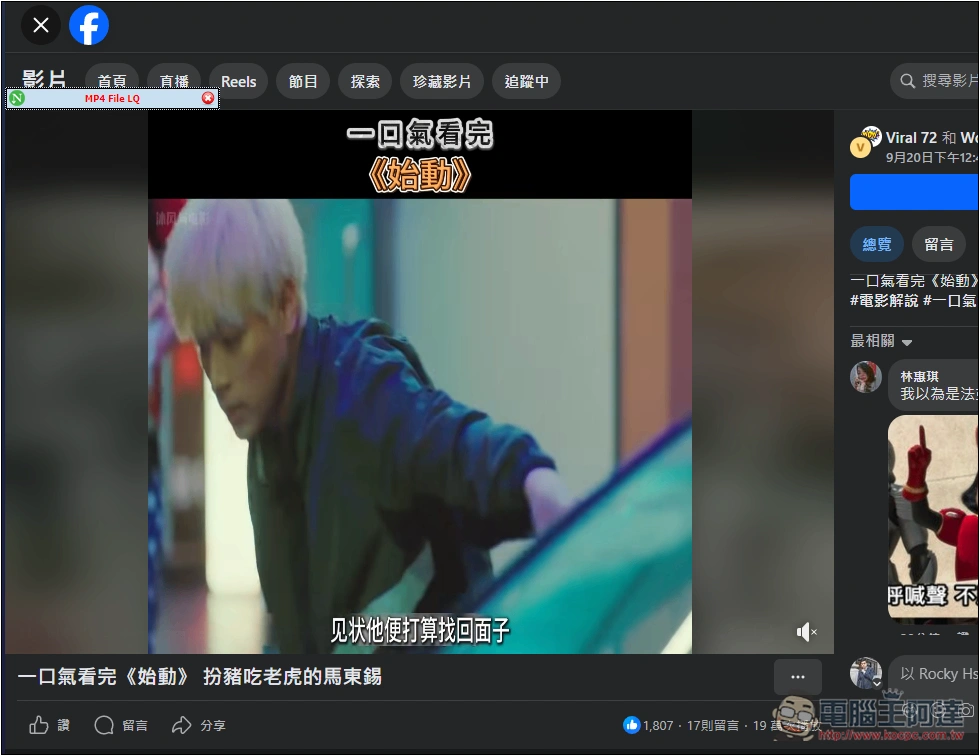
It’s very simple, just open the video you want to download. If it is supported, the download option will appear in the upper left corner. The actual test of the Facebook video was successful, and it is in MP4 format:
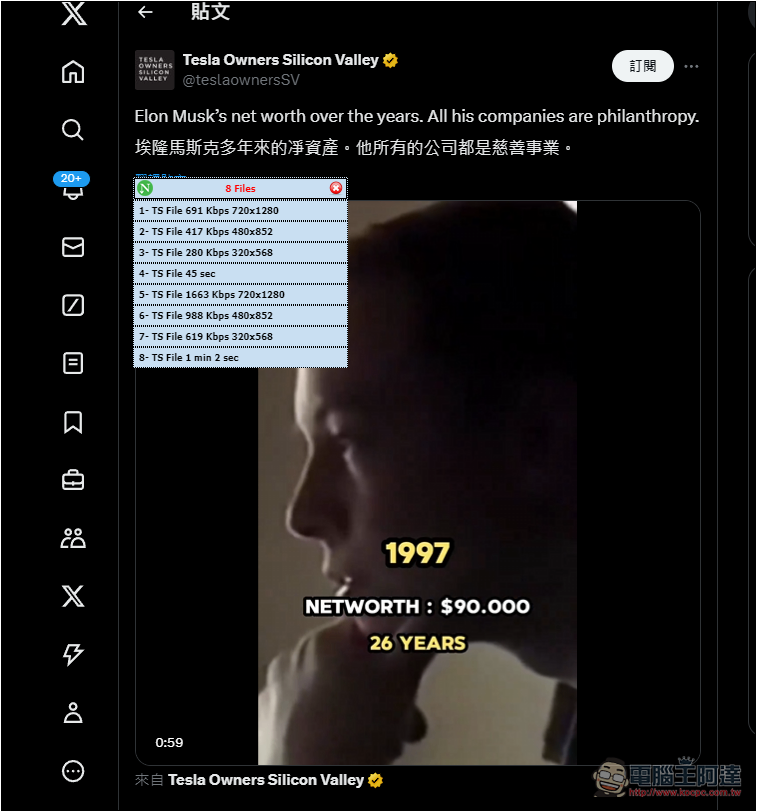
I also tested the Twitter part successfully, but it is in TS format, so if you want MP4, MKV, etc., you need to convert it separately:
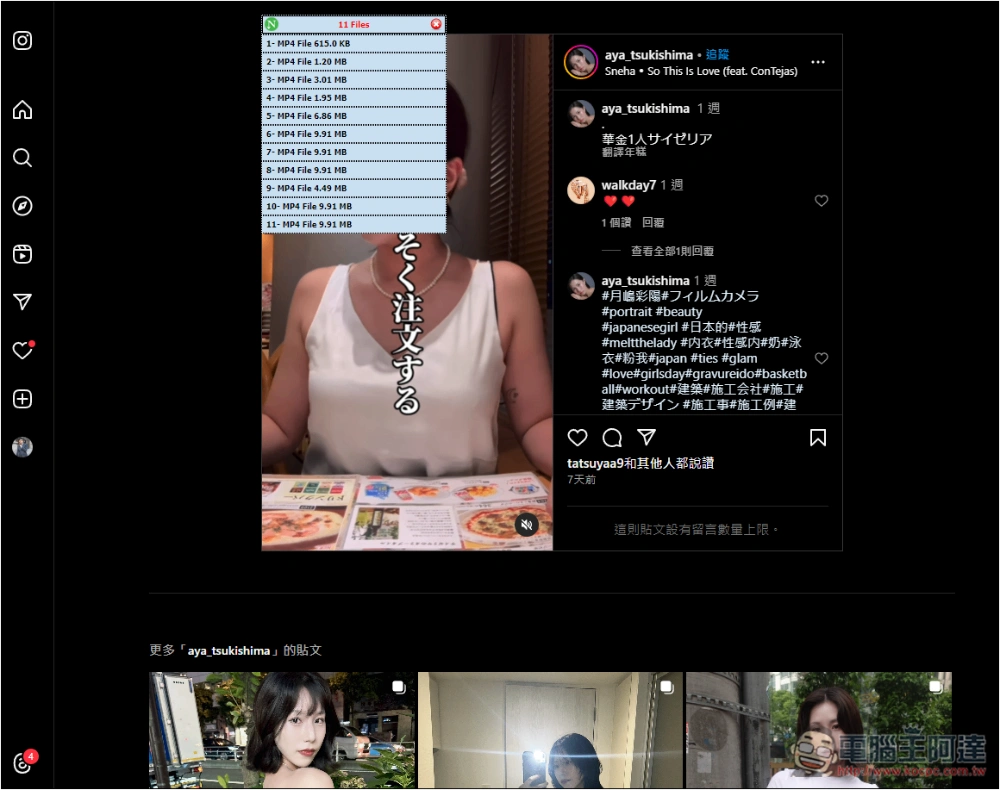
Although Instagram also has a download menu, I tested that the download failed. I am not sure whether it is temporary or not supported:
SoundCloud is no problem, but the format is also TS, not MP3:
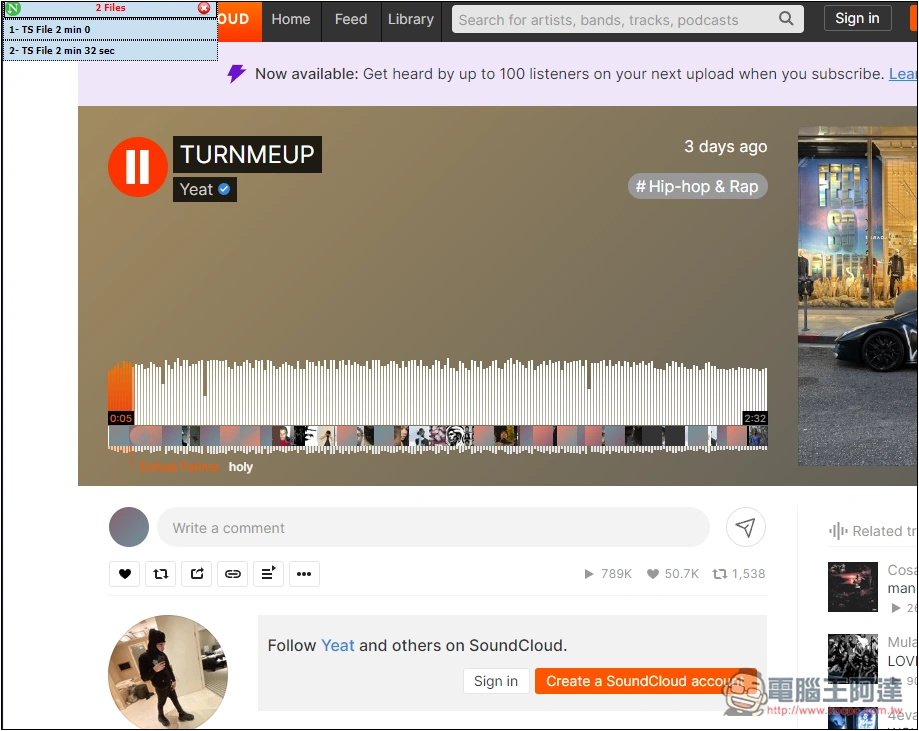
There are no problems with movies on movie websites and gentleman websites, which is pretty cool:

Limit file download speed
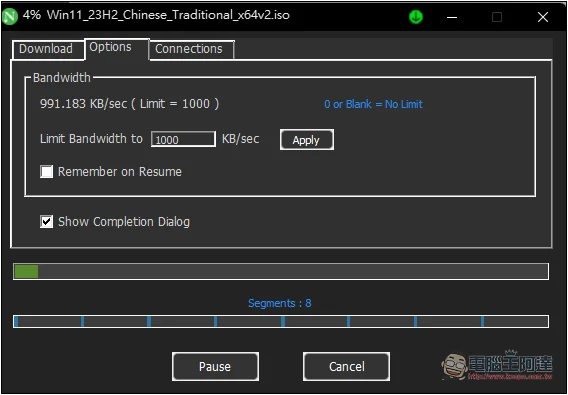
When downloading files, you may worry about slowing down the Internet speed, lag in playing games, etc. Neat Download Manager provides a function to limit the download speed. Open the Options menu and you can find the settings. My original download speed was about 30MB/s. I set the Limit Bandwidth to 1000 KB/s. After pressing Apply, the speed dropped to below 1000KB/s:
Source: KOCPC Chinese