


When making a video, you will definitely need to add subtitles to the video so that the audience can better understand what the content is about. Nowadays, there are many computer software that can do this, but which ones are the best and can quickly add subtitles? Many people must be wondering. This article has compiled the 12 most recommended video subtitle adding tools, both free and paid, so that everyone can quickly find the choice that suits them.

12 super easy-to-use video subtitle software [Recommended in 2024]
1. Movavi Video Editor
- Supported operating systems: Windows, macOS
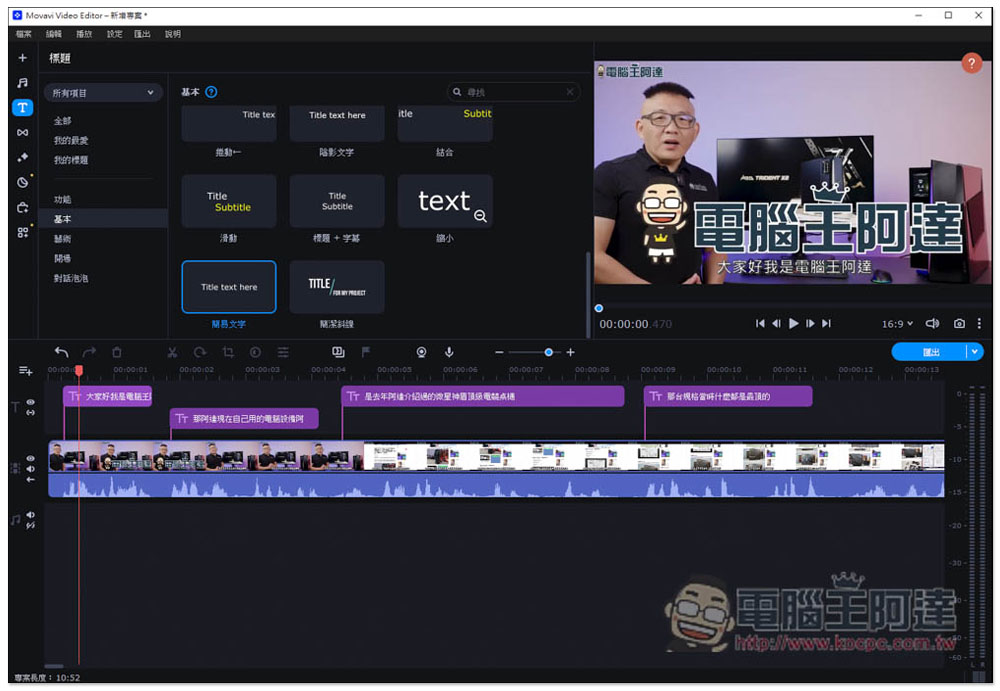
Movavi Video Editor is a powerful and easy-to-use video editing software. It is our most recommended tool for adding subtitles to videos. It is very easy to operate. After entering the text function, select the subtitle style you want and drag it to the track. Enter the text you want and you are done! The subtitle position can be adjusted directly above the video, which is very intuitive.
There are many built-in subtitle styles, such as the staff list that appears at the end of the video, slowly appearing like a typewriter, moving in a specified direction, large titles, and even some artistic styles. They are all preset and can be used by dragging them to the track. You don’t have to make them yourself, which can save a lot of time:
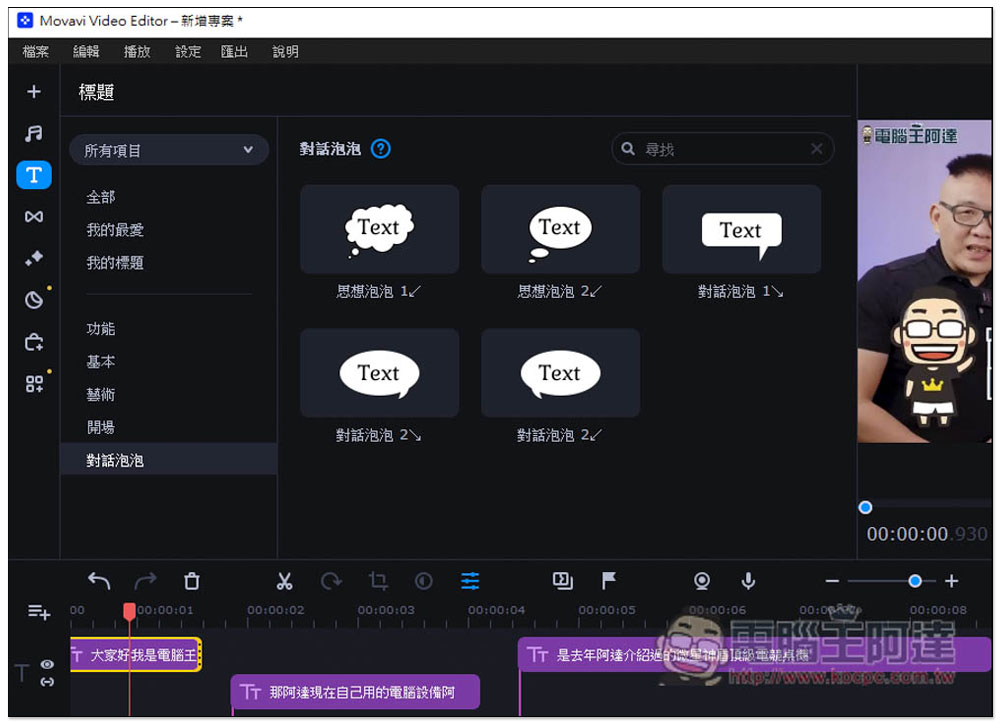
In addition, there are a large number of transition effects, filters, video special effects, and audio effects. If they are not enough, you can download new effect packs from the special effects store, which can quickly enrich your images.
What I like most is that it cuts really smoothly and supports Intel, NVIDIA, and AMD hardware acceleration functions. After the video is cut and subtitled, it can output MP4, AVI, MOV, WMV, MKV and other common formats. If you plan to upload it to YouTube, it also provides a direct sharing function, which is very convenient.
Click me to go to the official website
2. Handbrake
- Supported operating systems: Windows, macOS, Linux
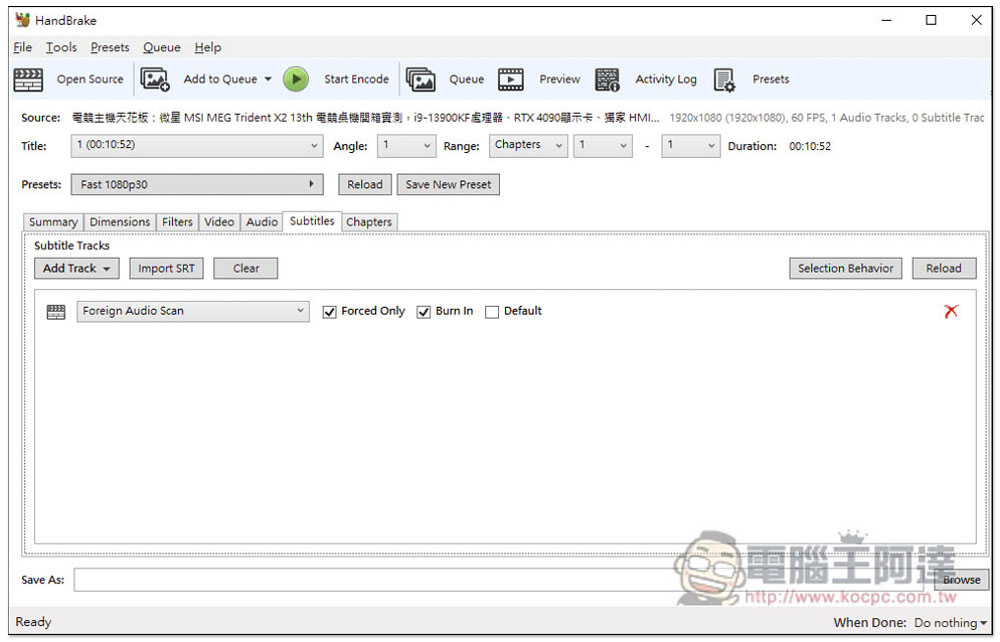
Handbrake is a very well-known free open source video,music formatMany people must have heard of conversion tools. There is a built-in subtitle function, but it can only import SRT subtitle files and merge them with the video. The representative said that you must create the SRT subtitle file first, which is relatively difficult to operate. In addition, it does not currently support Chinese, and the interface is also a bit complicated. For those who are not very good at English or are novices, I would recommend using another model.
Click me to go to the official website
3. Capcut
- Supported operating system: Windows
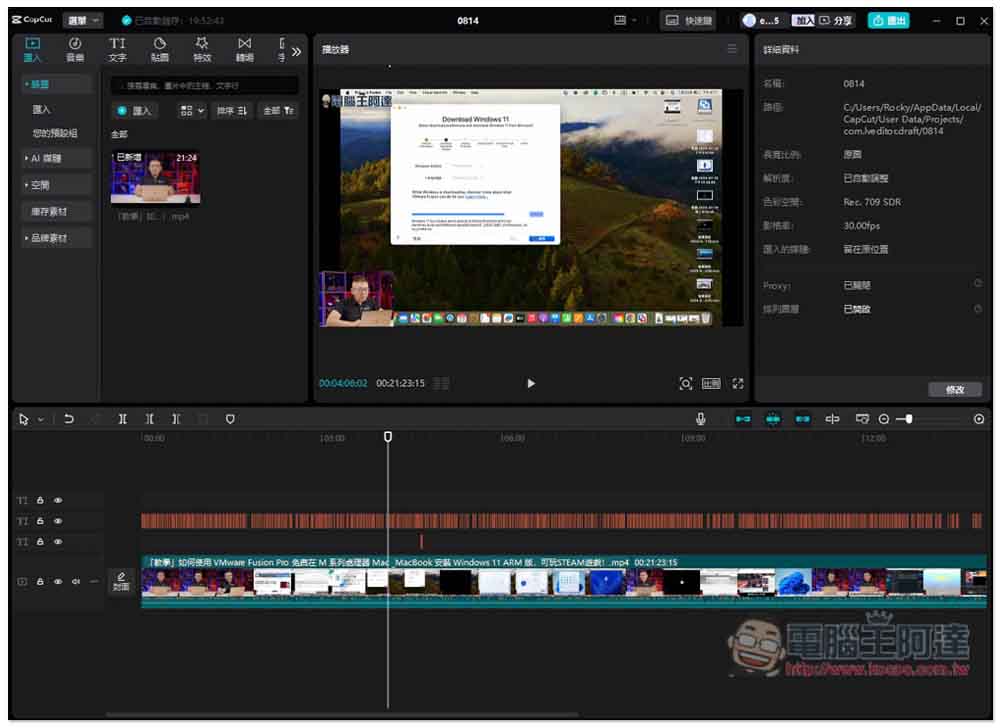
Everyone should be very familiar with Capcut. The video editing software launched in China provides a wealth of subtitle functions, including automatic AI generation, which is quite good, and the recognition accuracy is quite high, which can save a lot of time on subtitles.
However, automatic AI generation requires additional payment, a monthly or annual subscription. In addition, most of the built-in text effects functions are only available in the Pro paid version. Not many can be used in the free version. Pro does not have a one-time buyout option, so the price will not be cheap in the long run.
Click me to go to the official website
4. VLC
- Supported operating systems: Windows, macOS, Linux
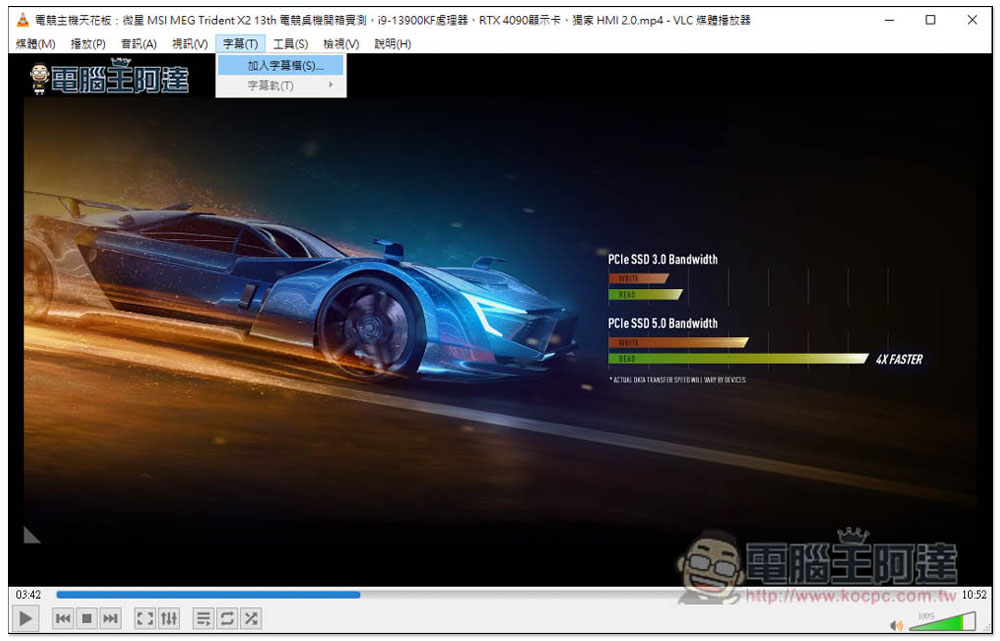
VLC is also a free open source tool. However, this one mainly provides video and music player functions and supports most formats, including DVDs and CDs. There is also a built-in subtitle function, but the way to add subtitles in VLC is to mount the subtitle file, which cannot be merged with the video, and there is no way to target it.imageThe uniquely designed text is only suitable for use when the video you are watching does not have subtitles and you happen to have subtitle files at hand.
Click me to go to the official website
5. VideoSolo
- Supported operating systems: Windows, macOS
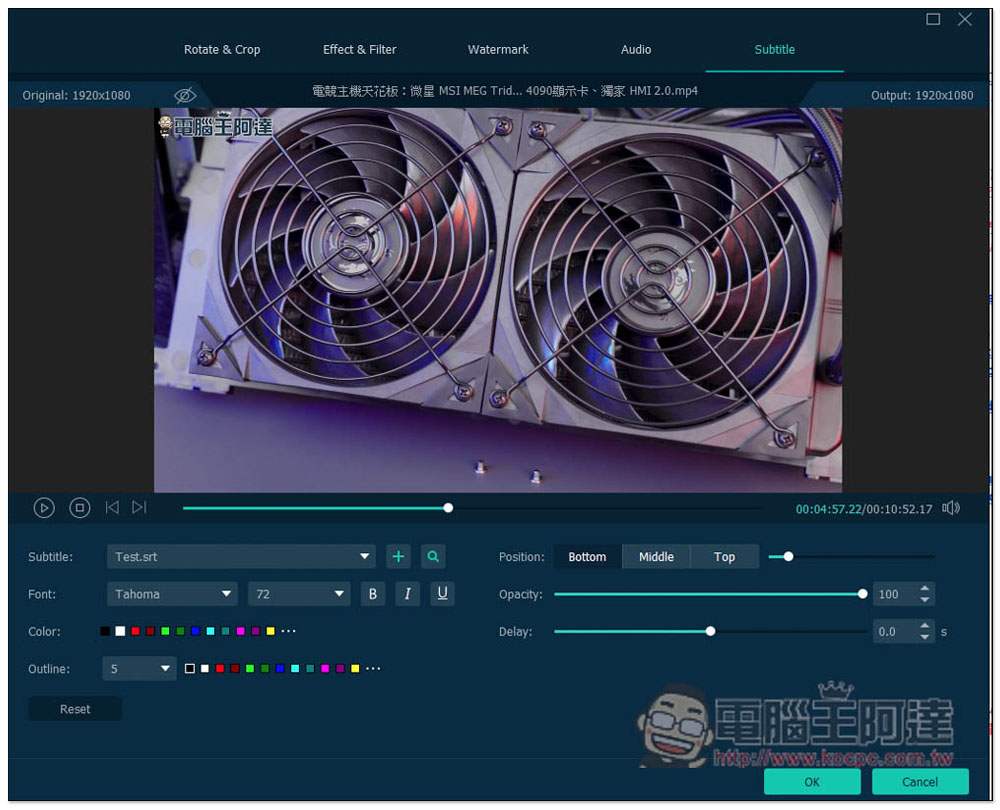
VideoSolo is quite versatile. In addition to adding subtitles to videos, VideoSolo also supports conversion to more than 1,000 formats. Common MP4, AVI, MOV, WMV, MKV, WEBM, VOB, etc. are available. In addition, there are simple MV creation functions, video and photo collage, and 20+ gadgets. However, it does not support Chinese, and the free version also has many restrictions, such as modifying videos only within 5 minutes.
As for how to add subtitles, this one also merges subtitle files, but some settings can be adjusted manually, such as: font, font size, color, transparency, and position.
Click me to go to the official website
6. Filmora Wondershare
- Supported operating systems: Windows, macOS
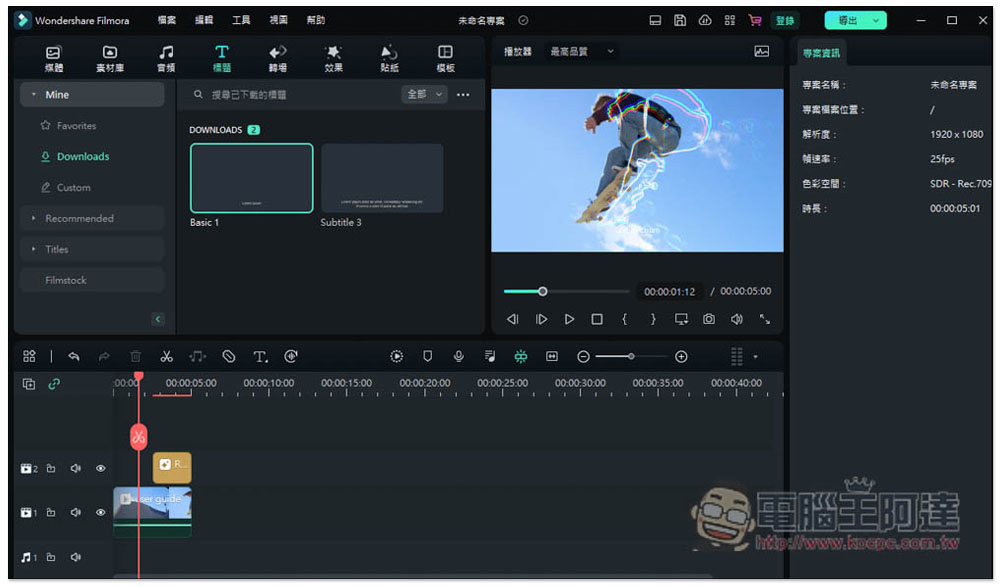
Like Movavi Video Editor, Filmora Wondershare is also a video editorcomputerSoftware that can edit videos and add subtitles. In the subtitles section, in addition to general subtitles, there are also built-in special effects subtitles and titles, and the operation is quite simple. But what is quite strange is that the current Chinese language is not complete. Although the main functions are in Chinese, the details under each function are still in English.
In addition, you need to log in to your Wondershare account when exporting. There will also be a watermark after the free version of the video is exported.
Click me to go to the official website
7. EaseUS Video Editor
- Supported operating systems: Windows 10/11/8/7
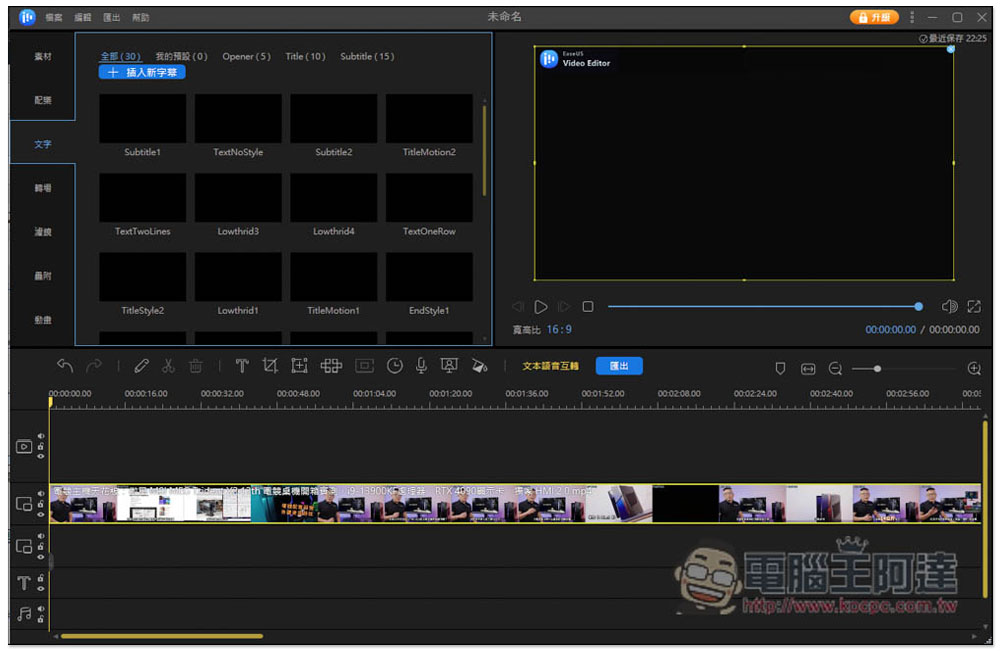
The video editing software launched by EaseUS also has many built-in video special effects. It also provides subtitle effects, including opening, title and general subtitles. Each subtitle can also be adjusted to the style you need. It is very comprehensive. In addition, it also supports most commonly used formats when outputting, and you can select the device you want. However, I don’t think the stability is very good. During the test, it crashed many times, and the subtitle style cannot be previewed as a thumbnail.
The free version cannot use special effects, and the video will also have a watermark when output.
Click me to go to the official website
8. VideoProc Converter
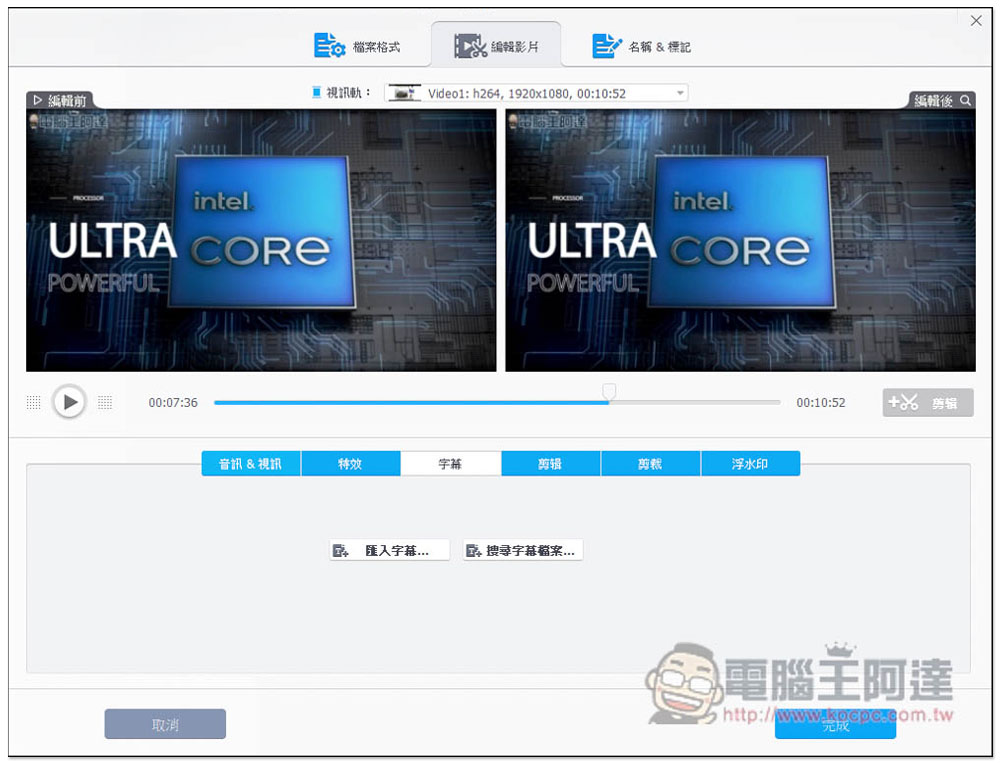
- Supported operating systems: Windows 7/8/8.1, Windows 10/11, Mac
VideoProc Converter should be familiar to everyone. Its main feature is its powerful video conversion function, which supports more than 400 file formats. It also provides simple video editing, including adding subtitles. However, you cannot enter text manually. It uses a merged subtitle file method to adjust the position and font of the subtitles you want to place. In addition, when I tested, I encountered that the preview video was not so smooth, and there would be lags.
This software often has limited free activities, so it is recommended to wait until it is free before downloading, instead of spending money to buy the paid version.
Click me to go to the official website
9. Veed.io
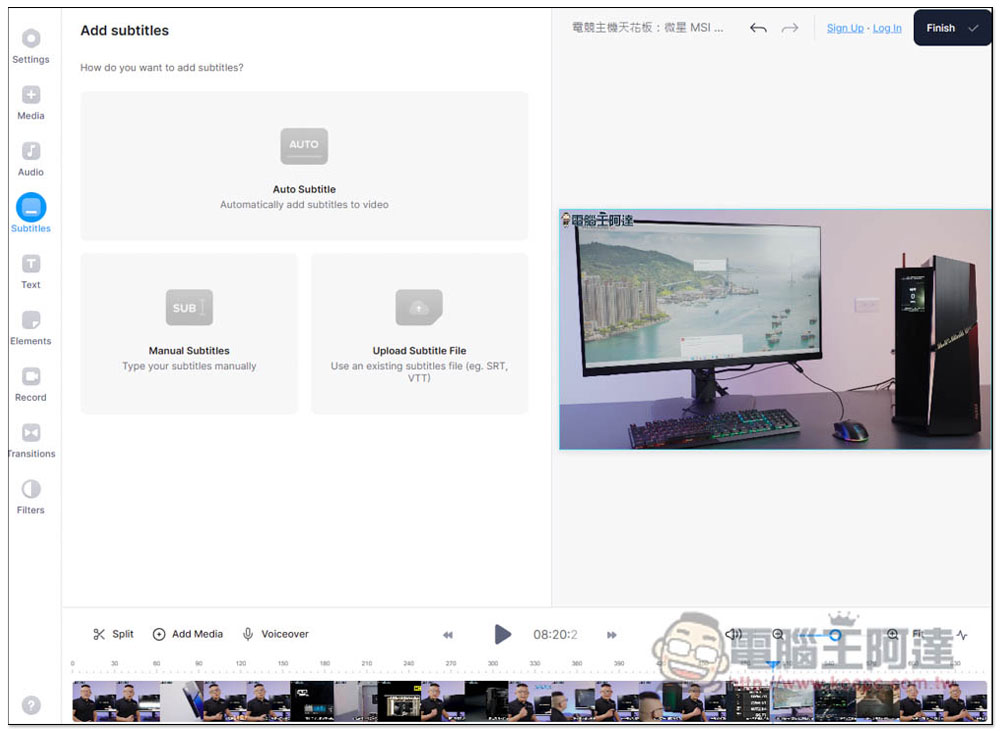
- Support operating system: you can use it with a browser
Veed.io is a multi-functional online video editing tool. When editing, the video needs to be uploaded to the server, so the network cannot be too slow. Basic video editing tools are available, and it also provides functions such as filter effects, transitions, audio, and subtitles. In addition to manually inputting subtitles and merging subtitle files, it also has built-in AI automatic recognition technology, but this requires additional payment and is not cheap. The interface is currently only in English.
Click me to go to the official website
10. BeeCut
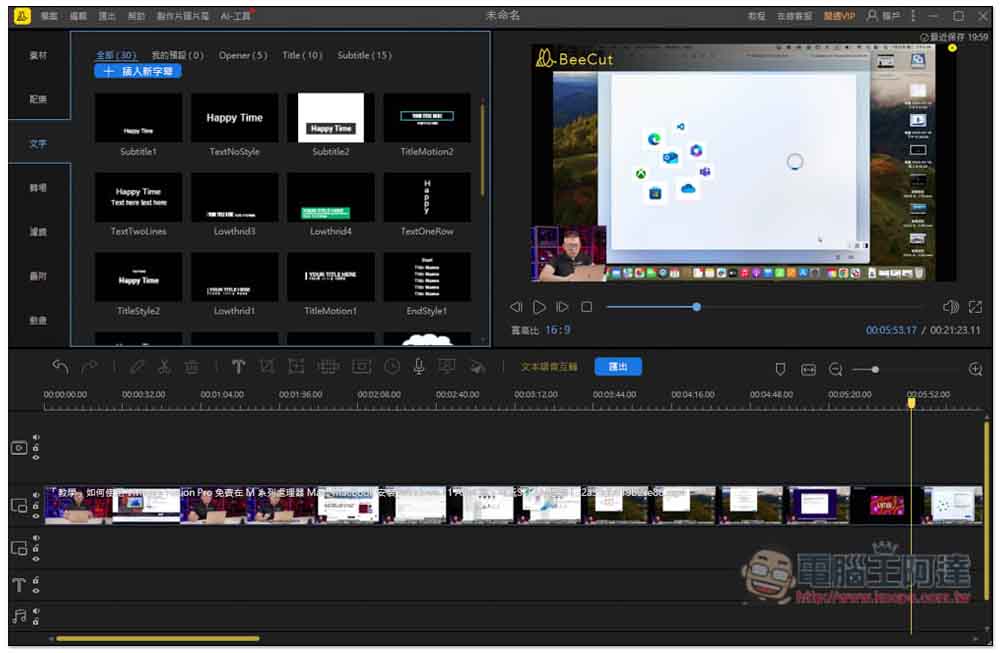
- Supported operating systems: Windows, Mac
BeeCut is a feature-rich video editing software with a large number of built-in materials, ranging from soundtracks, transitions, filters, text, etc., all available for free. However, the only major drawback is that the free version has an obvious BeeCut watermark, which is placed in the upper left corner. To remove it, you must upgrade to the paid version.
The text effects are quite basic, and adding subtitles is quite simple. It also provides a variety of AI tools, including AI subtitles, but it needs to be paired with another RecCloud AI subtitle software, which is not a built-in function.
Click me to go to the official website
10. Clideo Video Editor Online
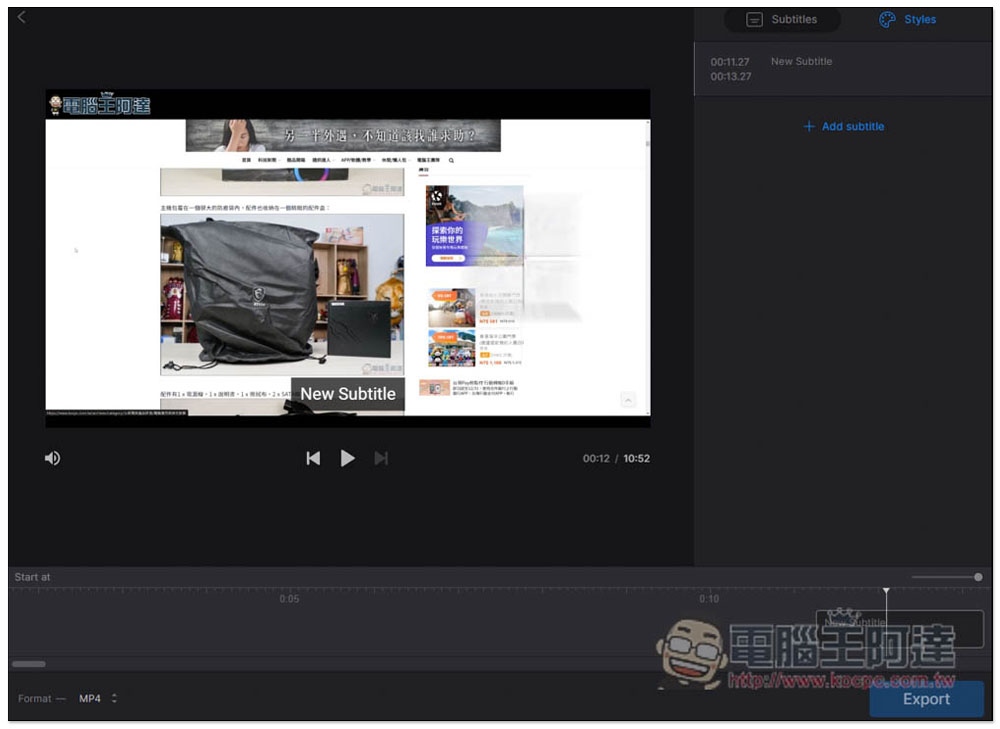
- Support operating system: you can use it with a browser
Clideo Video Editor Online is also a foreign online video editing tool. Unlike Veed.io, it separates the subtitle function. If you just want to add subtitles, you don’t need to enter the editing background, and the operation is relatively simple. Manual input, uploaded subtitle files, and AI automatic recognition are all supported. There is also no Chinese interface, and I think the upload and processing speed is a bit slow, so you need a little more patience when using it.
Click me to go to the official website
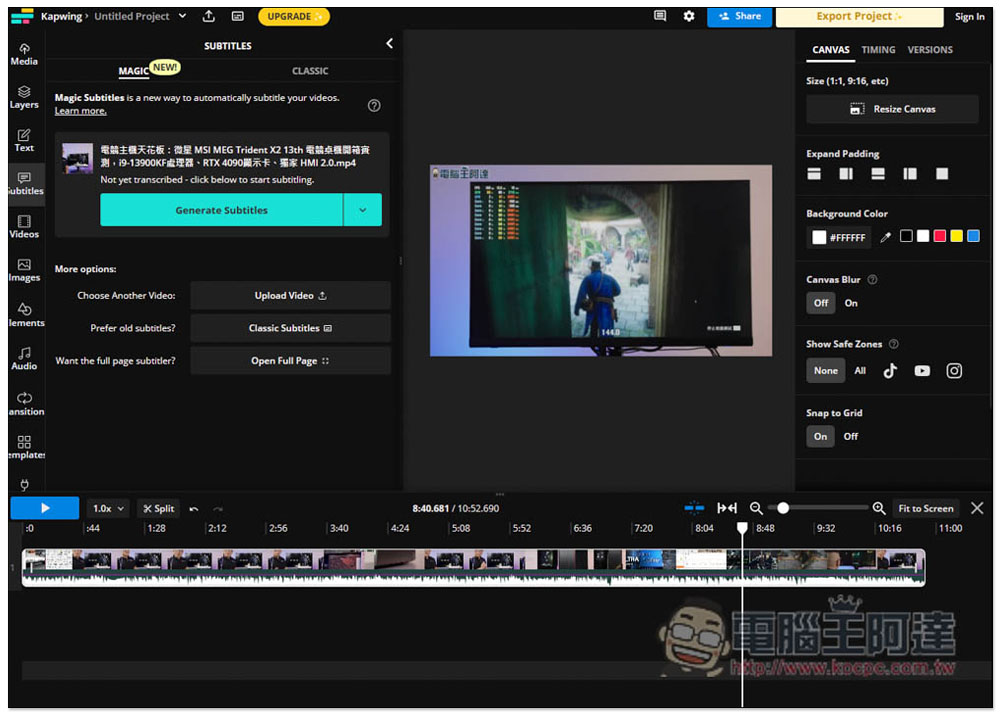
12. Kapwing Video Editor Online
- Support operating system: you can use it with a browser
Kapwing Video Editor Online should be the most feature-rich among the three online video editing tools recommended in this article, as you can feel just by looking at the screenshot above. As for the subtitle function, it can be manually input, merged, or automatically generated using AI. It is relatively simple to use, and the upload speed is acceptable. However, having more functions means that the interface will become more complex, which will be more difficult for novices to get started, especially those who do not understand English well.
Click me to go to the official website
Summarize
The above is the best subtitle software we have compiled in 2024. The operation methods of each one are different, so it is difficult to explain in detail how to add subtitles. For novices or people who want to save time, we recommend using the first one directly.
Source: KOCPC Chinese