


Why do I always miss important notifications from LINE? Our lives are filled with messages and notifications, especially on instant messaging software such as LINE. Sometimes, we may miss important notifications due to certain system settings. This may not only lead to communication difficulties, but may even cause people to misunderstand that we deliberately do not reply to messages. In order to solve this problem, this article will share some simple and practical setting methods so that you will no longer miss any important messages and call notifications. Whether you are an Android or iOS user, you can easily master these tips to ensure that LINE notifications are never absent!

Tips for using LINE: Master these settings to get more real-time LINE notifications!
Have you ever been waiting for an important message but never received the notification? Or even being misunderstood and not replying? Don’t worry, this article will share with you how to make sure you receive all important notifications and call alerts from LINE on your Android and iOS devices!
Tips for iOS users: Never miss any notifications
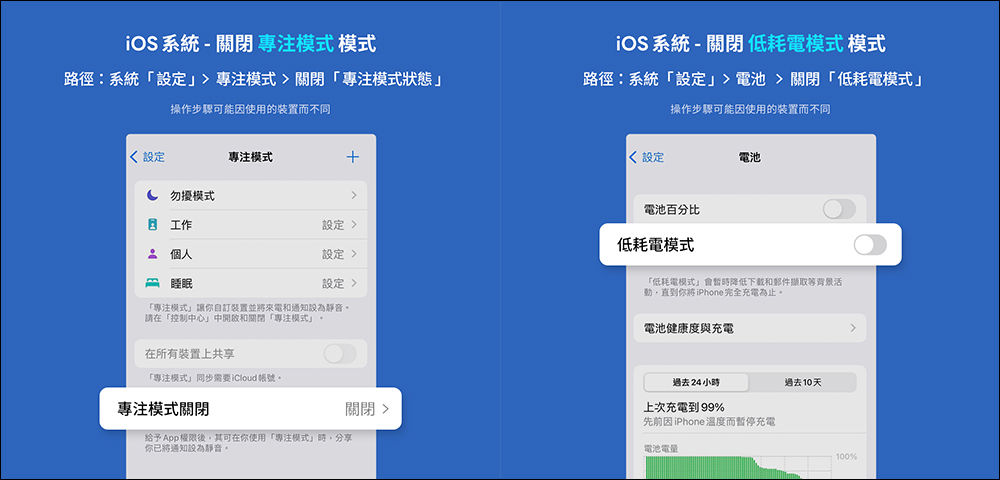
Turn off “Focus Mode” and “Low Power Mode” It’s best to turn these modes off when you need to receive notifications instantly. Both Focus Mode and Low Power Mode may delay or block the delivery of notifications.
- Path 1: Settings > Focus Mode > Turn off Focus Mode
- Path 2: Settings > Battery > Turn off Low Power Mode
Finally, I would like to remind everyone that in addition to the notification settings in the LINE application, the system settings of the device itself are also important. I hope these tips can help you never miss any important messages or call notifications!
Notice: Different brands of devices and operating system versions may be different, and the set paths and displayed options may also be different. If you have any questions, it is recommended to contact your mobile device manufacturer or telecommunications company customer service directly and let professionals help you solve the problem.
Must-see for Android users: Set up LINE notifications
-
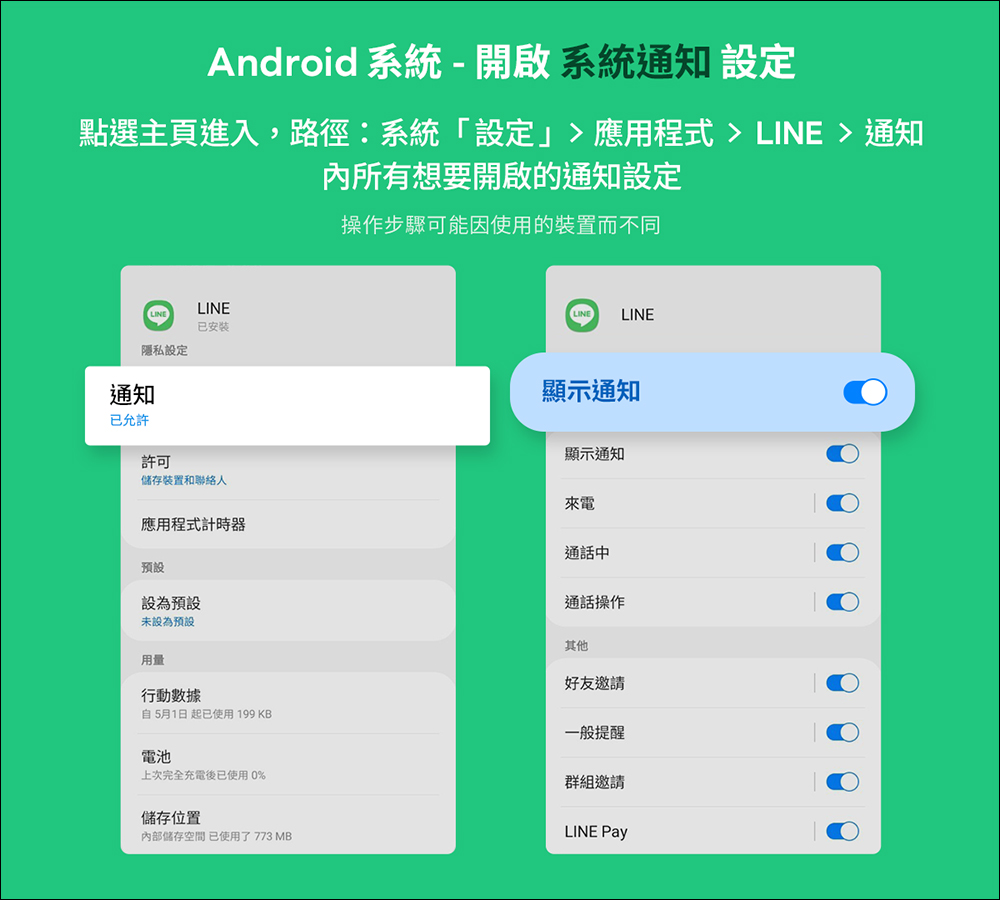
Make sure notifications are turned on:
First, make sure you have allowed LINE to send notifications in your system settings.
You can check and turn on relevant notifications by following the following path: Path: Settings > Apps > LINE > Notifications
-
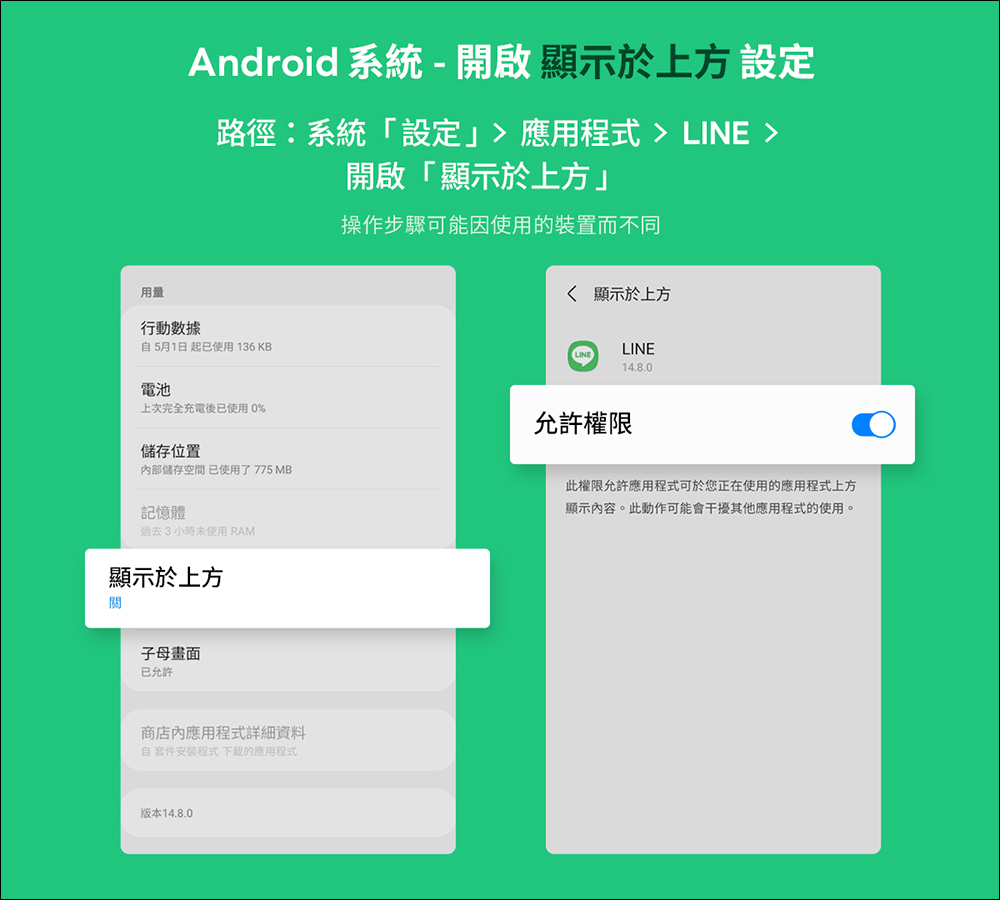
Turn on “Show above”:
Some Android devices may call this feature “Show on top of other apps,” which ensures that LINE notifications are displayed in real time when using other apps.
Path: Settings > Apps > LINE > Turn on “Show above”
-
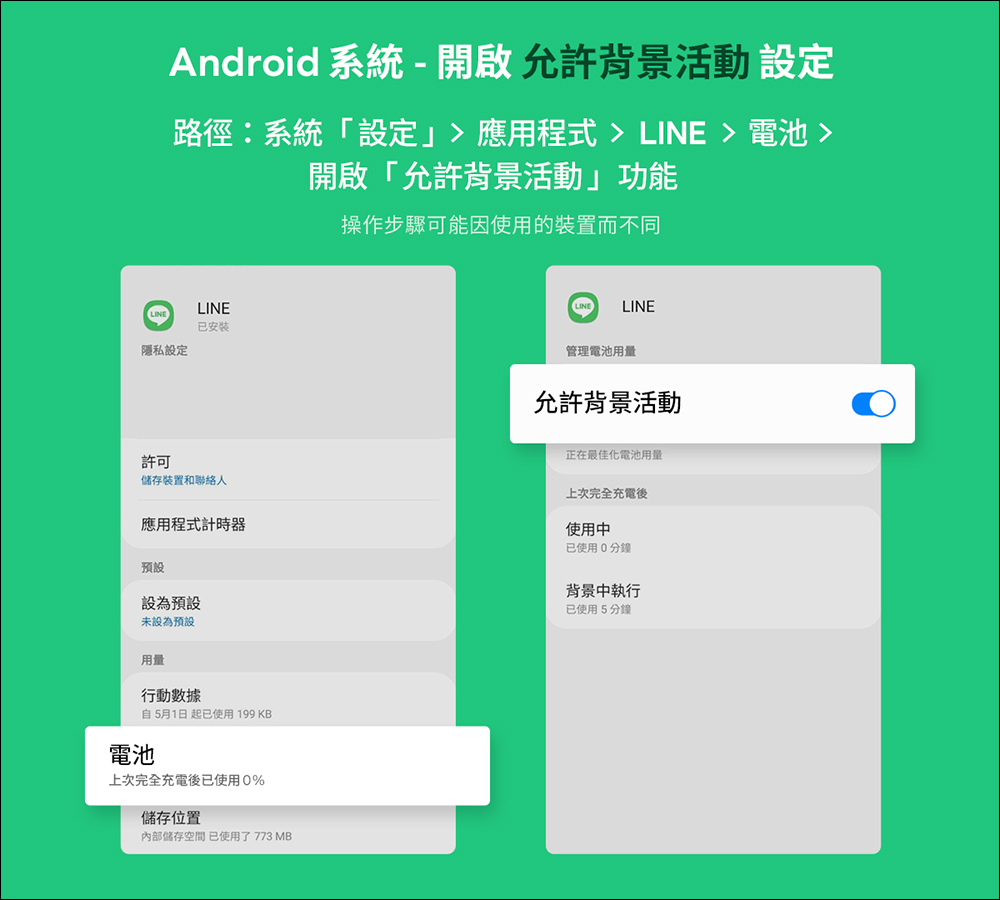
Allow LINE to run activities in the background:
In some cases, battery saver mode may prevent apps from running in the background, affecting the timeliness of notifications.
You can enable background activity through the following steps: Path: Settings > Apps > LINE > Battery > Allow background activity
Further reading:
iOS 17.6 battery life test results are out, iPhone 15 and other models have improved battery life

Source: KOCPC Chinese