


Recently I found this very useful free video compression tool “Rotato Video Compressor” on the Internet. Although it is a web page, it runs completely locally. It means that you don’t need to upload your video, just open the browser to compress the video.
I tested that a video can be compressed to almost half its capacity, and when I checked the video quality, I couldn’t see any difference to the naked eye. It’s really powerful. I recommend it to everyone to try.
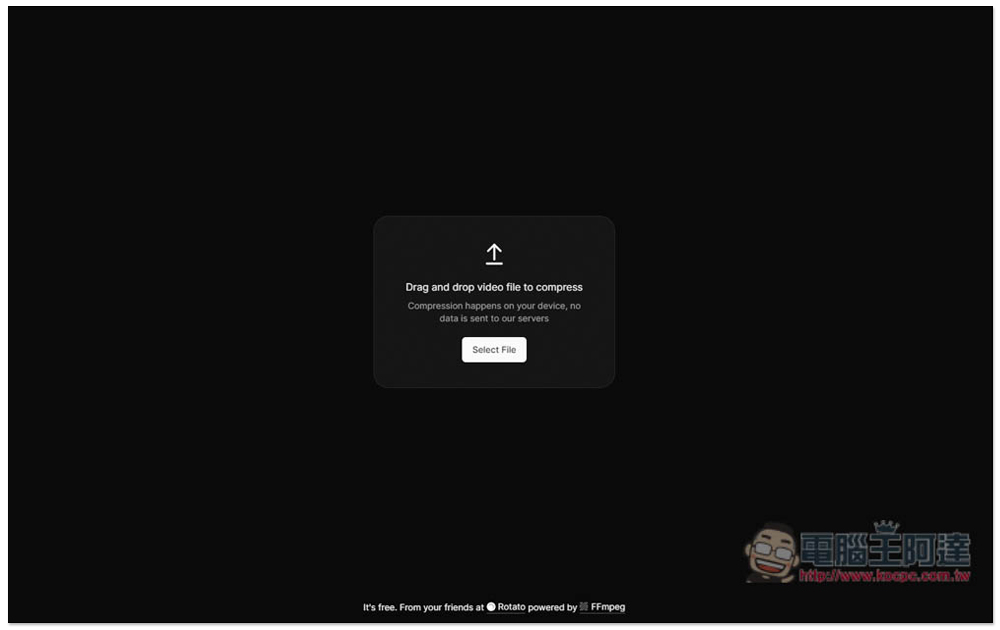
Rotato Video Compressor is a super easy-to-use free video compression tool that cuts the file size by almost half without affecting the image quality.
Rotato Video Compressor is a web compression tool developed based on FFmpeg, so for those who know how to run it locally, this has the same effect as the following code:
ffmpeg -i "input.mp4" -c:v libx264 -tag:v avc1 -movflags faststart -crf 30 -preset superfast "output.mp4"
However, with the web interface, it is easier to use for most people, and it can be used on mobile devices such as iPhone and Android.
But there is a limit in my test. The file capacity cannot exceed 1900000000 bytes, which is about 1.7GB. If it exceeds, it cannot be compressed and an error message will pop up.
In addition, if your video file has been compressed, then using this tool to compress it will not have any effect, and you may even get a -% compression effect (the file will become larger).
After clicking the link above to enter the webpage, you can drag in or select the video you want to compress. Because it is running locally, there will be no uploading action, and compression will start immediately after the video is imported:
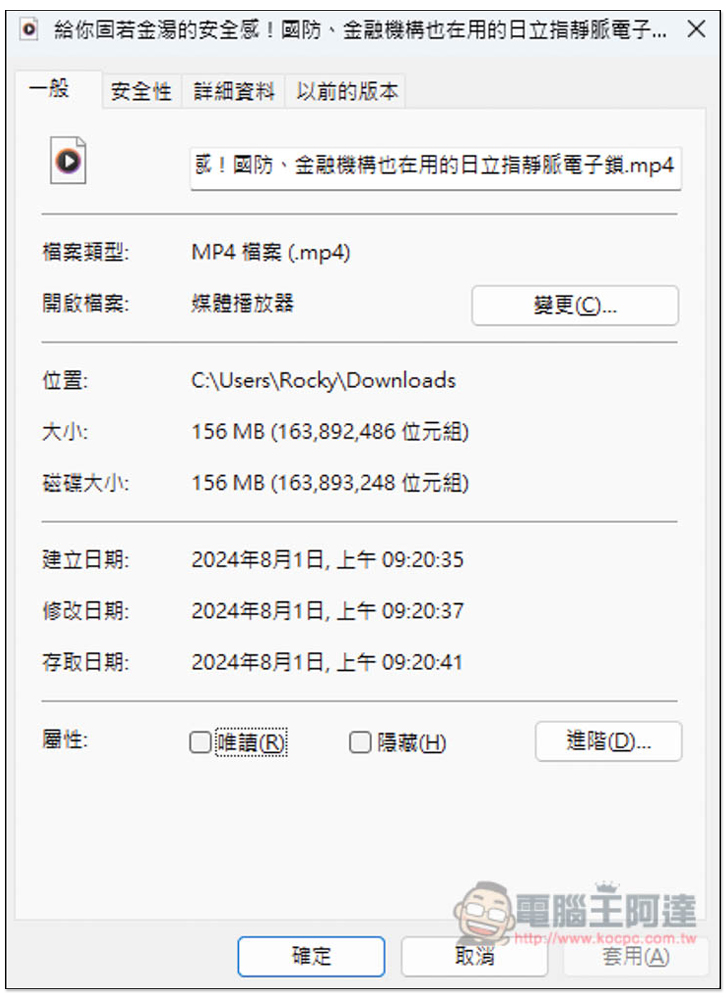
I tested the latest video from Ada’s YouTube channel, which turned out to be 156MB:
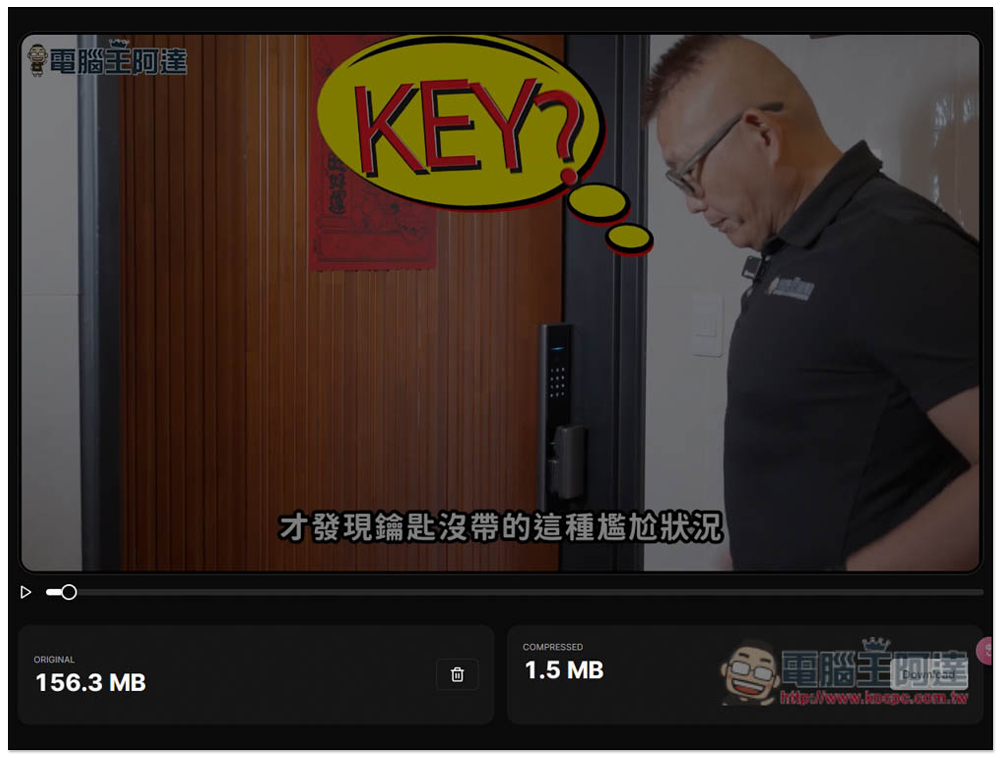
When compressing, the video will play quickly segment by segment, and the current compressed capacity will be displayed in the lower right corner in real time, just wait until it is all finished. The compression speed is not very fast. For my video, it took about 3 minutes to complete:
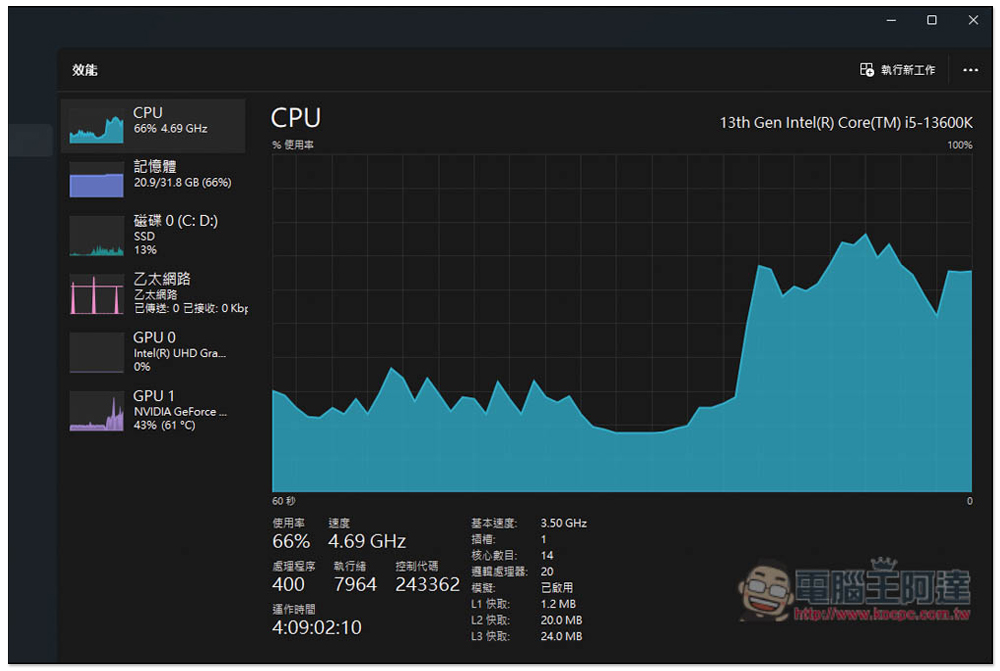
In addition, the CPU will be used. You will hear the CPU fan become very loud, and the CPU usage will increase instantly. For those who use lower-end processors, it is recommended not to do other things during the compression process:
After completion, the lower right corner will show how much compression has been achieved. The compression of my video reached nearly 50%, which is really fierce. Click Download on the right to save the compressed file to your local device:
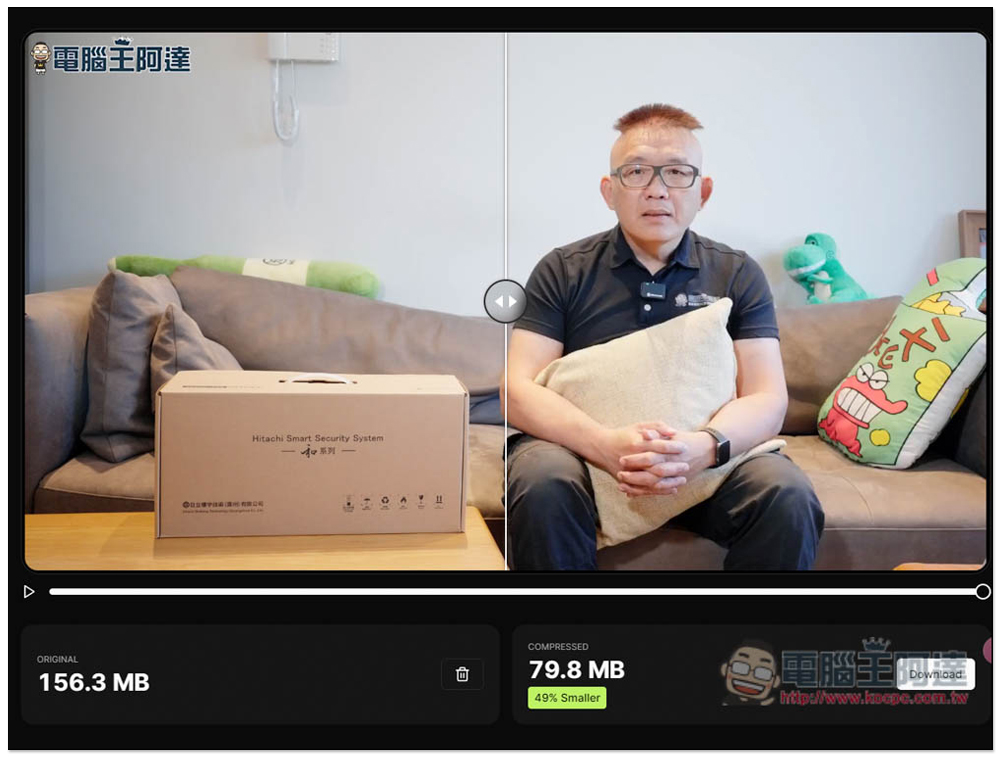
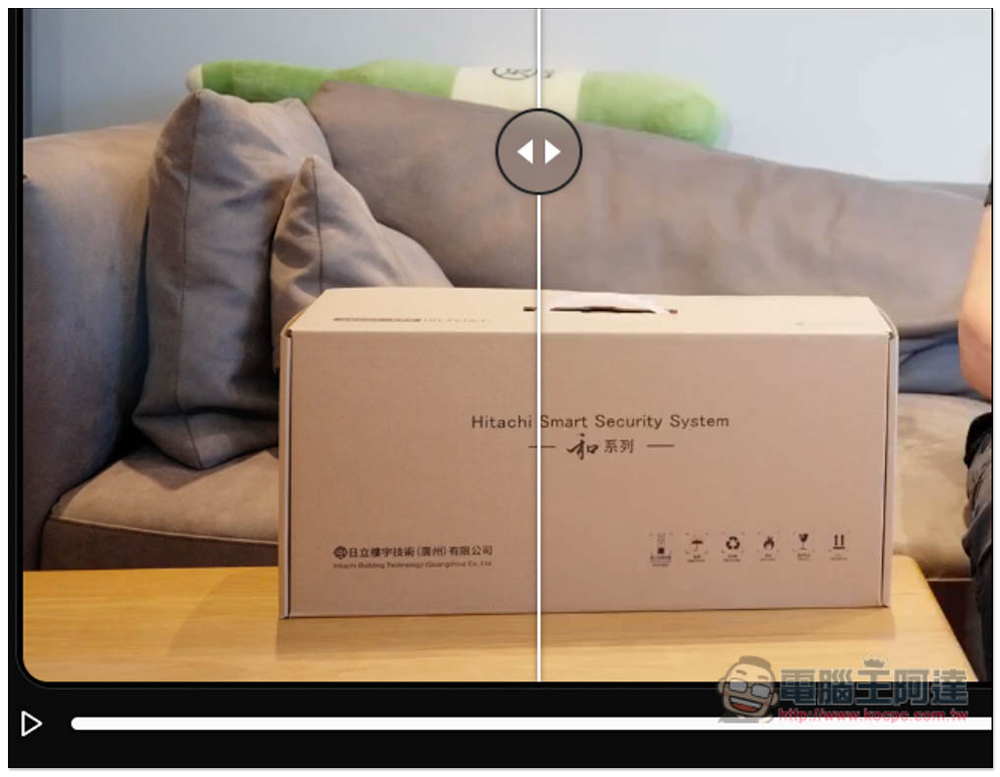
There is also an adjustment lever on the screen to help you compare the image quality before and after compression. There is almost no difference:
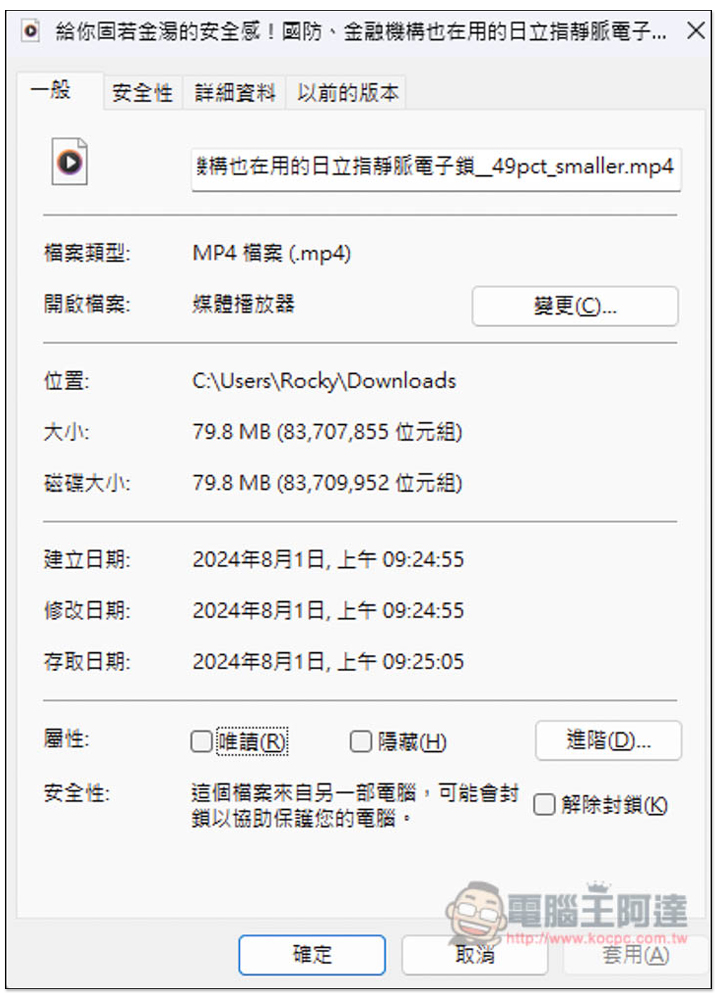
I checked that there is indeed only 79.8MB left in the file, and the resolution is still 1080p:
According to the developer, this tool can compress videos up to 90%, but the video file size he showed is very small, only 27MB. It is speculated that the smaller the size of the video, the better the compression will be.
Weird how most videos are 90% heavier than they have to be. I made a tool for that: pic.twitter.com/xK6RNqwV7Y
— Morten Just (@mortenjust) July 29, 2024
If the capacity does not change or becomes larger after you compress it, it is possible that the video has been compressed before.
Source: KOCPC Chinese