


The “Circle to Search” experience has been gradually launched on Android and iOS mobile platforms, and is now confirmed to be ready to be added to the desktop system. Continue reading The “circle search” experience comes to the Google Chrome browser, but you can only frame (eh) the content of the report.
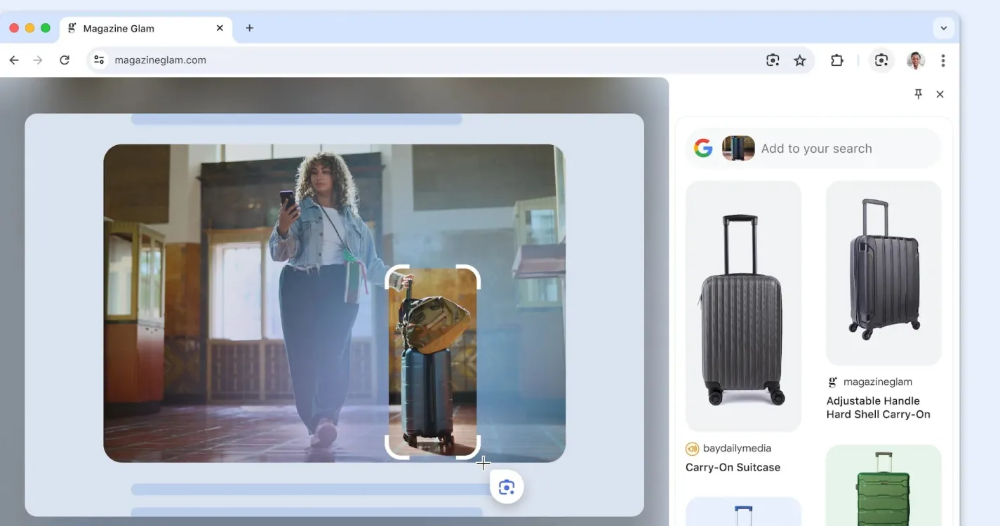
▲Image source: Google
The “circle search” experience comes to Google Chrome, but you can only draw frames (eh)
Even in the face of competition from Microsoft and OpenAI SearchGPT in the search field (see more:OpenAI generative search SearchGPT quick function preview, join the early test qualification!), but Google is still steadily using its extensive Chrome ecosystem to actively and continuously promote new-generation search functions to enhance user stickiness.
And their “Circle to Search” experience by directly circling the target on the screen has also been gradually launched on the Android and iOS mobile platforms. Now it is confirmed that it is ready to be added to the desktop system, instantly bringing Google’s latest experience to the PC / Mac / ChromeOS platform.
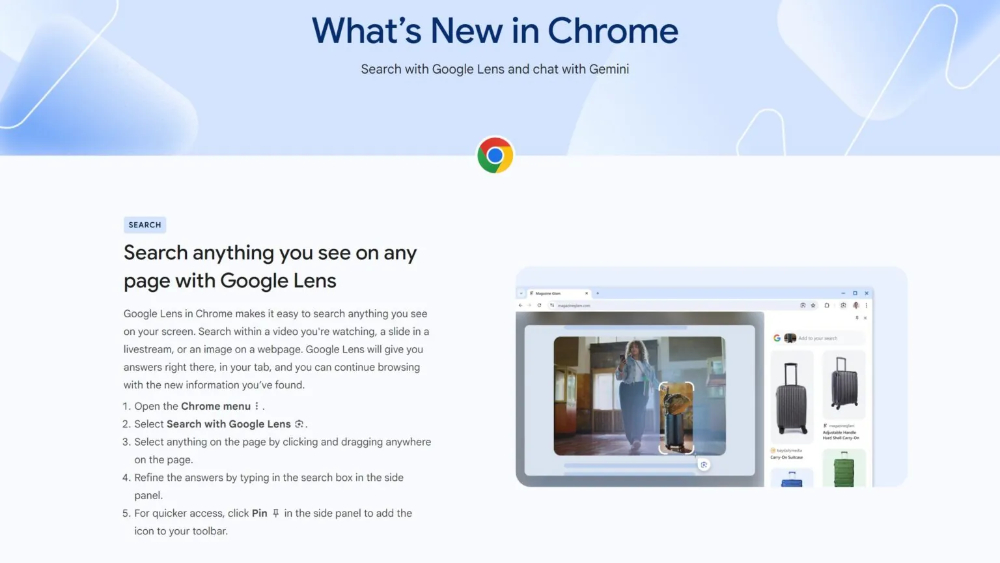
▲Image source: Google
Choose in Apple Intelligence version of Siri surprises in iOS 18.1 developer betaAt this point in time, Google seems not to be outdone and also confirmed that it has released a circle search experience corresponding to the desktop system in the Chrome 128 Beta version.
The most interesting thing is that Google has resolutely abandoned the concept of drawing circles and used the most intuitive box selection experience of the desktop system to perform such a function – the name has also been changed to “Drag to search” (laughs).
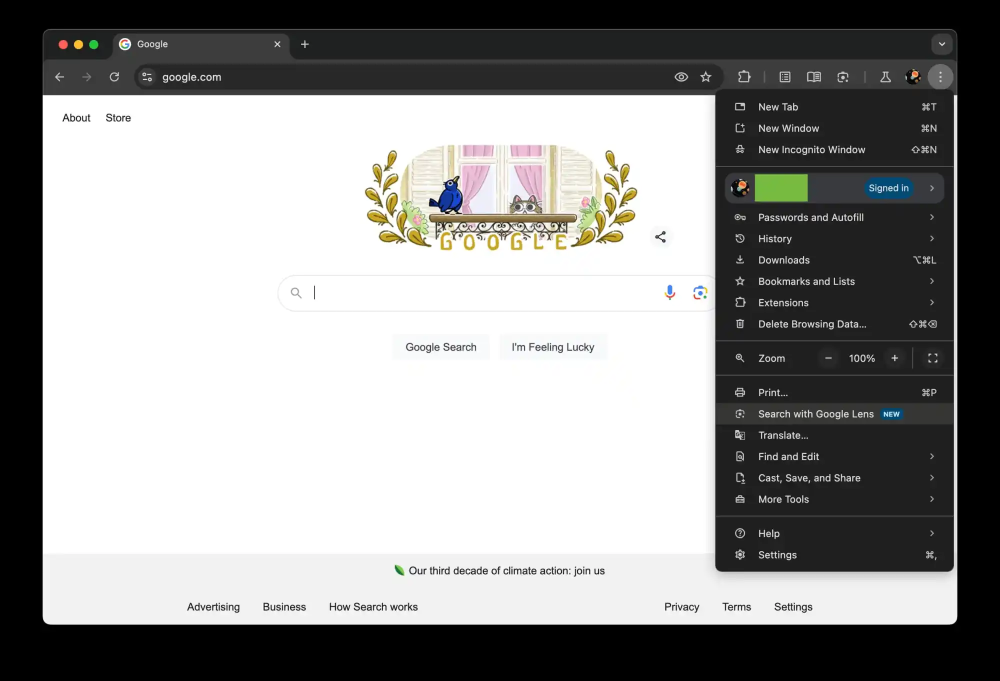
▲Image source: 9to5Google
Similar to the experience on mobile systems, this feature is basically one of the features of Google Lens. Therefore, after you install a supported version of the Chrome browser/system, a “New” new function icon will appear behind “Search with Google Lens” in the system menu; or you can click the Google Lens icon on the right side of the omnibox in the address bar.
After clicking in, the system will prompt you to select the image to search – basically this experience is the same as the screenshot function in the picture area, except that after taking the screenshot, you will see the image-related search results appearing in the sidebar of Google Smart Lens, and frame the image content.
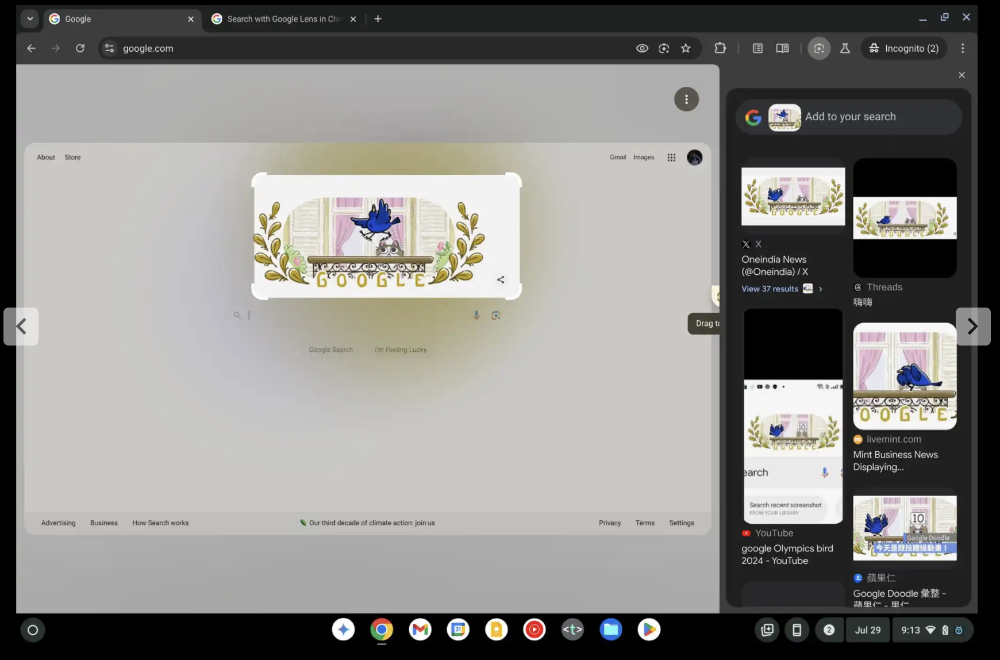
▲Image source: 9to5Google
According to the latest official “What’s New in Chrome” description, this feature makes it easier for you to search for anything on the screen through Google Smart Lens. This includes videos you are watching, slideshows in your live stream, or images on web pages. The official usage steps are as follows (English translation):
- Open the Chrome menu.
- Select “Search with Google Lens.”
- Click and drag any area on the page to select content.
- Type text into the search box in the sidebar to refine your answer.
- For quick access, click “Pin” in the sidebar to add the icon to the toolbar.
It seems from the description that this experience can also add other search text to the sidebar. Google also encourages everyone to pin this feature to the toolbar for quick access if they like this feature. Judging from the current pace, it is not surprising that Drag to search will appear in the official version of Chrome sooner or later.
Quote sources:9to5Google
Further reading:
Evidence shows that Gemini AI image generation will support continuous editing functions
Source: KOCPC Chinese