


You may no longer use traditional mechanical hard disks (HDD), SSD has become the new favorite of most people. SSDs are nowhere near as expensive as they were 5 to 10 years ago, so mainstream users have no reason to sacrifice the responsiveness and read and write speeds they seek. But even though you may have been using an SSD on your desktop or laptop for years, you may not be aware of some of the everyday things you do that shorten the life of your SSD. Just like HDDs, SSDs have a limited lifespan, and you may unknowingly do things that may shorten that lifespan.
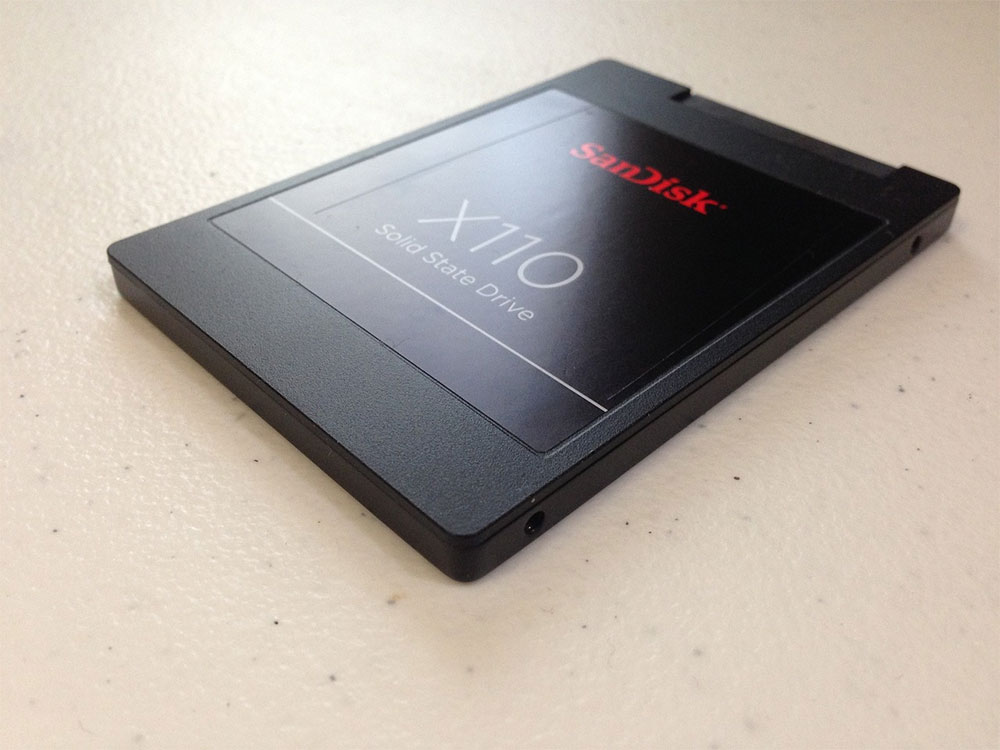
5 things that may shorten the lifespan of your SSD
1. Reduced cooling capacity of laptop
Cooling efficiency is a bigger issue for laptops than for desktops, since there’s plenty of space for SSDs on desktops and plenty of vents on the case to help dissipate heat, allowing it to run relatively cool. However, on laptops, overheating occurs more often due to limited internal space and common user habits. There are a few changes you can make to your usage habits to ensure your SSD doesn’t lose its cooling capacity.
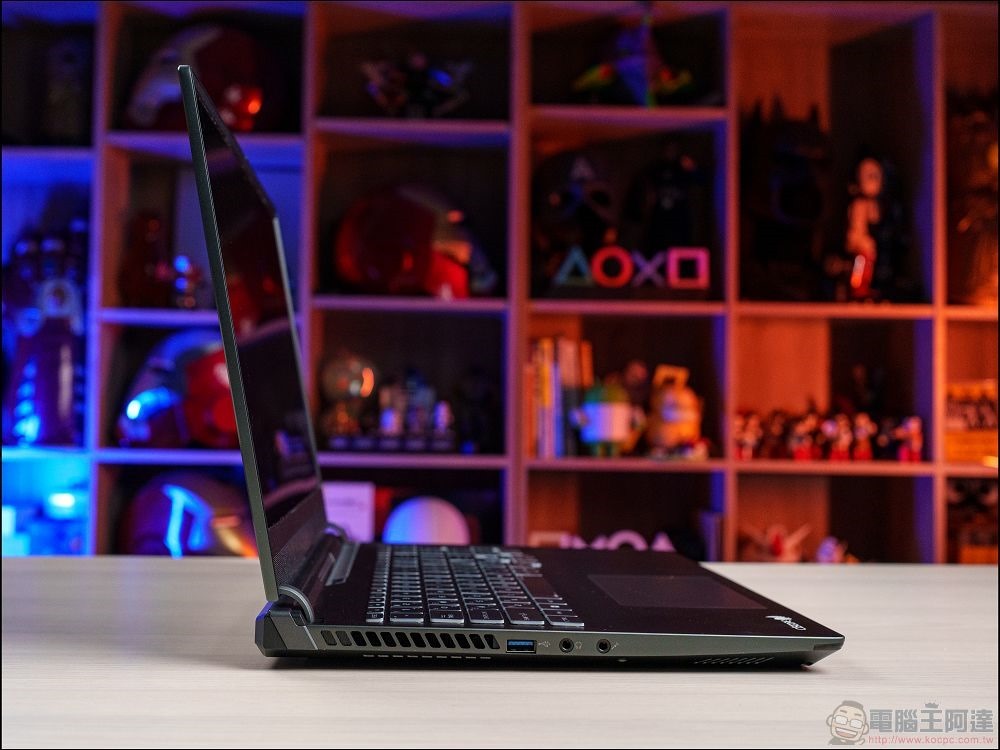
Using a laptop while lying on a bed or sofa may clog its air inlets and exhaust vents, raising internal temperatures and affecting SSD performance. If you have a habit of placing your laptop on a blanket, quilt, or mattress, you may end up harming the lifespan of your SSD over time. Heat is the enemy of every PC component, so you should use your laptop on a table or other flat surface to avoid blocking the vents.
2. Failure to clean the computer for a long time
This applies to desktop computers and laptops, as dust accumulation reduces the amount of fresh air entering the computer. On laptops that already have insufficient air vents, air vents blocked by dust will cause the temperature inside the system to rise rapidly, affecting the SSD and other components. Although less noticeable on a desktop computer, excessive dust buildup can eventually lead to the same result.
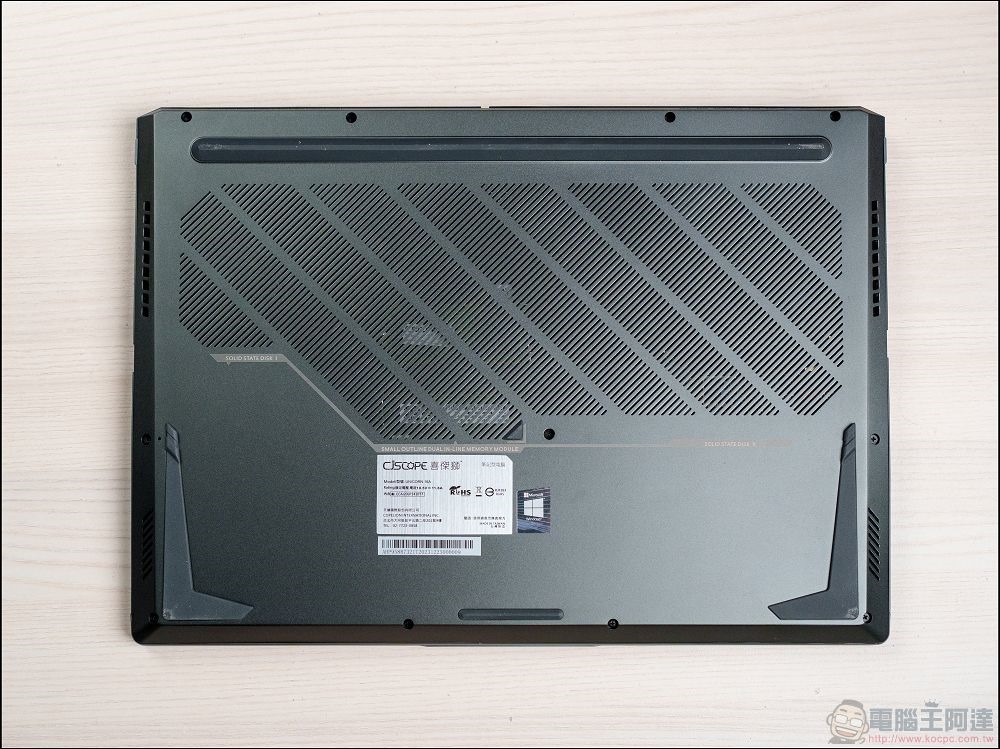
Preventing this from happening is simple: spend some time cleaning out dust from your computer case or laptop vents. Cleaning your computer regularly will prevent excessive dust accumulation in the first place, which can reduce SSD performance or damage internal parts. It might not be easy to find time in your busy schedule to perform maintenance, but if you want your SSD and other components to last a long time, it’s definitely worth spending a little time cleaning.
3. No heat sinks are used on high-performance SSDs
Not all SSDs require a heatsink, but if you’re using one of the latest and greatest PCIe 5.0 SSDs in your PC, it’s basically a good idea to use a heatsink. Most high-performance SSDs come with a heatsink; if not, you can use a motherboard M.2 heatsink on high-end NVMe SSDs. Using an SSD heatsink is essential to prevent excess heat from building up on high-speed SSDs.
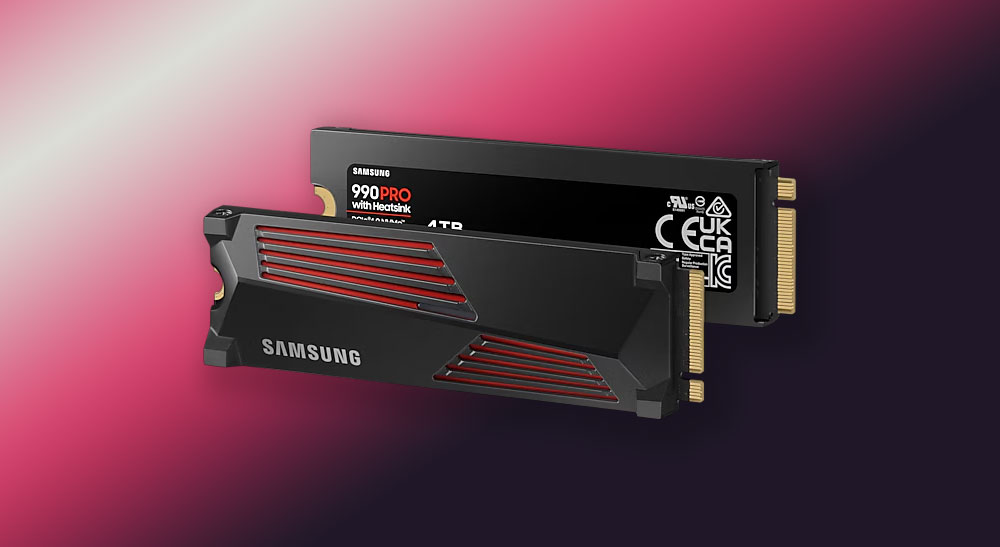
If you’re using a Gen3 SSD or even a Gen4 SSD, you won’t need a heatsink in most cases. If you are using a high-end Gen4 SSD and don’t want to sacrifice even a little bit of performance, you may want to use a heatsink to be safer. In these cases, you should prioritize using the motherboard’s heatsink (or a heatsink purchased from the manufacturer). Most motherboards these days come with M.2 coolers, so you don’t have to spend more to buy one separately.
4. Ignore the risks of power surges and outages
You may have unreliable power where you live, but to be absolutely safe, you should invest in a surge protector or a UPS with built-in surge protection to protect your SSD from unexpected power surges and outages. Power surges can damage any PC component or device from your GPU to your charger, so your SSD isn’t as safe either. A power outage may cause data corruption on the SSD, which may result in data corruption if you do not have good backup habits.
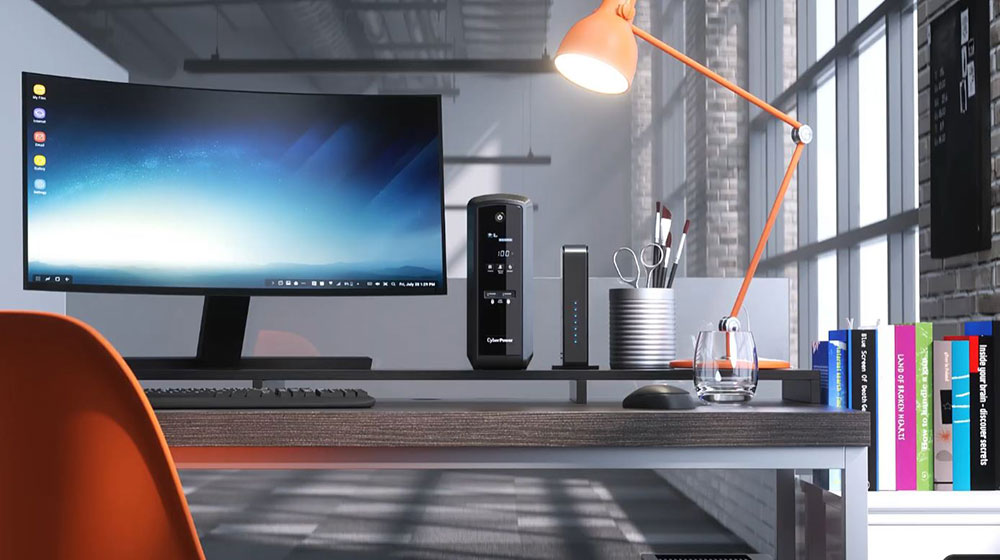
Many users run their PCs or laptops without any surge protector (when connected to a power source), which increases the risk of power damage in the worst-case scenario. Although the likelihood of this happening is low, if you store important or sensitive data on your SSD, such as work or business-related files, you shouldn’t leave it to chance. Prevention is better than cure.
5. Writing too much data to the SSD
This may seem ridiculous since you buy an SSD so you can use it however you want, but just like any other electronic component, SSDs have a limited lifespan. Every time you write something to an SSD, you gradually shorten its lifespan. Even with a lot of data written every day, most SSDs can easily last 5-6 years or more, but you can still do your part to make your SSD last as long as possible.
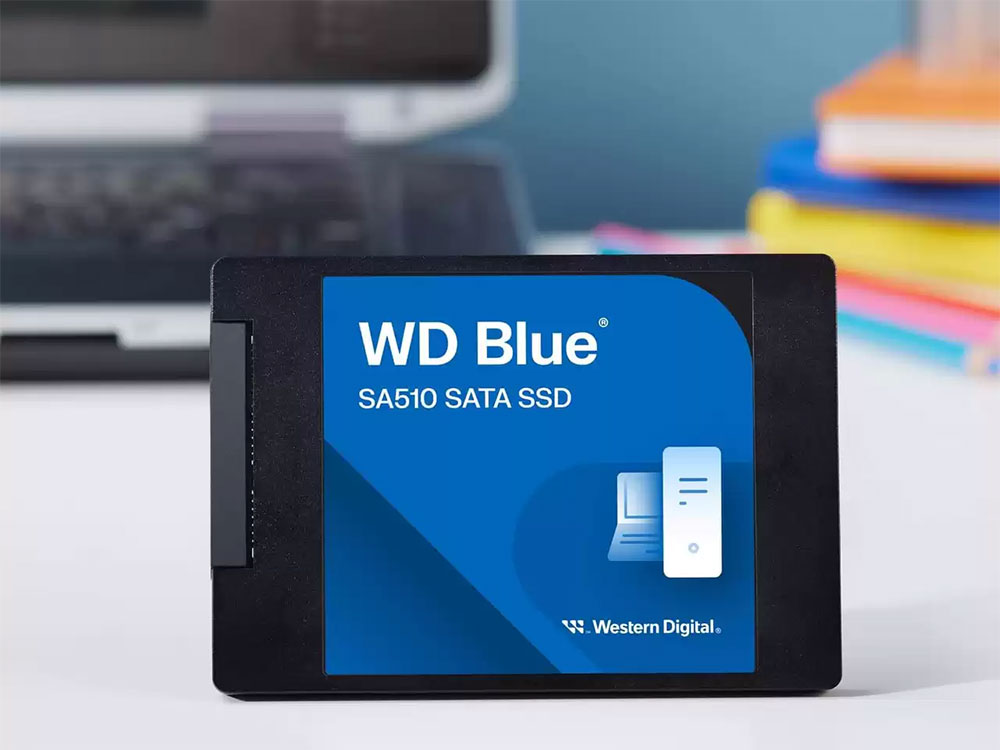
This has to do with how SSDs work. Whenever you try to write new data on the SSD, if it can’t find a pre-erase block, it will initiate a program/erase cycle on the used block, which not only affects write performance, but if the SSD doesn’t have enough free blocks available, you’ll end up reusing the same blocks over and over again. Wear leveling is a process that every SSD uses automatically to prevent some cells from wearing out faster than others, but this process works best if you leave enough unused space on the SSD. Every SSD does this automatically using a reservation, but you can extend the life of your SSD even further if you leave about 15-20% of your SSD free (over and above the preset reservation).
SSDs usually last several years of normal use before they start to fail, and you’re more likely to replace the SSD before it suffers a lot of wear and tear, so you usually don’t have too much to worry about. However, if you ignore some basic precautions, your SSD may die sooner than usual. Overheating, dust accumulation, power issues, and lack of available space can all negatively impact the lifespan of an SSD.
Laptop users need to be especially careful when using their machines for extended periods of time, as these issues are inherently more common on machines with weak cooling systems. In addition to avoiding these common mistakes, you can also choose to only buy the highest-rated SSDs, which will give your SSD a higher TBW rating, more warranty, and higher-quality components.
Source: KOCPC Chinese