


Your CPU may not often get as much attention as your GPU, but it’s more important to your computer. After all, your computer can run without a discrete graphics card (purely using internal graphics), but if the CPU isn’t working well, the computer is just a piece of equipment. Hidden beneath the heat sink, the CPU has been operating non-stop every day for years, but in rare cases, the CPU may experience irreversible failure that catches you off guard. However, there are some symptoms that you can detect early through observation, including complete inoperability, random crashes, crashes and automatic restarts. CPU failure may be the source of many problems, but it may also be traced to other components, such as GPU, SSD, PSU and motherboard. If you have ruled out problems with other components, it may be time to replace the old CPU with a new one.
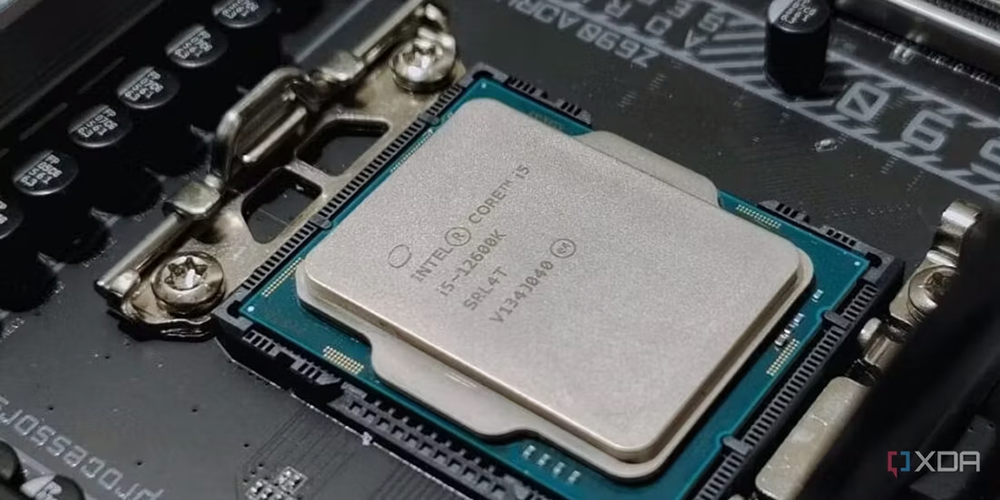
Image source:XDA Developers
5 signs that your CPU is nearing the end of its life
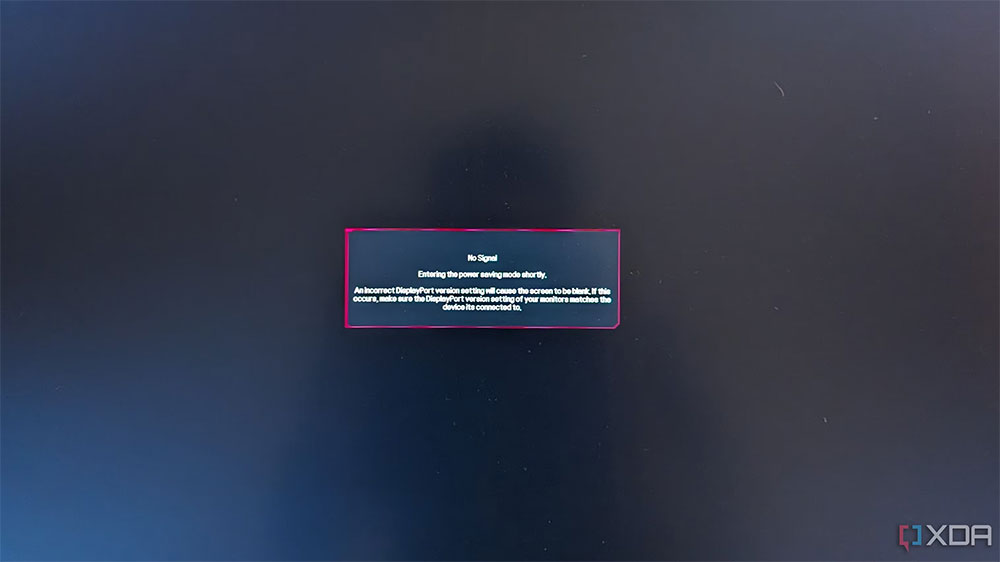
The screen shows no signal
If your computer won’t turn on, in other words, if it doesn’t successfully display the splash screen and you hear some beeps when the system is powered on, there may be something wrong with your CPU. Of course, there are many possible reasons for boot failure, such as RAM and GPU, so before blaming it on the CPU, please rule out the possibility of RAM and GPU failures. The CPU is usually the last component expected to fail, but if you’re unlucky it can actually happen.
If you overclock your CPU on a regular basis, you may (in some cases) gradually reduce the lifespan of your CPU and may eventually lead to CPU failure. This doesn’t happen often, but it’s not impossible. Alternatively, a power failure may cause boot failure, especially if it is a relatively unreliable device.
Random system freezes
Another clear sign of a serious hardware failure is that your computer freezes randomly, even if you are not running any intensive programs. You may also encounter a strange behavior where your system will run fine for a short period of time after rebooting, but then randomly freeze after a while. As was the case with the previous item, this could be related to a faulty GPU, RAM, or storage device.
You can test for other potential culprits relatively simply by replacing other potential culprit parts or performing a health check. If everything else is working fine, you may have to accept that the CPU is faulty. It’s a sympathetic situation, but sometimes, that’s just the way it goes, and you need to start preparing for what’s next—getting ready to buy a new CPU.
Program crash or BSOD
If your frequently used programs suddenly crash and jump back to the desktop, or you frequently see BSODs, your CPU may be to blame. After you encounter a program crash, you can use Event Viewer on Windows to check for the root cause. If you see a clear GPU-related or storage-related error code or description, the CPU may not be finished yet, and similarly, error-related information is sometimes displayed on the blue screen.
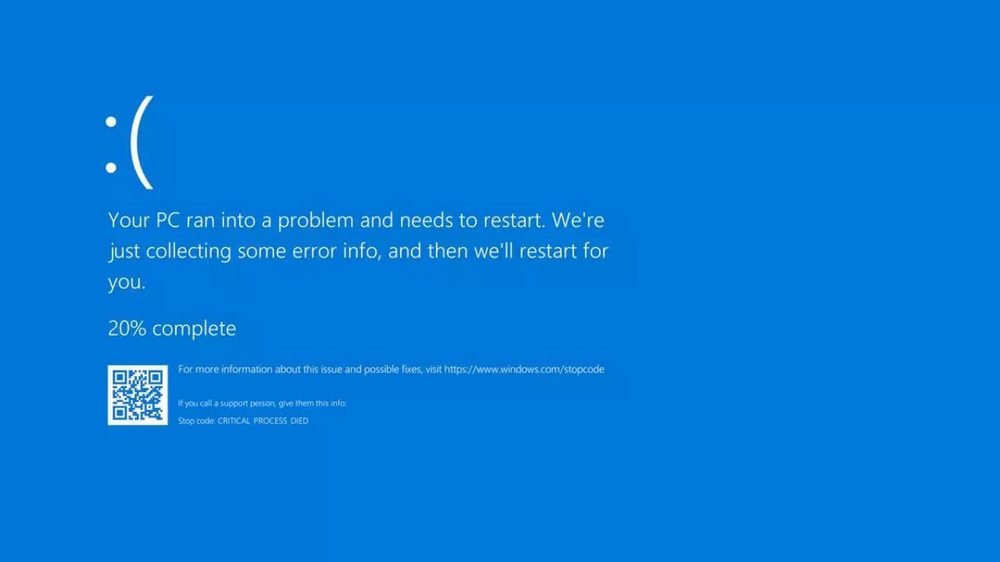
However, if no other parts are found to be faulty and you’ve ruled them out as suspects, it’s time to retire your CPU. If these crashes and BSODs occur more frequently during CPU-intensive workloads such as video editing or streaming, you can more confidently conclude that the CPU is failing. However, things are not set in stone and a faulty CPU can cause a crash even during light work.
unexpected restart
This is kind of a mini-breakup before the big death, and if your CPU is really dying, it might randomly reboot before it dies. This can happen when you least expect it, even when you’re just browsing the web, writing a document, or checking your Steam game library. Sometimes there may not even be any prompt message before the computer automatically reboots.
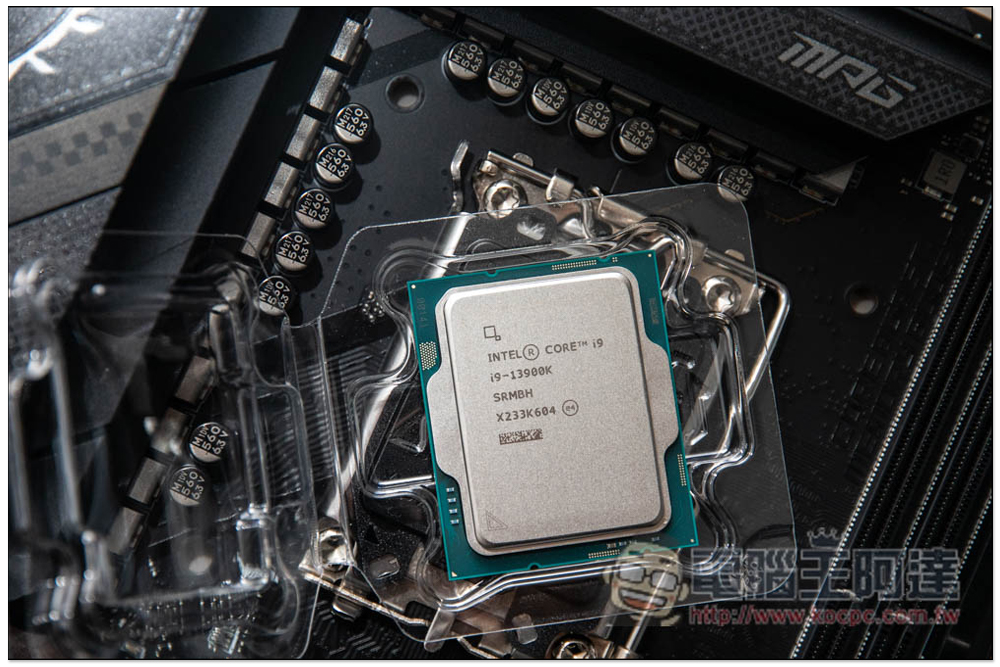
As usual with troubleshooting, you should first troubleshoot RAM, SSD, and graphics card problems before thinking about the possibility of a CPU failure. However, the problem can also be caused by the power supply and motherboard, but when your system randomly reboots under light workload, it’s more likely to be a serious CPU failure.
CPU unexplained overheating
If your computer is functioning and doesn’t randomly reboot, crash, or blue screen, you may think you’re out of danger. But if you still can’t explain why your CPU temperature is always too high, don’t celebrate too soon. There can be many reasons for a CPU to run too hot, from incorrectly installed heatsinks to improper application of thermal paste to a faulty BIOS update.
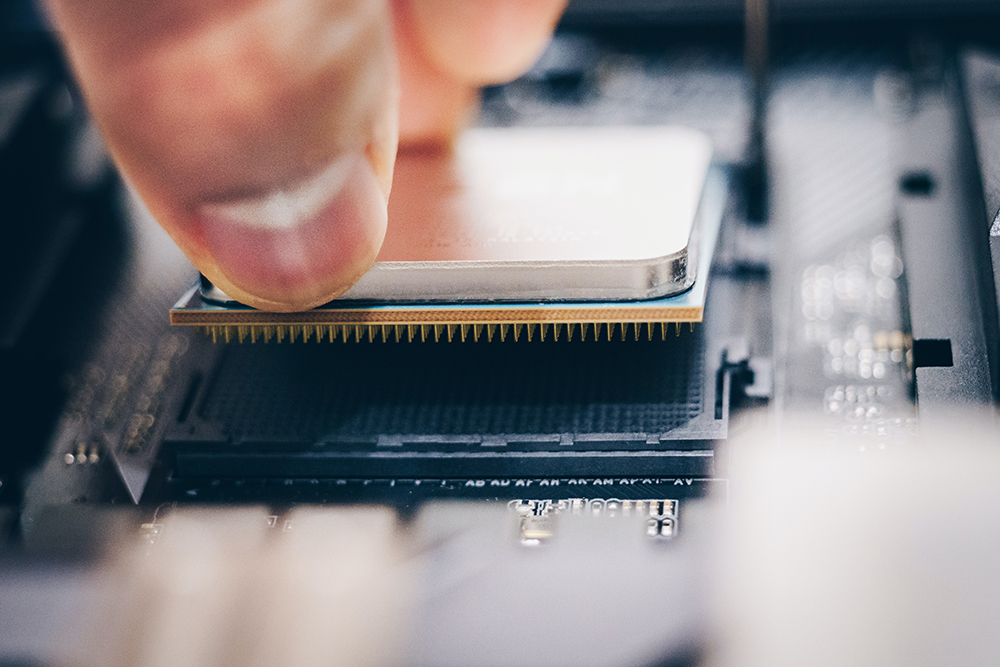
A failed CPU may continue to heat up, with temperatures reaching 70 to 80 degrees Celsius without any heavy activity on the system. You can check the CPU cooler, reapply thermal paste, and reinstall the CPU to check if the issue is resolved. You can also revert to a previous BIOS version where everything worked fine. However, if none of these methods work and you’ve tried other tricks to lower the CPU temperature, it could mean the die itself is damaged.
In extreme cases, your system may not even last a few minutes before shutting down, as the CPU may become overheated and trigger a shutdown to avoid permanent damage. So, you may finally have to accept whatever fate brings you and start preparing for your processor’s last rites.
Despite everything discussed above, CPU failures are uncommon. You’re more likely to have a worn out hard drive or a GPU that’s reaching the end of its life before you see a CPU fail. Now, you know what signs to look out for, and if you’re one of the unlucky ones, you’ll at least know what to expect. If your CPU is many years old, replacing the CPU may mean requiring an entire platform upgrade (if your motherboard and other systems are outdated and discontinued), but you can also upgrade to a new compatible CPU on the same platform.
Source: KOCPC Chinese