


In the post-epidemic era, the demand for remote work is increasing. Some people also want to remotely connect to their home computers to play games. There are many free remote desktop software on the market. You may not know how to choose. Which one is the best? What are the advantages and disadvantages of each? I will share this article with you, so you can choose the right one from here.

1. DeskIn

Ease of use:DeskIn is a free remote software that even novices can get started quickly and can be used commercially. iOS, Android, Windows, and Mac are all supported. The desktop and mobile versions are both intuitive and easy to operate. Especially the mobile version, many designs are optimized for mobile phones. The free version can be bound to 3 devices.
Security:Built-in AES-256 end-to-end encryption, customized security passwords, and black and white lists provide extremely high security. The paid version also provides privacy mode.
Feature richness:Even the free version provides quite a few features, such as privacy screen, Windows support for WOL, PC file transfer, voice calls, shared clipboard, remote startup and shutdown, etc. It also has a built-in “extended screen” that is not available in other remote software, and can use other devices as a second screen. File transfer speeds are also fast, one of the fastest of any I’ve tested. A small drawback is that the file transfer function of the mobile app is only available in the paid version.
Smoothness and stability:During my use, DeskIn provided a stable and smooth remote process whenever I used it, even during peak hours. I also often use it to play games remotely.
Paid plan:There is a “Standard Edition” for workers, a “Game Edition” for gamers, and a “Performance Edition” for design needs or small teams. You can choose monthly or annual payment.
Recommended stars:★★★★★
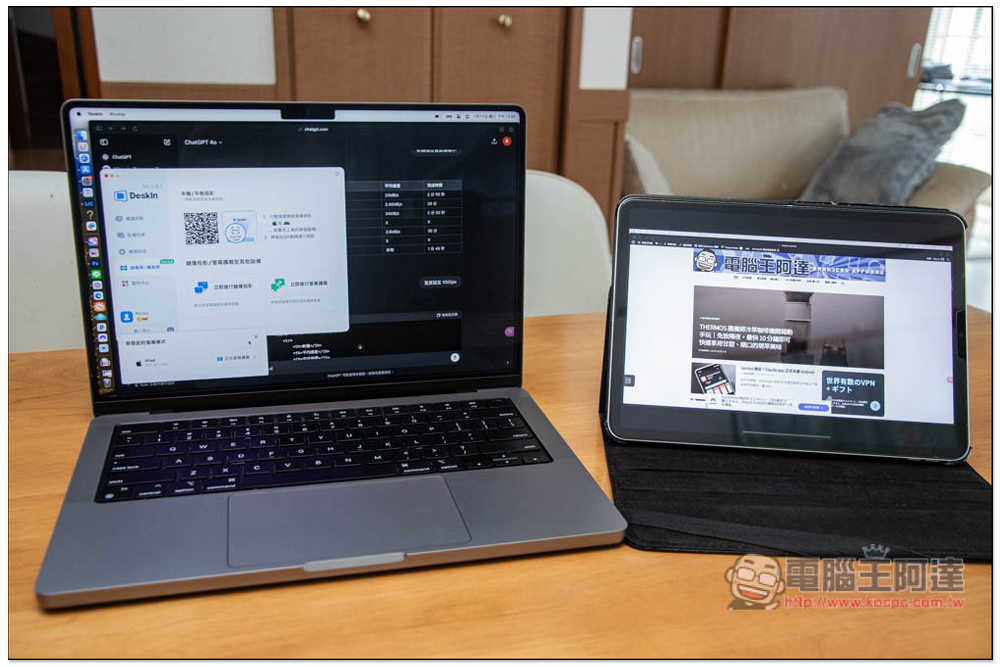
I often take my MacBook Pro out for work. With the extended screen function, I can use my phone or tablet as my second screen, which means I can work on dual screens even outside. This is really great:
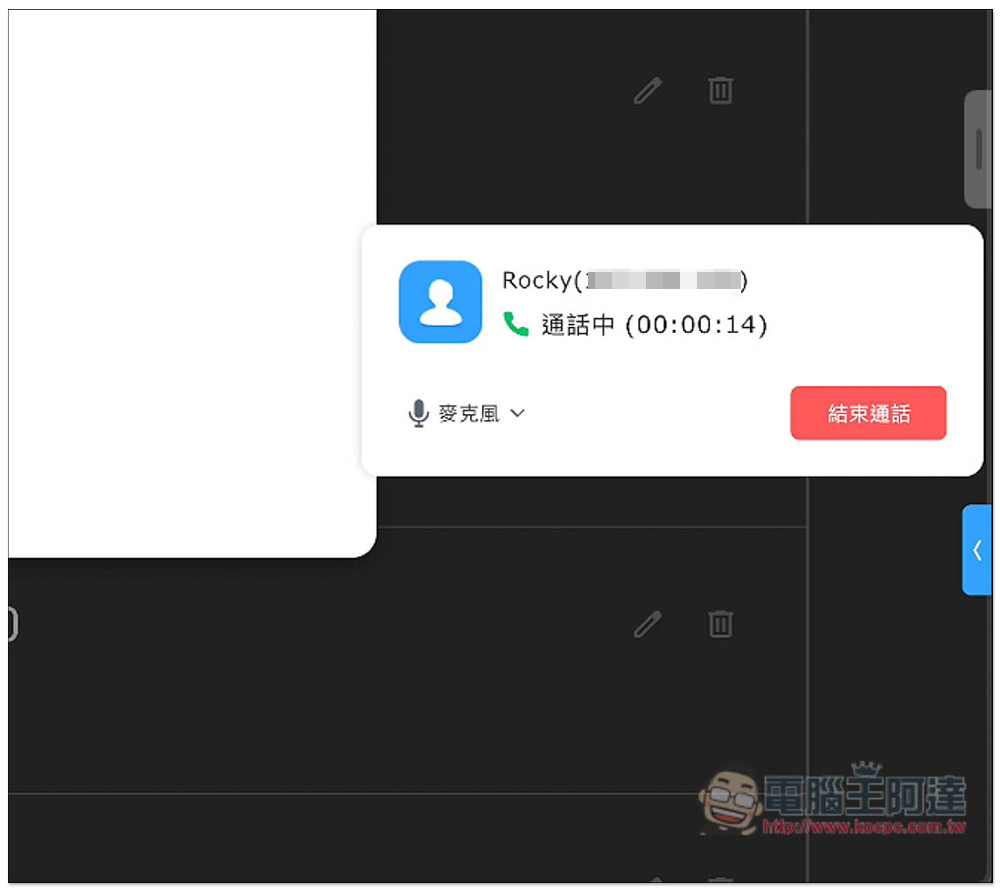
Voice interactive calls are also highly recommended. They are very useful when helping others repair their computers remotely. You can just communicate directly by voice without making phone calls or typing. Most free versions of remote software do not have this feature:
2. Teamviewer
Ease of use:Teamviewer is a well-known remote software. In addition to supporting mainstream systems, it also supports Linux and chromeOS. However, the free version cannot be used for commercial purposes. This should be noted. The interface is quite easy to use, but the connection will be stuck at the beginning, and a warning that it is not for commercial use will pop up at the end, which is a little annoying.
Security:Featuring RSA public/private key exchange and AES 256-bit encryption,
Feature richness:It has all the basic functions needed for remote use, and also provides black and white lists and WOL remote startup for Windows/macOS. However, the free version cannot use voice communication, which is slightly inconvenient. Teamviewer is built specifically for businesses, so the management functionality section is rich.
Smoothness and stability:Most of the time it is stable, but the smoothness depends on the usage time, especially for mobile phones. During peak hours, you will feel a little slower.
Paid plan:Different plans are launched for general users and enterprise users. They can only be subscribed on an annual basis and there is no monthly payment. In addition, the paid section of the official website is only available in English. It is recommended to find an agent when buying in Taiwan.
Recommended stars:★★★★
3. Anydesk

Ease of use:Anydesk also supports many systems, including Apple TV, FreeBSD, Raspberry Pi and Chrome OS, and it can be used without installation, which is good. It should be noted that the free version cannot be used commercially. Although the interface is not difficult to use, you have to enter the location yourself for the first time to connect, even if both devices are logged into the same account, which is inconvenient.
Security:Has basic encryption including TLS 1.2 and AES-256
Feature richness:Similar to Teamviewer, it does not provide voice communication and can only use text dialogue, but it does provide a convenient whiteboard function. Remote restart is only available for the paid version, and the file transfer speed is quite fast.
Smoothness and stability:It works smoothly no matter when I use it, but the remote computer on my phone is not necessarily the same. I have tested it and sometimes there is a noticeable delay at night.
Paid plan:There are various options, mainly for work use.
Recommended stars:★★★★
4. Chrome Remote Desktop
Ease of use:The remote desktop software launched by Google is completely free and can be used for commercial purposes. The computer version is quite easy to use like the other models, but the mobile version is not suitable for remote typing as the keyboard takes up more than half of the screen.
Security:There’s AES encryption, but no advanced security features like 2-step verification.
Feature richness: There is file transfer (only supports up to 500MB), but there are almost no other communication and collaboration functions. Customizable screen refresh rate, up to 60FPS.
Smoothness and stability:In most cases it is smooth and stable.
Paid plan:No paid plan.
Recommended stars:★★★
5. AweSun

Ease of use:AweSun is generally very similar to Anydesk, but the device can be bound to the account, so there is no need to manually enter the location. The free version can also be used commercially. Both the computer version and the mobile version are easy to use, but the mobile version has ads.
Security:Equipped with 256-bit AES encryption and two-factor authentication, it provides a safe and reliable remote connection process.
Feature richness:There are basic display desktop, copy and paste shortcut keys, etc. The computer version provides voice communication, but the mobile version does not. In addition, there seems to be a problem with the sound transmission of the current version. When I tested watching movies and playing games, there was no sound.
Smoothness and stability:It is somewhat similar to Teamviewer, it will be slower at night, and the file transfer speed of this one is also very slow.
Paid plan:There are plans suitable for work and games. The fee is only accepted for one-time payment for more than one year, and the fee is based on the number of devices, divided into two types: 2 units, 3 units or more.
Recommended stars:★★★★
6. Parsec

Ease of use:Although the operation interface is simple, it does not support Chinese, so people who are not good at English may find it difficult to use. The mobile version cannot enlarge the screen, which may be inconvenient for remote computers. The free version is not available for commercial use.
Security:Use AES 128 or 256.
Feature richness:Parsec is a remote software developed specifically for games. Most of the settings are for picture smoothness. For example, it can adjust the bandwidth limit (from 3Mbps to 50MBps), provide H.264 and H.265 decoding, and limit 60fps. It has no work functions and does not support file transfer. Therefore, it is only suitable for remote games and is not recommended for work. It is worth mentioning that this game can also be played as a multiplayer room game.
Smoothness and stability:Since it is designed for remote games, the picture is of course super smooth and clear. If you encounter smoothness problems, there are also rich settings that allow you to fine-tune it.
Paid plan:There are three types: work, team, and enterprise.
Recommended stars:★★★
7. GlideX
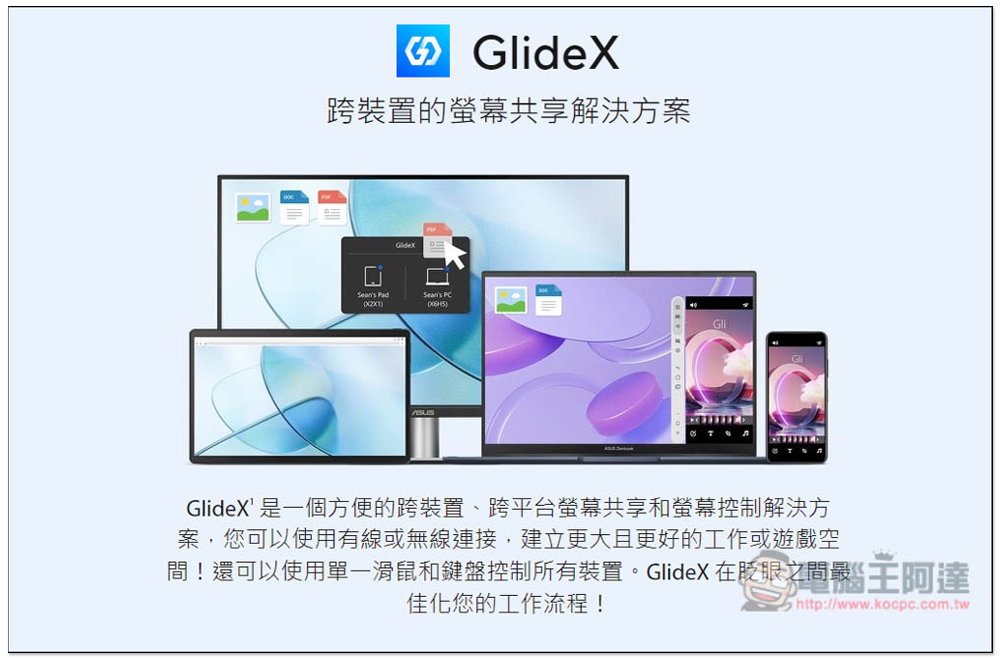
Ease of use:Developed by ASUS, the interface is easy to operate, but its main strength lies in screen sharing across devices, such as using other devices as a second screen, or two devices sharing the same keyboard and mouse. The remote part only supports ASUS devices.
Security:There was no official emphasis on this.
Feature richness:There are many screen sharing functions, including mirroring, extension, collaborative control, and file transfer functions.
Smoothness and stability:It can only be used under the same network/via USB, so it’s very smooth.
Paid plan:There is no paid plan, and ASUS exclusive editions are directly available for ASUS devices.
Recommended stars:★★★
Actual test of file transfer and game smoothness
File transfer speed comparison
I used a 4.06GB file for testing. The test environment is: Mac remote Windows desktop, under the same network, but Mac is connected to Wi-Fi and Windows is a wired network. Files are captured remotely from Windows to Mac locally.
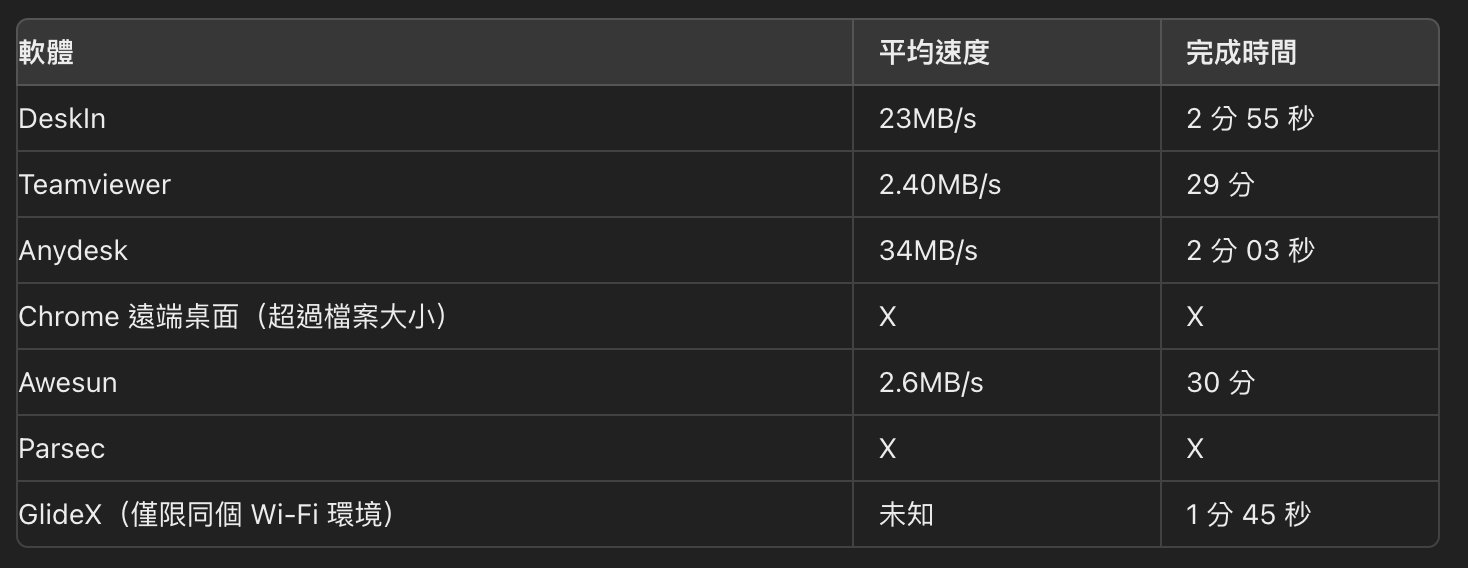
The fastest one is Anydesk, followed by DeskIn which is a bit slower. The file transfer speed of Teamviewer and Awesun is much slower. If you pay great attention to the remote file transfer speed, then these two can be eliminated.
Game smoothness comparison
I tested “Diablo IV”. This game pays great attention to the connection quality and smoothness of the screen. Any lag will be obvious.
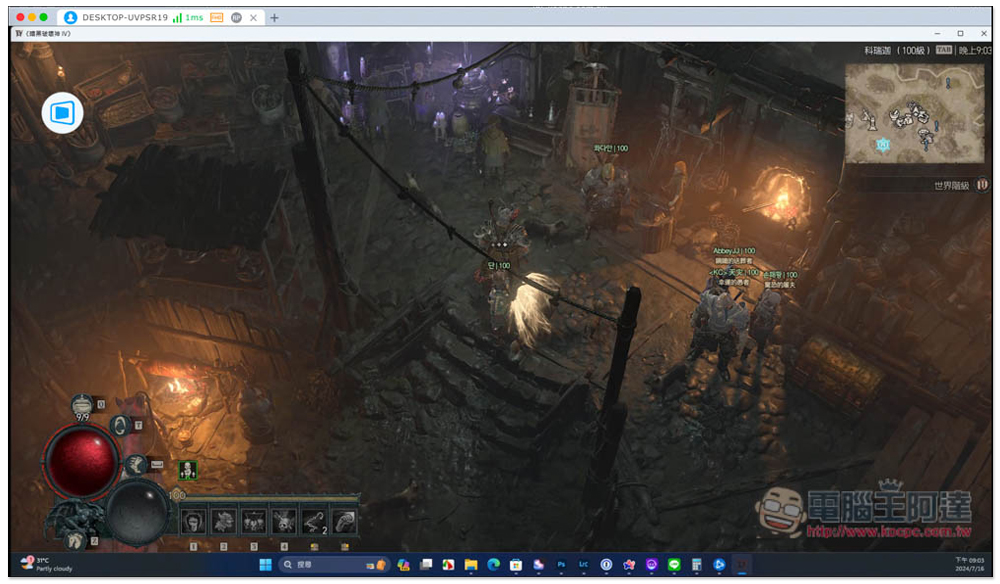
The smoothness of DeskIn and Parsec is unparalleled. I tried playing remotely for 30 minutes in the morning and evening, and the whole process was very smooth without any obvious lag. Chrome is also very smooth, but sometimes the image quality will suddenly drop, unlike the previous two models which are stable for a long time.
Anydesk and Teamviewer are also smooth in the morning, but at night, they feel not as smooth as in the morning. I am not sure whether they are affected by the rush hour.
AweSun has a big problem. The sound from the remote device cannot be heard, and it becomes only the picture without sound. It is very unsatisfying to play, so it is ranked last.
GlideX is not tested here because the remote end is limited to ASUS devices.
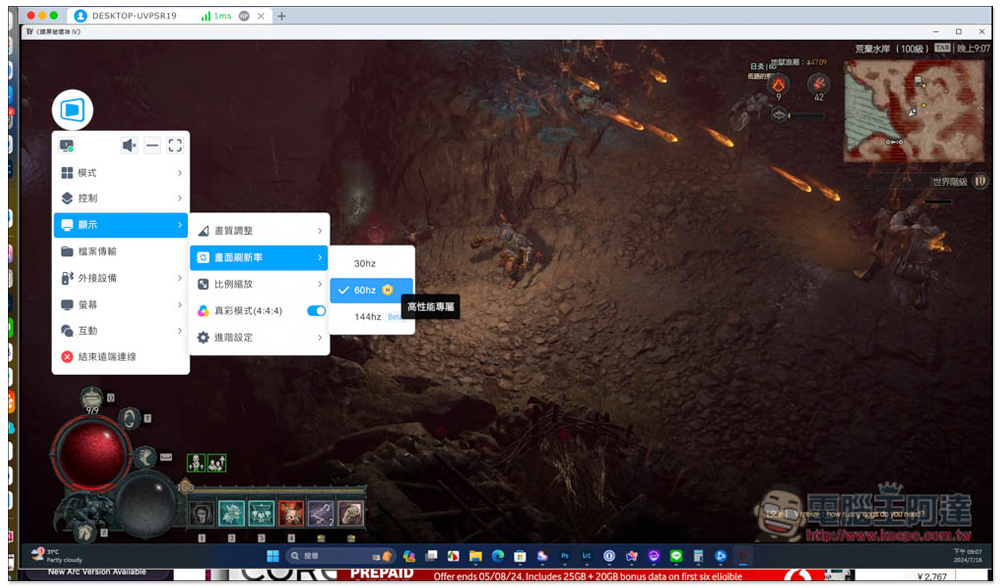
What surprised me was that I also tested the paid version of DeskIn and set the image quality to “4K 60FPS”. Not only did the image look really great, but it also played very smoothly. I originally thought that with such a high image quality, there should be at least a little pause, but it didn’t happen at all. For those who want to play games remotely, the DeskIn Game Edition or Performance Edition is highly recommended:
Should you upgrade to the paid version?
Most free remote desktop software offers paid versions. For those who use it frequently, they must be thinking, is it really worth upgrading?
In short, if you want higher-speed remote connection quality, it is worth upgrading, or the paid version provides just what you need. However, if you only use it occasionally for office work and don’t have many devices, then the free version should be enough.
Here I use the most recommended Deskin as an example for your reference.
Which groups is DeskIn Standard Edition suitable for: General office
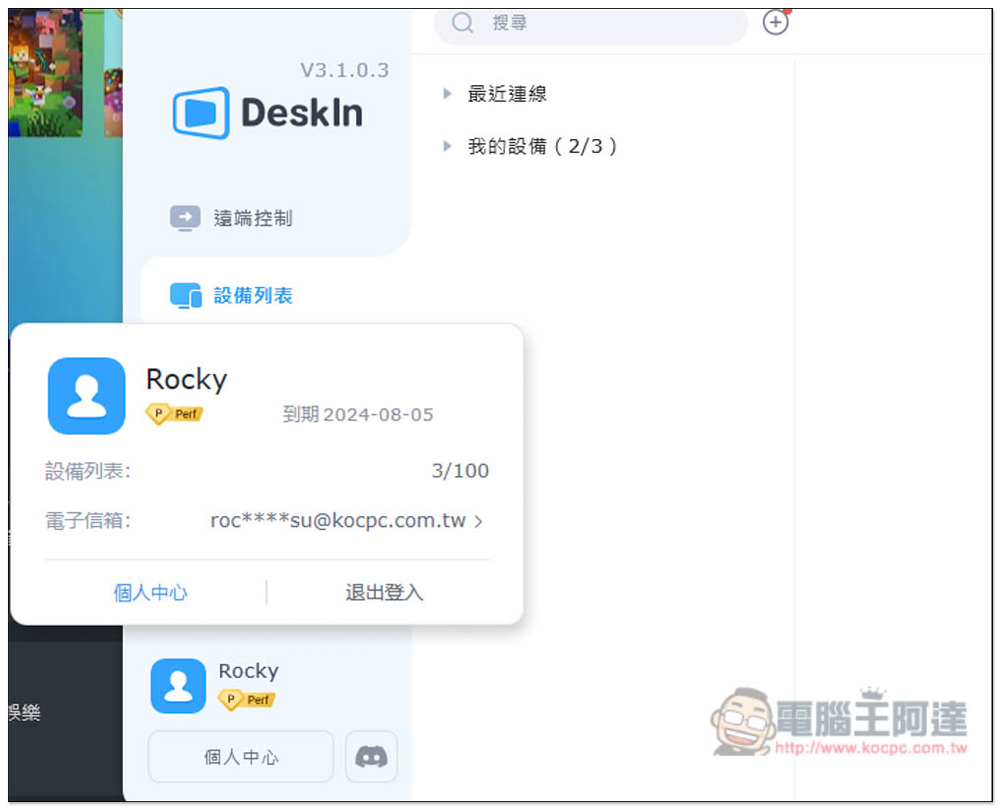
For the standard version, you pay US$49.9 per year and you can immediately get RTC + SVIP high-speed server. Compared with the free version, not only the connection speed is much faster, but also the file transfer. You will save more time, and the picture can also choose a higher 2K 30FPS quality.
This is a great plus for general offices and can bring about a super-smooth remote work process.
The number of managed devices has also been directly increased to 100 (the free version is 3). Not only can you bind the devices you need for work, but also your family members who occasionally need remote help can be bound, making it convenient for you to connect remotely at any time:
Who is DeskIn Gaming Edition suitable for: Gamers
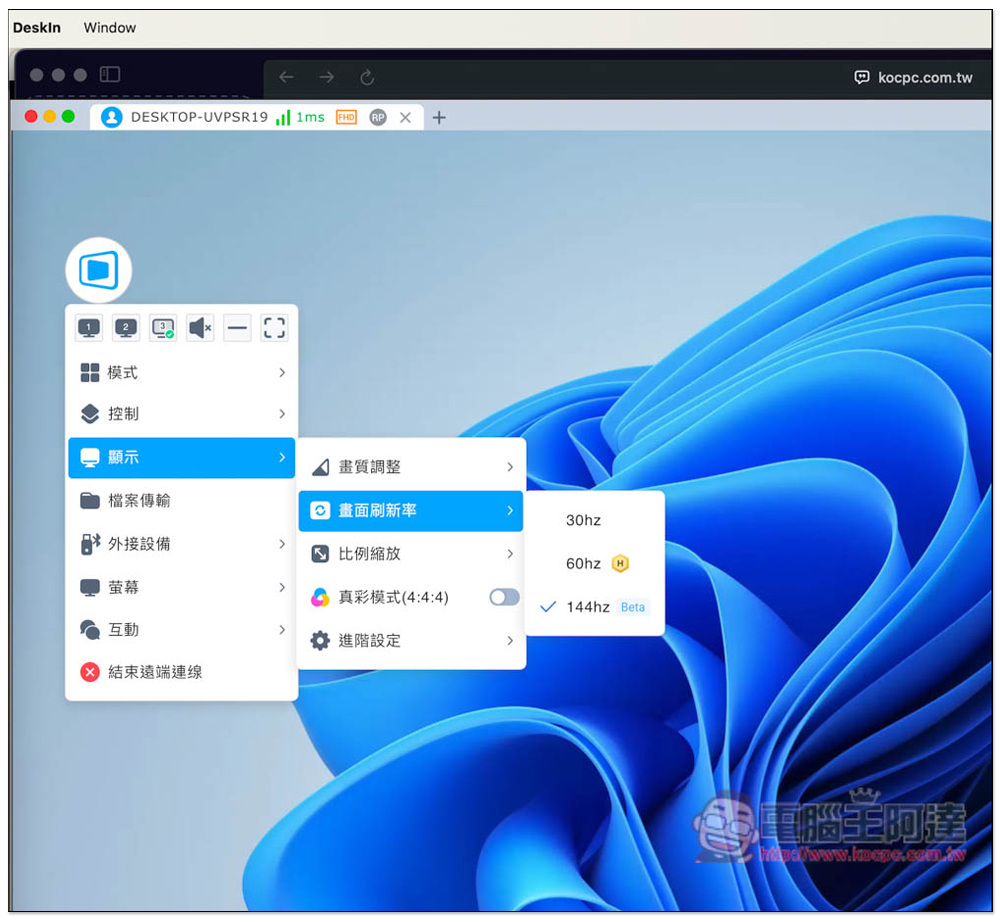
In addition to the high-speed server, the game version also has more picture quality options: “4K 60FPS / 2K 144FPS”. The representative said that even if you play the game remotely, you can get the highest 4K 60FPS picture, which is not only clear but also smooth. This is really amazing:
There are also “game mouse”, “game handle”, and “customized game keyboard” functions.
I like the “Customized Gaming Keyboard” very much. It’s much easier to play “Diablo IV” on the computer remotely with a mobile phone.
For example, you can place the commonly used 1234 number key in the upper left corner, or set a key combination. For example: I created a 2+3 double roar key. Pressing it once is equivalent to pressing the numbers 2 and 3 at the same time, which is more convenient. After this configuration, when holding the phone horizontally, my thumb can easily press the skill I need without pressing the skill bar at the bottom:
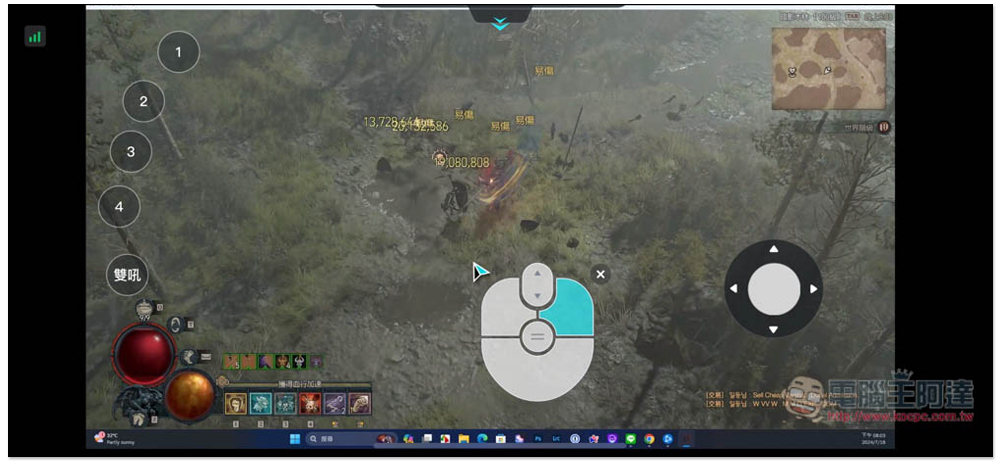
Gaming keyboards also provide “mushroom head” and “WASD” virtual joysticks. The mushroom head is on the right side of the picture above. If the game you are playing can be operated with a joystick, then add the virtual joystick to the screen to make it easier to move.
Who is DeskIn Performance Edition suitable for: designers, video editors
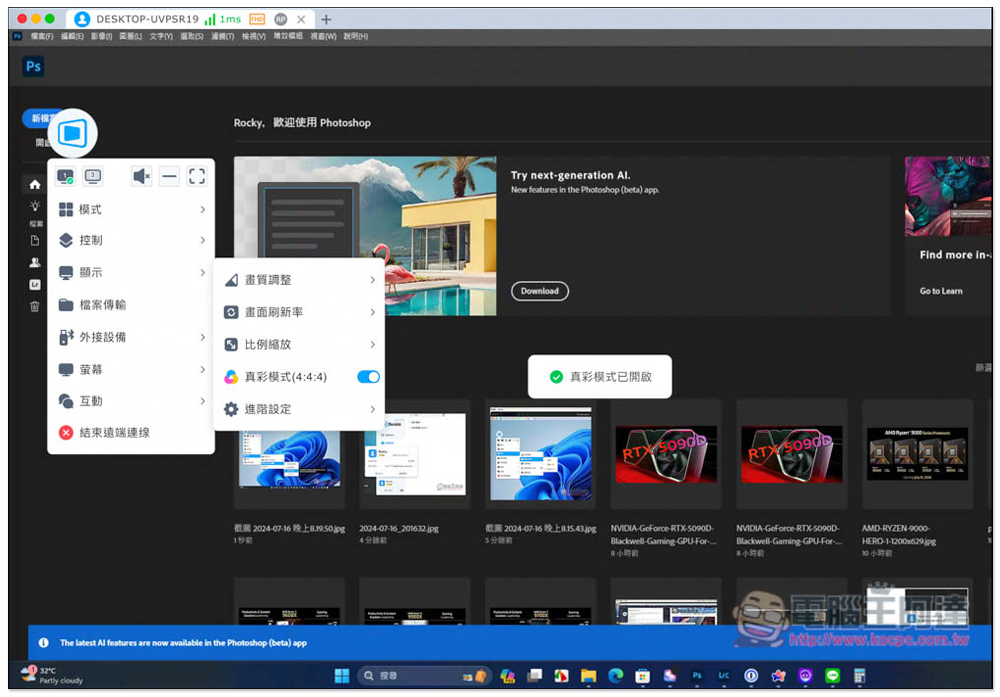
The performance version is the top of all DeskIn solutions. In addition to the above functions, it also has the unique features of “4:4:4 True Color” and “Digital Drawing Tablet”. These two features should be very needed for designers and video editors:
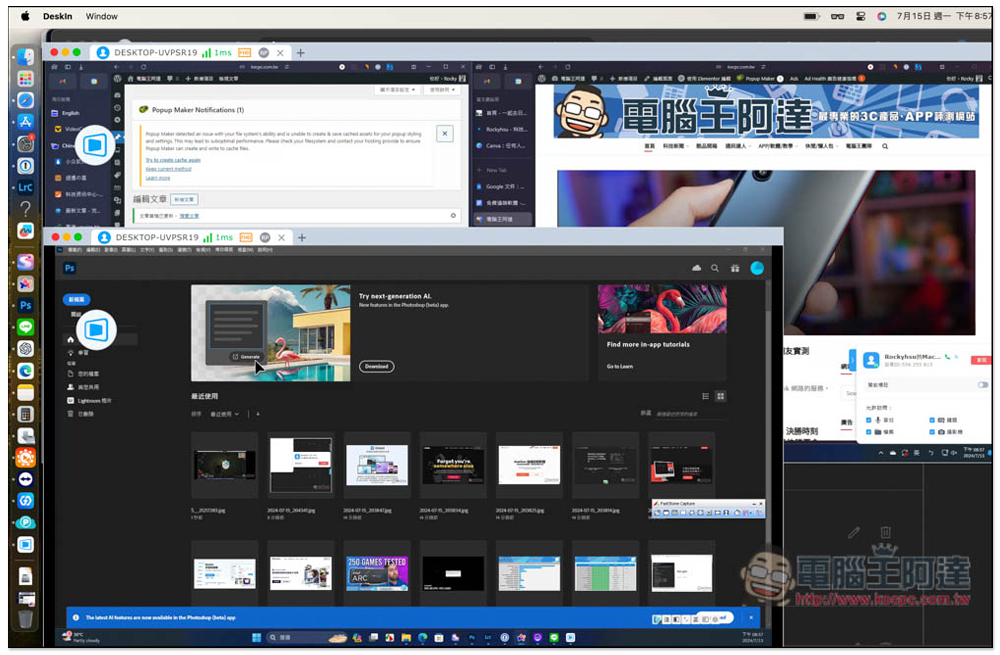
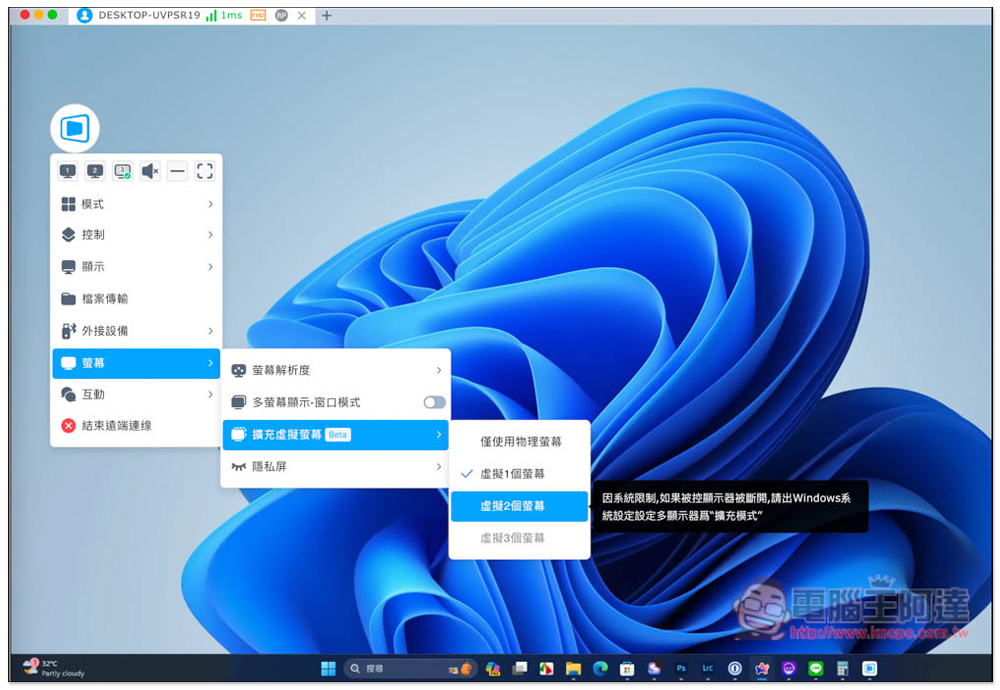
In addition, the virtual screen and multi-screen functions are also very useful for work. If the remote device has multiple screens, you can use the multi-screen function to open multiple windows at once.
For example, my Windows computer has dual screens. When I use my MacBook remotely outside, after turning on this function, the two screens will be displayed in separate windows. In this way, when I want to use the other screen, I can just switch windows without having to use the built-in screen switching function of the remote software. It is very convenient:
The virtual screen allows the remote device to have one more screen, allowing it to operate on three screens, four screens, or up to five screens. This can also be used with a “multi-screen” device:
Summarize
The above are some of the best free remote desktop software currently available. DeskIn is our most recommended one. It performs very well in all aspects of testing. The free version can be used for commercial purposes. If you don’t know which one to choose, it is highly recommended to give it a try.
Source: KOCPC Chinese