


The past few years have been full of changes for the film industry. The global epidemic has caused audiences to become accustomed to watching movies at home. Coupled with two large-scale strikes by the major Hollywood actors and screenwriters associations, the future of movies has become confusing. As audience consumption habits change, home theaters have become the new movie theaters. Nowadays, many movies are released directly to streaming media, or are released to streaming media after a short screen screening, but many TV users are unaware that they are not getting a good movie-watching experience.
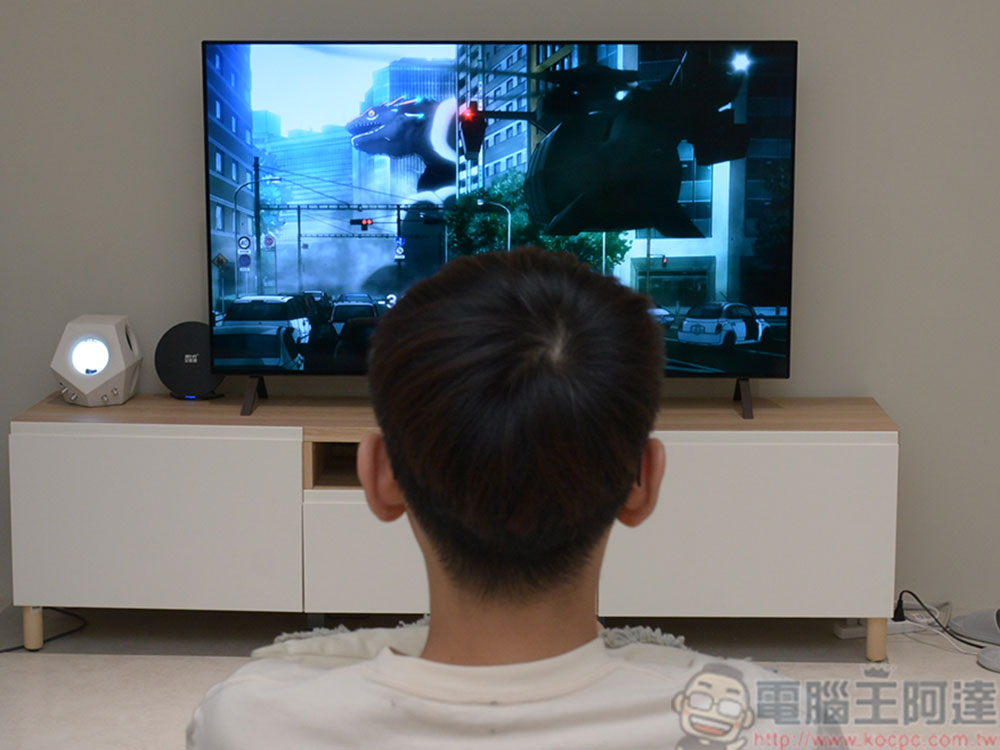
How to optimize your TV for a better viewing experience
If you think a movie doesn’t look good, the problem may be with your TV, not the movie you’re watching. Every step of the filmmaking process is designed to create a specific experience, from the choice of camera to shoot the original footage to the color adjustments applied in the edit. While theaters are built to accurately represent this content, televisions must be calibrated and optimized to achieve similar results. If you want an almost cinematic experience from the comfort of your couch, in this guide we’ll explore adjustments to your TV.
Turn off motion smoothing
Of all the suggestions you’ll hear when trying to create the best movie-watching environment on your home TV, the most commonly mentioned is to turn off motion smoothing. While it’s a pretty useful feature for watching sports, this feature can ruin a movie. Motion smoothing adds extra frames to a movie that don’t exist and makes the movie look dull and unnatural.
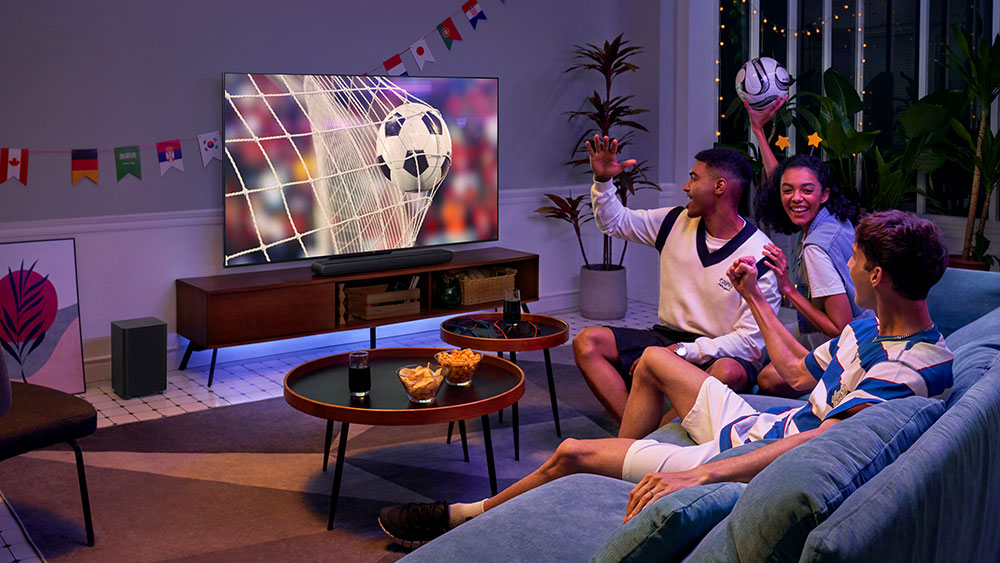
Cloud Cave Smoothing is a technology that makes video content appear smoother by artificially increasing the frame rate. A video file is a series of images played at a constant frame rate, measured in frames per second (FPS). For example, a 30FPS video means 30 frames displayed in 1 second. Motion smoothing builds new frames between each frame, turning 30FPS into 60FPS. When watching sports, this can help you see the players and ball movement more clearly, which is not the case with movies. Adding non-existent frames can completely change the pacing of a movie because the frames you’re adding were not created by the filmmaker, plus movies are typically shot at 24FPS, which means that with motion smoothing enabled, it will look artificial and lose the original feel of the movie.
How about Dolby Vision?
Today, some TVs come with an image tweak called Dolby Vision, which is marketed by Dolby as an upgraded version of HDR that helps enhance dynamic range and color reproduction. Unlike standard HDR, which applies universal settings to HDR-enabled hardware, Dolby Vision uses dynamic metadata in the video file to tell the TV which settings to use. Movies produced using Dolby Vision encoding essentially contain a set of instructions that tell a Dolby-enabled TV how to display them correctly, ensuring that your viewing experience is as close as possible to the director’s vision. This meta contains specifications that help control the brightness range, color spectrum, and HDR brightness, and it can even control aspect ratio and frame rate.
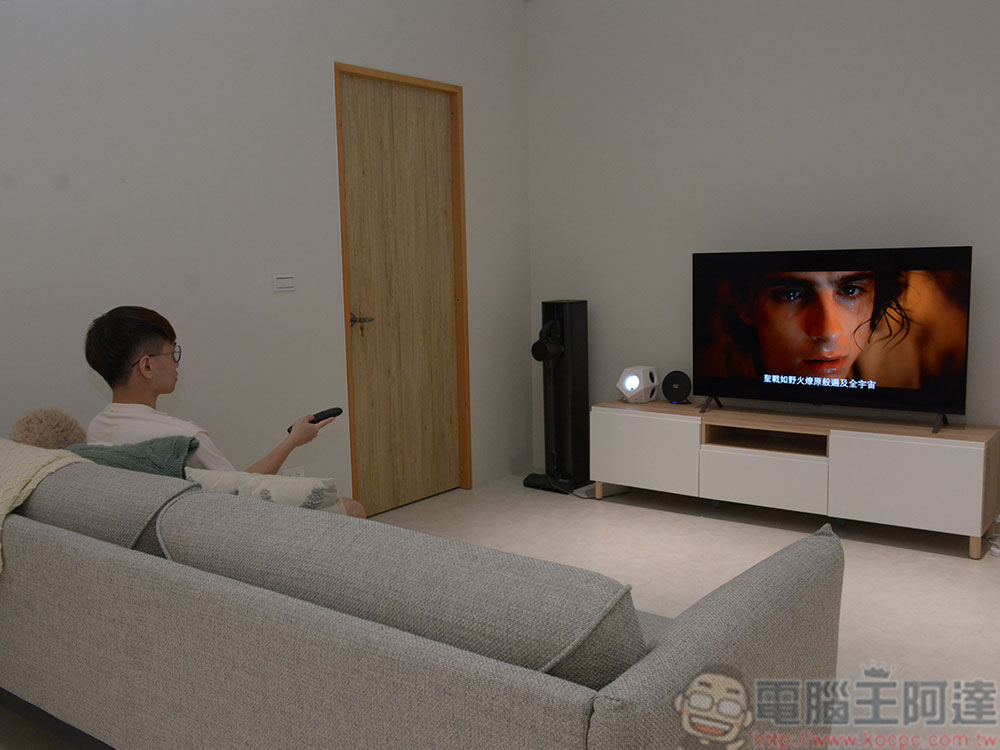
Dolby Vision usually appears as an image mode option on TVs that support it, and some TVs even have multiple versions, such as Dolby Vision Normal / Dark / Bright / Gaming mode. If this happens to your TV, you should start with Standard mode as it will likely produce the most accurate results. However, depending on your TV, you may find that another mode is better, for example, some enthusiasts believe that Dolby Vision Dark is the best setting for Sony Bravia TVs, while other enthusiasts disagree. But you should avoid watching movies with Dolby Vision Gaming anyway, as it amplifies brightness, contrast, and colors.
Consider Filmmaker Mode
It’s impossible for a movie director to come to your home and help you change the settings on your TV to ensure that you get the experience they intended when watching the movie, so some TVs have built-in filmmaker mode settings. This mode turns off any extra frames or otherwise manipulates the settings of the video file’s source image, while trying to take advantage of the TV’s full contrast and color reproduction range. It will also ensure that you are viewing the video in the correct aspect ratio and frame rate. The ultimate goal of Filmmaker Mode is to replicate as closely as possible the experience of watching a movie in a theater on a dedicated projector.
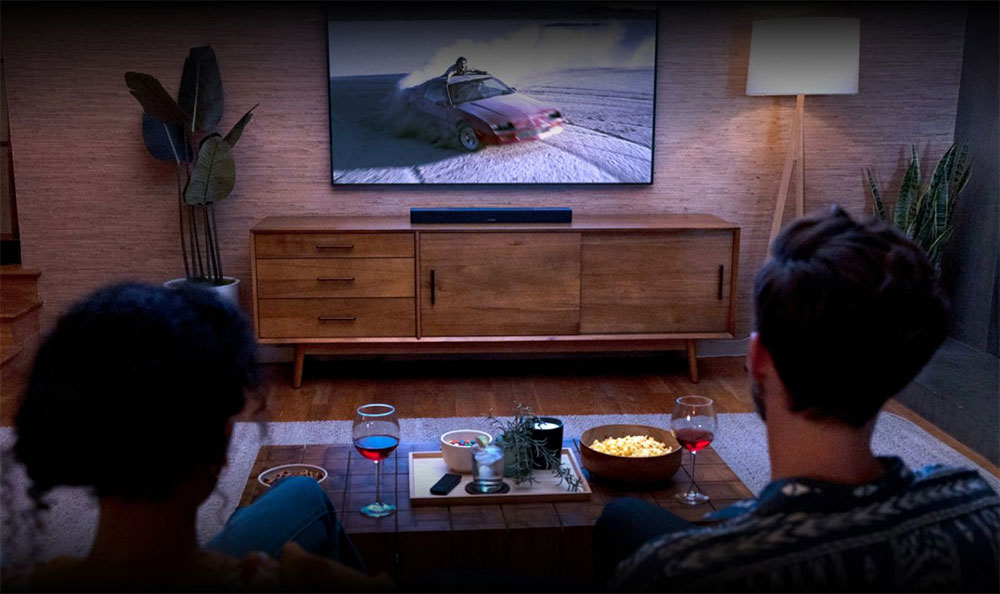
Filmmaker Mode has been heavily promoted by film giants including “Killers of the Flower Moon” director Martin Scorsese and “Dune: Part II” director Denis Villeneuve, and is currently available on TVs from BenQ, Hisense, LG, Panasonic, Philips, Samsung, Vizio, TP Vision brands. The Ultra HD Alliance (UWA), the organization behind Filmmaker Mode, hopes to make the mode available on TVs from more manufacturers in the future.
Adjustment tips you may need
While it’s nice to have broad, comprehensive modes like Dolby Vision and Filmmaker Mode, not all TVs come with these options, and even those that do have them built-in, you should make sure that the finer picture settings in your TV are also adjusted correctly. If you’ve ever delved into a screen’s image settings, you’ve no doubt seen a long list of settings, from simple ones like brightness to more obscure ones like gamma. Here’s all you need to know if you want the best movie-watching experience.
Unfortunately, there is no one-size-fits-all way to adjust your TV image, every TV is different, so your best option is to use something like Test image from YouTube. Alternatively, you can buy a disc that comes with imaging benchmarks, Spears and Munsil is one of the most important brands offering these. By adjusting settings to match the image, you can ensure that your TV meets the baseline for image accuracy. First make sure you are familiar with your TV’s setup menu, which can sometimes be complex. In the next part of this article, we’ll give you a brief overview of what each picture setting does and how to know if you’ve adjusted it correctly.
You should also note that some TVs generally retain items when you change settings, while others only apply settings on a per-input or display-mode basis. After calibrating the settings, switch the TV to a different input source to check if the settings also apply to this input. If not, you’ll need to reapply your preferred settings for each input source.
Understand basic TV image settings
Here are the most common TV image settings and how to adjust them:
- backlight
The brightness of each LED on the panel can be adjusted according to the brightness of the light source in the room. - brightness
The depth of black on the screen is adjusted in a black-to-white gradient until you see deep black at one end and pure white at the other. - Contrast
The difference between the brightest and darkest parts of an image. Play around with the contrast test pattern until you can distinguish different shades of white. - clarity
The clarity of object boundaries on the screen. Setting it too high can create weird artificial lines around objects, so a general rule is to keep it as low as possible. - color
Usually refers to the saturation of the image. Movie or Theater mode on your TV is usually adjusted correctly, but to fine-tune it yourself, you can open a test video or picture for comparison. - tone
The amount of red and green in the image. Usually the TV is calibrated correctly in movie or theater mode. If you want to fine-tune it yourself, you can open a test video or picture for comparison. - local dimming
Control the backlight area for better control over contrast. Your TV may call it something different, but it should be turned on if your TV has it.
Source: KOCPC Chinese