


For those who like Apple products very much, they should have various Apple devices at hand, such as Mac, iPhone, iPad, AirPods, Apple Watch, etc. If you usually use Mac, then this article will recommend a very useful free software “AirBattery”. You can directly check the current power status of each Apple device in the menu bar, allowing you to easily control it.
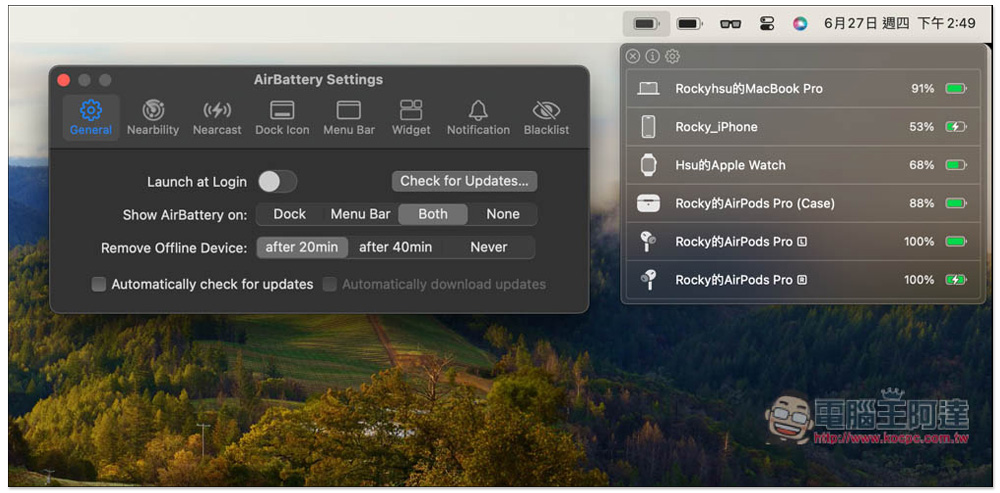
AirBattery instantly checks the battery status of iPhone, iPad, AirPods, and Apple Watch in the Mac menu bar
AirBattery is an open source software that is not listed on the App Store. You need to download the installation file from the GitHub project. People who are worried about security or concerned about it are advised to skip it.
Basically, you don’t need to set too many things. Just make sure that your iPhone/iPad trusts the Mac when you use AirBattery (at least connect the Mac once with a transmission cable while AirBattery is running for pairing), and then just make sure that it is on the same network as the Mac.
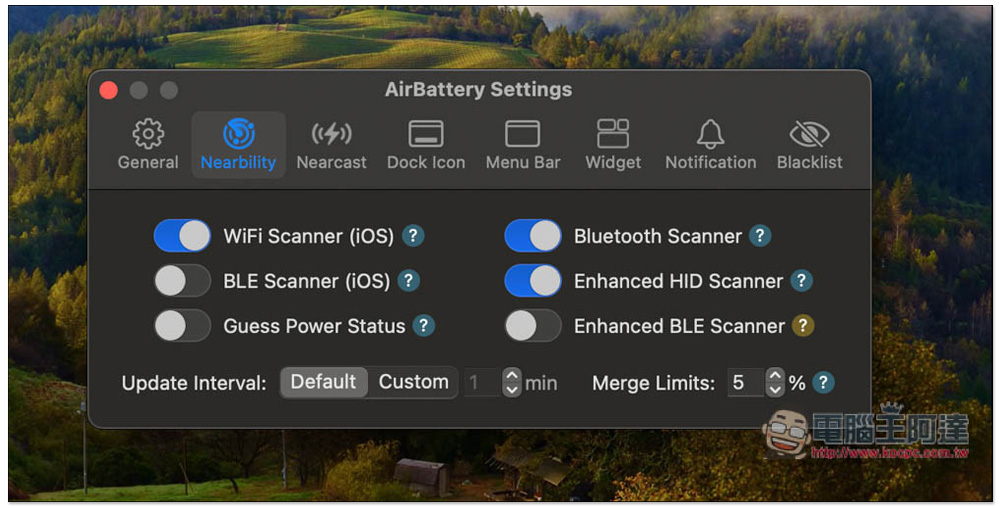
AirBattery v1.1.2 or higher also supports Bluetooth detection, but it needs to be enabled in the settings panel. Once turned on, the iPhone / iPad can be discovered through Bluetooth even if they are not on the same network. (This feature only supports iPhone or plug-in iPad version)
Click the link above to go to AirBattery’s GitHub project page and download the .dmg file. The latest version is v1.4.2:

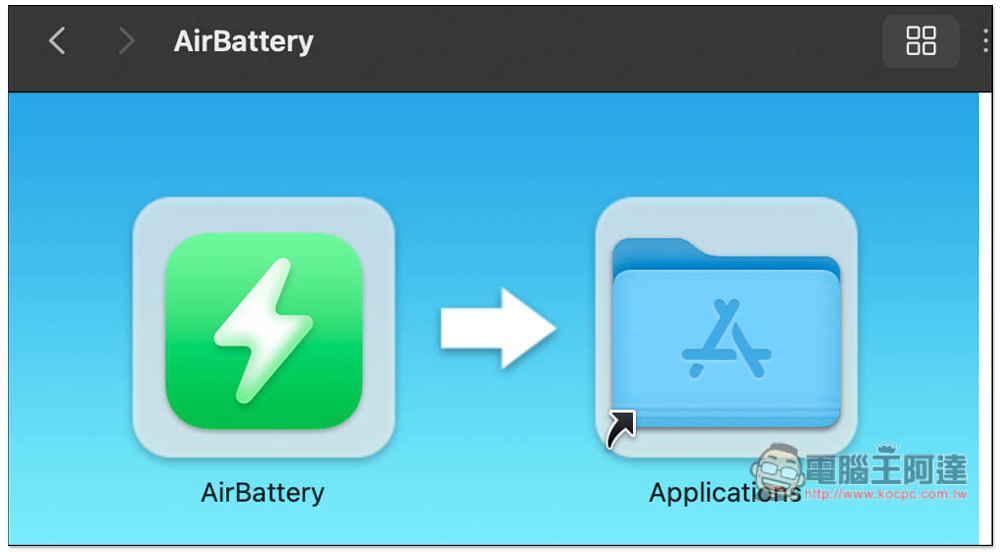
After the download is complete, open it, drag AirBattery to the Applications folder, and the installation is complete:
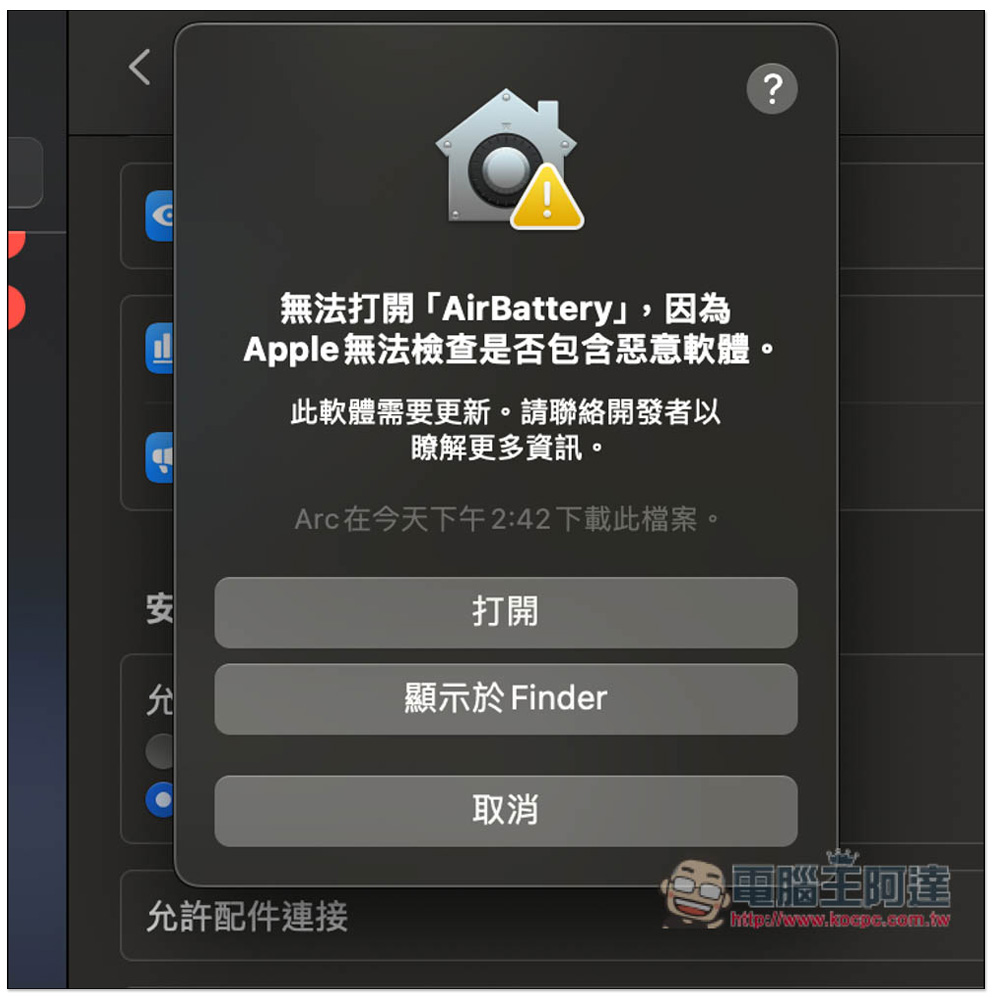
Because the software is downloaded from the Internet, the message “Cannot be opened because it cannot be checked to see if it contains malware” will pop up when you open it for the first time. Please press the following button first:

Open Mac system settings, go to Privacy and Security, scroll down under the security block, and you will see the blocked message. Please press to force open:

A warning reminder will pop up again. Press Open to start using:
For the first time, you will be asked to obtain Bluetooth permissions. Remember to allow:

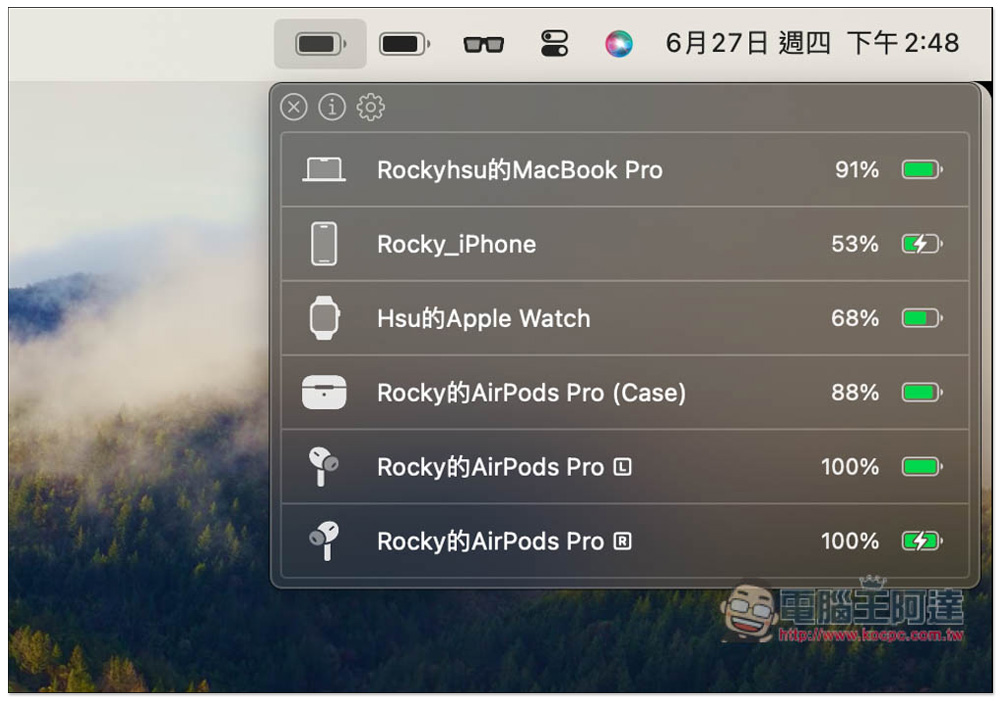
Then open the AirBattery icon in the App toolbar and menu bar, and you will be able to see the battery level of your Mac. If you are like me and do not see the battery level of your iPhone and other devices, please connect your iPhone to your computer via a transmission cable:

After trusting, it will appear in the list. I have an Apple Watch and it will also appear:

Next, I also tested AirPods, which was also no problem, and the battery level of the AirPods charging box, left ear, and right ear was displayed. If you use a Bluetooth mouse or keyboard, the remaining battery capacity will also be displayed here:
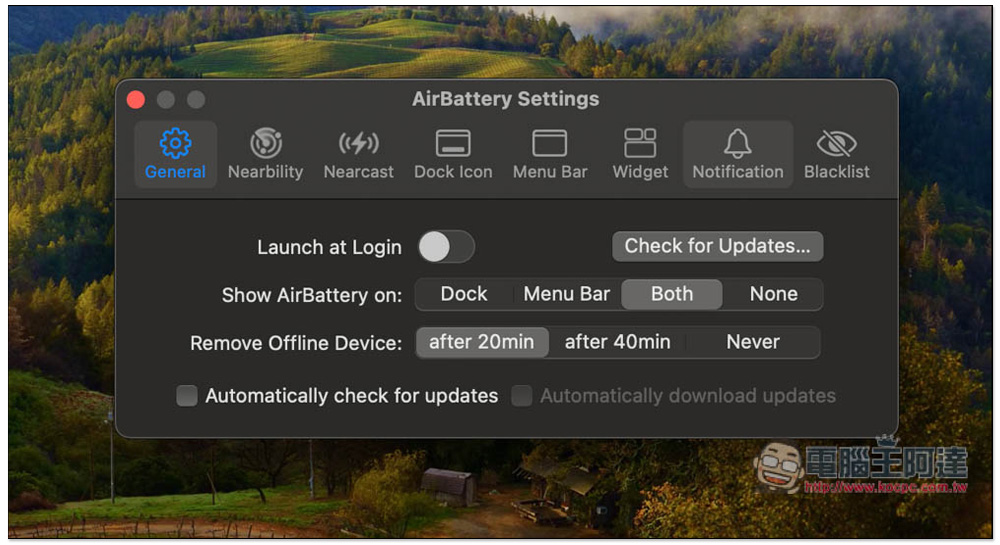
There are also some settings that can be adjusted in the settings, such as whether you want to start it when you turn on the phone, and where AirBattery is displayed (the default is Both, if you only want the menu bar to be displayed, you can change it to Menu Bar):
If you want to detect iPhone or iPad via Bluetooth, remember to turn on BLE Scanner (iOS):
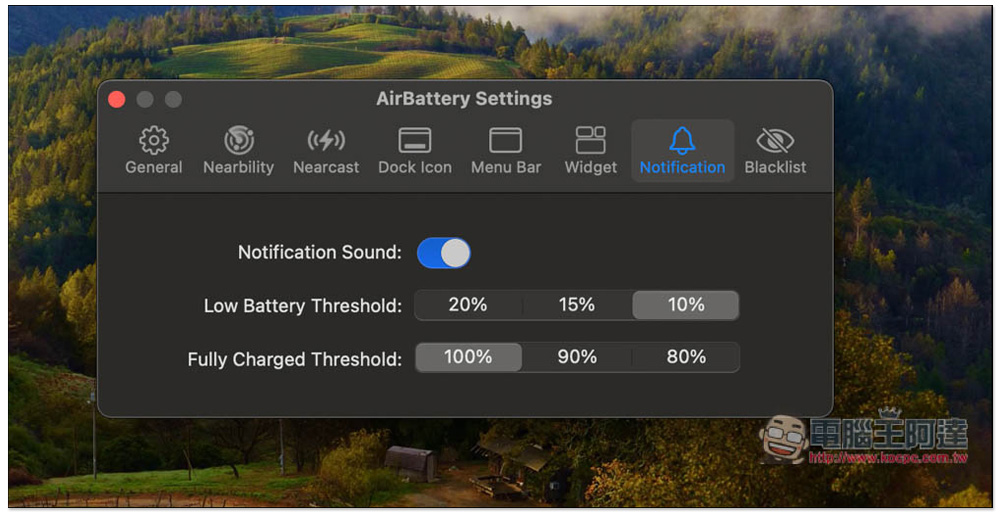
It also automatically notifies when the device is low on battery, with the defaults being below 10% and charging up to 100%:
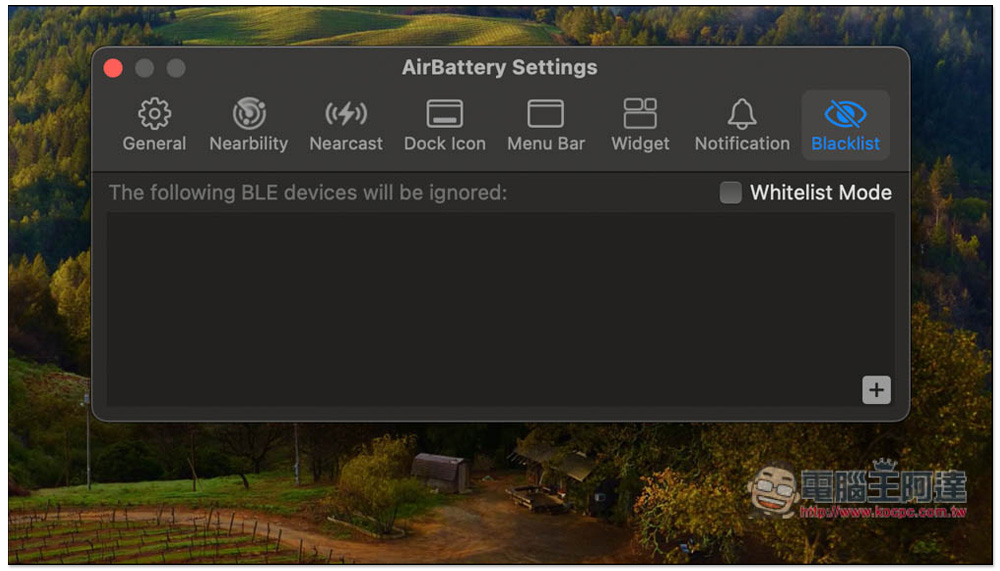
Devices that you do not want to appear in the list can be added to the blacklist:
Source: KOCPC Chinese