


There are a lot of image editing apps in the Play Store today, but most of them that are completely free either have few functions or have a lot of ads, and the good ones require payment. This article will recommend a newly discovered and powerful free open source image editing app “Image Toolbox”. It has more than 25 built-in functions, from basic size editing, resizing, back removal, applying filter effects, to image stitching, and even OCR functions. It can be said that this one provides almost all the image editing functions you need.
Because it is open source, there are no advertisements, and it will not be interfered with at all. I highly recommend everyone to give it a try.
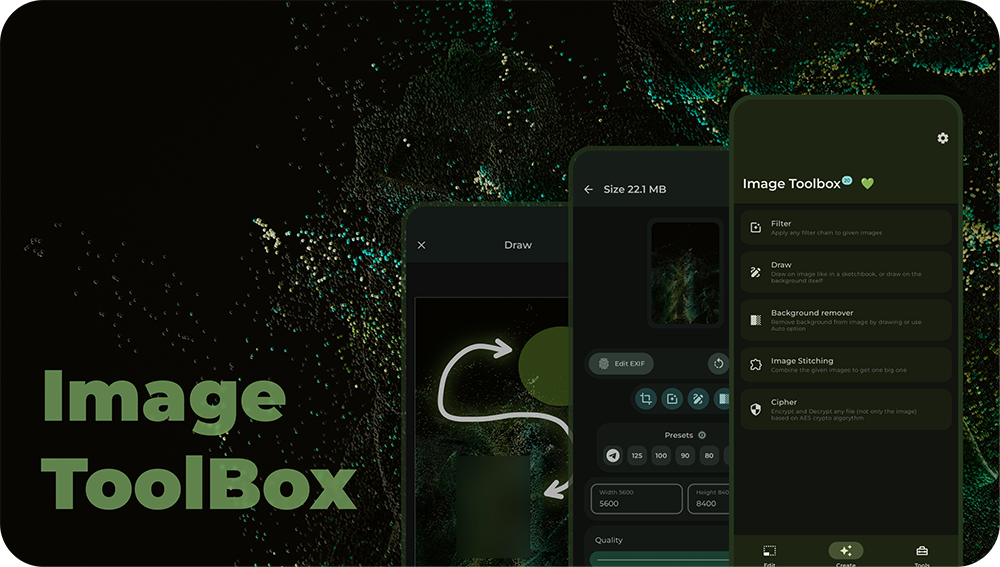
Image Toolbox is the most powerful free and open source image editing tool for Android, with more than 25 practical functions and up to 160 filter effects.
- Image Toolbox Play store download point
- GitHub project
Although Image Toolbox is a project developed abroad, it is now available in Traditional Chinese, so you don’t have to worry about incomprehension when using it.
However, this one has a small drawback. The operation interface is a bit too technical, which is the concept of layer-by-layer functions. Compared with other apps, it has less sense of design. In addition, when editing pictures, I also feel that the picture display area is a bit too small, but since it is completely free, it is still acceptable.
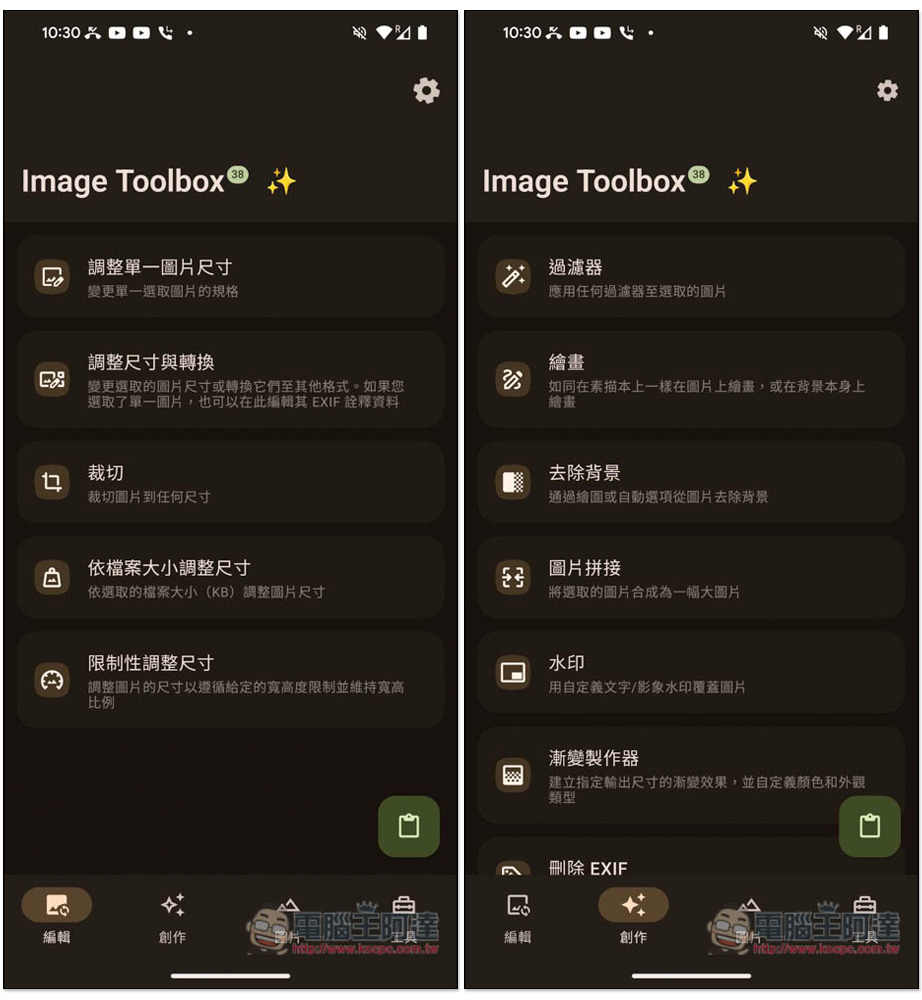
There are four function menus: Edit, Creation, Picture, and Tools.
In the edit menu, offers:
- Resize a single image
- Resize and convert
- Cut
- Resize according to file size
- Restrictive resizing
The creation menus are:
- filter
- session
- remove background
- Picture stitching
- watermark
- gradient maker
- Delete EXIF
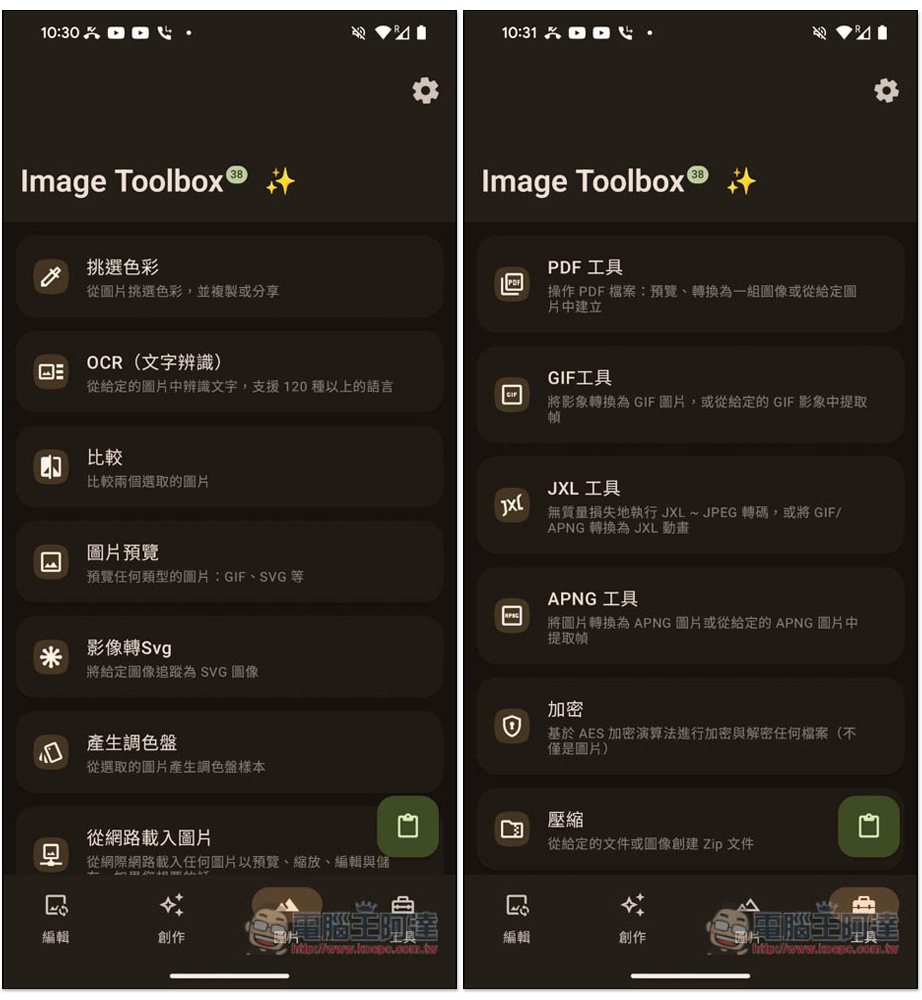
The functions of the picture menu are:
- pick color
- OCR (text recognition)
- Compare
- Picture preview
- Image to Svg
- generate color palette
- Load images from the internet
The functions of the tool menu are:
- PDF tools
- GIF tool
- JXL Tools
- APNG tools
- encryption
- compression
There is a brief description below each function, so if you don’t know what it does or how it works, you can read it first:
This app provides too many functions. Here I will demonstrate some of the more commonly used ones. The adjustment interface for each function is similar, so as long as you are familiar with it, you should be able to quickly know how to use other functions.
Sometimes when uploading some certification images, the website will have a size limit, and you can quickly adjust it through it. And the best thing is that it also provides preset sets, such as: 100%, 90%, 80%, 70%, etc. You can adjust the size with one click without having to enter it manually:
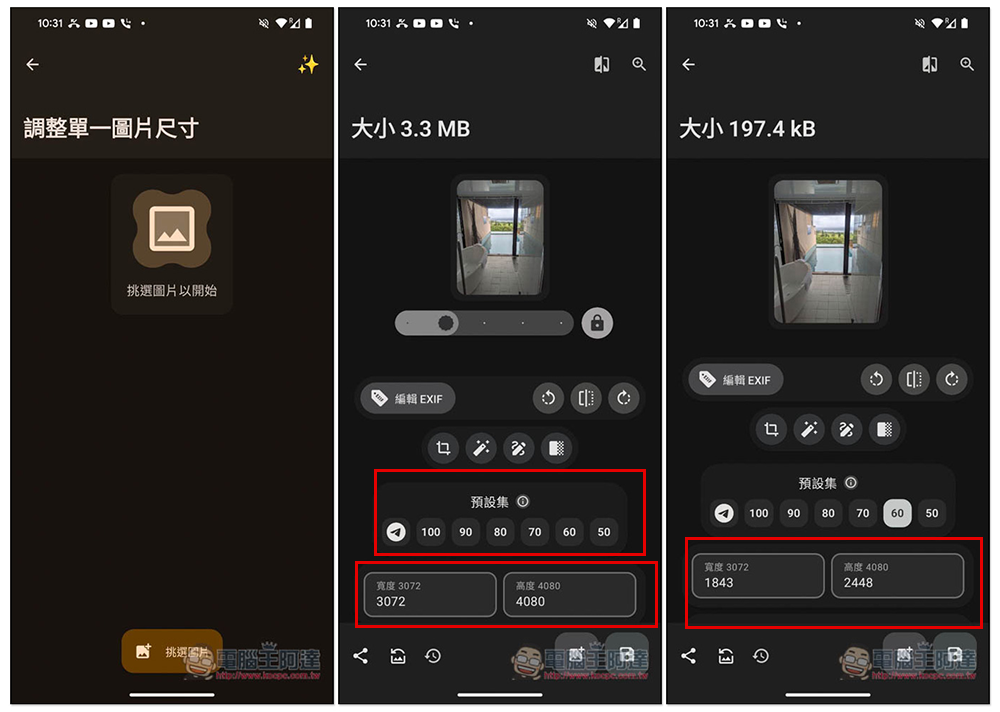
You can also set the image size directly, so you don’t have to worry about exceeding the website limit. If you want to free up more space on your phone, you can also use this function to compress the pictures on your phone. It supports batch processing, so you can select and process multiple pictures at one time:
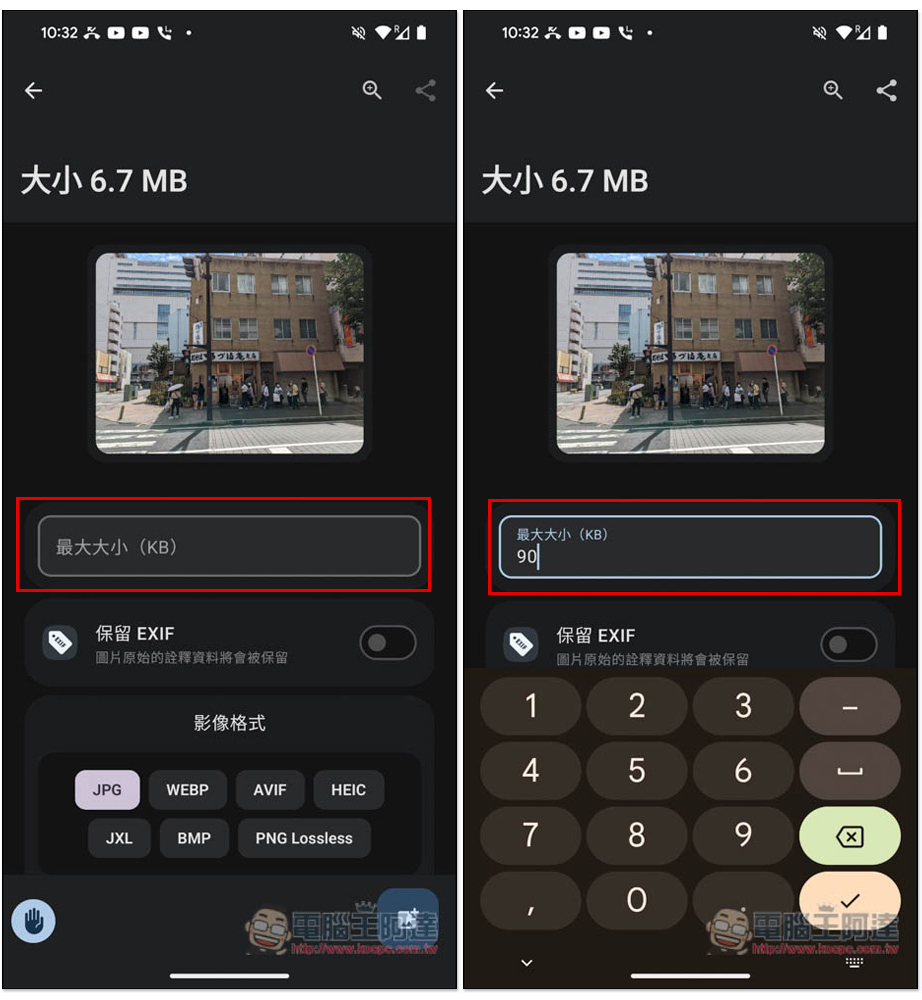
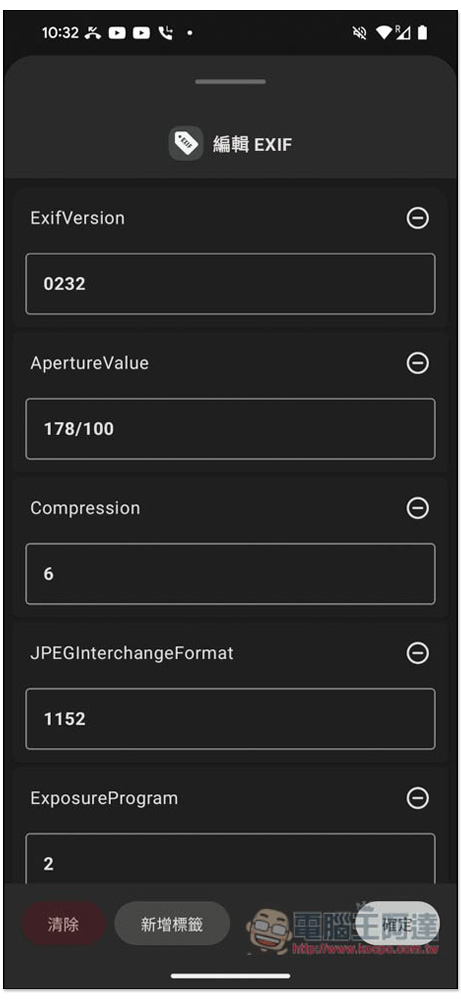
You can also remove or modify a photo’s EXIF data:
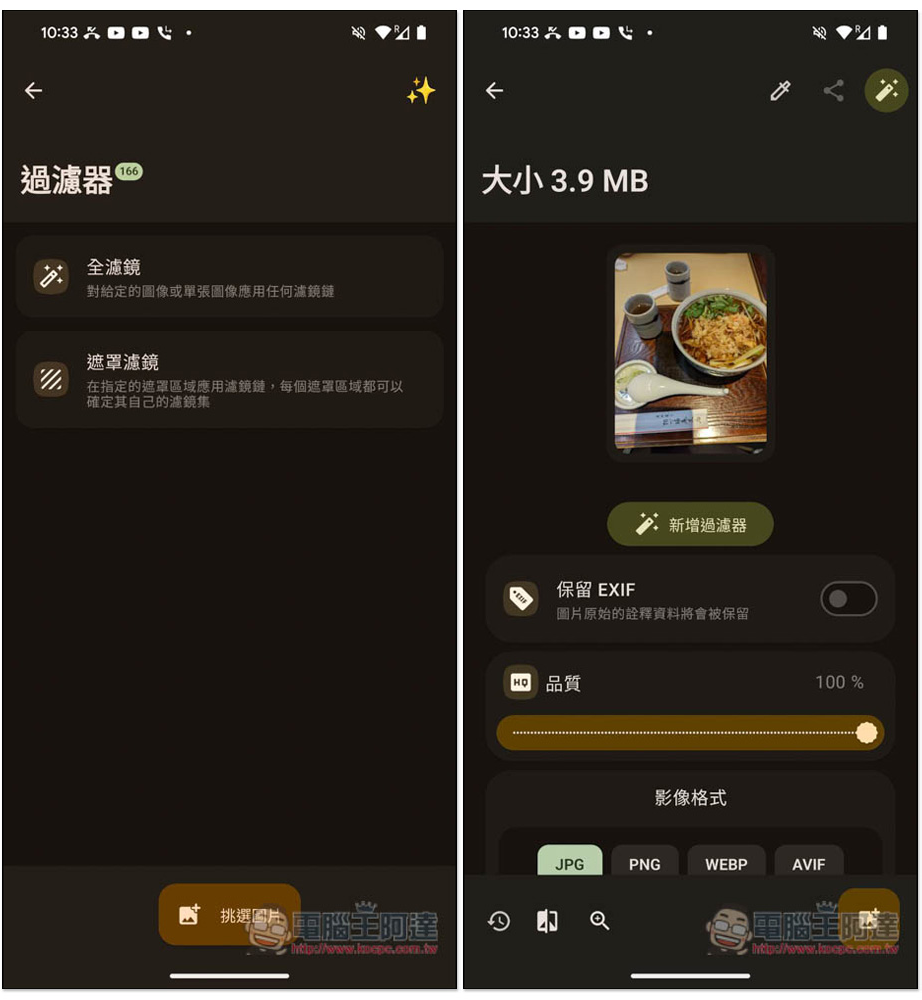
If you want to apply filter effects to your photos, you can use the filter function, which provides two options: full filter and mask filter. While applying filters, you can also set the quality and image format:
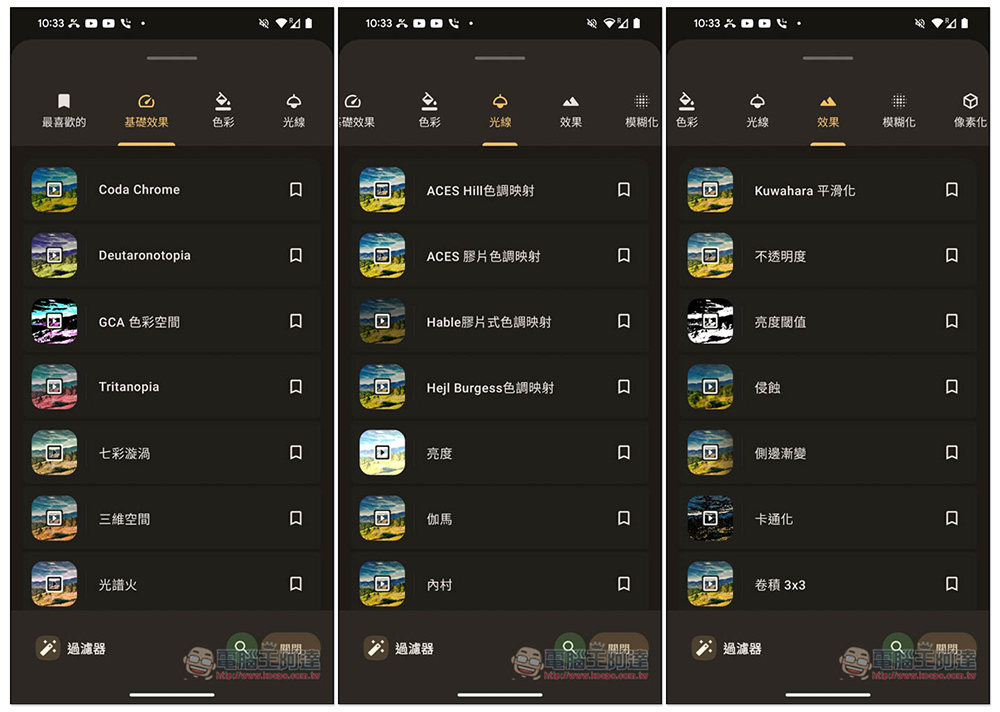
There are a lot of filter effects provided. According to the developer’s instructions, there are as many as 180 types, which are definitely enough for you to use:
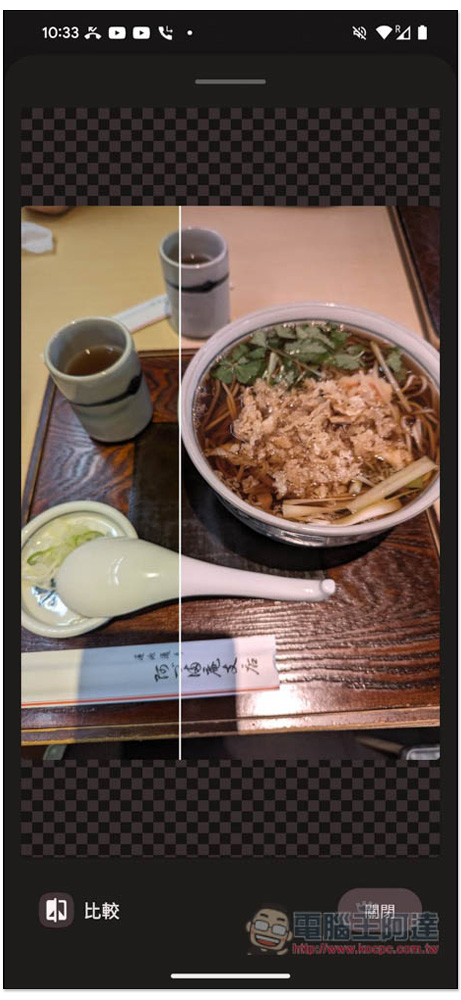
Almost every image editing tool provides a before-and-after comparison function, allowing you to view the differences before and after modification:
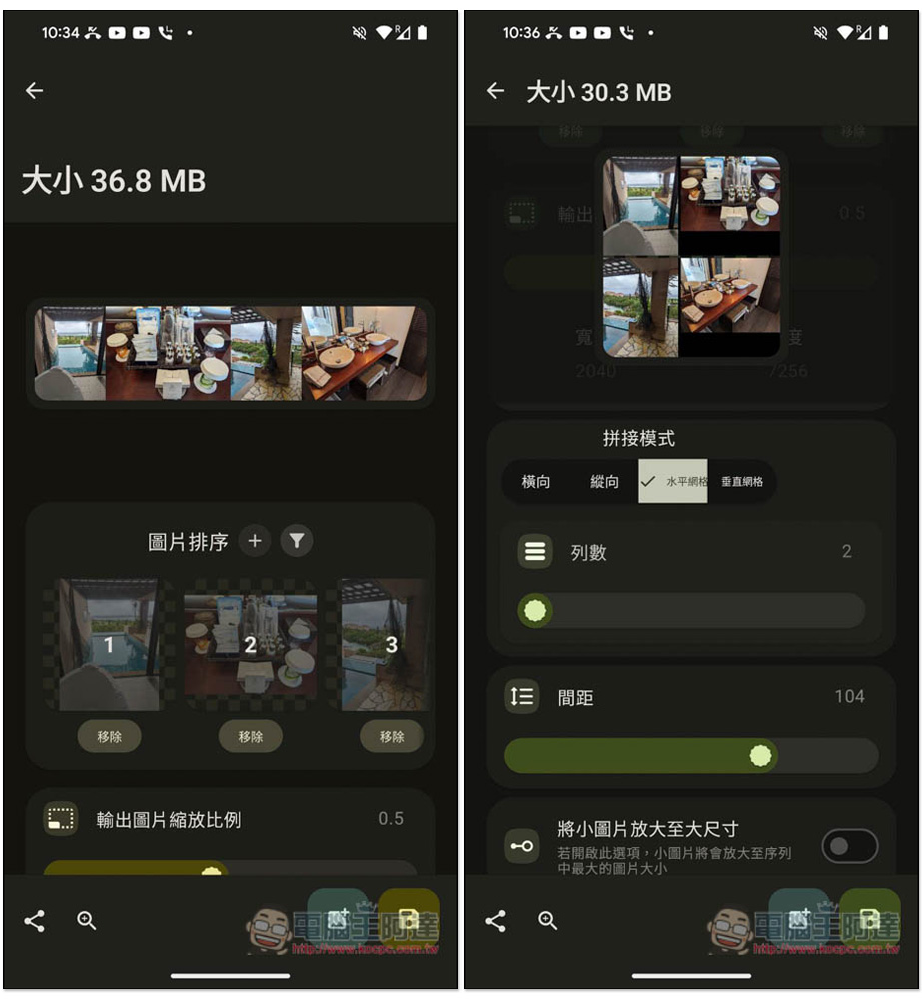
There is also a picture splicing function, but there are not many styles provided:
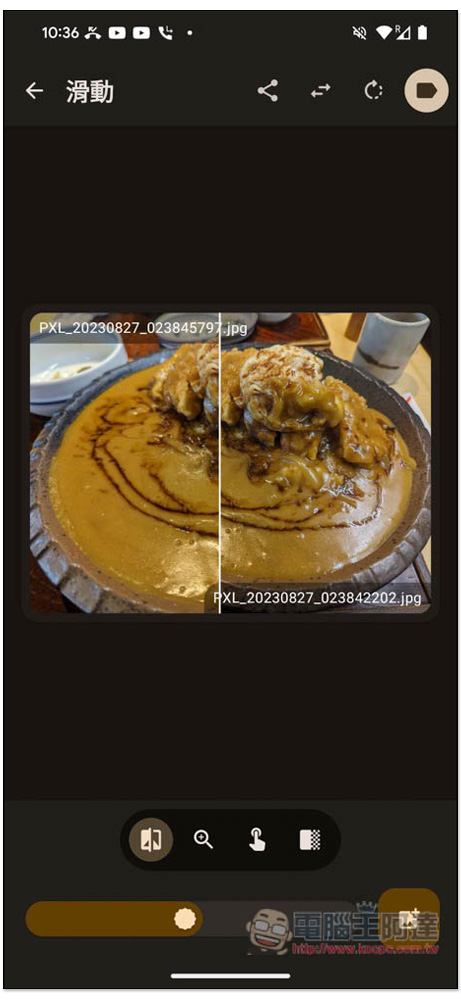
There is also a photo and picture comparison function. After selecting two, you can easily compare which one is better:
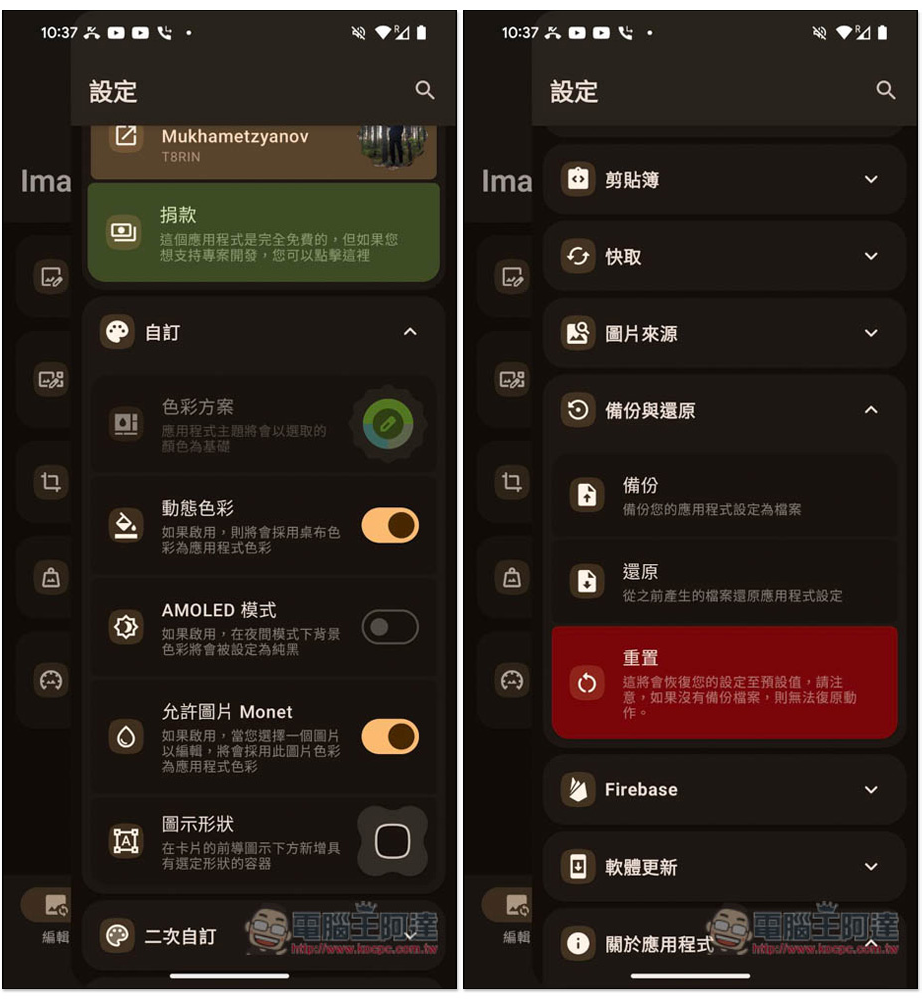
There are also multiple setting options in the menu on the right, which can be freely set according to your preferences:
Source: KOCPC Chinese