


As early as February this year, someone had already dug up the Android version Microsoft Edge The extension function is being tested. Although there are third-party browser apps in the Play Store that can install extension functions, the support is poor. Therefore, can Microsoft Edge bring a better mobile extension experience? It’s quite exciting.
The good news is that it is currently open to all users for testing. As long as you update to the latest version of Microsoft Edge, you can use the new extensions, but not many are open yet.
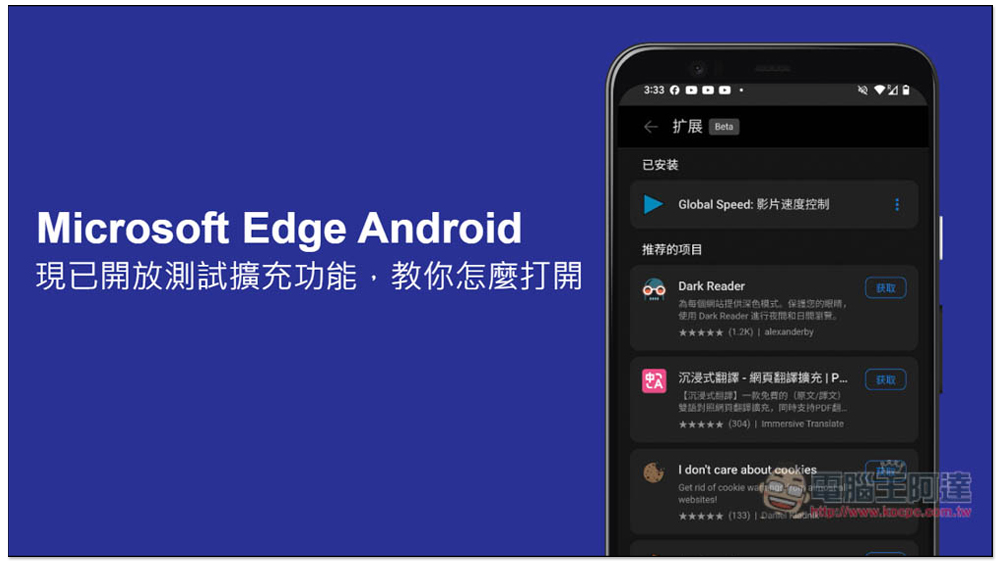
The Android version of Microsoft Edge is now open for testing extensions, teach you how to open them
- obtain Microsoft Edge
The extensions of Microsoft Edge for Android can be used without logging in to a Microsoft account, so those who have not installed it before can click on the link above to get it, and then directly try the new extensions.
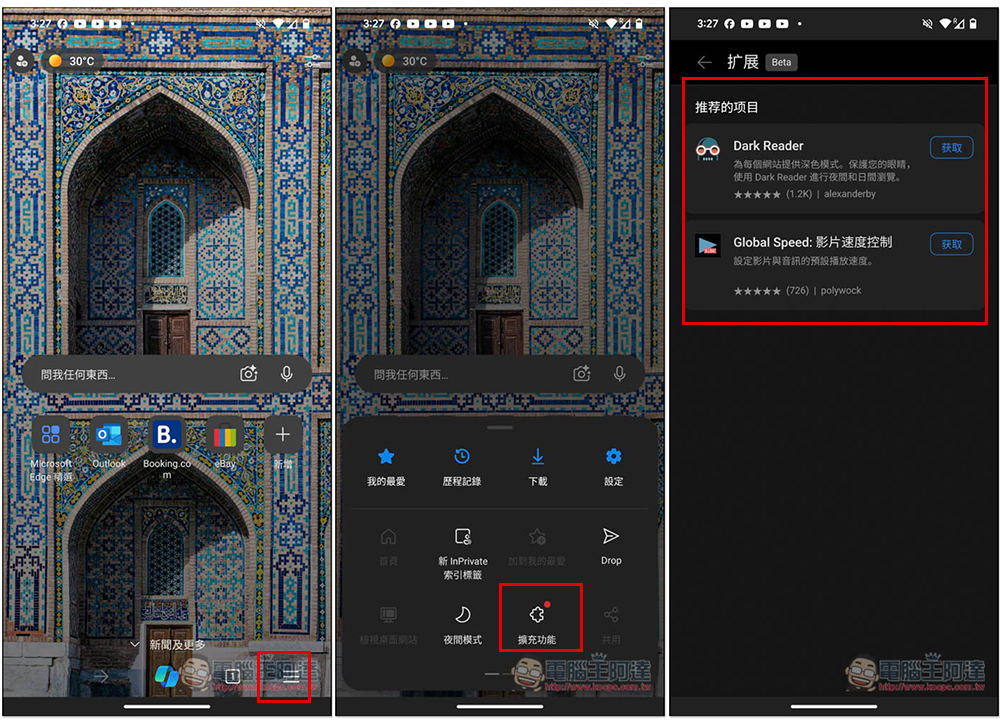
After opening the Microsoft Edge App, open the three-line menu in the lower right corner and you will find the newly added “Extended Functions”. However, after clicking on it, there are only two open at present, Dark Reader and Global Spedd: Video Speed Control. I will teach you how to open more available extended functions later. I demonstrate Global Spedd: Video Speed Control this one, click next to get:
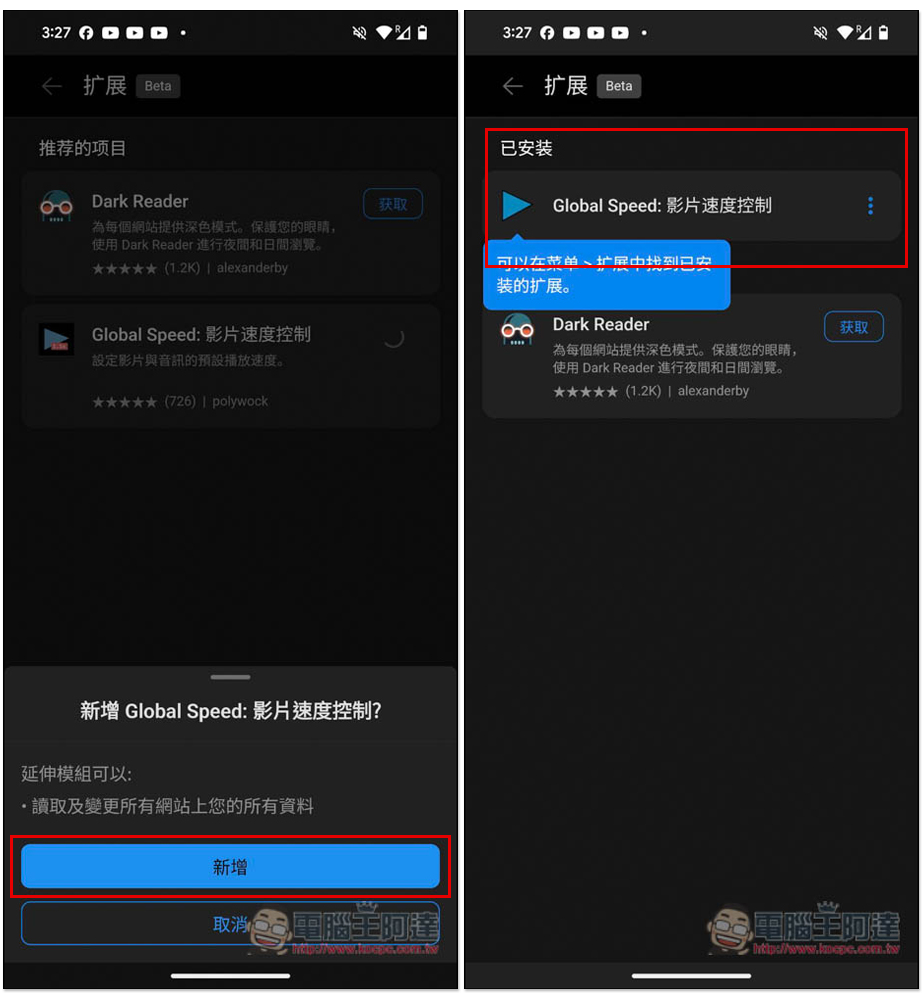
A prompt will pop up below, click “Add”, and then the extension will be moved to the installed items above:
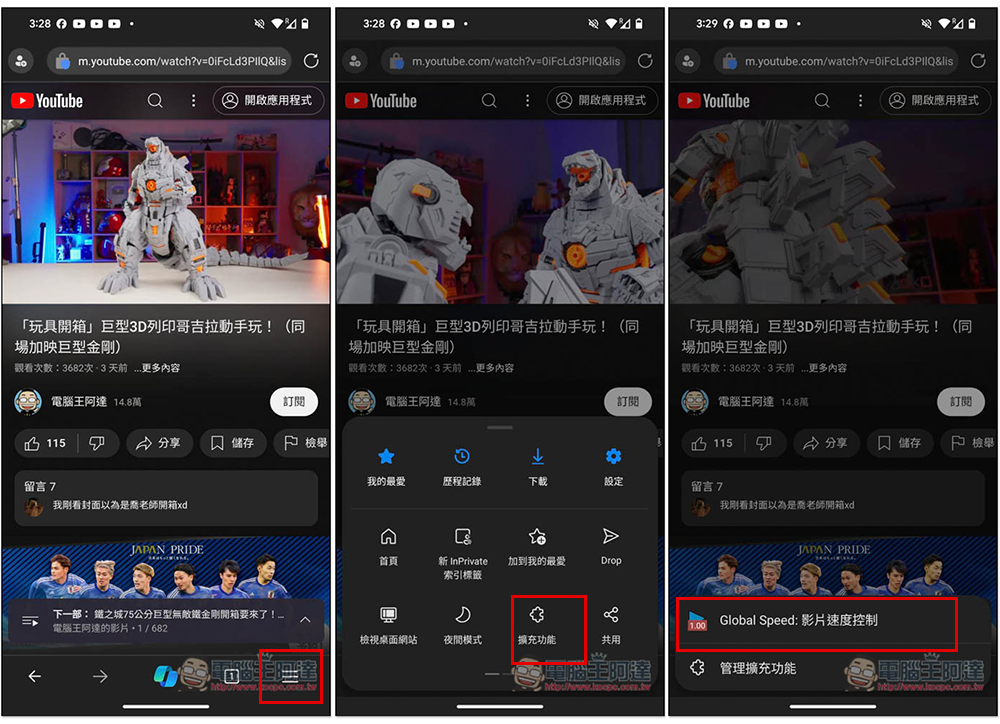
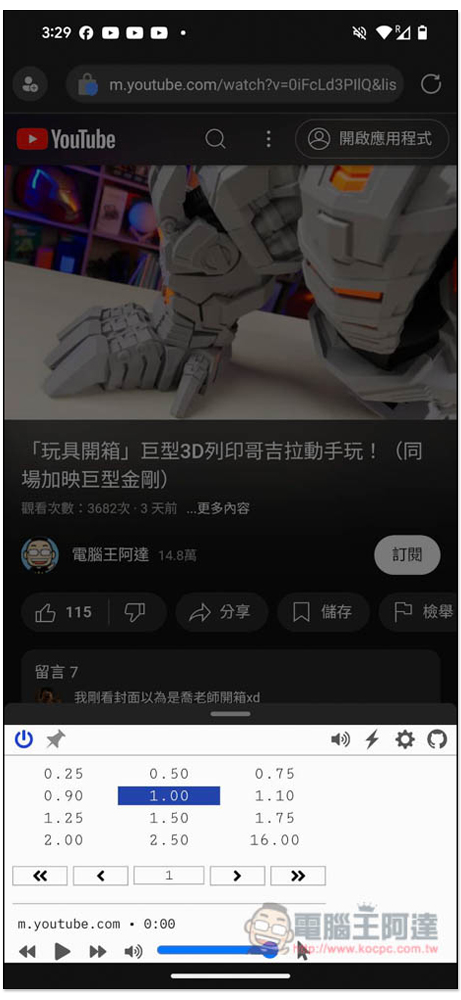
The usage is also very simple. My extension is to control the video speed, so I open the YouTube video, then open the three-line menu in the lower right corner again, enter the extension, and the Global Spedd: Video Speed Control that I have installed will pop up:
You can then adjust the video playback speed. Press any acceleration or deceleration control and the playback speed will be immediately applied to the video:
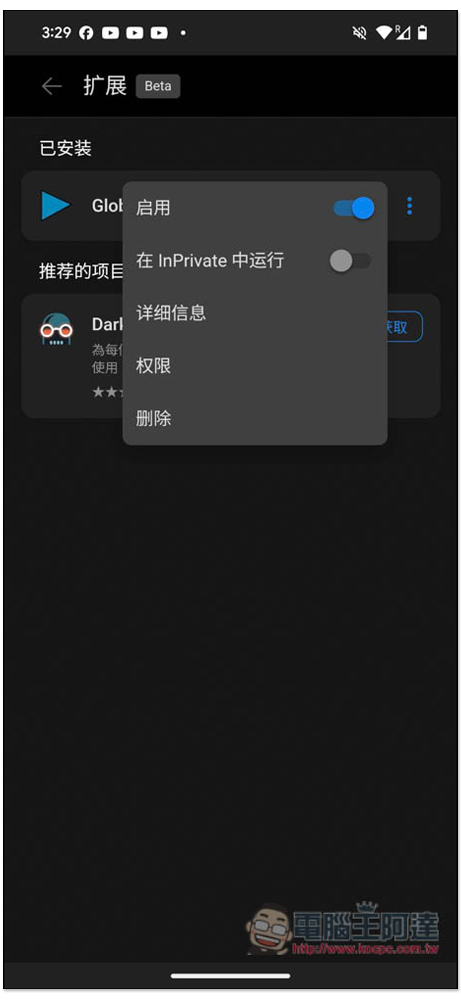
If you no longer want to use this extension, in the extension menu, open the… option and you will see the “Delete” function. It can also be opened and run in InPrivate:
For those who want to try more extension functions, please enter “edge://flags” in the URL field, search and enter “Android Extension”, and two options will pop up. Just change the Android Extension 2 below, change Default to Enable, and then reopen the Microsoft Edge App. Enter the extended function again, and you will see four more, including immersive translation, I don’t care about cookies, Cooie-Editor, and Unhook:
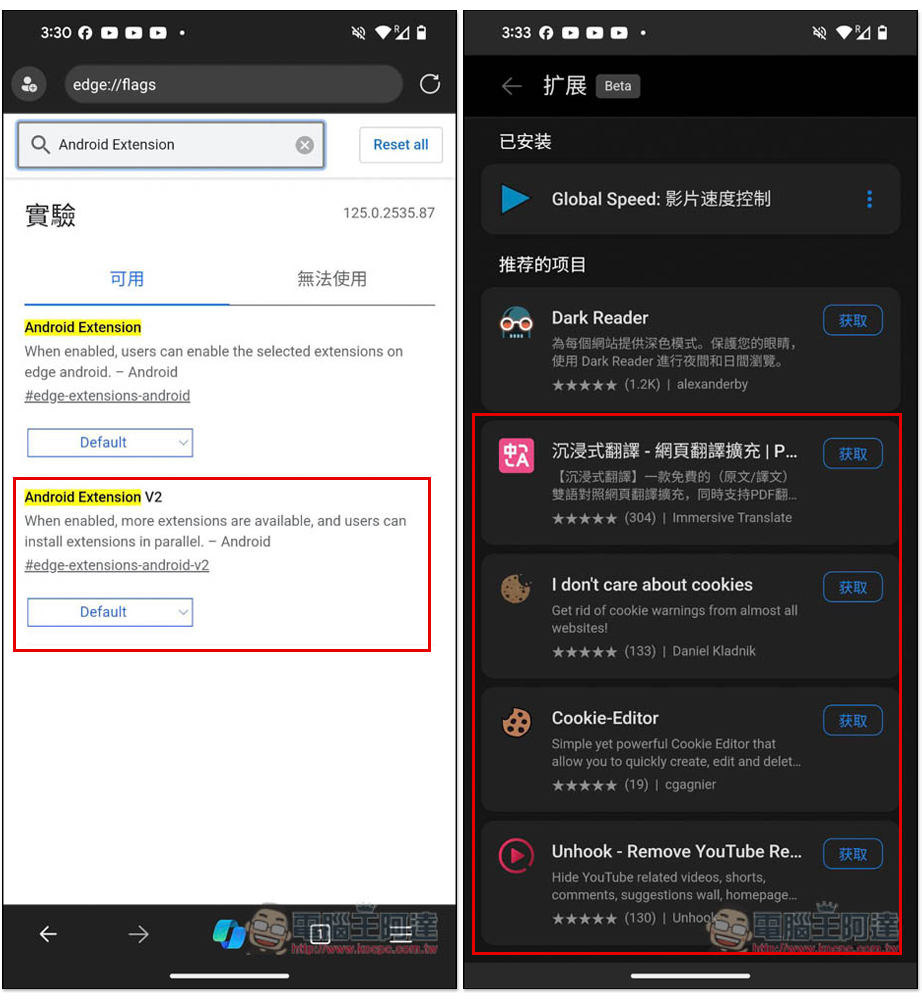
These four hidden extensions are currently still under testing, so you may encounter stability problems, such as sudden crashes and invalid functions:
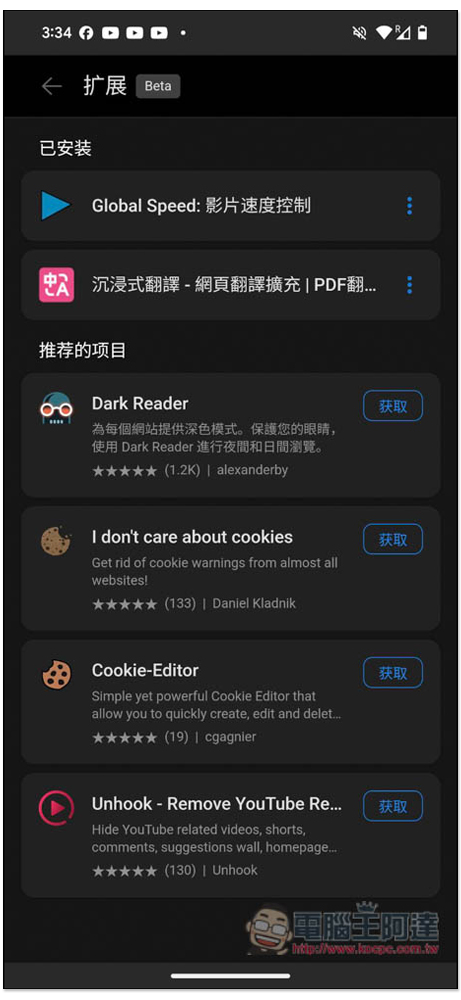
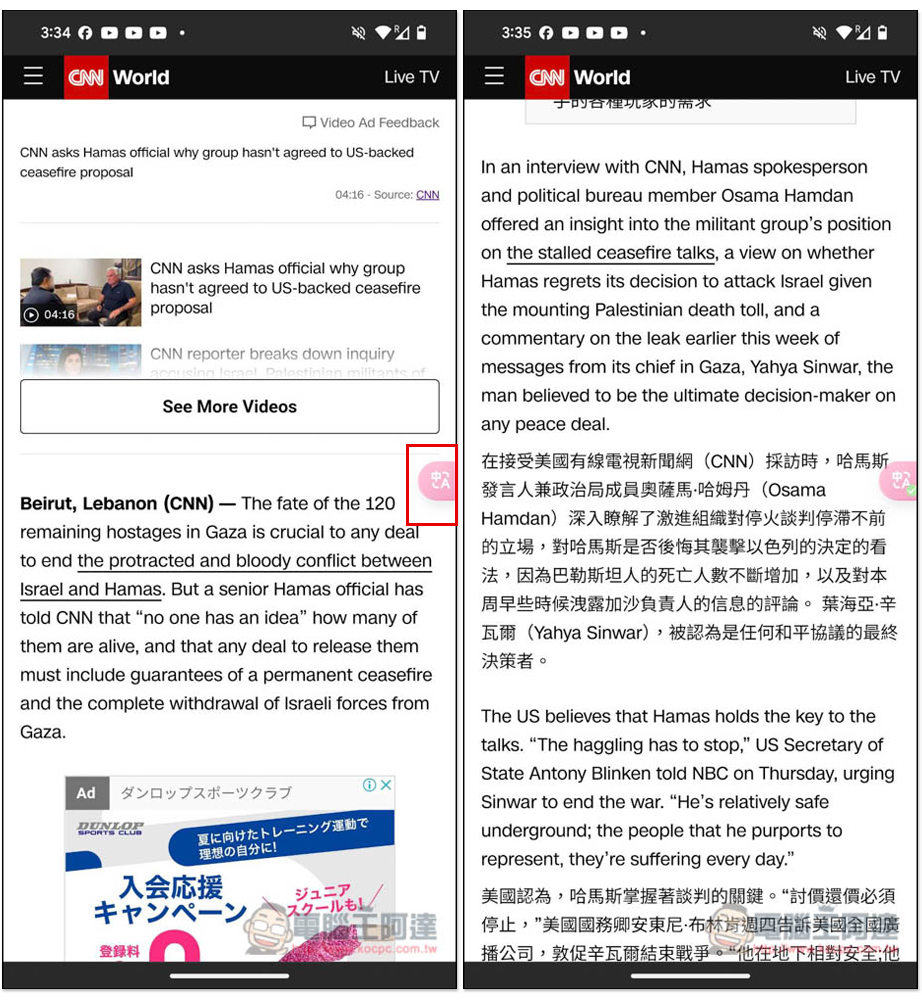
I tested the web page translation of Immersive Translation. The running process is quite stable, and just like the desktop version, a small icon will appear on the right, and you can translate it with one click:
Although the expansion function is currently open to all users to try, it is still in the beta version. It is not clear when the official version will be launched.
Source: KOCPC Chinese