


Most users are probably used to using a mouse on their computers and only use keyboard shortcuts when necessary. But let’s be honest, using keyboard shortcuts can be a huge productivity boost, as some of them provide faster ways to do things that might be taking up your time. Even if you are a more casual user, you should be familiar with shortcut keys such as Ctrl +C. However, there are dozens of keyboard shortcuts in Windows, but no one has time to learn them all. Therefore, this time we have compiled the 10 most commonly used and best-to-remember shortcuts that you must learn!
The 10 Best Shortcut Keys Every Windows User Should Know
Wiindows + arrow keys: resize windows and minimize applications
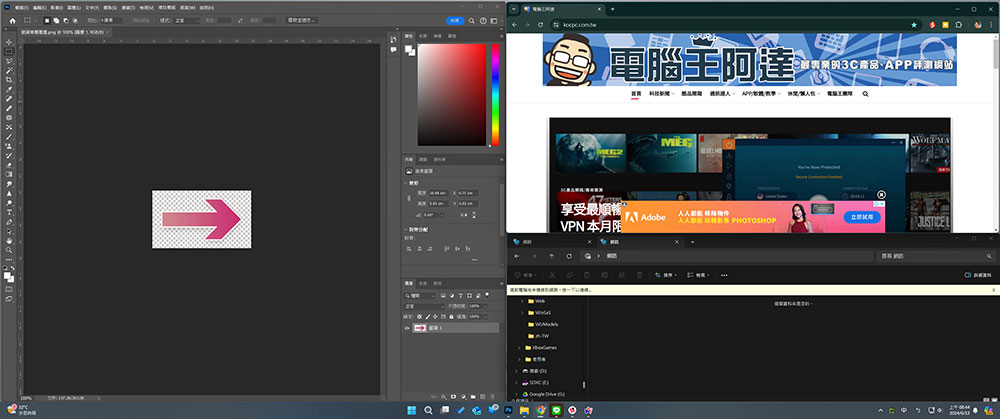
Snapping windows is a great feature in Windows 11, and while using a mouse certainly works and you can resize app windows more easily, using the keyboard is a great way to quickly resize, align, and get app windows where you want them.
Press the Windows key + the left/right arrow keys to position app windows on either side of the screen; Windows key + the up arrow to make the app take up the full screen. You can even split the screen into quarters by pressing the Windows key in one direction and then the other. You can also use Windows + Down Arrow to minimize the application. It’s just another way to resize and manage windows, and it’s a very helpful one.
Ctrl + Shift + Esc: Quickly open the work manager
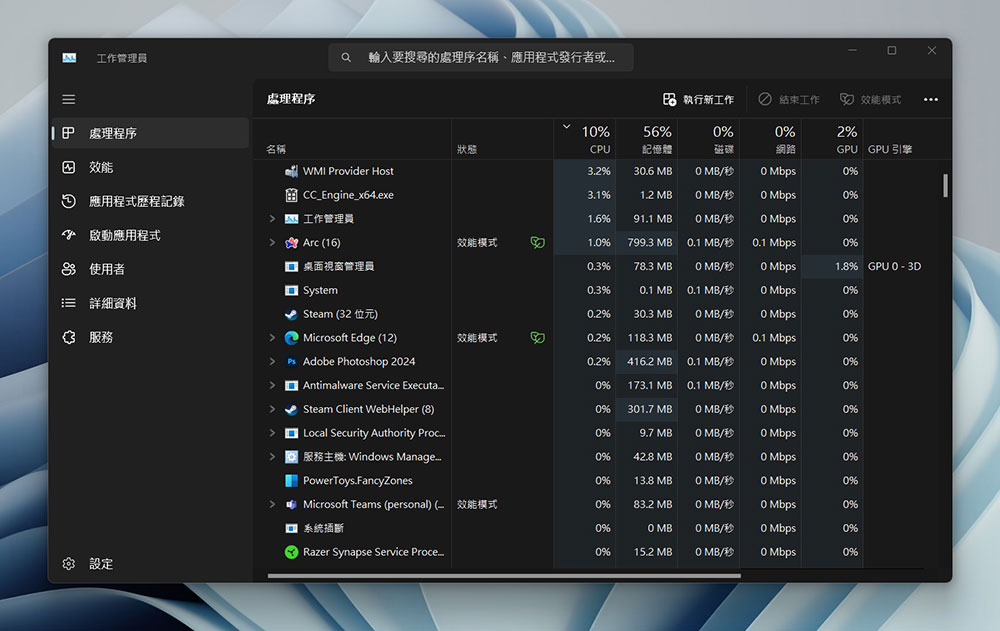
Job Manager is something we all have to use at some point, after all who hasn’t encountered a time when a frozen app had to be force terminated? But did you know you can launch it faster using keyboard shortcuts? Just press Ctrl + Shift + Esc on the keyboard to open it immediately, even faster than the familiar Ctrl + Alt + Delete in the past.
Windows + Shift + S (the latest version of Win11 can directly press Print Screen): Quickly call the clipping tool
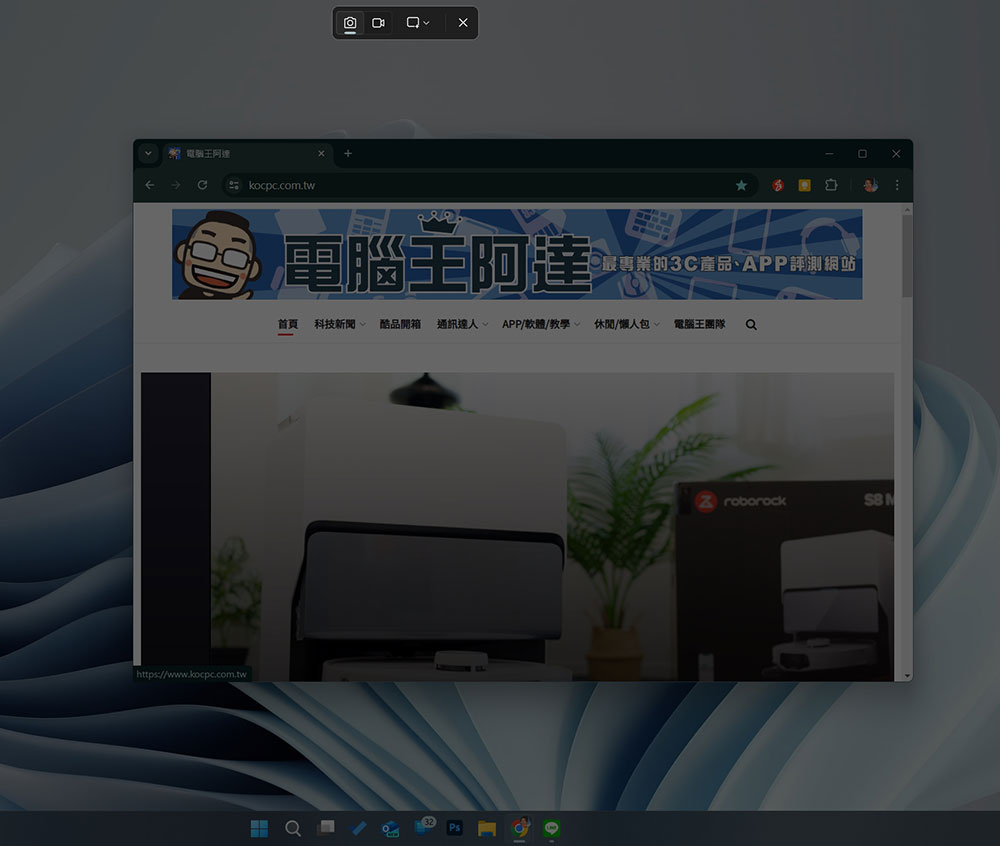
The snipping tool in Windows 11 is a very useful set of built-in system tools. In the cropping tool, you can choose to take partial, full-screen or specific window screenshots, and there is also an annotation function. In particular, Microsoft is adding more and more features to it, including screen recording.
You’ve probably never intentionally turned it on, but the Windows + Shift + S shortcut makes it easier to launch the snipping tool so you can quickly capture a screenshot or manipulate a video of whatever you’re viewing. This is a very useful tool, and it’s also a sign that Microsoft has re-adjusted the function of the Print Screen button to allow users to perform such easy operations.
Windows + Print Screen: Quick screenshot
This looks similar to the previous shortcut function at first glance, but there are some very key differences. This shortcut has been in Windows for a long time, so you can still use this key combination even if you are still using Windows 8. When you press the Windows + Print Screen keys, you’ll see the screen flash quickly to let you know that the screenshot has been taken and stored in the user’s picture. There is no need to select the area, window, or paste the edited image immediately. Let me emphasize here that this shortcut captures the full screen image, so you can save it for later use and then crop it. This comes in handy when you need a series of very quick screenshots.
Ctrl + Shift + T: Reopen the last closed tab
You probably already know that you can press Ctrl + T to open a new tab in your browser, and you probably also know that you can use Ctrl + W to close a tab. What if you want to open the tab that you just accidentally closed by mistake? You can even press it repeatedly to reopen any tabs you may have closed. This shortcut has saved me a lot of time that is difficult to quantify. It is not a function unique to Windows computers, so no matter which computer system you use, you can use this shortcut when using the browser.
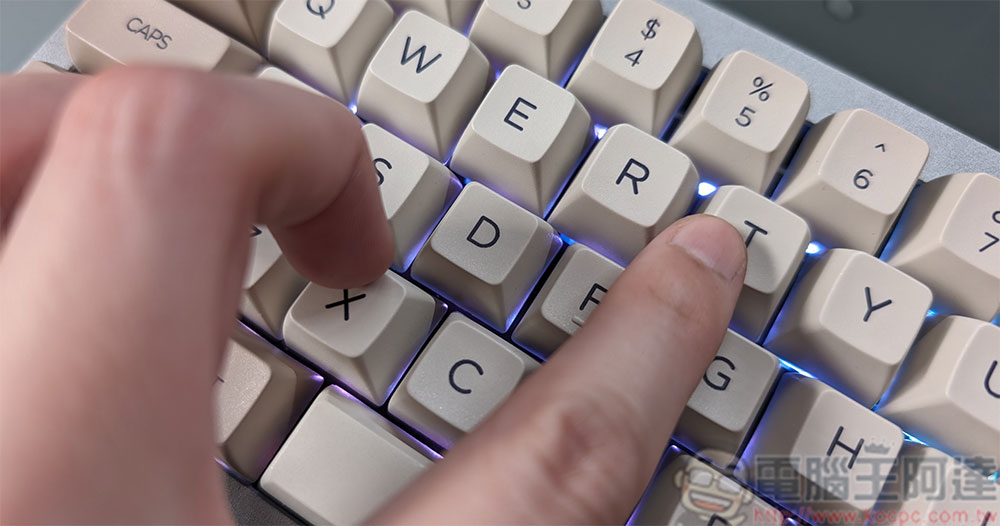
Ctrl + Y: Redo the undone operation
A very popular shortcut is Ctrl + Z for undoing changes to a file. But sometimes you might just press the key a few times and accidentally repeat the undo action. That’s where Ctrl + Y comes in, allowing you to redo a previously undone action in most Windows applications. This can save you a lot of time if you’re constantly furiously typing keys on your keyboard; some applications, like Photoshop, actually replace this shortcut with Ctrl + Alt + Z.
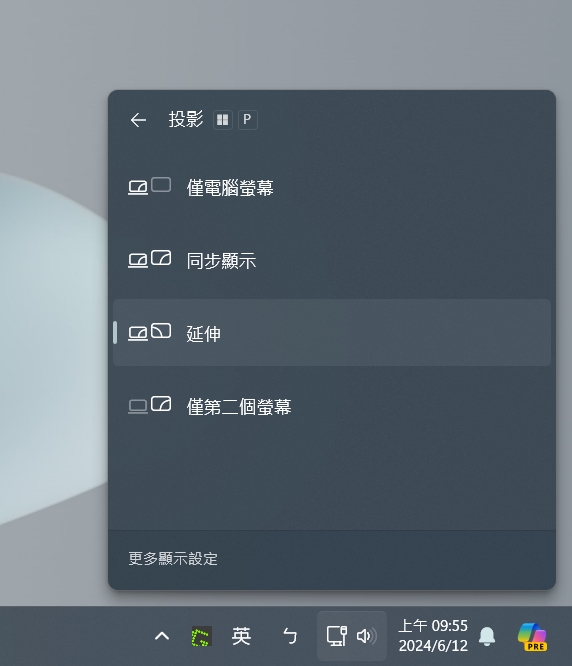
Windows + P: Change multi-screen display mode (external monitors and projections are also available)
Although multiple screens are very convenient when working, sometimes you may have special needs for the screens, such as wishing that the laptop and external monitors do not display the same screen to avoid leaking personal information, extending the display, etc. However, management is actually not that troublesome, and switching does not need to be so roundabout.
The Windows + P shortcut combo is the easiest way to quickly view and change your display when working with multiple screens. When you press this snapshot to bring up the projection panel, you can choose whether to use only the main screen or the secondary screen, synchronize images on both screens, or use one screen as an extension of the other, etc. Of course, if you need to enable more detailed options, you still need to do it from the Settings app.
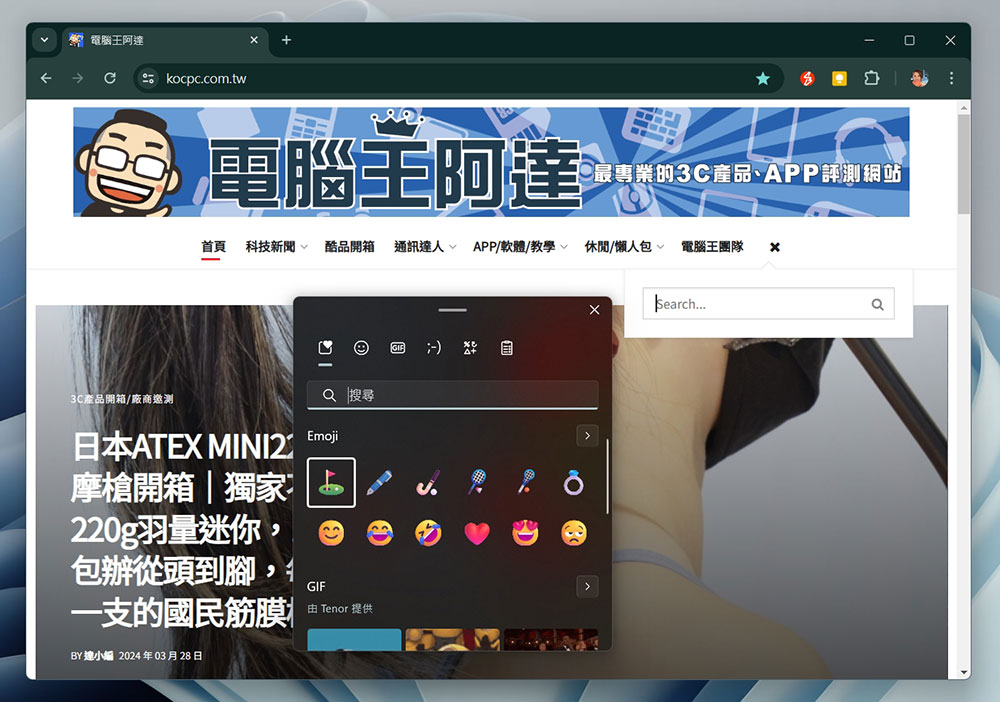
Windows + . (or ;): Quickly open the emoji table
Although emojis are common on smartphones, few people go out of their way to use them on computers. That’s understandable, since many people don’t know there’s a way to use your favorite emojis, kaomojis, and GIFs with keyboard shortcuts on Windows 11.
That’s right, just press “Windows + .”. You can quickly launch Windows’ built-in emoji panel from your keyboard to add a touch of personal style and tone to messages you send. You can also search for specific emoticons, and the most commonly used emoticons will appear at the top.
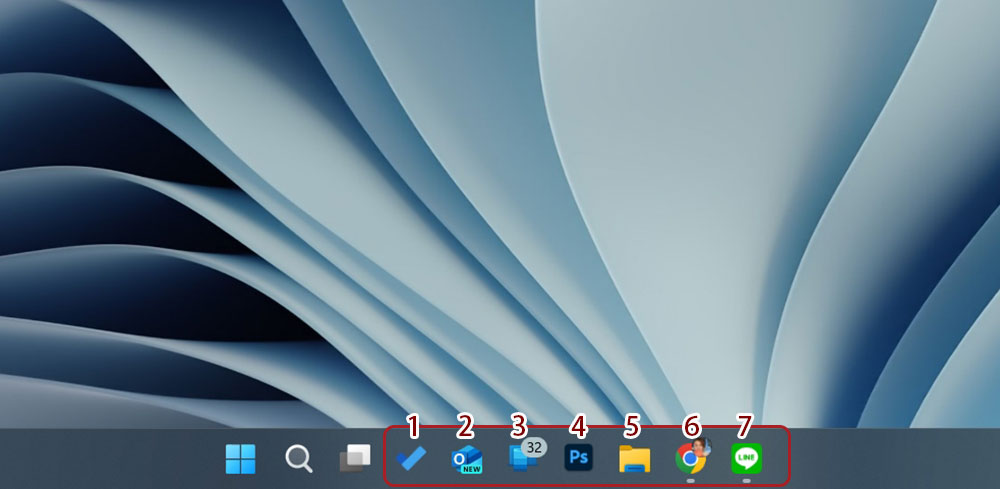
Windows + Numbers: Quickly launch apps pinned to the taskbar
Pinning your most commonly used and favorite applications on the taskbar is a good way to quickly launch them. This is the best choice especially if you, like me, don’t like placing icon shortcuts on the desktop, but it is a little slower to move the mouse to click every time.
You can launch any application on the taskbar by pressing Windows + number keys 1~9. The number represents the position order of the application from left to right on the taskbar (excluding system icons such as Windows Start, search, and switching virtual desktops, see the example below), which can be used to launch the application or switch open applications.
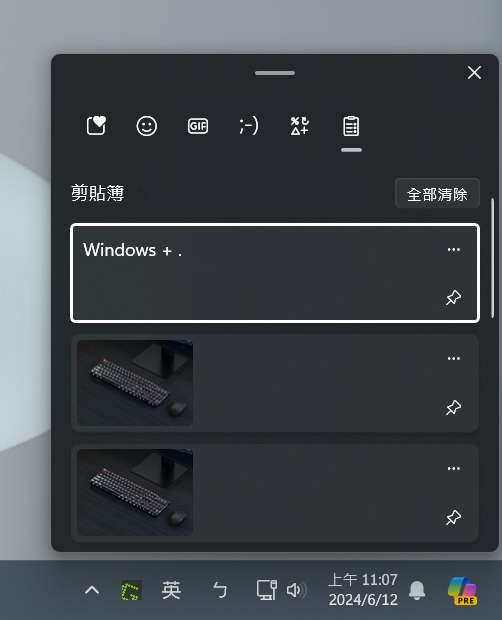
Windows + V: Open Clipbook History
Finally, let’s wrap up today’s topic with one of the best features in Windows 11. Clipboard history lets Windows remember items you’ve previously copied, and Windows + V provides access to everything copied during the current session. Not only that, you can also pin specific items to save and paste them elsewhere. If you often copy the same text, this shortcut can save you a lot of time compared to having to go back and copy and paste it every time you use it.
Source: KOCPC Chinese