


When you slide across an interesting video on the subway and don’t realize that you have turned up the volume on your iPhone very loudly, the sudden burst of sound will definitely attract everyone’s attention and make you panic and die on the spot. Usually this happens because you turned up the volume when you last watched a movie, but more often than not, it’s because when you watched a movie last time, the volume was obviously at the same level but the sound was getting smaller and smaller, so you turn it up every time. This problem may worry you, so how can you solve it?
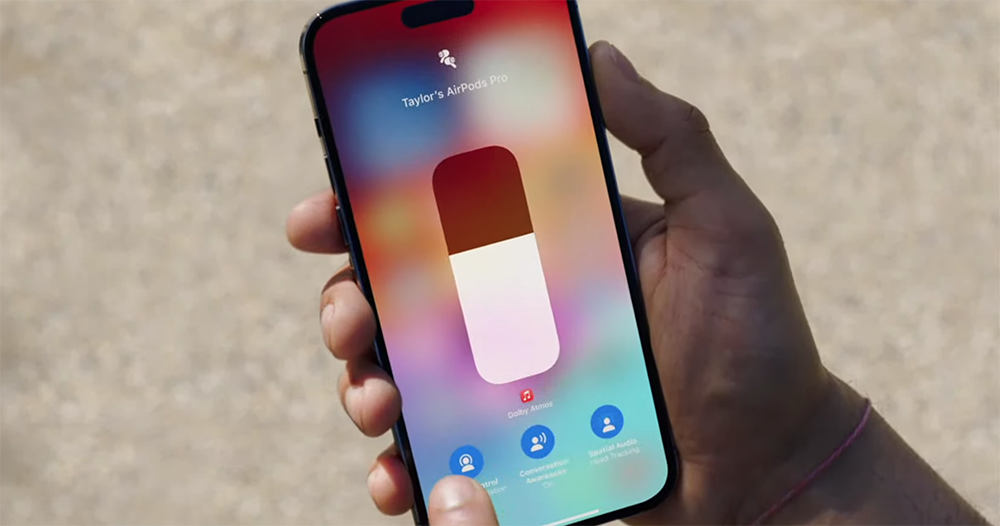
iPhone volume keeps dropping? Changing these settings may help
The volume may be turned up because you cannot hear the ringtone of your iPhone or the alarm you set without adjusting the volume at all, or the volume of the music you are listening to suddenly drops. There are many reasons and settings that can cause your iPhone to reduce volume on its own, so let’s take a closer look at all of them to learn more about what issues might be affecting your iPhone and, more importantly, how to fix it.
How do I change the volume of ringtones and alerts?
Unless you regularly keep your iPhone in silent mode so the only reminder of incoming calls or notifications is vibrating, hearing your phone ring is important to actually owning the phone so you can stay informed of important calls or important information pushed to your screen. You might use the buttons on the left side of your iPhone to adjust the volume, but the ringer doesn’t sound any louder than before. In reality, the volume you play on your device doesn’t necessarily correlate to the volume of the ringtone, and here’s how you can adjust it:
- Open the Settings app on your iPhone.
- Select “Sound and tactile feedback”.
- Turn on the “Use buttons to change volume” switch to use the side buttons to adjust the ringtone. If the switch is off, the side buttons can only adjust the multimedia volume.
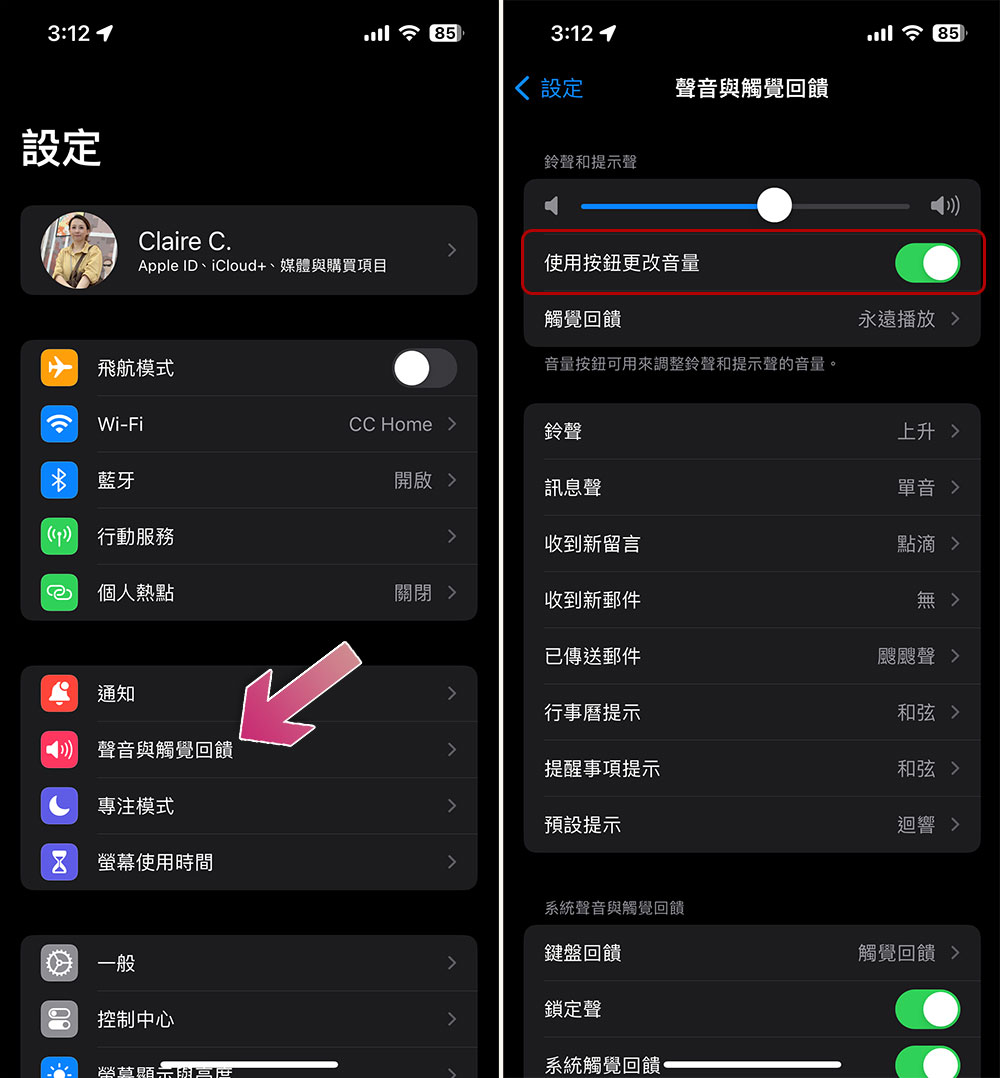
By turning on this feature, your ringtones, haptics, and system audio will all be connected together. If you want to separate the two functions and only want to increase the volume of the ringtone and haptic to a set level, turn this option off and use the volume level slider just above the switch.
How to disable screen gaze awareness?
You may not have noticed that there’s a feature on the iPhone called Screen Gaze Awareness, which affects the volume level of the device, but isn’t actually determined by the volume control. Instead, it’s governed by the technology behind Face ID. Enabling this feature not only allows you to unlock iPhone by reading facial information, but also allows you to customize your listening experience based on whether you are looking at iPhone. So if you get a call or notification while you’re looking at your iPhone, it will play the ringtone at a lower volume than the set volume because Screen Gaze Awareness thinks you’re using the device and you don’t need the sound to hit you in the face. Of course, like all technology, this feature isn’t foolproof and may activate even if you’re not looking at your iPhone. If you wish, you can turn off screen gaze awareness as follows:
- Open the Settings app and select “Accessibility”.
- Select “Face ID & Screen Gaze” there.
- Turn off “Screen Gaze Awareness”.
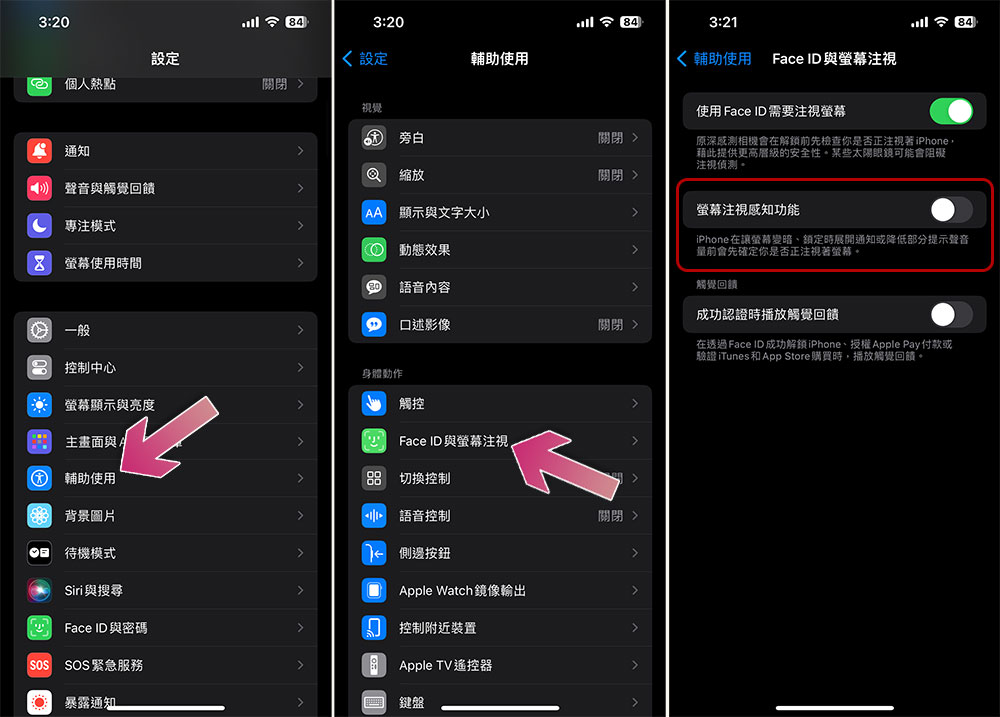
After turning it off, it will turn off the function of automatically reducing the ringer volume, but it will also disable functions such as dimming the screen when you are not looking at the iPhone screen, which will naturally affect power consumption. This is very important, so remember the key points.
How to disable high volume reduction?
Sudden volume drops aren’t a problem unique to the iPhone’s built-in speakers, they can also happen when your device is connected to headphones. You may find yourself in a situation where you are listening to music and the volume either drops unexpectedly, or the volume reaches a point where it becomes impossible to adjust. This may be because you have unknowingly enabled the “High Volume Down” feature, which limits the maximum volume level the sound in your headphones can reach. While this is great for protecting users’ hearing, changing the volume without your control can be annoying, and here’s how to deactivate the feature:
- Open the Settings app.
- Select “Sound and tactile feedback”.
- Scroll to the bottom and click “Headphone Security”.
- Turn off the “high volume reduction” function.
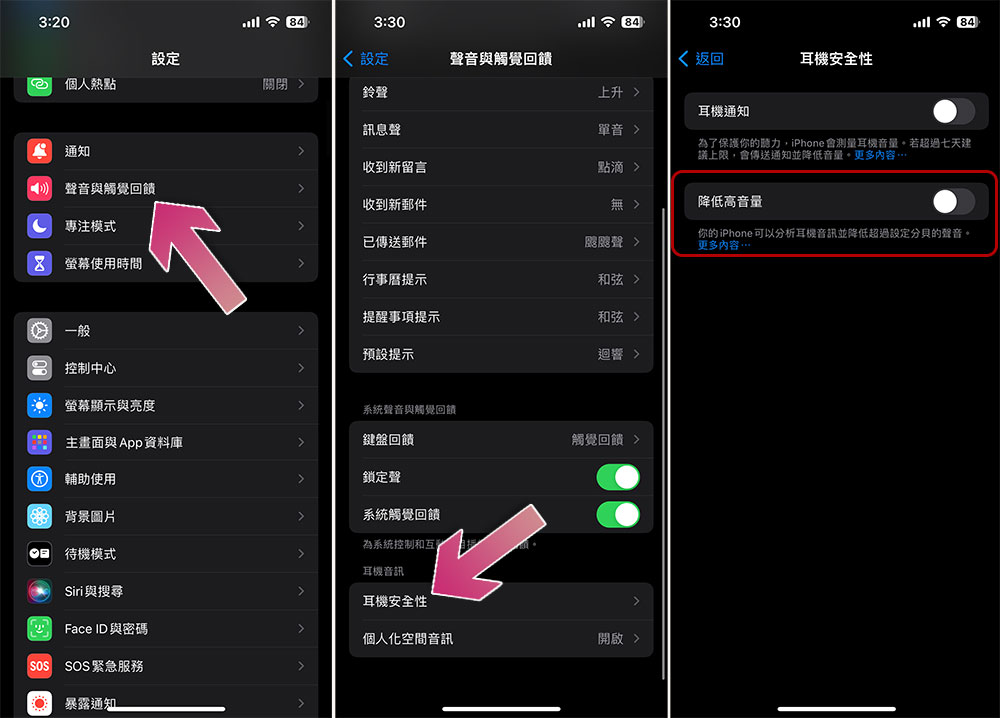
If you still want to use this feature, you can also adjust the volume level to a higher level than the current setting. This way you can avoid excessive volume but still maintain a certain level when listening.
Other factors that may cause volume to drop
Another common problem with iPhone volume may just be caused by a specific app. For example, Spotify may be the only app experiencing volume limiting issues, which may be due to settings within the app rather than settings on the iPhone itself. In Spotify, you have three different volume options: loud, normal, and quiet. If you set it to quiet or even normal, there’s a good chance you’ll experience a drop in volume while using it. By toggling this option, you can get consistent volume levels across your entire iPhone, and you can apply a similar strategy if you have other apps with volume controls.
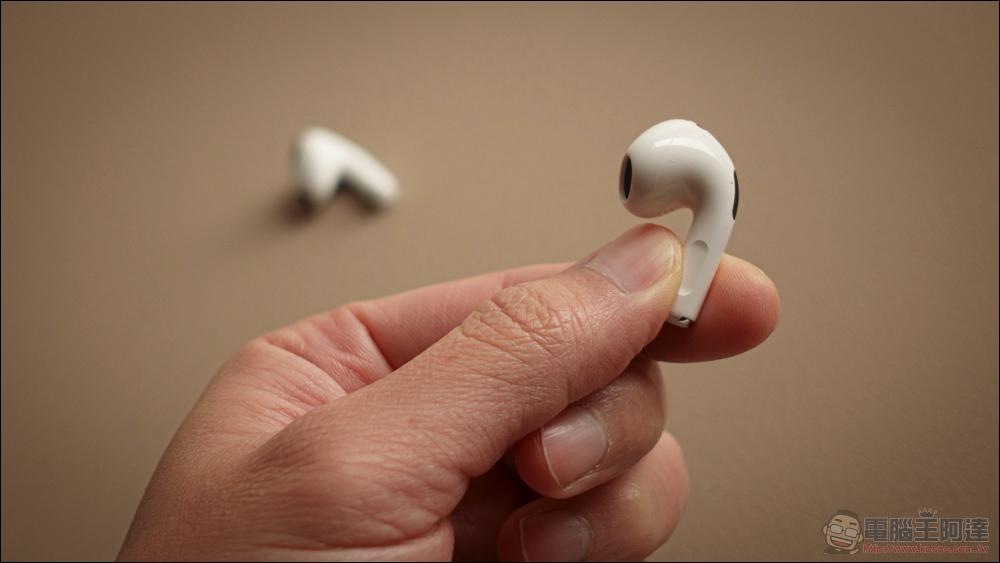
Finally, there may be some deeper issues with your iPhone that none of the troubleshooting above can fix. If this is the case, then the best thing to do is to take the phone to your local Apple Store for a proper diagnostic check to determine the problem. Technology may continue to advance, but that doesn’t mean it’s infallible. There’s always going to be something unexpected that goes wrong and requires extensive repairs, or you might need to buy a new iPhone that just works.
Source: KOCPC Chinese