


The Microsoft Edge browser is a reliable product on Windows systems that many people have switched to. Although it had a shaky start, it has added many popular and popular features since moving to Chromium core. Still, you’ll often see Microsoft push its services and products through the Edge browser, and while some of these moves may feel like overkill, it also means that while Microsoft Edge is a feature-rich web browser, the default settings may not be suitable for everyone. This time we will teach you how to complete the customization tips below and simplify the Microsoft Edge settings on your computer.
7 settings you must learn to get the most out of your Microsoft Edge browser
1. Customize Microsoft Edge home screen
The default Edge home screen is filled with elements such as Bing wallpaper, news reports, weather details and recommended links. It is undoubtedly a kind of fatigue bombardment. Let us turn off some unnecessary additional elements!
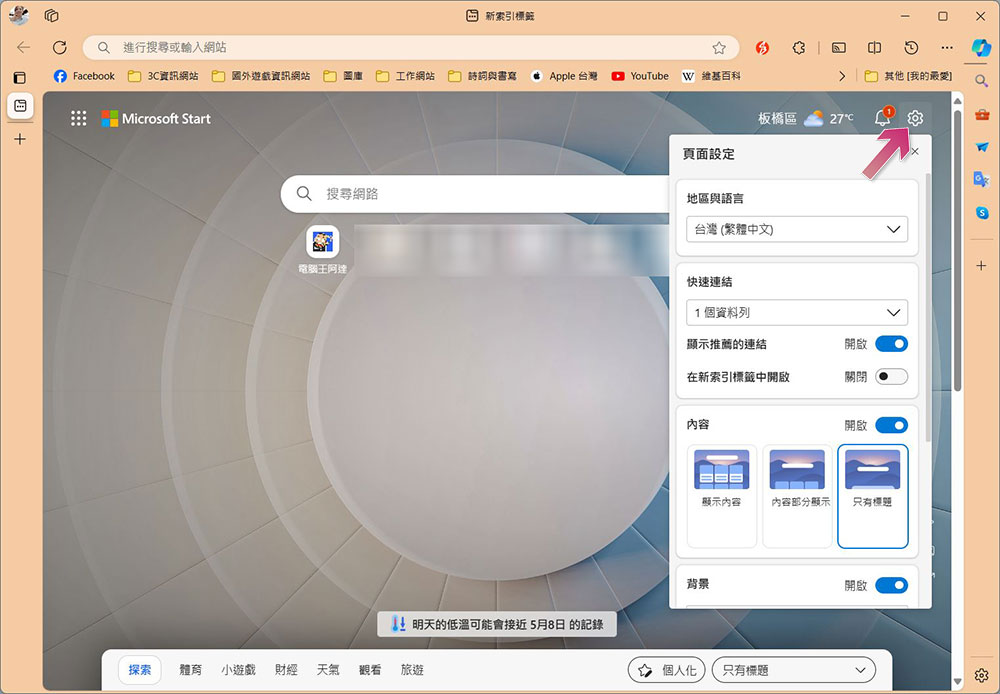
- Open the Microsoft Edge browser and click the gear icon in the upper right corner to enter the settings screen.
- You can turn off recommended links, adjust or turn off the content display page, disable or edit the background, turn off weather information, etc.
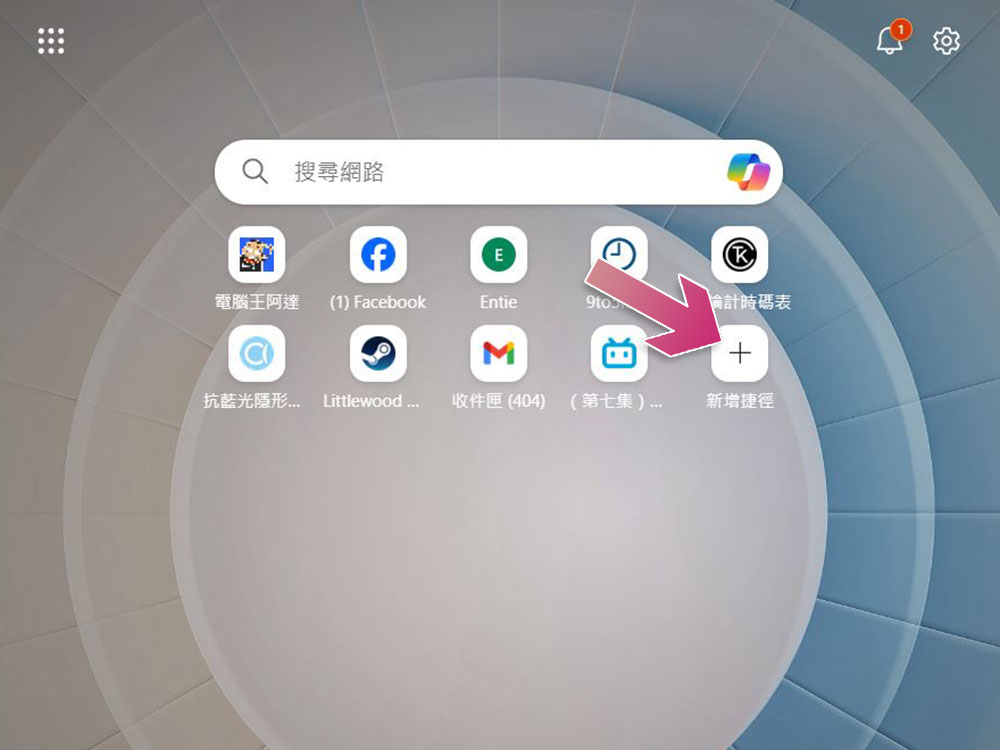
- You can also choose to add shortcuts to store your most frequently used URLs on the home screen for easy access with one click, but you can’t disable the search fields that Bing supports.
2. Adjust Microsoft Edge’s sidebar
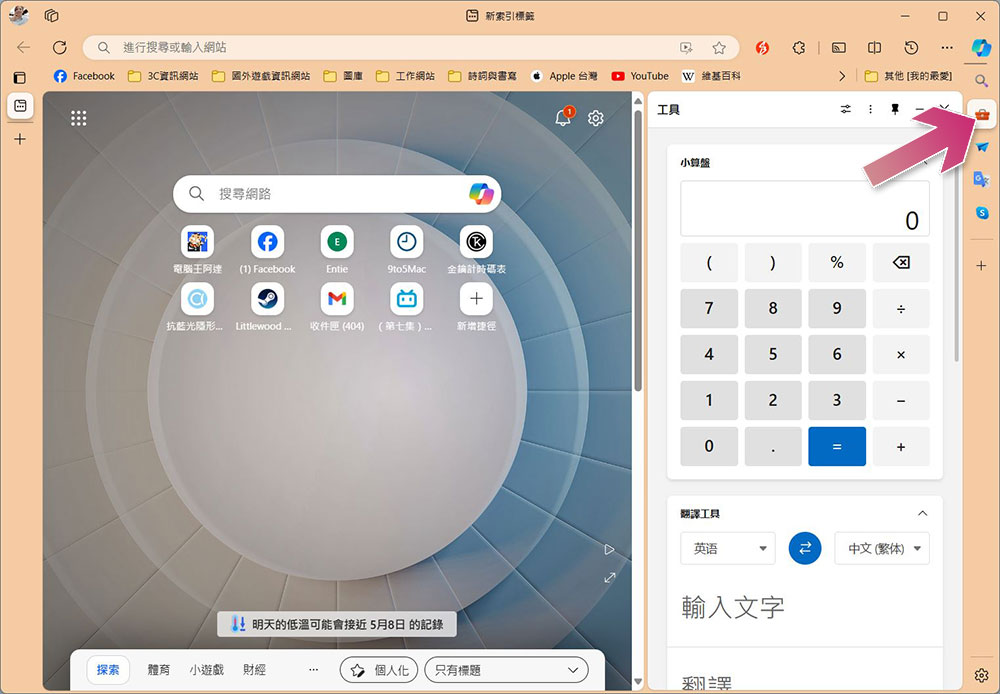
Edge’s sidebar includes add-ons such as search, games, and Microsoft 365, as well as tools for computers, unit conversions, network speed tests, and world clocks, so you can customize the display to suit your preferences.
- Open the Microsoft Edge browser and click the “+” sign at the bottom of the sidebar.
- You can pin shortcuts such as Facebook, Xiaohongshu, etc. to the sidebar for easy access.
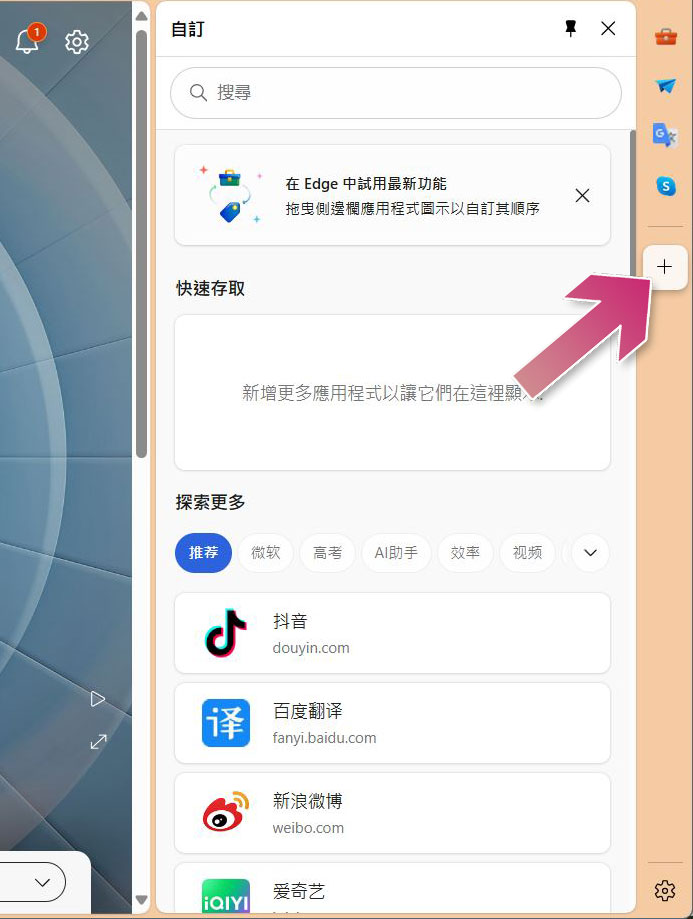
- You can also click “Tools”, such as timer, translation, etc., to view, sort or deactivate your tool items.
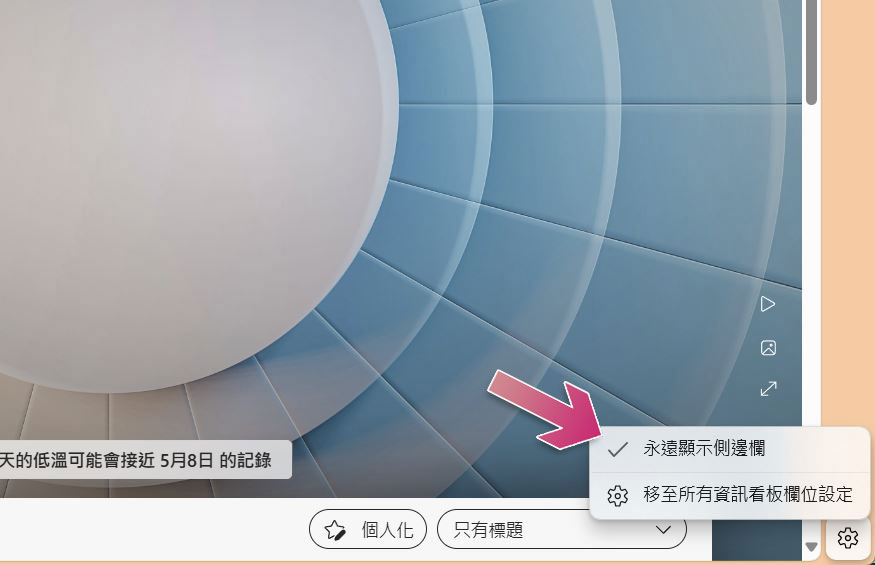
- If you don’t like to display the sidebar, you can click the gear icon at the bottom of the sidebar and uncheck “Always show sidebar”.
3. Change default search engine
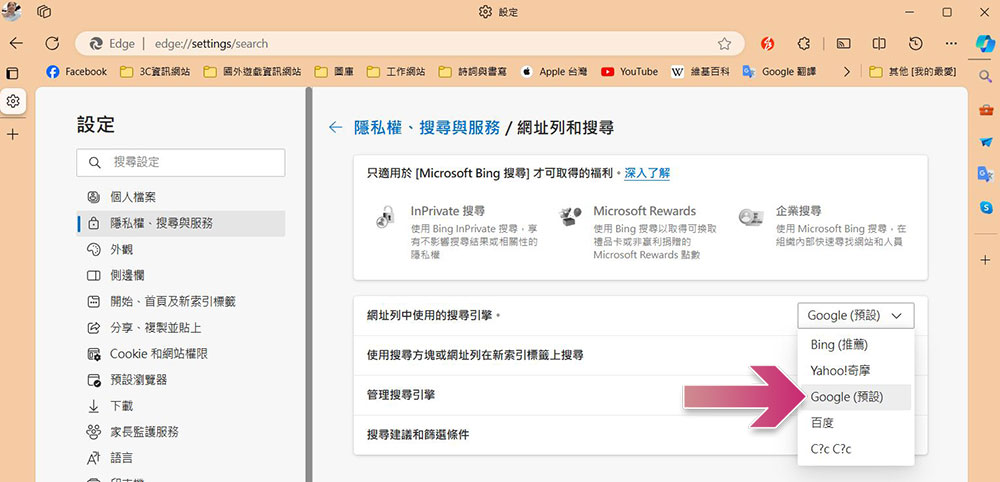
Microsoft Edge uses Bing as the default search engine. Although Bing has made great progress in the past few years, it is still not comparable to Google, and most people should still be used to Google. You can change your address bar search engine options by following these steps:
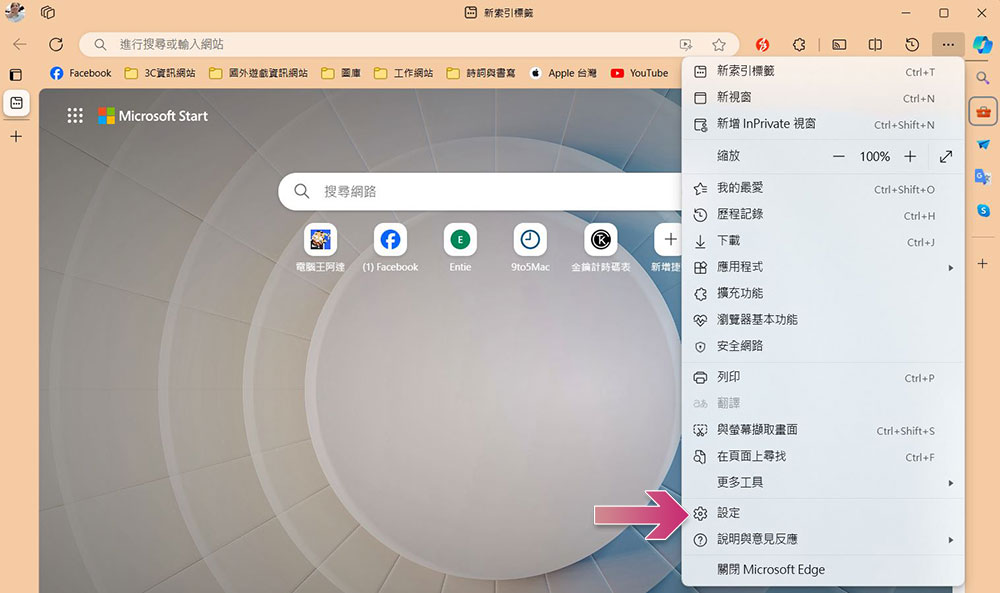
- Click the three-dot icon in the toolbar at the top of your browser and select “Settings.”
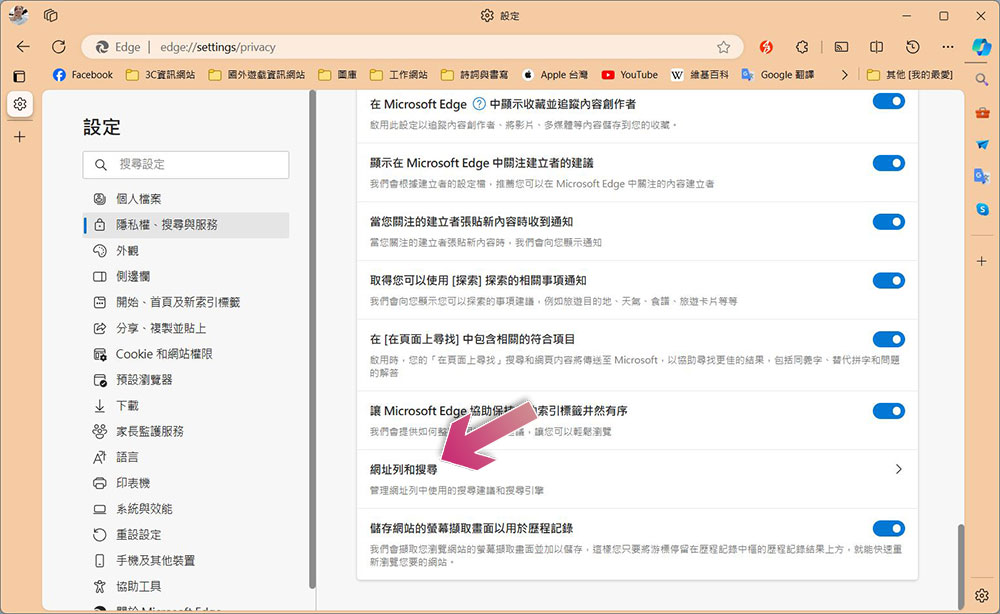
- Click “Privacy, Search & Services” in the sidebar directory, scroll to the bottom of the main screen on the right, and click “Address Bar & Search”.
- Select “Google” in the drop-down menu behind the search engine you’re using in the address bar.
4. Enable and configure the home button
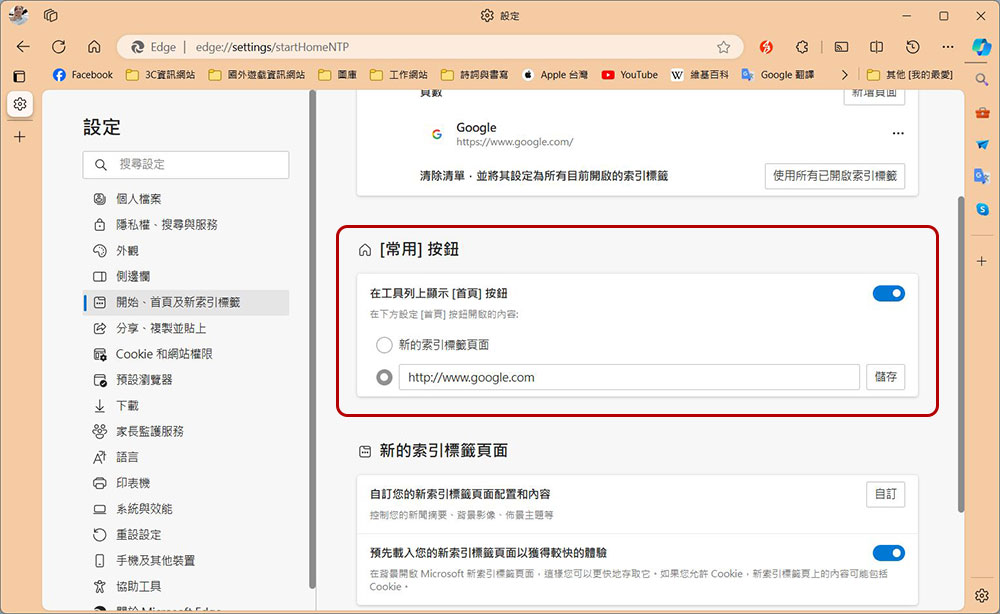
By default, Edge does not have the previous home button to click. If you are used to having a home button on the toolbar, you can do this:
- Click the three-dot icon in the toolbar at the top of your browser and select “Settings.”
- Select “Start, Home Page, and New Index Tags” in the sidebar directory and switch the “Frequently Used” button to display. You can set it to open a new tab or enter your most commonly used website in the URL field, and then click Save later.
5. Adjust Microsoft Edge’s anti-tracking settings
The anti-tracking settings in Microsoft Edge are set to “Balanced” by default, which blocks harmful web trackers and personalized ads. You can also change it to basic or strict according to your personal needs, and even set exceptions for specific websites.
- Click the three-dot icon in the toolbar at the top of your browser and select “Settings.”
- Click “Privacy, Search & Services” in the sidebar menu to toggle the tightness of the tracking prevention settings from this page.
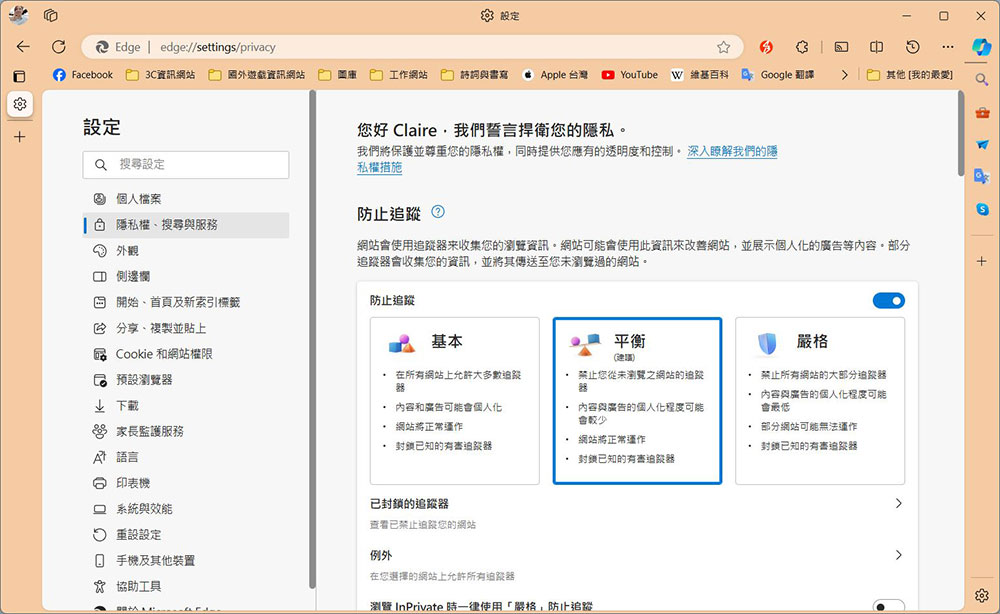
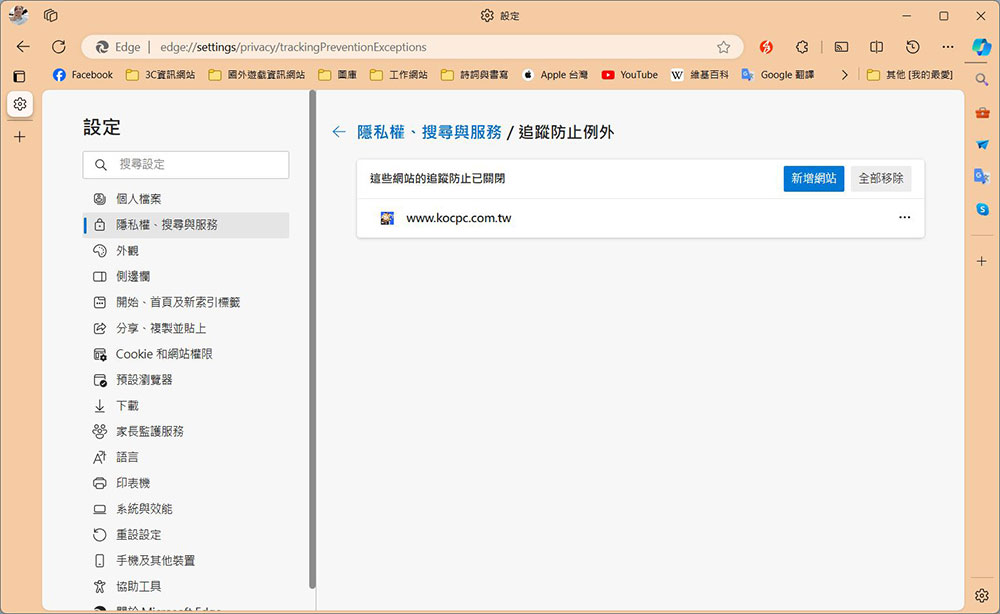
- If you want to block a specific website due to tracking exceptions, you can click “Exceptions” below and click “Add Website” to set the website to an unblocked whitelist.
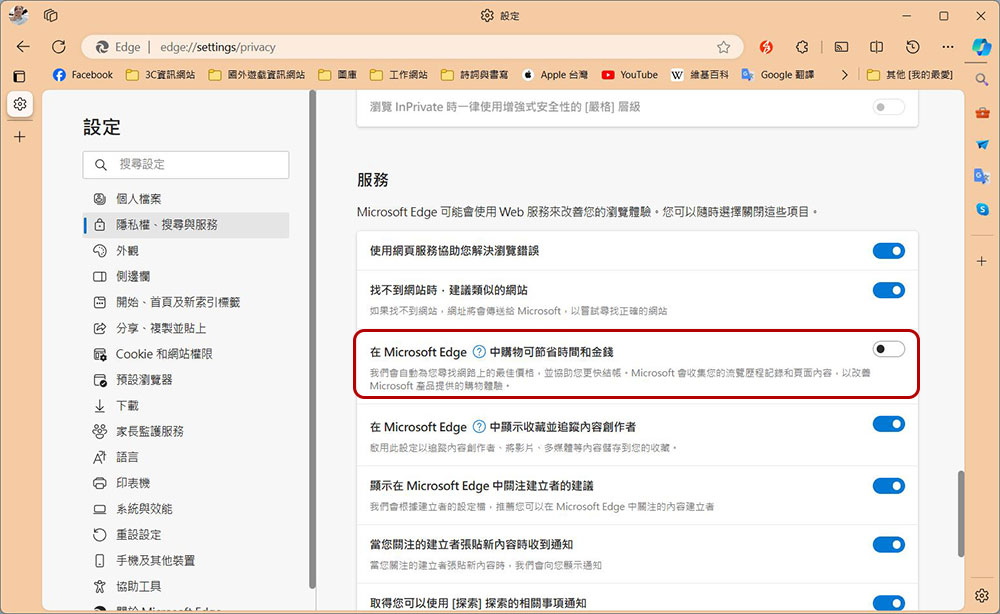
6. Turn off shopping suggestions in Microsoft Edge
Microsoft Shopping runs in the background, automatically finding you the best deals online and helping you complete your purchase faster. If it doesn’t work as expected in your region, or you simply don’t need this feature, disable this option in settings.
- Click the three-dot icon in the toolbar at the top of your browser and select “Settings.”
- Click “Privacy, Search & Services” in the sidebar menu, scroll down and turn off the “Save time and money when shopping in Microsoft Edge” feature in the “Services” category.
7. Tweak pagination sleep in Microsoft Edge
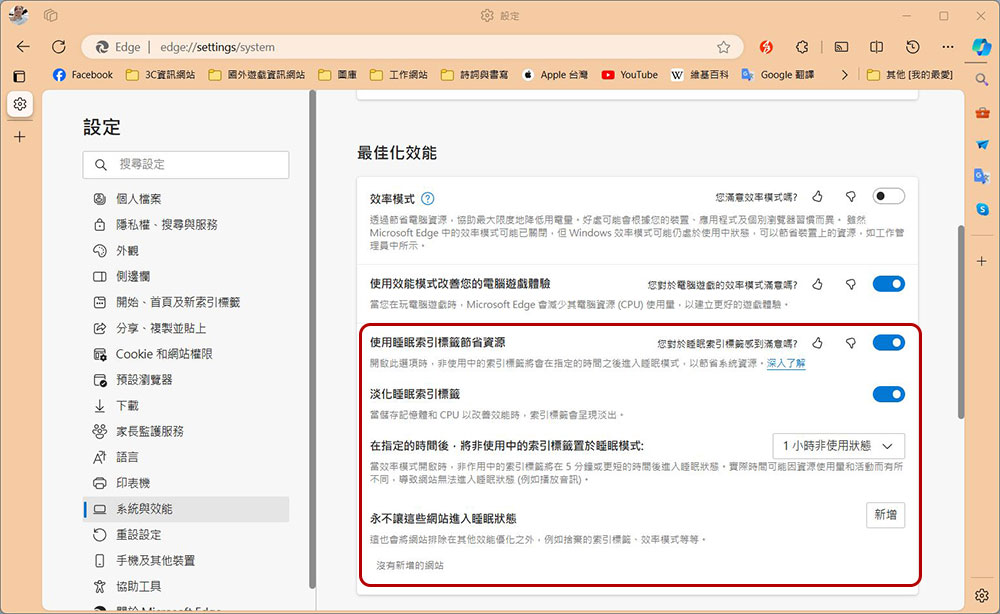
By default, Microsoft Edge will go to sleep after 30 minutes of pagination. You can see the tabs fade in color, but you can also customize the time limits and even add exceptions for certain important sites.
- After opening Microsoft Edge’s settings, click “System & Performance” in the side menu.
- There are three settings available for adjustment on this page:
- Save resources with sleep index tags – Enable or turn off pagination auto-sleep.
- Put inactive index tags into sleep mode after a specified amount of time – Set how long the site remains idle.
- Never put these sites to sleep – Set a whitelist of exceptions.
Microsoft Edge using the default settings is not suitable for everyone. Fortunately, you can customize every aspect of the web browser, but delving into the settings can be very time-consuming. You can start with the 7 items we provide, and then try to adjust the others one by one when you have enough time!
Source: KOCPC Chinese