


For everyone, regardless of school, work or personal life, mobile phones have become an irreplaceable tool in daily life. Because of the ubiquity of the Internet and the convenience of mobile networks, many people can download and use applications no matter where they are, except of course when the iPhone itself refuses to download. We need apps for almost everything these days, using apps for almost everything from basic apps that every iPhone user should have installed to apps designed purely for entertainment and gaming.
iPhone can’t download apps? 8 fixes to try
We use apps in all aspects of our lives, be it social life, tracking smart home devices, sports coaching, paying bills, navigation, etc. In fact, you don’t even have to pay as there are tons of free apps available for every iPhone user to install. To put it bluntly, the iPhone is like an extension of real life, and many of us feel lost when it doesn’t work properly. While there are many reasons why an app may be unstable, such as refusing to download, there are some systematic steps you can take to find out why an app isn’t downloading.
Before proceeding, it is important to determine the source of the issue affecting your downloads. In this case, the problem could come from three sources: the app itself, your iPhone, or the connection between them. Below we provide all the ways to fix each problem.
Check your App Store download settings
Until 2019, Apple prohibited users from downloading large applications exceeding 200 MB through the Cellular mobile network. To be fair, this download limit can prevent many non-all-you-can-eat users from being shocked by quickly running out of data. But as mobile Internet access becomes more and more popular around the world, Apple has allowed users to download these large apps starting with iOS 13, although users will still be reminded.
So if you haven’t updated your device to at least iOS 13, or simply value every MB on a limited data plan, just switch to Wi-Fi to get a stable connection and download apps. But if you’re desperate to download apps on the go and hate having to click on pop-ups every time to confirm your decision, here’s a setting that can make the whole process less annoying.
- Launch the Settings app on your iPhone.
- Click “App Store”.
- Click “App Download Items” under the mobile data category.
- Switch the setting to “Always Allow.”
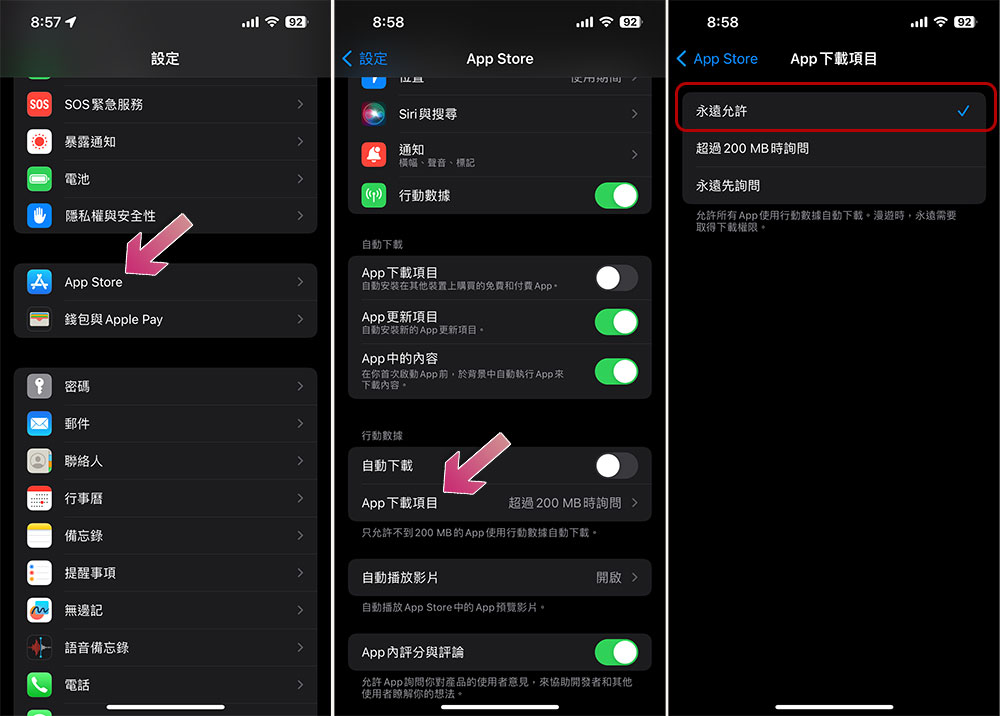
On the other hand, if you want to be on the safe side or just want to allow important apps to download using the mobile network, you can select “Always ask first.” Additionally, you can go back to the App Store and turn off the buttons next to App Downloads, App Updates, and In-App Content so you can still use your data to download apps while retaining it for emergencies.
Priority download
If you’re on an app downloading spree, the item you currently want to download may be queued behind several other apps. To check this, look at other previously downloaded apps to see if any of them are still downloading. Now, if it’s not completely urgent, you can always wait until the previous app downloads completely. Alternatively, you can even change your network connection to a faster or more stable one to speed up the process.
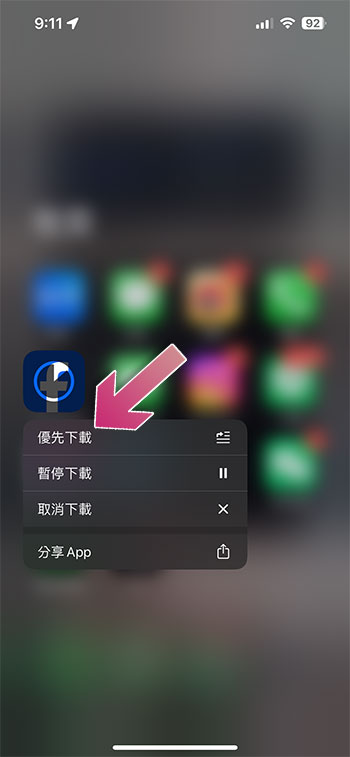
However, if you want a specific app to download before others, you can tell your iPhone to prioritize that app. To do this, you can press and hold the icon of the specific app and then click Prioritize Downloads from the drop-down menu.
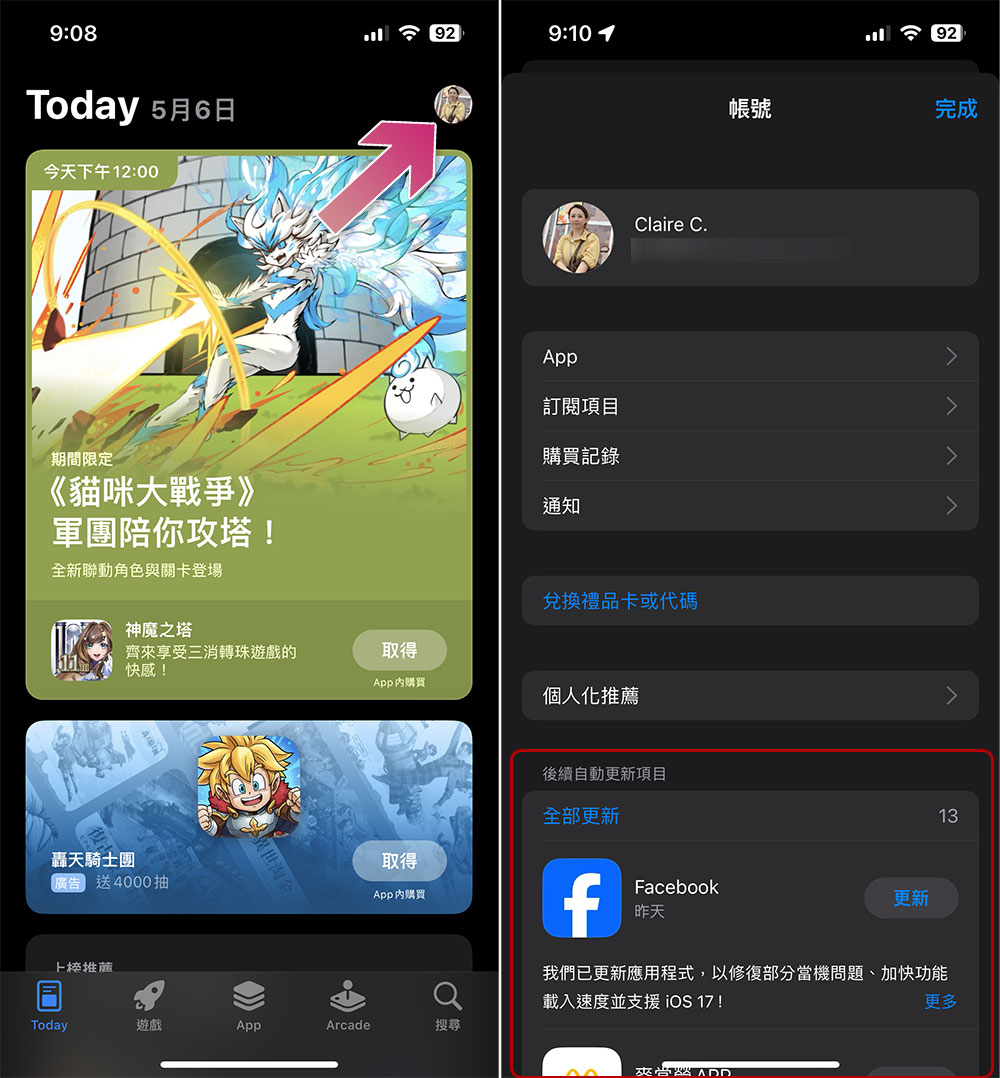
However, if you already own the app and just need an update, you can also enable updates manually using the following method:
- Open the App Store app on your iPhone.
- Click your profile icon in the upper right corner of the screen.
- Scroll down to find “Subsequent Automatic Update Items” and click “Update” next to the application you want to download updates, or “Update All” at the top.
Add a valid payment method
Some apps, even if they claim to be free, may require linking to a valid payment method. Often, this is an unspoken way of signing up for free in the hope that you forget to cancel your auto-subscription before the free trial expires and the annual subscription begins. Either way, this means you need to have a valid payment method linked to your Apple ID, but it’s also possible that the existing payment method (such as a credit card) may have expired, and a pop-up will appear on the App Store screen asking to update the payment method.
- Open the App Store app on your iPhone.
- Click your profile icon in the upper right corner of the screen.
- Click on your personal account name at the top.
- Click “Manage payment methods”.
- On this page you can add new payment methods or edit existing payment methods.
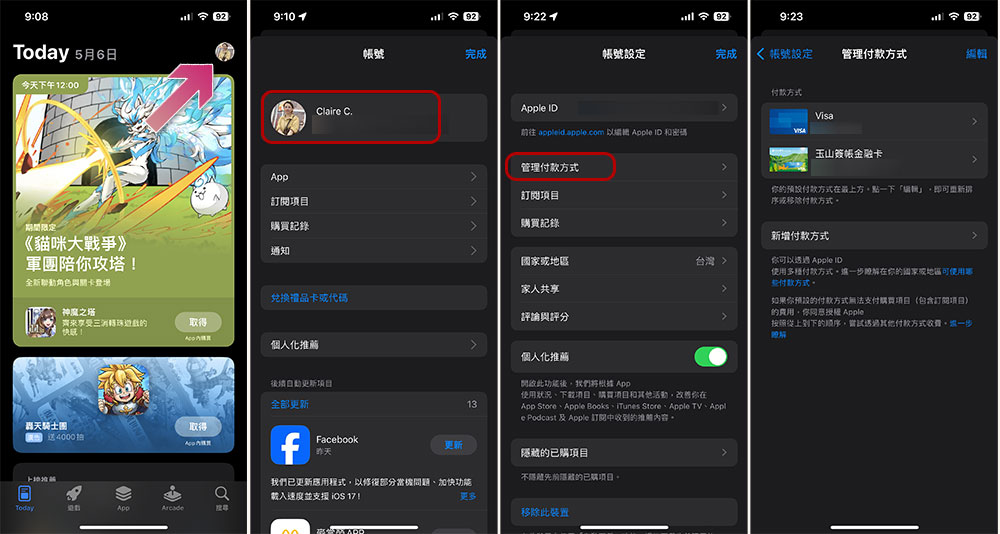
The payment options available vary depending on the country where your Apple account is located, however, it’s a good idea to update this section when your payment method expires so you can download apps anytime and anywhere without any issues.
Turn off VPN
In an increasingly risky online environment and a highly globalized world, having a VPN almost feels like a necessity for web browsing, especially when using a streaming device or streaming media. Among the many security benefits a VPN can provide is the ability to access region-locked content. Unfortunately, iPhone has warned users that VPN use is known to affect several iPhone features, including AirDrop, Wi-Fi, and Bluetooth, and in fact, it even specifically mentions possible issues with Apple services such as the App Store and iTunes. After all, a VPN can make it look like you’re visiting the App Store from a different country, so a VPN can also be the cause of app download issues.
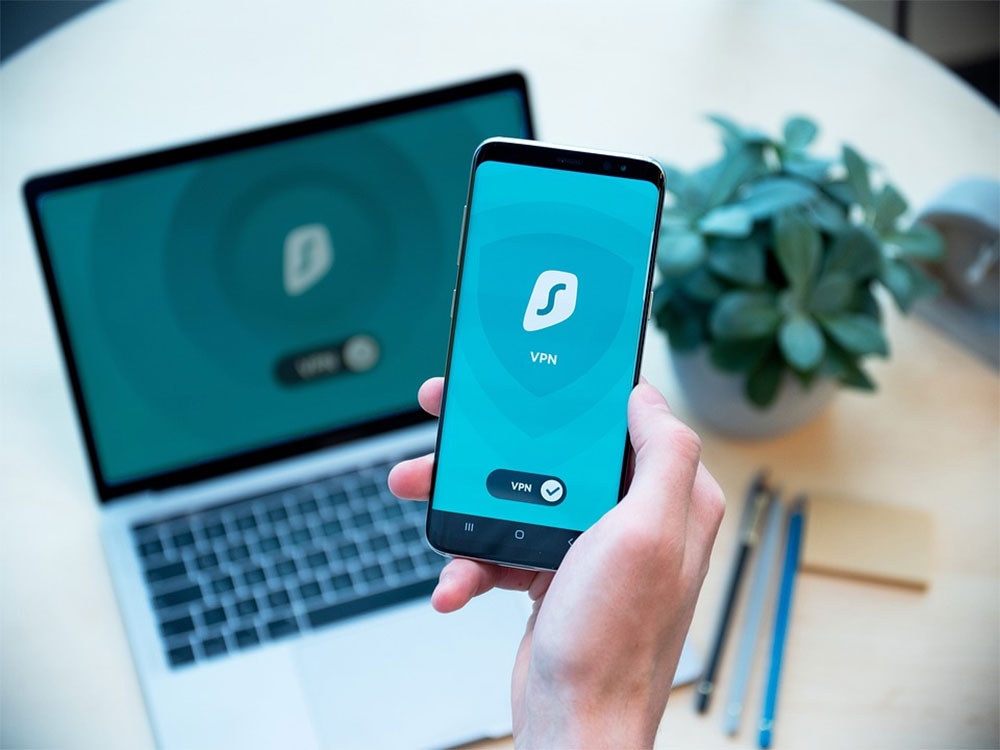
To resolve this issue, Apple recommends temporarily deactivating your VPN or deleting it if you find that it is no longer useful. Alternatively, you can contact the app developer’s support team for help on how to resolve the issue. This is also a good opportunity to reconsider the VPN you’re using, as there are many reasons and user experience that tell you you should never trust a free VPN.
Check the date and time on iPhone
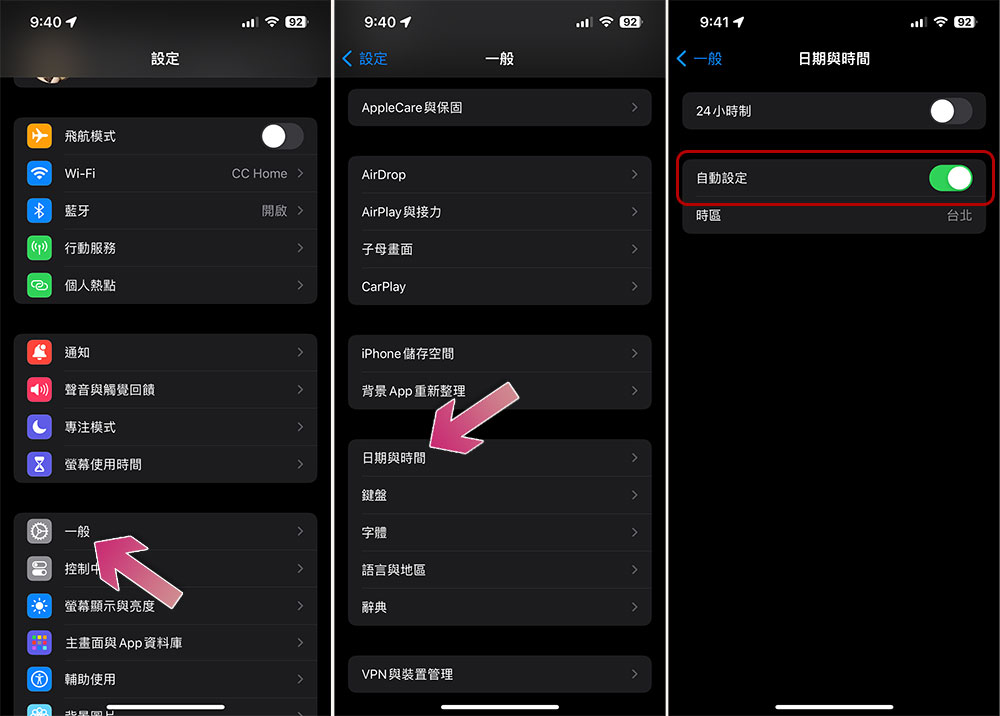
For the vast majority of iPhone users, the date and time on the device are typically set when we first turn it on, and are often linked to the networks we are active on. However, Apple warns that this feature may not work well in some situations, especially if the connection quality is poor or weak, not to mention the need to manually adjust the iPhone’s date and time settings in some situations, such as when you need to solve daylight saving time-related errors while abroad. Regardless, having the wrong date and time on your iPhone can cause problems with downloading apps or even its overall functionality, and here’s how to change the date and time manually:
- Open the Settings app on your iPhone.
- After clicking “General”, select “Date and Time”.
- Turn off “Automatically set” and manually select the time zone or date and time.
Free up iPhone storage space
While living in a paperless world is exciting, everything comes at a price, and in this case, apps take up your precious iPhone storage space. If you have a lot of apps on your phone and have some bad usage habits, you may not be able to download apps due to lack of space. In some cases, Apple’s iOS will share its personalized recommendations to fix your iPhone storage issues. To view these recommendations follow the steps below:
- Please open the Settings app.
- Click “General” and select “iPhone Storage”.
- On this page you can check how much space each application takes up and choose to clean it up.
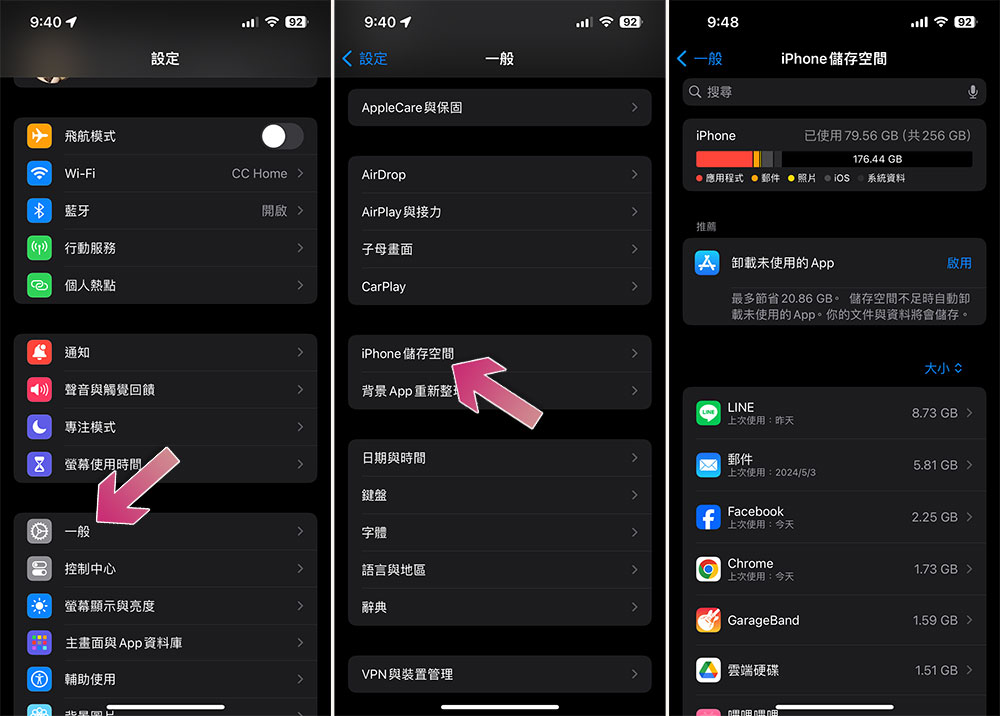
Additionally, Apple offers the ability to uninstall unused apps, photos and videos, and view attachments for large files. Apart from that, you can also follow some of our reminders to delete iPhone junk files and reduce the size of iPhone photo files.
Restart App Store apps and devices
Resetting the device can help update background code running issues, such as cache, that may affect availability. So, if your iPhone is acting a little weird and still won’t let you download apps, you may need to quit the App Store app and reopen it. To do this, launch the App Store app and swipe up from the bottom of the screen. Then in the App Store preview, swipe up to close the app. In addition, you can also restart your iPhone. As the saying goes, “restarting cures all diseases.” This is simple and effective.
Sign out of Apple ID
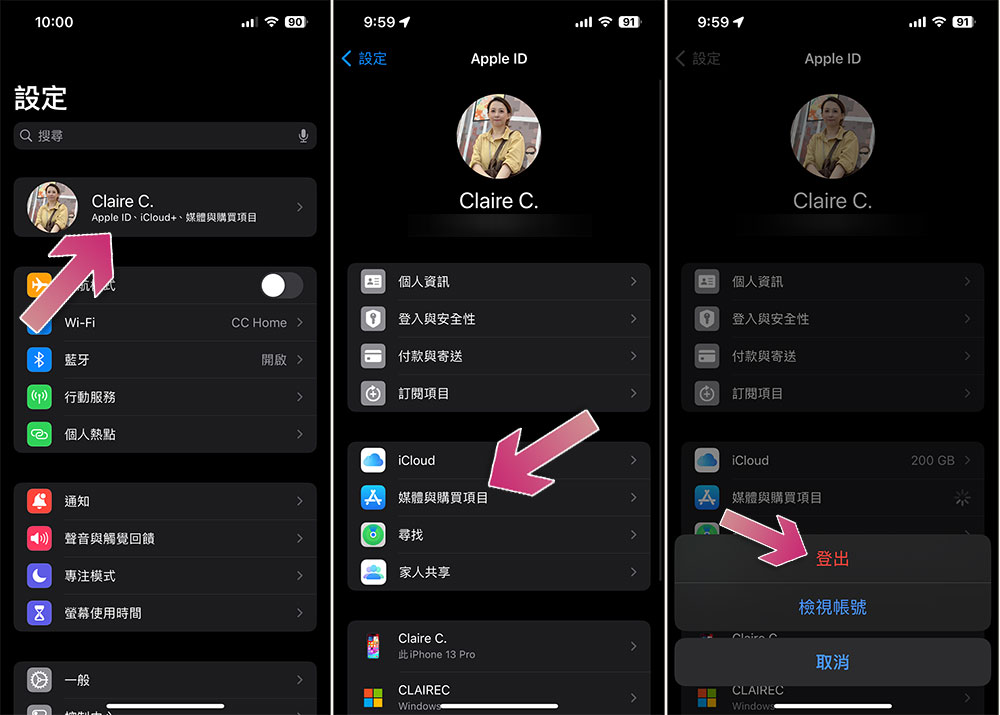
With any kind of universal single sign-on mechanism (such as an Apple ID), it’s not uncommon for authentication issues to occur from time to time. If you conclude that there is no ongoing outage to App Store service, a specific Apple ID may be the cause of the problem. To manage Apple ID issues and get back to using the App Store to download apps, your first line of defense is to log out of your account and back in. Here’s how to do it:
- Open the Settings app.
- Click your account name at the top of the screen.
- Click “Media & Buying”.
- Then click “Log Out”.
- After logging out, you can go back to “Media & Purchases” and log in again with your Apple ID.
Update your iPhone operating system
If your app download issues started after a recent iPhone update, you may have encountered a bug that requires a fix update to fix. According to Apple, when you don’t update your iPhone, among other possible consequences, an unconnected prompt on the App Store may mean you just need to run a system update, and some apps may not work at all unless you’re on the latest iOS version.
Once your iPhone software is updated to the latest version, you can try downloading the app again to see if it works. Of course, as with many iPhone-related issues, the last resort for troubleshooting app download issues is to contact Apple Support. Whether it’s a glitch or the device has been flagged as fraudulent, they will be able to check your account or device for issues that may not have immediate answers from you. If all these ideas don’t work and restarting your iPhone doesn’t work either, then you may want to consider resetting your iPhone as a last resort.
Source: KOCPC Chinese