


As Microsoft adds more and more advertisements to Windows 11, many people must find it annoying to use it, so we have previously taught “Turn off these 6 settings to get the most out of annoying ads in Windows 11” method, and recently I was introduced to another even better alternative tool. Recently, a foreign developer has created an open source tool called OFGB (Oh Frick Go Back). After downloading, you can use it without installation. Then you can select the Windows 11 ads you want to turn off, without having to go into the settings to adjust them one by one. It is simple and convenient.
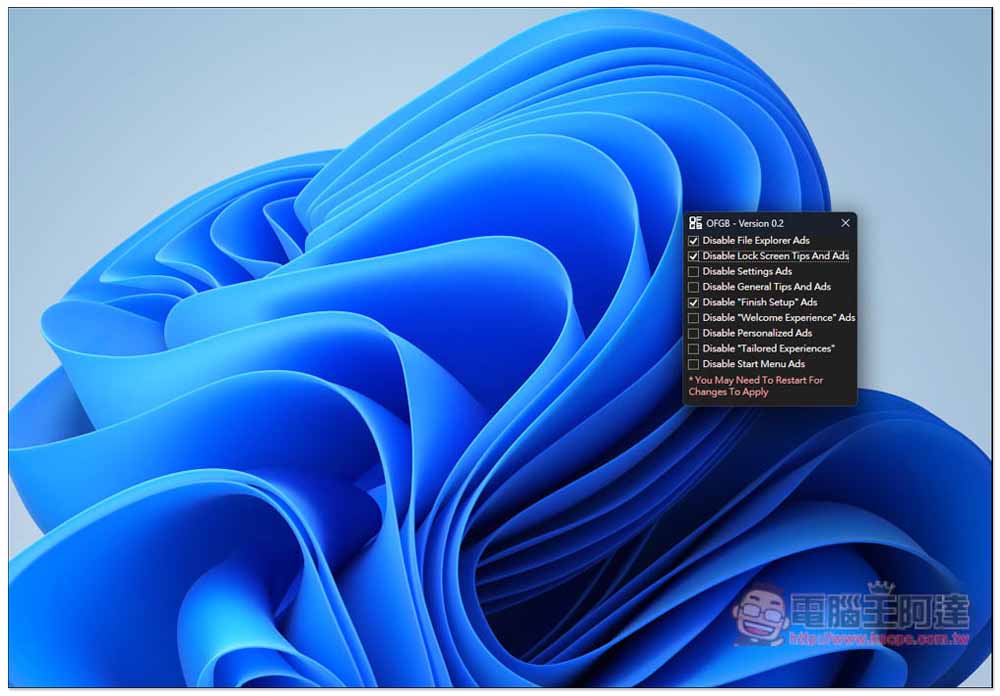
A must-install for Windows 11 users! Foreign netizens have developed a free tool that can easily turn off all annoying Windows ads with just a few clicks.
OFGB is an open source tool made by foreign developers, so it currently only has an English interface, so it doesn’t matter if you don’t understand it. If you want to turn off Windows 11 ads to the greatest extent, just tick them all. Every item is related to Microsoft advertising, without exception.
However, some settings may need to be restarted to be applied, so it is recommended to restart the computer directly after selecting them to ensure that your settings have been applied to Windows 11.
And can it be used on Windows 10? The GitHub project doesn’t mention Windows 10, so I’m not sure. I guess it won’t work because some settings are different between Windows 10 and Windows 11.
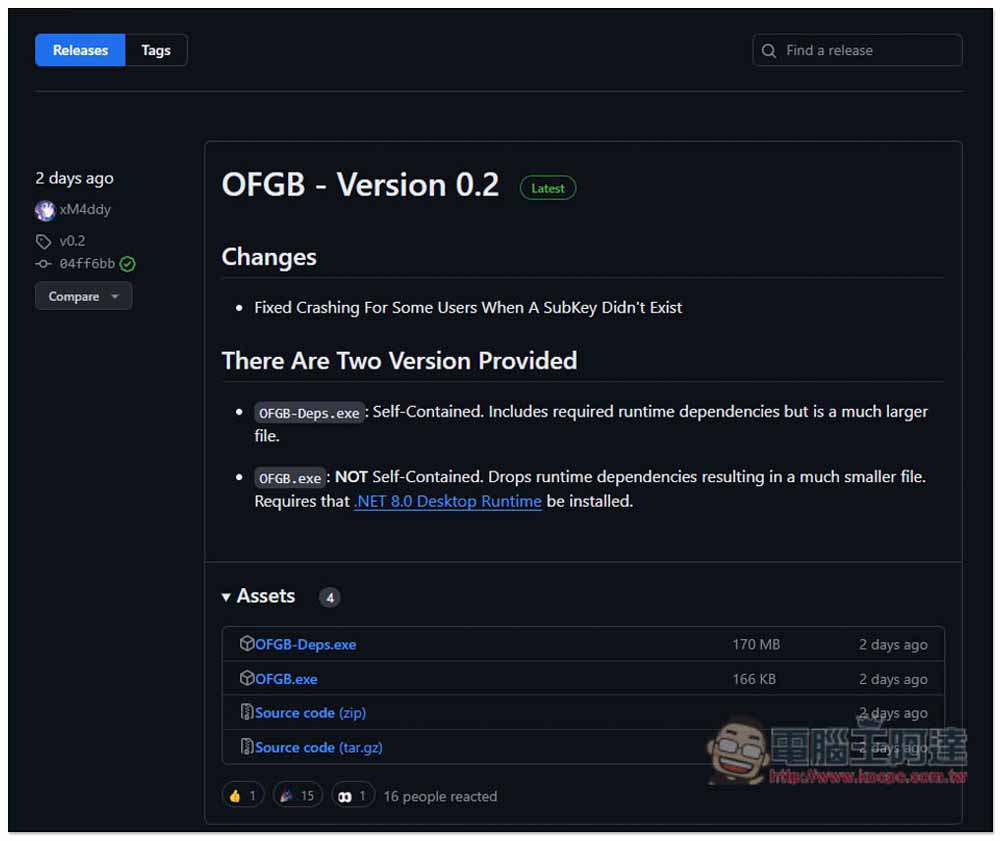
After clicking the link above to enter the download page of OFGB, there are two .exe. The above There Are Two Version Provided explains the difference. I don’t know which one to choose. It is recommended to download DFGB-Deps.exe directly. The file size is 170MB, which is not very large:
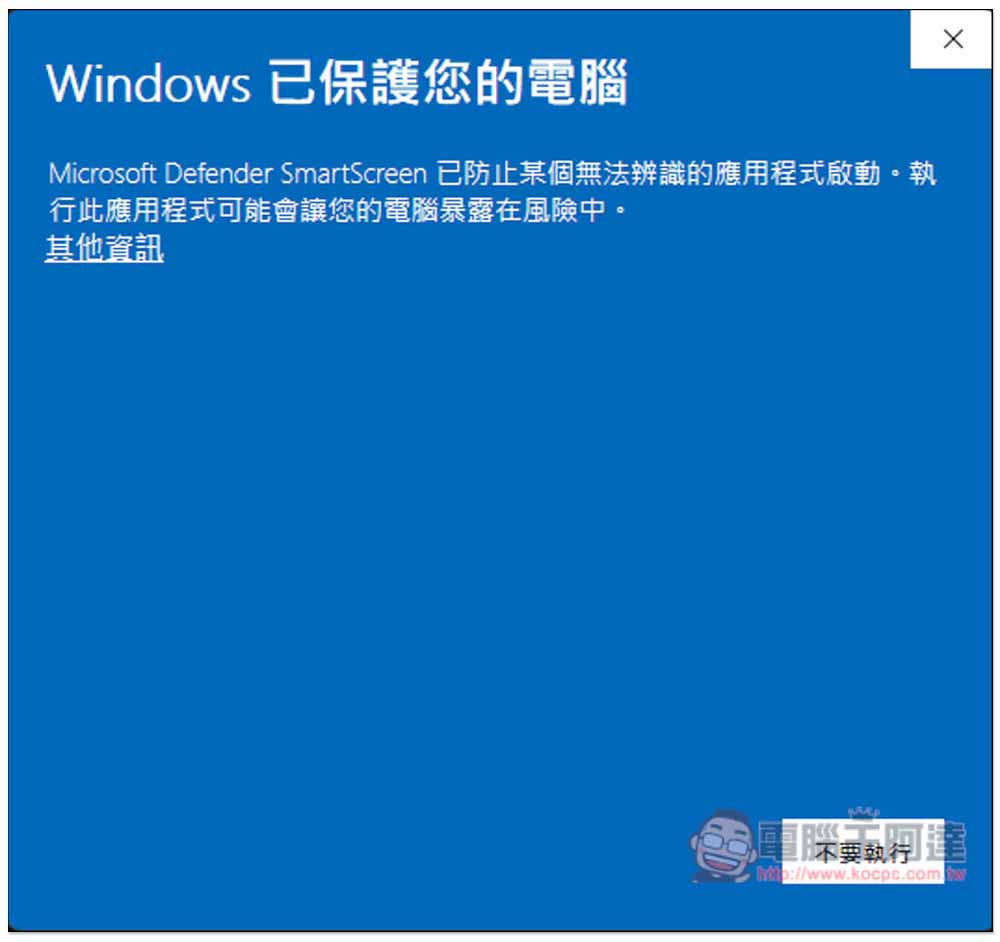
When you open it for the first time, you should see the “Windows to protect your computer” prompt. Click “Additional Information” below:
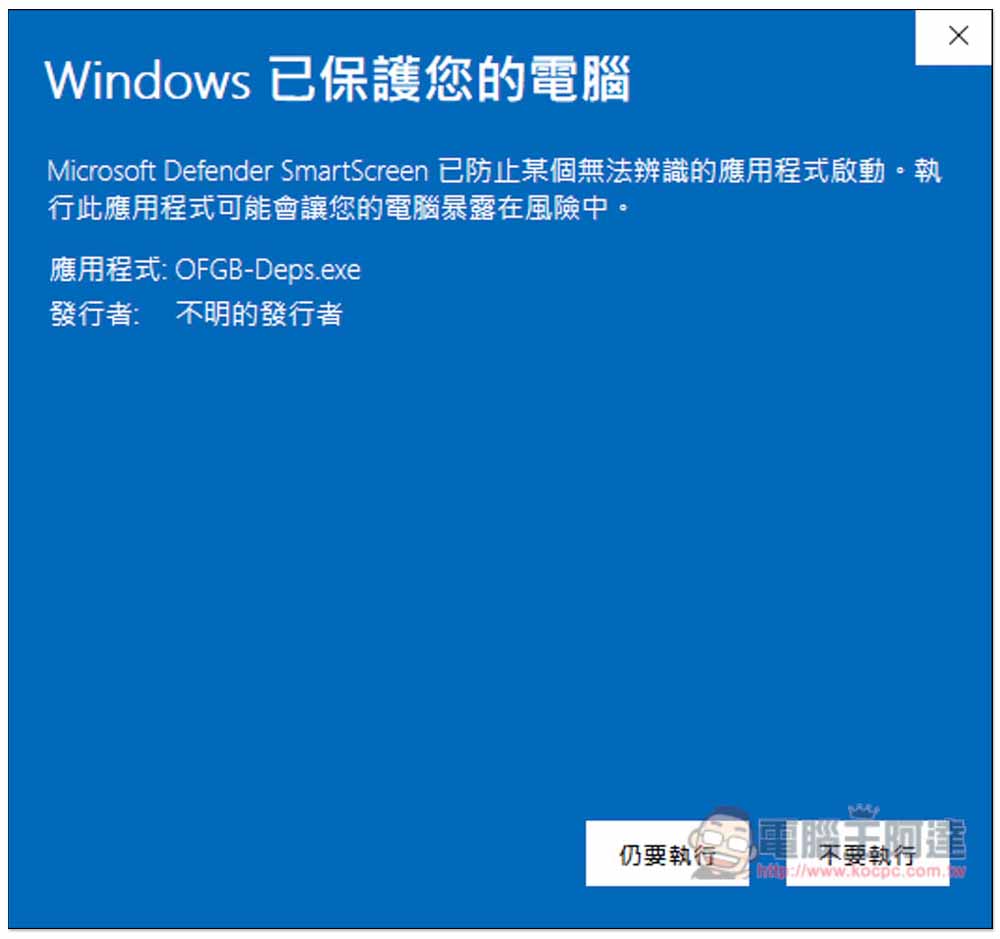
Then a “Run Anyway” button will appear, click it to open:
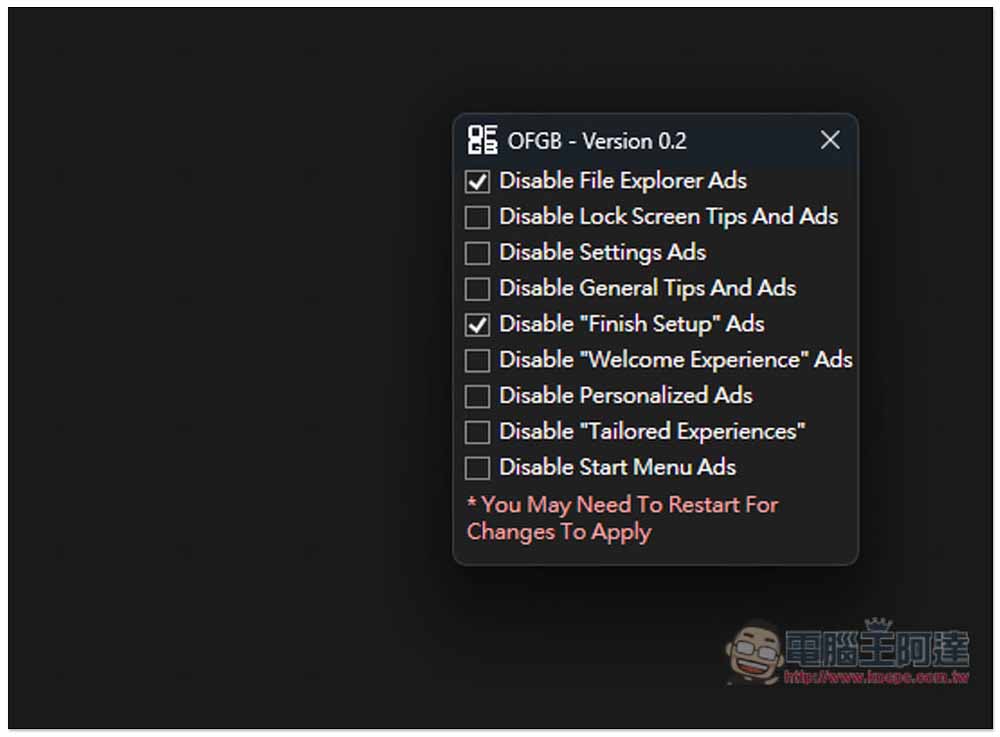
The operation interface is very simple. Just check which ad you want to close. The settings will be changed immediately, but some users will need to restart the computer before they will be applied:
- Disable File Explorer Ads
- Disable Lock Screen Tips And Ads (Turn off lock screen tips and ads)
- Disable Setting Ads
- Disable General Tips And Ads (turn off general tips and ads)
- Disable “Finish Setup” Ads
- Disable “Welcome Experience” Ads
- Disable Personalized Ads
- Disable “Tailored Experiences”
- Disable Start Menu Ads
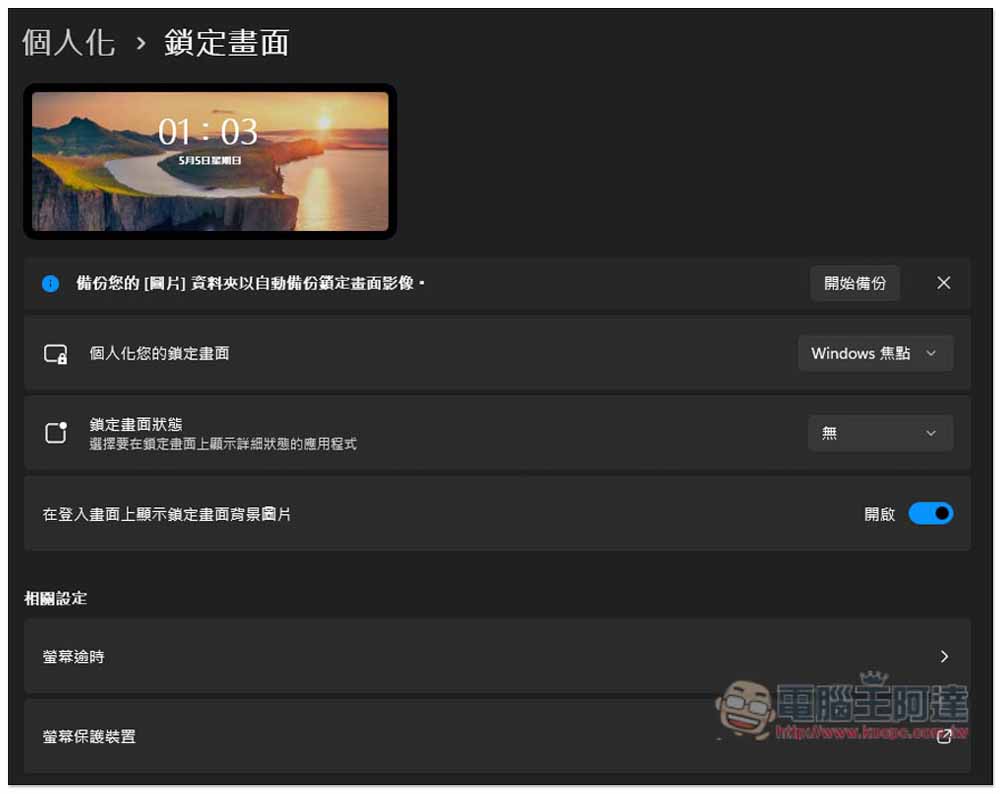
I actually tested Disable Lock Screen Tips And Ads (turn off lock screen tips and ads). Currently, my Windows 11 personalization lock screen setting is “Windows Focus”:
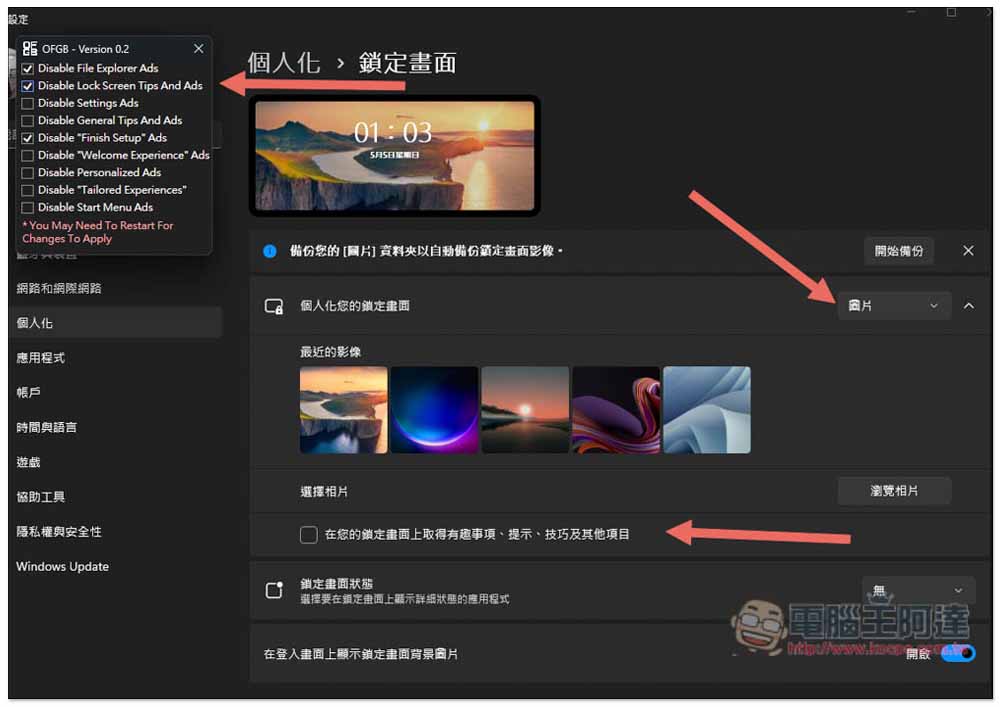
When I checked Disable Lock Screen Tips And Ads, personalizing your lock screen will immediately change to “Pictures”, and the following “Get fun facts, tips, tricks, and other items on your lock screen” is also unchecked:
Source: KOCPC Chinese