


Although browsers have a built-in function to save web pages into PDF, if the web page is too long, it will be divided into several pages. The same is true for other related online web page to PDF tools. You may only want to save one page, which is not only convenient for browsing, but also the content will not be broken due to paging intervals, or even the page will run away. This article recommends a very good Just-One-Page-PDF extension, which can save web pages into PDFs with only one page. It also provides A4 format or paging according to the Windows window size.
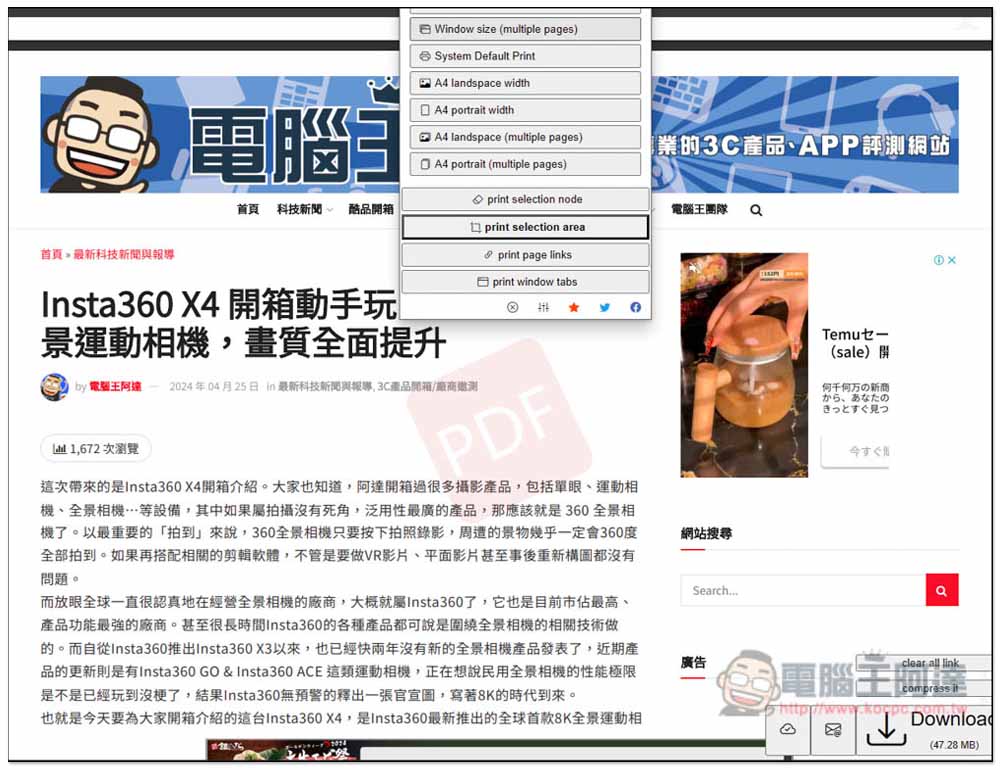
Just-One-Page-PDF is a free extension that can save all web content into one page PDF.
Just-One-Page-PDF is a Chrome extension that can also be installed on Microsoft Edge. I will use Edge as an example below.
The method of use is very simple. After installing the extension, open the webpage you want to save as PDF, and then open the Just-One-Page-PDF menu. You can specify the method you want to save, whether it is one page, multiple pages, A4, or the system default. You can also stop it at any time during the saving process. It is not necessary to save the entire webpage (it’s just a little difficult to grasp).
In addition to the function of converting web pages to PDF, this product also provides some additional functions, such as querying the resolution size of the current block, listing all URLs in this web page, and listing all tabs in the window. I think this is quite good and has many uses.
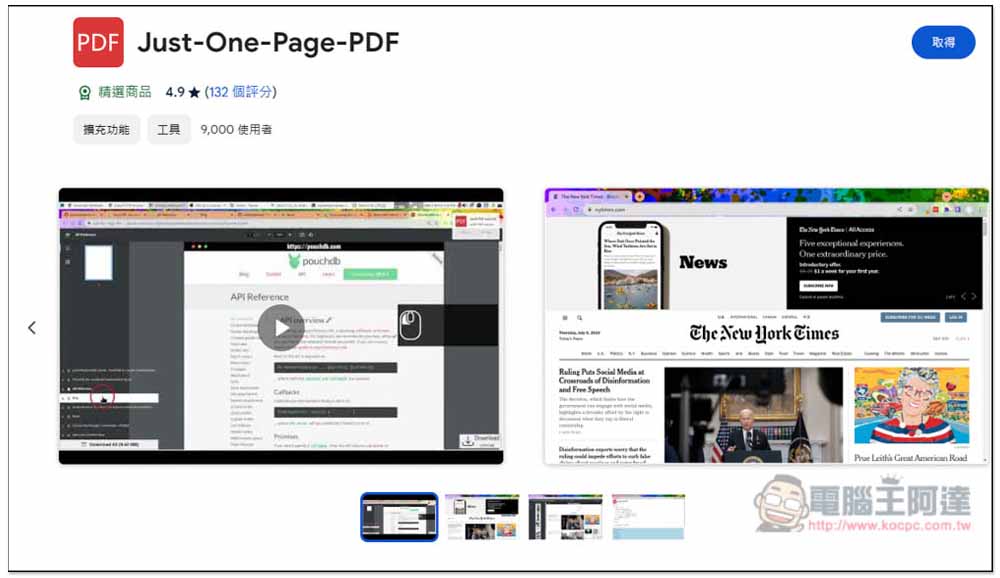
After clicking the link above to enter the Chrome store, click Get on the upper right:
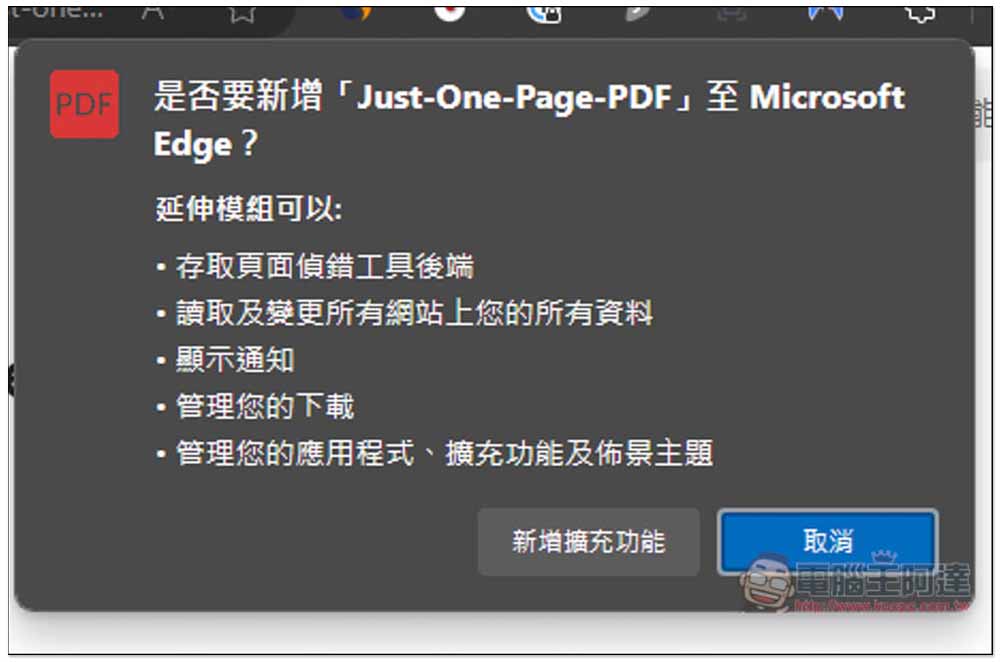
This prompt will pop up, click on Add Extension Function:
That’s it, the extension has been added to your browser:
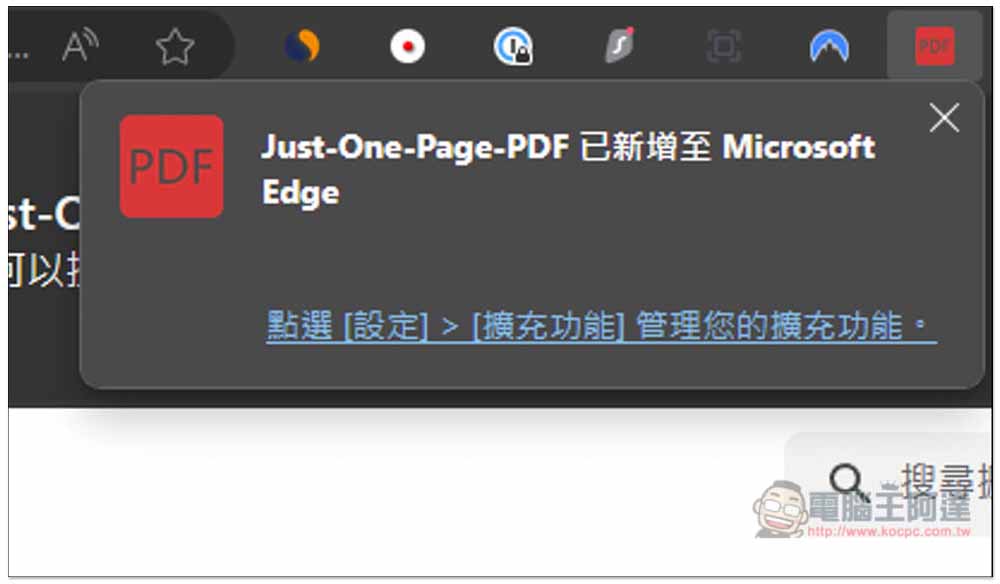
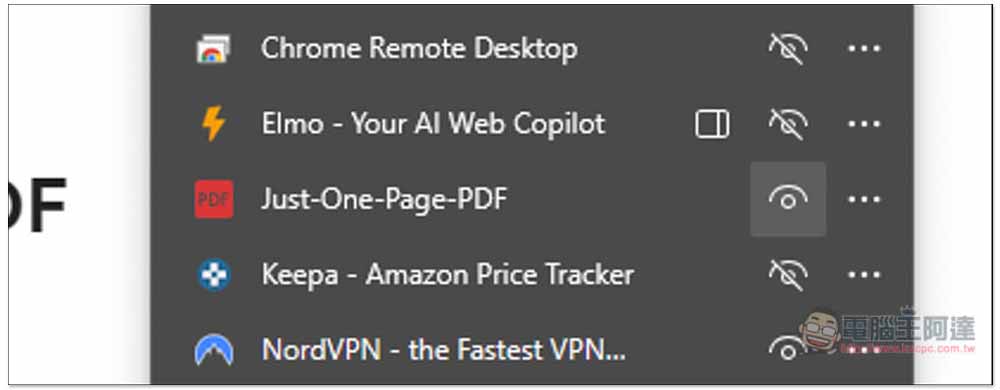
Now the browser will hide the newly installed extension by default, so please go to the puzzle icon menu on the far right and turn on this extension:
After opening the webpage you want to convert to PDF, open the extended function menu. The first Windows size is to save the webpage content into a one-page PDF, and there are four options for the A4 format:
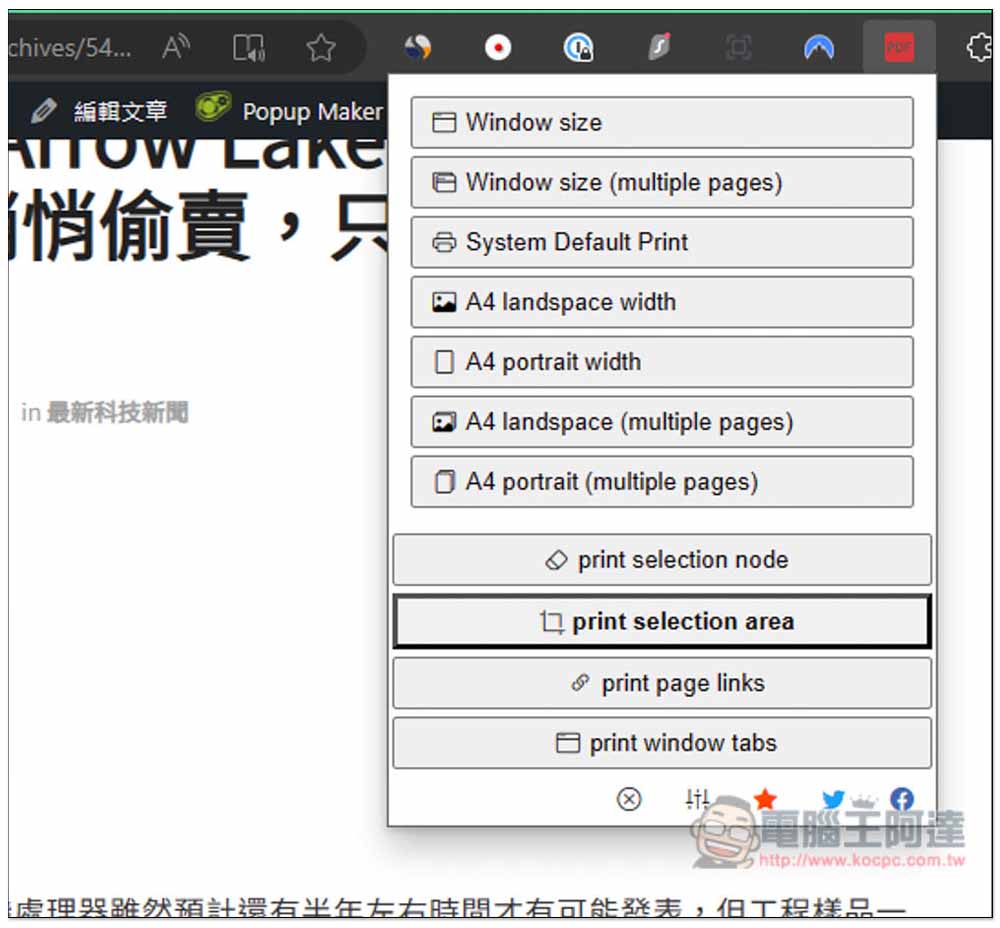
The PDF storage methods provided by Just-One-Page-PDF are:
- Windows size
- Windows size(multiple pages)
- System Default Print
- A4 landspace width
- A4 portrait width
- A4 landspace(multiple pages)
- A4 portrait(multiple pages)
After I select Windows size and save it as a one-page PDF, it will start to capture the web page. You will see that the web page keeps scrolling down, and the screen will pop up the prompt Scan lazy element processing…. At this time, if you press Direct Save, only the captured web page will be saved, not all:

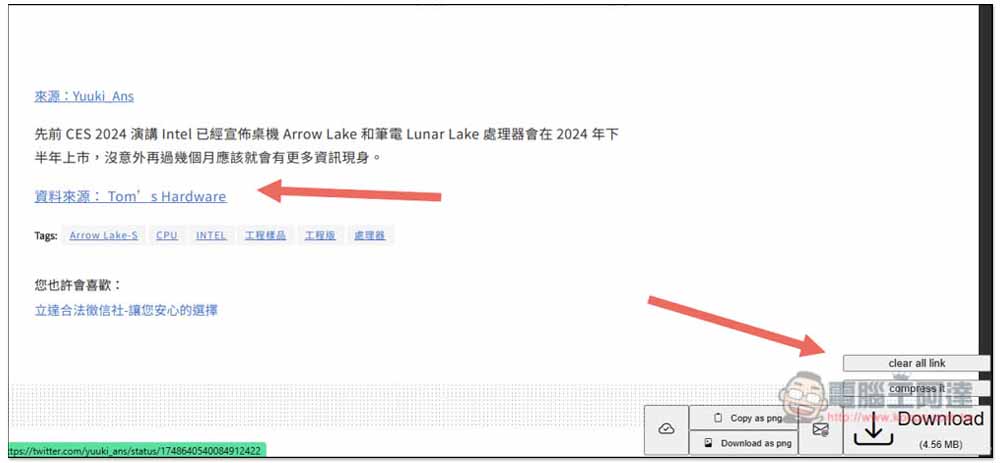
After capturing, you will be asked to browse it. No problem, click Download in the lower right corner to save it to your computer:

In addition, if you want to remove all hyperlinks in the web page, there is also a clear all link function on the right. Click on it and all hyperlinks will be removed, but the color and underline will be retained:
Source: KOCPC Chinese