


Windows has always been my main operating system. Although I personally feel that it is getting better and better. Windows 11 has many good new features, but one of the more annoying things is that there are more and more advertisements. Microsoft has been trying to find ways to promote their services through different channels in recent years.
If you are like me and feel that Windows 11 ads have begun to affect the user experience, then the following 6 settings can turn them off. Of course, this cannot remove all ads, but at least it can significantly reduce the occurrence.
Turn off these 6 settings to get the most out of annoying ads in Windows 11
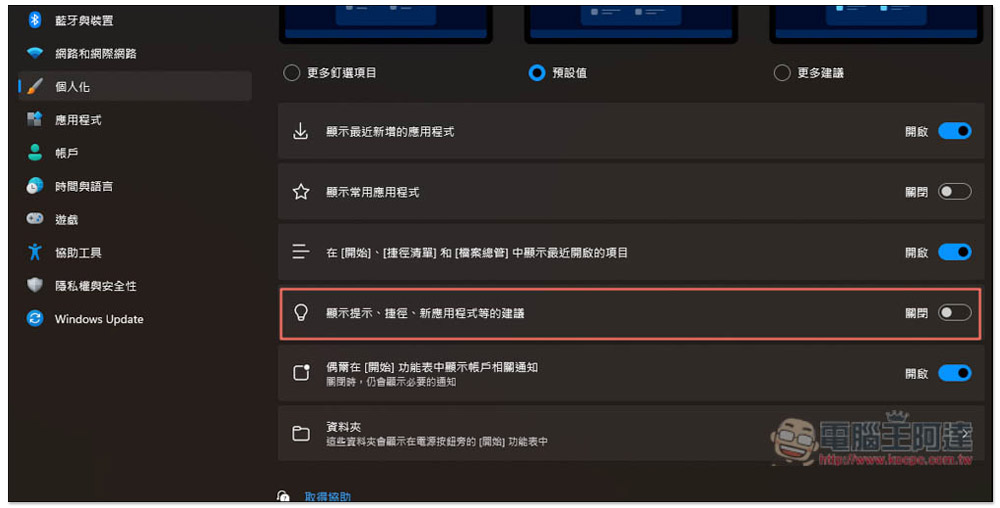
1. Turn off promotion prompts in the start menu
In addition to being pinned, the Windows 11 Start menu also has some recommended operations below, which are items that have been frequently used recently. Those who pay attention to the “Recommendations” section will find that Microsoft occasionally promotes its own applications here. For example, if you always use Chrome, the start menu will prompt you to switch to Edge.
If you don’t want to see this ad prompt, you can turn it off by going to Personalization in settings.
Open Settings -> Personalization -> Start and turn off “Show suggestions for tips, shortcuts, new apps, etc.”:
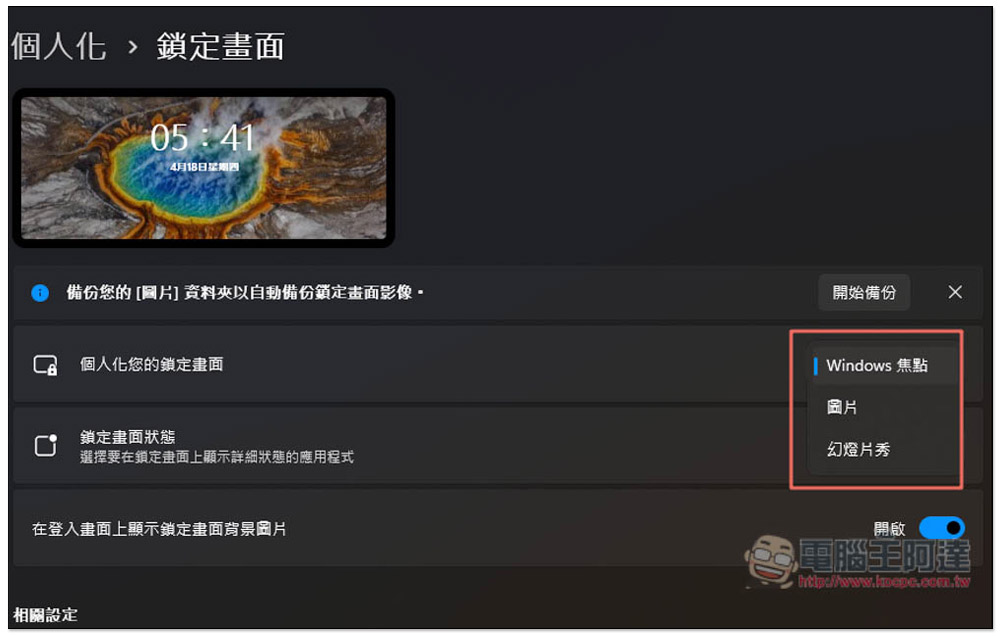
2. Tips and suggestions for turning off the lock screen
Of course, Microsoft has not let go of promotional suggestions for the lock screen that will always be on. The default lock screen of Windows 11 is to display “Windows Focus”, and various Microsoft advertisements will appear on the screen, such as a new XBOX game, what are the benefits of logging in with a Microsoft account, and so on.
Although this will not affect the user experience, some people may find it annoying. If they want to be quieter, they can solve the problem by switching to pictures or slide shows.
Open Settings -> Personalization -> Lock Screen, open the menu on the right of Personalize your lock screen, and switch to a picture or slide show:
3. Turn off ad settings in notifications
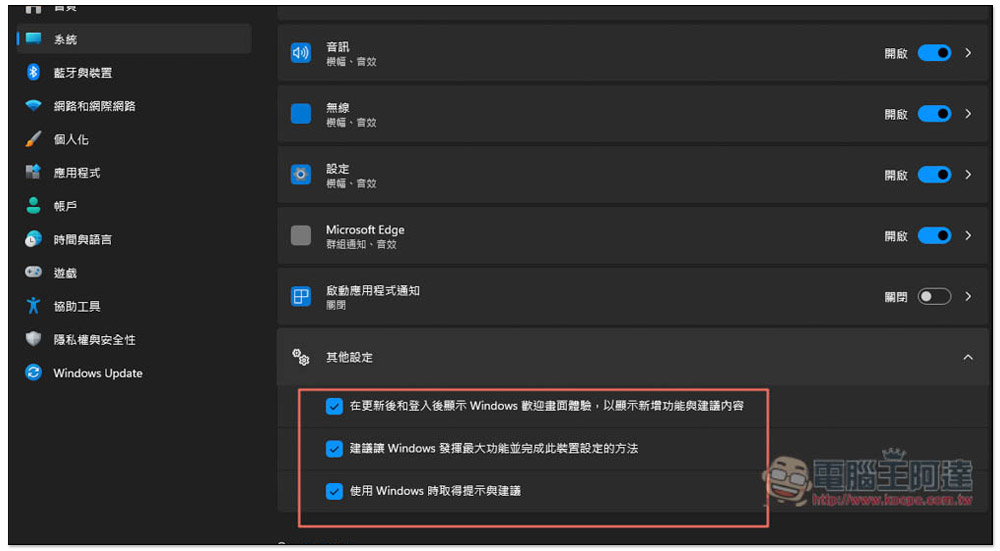
After updating the Windows 11 operating system, a welcome screen will almost always appear to tell us what new features and suggestions are available. In addition, when using Windows 11, notification windows sometimes pop up to persuade us to switch to Microsoft applications.
If you don’t want to see these, you can go to notifications and turn off all related settings.
Open Settings -> System -> Notifications, scroll down to “Other Settings”, open the inverted triangle on the right, and you will see three options, namely:
- Show the Windows welcome screen experience after updating and after logging in to show new features and suggestions
- Suggested ways to get the most out of Windows and complete the setup of this device
- Get tips and advice when using Windows
Uncheck all three check boxes to close:
4. Close suggested content in settings
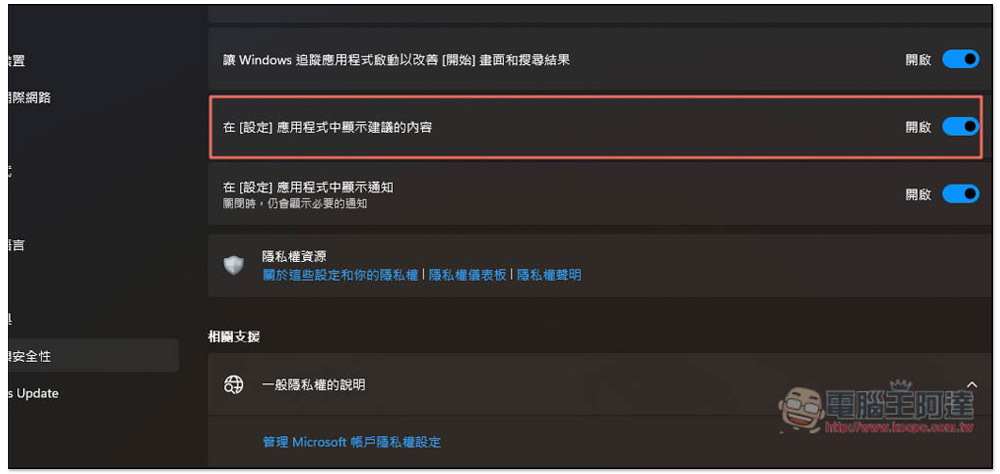
In addition to the start menu and notifications, Microsoft will also push advertisements to you in a timely manner in Windows settings, such as recommending its own applications. If you don’t want to see it, go to Settings -> Privacy & Security -> General and turn off showing suggested content in the Settings app:
5. Turn off ads in File Explorer
You read that right, even Microsoft File Manager will push suggestion ads, the main purpose of which is to convince you to subscribe to OneDrive and Office.
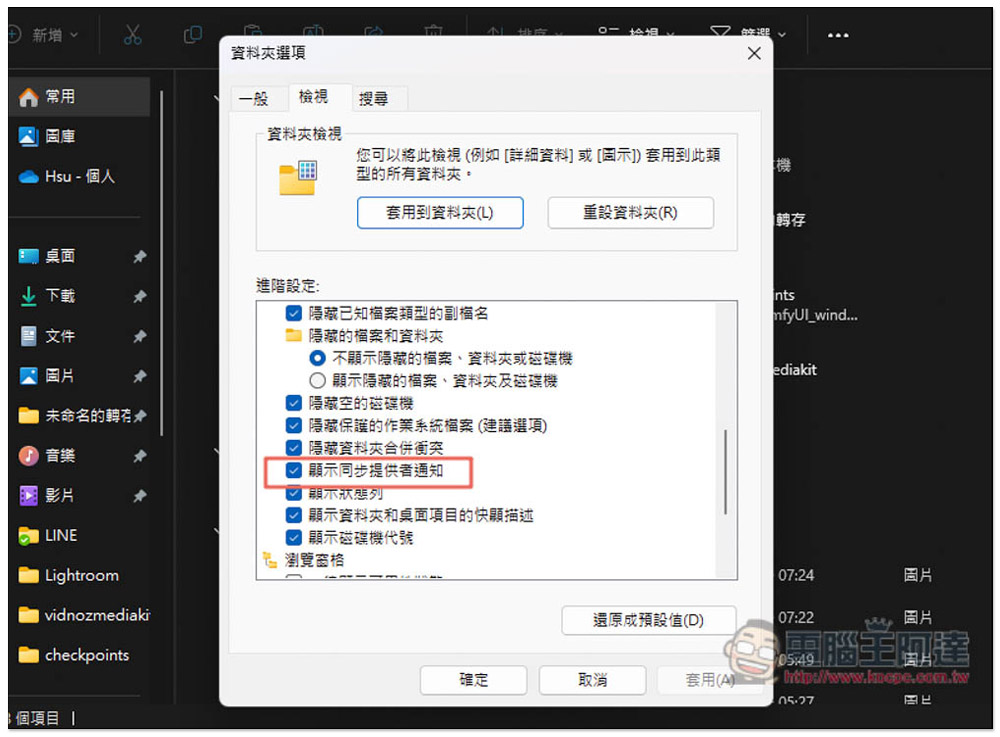
If you don’t want to see it, you can turn it off. Open File Explorer, open the .. menu in the upper right corner and enter “Options”. Find “Show sync provider notifications” in the view list and uncheck it. This should prevent this ad from appearing in File Explorer:
6. Turn off personalized advertising function
Some people should know that Windows provides an advertising identifier for each device and user to track your interests, preferences, and habits in order to provide relevant suggested ads in applications. It depends on whether you want to be tracked or not. If not, you can turn it off.
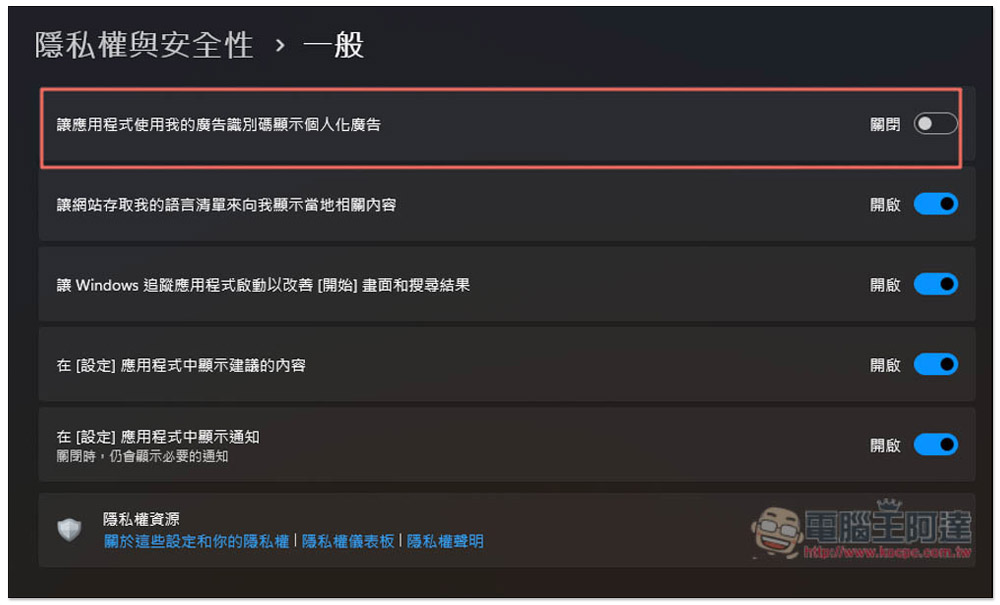
Open Settings -> Privacy & Security -> Generally, you will see “Let apps use my advertising ID to show personalized ads” at the top, turn off the switch on the right, and you are done:
Summarize
The above is the current method for manually controlling Windows 11 ad suggestion notifications. For those who find it troublesome, you can also use third-party applications that can turn off Windows ads. However, the disadvantage is that you may want to keep some ad suggestions, but third-party applications cannot do this. Manual control allows you to decide which ones are turned off and which ones are turned on.
Source: KOCPC Chinese