


In order to prevent eyes from being irritated, many people are now accustomed to using dark mode. I am one of them. As long as apps and websites provide it, I will turn on dark mode. The dark mode function of “Google Drive Web Version” had relevant news in the middle of last month, but it was only in testing at that time and was not yet open to everyone. The good news is that just a little while ago, the official finally announced that it is fully open, and I actually received it when I opened my web version of Google Drive. Here I will teach you how to switch.
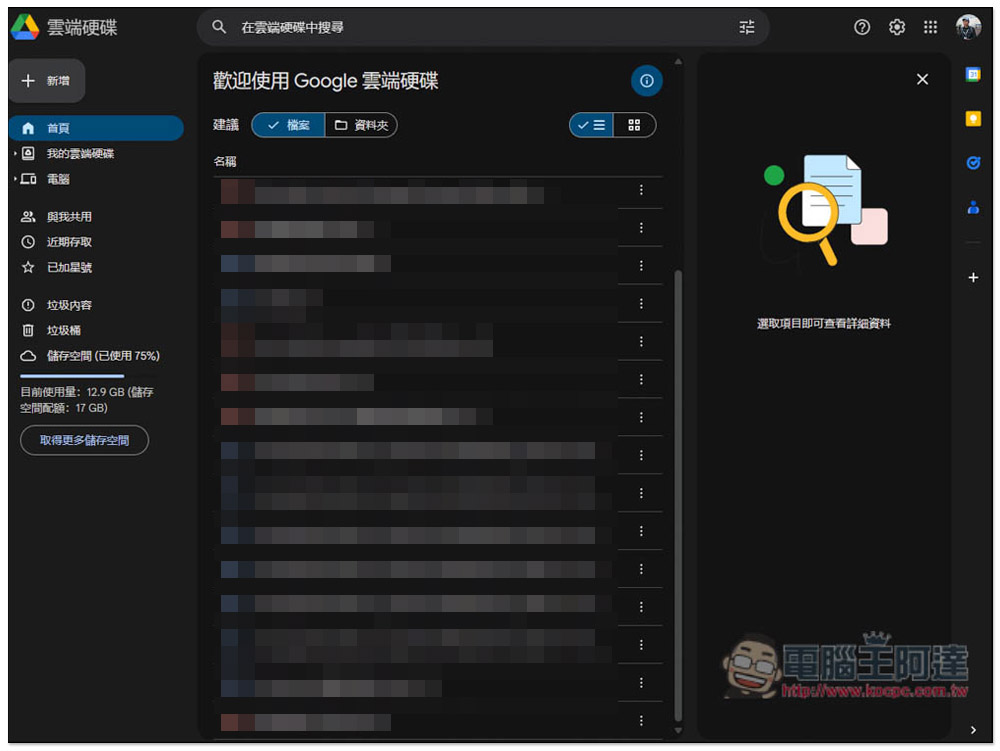
The dark mode of Google Drive web version is finally officially launched, teach you how to switch it
According to foreign media reports, the dark mode of the Google Drive web version is officially launched from today, and all “Google Workspace users”, “Google Workspace personal users”, and “Google account users” can enjoy it. Even so, when I tested the accounts I have on hand, only one Google account received the dark mode update, and no others, including the Google Workspace account.
So it seems that it should be pushed to each user one after another, not open all at once. If you haven’t seen this feature when you open your Google account, try it again in a few days.
1. How to use dark mode in Google Drive web version?
For those who have received the dark mode update, when they open the web version of Google Drive, this “New feature! Dark mode” reminder will pop up:
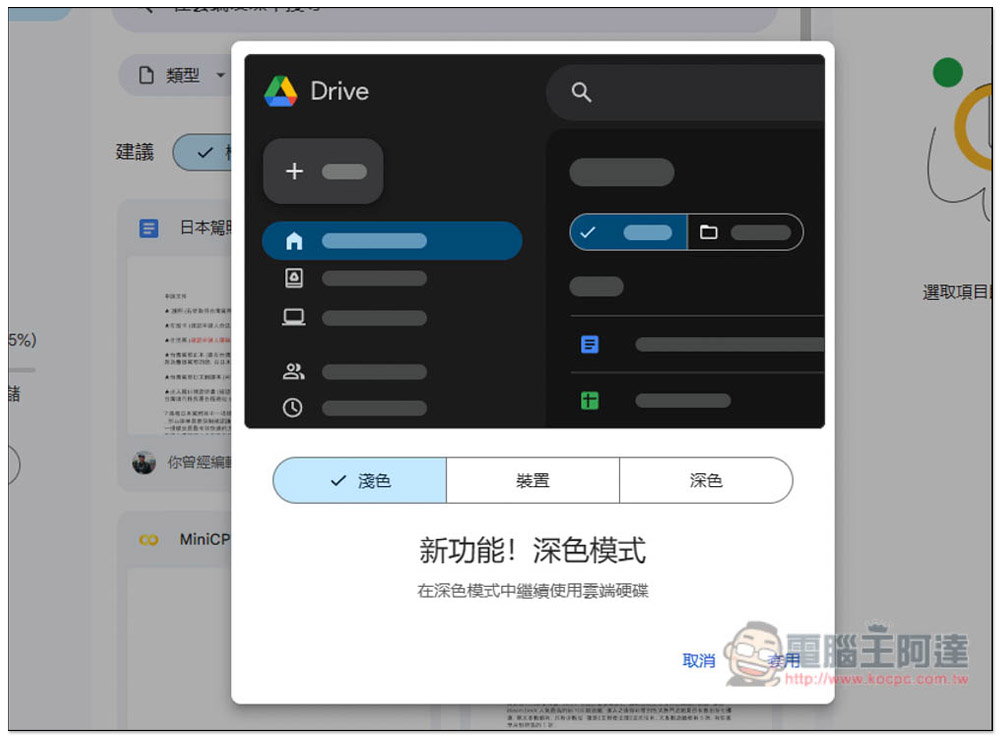
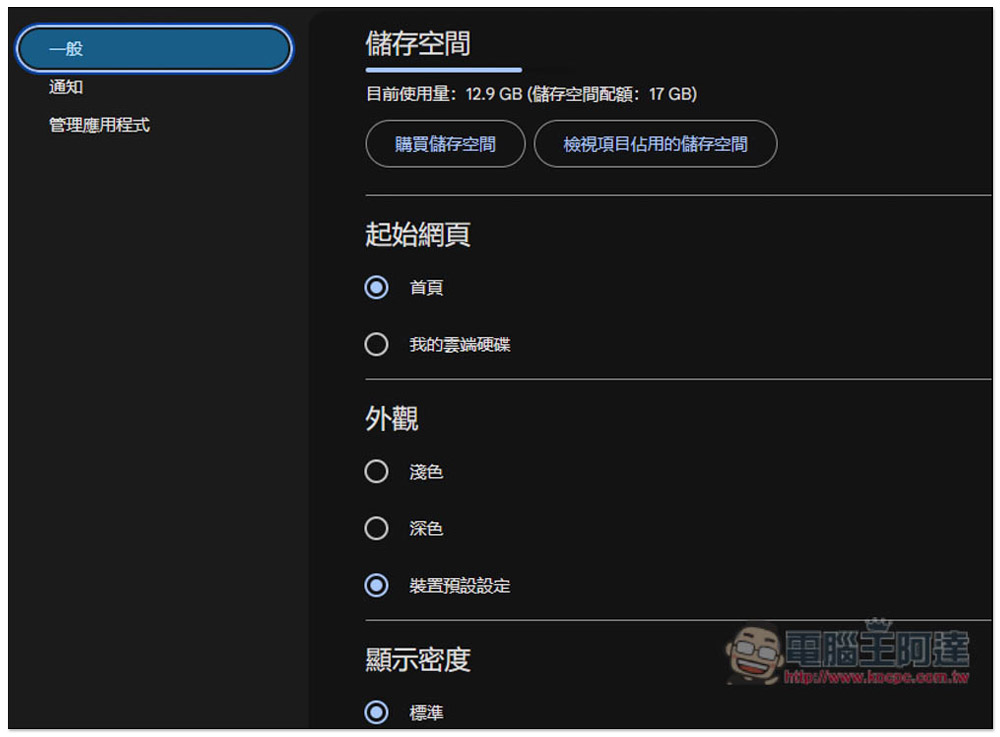
There are three options: “Light”, “Device” and “Dark”. Light means white background, and the device will automatically change according to your current device settings. For example, my Windows computer is set to dark mode, so when I select device, it will switch to dark mode. If you want to use dark mode forever, you can directly select “Dark” and click Apply at the bottom right when finished:
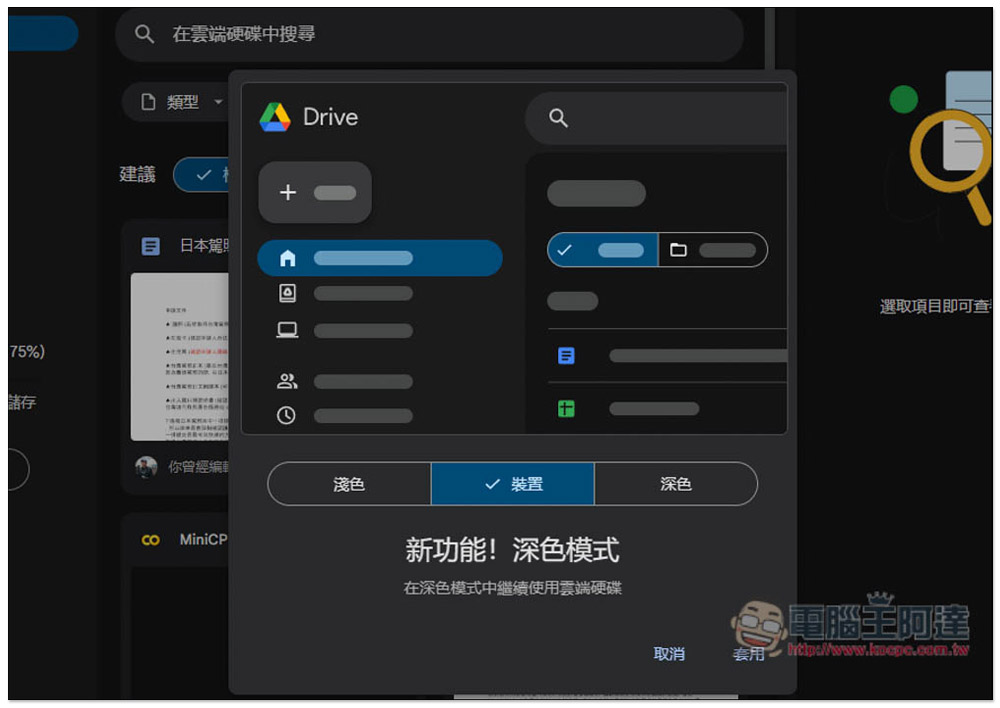
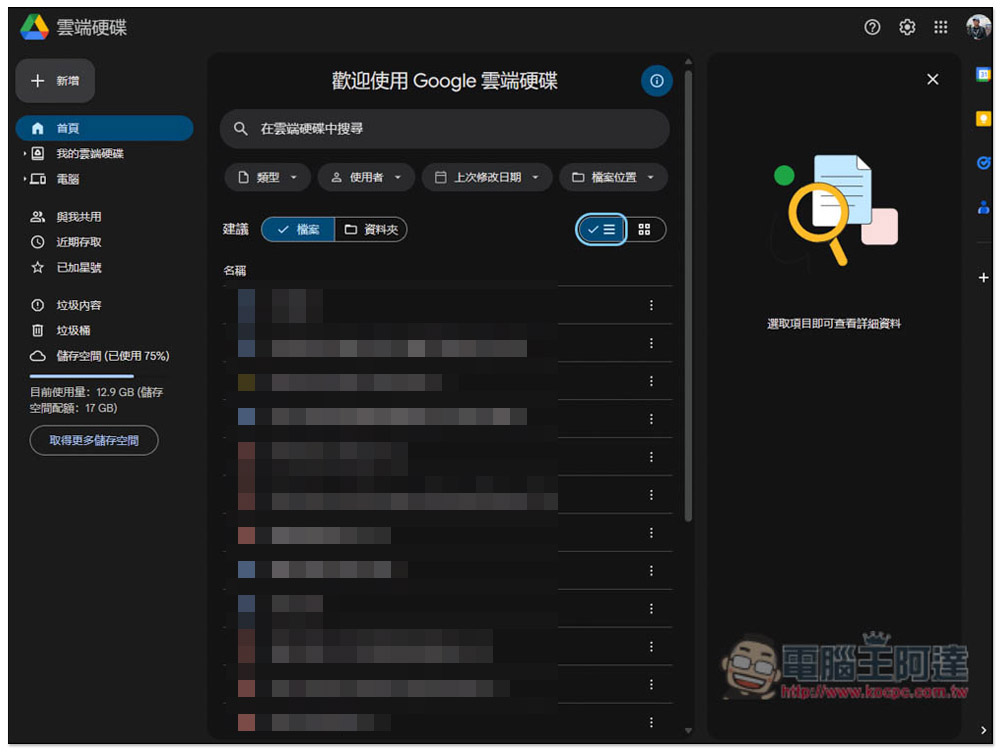
The Google Drive web version has changed to dark mode. The background of the middle list is black, but the left sidebar looks a little gray, so the entire visual effect is still layered and not a single dark background. Also note that this dark mode will only affect the visual appearance of the Google Drive web version. When you open files, documents, sheets, slides, etc. in the hard drive, there will not be a dark background because it will enable another Google service, such as Google Docs:
2. How to switch back to light mode?
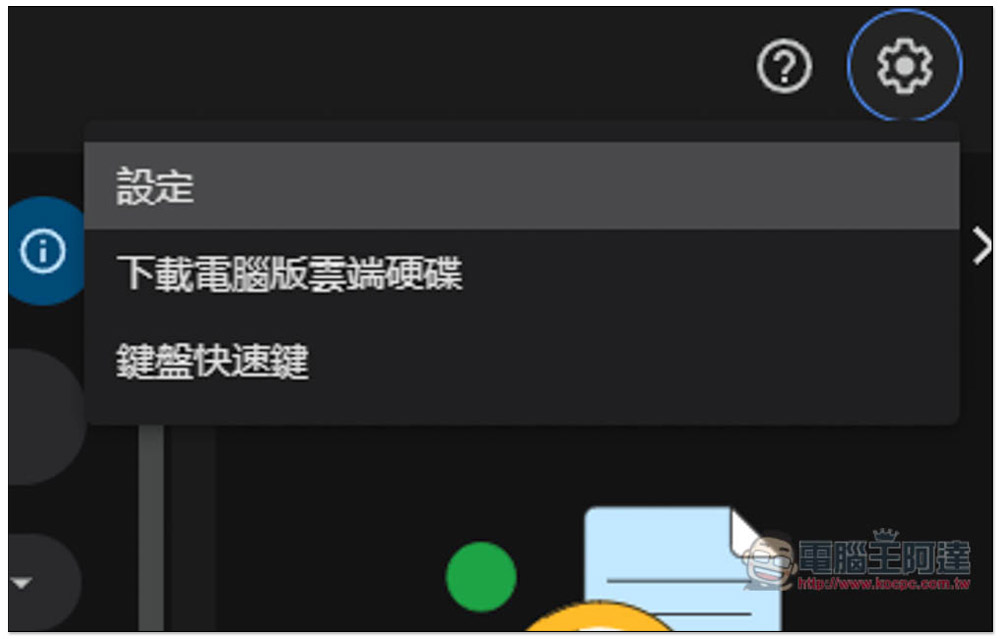
If for some reason you no longer want to use dark mode, or want to change the appearance mode settings, click the gear icon in the upper right corner and click Settings:
You can find the appearance options. Depending on which mode you want to use, just select that one:
What are the pros and cons of dark mode?
advantage
- It is better to use it in a low light environment to avoid disturbing other people.
- Your device will emit less “blue light”
- Can reduce battery consumption
- May reduce eye fatigue and dry eye syndrome
shortcoming
- It may not necessarily improve eye fatigue. Some people say that this display mode may actually increase fatigue.
- In bright environments, it becomes harder to read
- If you have an older LCD screen, Dark Mode will not save more power
Source: KOCPC Chinese