


The GPU is the main component for handling graphics-intensive tasks, and although it is extremely durable, it eventually ages and breaks down. Before the final moment arrives, it will usually show signs of impending failure and the need for timely repair or replacement. Before you panic all day long and everything is in danger, this time we will introduce these iconic warning signs to you in detail. Let’s take a look.
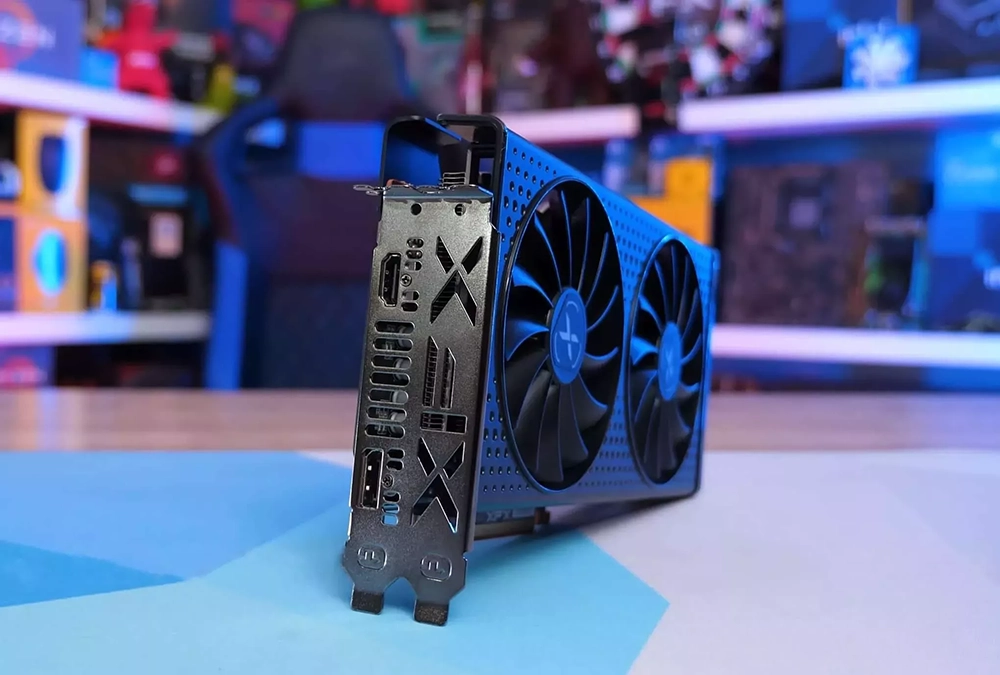
Is your GPU dying? 6 warning signs you need to pay attention to
Before we begin…
Before we dive into the signs of GPU failure, it’s important to understand that some of the indicators we’ve mentioned below can also be caused by software issues in your computer, failure of other components like RAM or SSD, improper GPU installation, running outdated or corrupted drivers, and possibly other factors. Before proceeding, you should first check that the GPU has been installed correctly, that the drivers have been updated, and that you have not overclocked the GPU or misconfigured any software. Also, remember to disconnect the dedicated GPU connection and run the computer on the built-in or backup GPU to see if the same issue persists. If this is the case, it may be caused by some other component or software setting, not the GPU.
If you have eliminated the issues mentioned above but the signs we mentioned below are still there, it means there is a potential problem with the GPU, but don’t forget to evaluate the warning signs while continuing to rule out other possible causes.
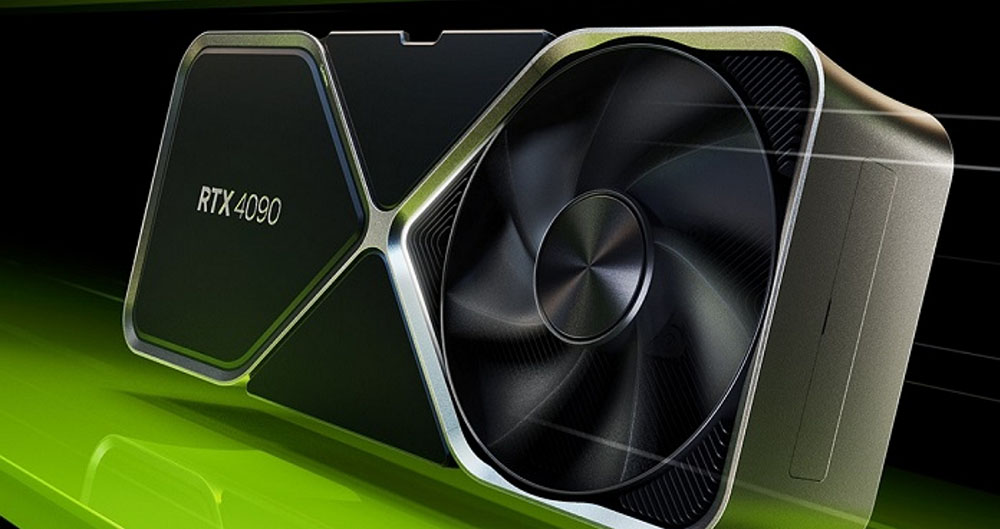
The fan is noisy and operates abnormally
Graphics cards often produce some noise when handling heavy workloads, but if the sound becomes unusually loud or noisy, it could be a sign of a problem with your GPU. Check inside the computer case to make sure all GPU fans are spinning properly. If you notice that one or more fans are idle, unless there is another underlying problem, it’s definitely a fault with the GPU.
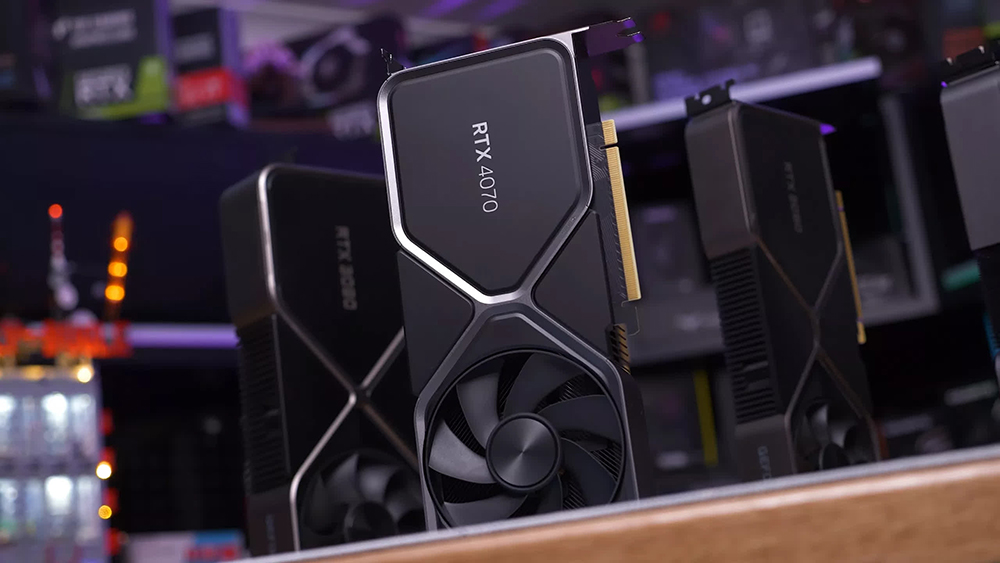
If the GPU fan rotates normally and makes a lot of noise, please remove the GPU first, carefully clean the dust on the fan, and check whether the fan itself is damaged, and then turn on the computer without the GPU to rule out the noise coming from other components. If the noise only occurs when the GPU is plugged in, it indicates a potential hardware issue with the graphics card.
Your built-in graphics card performs better
One effective way to gauge whether your GPU is failing is to switch to the built-in graphics for a specific application and evaluate its performance. On Windows, follow these steps:
- Open the “Settings” application and click “System” in the left sidebar.
- Click “Display”, scroll to the bottom and click “Graphics”.
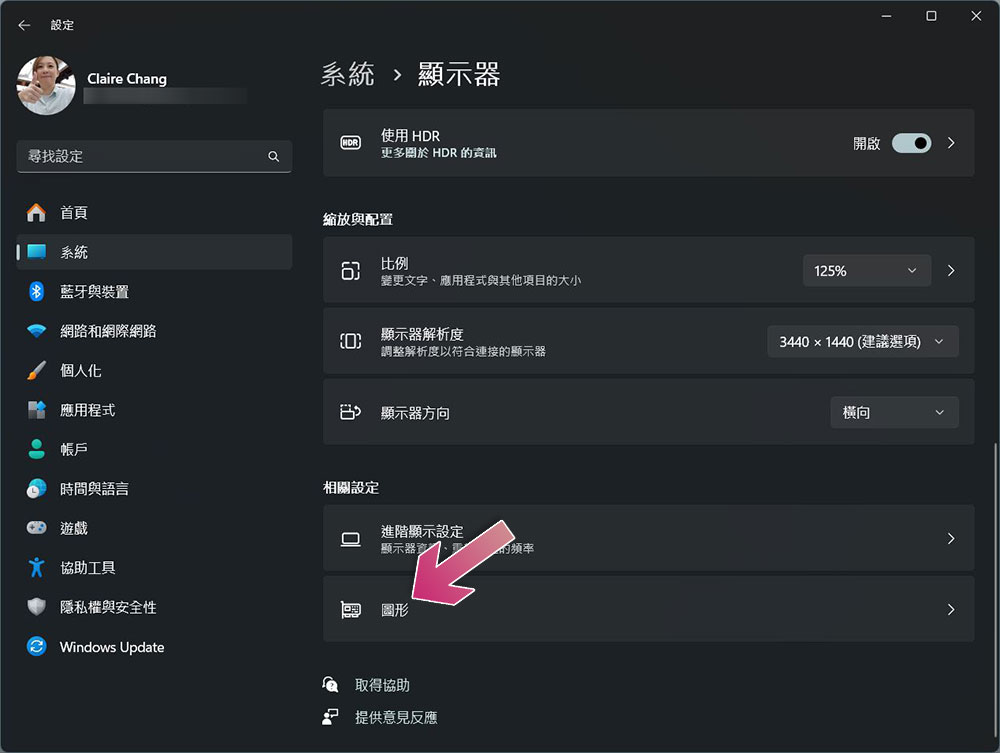
- Select the desired application, click “Options”, change the setting to “High Performance” and save the changes.
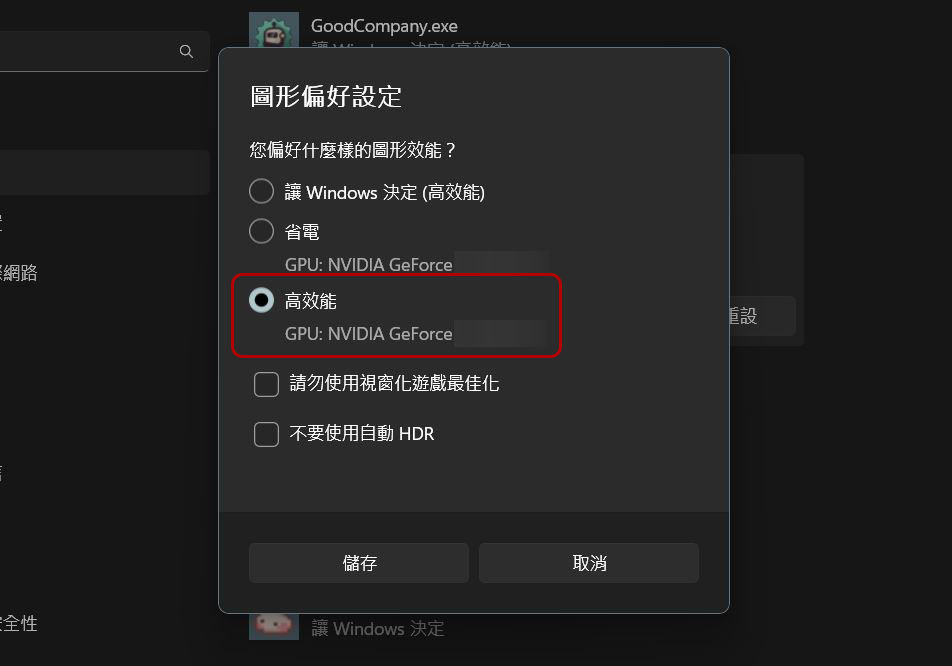
If you use dedicated GPU software, it usually allows you to change the default GPU. If you are experiencing graphics-related issues and errors while performing graphics-intensive tasks on your GPU, but these issues disappear when you switch to the built-in graphics card, it may be a sign that your external graphics card may have reached the end of its life.
GPU temperature spikes when not under heavy load
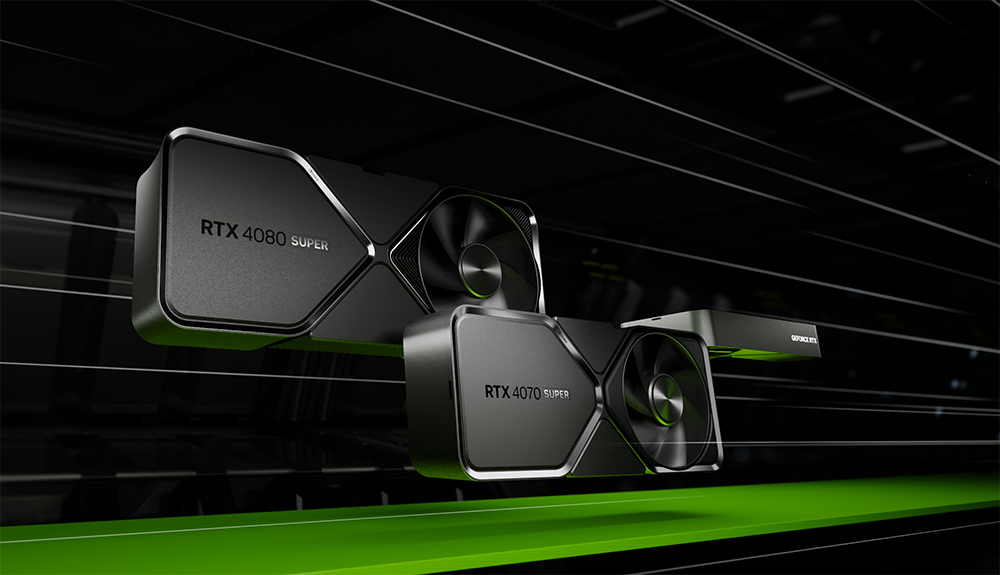
Normal GPU operating temperatures are typically between 65 and 85ºC under heavy load and should be below 30 to 40ºC when idle, however if the GPU is experiencing hardware issues it can be much higher than normal. If you notice a few warning signs and suspect your GPU may be failing, keep an eye on your GPU’s temperature. If your GPU temperature remains high even when idle, or heats up dramatically under light load, that’s another sign that there may be an issue with your GPU that requires further investigation.
You frequently encounter GPU-related errors
The GPU should be able to run smoothly and without errors under normal operating conditions. If you encounter a system displaying a GPU-related error, basic troubleshooting can usually resolve the issue. Basic troubleshooting includes updating graphics drivers, ensuring the GPU is enabled, resetting its settings, checking for system updates, and turning off overclocking. If you find that GPU-related errors persist despite trying the recommended troubleshooting steps, this may indicate a hardware issue with your graphics card.
Poor graphics and FPS drops
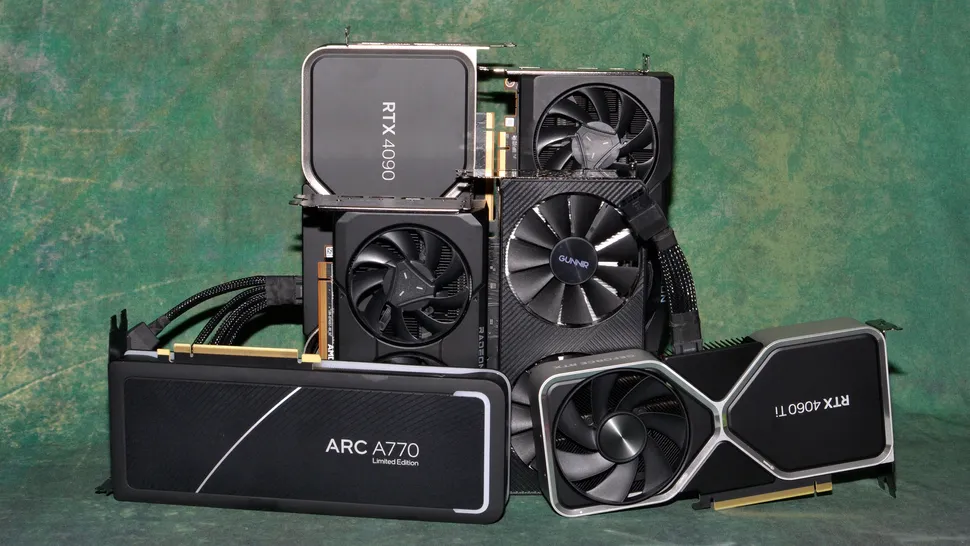
If you have a high-end graphics card with enough VRAM, a compatible power supply unit (PSU), good ventilation, and RAM running at the appropriate clocks, you should get the best performance from your GPU. However, if you experience frequent lag, long load times, and poor graphics when gaming, this is a warning sign that something is wrong. Additionally, if you notice that your game is taking an unusually long time to render frames and your FPS drops significantly and gets worse as the game progresses, this is a clear sign that there may be an issue with your GPU.
Frequent crashes, graphics glitches, and BSODs
If your game or other graphics software starts crashing frequently, and you notice your game freezing more frequently, or you have visual artifacts or glitches in the graphics calculations, these are clear signs that your GPU is acting erratically. If your computer crashes while performing a graphics-intensive task and then experiences a blue screen crash upon rebooting, the GPU may be the culprit, assuming everything else is fine.
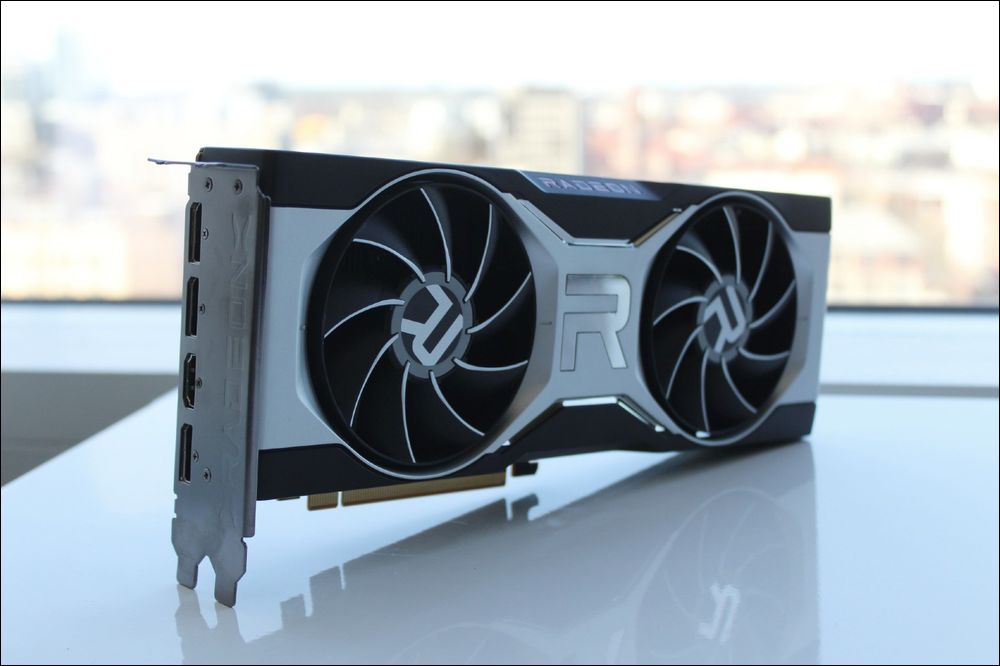
The above signs indicate that your GPU has a potential hardware problem. If you see multiple signs at the same time, your GPU may be on the verge of failure or failure. If you suspect this may be the case, seek professional assistance immediately from the manufacturer or local technician (only if the warranty has expired) to explore repair options.
What should I do if my GPU is dying?
If you notice any of the above signs while your GPU is still under warranty, you can contact the manufacturer to arrange for a replacement of your graphics card; if the warranty has expired, the sooner you identify these signs, the better your chances of getting your GPU back up and running properly with a few repairs.
There may be an issue with one of the GPU’s fans, and depending on the GPU model, you may have the option of replacing it. In addition, the thermal paste may have dried and needs to be reapplied, or the radiator may not function properly. However, if you do not have any DIY repair experience, it may be difficult to perform these steps. It is recommended to take it to a nearby hardware repair station to evaluate whether the repair can be carried out at a reasonable cost. If the repair price is too high, investing in a new graphics card may be more effective.
Source: KOCPC Chinese