


Have you ever encountered the “No audio output device installed” error when you unmute via the system tray? If so, your audio output device may be disabled or unplugged, the audio driver may be out of date, or the audio service may be turned off. This time, we provide a variety of solutions for you to try.
How to fix “Audio output device not installed” error on Windows 11?
1. Conduct preliminary inspection first
Start troubleshooting with some basic fixes. First, restarting your computer will fix any minor issues that may be causing the problem. If you are using external speakers or headphones as your primary audio output device, check that they are plugged into your computer correctly. Next, try unplugging and plugging them back into your system. Make sure you don’t accidentally plug the audio input device into the microphone jack. If you have multiple audio output devices connected at the same time, unplug all devices except the main device. Also, carefully clean the headphone jack or speaker jack, and try connecting the audio device to another port to rule out a problem with the port itself.
Also, uninstall any audio customization apps you may be using. If these basic checks don’t help resolve the issue, follow the fixes below.
2. Run message troubleshooting
Windows’ built-in audio troubleshooter can help identify the primary cause of audio problems and help resolve them. If the basic checks above don’t resolve the issue, try audio troubleshooting.
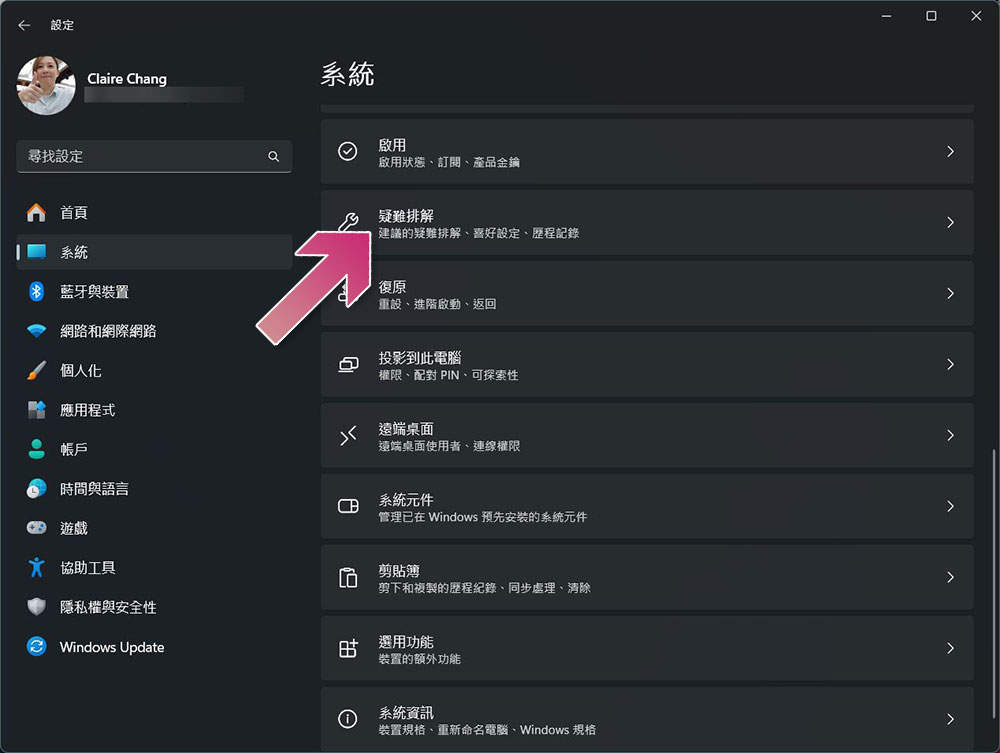
- Open the Settings app, click “System” on the left column, then scroll down on the right to select “Troubleshooting.”
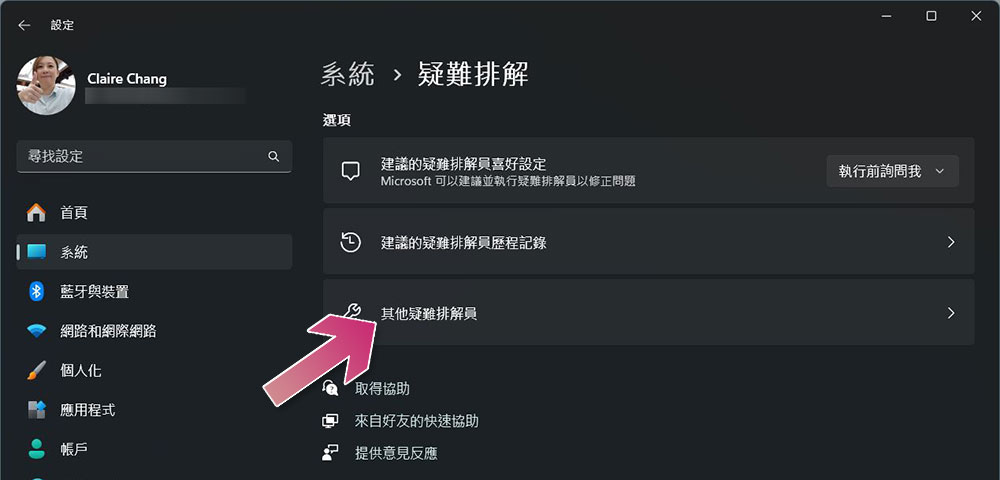
- Click “Other troubleshooters.”
- Click “Execute” next to the “Message” item.
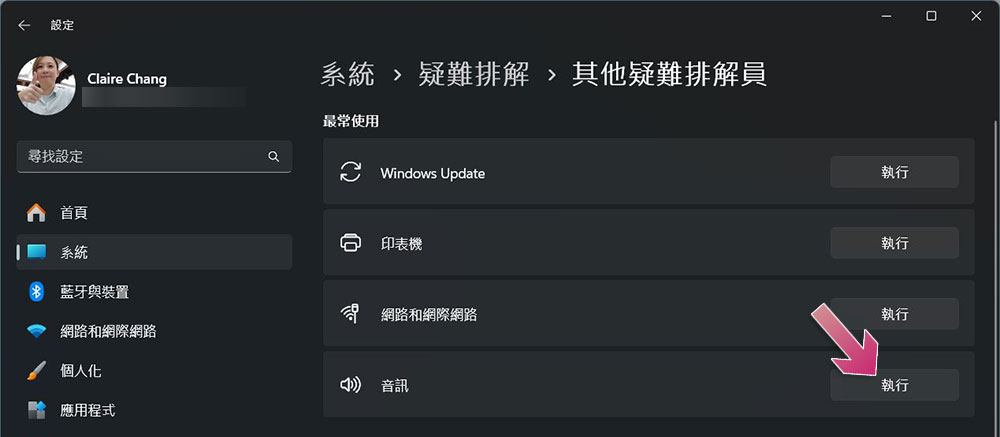
If the audio troubleshooter cannot detect the problem, try the following other fixes.
3. Make sure the audio output device is not disabled
If the audio setting atrium uses an audio output device, you may encounter the error “No audio output device is installed”. To make sure that’s not the case, please do this with me:
- Open the “Settings” app, click “System” on the left column, and click “Sound Effects” on the right.
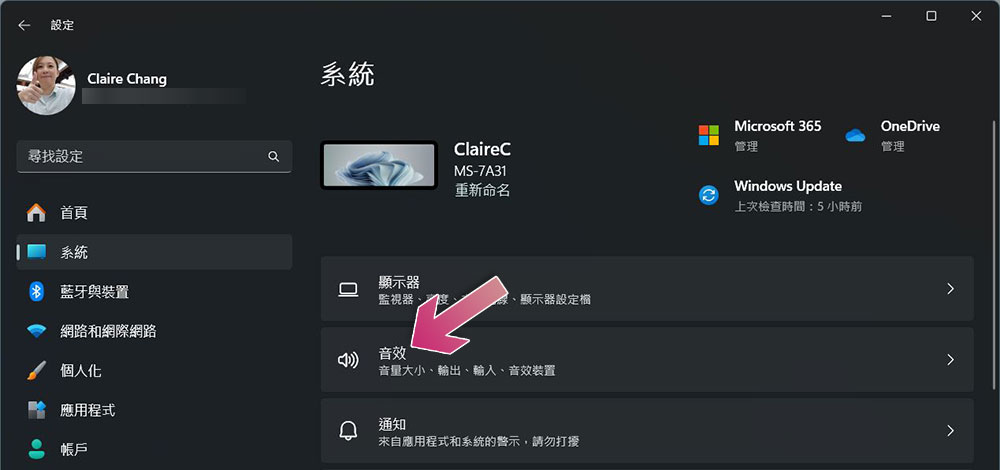
- Scroll down to the bottom and click “More audio settings”.
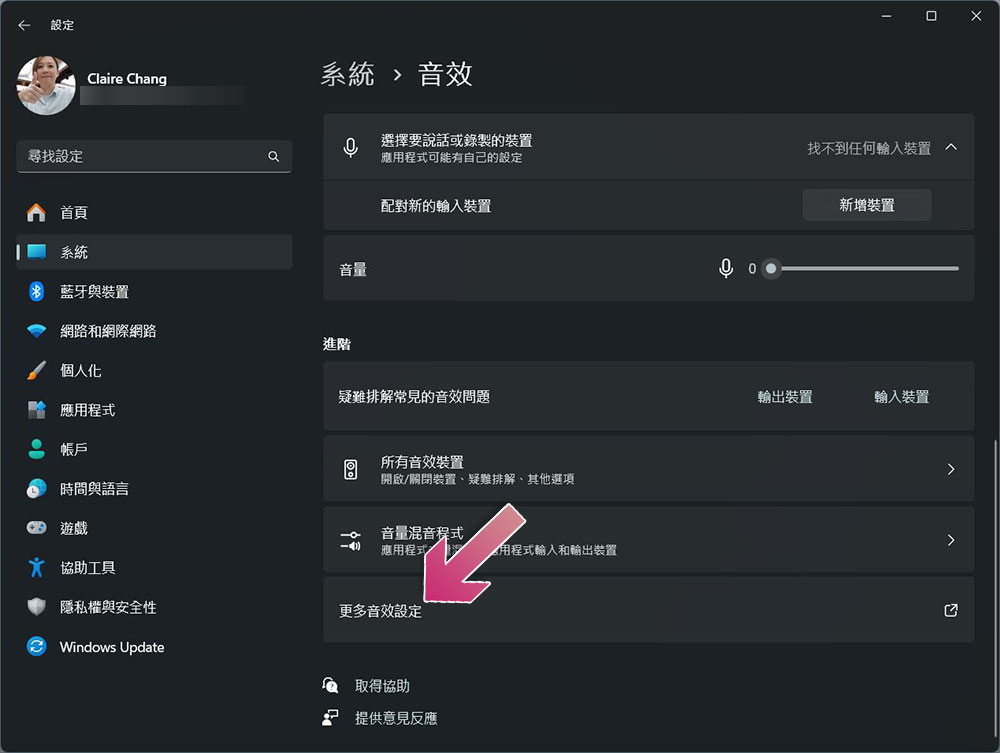
- In the next window, switch to the “Playback” tab. If you notice that all audio output devices here are marked as disabled, you should right-click on the primary playback device and enable it.
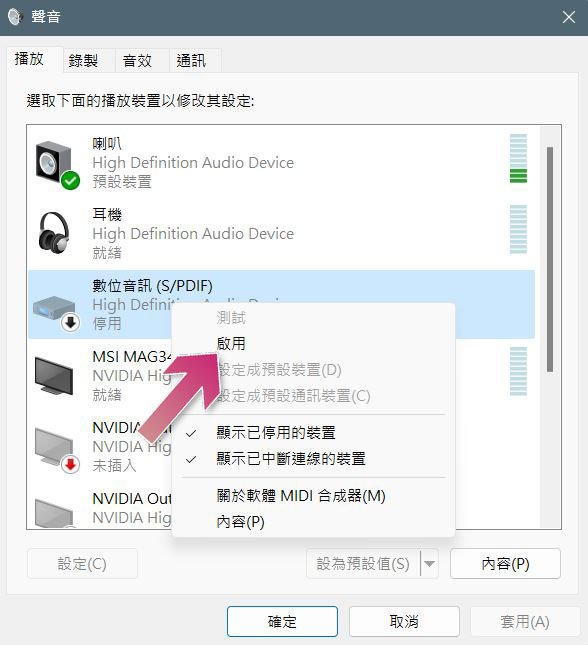
4. Enable the audio output device from the device administrator
If you don’t see any devices listed in the sound settings playback tab in the previous step, the audio output device may have been disabled in the device administrator. To ensure that this is not the case, do the following:
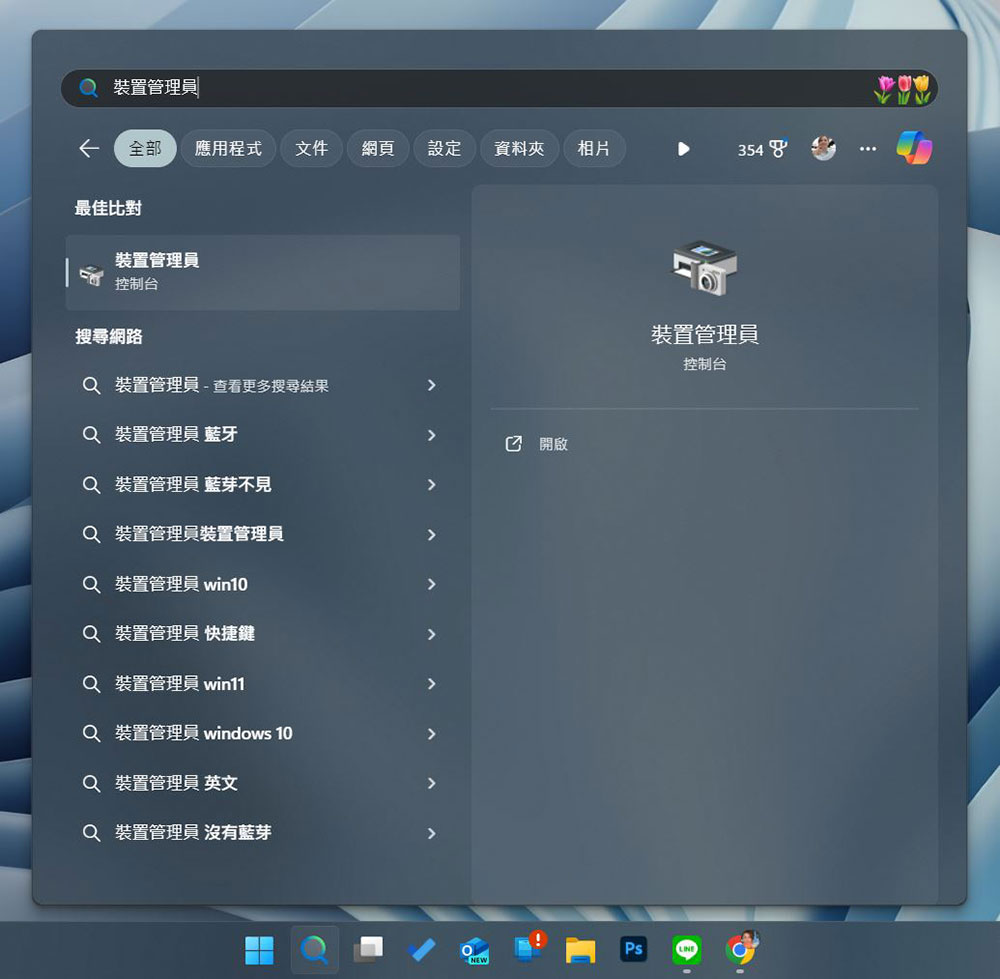
- Find “Device Administrator” in Windows search and open it.
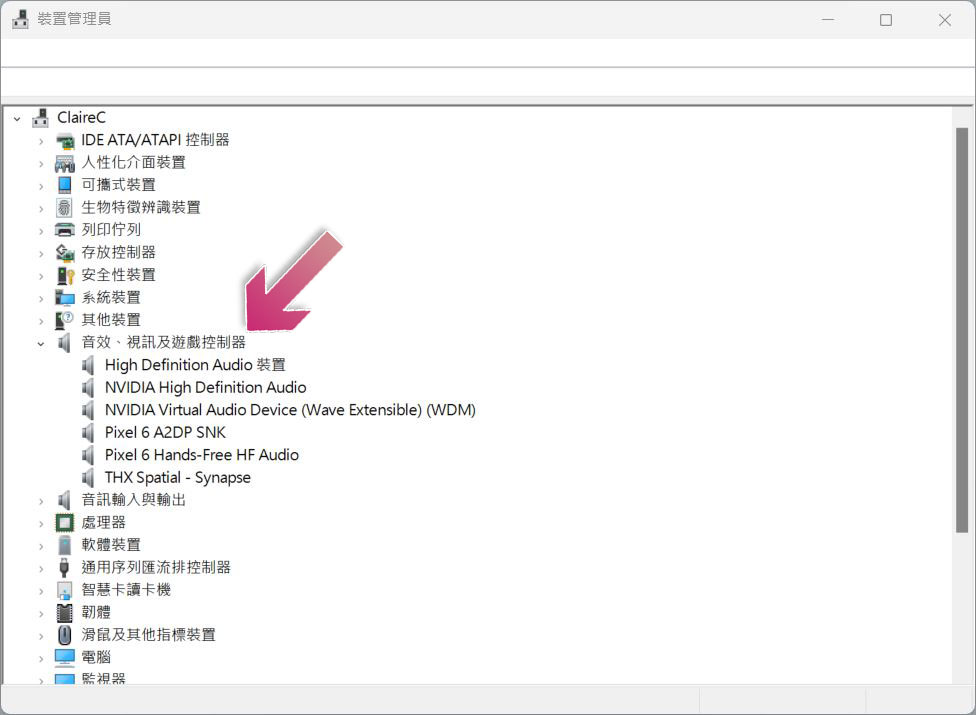
- Expand the “Audio, video, and game controllers” category. If you see a downward arrow on your audio device indicating that it has been disabled, to fix this, right-click and select Enable it.
5. Enable audio service
If the audio output device appears to be enabled in Device Manager but is not visible in the playback device, the audio service may be disabled. To rule out this possibility, follow the steps below:
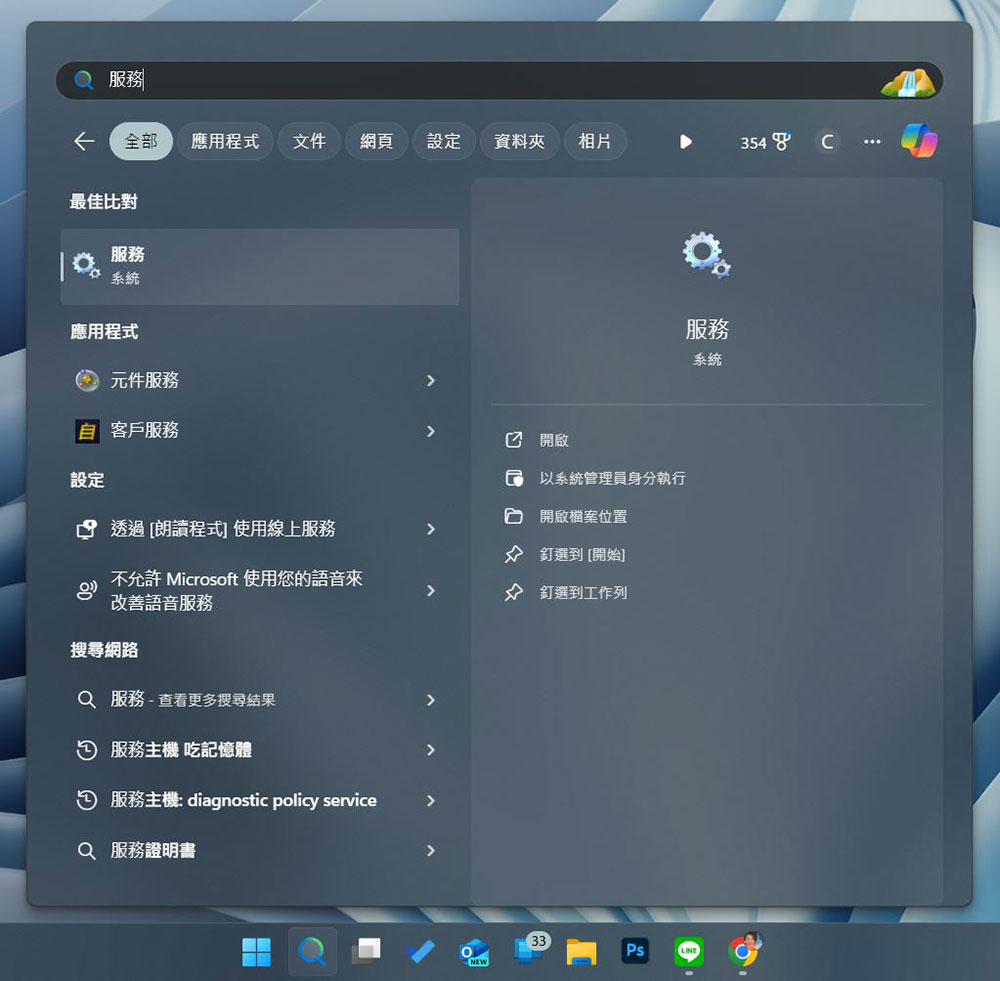
- Find “Services” in the Windows search field and open it.
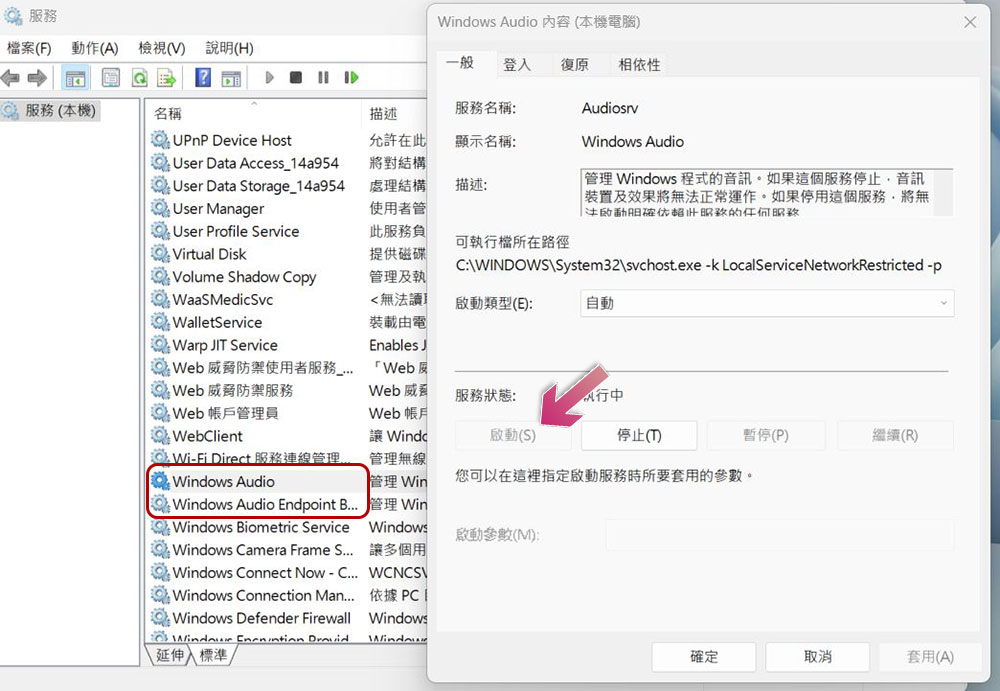
- Find the two services “Windows Audio” and “Windows Audio Endpoint Builder” and double-click the two services in order. If you find that the status is disabled, please click the “Start” button to enable them.
6. Enable or disable chipset information from BIOS
If you don’t see the “Audio, Video, and Game Controllers” category in Device Manager, your BIOS may have turned off chipset audio, so you need to enable it in the BIOS or UEFI settings. To enter the BIOS please follow the steps below:
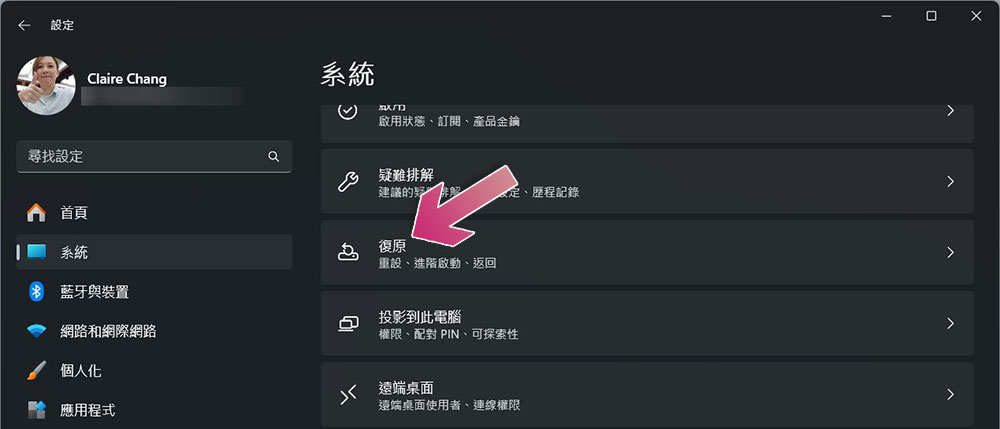
- Open the “Settings” application, click “System” in the left column, scroll down on the right side and click “Restore”.
- Click “Restart Now” next to “Advanced Startup”.
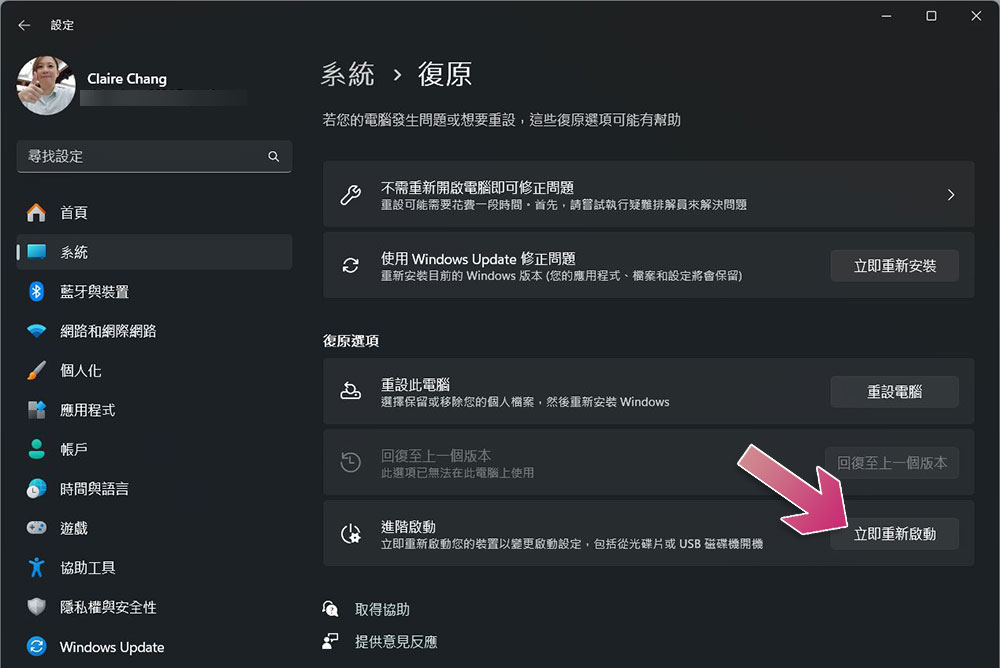
Before restarting your computer, the system will remind you to save the work you are doing. After saving, click “Restart Now” in the pop-up window. Your device will go directly to the options screen. From here, go to Troubleshooting >> Advanced Options >> UEFI Firmware Settings and click Restart. The process for enabling or disabling onboard audio will vary depending on the manufacturer of your laptop or motherboard and the model used. If you can’t find it, see the brand’s documentation. Use this message to find the onboard audio option and turn it back on if it’s disabled. If you have installed a new sound card or sound adapter and are subsequently experiencing errors, consider turning off onboard audio to rule out any conflicts between the cards.
7. Reinstall the default audio driver
Corrupt or outdated audio drivers are another common cause of this error. To eliminate this, you can uninstall and then reinstall it.
- Find “Device Administrator” in Windows search and open it.
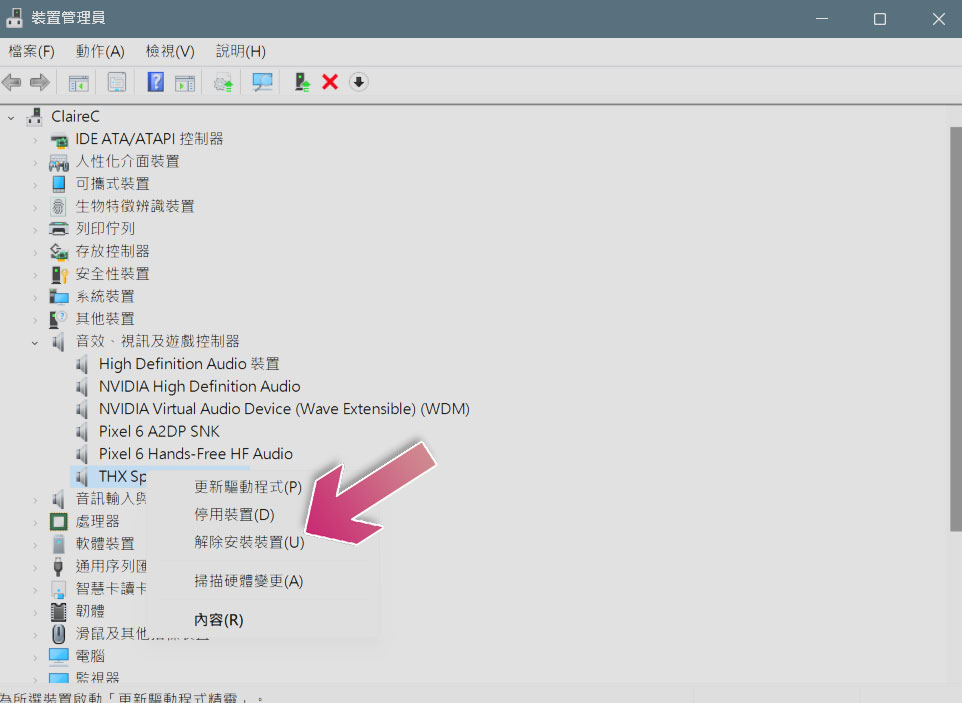
- Expand the “Audio, Video, and Game Controllers” category, right-click on the specified audio device, and select “Uninstall Device.”
-
After uninstalling the drivers, restart your computer and Windows will automatically reinstall them from scratch, which may help resolve the issue.
8. Install manufacturer-specific audio drivers
If you are unable to use a specific audio output device with your computer, you may need to install the manufacturer’s driver. To rule out this possibility, visit the manufacturer’s website and download the latest available audio driver. Most manufacturer-specific audio drivers come in executable files, so you may only need to run the driver file to install it. If installing a manufacturer-specific audio driver doesn’t restore audio output on your computer, make sure you don’t have any pending system updates that need to be installed.
9. Check for system updates
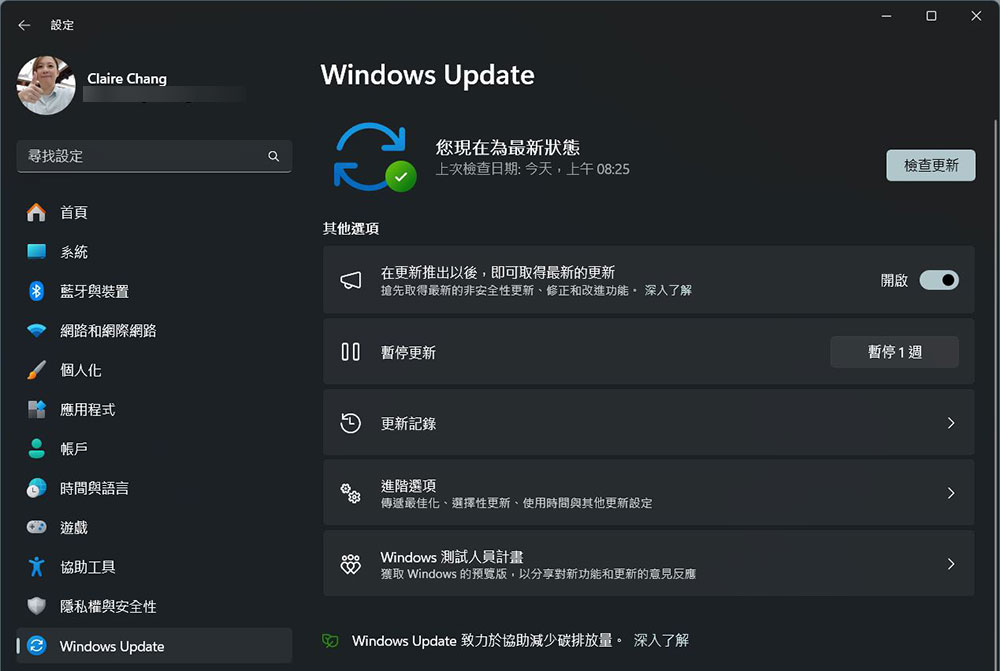
If none of the above fixes work, make sure your system is fully up to date. Open the Settings app and click Windows Update on the left sidebar. If your system is the latest, you will see a message stating “You are now up to date.” You can also click the “Check for Updates” button to search for available updates, and follow the system prompts to download and install.
Hopefully the above troubleshooting steps will help you identify the main cause of the “No audio output device installed” error and fix it to use audio normally on your system. If the problem persists and you only have one sound card installed, make sure it is not faulty and does not need to be replaced. If so consider seeking professional assistance to rule out this possibility.
Source: KOCPC Chinese