


Windows 11 is arguably the best version of Microsoft’s operating system to date, but it is not without its flaws. One of the most controversial features is the merging of launched applications on the taskbar. This means that the icons of the same application on the taskbar will be merged, making it more difficult to immediately select the desired window. Thankfully, as of Windows 11 23H2, this feature has been restored, so you can enable it at your own discretion if you wish.
How to unmerge and label taskbars in Windows 11
If you have a large number of single applications open, you may like that the current Windows 11 taskbar has enabled the application merging function, which can merge a large number of windows and reduce the trouble of finding them. It may be a little troublesome for people who have a small number of single applications open, because you have to hover the mouse cursor first and then find the window you are looking for from the options that slowly emerge. If you belong to the latter, follow us to learn how to cancel the merge function of task columns!
Work column unmerging and labeling
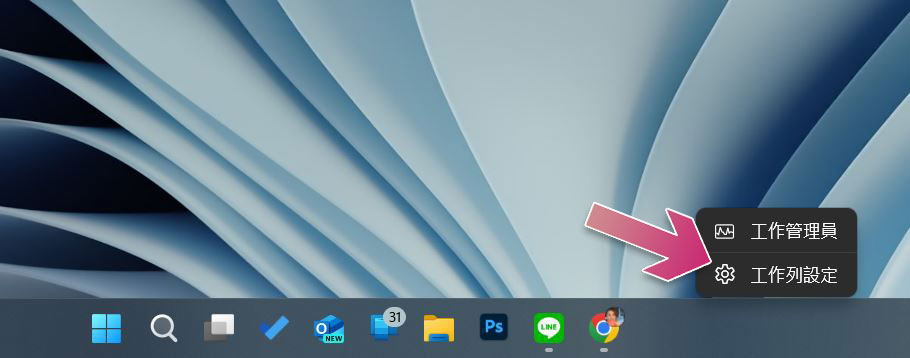
- Right-click any empty space on the taskbar and select “Taskbar Settings.”
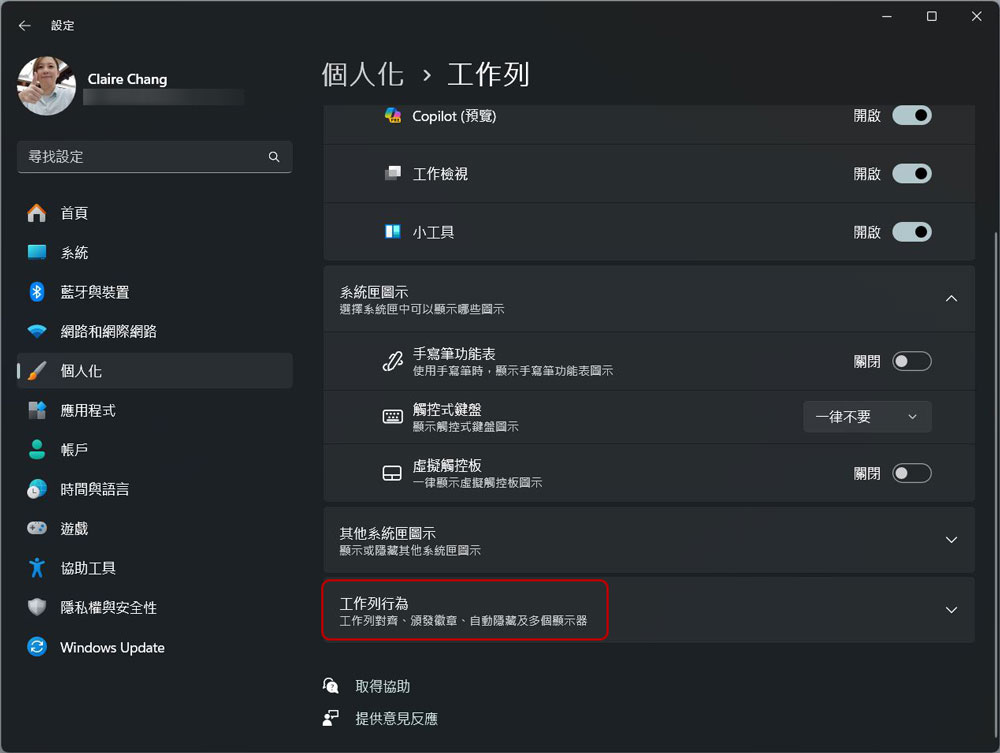
- Expand “Task Column Behavior” at the bottom.
- Find the item “Merge taskbar buttons and hide labels”. There will be three options in the drop-down menu behind:
Always (default): Always merge the same app icon on the taskbar.
When the work column is full: When there is no space to separate the same application icons on the work column, they will be merged; if there is still space, they will be displayed separately.
Never: Always display labels for each app window independently.
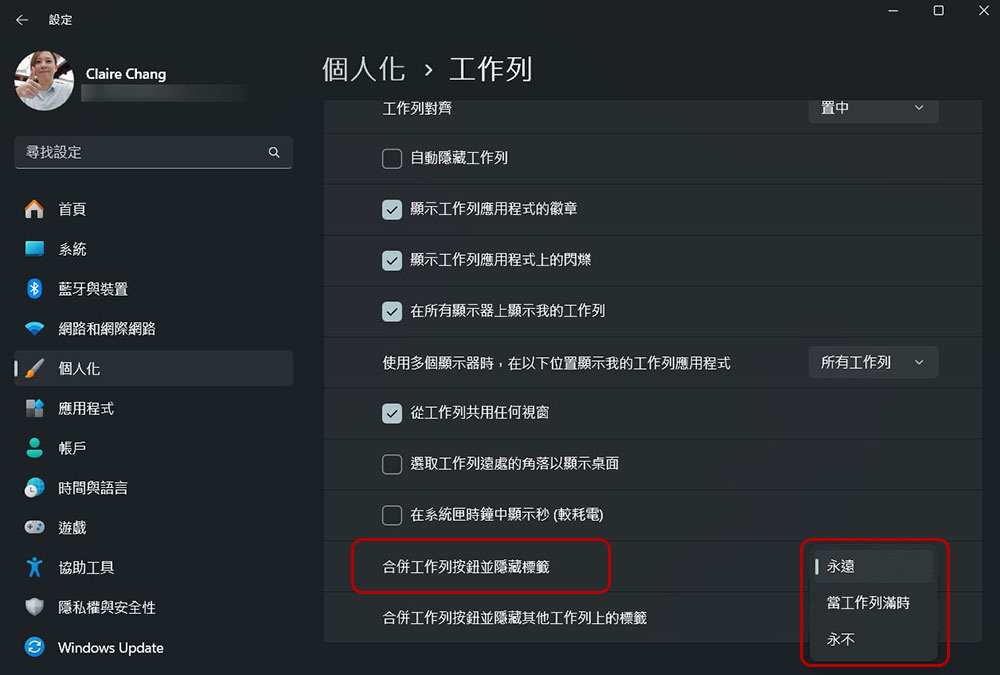
- If you have multiple monitors, set the option “Merge taskbar buttons and hide labels on other taskbars” to apply to taskbars on all screens.
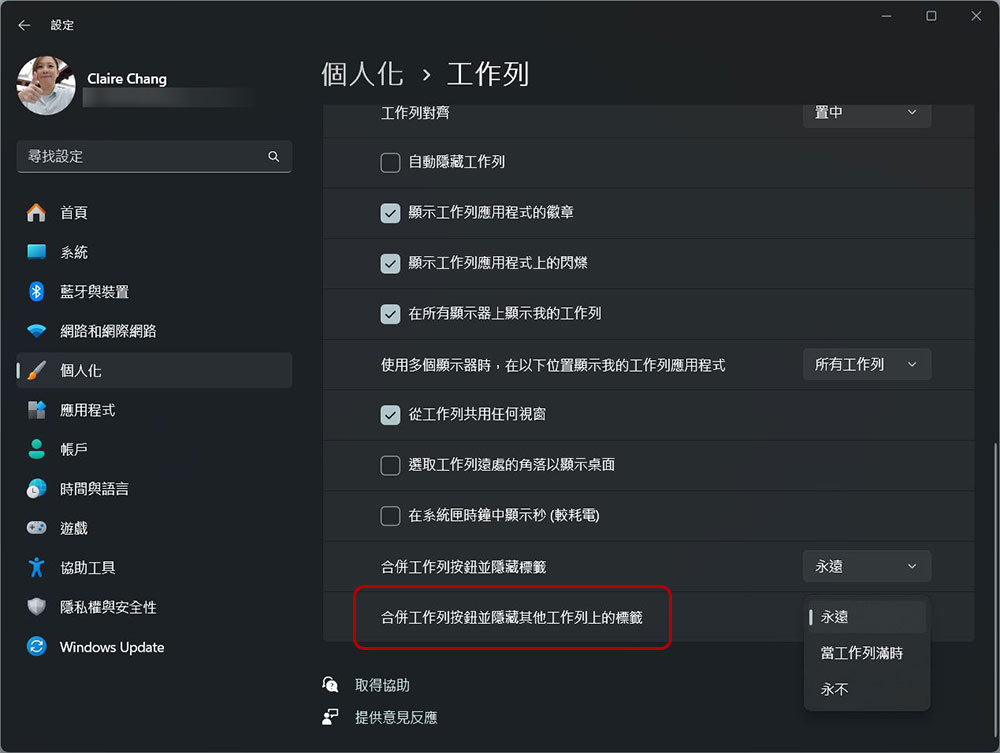
- Now you can close the Settings app. The changes made above will be automatically applied, so you can see the results immediately and return to change behavior settings at any time.
The above are all the setup steps, which can be seen as long as you are using the latest version of Windows. Therefore, if you do not see this option, you must first check if the operating system has been updated to the latest version. You may have been accustomed to many of the personalization options in previous versions of Windows that are unfortunately still absent in the latest version, but there are still many ways you can customize Windows 11, especially with the rich selection of third-party apps.
Source: KOCPC Chinese