


For text workers or video editors, many pictures/video materials must be obtained through the Internet. Although most of the materials can be saved as images/videos by right-clicking the mouse, many websites now use special compression image technology in order to speed up the user’s browsing experience. Taking pictures as an example, the downloaded file may be in AV1 or WebP image file format. If your computer software happens to not support it, you will have to convert it through other websites to the more common jpg format, which is quite tedious to be honest.
The Chrome plug-in “Save In…” introduced this time also downloads images/videos by right-clicking and archiving. As for pictures, no matter what image format the website is in, it will be saved directly as jpg; if it is a video embedded in the website, it can also be downloaded directly through it. The functionality can be said to be very convenient:

Chrome plug-in「Save In…」
First go to the Chrome Online App Store to find the Save In… plug-in ( Please click me to download), you can use it directly after adding it to Chrome:
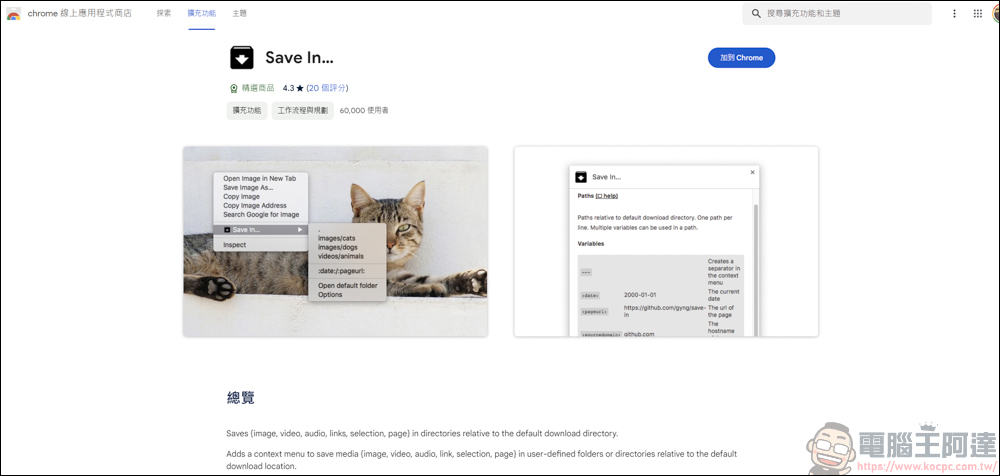
Let’s use downloading pictures as an example first. Let’s try to see if PChome can download it:

Generally speaking, as long as the website does not block the right-click function, most pictures can be downloaded by right-clicking → Save Image As, as shown in the picture demonstration:

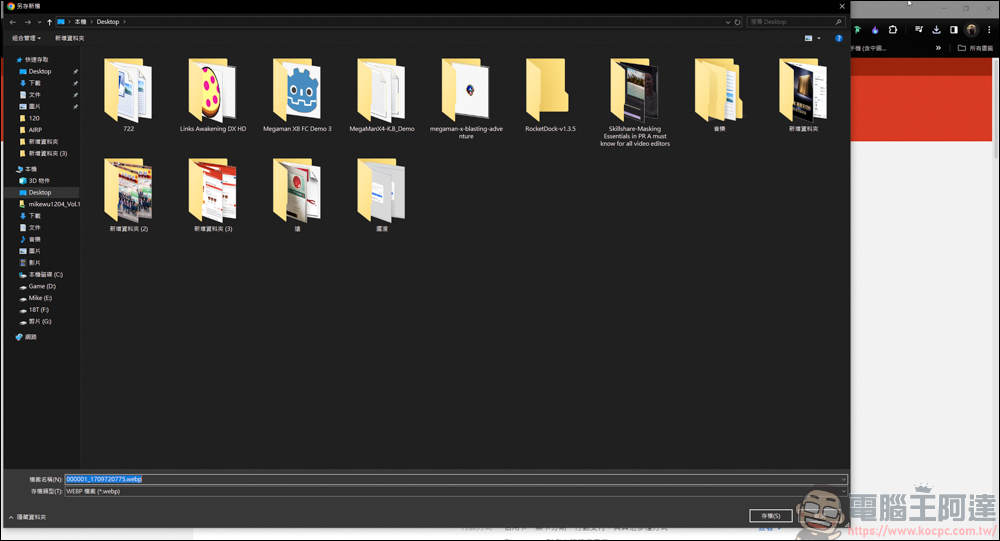
It was also mentioned at the beginning that in order to compress images, many websites use different image file formats. For example, PChome uses the WebP image format. Of course, this format is not unusable, but if your computer software does not support it, you still have to convert the file into a common jpg, etc. format before it can be used:
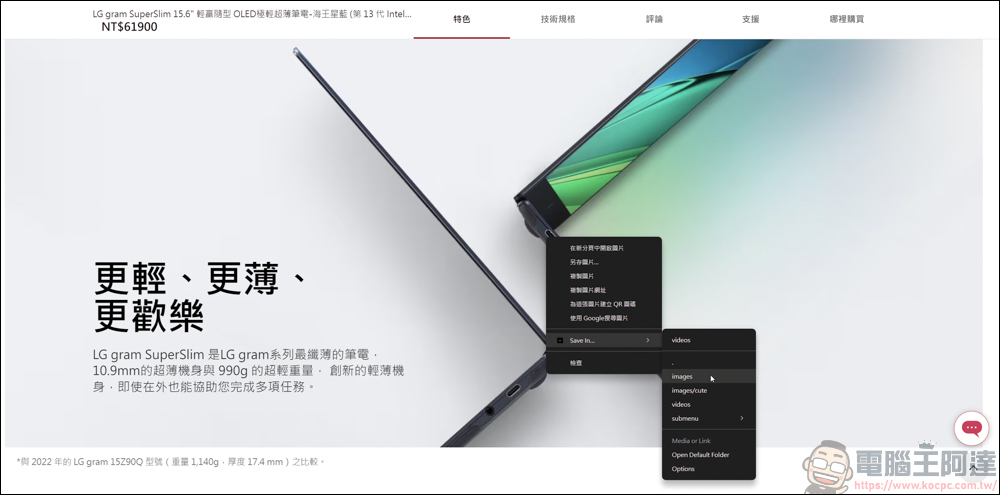
If the Save In… plug-in is installed, Save In… will appear when you right-click. If you want to save it as an image, click images to download the image file:

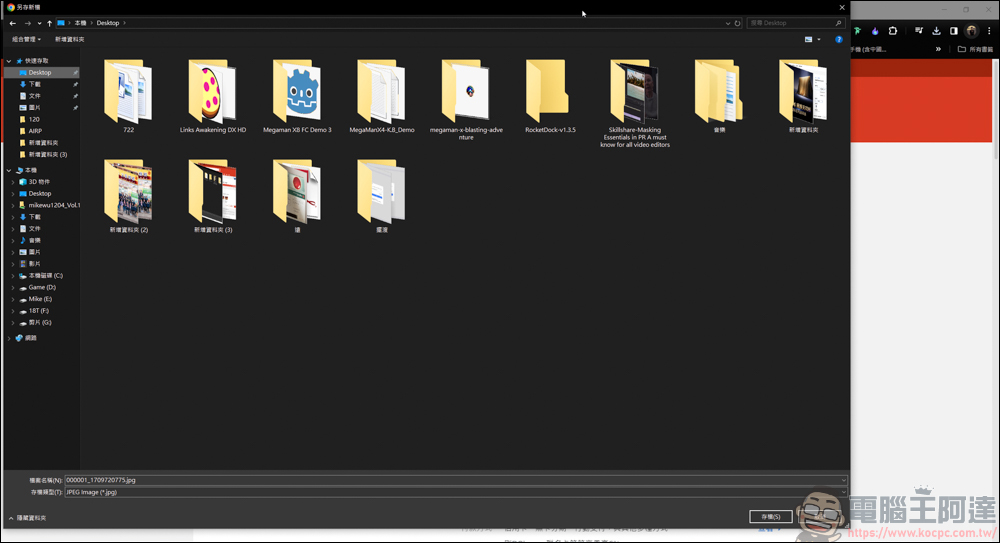
Have you found anything? The image format downloaded with Save In… will be in jpg format, not WebP, which means you can save it directly into jpg image format without any conversion, which is very convenient:
Test with other web pages:

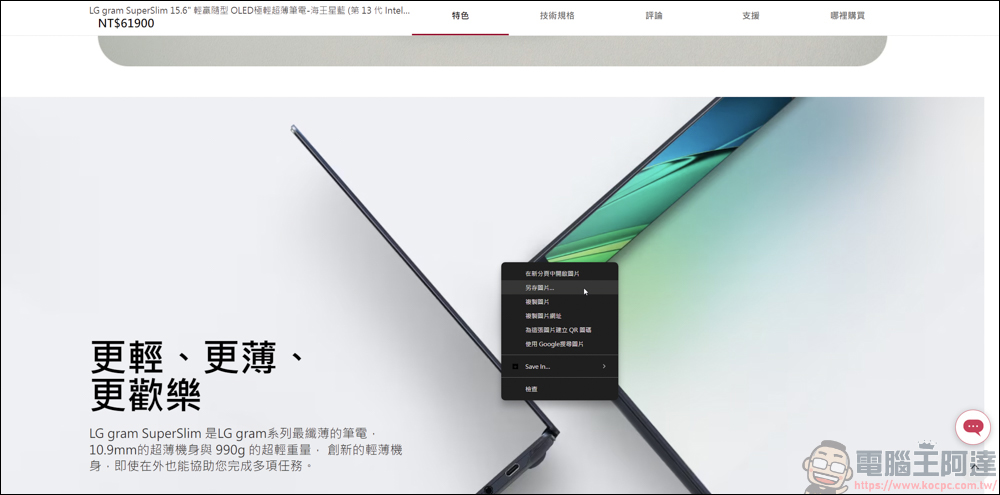
After using the built-in save image as, the downloaded image format is AV1:
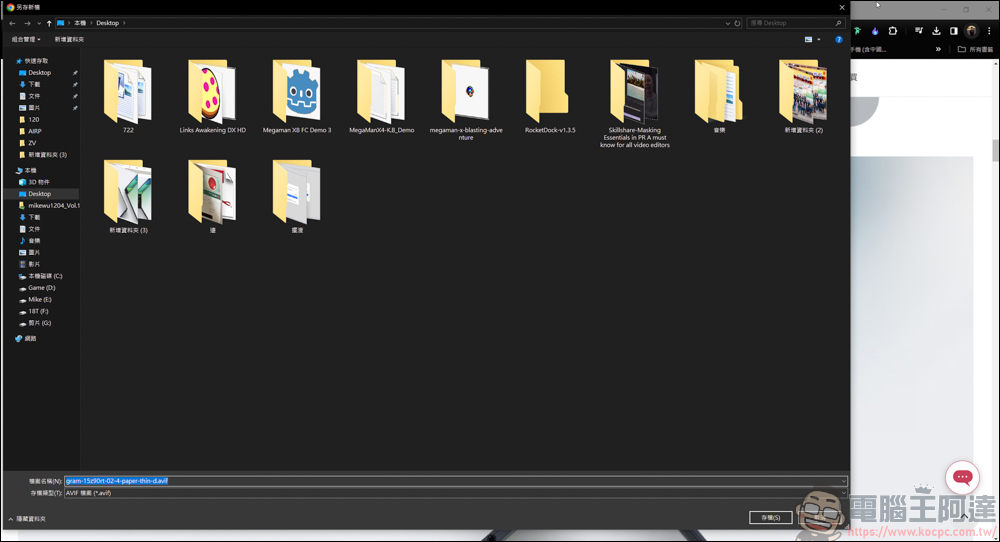
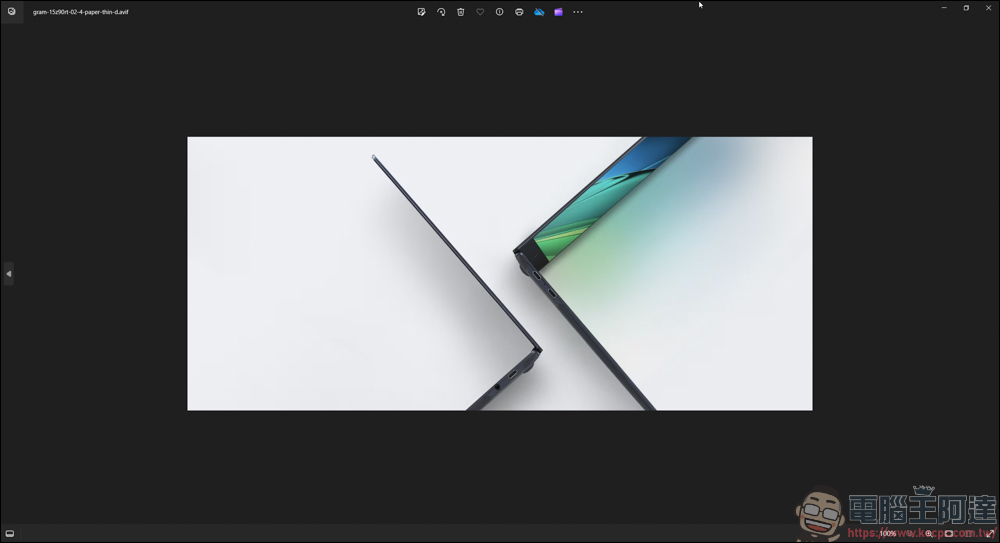
If you want to use Windows’ built-in picture viewer to view it, you must install additional software that supports AV1 media to view it. Even some editing software cannot recognize this format, so you have to convert it separately before you can use it:
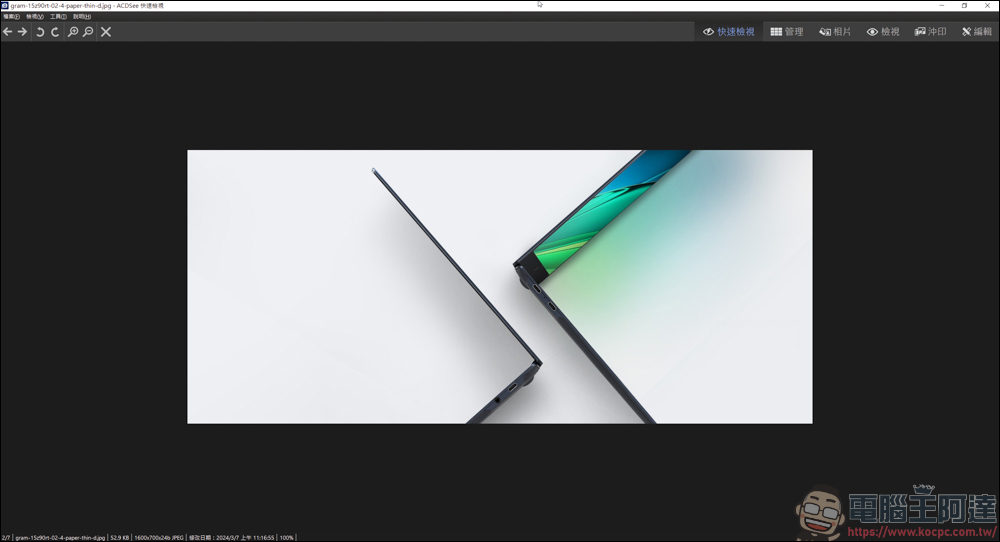
If you use Save In… to save:
The file will be saved as jpg, and the image size will not change at all. Whether it is used for viewing or thrown into editing software for use, there is no need to convert it separately!
Next, let’s take this embedded video as an example:

Generally speaking, as long as the website can be executed by right-clicking the mouse, the original function can save the video on the website. Use Save In… here to try to see if it can also be downloaded. Also right-click, click Save In…, and then click videos:
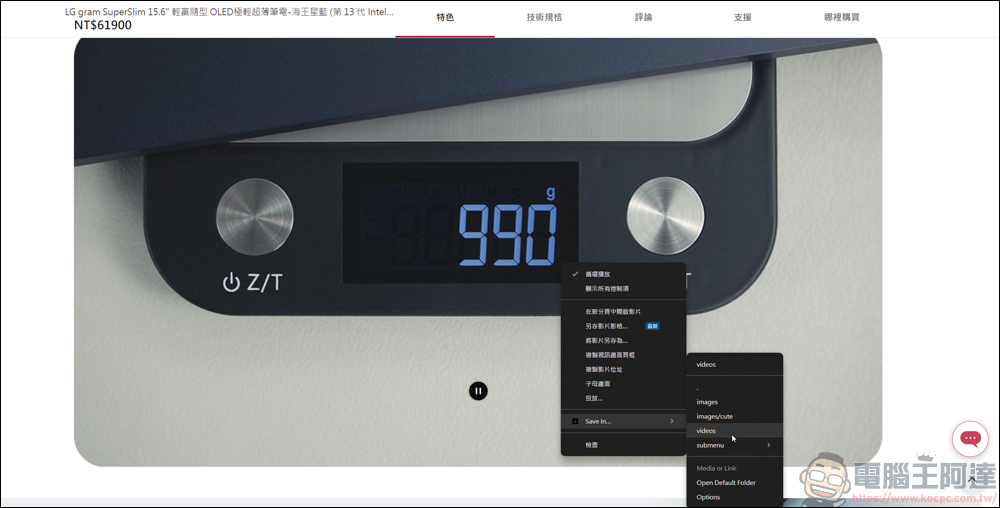
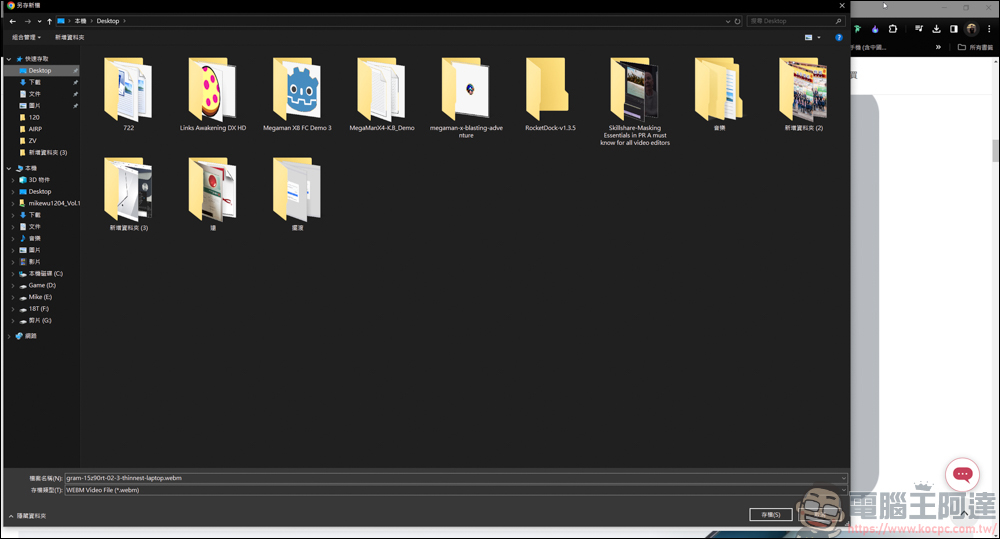
After a while, a download prompt will appear, but the downloaded format is WebM:
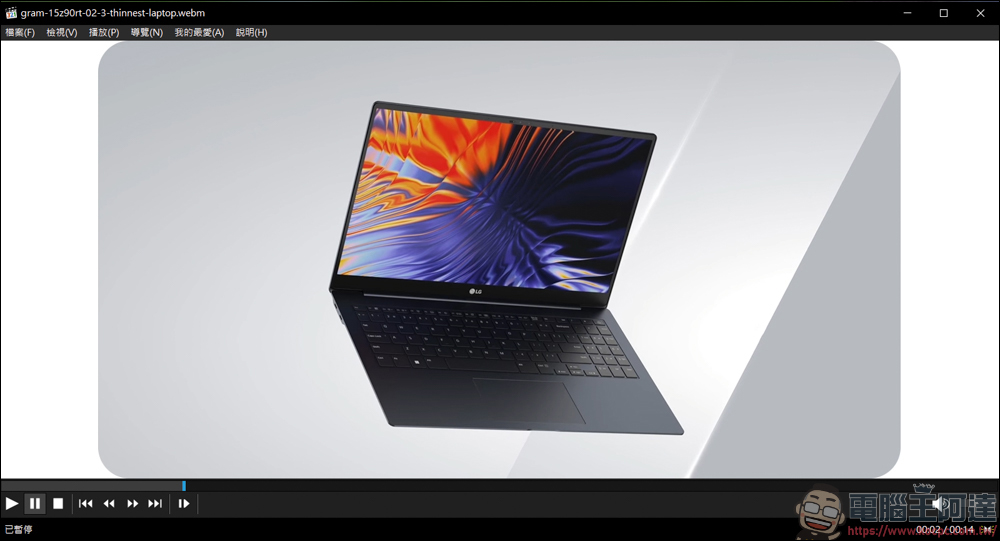
For example, the player on my computer supports this format, so I can open it and watch it painlessly. If you still need MP4, there are many conversion websites on the Internet. You can just find an online converter and use it:
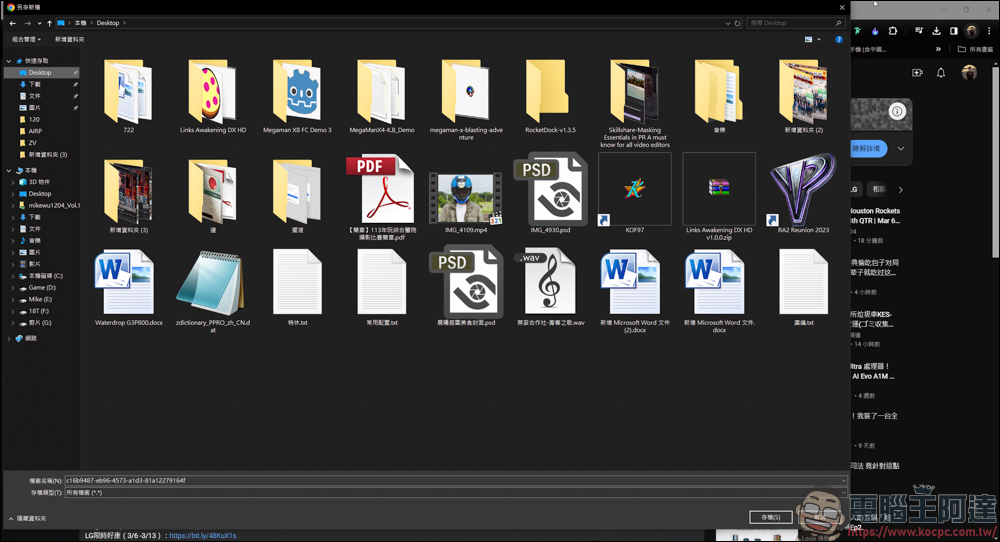
In addition, I also tested whether the YouTube platform can be downloaded, and the answer isno! If you are a reader who needs to download YouTube videos, it is recommended that you search for YouTube video downloads on Computer King Ada’s website. The platforms we have written about can all allow you to download YouTube videos:


Source: KOCPC Chinese