


The search function on Windows 11 is a feature added by Microsoft to make it easier for everyone to find specific applications, files, etc., but sometimes you may find it difficult to quickly find what you really need. Whether you have used this feature or not, whether you are new to Windows 11 or an experienced user, this time we will provide you with 6 tips to make your search easier.

6 tips to improve your Windows 11 search experience
Search by category
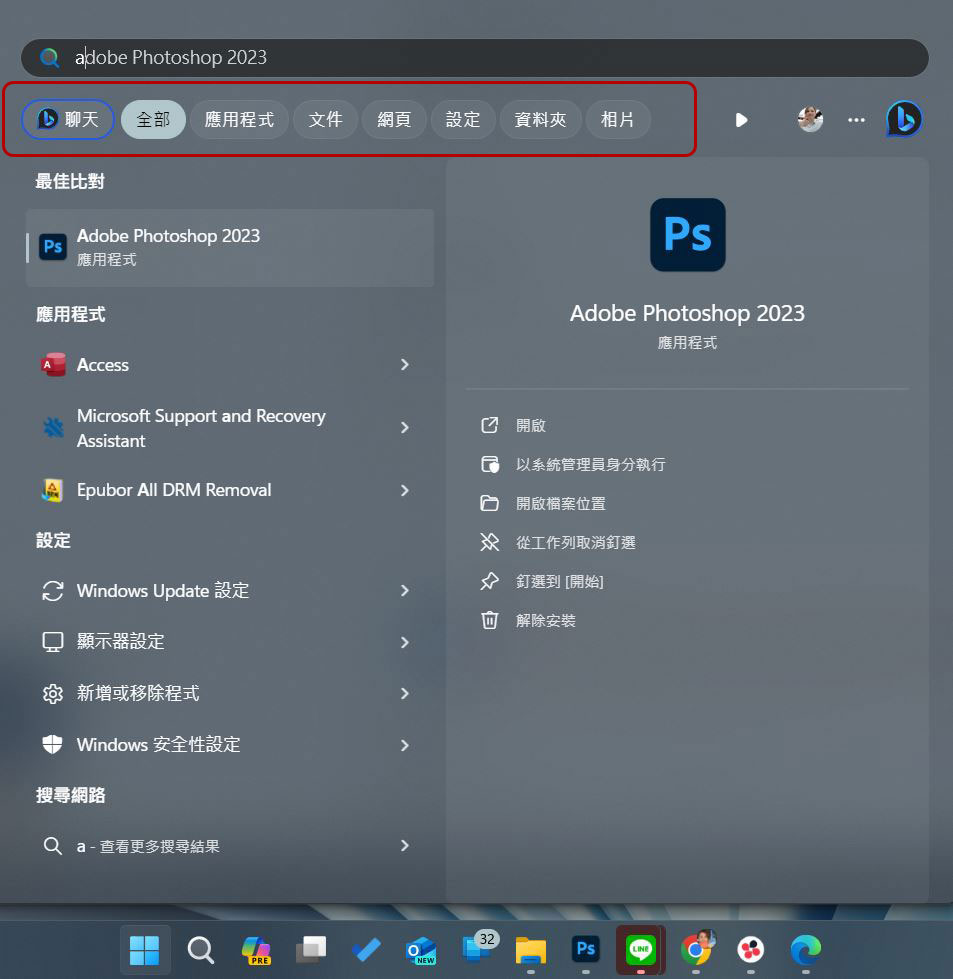
If you want more organized and precise results when using Windows Search, you can use categories to filter the best results. Microsoft provides filtering items including applications, documents, web pages, settings, folders, and photos. By default, these categories will appear as soon as you start entering keywords in the search box. You can filter out your target categories by clicking on them.
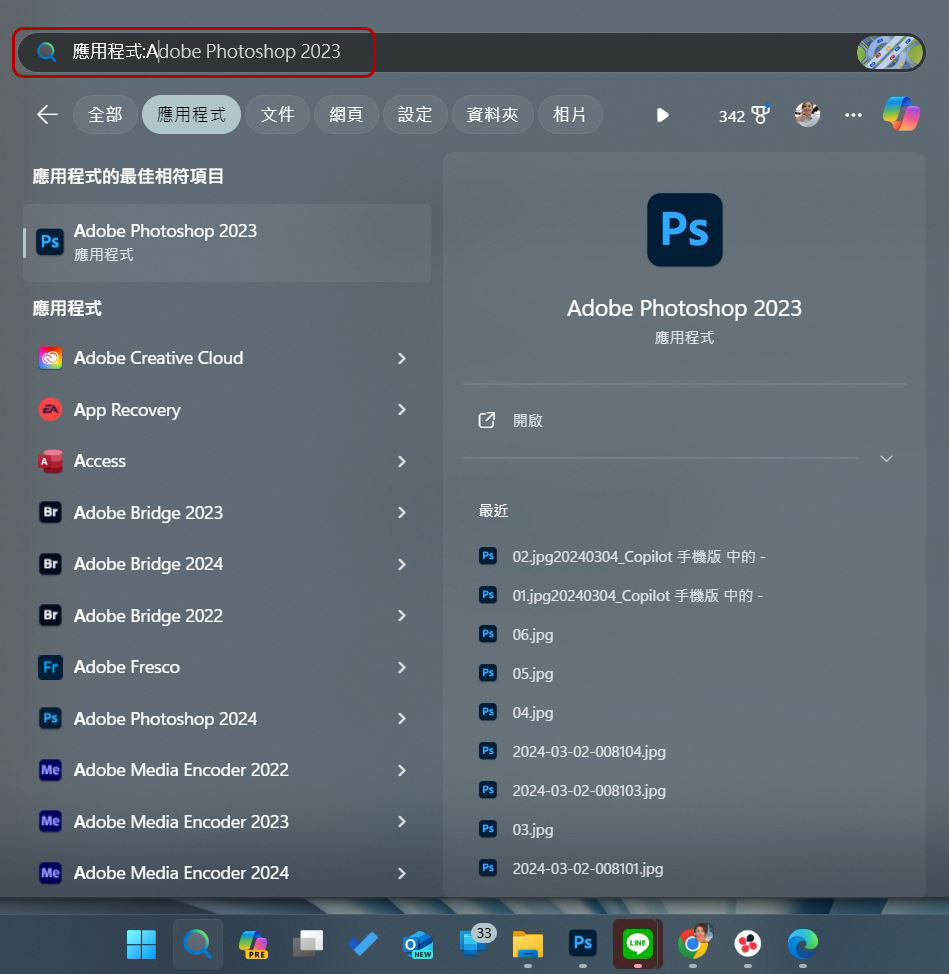
Or, you can enter “category name: search keyword” to search for a specific category, as shown below:
Use the Internet to find specific information
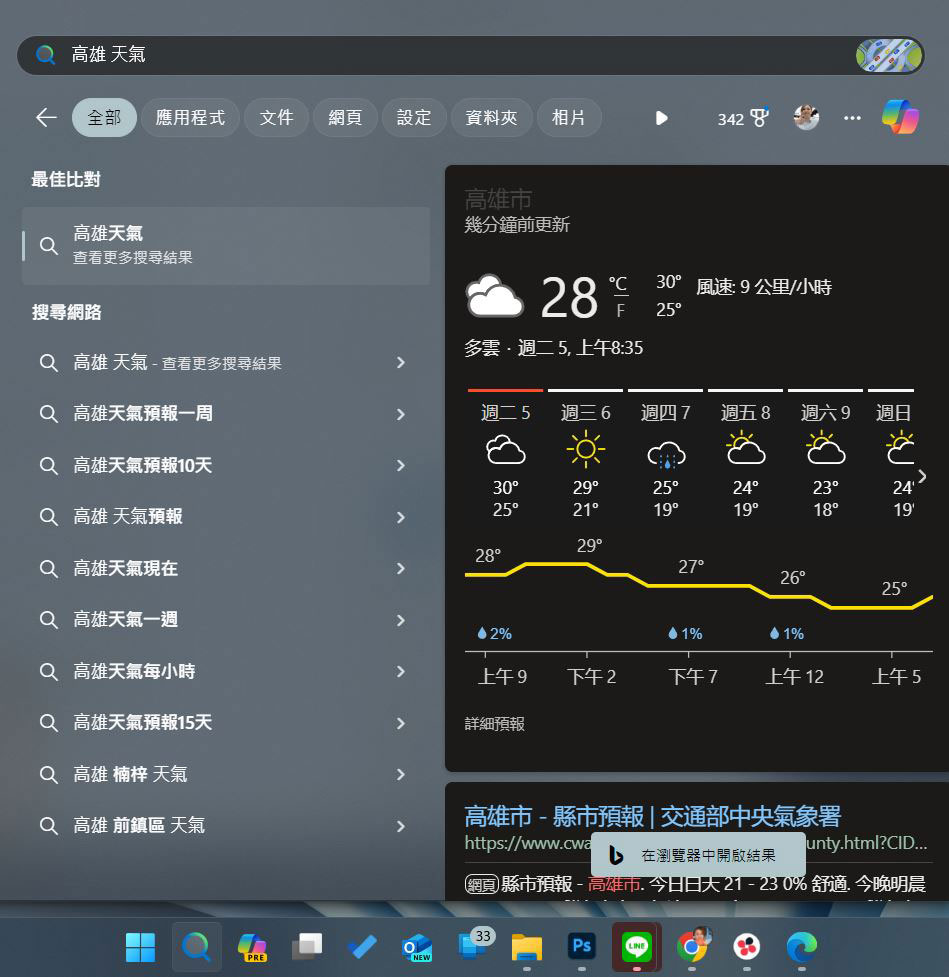
In the past, if you wanted to check real-time information, your first action might be to open a browser, but since the search function has become more and more advanced, as long as you have connected your computer to the Internet, you can directly enter keywords to find the information you want, including time, weather, calculations or currency conversions, etc. For example, if you want to know the weather in Kaohsiung, you can enter “Kaohsiung weather” and then you can see the results in the panel on the right. If you want to see more results, you can click “Open results in browser” below.
Enable cloud content search for your Microsoft account
For more comprehensive search results, you can enable cloud search, which will allow searches to include results from services such as Bing, OneDrive, Outlook, and SharePoint. Of course, this requires you to use Windows with your Microsoft account to work properly. To enable cloud content discovery:
- Open the Settings app.
- After clicking “Privacy & Security” in the left sidebar, click “Search Permissions” on the right.
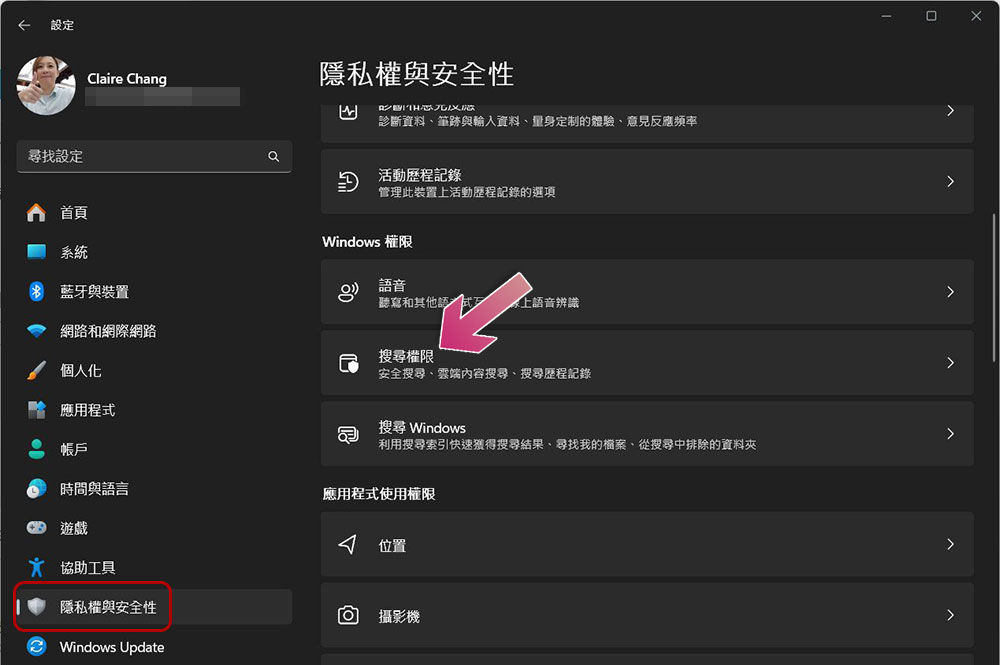
- Turn on the Windows Account switch under “Cloud Content Search”. You can also turn it on if you have a company or school account.
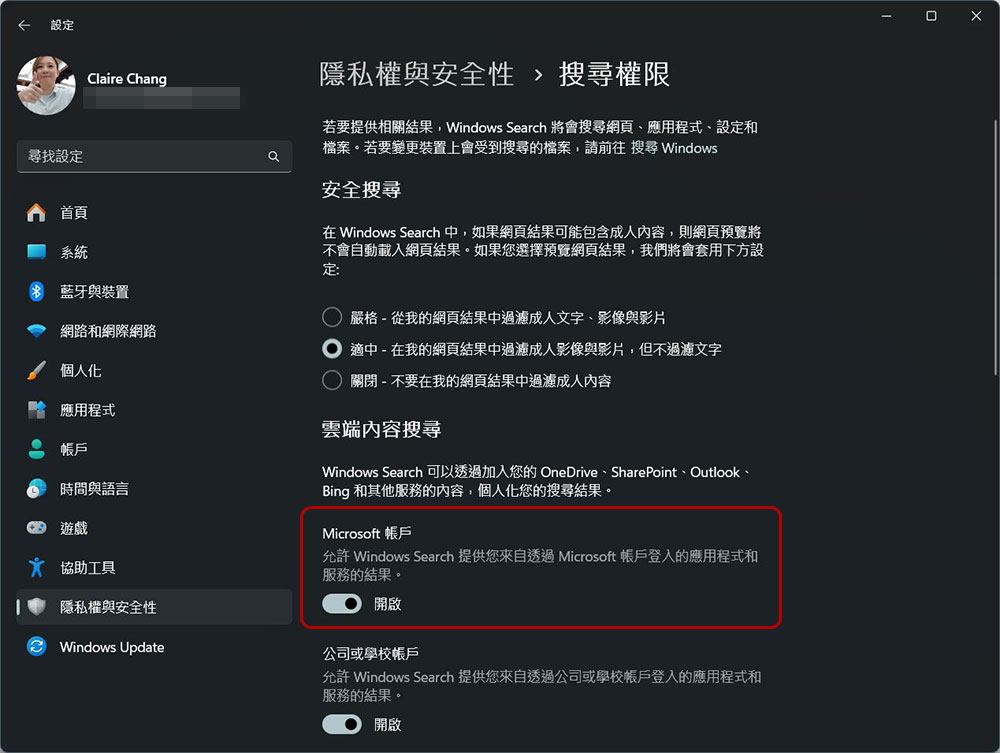
Enable enhanced search
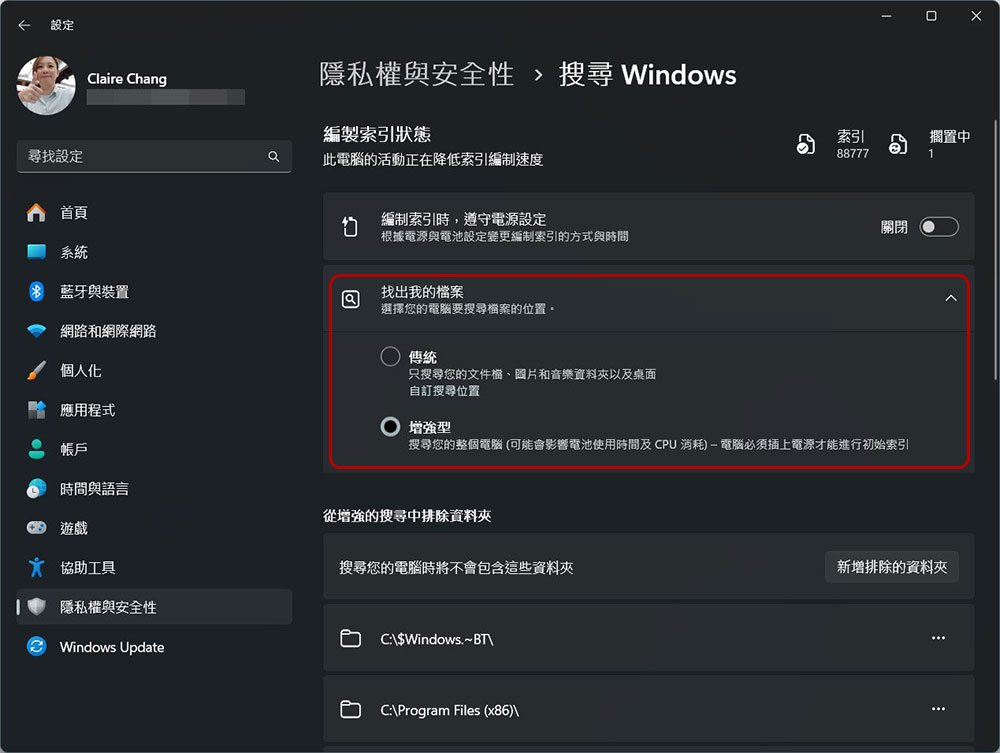
By default, Windows Search will find information from wired locations. If you want to expand to include your entire computer storage, you can enable Enhanced Search to expand the scope. When enhanced search is enabled, the search will search along with all folders and databases on your computer, which means it will catalog all content, including file names, attributes, and types, for search purposes. This will make file checking faster and more efficient, because you can not only search by file name, but also by specific words and content within it.
Depending on factors such as the size of the indexed data and system performance, the process can take hours or even days, so if you’re using a laptop, make sure it’s plugged in. To enable enhanced search, follow these steps:
- Open the Settings app.
- Click “Privacy & Security” in the left sidebar.
- Click “Search Windows” there.
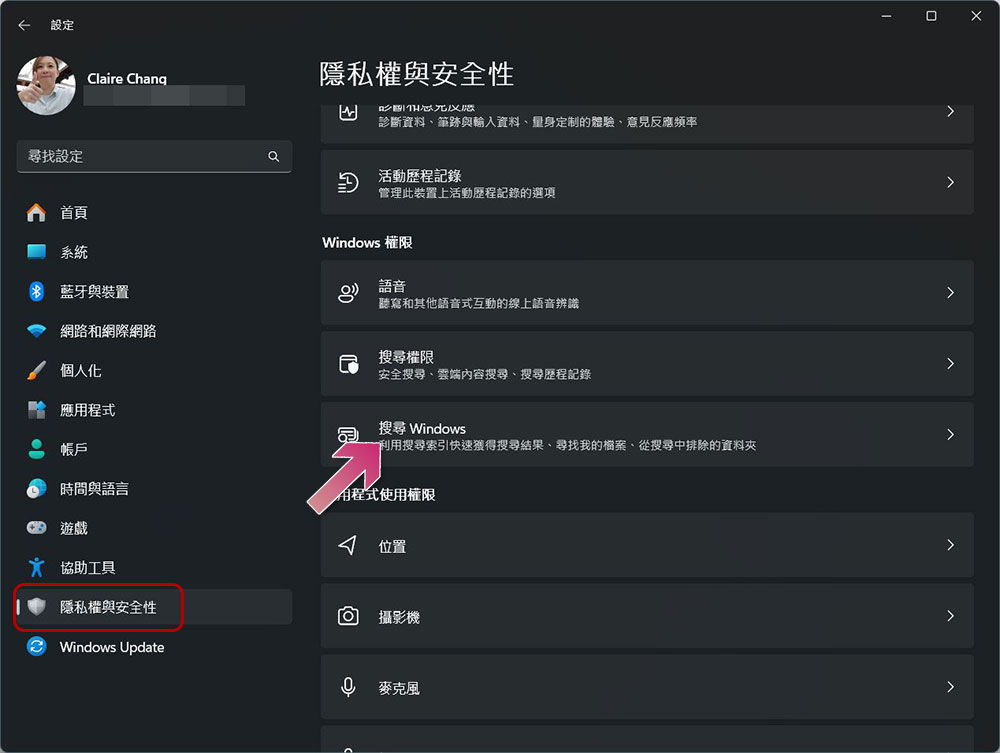
- Change the Find My Files option to “Enhanced”.
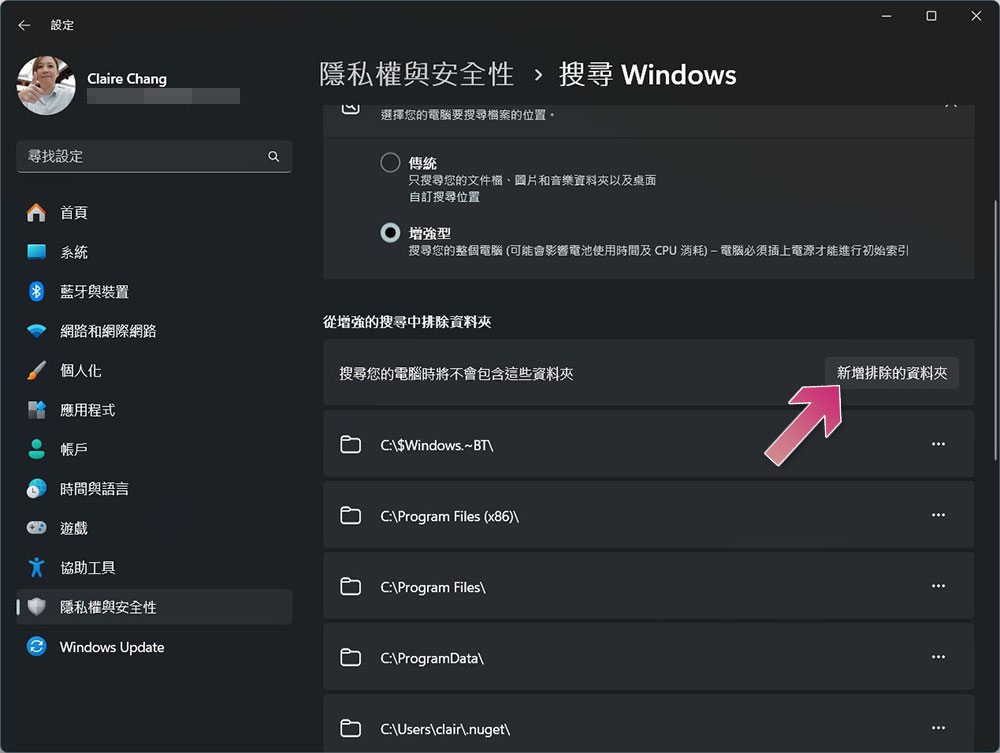
- Below you will see the “Exclude folders from enhanced search” field. Click the “Add Excluded Folder” button to select folders that do not need to be included in the search scope. If you want to remove an option from the list, click “…” and select Remove.
Modify index options
By modifying your indexing options, you can choose which folders and databases to index for more efficient searching.
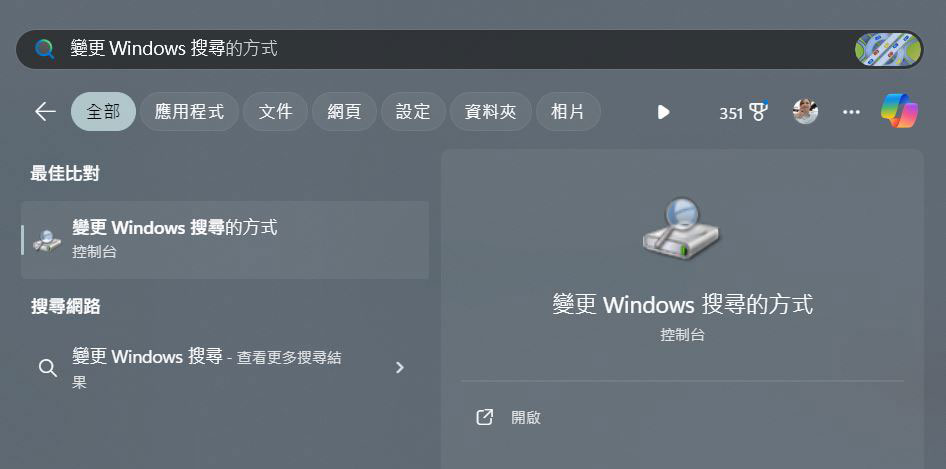
- Type “Change how Windows searches” in the search bar and click Open.
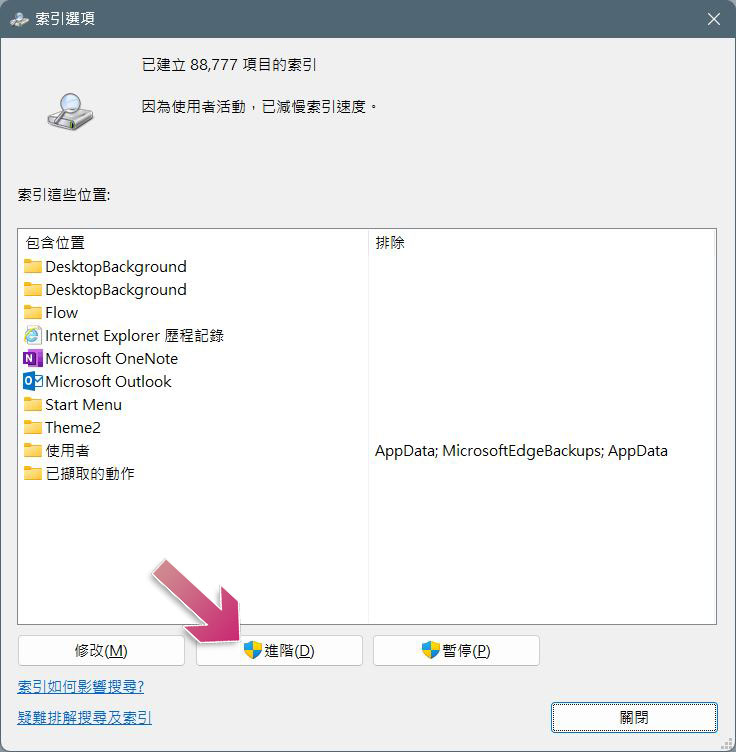
- If you had custom file types that were not included in search results before indexing the folder, you can now add them to the index. Click the “Advanced” button.
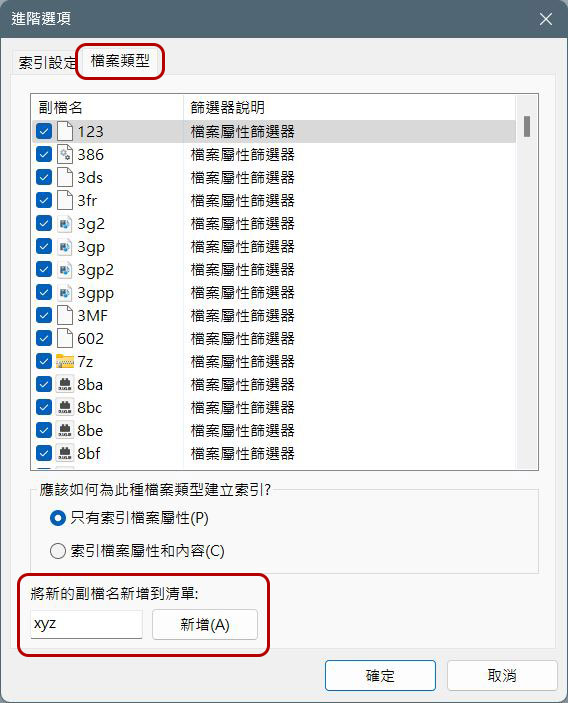
- Select the “File Types” tab, then enter the file extension in the text box in the “Add new file extension to list” section at the bottom and click “Add”, then click “OK” to save the changes.
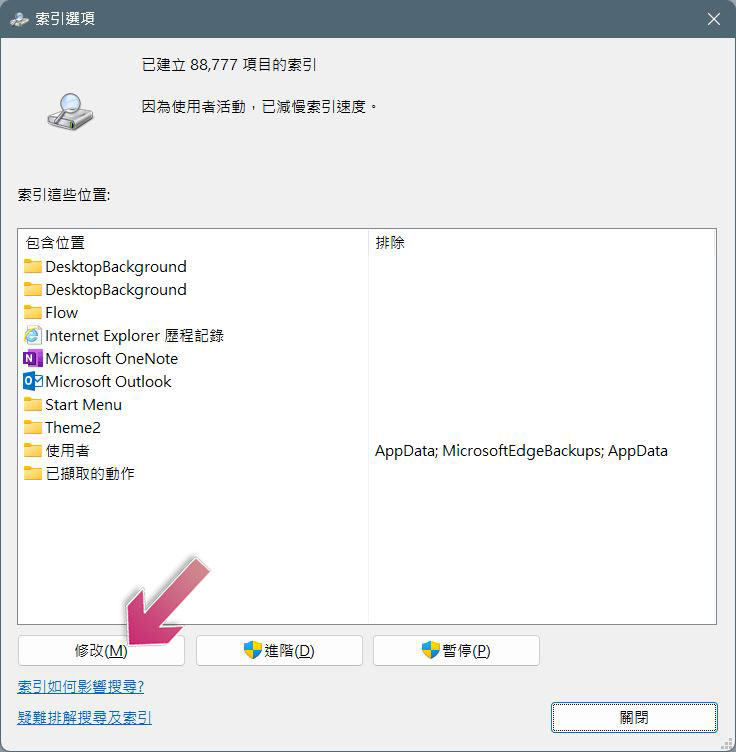
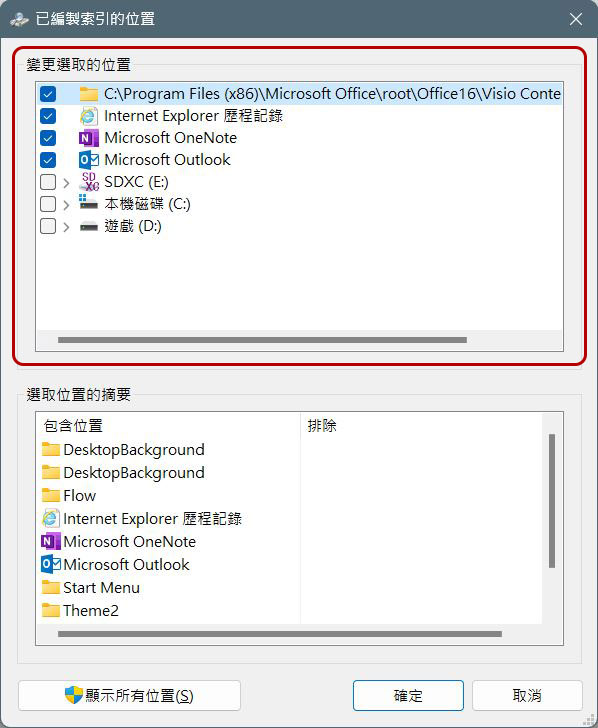
- Switch to the “Index Options” window and click the “Modify” button.
- In the first half of the “Change selected location” section, check the folder you want to index, click OK and wait for the computer system to complete the new index.
Rebuild search index
Over time, as you move content around your computer, the index can become outdated or become corrupted, causing incorrect results. You can solve this problem by rebuilding it.
- Type “Change how Windows searches” in the search bar and click Open.
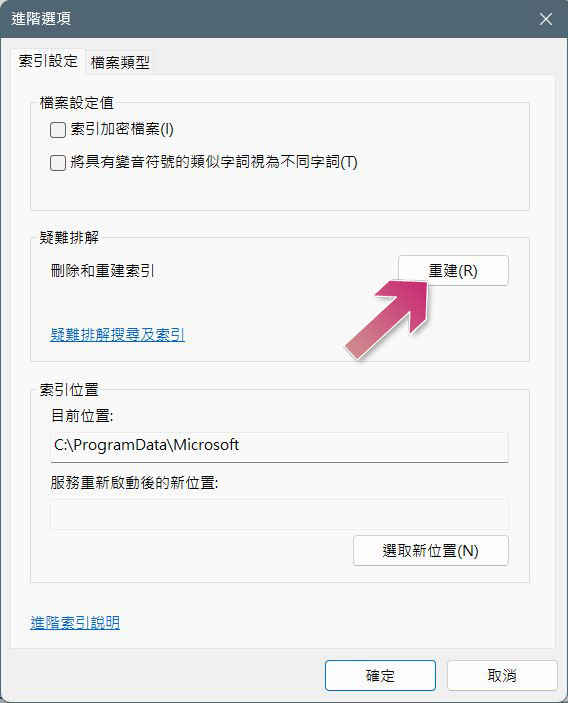
- Click “Advanced” in the indexing options.
- Click the “Rebuild” button in the “Index Settings” tab. This may take a long time depending on how much data is on your computer, so wait for the process to complete, so it is recommended to do it before going to bed or before get off work.
Fast searching on Windows 11 can help you be more productive, and while some steps, such as enabling enhanced searching or rebuilding the search index, may take longer to complete initially, in the long run they will make your subsequent searches more efficient and more enjoyable.
Source: KOCPC Chinese