


When watching YouTube, you see a moment in a video that you want to take a screenshot of and save it. How would you choose to save it? How can we achieve a perfect screenshot without the player interface appearing on the screen? In the past, we have introduced many useful extensions for the Chrome browser to access screenshots, but in fact, there is a simpler way for Mac users to achieve the most perfect screenshots. Today we will share a tutorial on YouTube screenshot techniques on Mac without using a screenshot tool. Continue reading this article to learn about this little trick!

The perfect YouTube screenshot technique on Mac without using a screenshot tool (tutorial)
Mac users want to save the good moments of YouTube videos. Which method do you choose to take screenshots? Many years ago, we introduced Screenshot techniques for the Mac system. At that time, I introduced all the commonly used Mac screenshot shortcut keys, modifying the file name of screenshots, storage location and other techniques (newbies can click here for review). However, if you want to save more ideal screenshots of YouTube videos, and if you want to achieve clear pictures, high resolution, and no interference with the player at the same time, include them in the screenshots, I will teach you today!
Step 1. Use the Safari browser to play the YouTube video, press “Pause” to select the moment you want to take a screenshot
First, we use the Safari browser to open YouTube to play the video. First, press the pause button to stop the video playing. At this time, you can drag the video timeline to select the scene you want to capture.
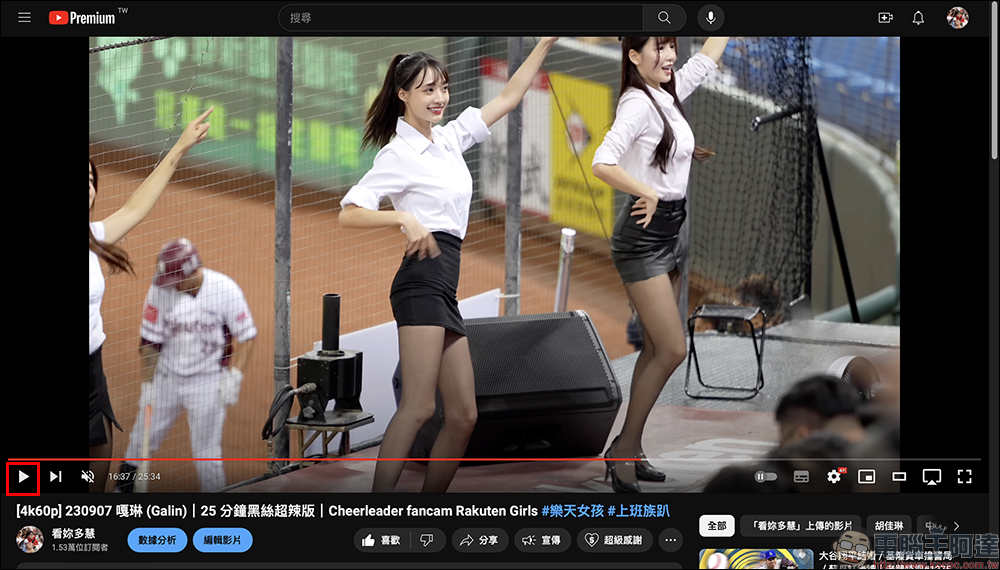
Step 2. Switch to “full screen” display, right-click and “Copy Image”
The next step is to keep the video paused and not play, and switch the video display to “full screen” display mode. Let’s first take a look at what will be displayed by right-clicking if it is not switched to full-screen display? YouTube playback function settings such as looping, copying video URLs, etc. will be displayed, which is not what we want.
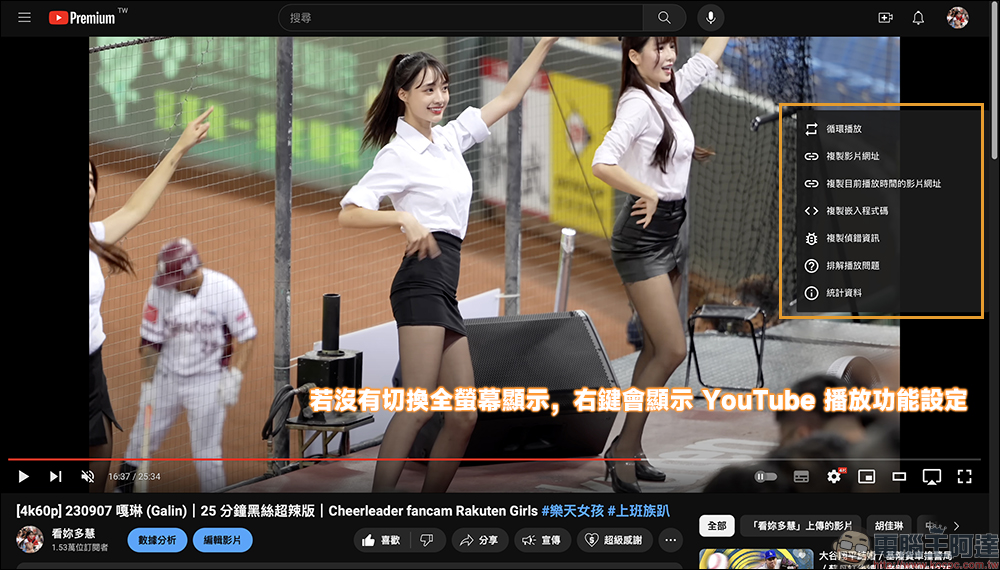
If you display the video in full screen and right-click, the two options “Copy Image” and “Share Image” will appear. What we need here is “Copy Image”. At this time, the YouTube paused image in front of me has been accessed, and then it is posted to other platforms.

Step 3: Paste to other applications to save the image (recommended: LINE)
Continuing from the previous step, we have copied the image, what should we do next to save the image? We can paste it into many places, such as using “Open New File” in Photoshop and then directly pasting it using the Command+V shortcut key. But after all, not everyone has Photoshop, and there are some applications that not everyone uses, so I personally recommend everyone to post pictures to LINE, which is the communication software that most people use. As for which chat room you want to post to, it depends on your own convenience, such as creating a LINE group, KEEP notes, or directly posting to friends.
Use Command+V to paste the shortcut key in the input field, and you can directly paste the image in the LINE chat room input field, and then send the image.
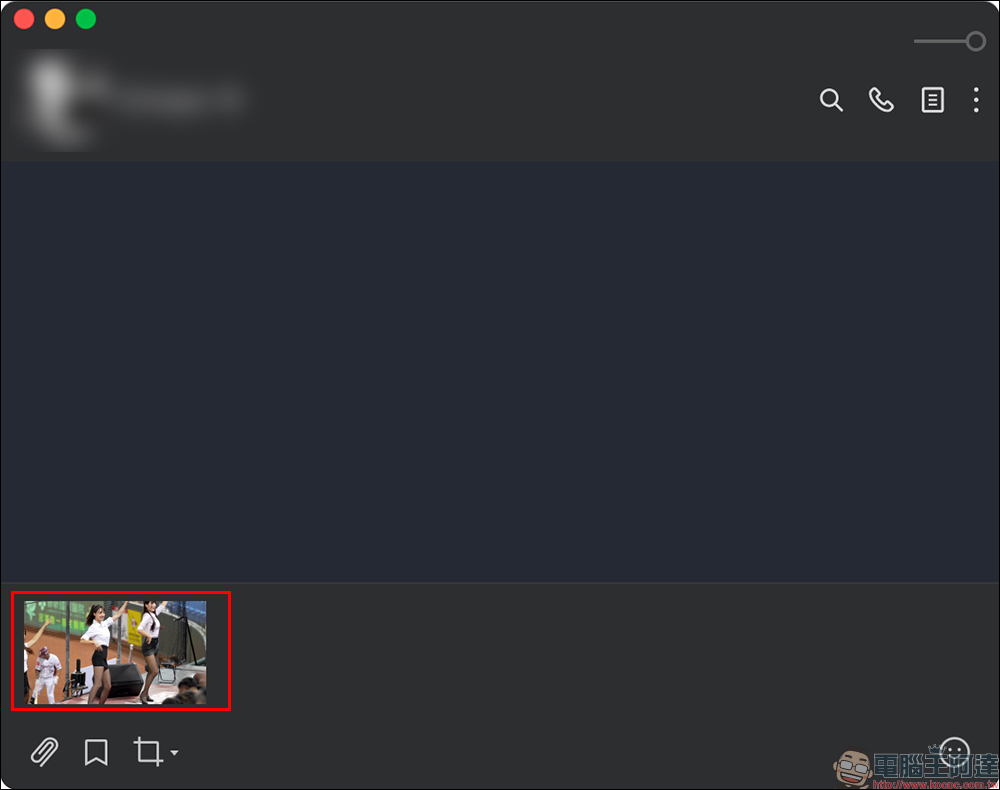
At this point, you will see that the picture has been successfully shared to the LINE chat room, and it has officially become a picture file and is just stored in the LINE chat room. If you just randomly posted it to a LINE chat room and want to save the image to your Mac computer space, just click “Save” below the image.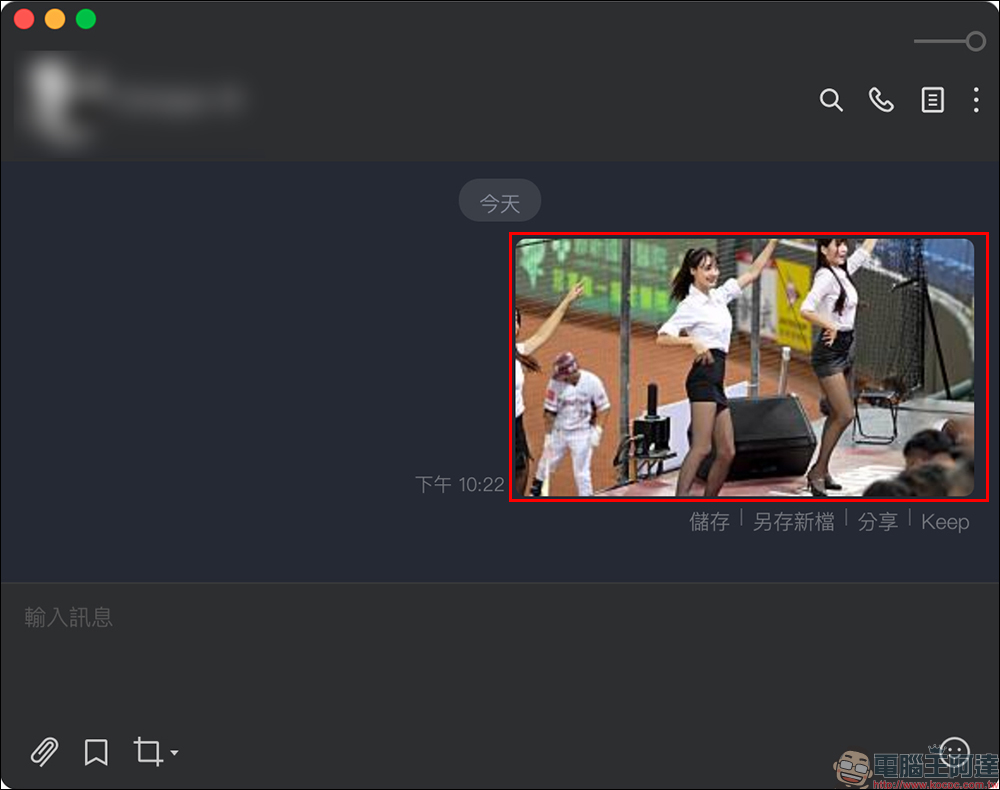
Then check the saved image file information. The YouTube video I captured is set to 4K resolution (3820*2160). Even if the image is saved from LINE, it still maintains the 4K high quality of 3820*2160.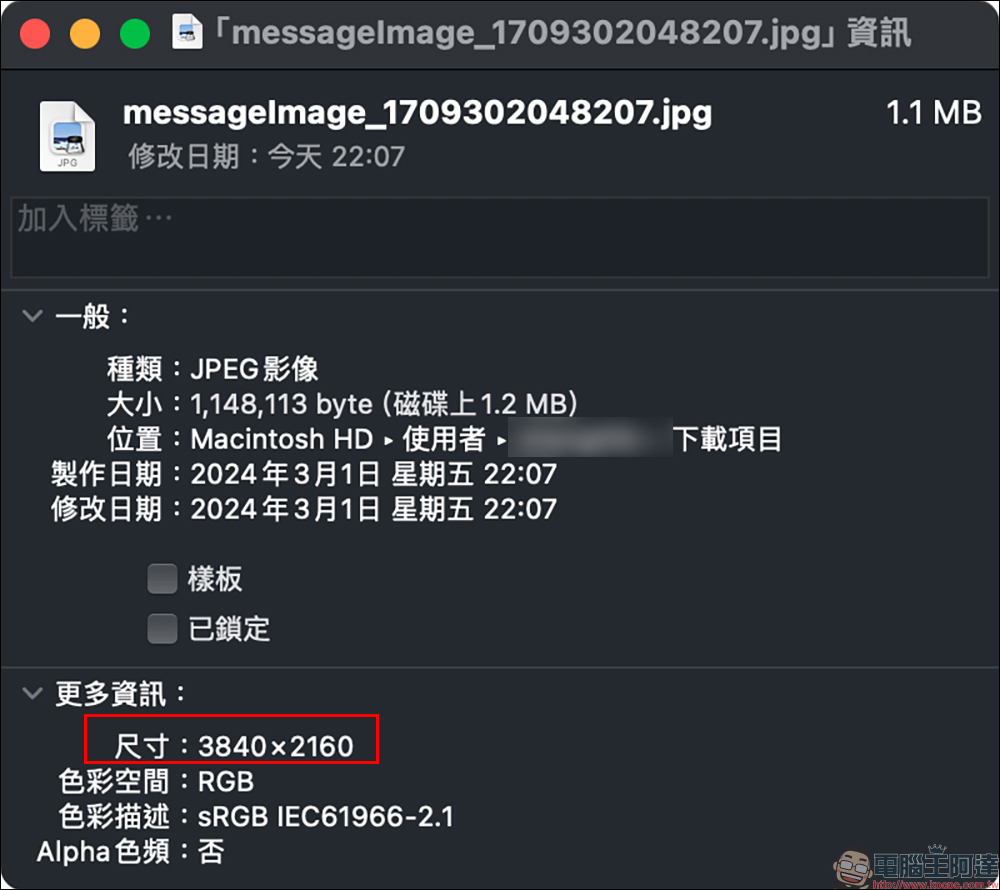
There are many benefits of posting in LINE chat rooms. In addition to LINE, many people are using it and everyone can learn it. After posting to the LINE chat room from the computer, you can then open LINE on your mobile phone to access the pictures at any time. For those who don’t want to take screenshots to occupy computer hard drive space, this method can save video screenshots on LINE, which is simple and convenient.
Additional tips: Save LINE to Keep, which does not take up hard drive space and makes cross-device access and sharing more convenient.
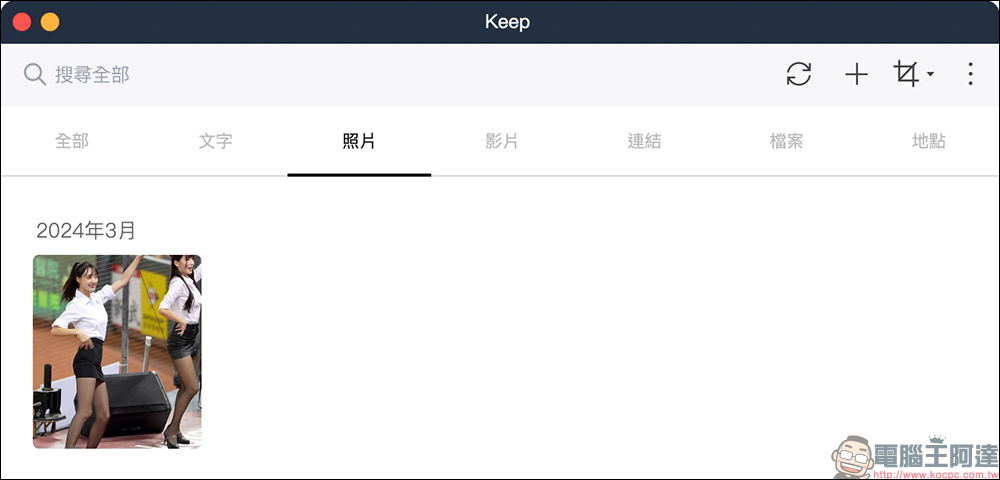
If you are worried that the picture will expire in the chat room and cannot be viewed in the future, you can just save the picture in LINE to Keep, LINE’s free cloud space.
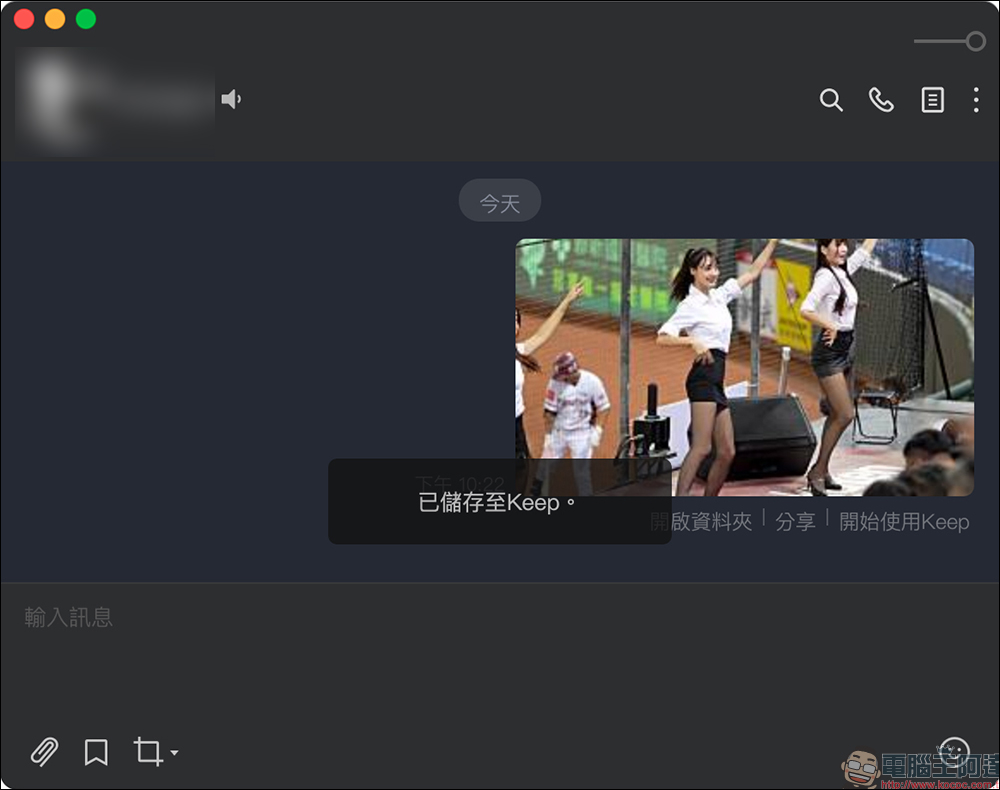
according to LINE officialThe description of the “Keep” storage period and file size mentions that Keep does not have a storage period, the quantity is unlimited, and the storage space is 1GB. However, if the size of a single file exceeds 50MB, the storage time of the file will be limited to 30 days. However, the file size of general screenshots is about 1MB at most, so you don’t need to worry about insufficient Keep space.
Preparation for taking perfect YouTube screenshots on Mac
However, in order to achieve the perfect screenshot introduced today, some preparatory work needs to be confirmed.
Preparation 1. Turn on the universal clipboard function on Mac (the default is on)
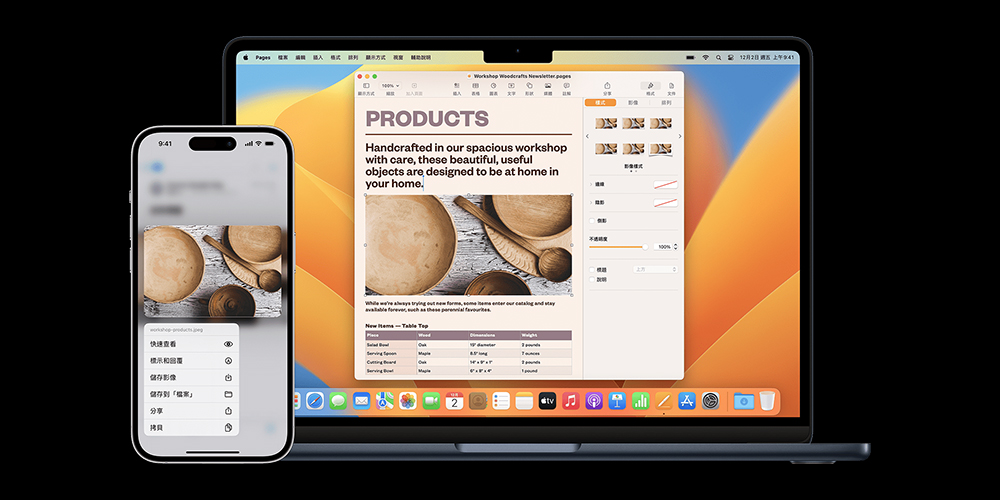
In fact, the tool-free and perfect YouTube screenshot technique introduced today on Mac is through a feature of Apple – “Universal Clipboard”.
Apple users can use “universal clipboard“Copy text, images, files, or other content on a device in the usual way. The content is automatically added to the clipboard of another nearby device and remains there for a moment, or is replaced when you copy something else on either device.
In addition, Apple users can use the “Universal Clipboard” to copy text, images, photos, videos and other content on one Apple device and then paste the content to another Apple device.
Universal Clipboard works with any Mac, iPhone, iPad or Apple Vision Pro that meets Connectivity system requirements. If you need to use the “Universal Clipboard” across devices, such as copying and pasting photos between Mac and iPhone, you must make sure that “Handoff” is turned on on each device (this feature is turned on by default), so that you can paste content on the other device in the usual way.
- Mac: Select Apple menu > System Settings, click General in the sidebar, then click AirDrop & Handoff on the right. Turn on “Allow handoff between this Mac and your iCloud devices.”
- iPhone or iPad: Go to Settings > General > AirPlay & Handoff, then turn on Handoff.
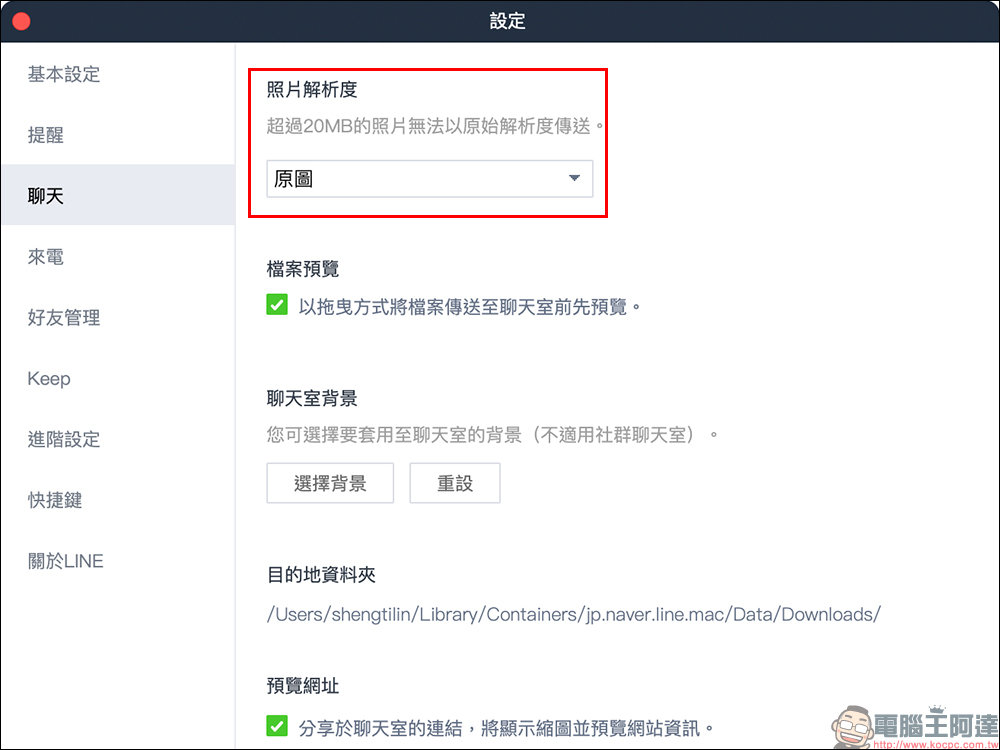
Preparation 2. Set the resolution of the photos sent by LINE to “Original”
If you want to post YouTube screenshots to LINE first and then save them, and want to save the original high-quality screenshots, then be sure to go to the settings of the LINE application and set the photo resolution to “Original”. The setting steps are briefly described as follows: Settings > Chat > Photo Resolution > Original Image.
Further reading:
realme 12 Pro+ unboxing and review|Boutique Master

Source: KOCPC Chinese