


macOS comes with a bunch of preloaded apps that are very helpful to some users and may never be touched by others, but the one that almost everyone uses is the Preview app. Preview is a jack-of-all-trades app that can be used to view photos, documents, and has features like an editor. Advanced users may change settings and set a third-party app to open images and files by default, while casual users may only use it to view files. However, depending on what kind of user you are, you may not be aware of the 5 hidden features in the Preview app.
5 must-use features in the macOS Preview app that you may not know about
Convert file type
Since the Preview app is known first and foremost as an image and file viewer, one of the most useful features in the app is file type conversion. Using Preview to convert an image isn’t actually the fastest way, as there is a faster way to do it in the Finder (right-click on the file in Finder >> Quick Actions >> Convert Image), but converting files in Preview is still helpful. Before doing this, you can view the file you want to convert in preview, or edit the original file before exporting:
- Open an image or file in preview
- Click “File” in the menu bar, then click “Export.”
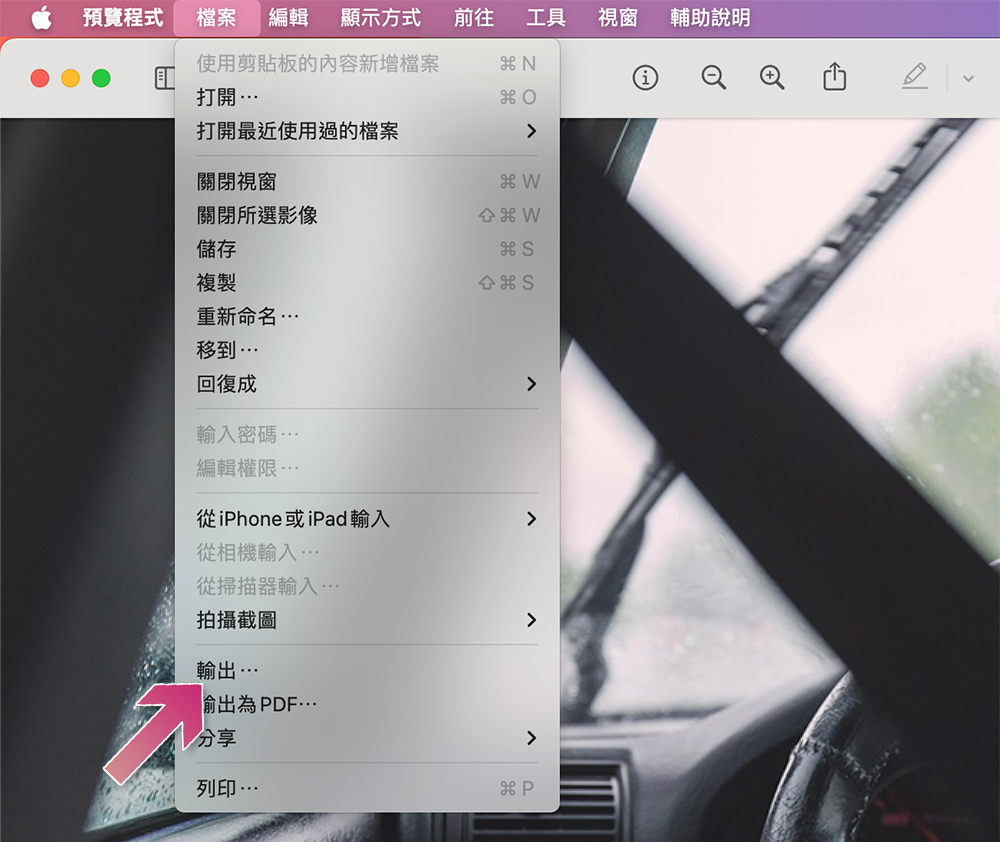
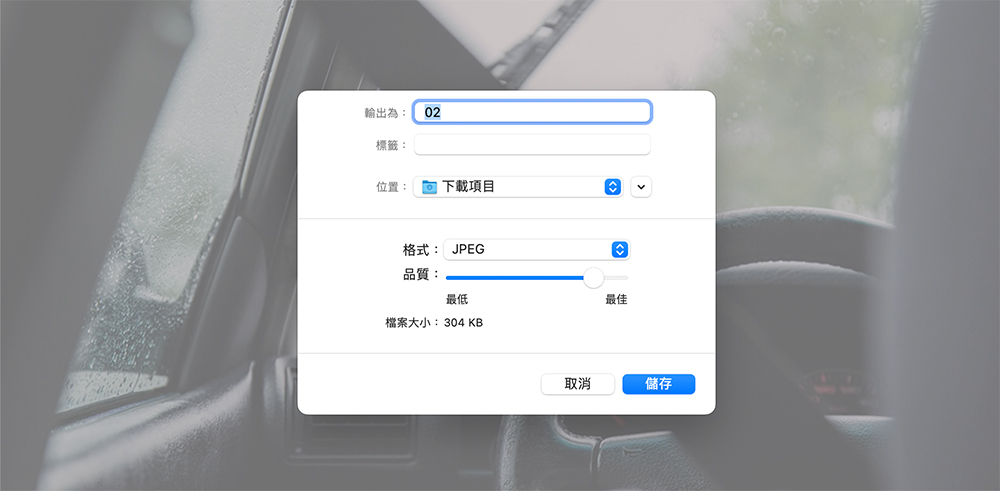
- In the output window that appears, adjust the file name and format as needed, and select the location where you want to save it.
- Click the “Format” field and select the file format you want to convert from the drop-down menu.
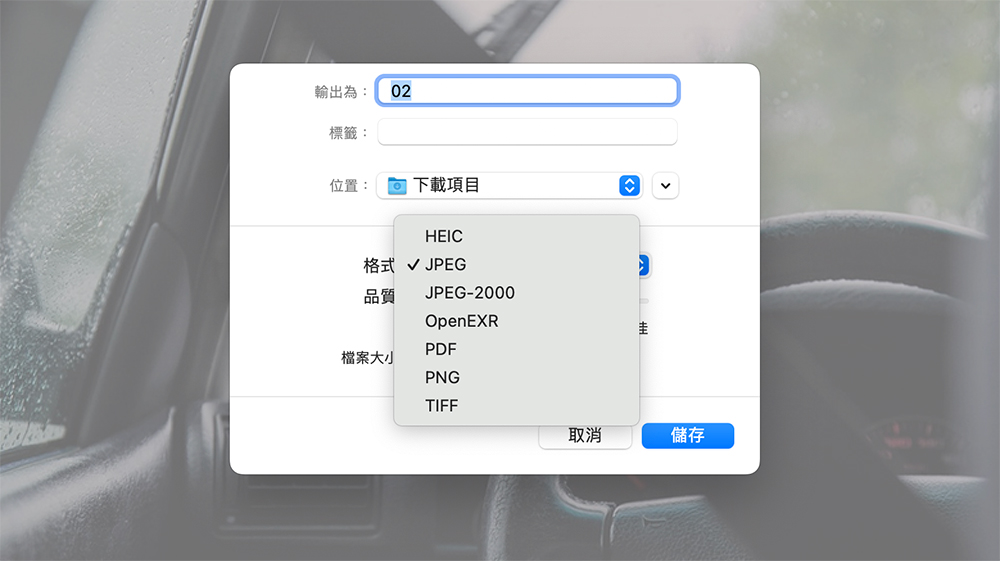
- Finally click “Save”.
Tag images and files
There are many ways to add drawings and text to images or documents, such as through web tools or photo editing apps, but Preview is arguably the fastest and easiest method since it’s the built-in file viewer that comes pre-installed on macOS. After opening an image or file in Preview, just click to use the markup tool to add annotations to the file in 3 easy steps:
- Open an image or file in preview.
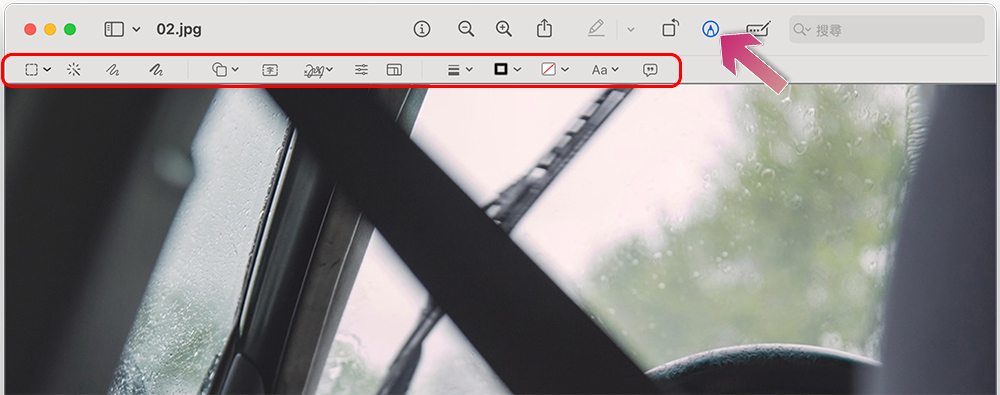
- Click the marker icon on the toolbar (it looks like a pen in a circle).
- Next you’ll see a markup toolbar appear, which contains features like drawing tools and text boxes.
Merge PDF files
One of my favorite tools in the macOS Preview app allows users to merge PDF files together. Some well-known PDF viewers, such as Adobe Acrobat Reader, require a subscription to put PDFs together. Many of the free options available are simple, or web-based tools that require you to upload files to a third-party server. But you can merge two files together using Preview on macOS absolutely free. As long as the two files can be found in the Finder, they can be merged in a few minutes, here’s how:
- Start by opening the first image or file in the Preview app.
- Click “Edit” on the menu bar.
- Hover your cursor over “Insert” and click “Page from file.”
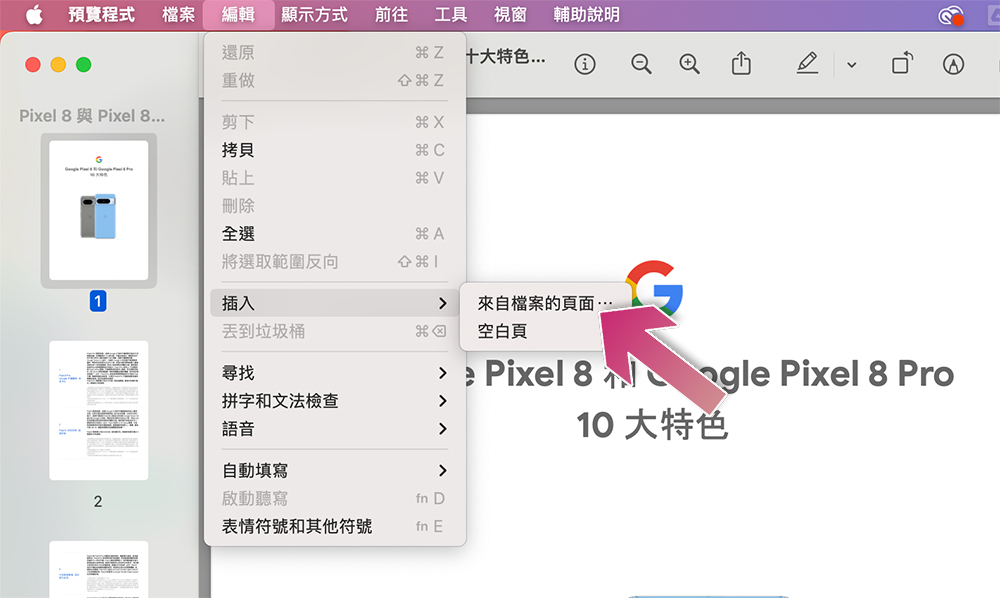
- Then select the second file you want to insert and merge.
Clear image background
People often turn to third-party photo editors to remove the background from a subject in a photo, but the Preview app in macOS can actually remove the basic background from an image. This feature is very basic and works best with photos with high contrast. For example, you can use the Preview app to convert content such as a photo with a white background into a transparent PNG file. You can try it out in preview by following these steps:
- Open the image you want to clear the background from in the Preview app.
- Click the “Tools” option in the menu bar.
- Select “Remove Background” from the list.
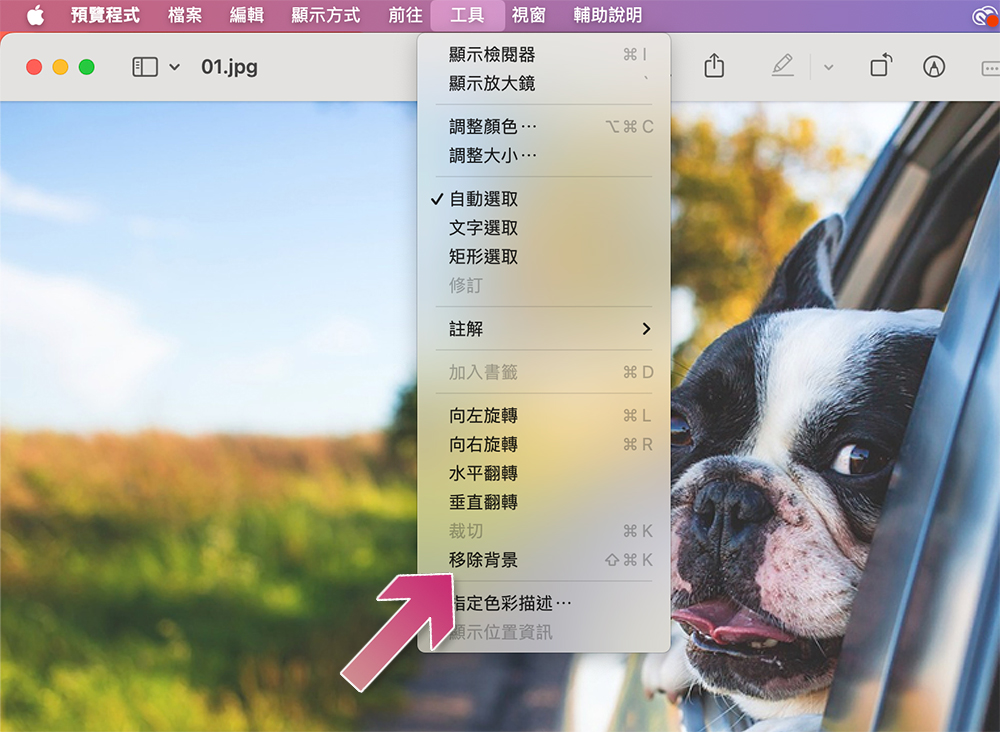
- Click “Convert” in the small dialogue window to convert the photo to PNG format, and the background will be cleared.

sign documents
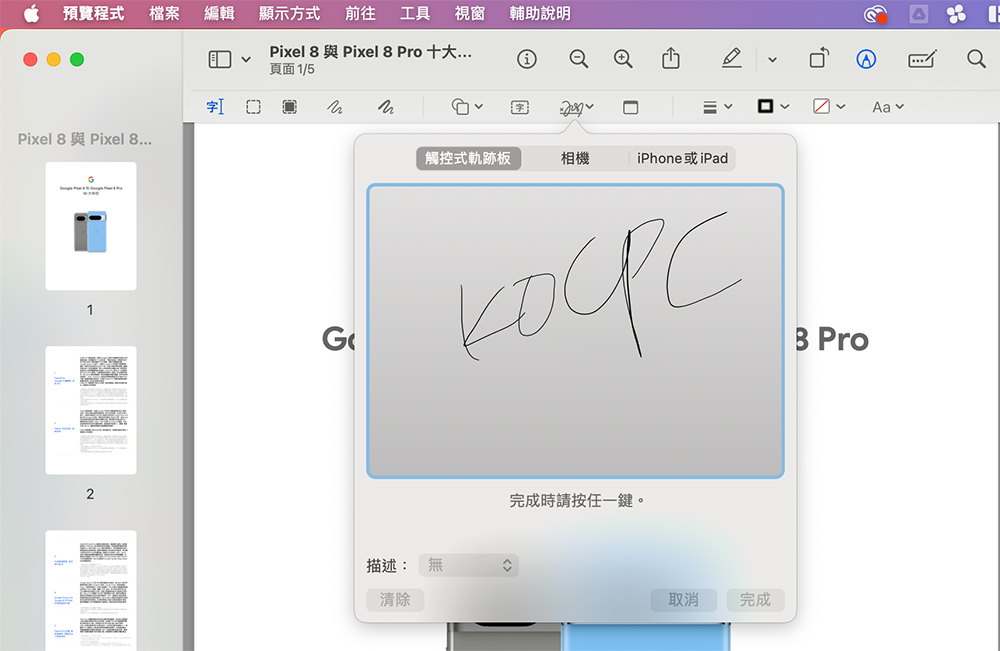
Advanced features in the Preview app allow you to sign documents effortlessly. In Preview, you can create multiple signatures and store them on your Mac, then when it’s time to fill out and sign a form, you can insert the saved signatures into the document in seconds. Creating and using signatures in the Preview app is easy because you can create a signature using your trackpad, iPhone, and then just press to insert it.
Create a signature for the first time
- Open an image or file in preview.
- Click “Tools” in the menu bar.
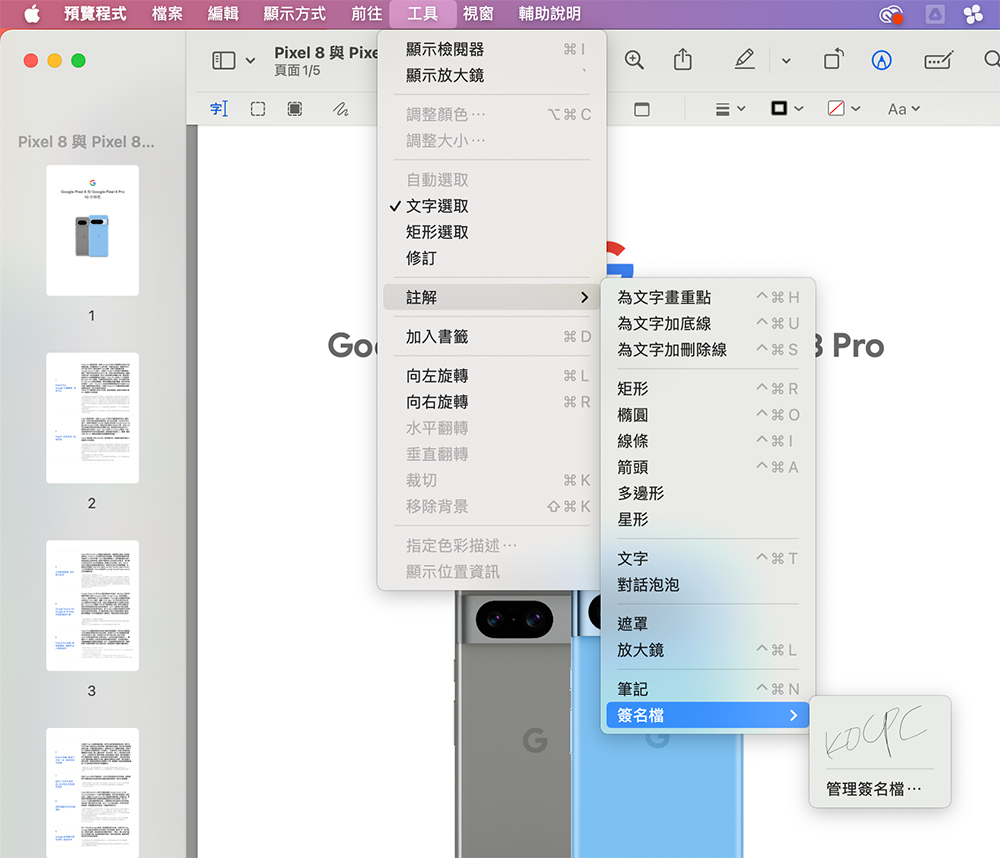
- Hover the cursor over “Annotations”, then hover over “Signature Files”, and then click “Manage Signature Files”.
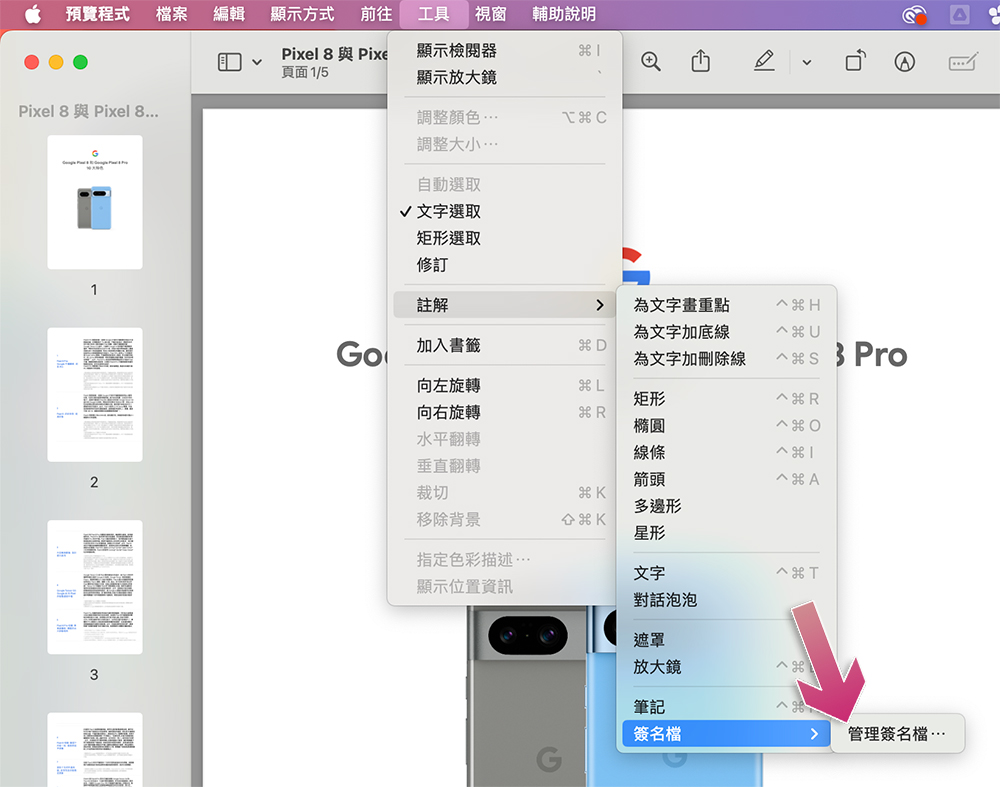
- Sign using your trackpad, camera, or iPhone, press any key when you’re done, and save the signature file.
Insert saved signature into file
- Open the file or image in the preview app.
- Click the “Tools” option in the menu bar.
- Hover the cursor over “Annotations” and then hover the cursor over “Signature File”.
- Click the saved signature you want to insert from the list.
Source: KOCPC Chinese