


Although people often use external mice with MacBooks, a few years ago Apple still insisted that single-button was the way to go for mice, but if you are a Windows user, you may be more accustomed to two-button control. If the occasion is not suitable for you to set up a mouse formation (such as on your lap, without a table), many people may not know how to “right-click” on the trackpad alone, so you are not alone. This time, we will tell you how to right-click on the MacBook trackpad.
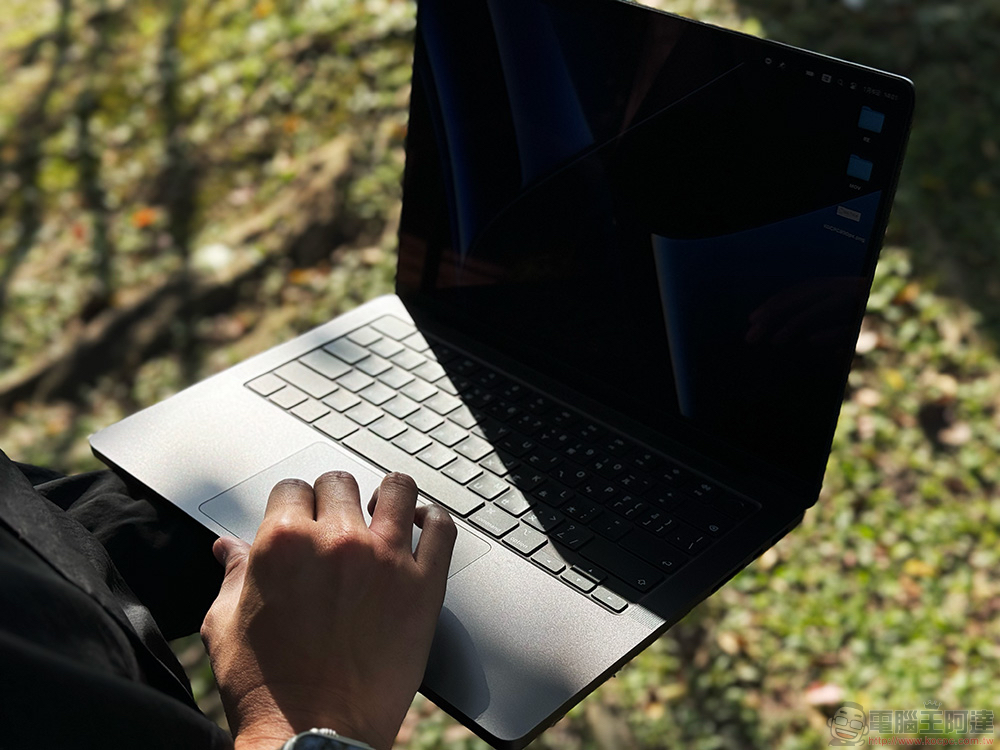
How to “right-click” on the MacBook trackpad?
The author believes that the Apple mouse is not the only reason why so many Mac users are troubled by the right-click problem. Most Mac users may be using a MacBook without a mouse and want to know more about the use of the Apple trackpad, because it does not have clear left and right button instructions, and the control gestures are slightly different from Windows. You don’t have to worry anymore! In fact, the trackpad is not that difficult to deal with.
Method 1: Use it with Control on the keyboard
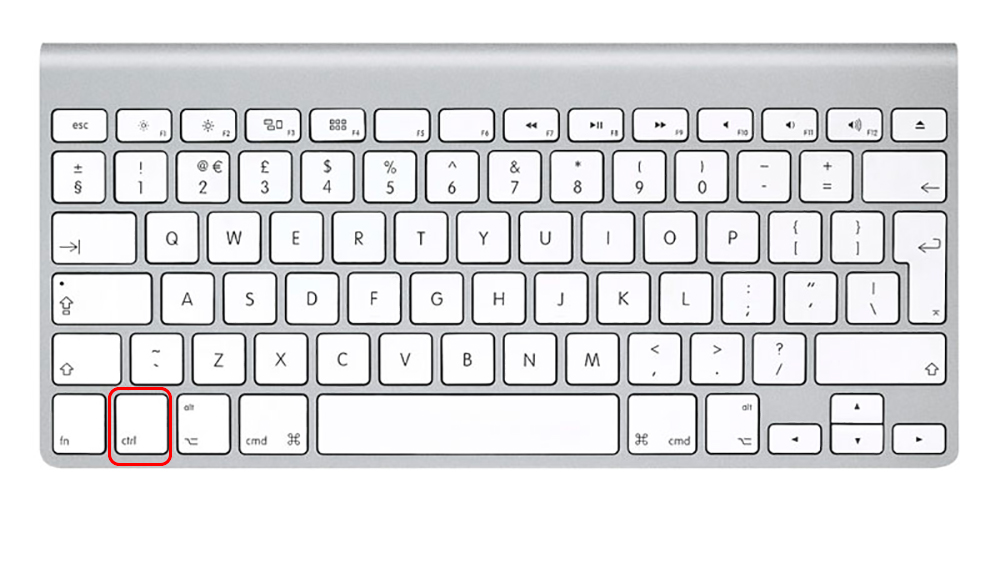
To right-click the Mac trackpad, you only need to press the Control button on the keyboard and click on the trackpad to call up the function menu that will appear when you right-click the mouse. I would like to remind everyone not to confuse Control and Option with each other. In the configuration of the Mac keyboard, Control is not the one next to the space bar, but the one next to Fn.
Method 2: Touch with two fingers
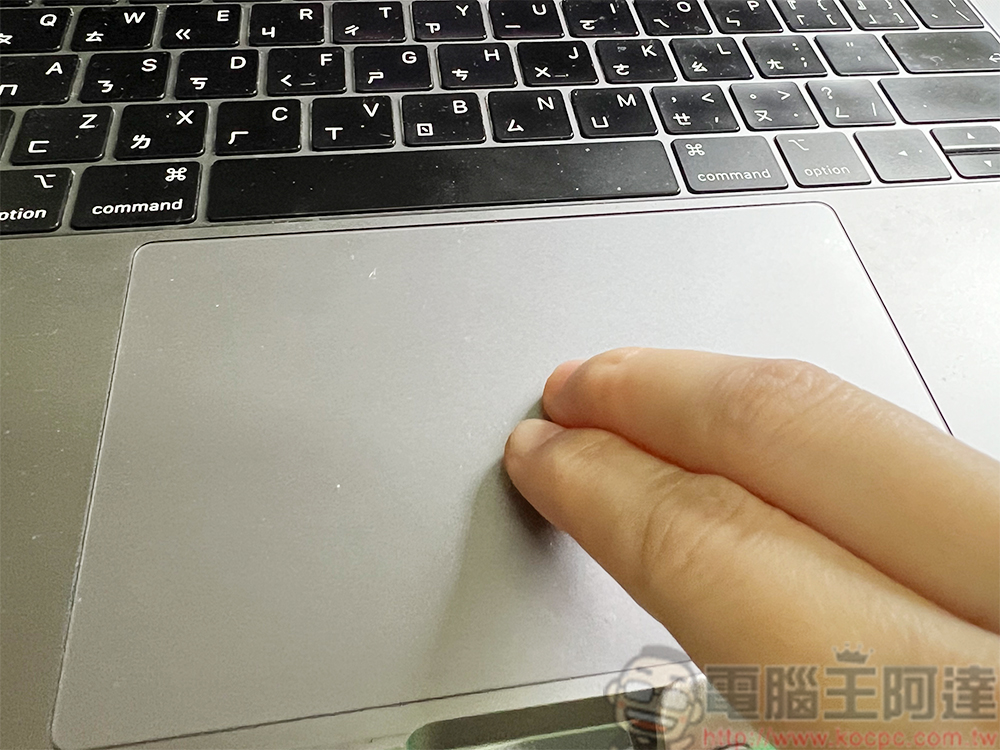
The MacBook’s trackpad supports many gesture controls, and you can do many operations without the feedback of a click. To call up the menu that usually appears when you right-click the mouse, just move the mouse cursor to the specified application, web page, picture, etc., and tap the touchpad with two fingers to call up the menu.
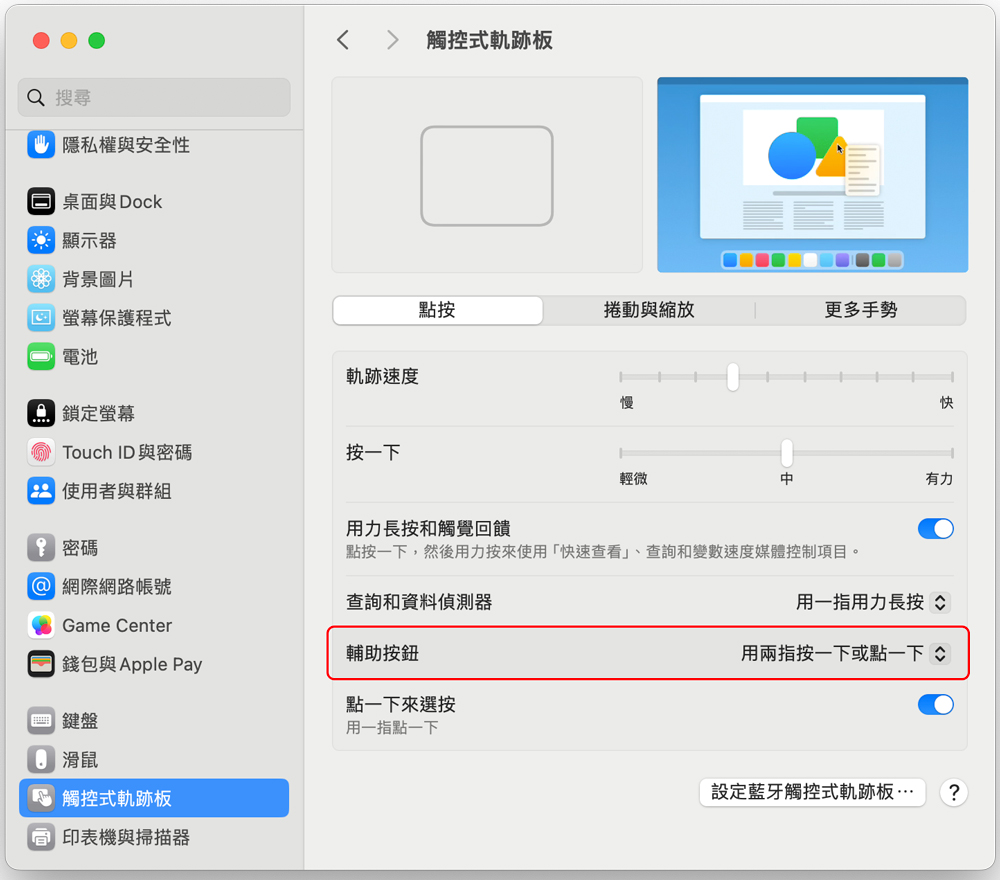
Huh? Doesn’t this method work on your MacBook? You may want to adjust this in the Settings app:
- Open the Settings app.
- Click “Touch Trackpad” in the left sidebar.
- Set “Assistant Button” to “Press or tap with two fingers.”
If you are planning to buy a smart mouse, or just got one…
Unlike the clear double buttons on other brands of mice, the Apple Smart Mouse does not have two clear control buttons, but under the one-piece appearance, it actually has the same double buttons as other brands of mice. You only need to gently cover the mouse with your hand. The index finger is the left button and the middle finger is the right button. Moreover, the left and right buttons have a longer sensing range. You can feel the click when you press it. It is basically easy to use, but there is a problem that the author often encounters: because there is no clear boundary, when your hand moves, it is easy to accidentally press the left button when you want to press the right button.
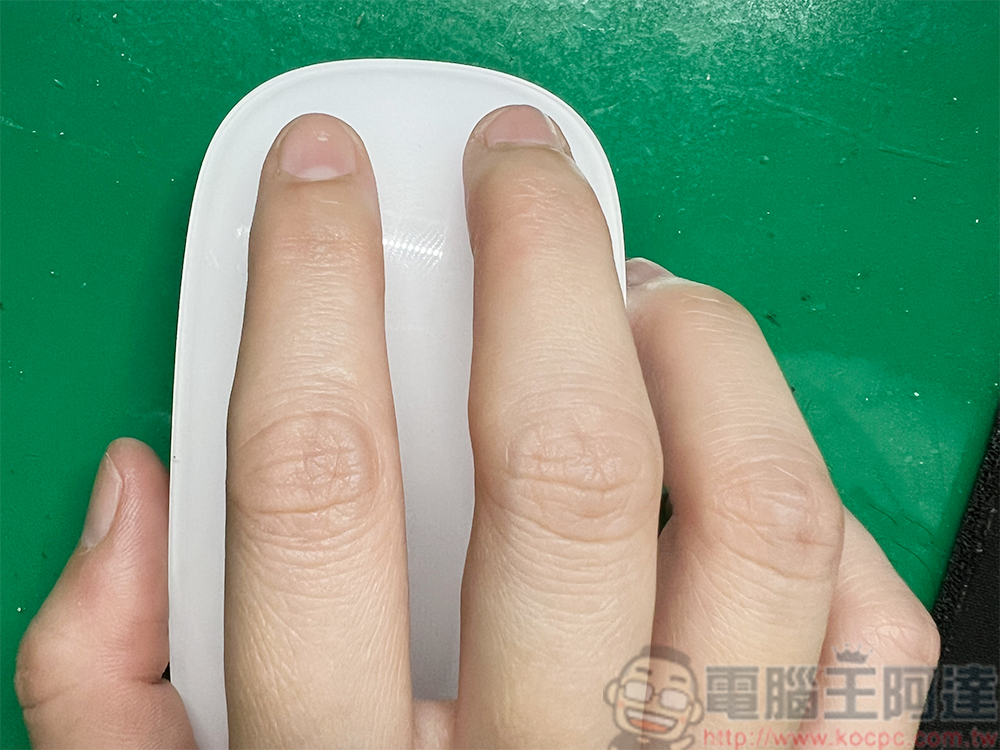
Is the Smart Mouse worth buying? I personally find it quite easy to use. First of all, it supports various gestures, so when browsing relatively long web articles and other content, I don’t need to scroll. I just need to swipe up on the mouse surface with one finger to scroll down the page; swipe left and right to switch to the previous page and next page. But it is not without its shortcomings. The biggest problem is that the charging port is at the bottom. That is, when the mouse has no battery, you cannot charge it and use it at the same time. You can only let the smart mouse lie down.
Source: KOCPC Chinese