


When the iPhone is lost, although I don’t want to think about the evil of human nature, apart from being careless, another possibility is that it was stolen. Modern people regard mobile phones as indispensable tools in life. At the same time, mobile phones are also loaded with a lot of your private information and even financial payment credentials. When the mobile phone is stolen, it will be another gloomy situation. In iOS 17.3, Apple has introduced a new feature called “Stolen Device Protection.” From the words alone, you know what it does, but there are many details that you may not know, and we will tell you them all this time.
What is Stolen Device Protection on iPhone? What is covered? How to enable?
In 2023, reports began to emerge of thieves using a new method to steal iPhones and access users’ highly sensitive data. When the victim enters the password, the thief secretly monitors the victim in a public place and then steals the device in a targeted manner. Once criminals know the passcode, they can empty bank accounts, steal passwords, and make iPhones untraceable.
The purpose of the “Stolen Device Protection” feature
To make it more difficult for thieves to access data on stolen iPhones, Apple added Stolen Device Protection in iOS 17.3, which requires Face ID or Touch ID to access passwords in iCloud Keychain, Lost Mode settings, the option to wipe the device, and purchases in Safari.
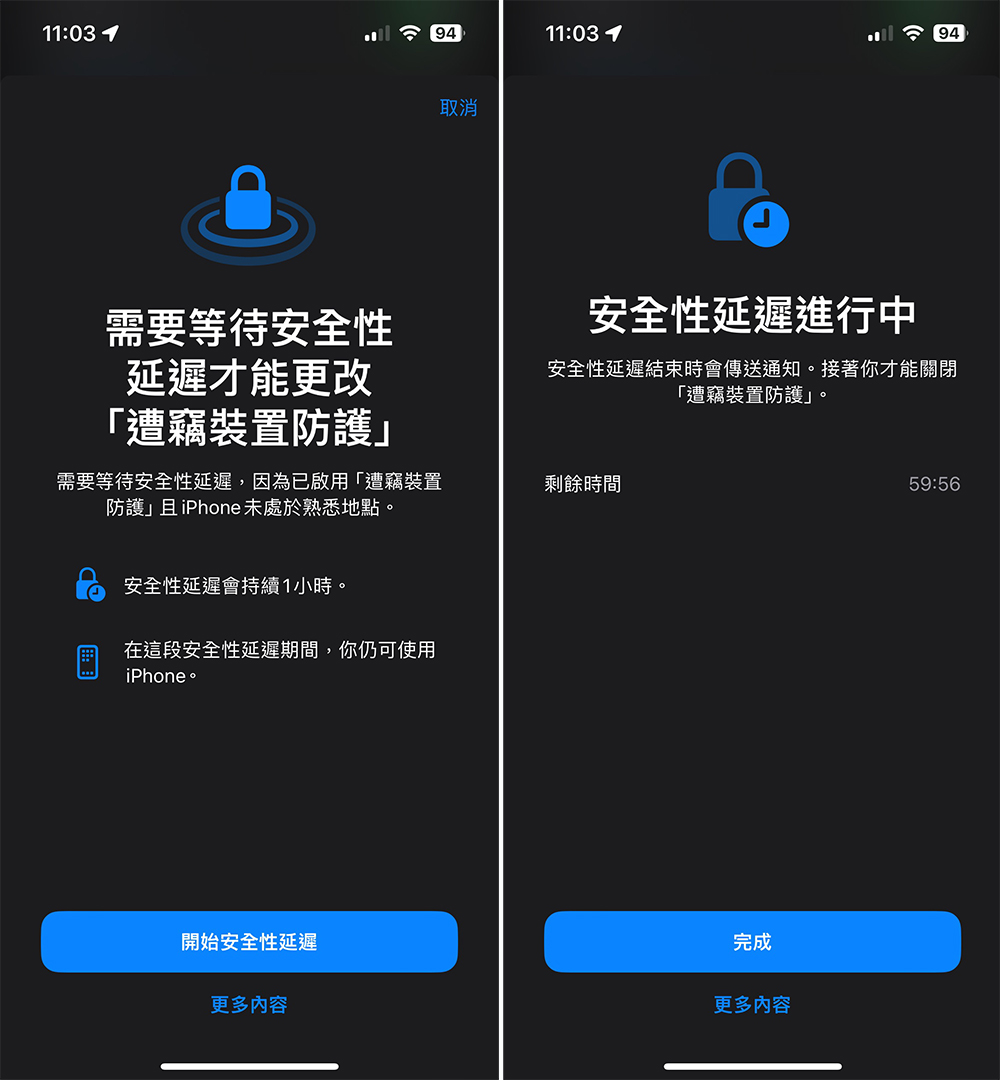
In addition to the new biometric requirements, the feature will also impose a one-hour security delay for actions such as changing your Apple ID password. In other words, if someone tries to change their Apple ID login information, Face ID authentication is required, and then an hour has to pass before the password can be changed. The only time this waiting period is not enforced is when the device is in a trusted location, such as home or work.
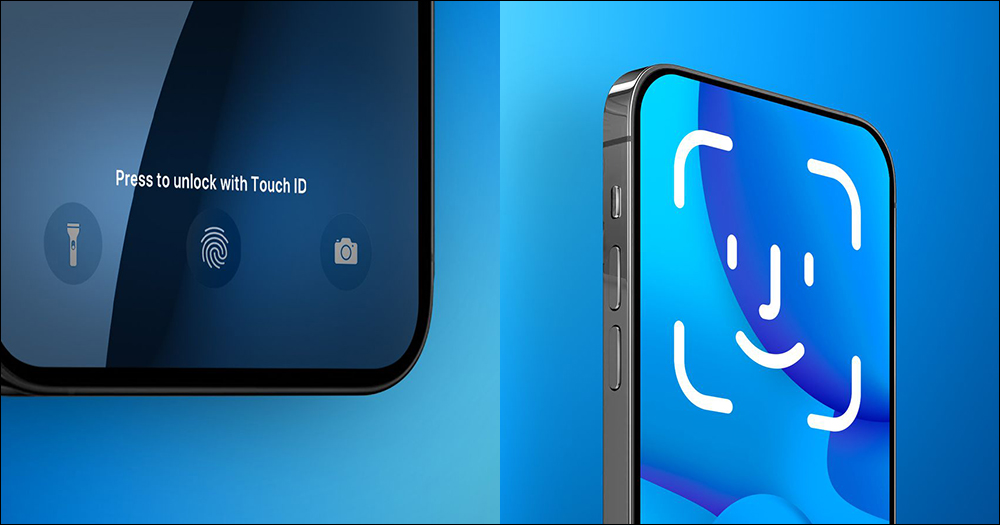
Actions that require Face ID or Touch ID verification after enabling Stolen Device Protection
When you have enabled stolen device protection, the following actions must be verified by Face ID or Touch ID before they can be performed. Because these operations themselves do not have password backup, passwords cannot be used to circumvent biometric identification.
- View/use passwords or keys stored in iCloud Keychain.
- Apply for a new Apple Card.
- Check out the Apple Card virtual card.
- Turn off Lost Mode.
- Delete all content and settings.
- Perform certain Apple Cash and Savings operations in your wallet.
- Use a payment method saved in Safari.
- Set up a new device with iPhone.
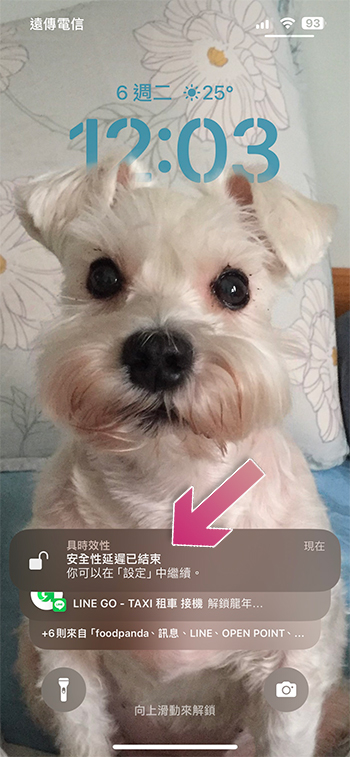
After enabling Stolen Device Protection, there will be a 1-hour delay after biometric verification.
Unlike the previous one, the operations listed here require biometric authentication and a 1-hour security delay before proceeding:
- Change Apple ID password.
- Update selected Apple ID account security settings, including adding or removing trusted devices, trusted phone numbers, recovery keys, or recovery contacts.
- Change your iPhone passcode.
- Add or remove Face ID or Touch ID.
- Turn off Find.
- Turn off stolen device protection.
How to enable stolen device protection?
Please pay attention! Stolen Device Protection is only available on iPhones running iOS 17 and above, which is later phones including iPhone XS. In addition, make sure that your phone has been updated to iOS 17.3 or above (to install the update: Settings >> General >> Software Update). When everything is ready, you can follow the steps below to enable Stolen Device Protection:
- Open the Settings app.
- Scroll down and click “Face ID & Passcode” or “Touch ID & Passcode” depending on the phone model.
- Enter your password to access inner options.
- Scroll down, click “Stolen Device Protection” and set it to “On”.
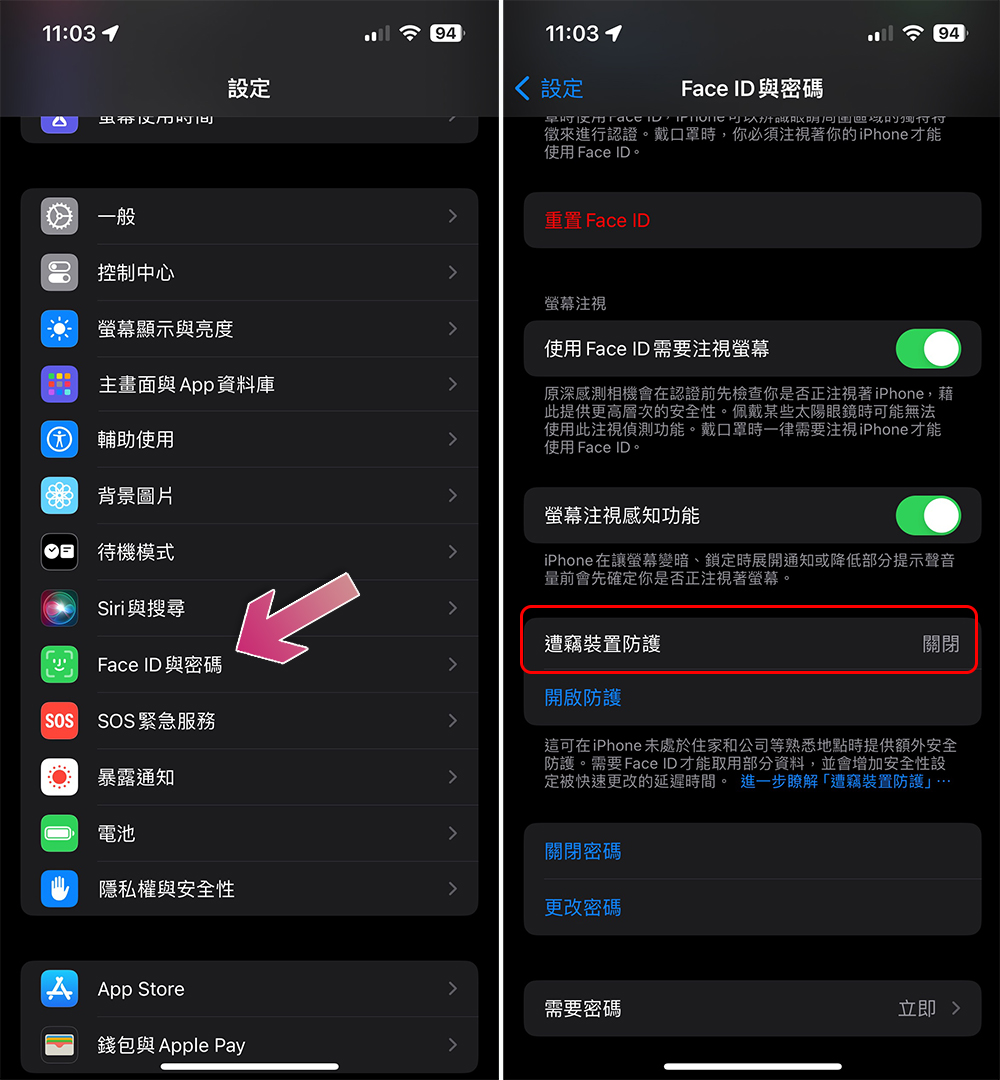
Source: KOCPC Chinese