


But when the computer system is slow and stuck, the first hardware solution that everyone will think of is to upgrade the RAM. If you’re considering adding more RAM to your computer but aren’t sure where to start, this time I’ve compiled everything you need to know about upgrading the RAM in your Windows computer or laptop. Let’s get started!
Image source: UnSplash
How to check if your Windows computer can upgrade RAM? Everything you need to know is here
Do you need to upgrade RAM?
Before delving into the process of upgrading RAM, the first step should be to assess whether an upgrade is necessary. Are you experiencing system lags, frequent BSOD errors, or sudden app and software crashes? The above symptoms may be a RAM bottleneck. but! This is not a 100% answer, as other hardware issues can cause similar errors.
You can perform a simple test to determine if RAM is indeed the culprit:
- Run the application or software that is experiencing the above problem, and then minimize the program window.
- Right-click an empty space on the taskbar and select Task Manager.
- Note the memory usage of the problematic program while it was still running.
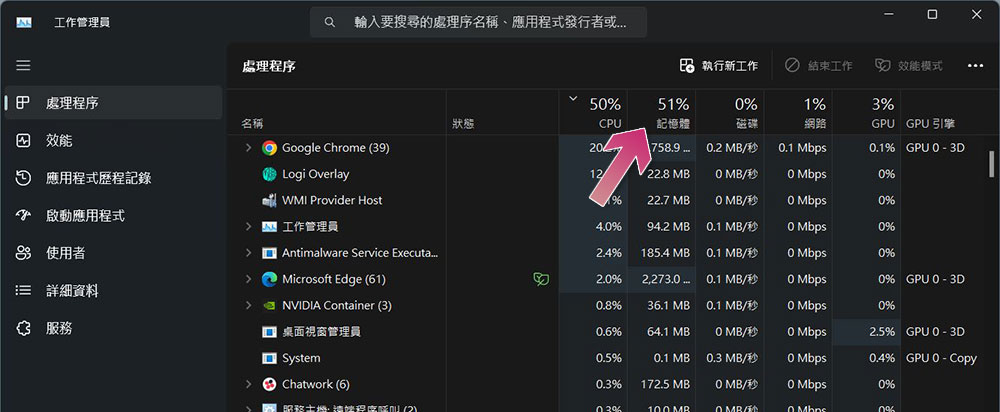
If memory usage consistently stays around 60% or below and does not spike to 100%, there may not be a specific need to upgrade. But if you observe that memory usage has spiked to 100% and are experiencing the signs of RAM bottlenecks I mentioned before, your current RAM may not be enough and needs to be upgraded.
Check currently used RAM capacity and maximum RAM capacity
Once you’ve confirmed that your RAM needs an upgrade, the next step is to check how much RAM you currently have in your computer.
- Open Settings and click “System” in the left column.
- Check the “Installed Memory” item in the device specifications.
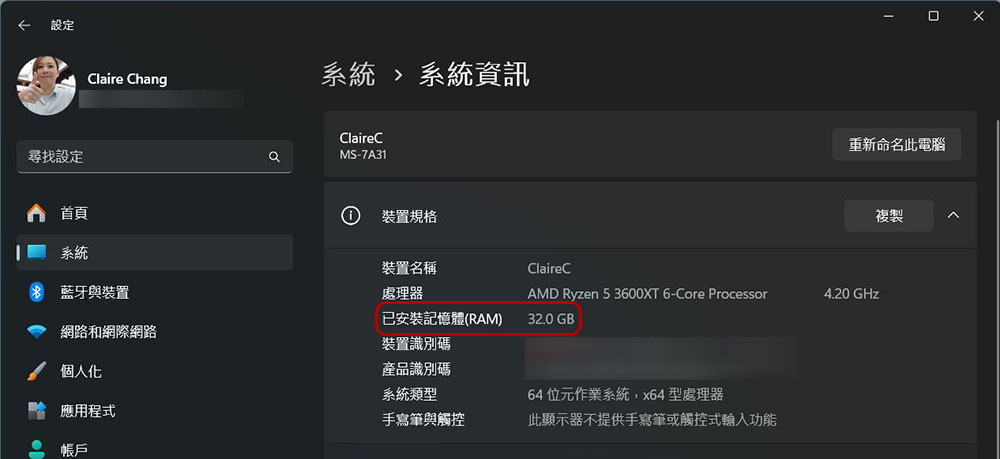
Next, check how much RAM your computer can allow.
- Enter PowerShell in Windows search and select “Run as administrator.”
- Copy and paste the following sequence of commands into PowerShell and press Enter.
Get-CimInstance Win32_PhysicalMemoryArray
Note the number displayed in the MaxCapacity field, which represents the total amount of RAM (in kilobytes) your motherboard can hold. To convert KB to GB, just divide the number by 1048576.
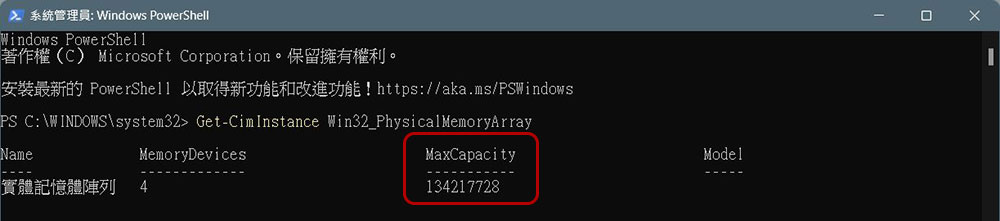
If you don’t want to do the calculations yourself, the author below lists some common numerical conversions for your reference:
|
Maximum capacity value MaxCapacity |
RAM capacity |
| 134217728 | 128GB |
| 67108864 | 64GB |
| 33554432 | 32GB |
| 16777216 | 16GB |
| 8388608 | 8GB |
The amount of spare capacity you have refers to the maximum amount that can be supported. It does not mean that you have to buy RAM and install it. In addition, you should also check whether there are free RAM slots to accommodate additional RAM.
Check if there are any free RAM slots on your computer
The RAM slot is a long, slender slot on the motherboard of a desktop computer. Most computers are equipped with 2 or 4. Before rushing to buy memory, you must first confirm that certain slots are empty so that there is room for them.
- Right-click an empty space on the taskbar and select Task Manager.
- Click the Performance tab on the left sidebar.
- You can see that the used slots below show how many slots there are in the computer and how many you have used. Hover your mouse cursor over this value to see more details about the amount of RAM supported by each slot.
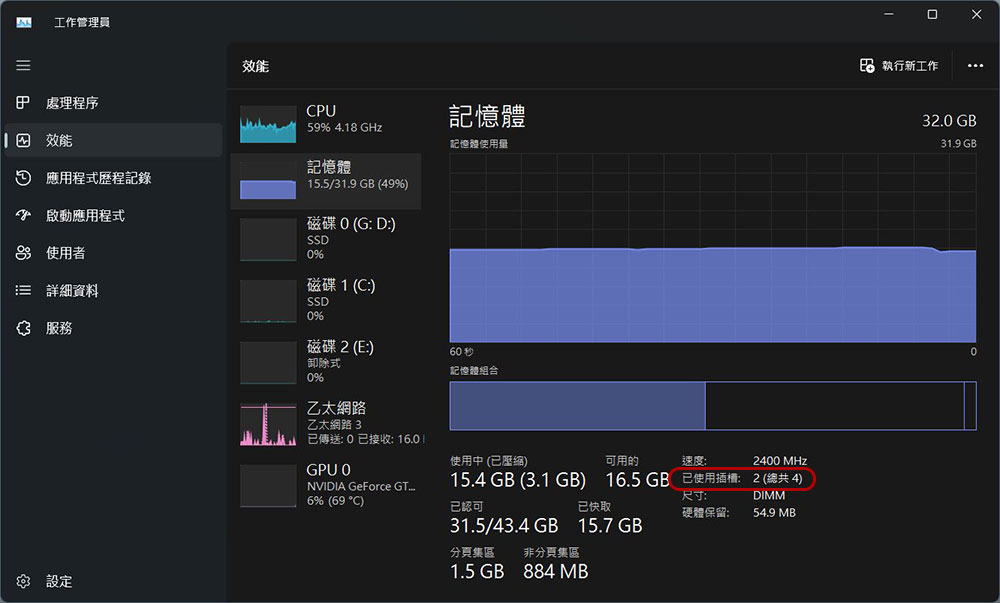
If you have available slots to accommodate the RAM upgrade you plan to upgrade, you’re all set. But what if there are no slots available, or you’ve reached the maximum RAM capacity?
No free slots or RAM capacity reached?
This becomes a major limiting factor if you’ve reached the maximum RAM capacity supported by your motherboard. To confirm whether you have actually reached the maximum supported RAM, refer to the motherboard manufacturer’s documentation and see how much RAM it supports. If the motherboard does not support additional RAM, upgrading the motherboard is the only viable option.
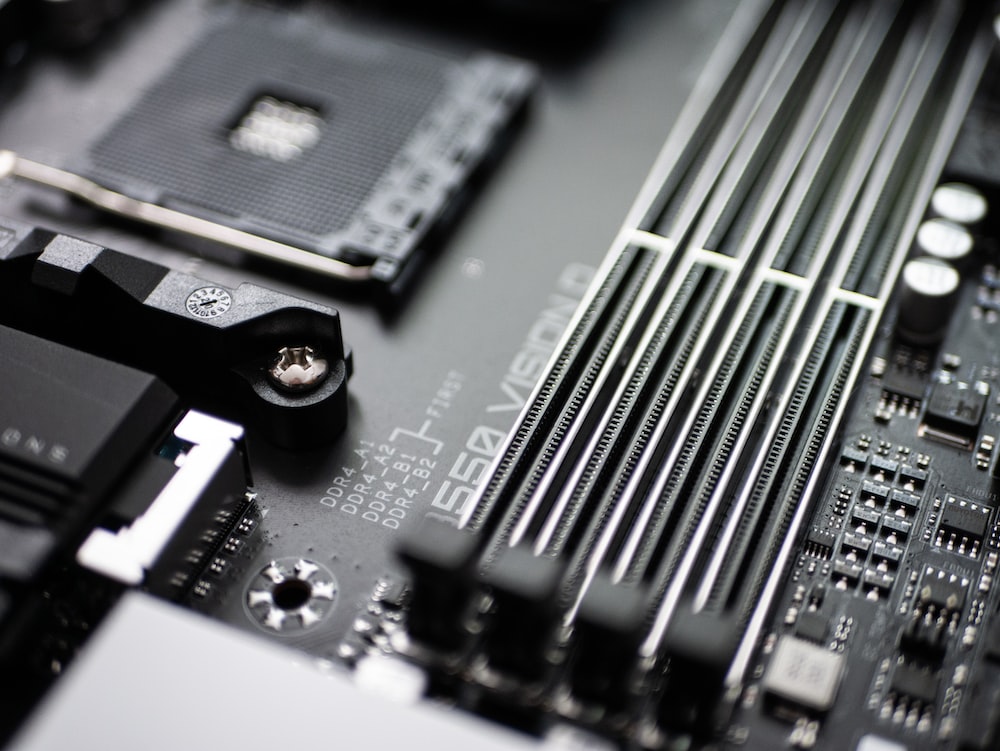
Image source: UnSplash
If you have spare capacity but no available RAM slots, check to see if your motherboard supports higher capacity RAM modules. If so, you can replace your existing mod with a larger one, taking into account limitations such as compatibility, capacity, speed, and DDR. If your motherboard does not support higher capacity modules, upgrading the motherboard is once again your only option.
Check RAM speed, RAM type, and more
If you have checked that there are indeed available slots and capacity, it means you can upgrade the RAM. Congratulations, you are halfway through the process. The next step is to check the specifications of the currently installed RAM, mainly RAM speed and type. This can avoid any compatibility issues when you upgrade RAM.
- Copy and paste the following command into PowerShell and press Enter .
Get-CimInstance CIM_PhysicalMemory - The list is long, but what you want to pay attention to is the value of Speed, MemoryType. If you see 0 next to MemoryType, you must pay attention to the values next to SMBIOSMemoryType, 20=DDR, 21=DDR2, 22=FB-DIMM, 24=DDR3, 26=DDR4, 34=DDR5.
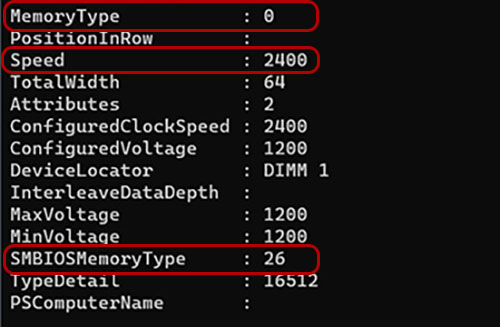
If you see “0” or outliers and you can’t determine the RAM type, consider using a third-party application like CPU-Z, which can help you confirm the type of RAM currently installed. Since you generally can’t mix and match different DDR types, make sure you buy RAM of the same DDR type and speed as your current DDR type to prevent compatibility issues after upgrading. Most RAM (assuming it’s the right type) will work with any computer, but if you want to be more sure, you can usually find more specific information about RAM, CPU, and motherboard compatibility on the manufacturer’s website, and you can choose the best RAM for your computer once you know what limitations you’re dealing with.
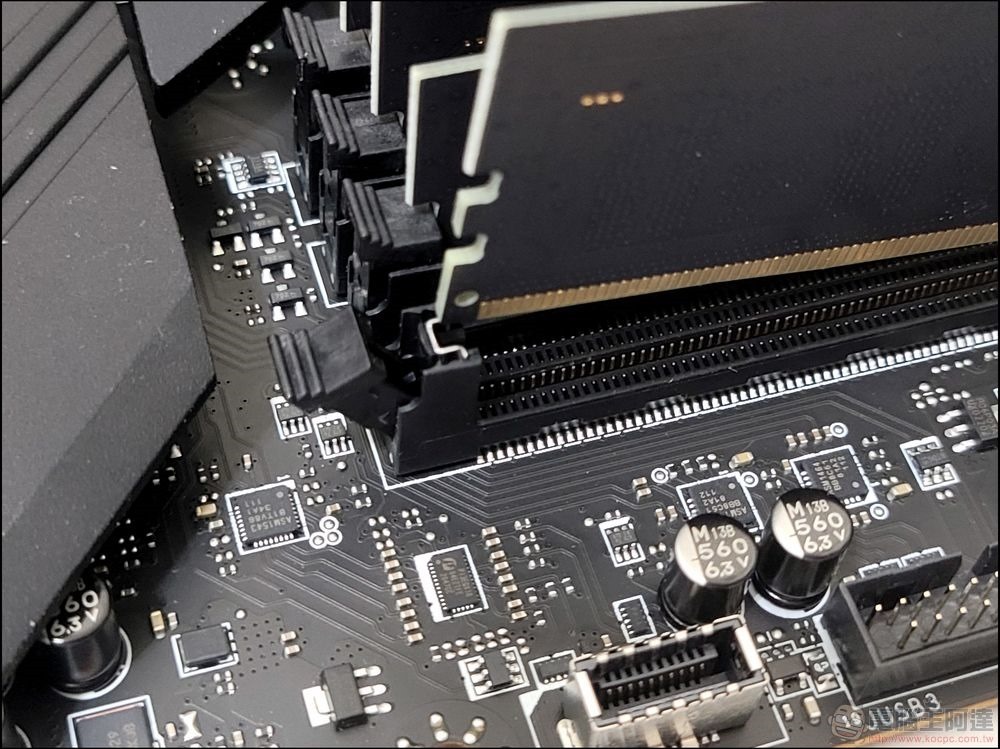
If it’s the RAM on your laptop that you want to upgrade, the process can be tricky. Sometimes it’s as simple as popping it out from the bottom and plugging in new RAM, like a desktop computer. Other times, removal is complicated and the RAM may even be permanently soldered to the laptop’s motherboard. If you don’t like messing with electronics or don’t want to do it yourself, you should seek professional help to avoid potential damage to other components of your laptop.
Source: KOCPC Chinese