


Want to download online videos and music to your Android phone? Seal is a highly recommended free app. It is an open source project on GitHub. Not only does it support more than 1,000 websites, including YouTube and Facebook, the download speed is also very fast, and there are no ads. YouTube also supports 4K resolution. Those who need it can try it.

Seal is a video and music downloading app designed for Android and supports more than 1,000 websites.
Seal, a video downloading app that also supports YouTube, is impossible to put on the Play Store, so you need to install the App APK file yourself. For those who are worried about security, it is recommended to skip it.
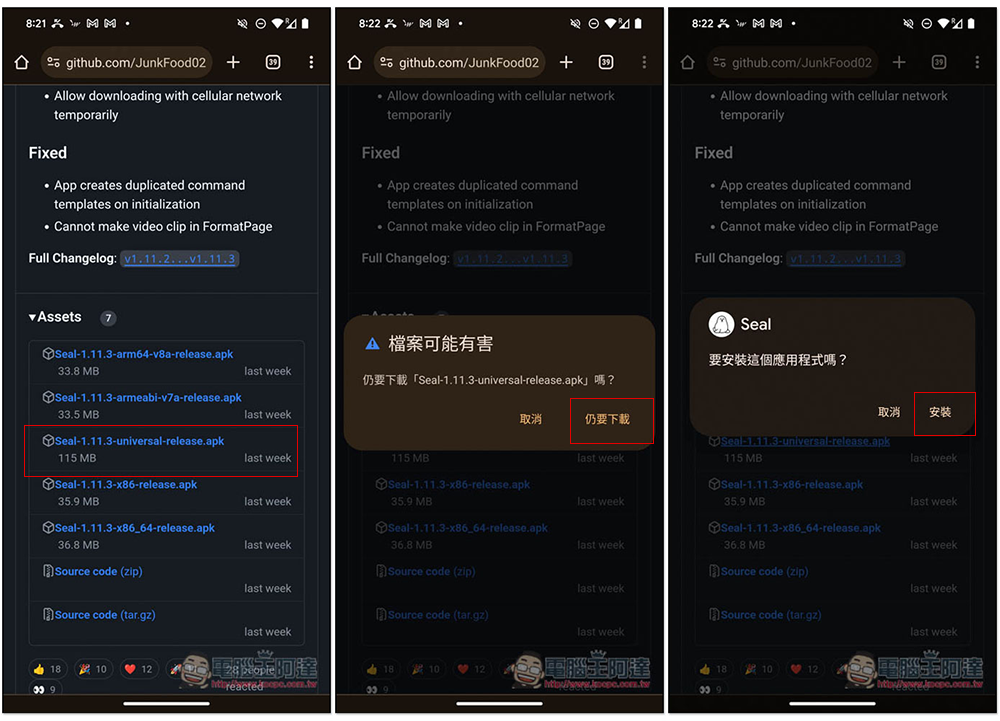
Click the link above to enter Seal’s GitHub project. The latest version is v1.11.3. If there is no special need, download the one with universal-release at the end, and then install it according to the on-screen instructions:
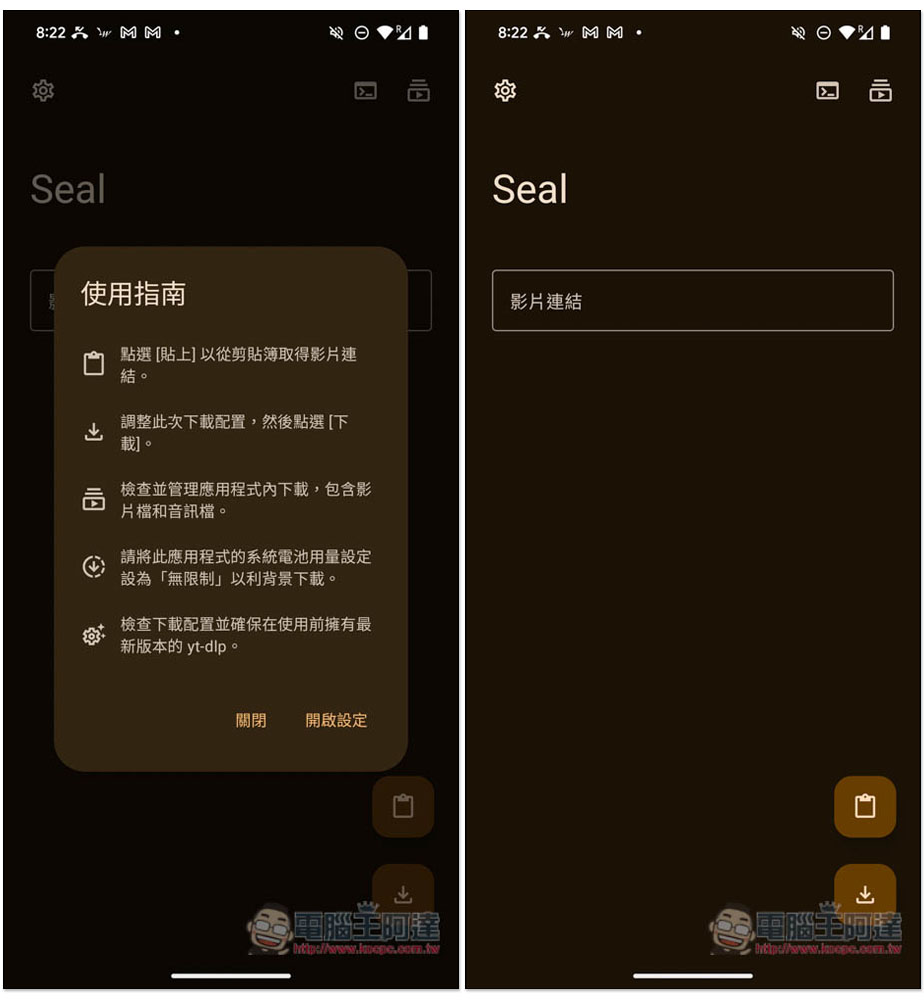
Then open the Seal App, and the user guide will pop up first. You can take a brief look at it. The usage is very simple. Just copy the URL of the video you want to download, and then paste it in the search field of Seal:
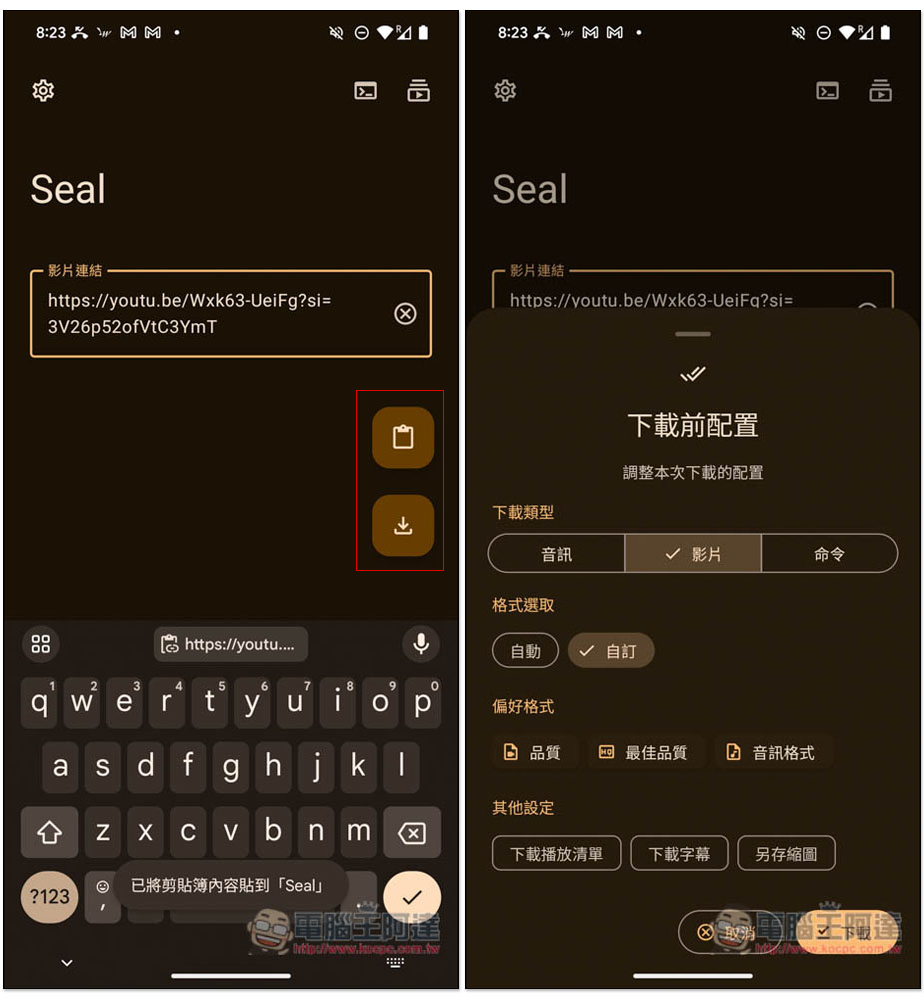
After clicking the paste icon on the right, the clipboard content will be pasted directly. Then click the download button below, and the settings configured before downloading will appear. First, select the type you want to download, including audio and video. In addition, you can also select the format, format content (quality, best quality, audio format), and other settings (download playlist, download subtitles, save as thumbnail):
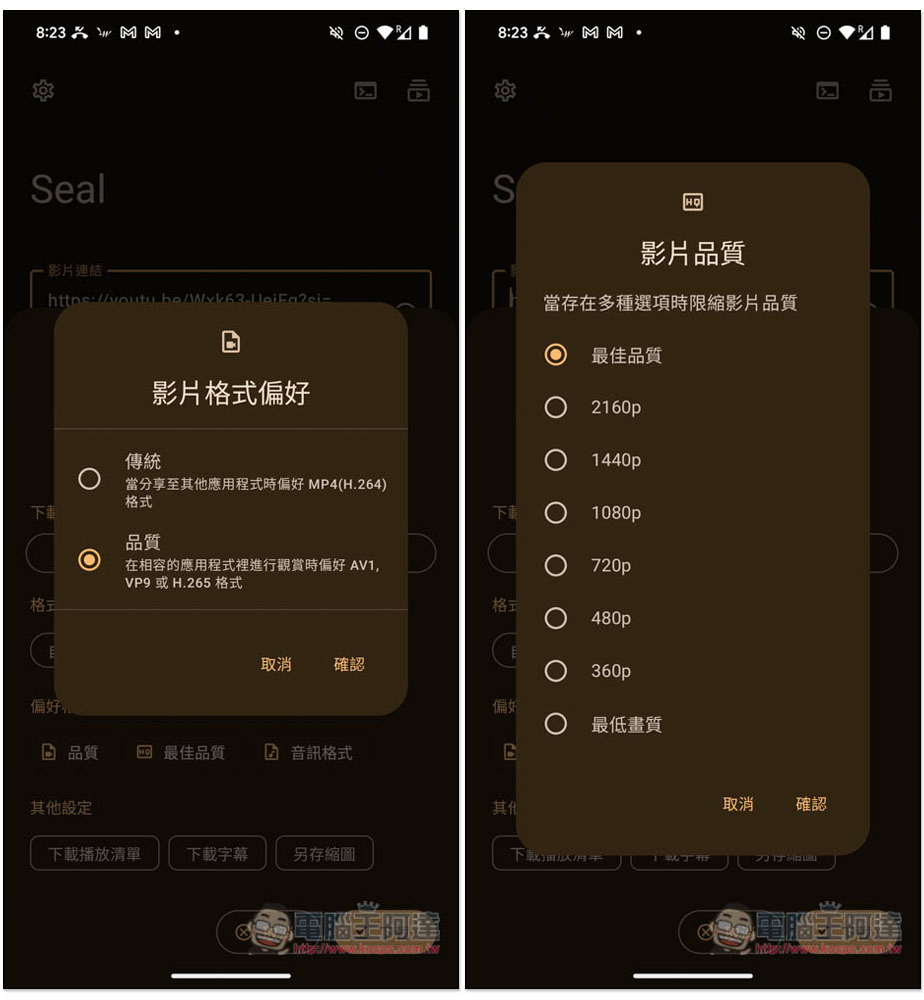
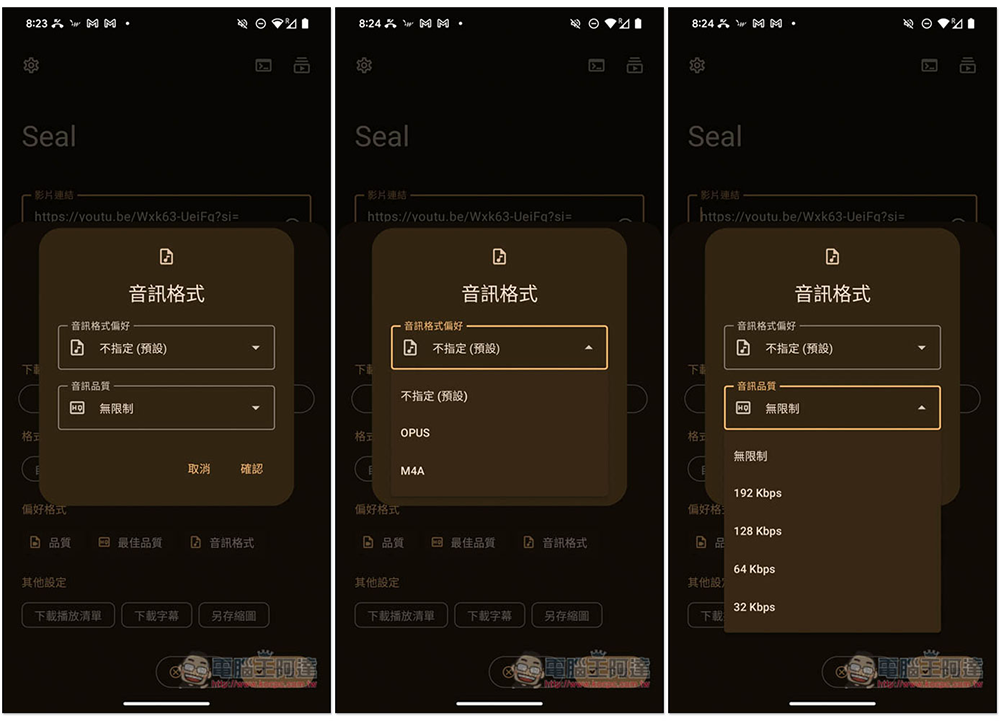
The video format preference is set to quality by default. If you only want to download MP4, you can change it to traditional. However, YouTube MP4 only supports a maximum resolution of 720p. Just use the default “Best Quality” for video quality. If you’re afraid it will take up too much space on your phone, you can change it to 1080p or something like this:
The audio format is not specified by default and can be specified as OPUS or M4A. The audio quality can also be set to the default of unlimited. This will automatically select the highest sound quality for downloading. For those who want to download MP3 music, there is an automatic conversion function in the audio download menu:
As shown in the figure below, after selecting audio as the download type, there is a “Convert Audio Format” function in the preferred format, which can be set to convert to MP3:
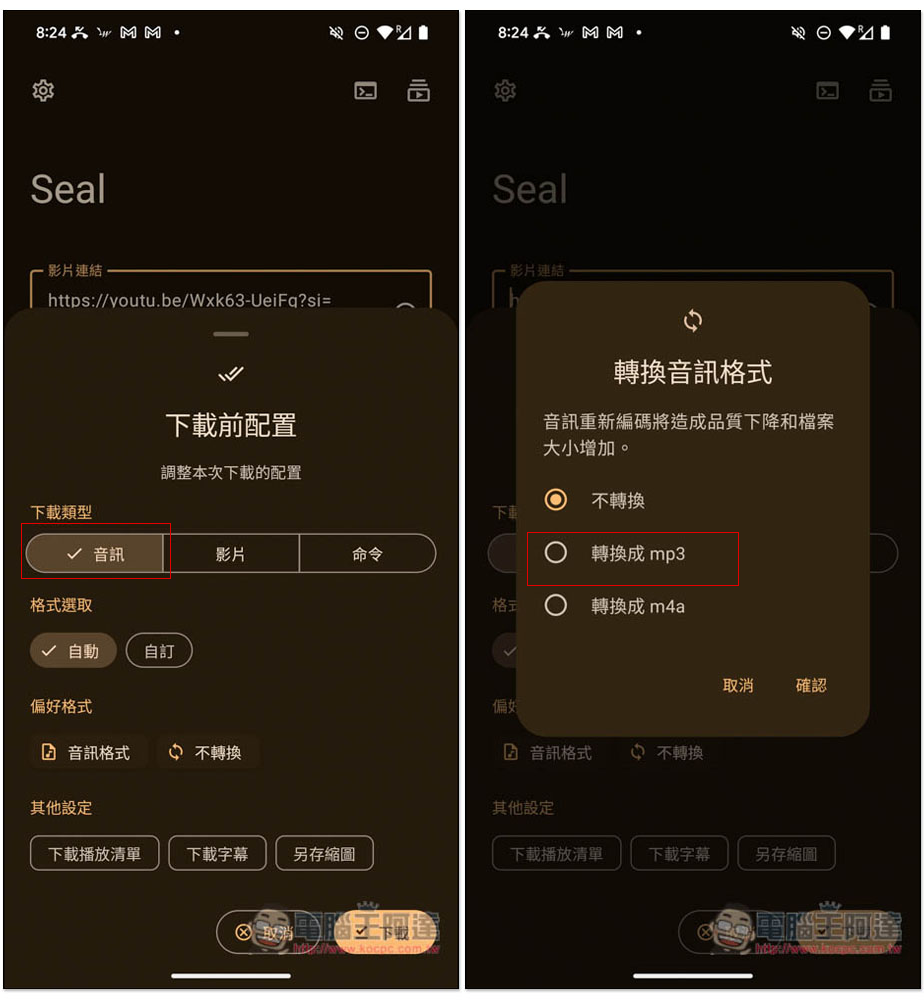
In fact, you can leave the above settings unchanged and just use the default settings, because you can specify the download format and quality on the next page.
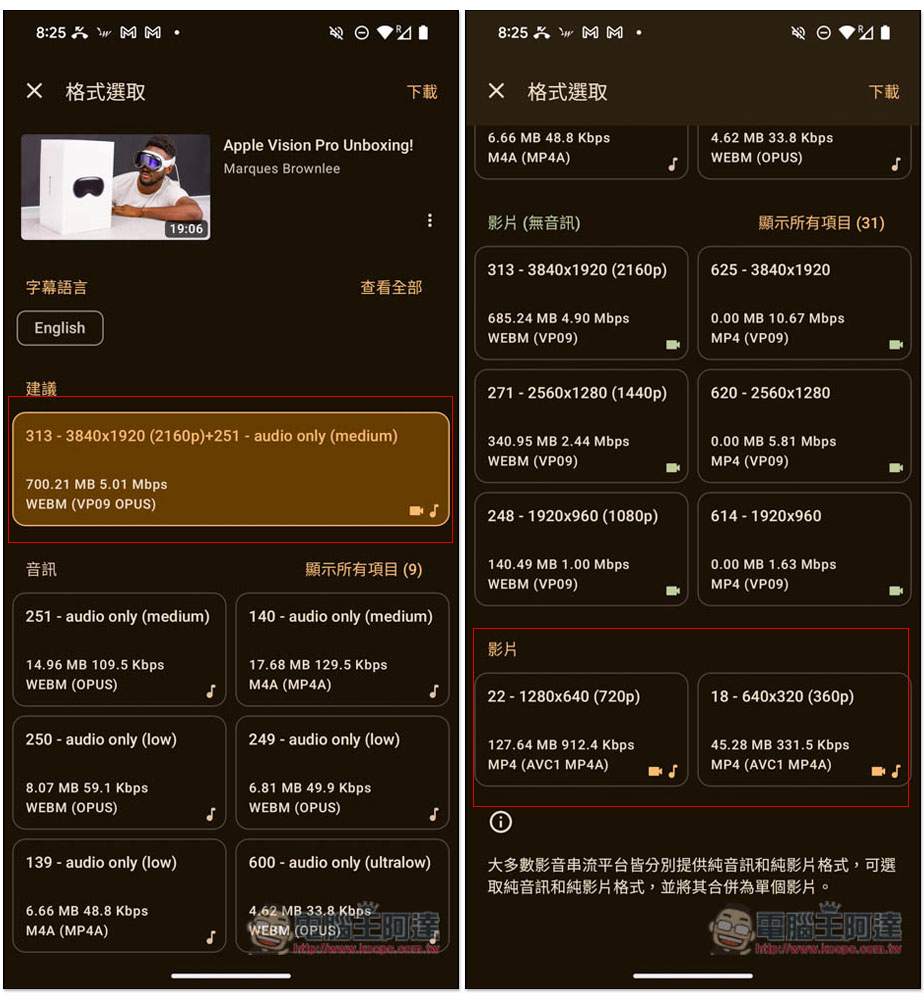
As shown in the figure below, the top suggestion is that the App finds the best resolution and sound quality. It will not be in MP4 format. Like the YouTube part, it is WEBM. This video has a maximum resolution of 4K. If you want to download MP4, scroll to the bottom video column to find the download point, but the highest resolution is only 720p. Each format will indicate the file size, which I quite like:
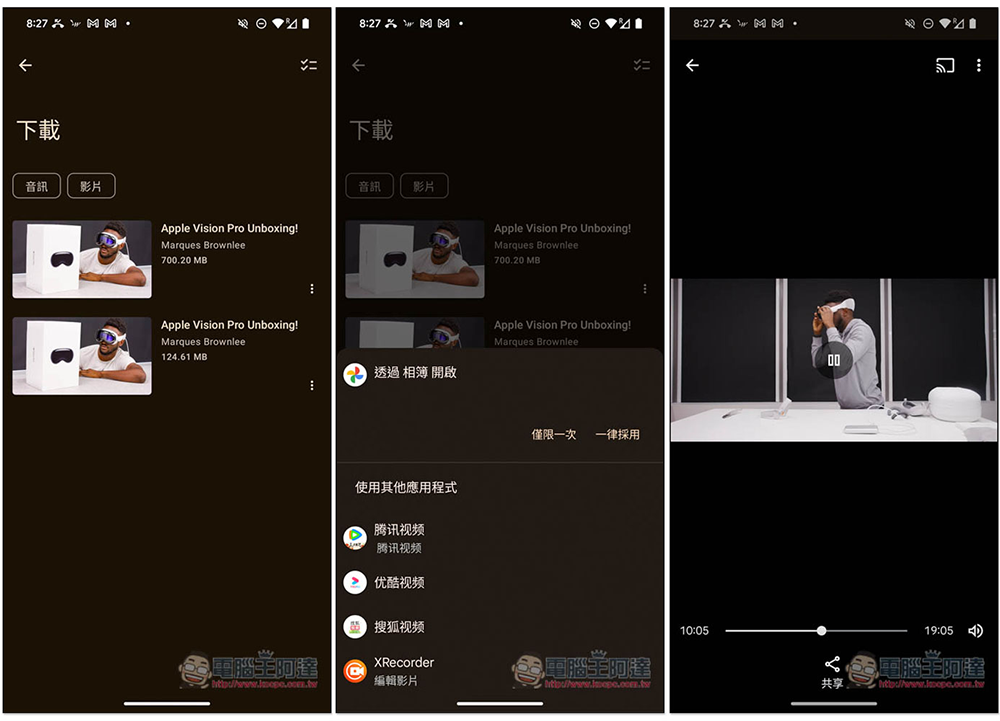
I actually tested the format recommended by the download app, as well as the MP4 format. The download speed is very fast, and it is actually downloaded to the mobile phone and can be played and watched offline. In addition, I also tested Facebook and Twitter with success:
Source: KOCPC Chinese