


In the fast-paced world of web browsing, efficiency is key, and using shortcut keys at the right time can speed up your browsing. Microsoft Edge provides a large number of keyboard shortcuts that can significantly improve your browsing experience, but looking through the lengthy list of Microsoft Edge keyboard shortcuts can be daunting. This time I have compiled the 41 most practical ones for you. Let’s explore these Microsoft Edge keyboard shortcuts, categorized for convenience, to make browsing the digital realm effortless and elegant.
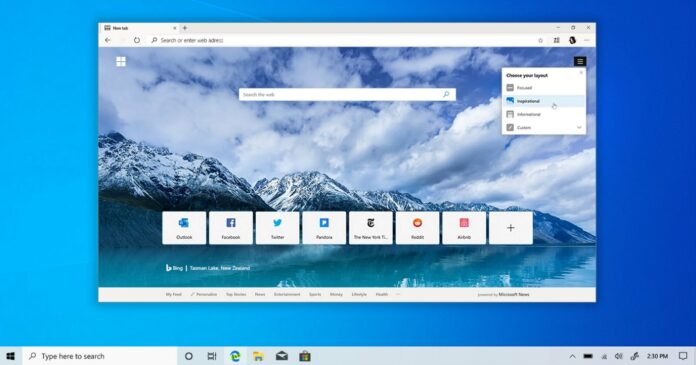
41 Microsoft Edge keyboard shortcuts to help you browse the web in a more professional way
This time we have compiled 41 Microsoft Edge shortcut keys for you. We have divided them into 8 categories. You can check them according to your needs. As a reminder, these Microsoft Edge shortcut keys only apply to Microsoft Edge on Windows 11 systems, not macOS.
Navigation shortcuts (7)
- Previous page: Alt + Left Arrow
Quickly return to the previous page, just like turning back to the previous page in a book. - Next page: Alt + Right Arrow
Go to the next web page, ideal for jumping between previous and previous pages. - Open the main homepage: Alt + Home
Immediately open the main homepage you set in the current tab. - Full screen: F11
Switch to full screen mode for an immersive viewing experience. - Open help: F1
Visit the Help menu for guidance and support. - Stop loading: Esc
Stop page loading and easily close dialog boxes or pop-ups. - Close window: Alt + F4
Quickly close the current window.

Pagination management (6)
- Open new tab: Ctrl + T
Open a new tab in the current window. - Open a new InPrivate browsing window: Ctrl + Shift + N
Open a new private browsing window for increased privacy. - Reopen closed paging: Ctrl + Shift + T
Resumes the last closed paging and continues where it left off. - Switch to the next tab: Ctrl + Tab
Easily switch to the next tab on the same window for seamless multitasking. - Switch to the previous tab: Ctrl + Shift + Tab
Easily switch to the previous tab on the same window. - Switch to the last tab: Ctrl + 9
When you have many tabs open, this shortcut key can jump to the last tab in the window.

Web page operations (7)
- Save page: Ctrl + S
Save the current page for offline access or archiving. - Print web page: Ctrl + P
Print the contents of the current page. - Reload the page: Ctrl + R
Refresh the current page to get updated information - Reload the page (without cache): Ctrl + Shift + R
Reload the page regardless of cache content. - Find in web page: Ctrl + F
Opens a search window to search for specific keywords on the current page. - Zoom in: Ctrl + plus sign (+)
Zoom in on the current web page to view the page content more closely. - Zoom in: Ctrl + minus sign (-)
Zoom out to see more of the current page.

Address bar (3)
- Edit URL: Alt + D
Quickly edit URLs in the URL bar. - Add www. and .com: Ctrl + Enter
Automatically adds www. to the beginning of a blank URL list and .com to the end of a URL input. - Select a URL to edit: Ctrl + L
Select the URL in the address bar to edit it.
Developer Tools (4)
- Open developer tools: Ctrl + Shift + I
Opens developer tools for debugging and web development. - Toggle PDF view (in PDF): Ctrl + \
Quickly switch between full-page and full-width PDF display modes. - Rotate PDF counterclockwise (in PDF): Ctrl + [
Rotate a PDF file 90 degrees counterclockwise. - Rotate PDF clockwise (in PDF): Ctrl + ]
Rotate PDF file 90 degrees clockwise.
Bookmarks and favorites (5)
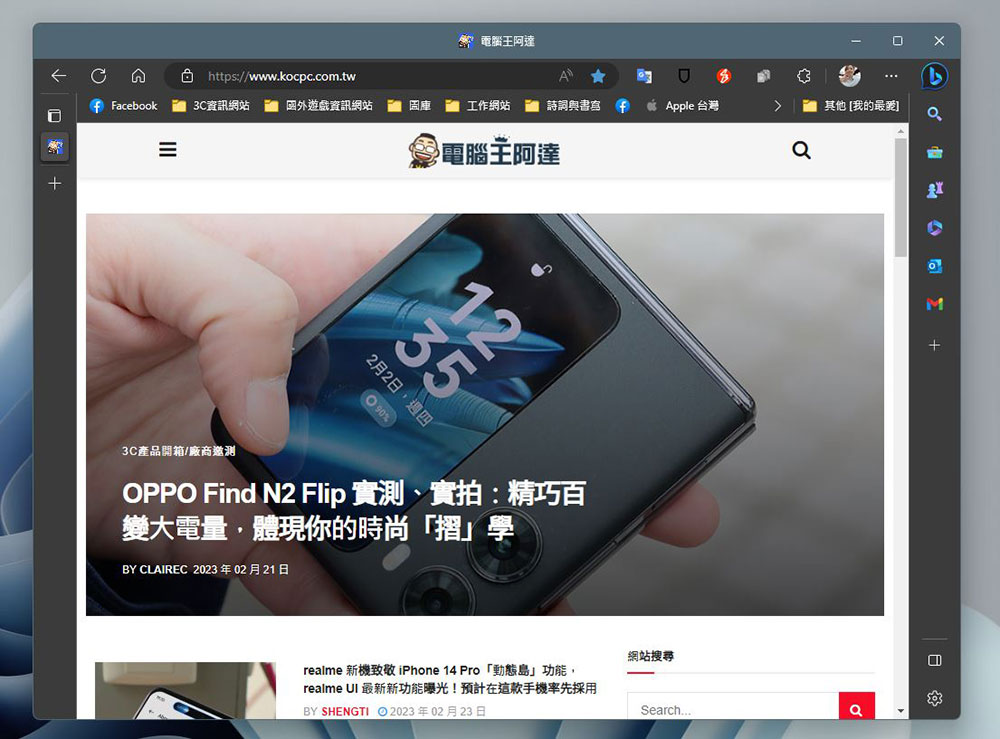
- Show/hide favorites column: Ctrl + Shift + B
Hide or show the Favorites bar below the address bar for easier access. - Option on Favorites column: Alt + Shift + B
Use the left and right keys to switch between favorites. - Save current tab as favorite: Ctrl + D
Add the page now paginated to your favorites. - Save all tabs as favorites: Ctrl + Shift + D
Create a folder in Favorites to save all tabs open in the current window. - Open favorites: Ctrl + Shift + O
Just click this shortcut to open the favorites window in the sidebar, where you can organize, organize, edit and delete.
Search and settings (5)
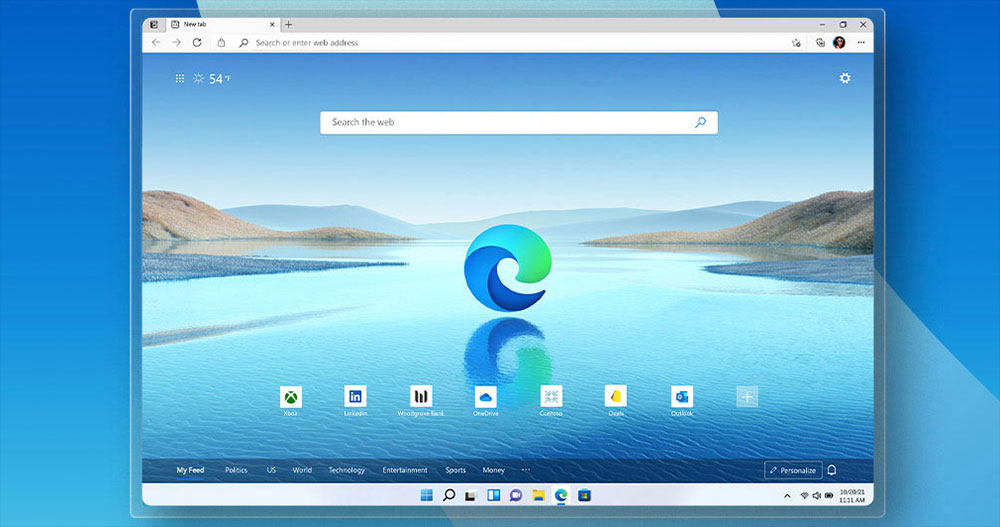
- Open search in the sidebar: Ctrl + Shift + E
No need to leave the current page, just call the search in the sidebar to find information. - Open settings and more menus: Alt + E
Access additional settings and options to customize your browsing experience. - Enable sending feedback: Alt + Shift + I
You can quickly capture the screen of this page and open the Send Opinion Response window to enter suggestions and feedback. - Open download: Ctrl + J
Easily view your download history and manage downloaded files. - Page mute/unmute: Ctrl + M
Just click to mute or unmute the current tab.
Other Microsoft Edge keyboard shortcuts (4)
- Open file: Ctrl + O
Open files from your computer in Microsoft Edge to quickly open them. - Turn on clear browsing data: Ctrl + Shift + Delete
Turn on clear browsing data option to protect privacy. - Open the Microsoft Edge menu: Alt then Enter
Quickly open Microsoft Edge’s three-dot menu. - Open contextual menu: Shift + F10
Quickly open contextual menus to do more.
These categorized Microsoft Edge keyboard shortcuts allow you to use Microsoft Edge more professionally, improve efficiency and streamline your workflow. Master the art of web browsing with these basic Microsoft Edge keyboard shortcuts at your fingertips.
Source: KOCPC Chinese