


When you naturally put your hand on the mouse and move it smoothly, you will be accustomed to seeing the cursor moving with the movement on the screen. But one day, what should you do if you suddenly find that the cursor is missing? There are many reasons for this problem. It may be an outdated mouse or display driver, interference from other applications, incorrect mouse settings, etc. Don’t worry, we have prepared some simple solutions to help you eliminate obstacles.
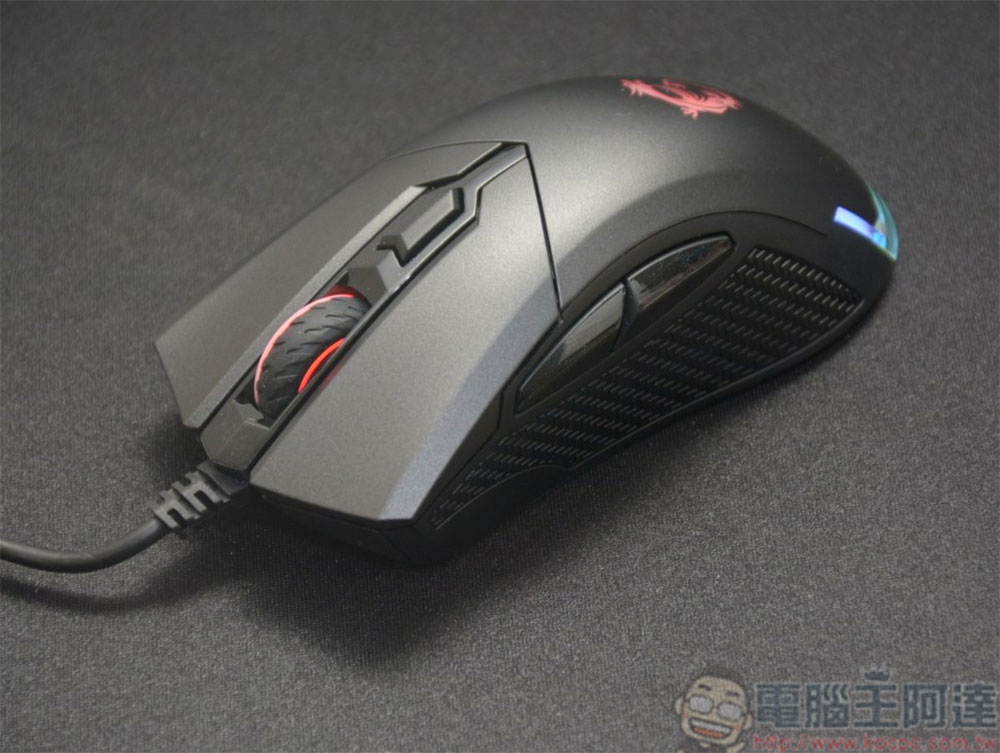
The mouse cursor is missing on your Windows computer? These methods can help you eliminate obstacles
Disconnect and reconnect the mouse
Disconnect and then reconnect your mouse to your computer. This simple step can help you resolve temporary issues or restore cursor operation. If you are using a wired mouse, unplug the cable from the port. For wireless mice, you can unplug the receiver from the computer. If there is a physical switch, you can turn it off first. After removing the mouse connection, restarting the computer once can eliminate temporary problems with the operating system. After restarting, plug the mouse and receiver back into the computer, or turn on the physical switch on the wireless mouse. If the problem persists, check the mouse for other physical damage.
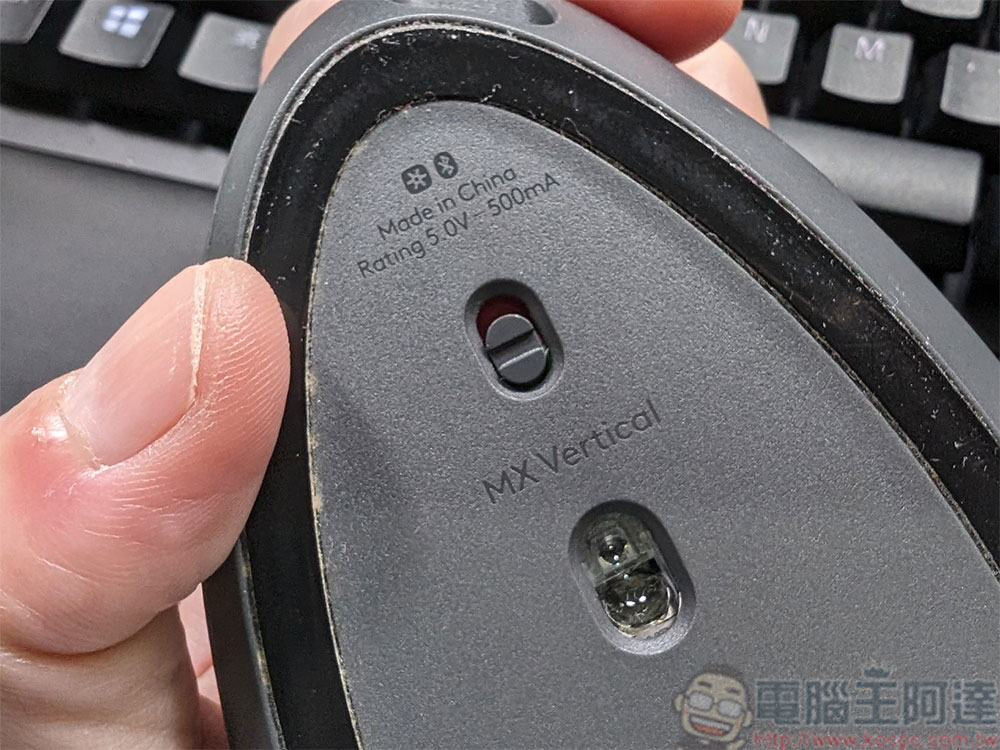
Make sure the mouse itself is not malfunctioning or out of battery
If the cursor does not appear on the screen when you move the mouse, it is likely that the mouse is malfunctioning and not responding correctly to your operations. Therefore, before continuing, please make sure that the mouse hardware itself is not defective. The easiest way to check is to disconnect the mouse from your computer and connect it to another computer. If the cursor does not appear on the other computer, the problem is with the mouse and not the operating system. If you don’t have another computer at hand, you can remove the mouse and replace it with another good mouse. If it works fine this time, it means there is something wrong with the original mouse.
If it is a wired mouse, you need to check whether the wire is damaged; if it is a wireless mouse, you must consider whether the mouse itself is out of power and try changing the battery or charging it to see if it can return to normal. However, if the mouse works normally on other computers and will only cause problems on the original computer, please continue with the next checks and troubleshooting.
Make sure the USB port on your computer is not faulty
A defective USB port can also prevent the mouse from working on your computer. To rule out this possibility, plug the mouse cable (or mouse receiver in the case of a wireless mouse) into another port on your computer. If the mouse is functioning normally on the alternate port, the original port may be faulty and you should stop using it. However, if changing ports doesn’t make any difference, it’s time to explore device-specific solutions.
Update mouse driver
Outdated drivers may also cause the mouse cursor to disappear. To rule out this possibility, install the latest drivers from the mouse brand’s official website. Take Logitech’s mouse as an example. Go to the official website to download the mouse driver, usually in the “Support” section of the official website. As for Logitech, most of the newer mid-to-high-end mice can support Logitech Option, or even the newer Logitech Option+. After installation, open it and you can basically check and automatically install updates from the settings inside.

If the downloaded file is not an executable file (.exe), you need to update the driver manually. Please follow the steps below:
- Press Win+X on your keyboard, then use the Down arrow key to select Device Administrator and press Enter.
- Then press Tab, then use the Down arrow key to move to “Mouse and other pointing devices,” then press the Right arrow key to expand the list.
- Use the down arrow key on the keyboard to select the mouse you want to update, then press Enter to bring up the content window.
- Use Tab to switch to the tab selection above, and Right Arrow to switch to the Drivers tab.
- Press Tab to select Update Driver.
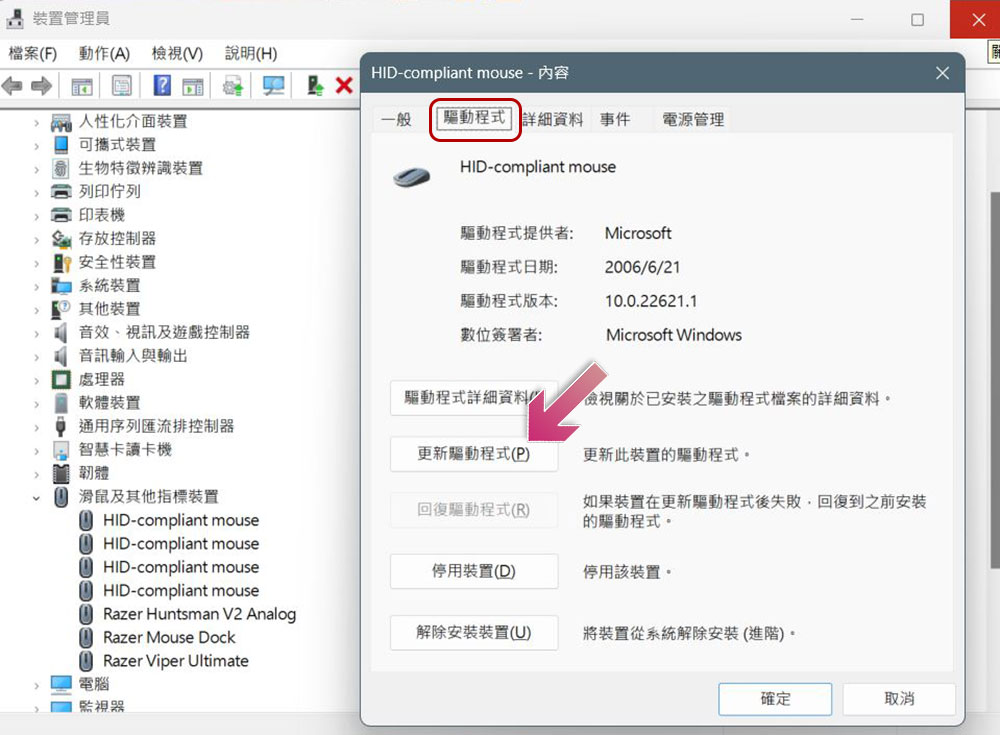
- Next select “Browse my computer for driver” to find the driver you just downloaded and follow the on-screen instructions to install it.
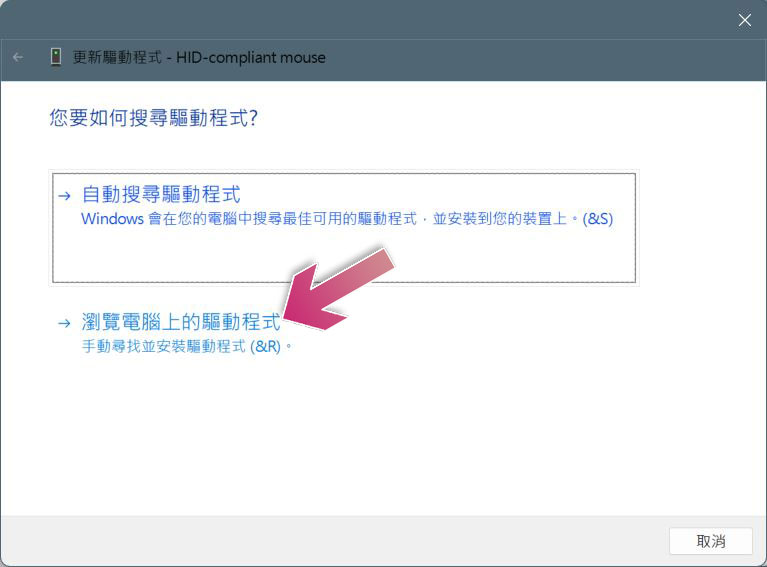
Similarly, graphics card driver updates are also handled in the same way as above.
Check for problems or interference with specific applications
If the mouse cursor disappears only in a specific application and reappears when you exit the app, check to see if the application allows navigation using the mouse cursor. If so, check the setting that allows users to switch from mouse navigation to keyboard or touch navigation and make sure this setting is not turned on by mistake (if any).
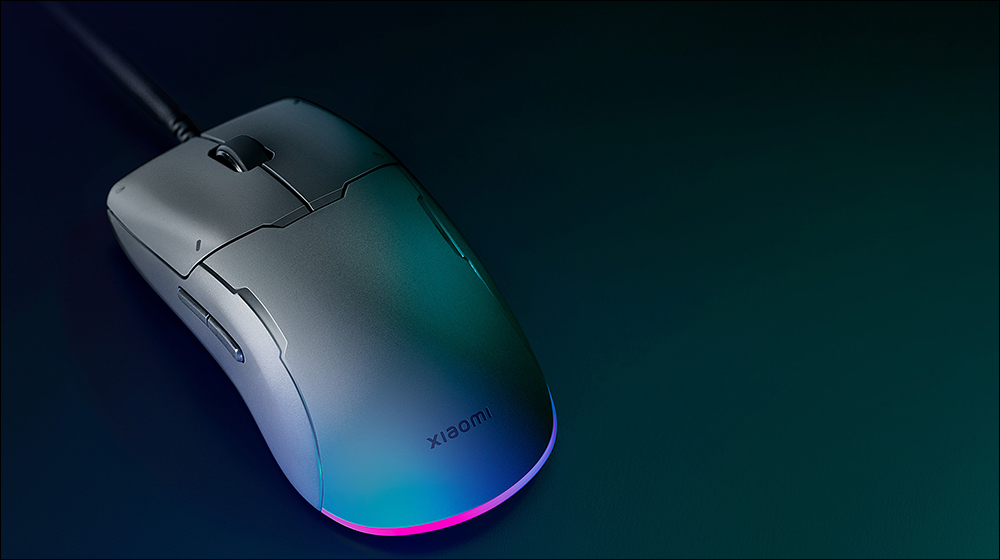
Likewise, using any third-party applications to customize the mouse cursor or other mouse functionality may interfere with mouse operation and cause this issue. To eliminate this possibility, you can temporarily close third-party applications. If you are not using any third-party mouse settings application, please continue to the next troubleshooting step.
Change some mouse settings
If none of the above solutions resolve your issue, you may need to adjust some mouse settings.
- After pressing the Win key to open the Start menu, use the Tab key to switch to the Windows search field, enter “Mouse Settings” and open it.
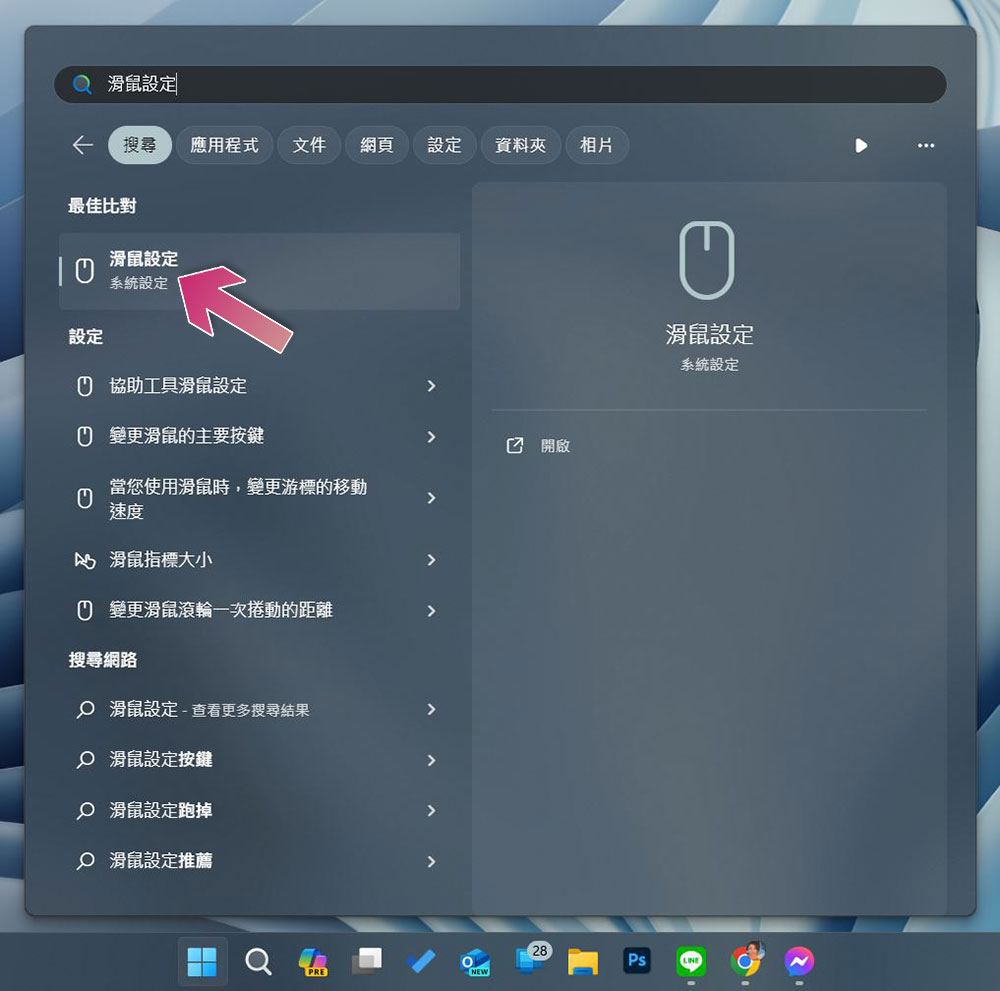
- Tab to “Additional Mouse Settings” and press Enter.
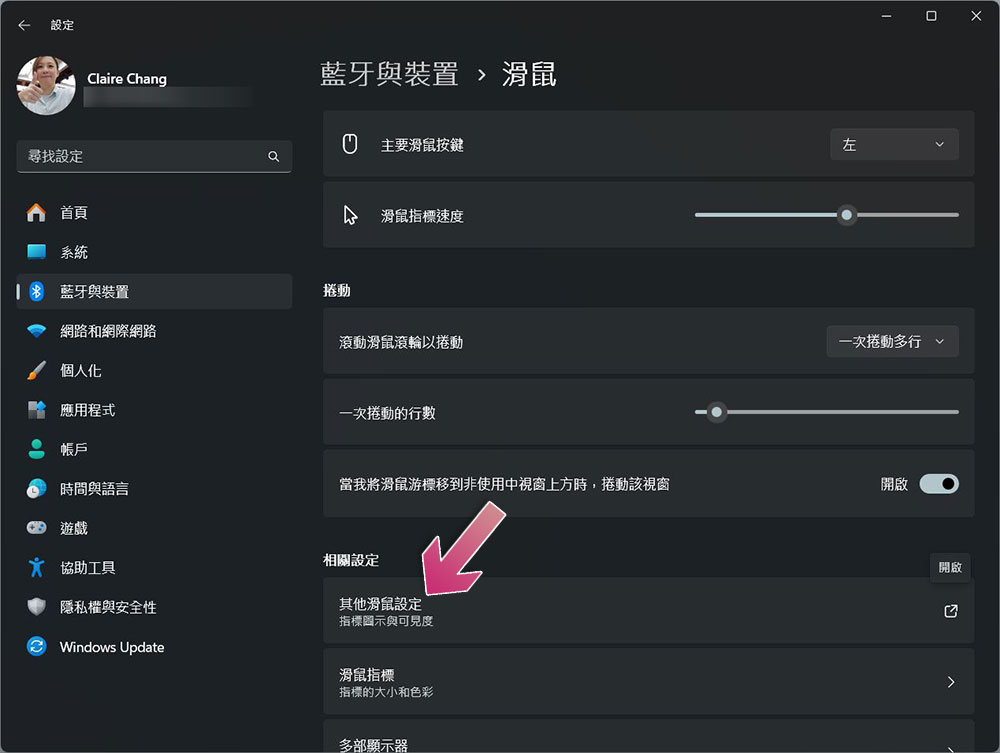
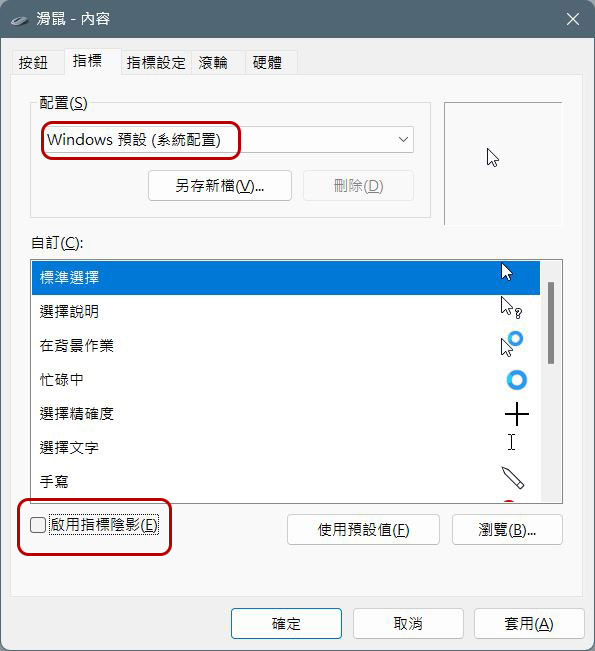
- Use Tab to move to the paging tab, and use the right key to switch to “Indicators”.
- In the configuration, use the up and down keys to select “Windows Default (System Configuration)”, then uncheck “Enable indicator shadows” below, then use Tab to select Apply (press Enter once) and OK (press Enter once).
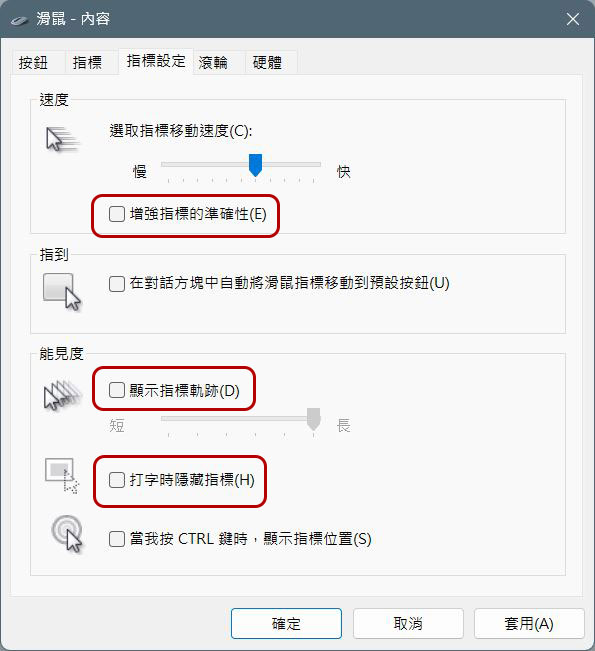
- Next, switch to the “Indicator Settings” tab, cancel all the items listed below, and finally use Tab to select Apply (press Enter once) and OK (press Enter once).
- Enhance indicator accuracy
- Show indicator trace
- Hide indicators while typing
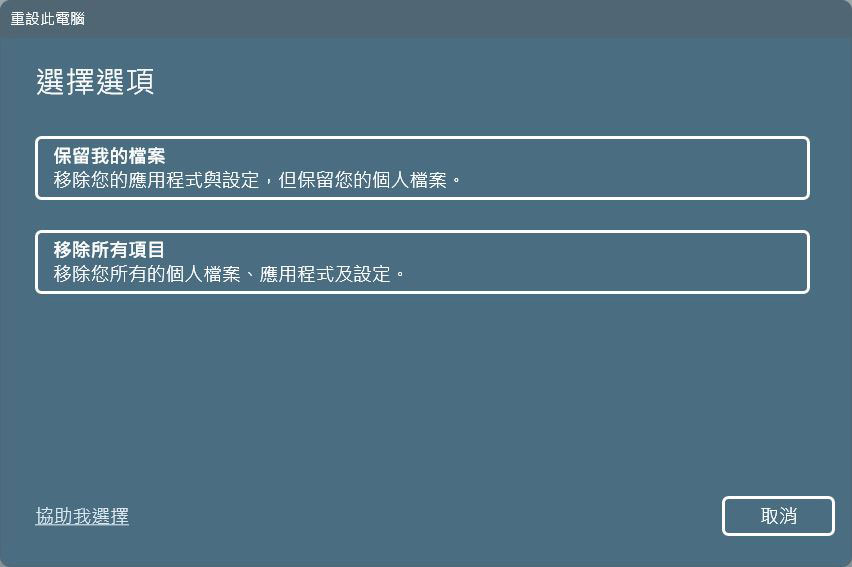
The above are the methods to restore the mouse cursor. If the problem persists, please perform a system restore and select Keep My Files. In this way, the system will only remove all settings and installed applications, and will not touch other files stored on the computer.
- Open the Settings app.
- Click System in the left sidebar and select Restore.
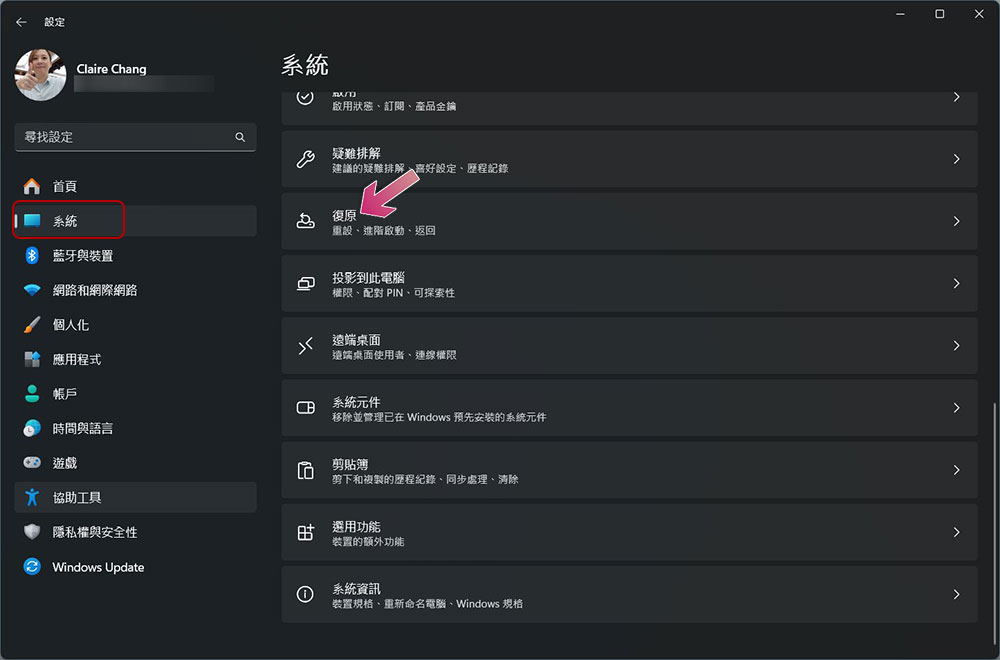
- Click “Reset this PC.”
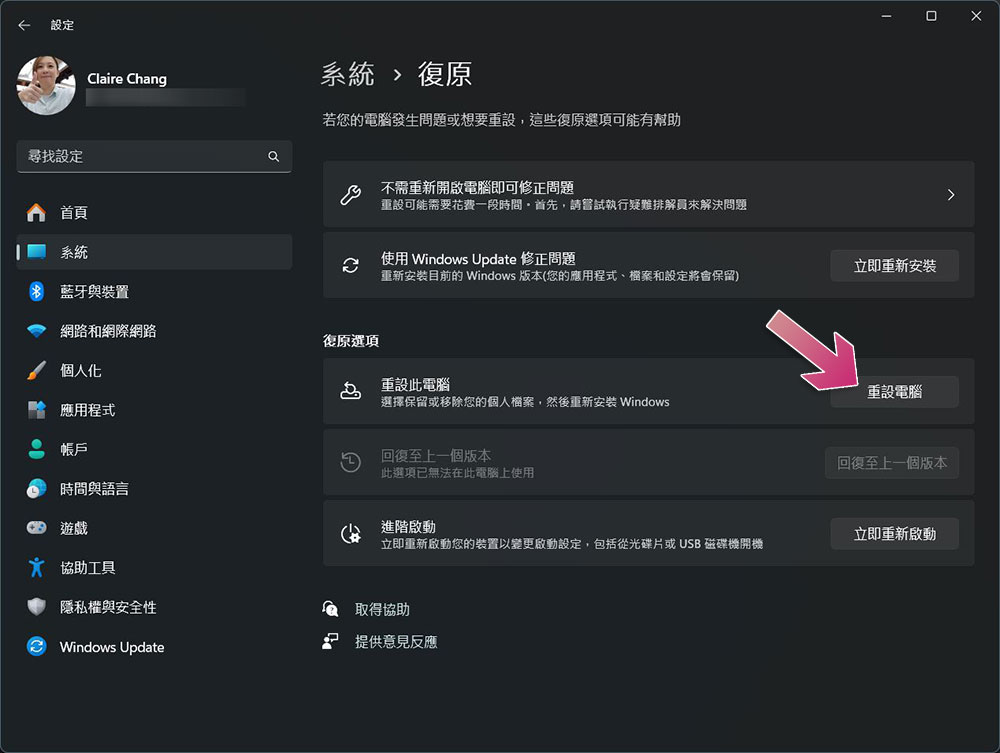
- Next, you have two options to choose from. It is better to choose to keep the files. In this way, the system will only remove installed applications and settings, and will not touch your documents, photos and other data. If you want to start over from scratch, you can choose to remove all items.
Source: KOCPC Chinese