


When taking screenshots, many people will definitely want their screenshots to be more refined and beautified. In this case, “Photor” is a good choice. It is a free tool designed to beautify screenshots. It has a Chinese interface. In addition to adding high-quality backgrounds, shadows, rounded corners and watermarks to screenshots, it also provides editing functions, such as adding arrows, text, frames, etc. It can be said that this one has almost all the post-production functions you may need for screenshots.
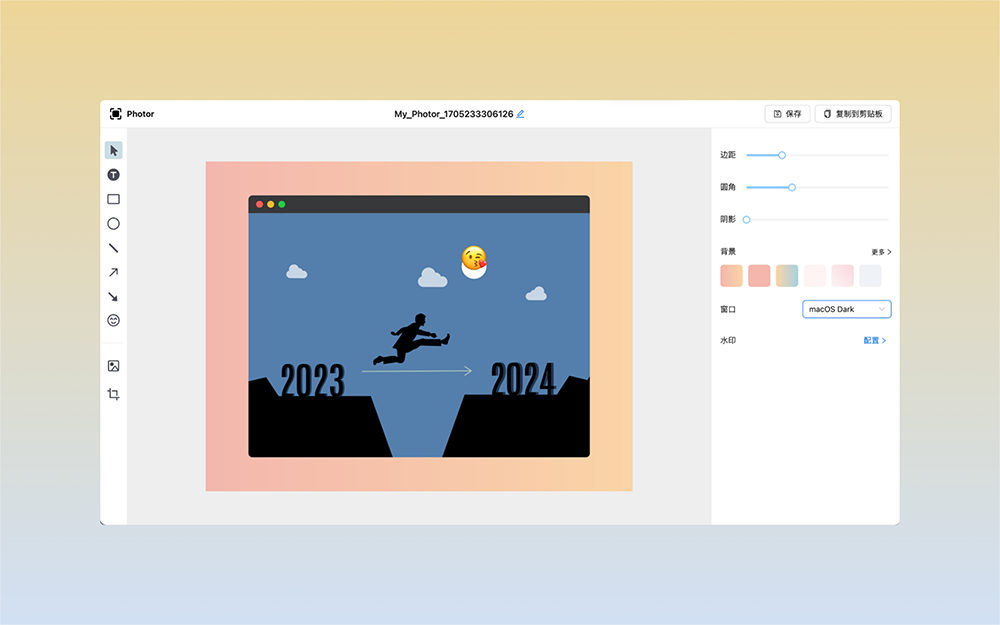
“Photor” is a free online tool for beautifying screenshots, making your screenshots more refined and no longer monotonous.
Click the link above to enter the Photor website, and click “Get Started” to import the screenshot you want to edit. In addition, this product also provides browser extensions, supporting Chrome and Edge. People in need can try it:
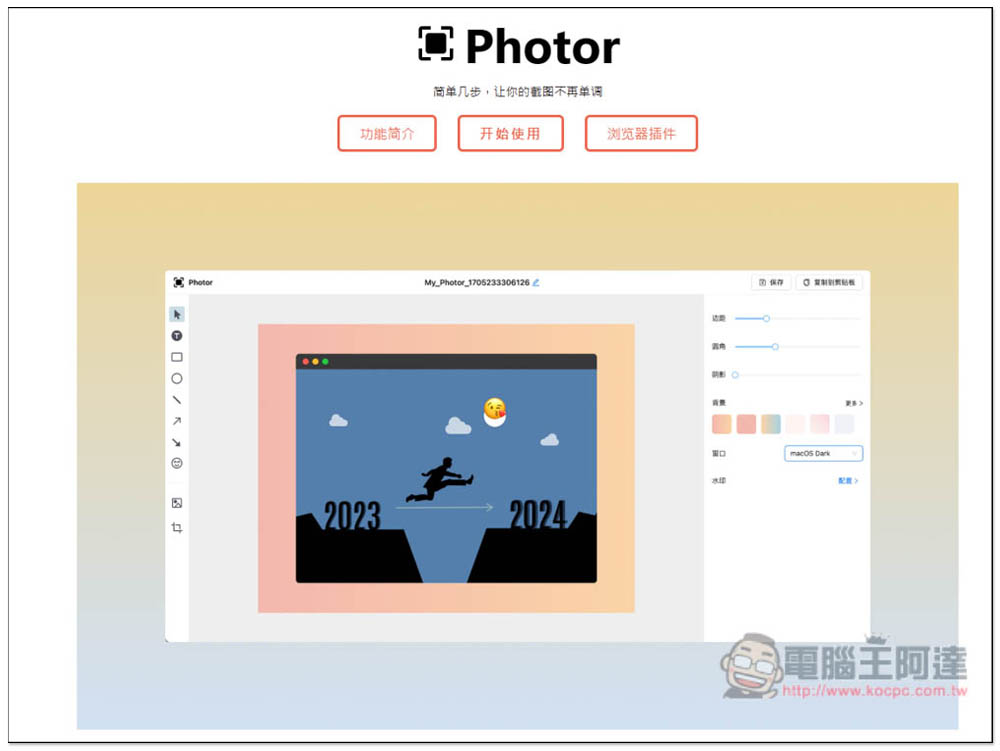
Click “Load a local image” on the right, or paste a clipboard image:
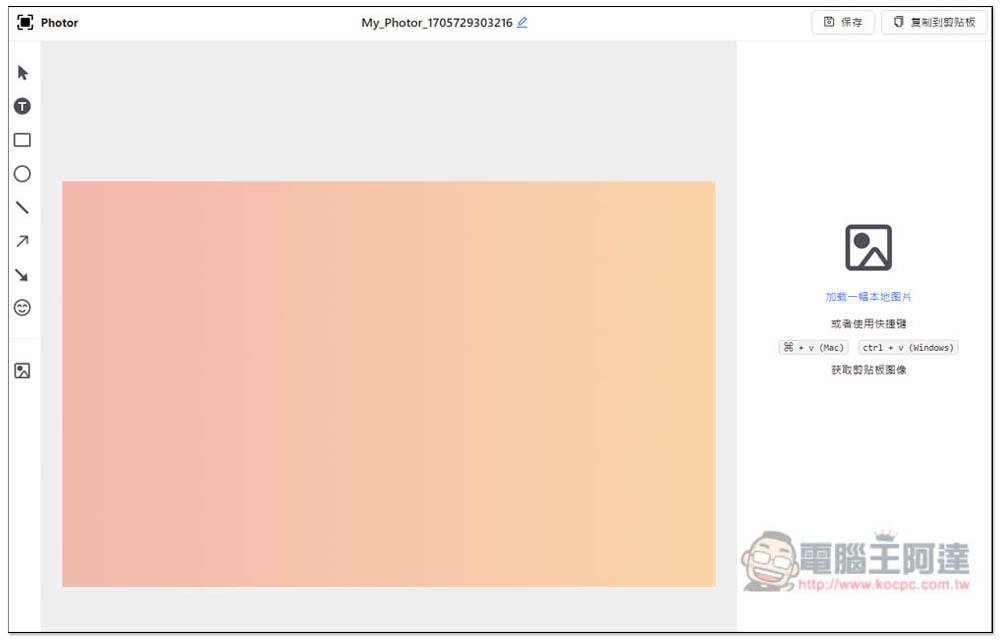
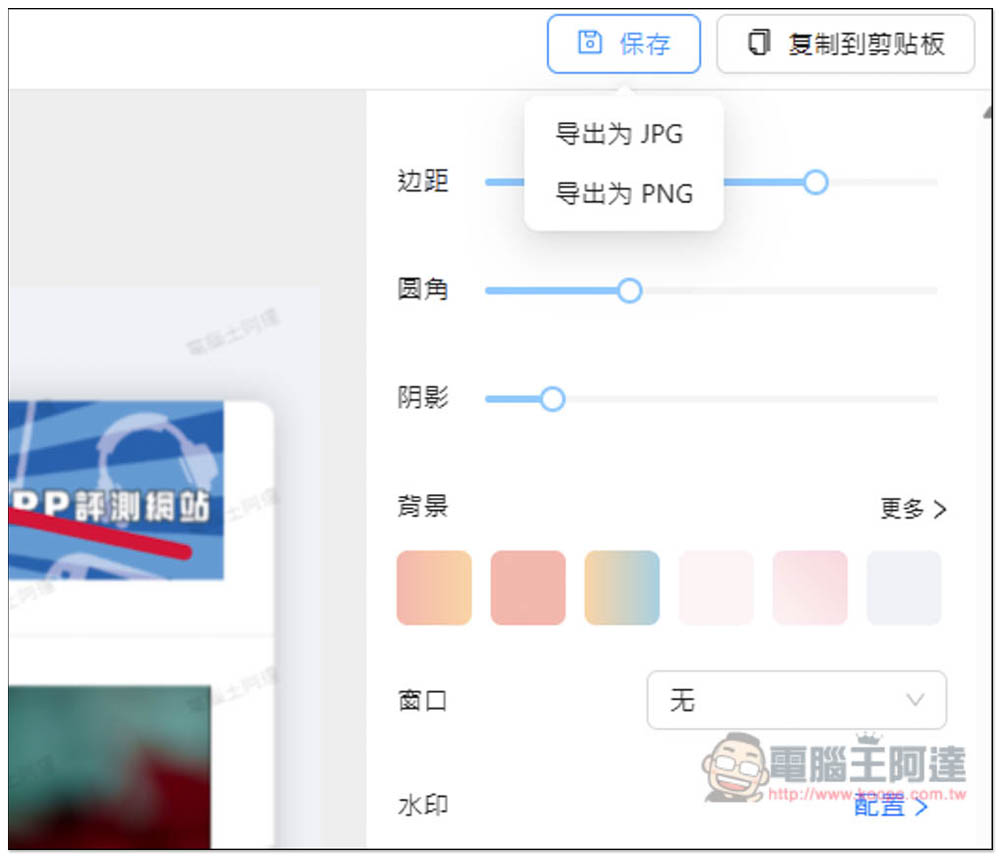
After reading the image, adjust the settings you want, such as the border size of the outer background, whether the screenshot should have rounded corners, and whether the screenshot and background should show shadows:
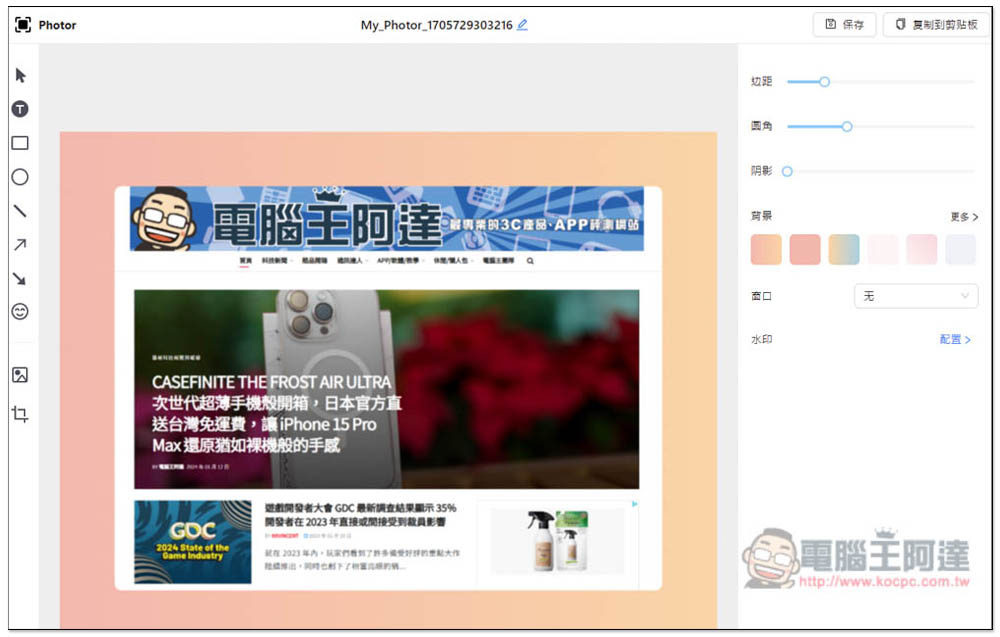
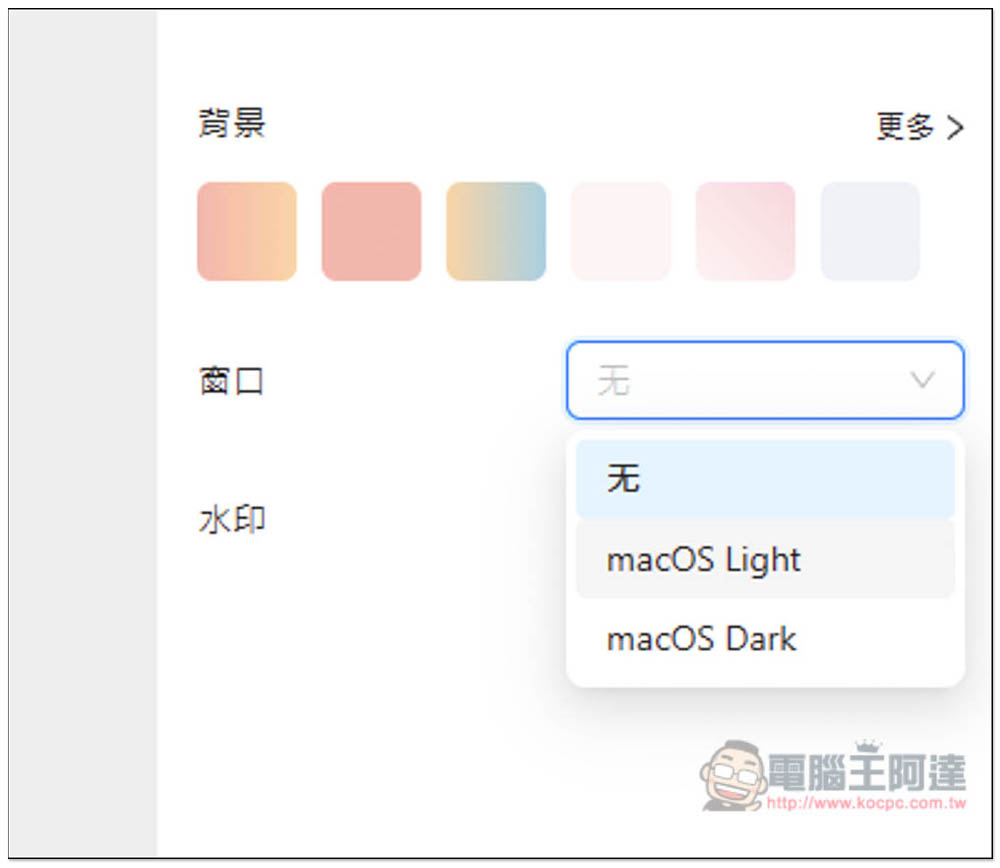
You can also add a window frame to the screenshot, there are two types: macOS Light and macOS Dark:
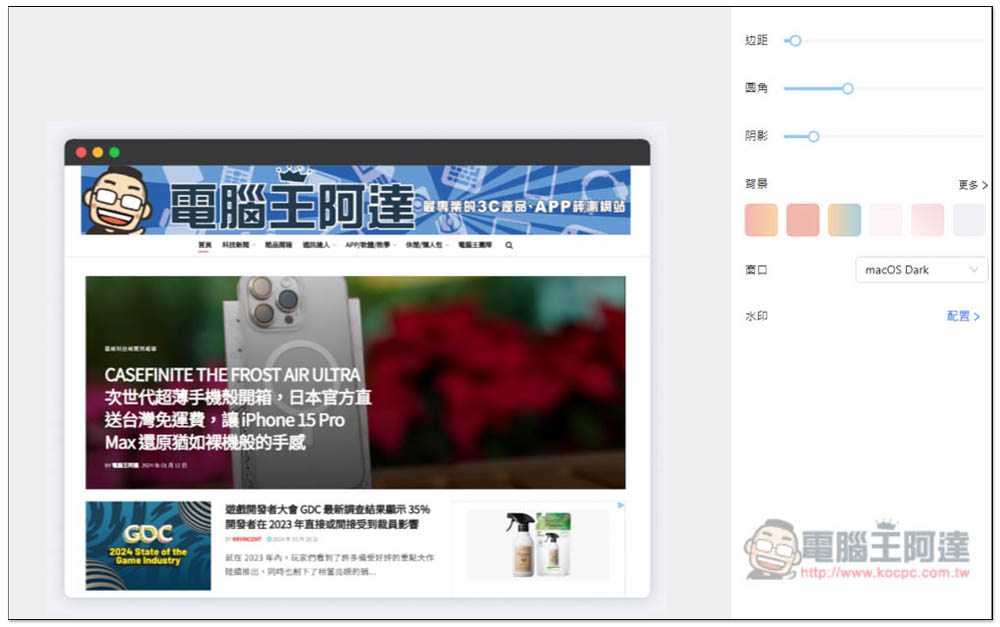
After adding the window frame, the texture is actually improved a lot. This is highly recommended for everyone to use:
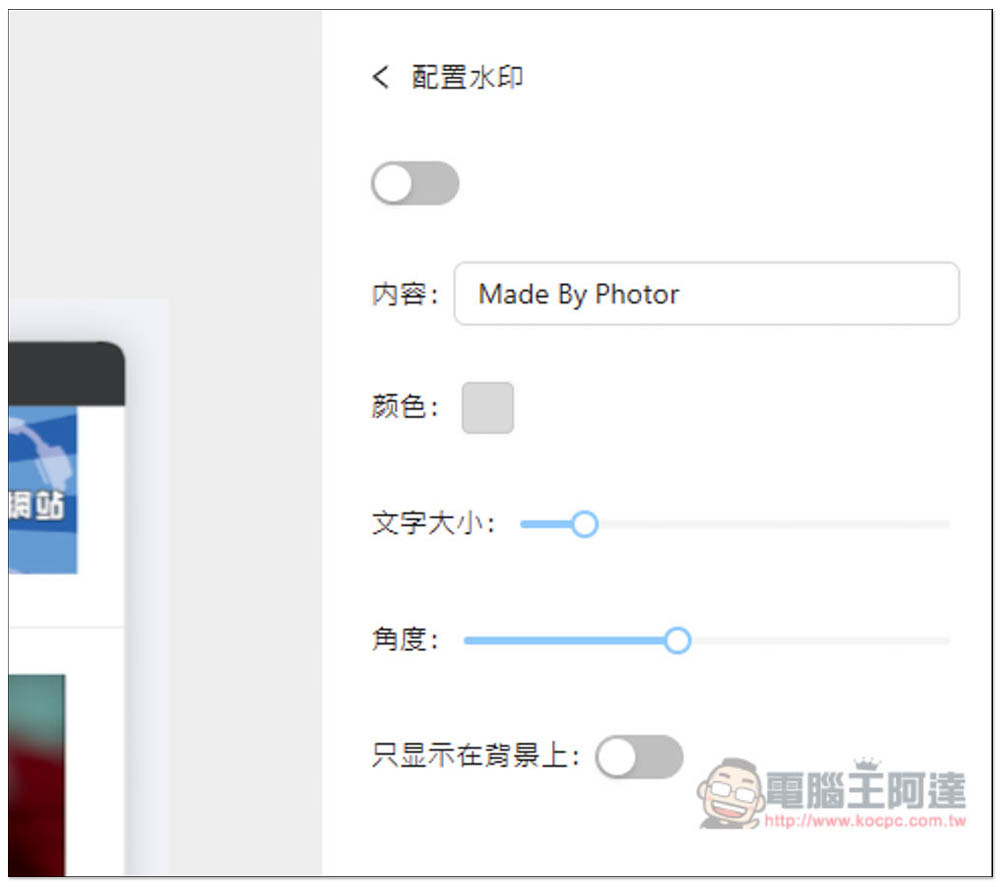
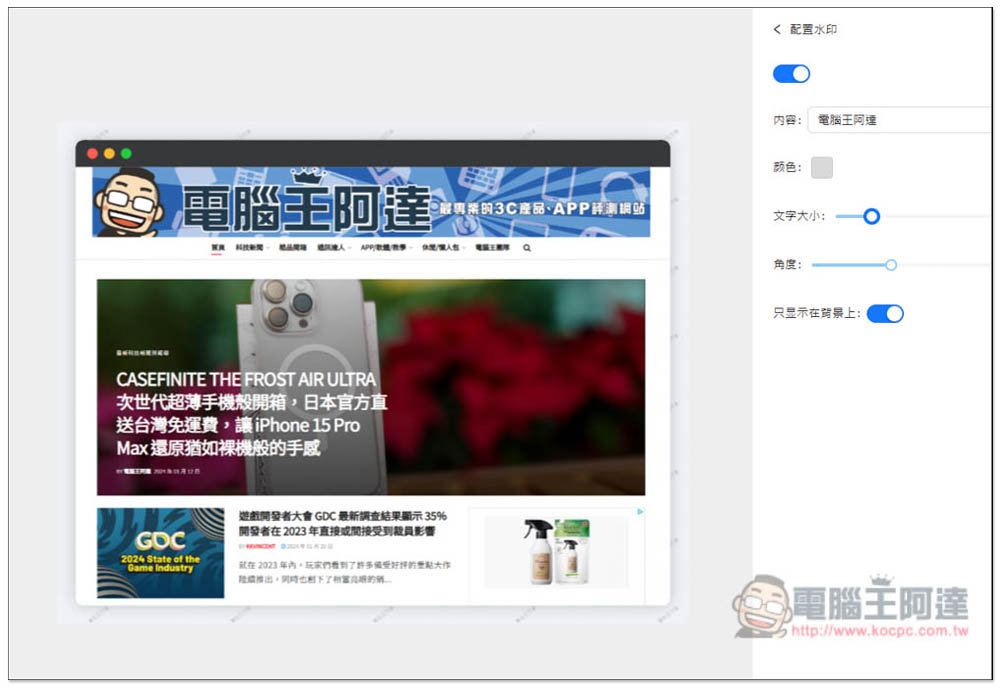
The watermark part currently only supports text. Enter the watermark text you want in the content box, such as your website name, and then select the color, text size, angle and whether to only display on the background:
After turning on the switch above the watermark, you will see a watermark appear on your screenshots. It’s a pity that there is currently only one watermark style:
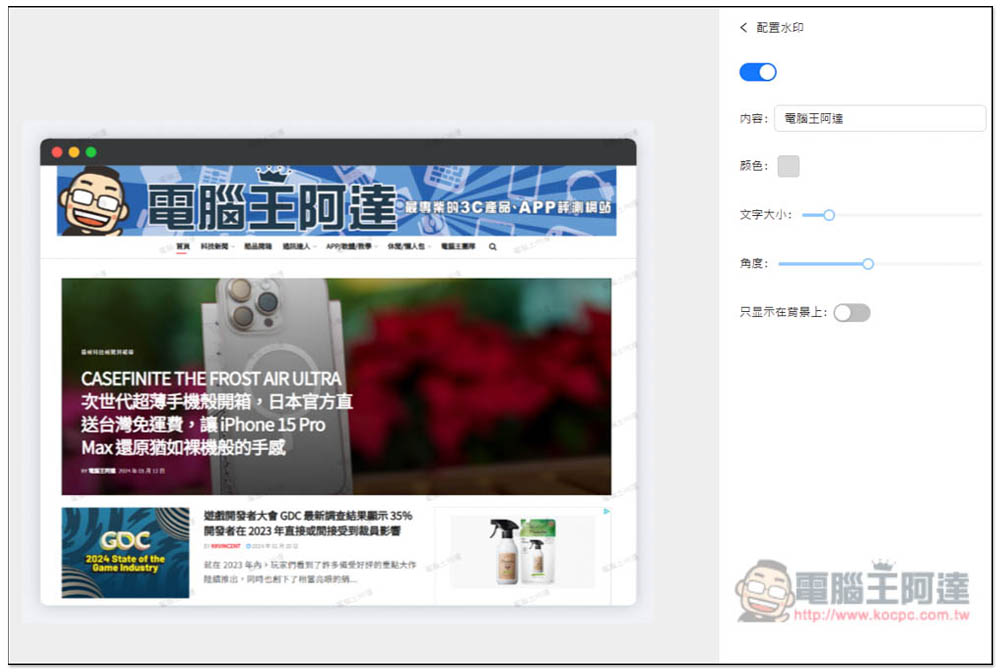
If you feel that there is too much watermark text on the screenshot, you can turn on “Only display on the background”, which will reduce it a lot:
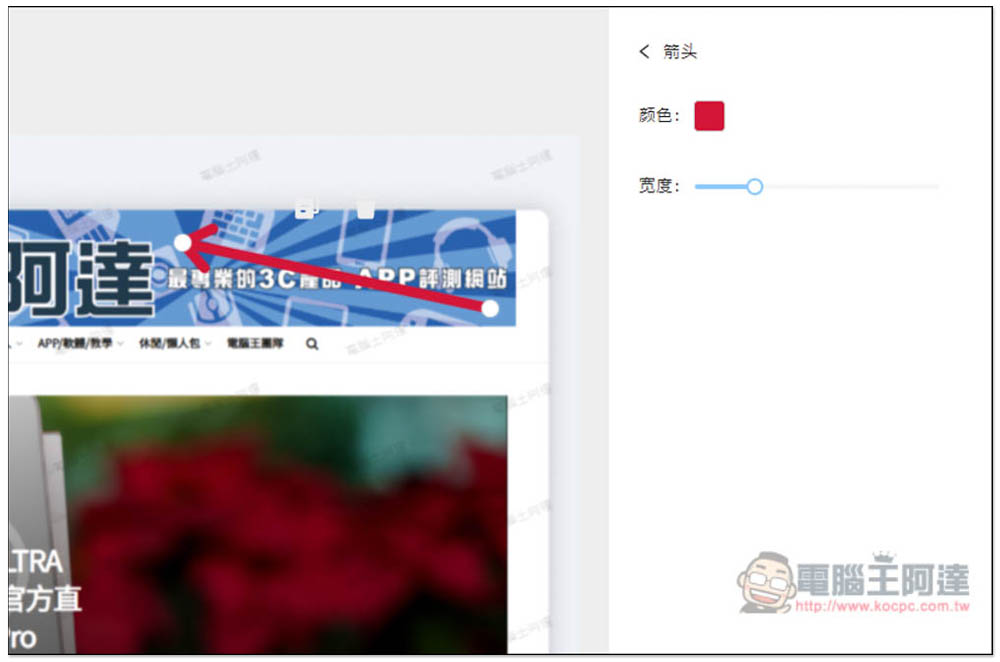
Then it depends on whether you need to add text, arrows, lines, etc. If necessary, these editing functions are located on the left, and the color and width can be modified:
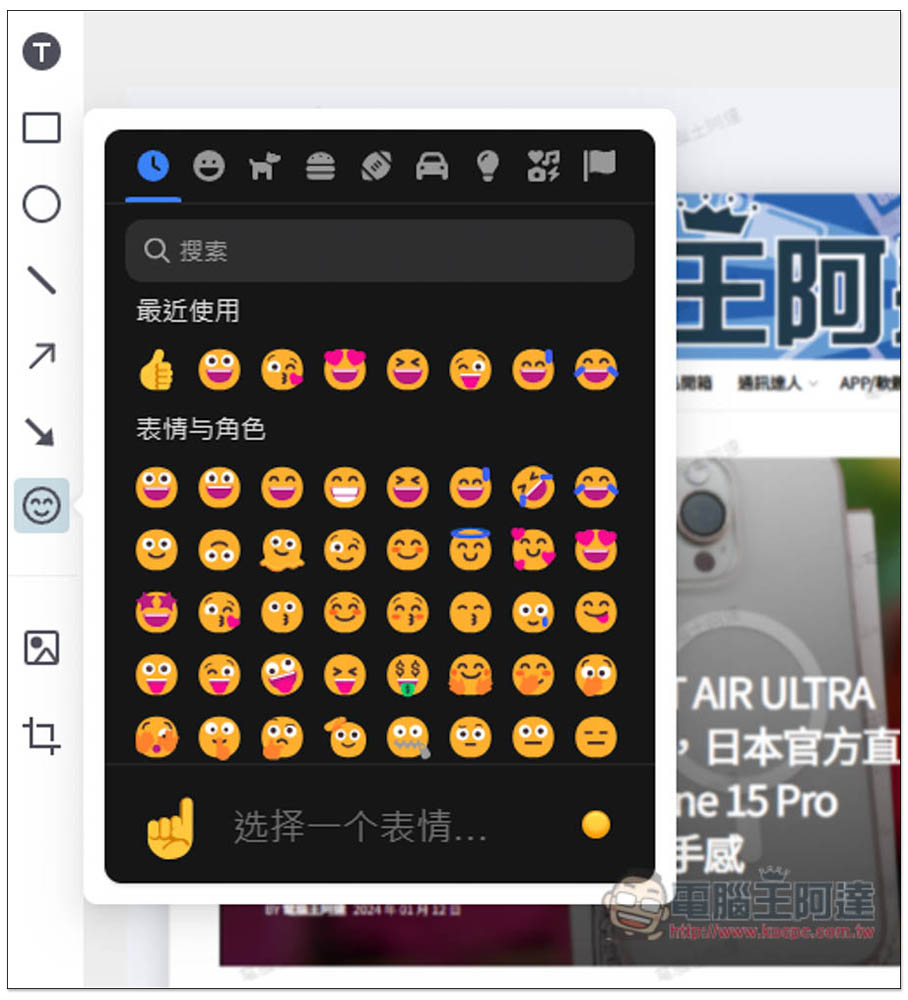
It even has Emoji, which is quite good. It’s rare to see online editing tools provide Emoji options. After adding Emoji to the screenshot, the picture immediately comes to life:
After everything is processed, click Save in the upper right corner to download it, available in JPG and PNG formats. In addition, the copy to clipboard function is also supported:
The picture below is a screenshot that I quickly post-produced using this Photor online tool. It is really easy to use and the whole process was completed in less than a minute. For those who often need to use screenshots, it is highly recommended to collect them:

In addition, I have also tested the extension functions provided by this product. Currently, it is only available in Chrome, but Edge can also be installed. Photor has been extended with a screenshot function. There are two options: “Region screenshot” and “Entire page”. The former allows you to manually select the range, but I don’t know if it’s because I use Edge. This function is stuck and often doesn’t work properly. “Entire page” is no problem. After taking the screenshot, you will automatically enter Photor’s post-production page.
According to the website description, all post-production actions are run in the browser, which means that the screenshots will not be uploaded to any server.
Source: KOCPC Chinese