


Compared with other platforms, it is more difficult to download YouTube videos on the iPhone. Many online tools cannot be downloaded through the browser. You need to use the built-in browser of an app such as Documents. This article will recommend a recently discovered free app called “YouTube Video Master”. It provides the function of downloading YouTube videos and converting them into music format. It is simple and easy to use. For iPhone users who want to download YouTube videos, it is highly recommended to try it.
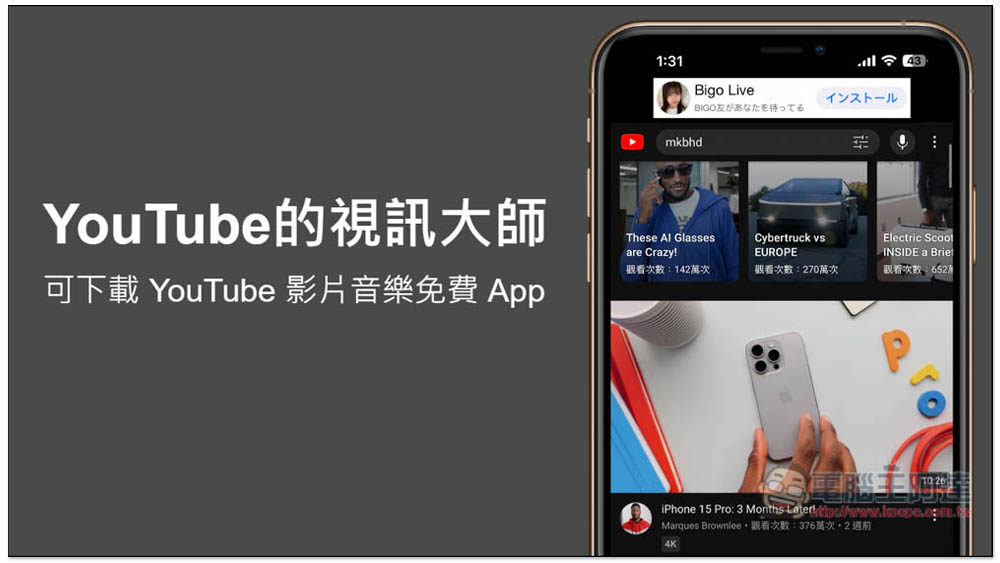
“YouTube Video Master” is a free iOS App that can download YouTube videos and music
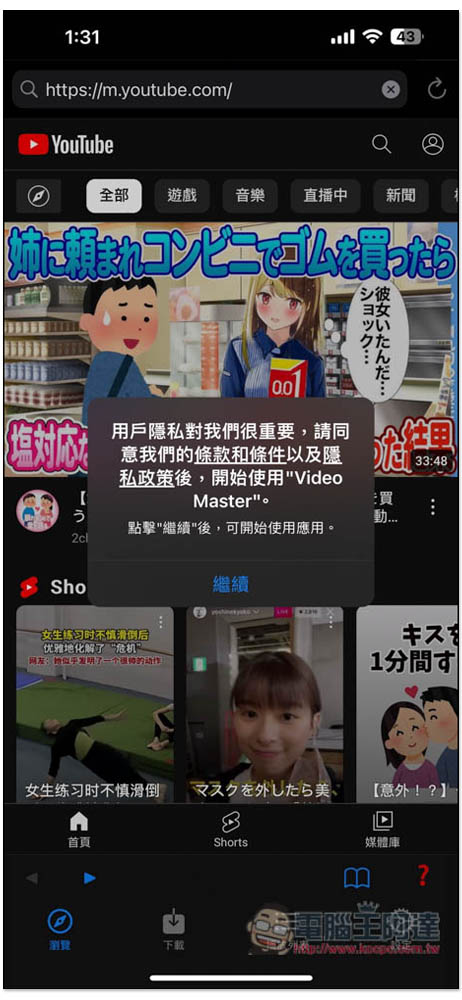
After opening the “YouTube Video Master” App, you will automatically enter the YouTube homepage. You can see the URL above, so this is also an App with a built-in browser. Then you can start looking for the YouTube videos you want to download:
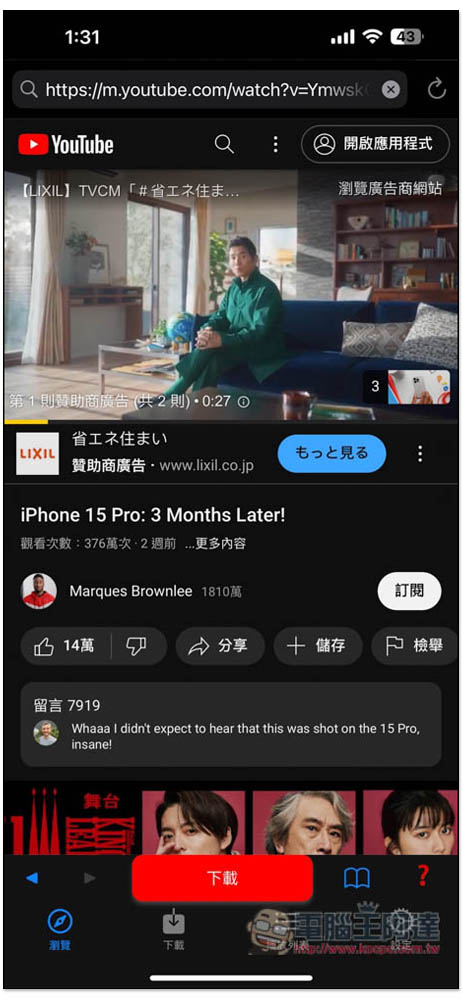
After entering the video playback interface, you will see a “Download” or “Load to Memory” function at the bottom. If there are advertisements when you play the video, remember to wait until the advertisement ends before clicking. After clicking, the download will start. The download speed is very fast and completes in an instant:
After entering the download menu, you can find the video you just downloaded and click to play it. In addition, there is an i icon on the right, where you can find icons for converting to music format and sharing:
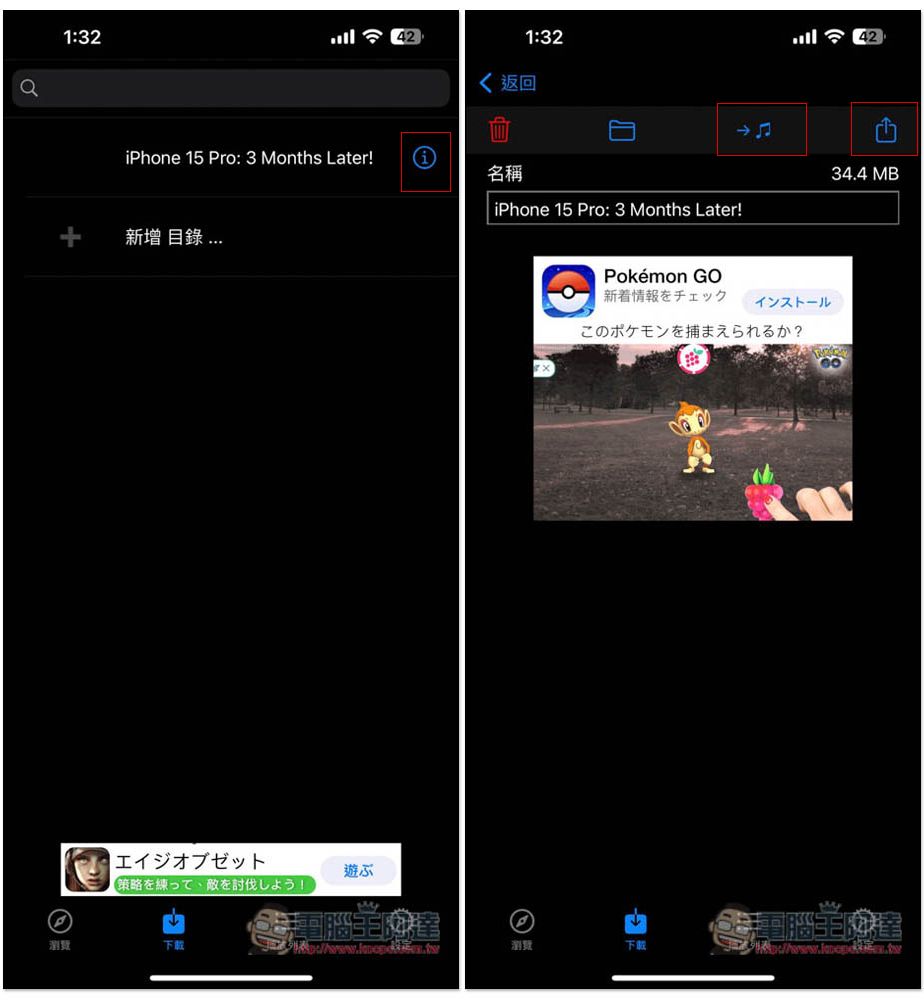
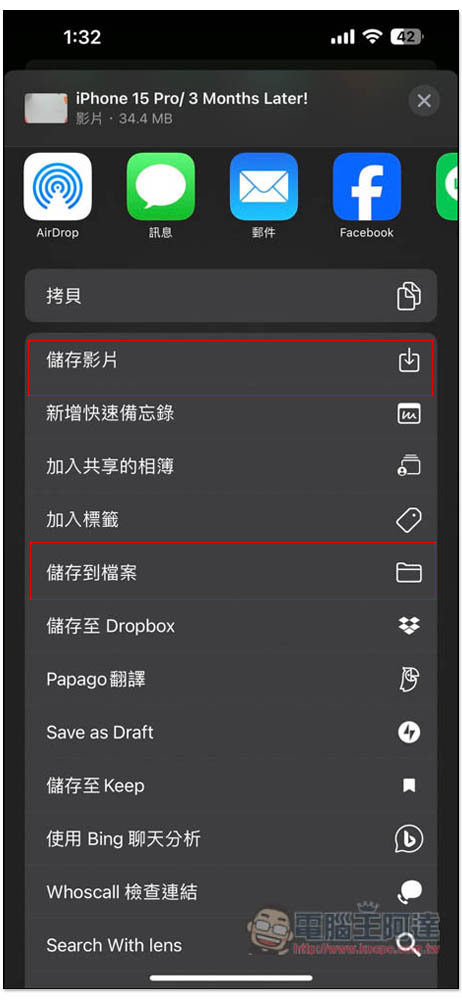
You can find the “Save Video” and “Save to File” functions in the sharing icon. If you need it, there is no special need, just look at it directly in this App:
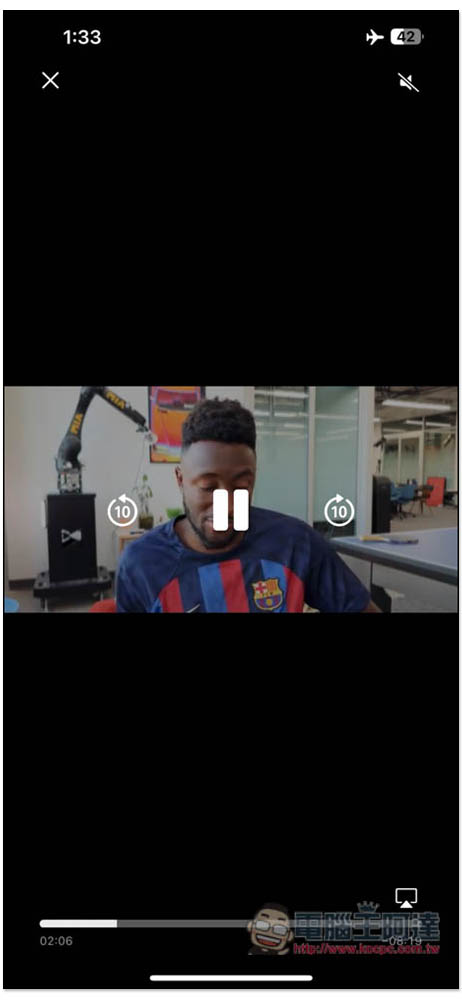
I actually tested that by enabling airplane mode and turning off the WIFI function, the downloaded videos can indeed be watched offline:
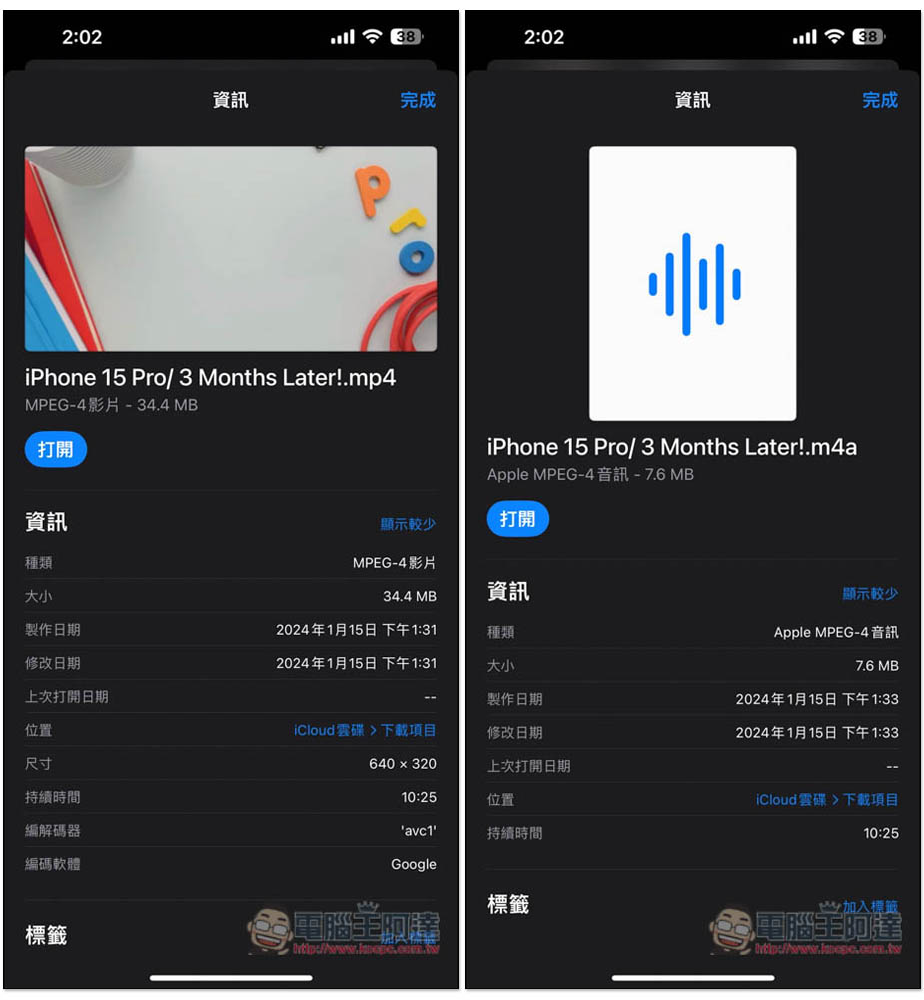
It is worth noting that although the format of the video downloaded by this app is MP4, the resolution is only 640×320, which is fine for viewing on a mobile phone, but is a bit small when viewed on a large screen. Currently it seems that only this resolution is provided and there is no way to change it. In addition, the format of the music part is m4a, not MP3, so those who need MP3 must use other conversion software to convert:
There is a background playback function in the settings. I originally thought it could be played directly in the background, but after testing it was not the case. There is no way to play in the background. You must create a playlist to play in the background. The playlist function only supports downloaded content, which means you need to download the content you want to listen to first, and then add it to the playlist before it can be played in the background:
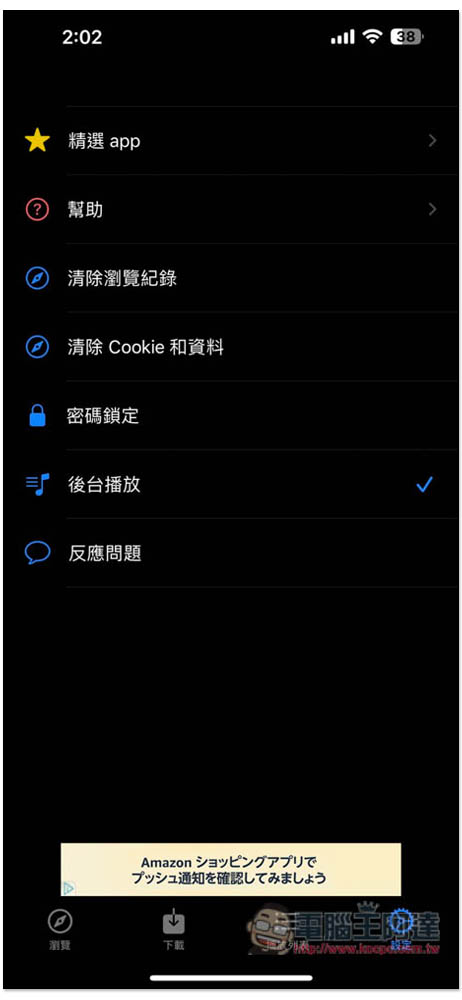
If you don’t want other people to open this app, you can set the “password lock” function.
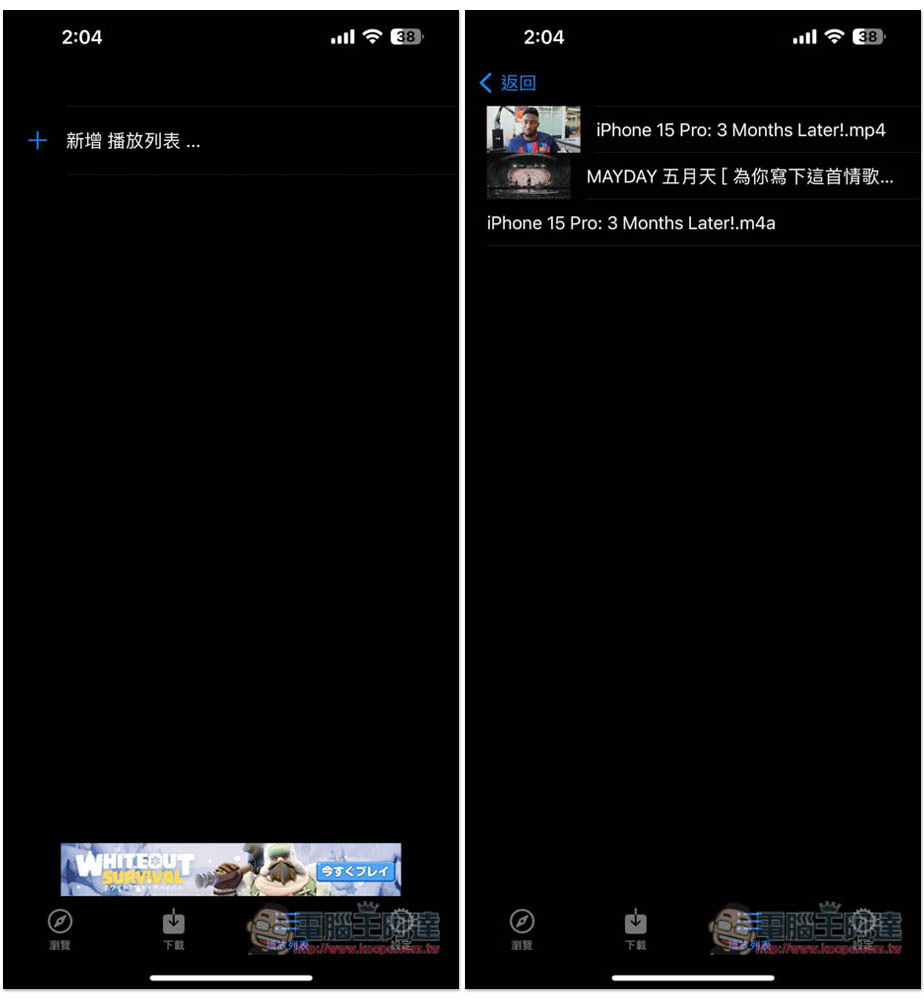
The third toolbar at the bottom is the playlist. You can create multiple playlists and mix videos and music:
Finally, I would like to remind you that I am not sure whether the download function of this App can be used in the long term, because logically speaking, this type of App cannot pass the App Store review and be put on the shelves, so if it fails when you use it, it may be banned by Apple.
There is also a “record music” function in the App introduction, but I can’t find it. I’m not sure where it is. Those who need it can try it themselves:
1. Record your music.
2. Go to the File tab and select “Import”.
3. Download from cloud service, or import from camera roll.
4. Click the “i” button.
5. Insert audio.
Source: KOCPC Chinese