


Adobe Acrobat can be said to be one of the most popular PDF software today, but it only has a subscription system, so you need to pay every month, which is actually a lot of money in the long run. In fact, there are better alternatives, which is the “Dinan PDF Professional Edition” recommended in this article. The price is not only cheaper than Adobe, but also provides a permanent license plan, which can be used for life after paying once. More importantly, it is not inferior to Adobe at all, and is even better to use. It has quite comprehensive functions, including signing, editing, marking encrypted text, etc. The operation interface is also easy to use, and it also has a built-in conversion function that can convert PDF to Office and other formats.
If you are looking for an easy-to-use PDF software, DiNan PDF Professional Edition cannot be missed. Let’s share our review experience below.
Apply for a one-month free trial (limited to 200 copies)
PDF Bundentsu Professional Edition free 14-day trial download link
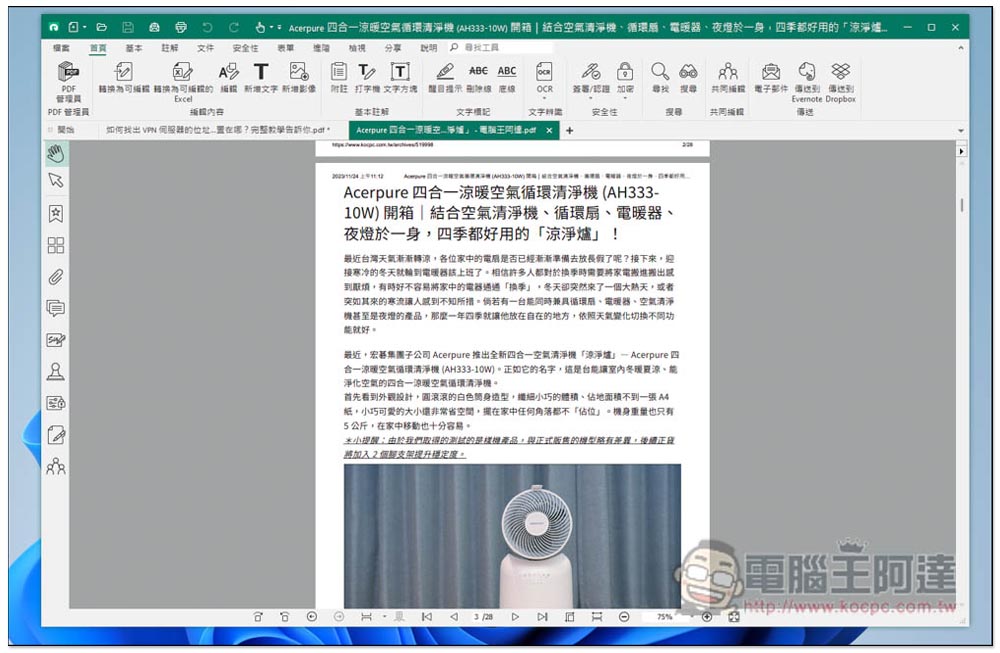
Di Nan PDF Introduction to Wendentong
Di Nan PDF Wendentong may be a little unfamiliar to some people, so here is a quick introduction to the background.
This PDF software was developed by Taiwan’s DiNan Company. The company was founded in 1989 and has a long history. It was also the first company in the Asia-Pacific region to get involved in PDF technology.
The predecessor of Bundentsu was DocuCom 1.0, which was launched in 1995, nearly 30 years ago. “Bundentsu” is a brand new brand founded by Di Nan in 2005, replacing the previous DocuCom. The English brand name is Gaaiho, which means “Hello” in the Ami people.
With the evolution of the times, the functions of PDF Bundentsu have become more and more powerful. Not only did it enter the mobile version era as early as 2013, but Bundentsu 4 in 2016 introduced the OCR function, and Bundentsu 5 also redesigned the entire operating interface to make the software easier to use.
Now the latest version is Bundentsu 6, launched in May 2022. In addition, with the launch of Bundentsu 6, Di Nan also changed the English name to Right PDF instead of using Gaaiho. This is actually a good thing. Although the Amis language has a Taiwanese flavor, it is still difficult for foreigners to pronounce. Right PDF is easier to remember.
Sharing of three useful functions of DiNan PDF Wendentong Professional Edition
The operating interface of DiNan PDF Pro is somewhat similar to that of the Microsoft Office series, so it is very easy to use, especially for people who frequently use Office software. The built-in functions are very rich. Basically, it has all the PDF functions you need. Below I will share 3 functions that I often use.
Easily edit PDF files with one click and add annotations to key points
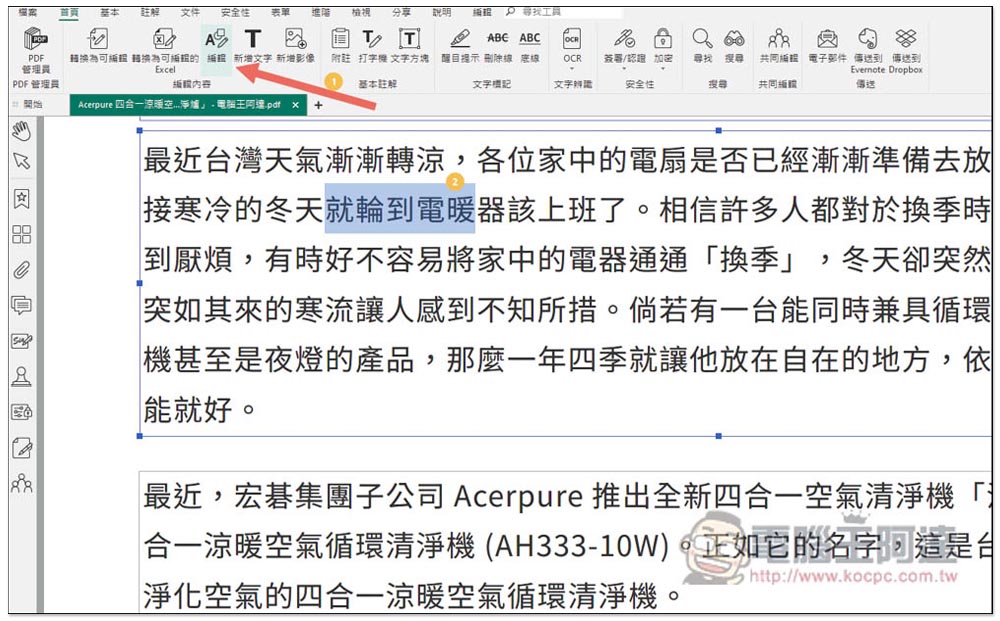
PDF editing is one of the most commonly used functions when using PDF software, so making it easy to edit is something I attach great importance to. I have to say that Bundentong is really simple and easy to use. After opening the PDF you want to edit, click the edit function above, and each large section of PDF text will become editable. Then you can modify the text or add content at the specified location:
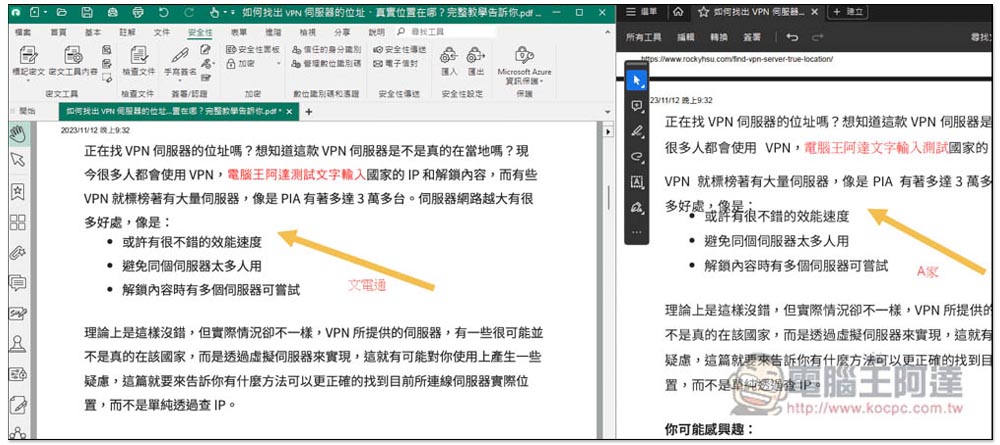
It’s no problem to change text color, resize, bold or italicize, etc., just like editing ordinary documents such as Word, Notepad, etc. When modifying or adding new text, the font will be as consistent as possible with the original PDF:
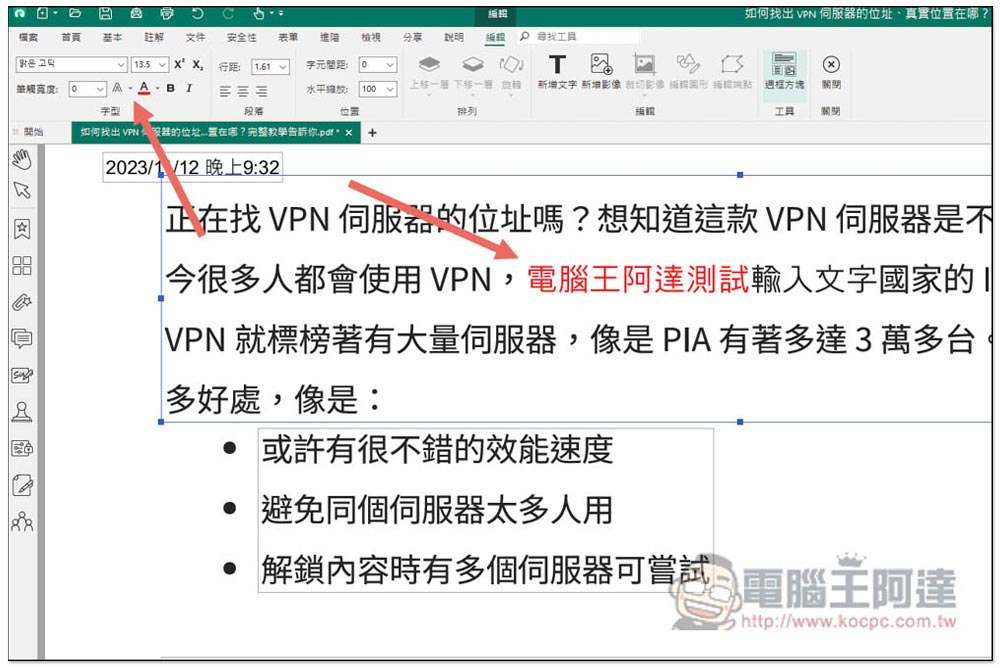
I have used PDF software from other companies in the past. After editing, the text fonts will be very different from the original ones. The difference can be seen at a glance. After the PDF file is completely modified, it will become very difficult to read because the fonts keep changing.
Here is a very obvious comparison. On the left is Bundentsu, and on the right is Adobe Acrobat, which is used by many people. Bundentsu is obviously much better. Adobe will lose formatting after adding text, but Bundentsu will not:
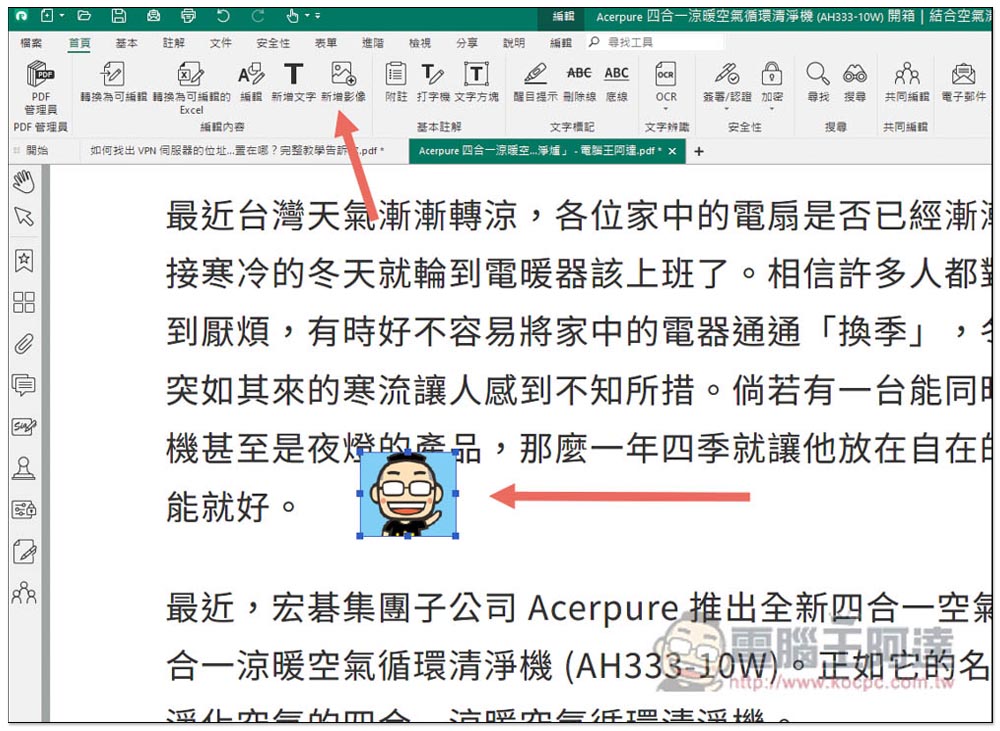
You can also add new text or images to any block of the PDF, and the image position can be moved and resized arbitrarily. This is very convenient for me. I can easily add the places I need to add to the manufacturer or special instructions in any article position:
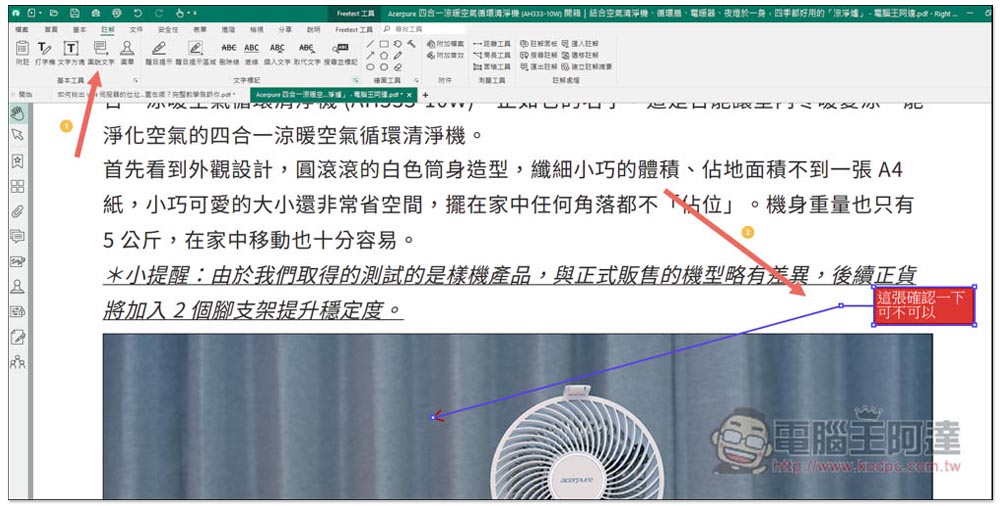
In addition, in order to let the other party know more clearly which picture I am explaining, I will also add auxiliary explanations. Bundentong has a built-in “picture text” that is very useful. You can create “square text areas and arrows” with one click, which saves a lot of trouble. You don’t have to spend time drawing arrows there:
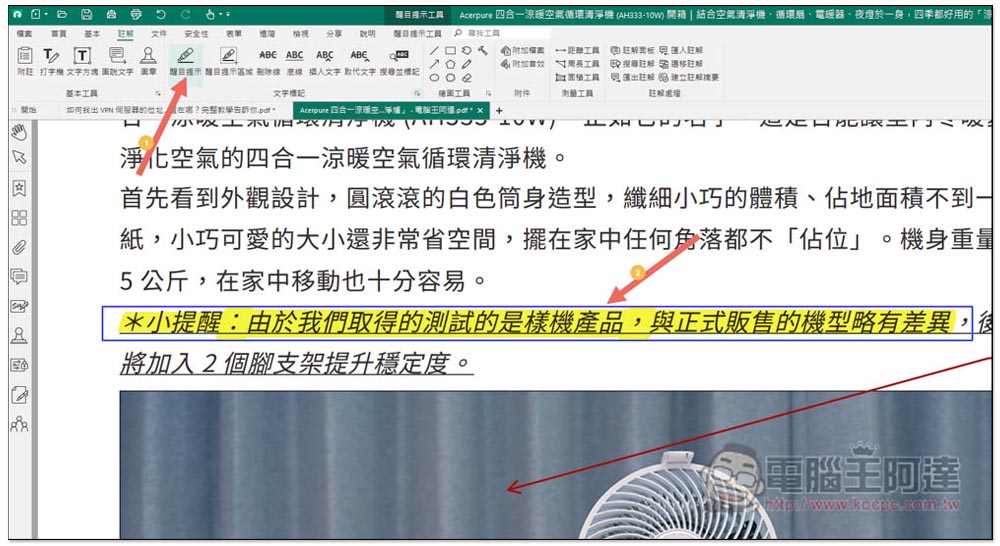
When I need to emphasize the key points of a certain paragraph of content, I will use the “eye-catching reminder” function in the annotation to draw it, similar to the effect of a highlighter pen:
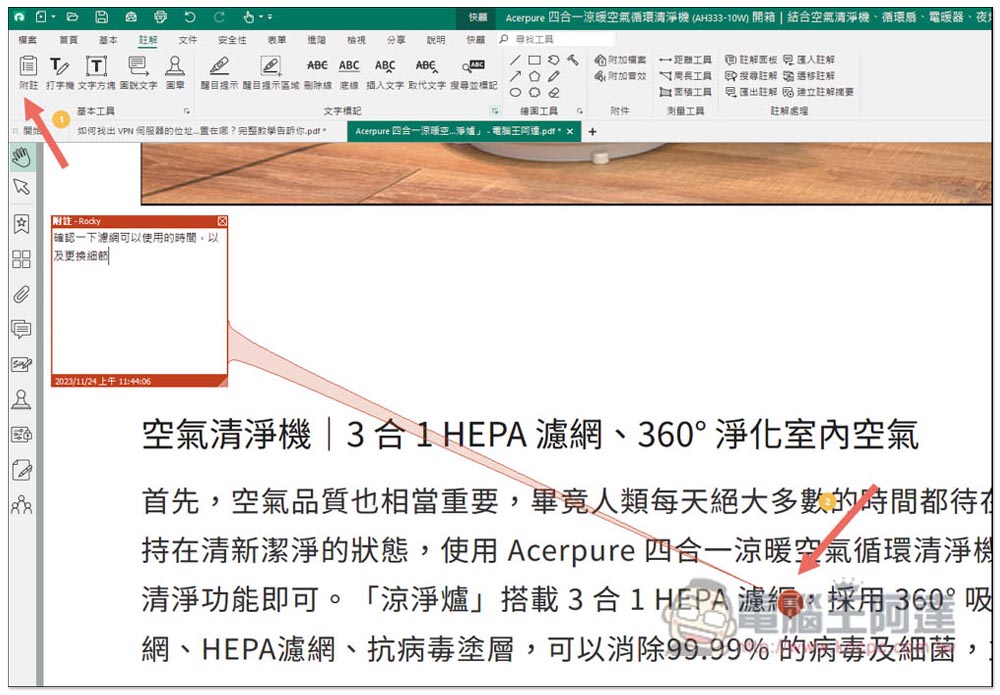
The “Notes” function is also very useful. Click on the place where you need to add a note, and an icon will appear in that place. When the cursor stays above, there will be a track next to it to guide you to the text note. You can clearly know what to pay attention to here, or how to modify it. This is also commonly used in my articles with manufacturers:
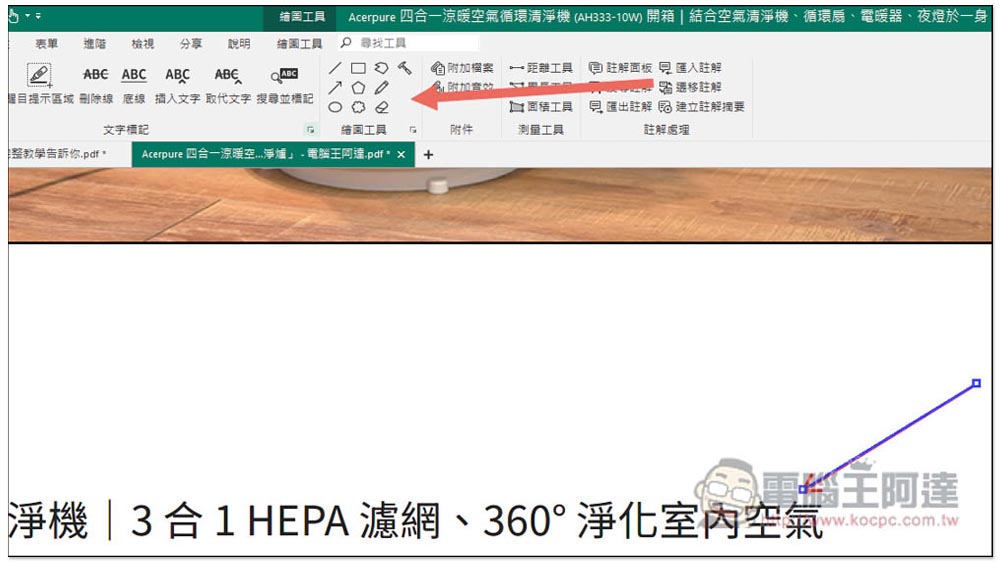
Various drawing tools are also provided, including arrows, lines, squares, circles, etc.:
The signature function not only supports handwriting, but also supports digital identification codes
Signing is also a PDF function that I often use. It is required when contacting manufacturers for quotations. This function is also quite comprehensive. Whether it is a general “handwritten signature” or a certified “digital identification code”, it is provided, so I can use it at any time according to my needs.
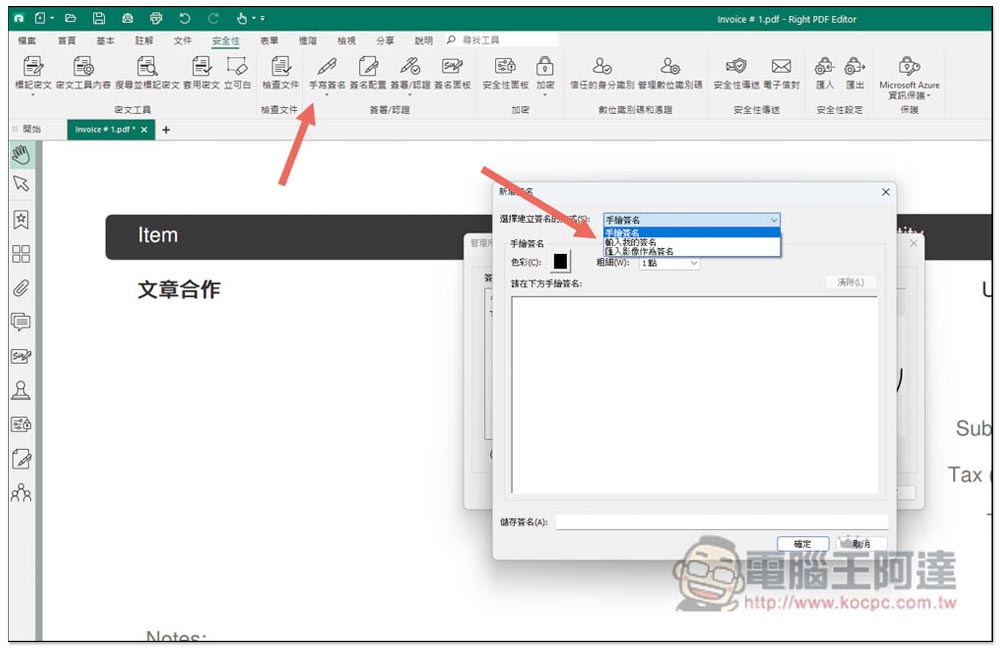
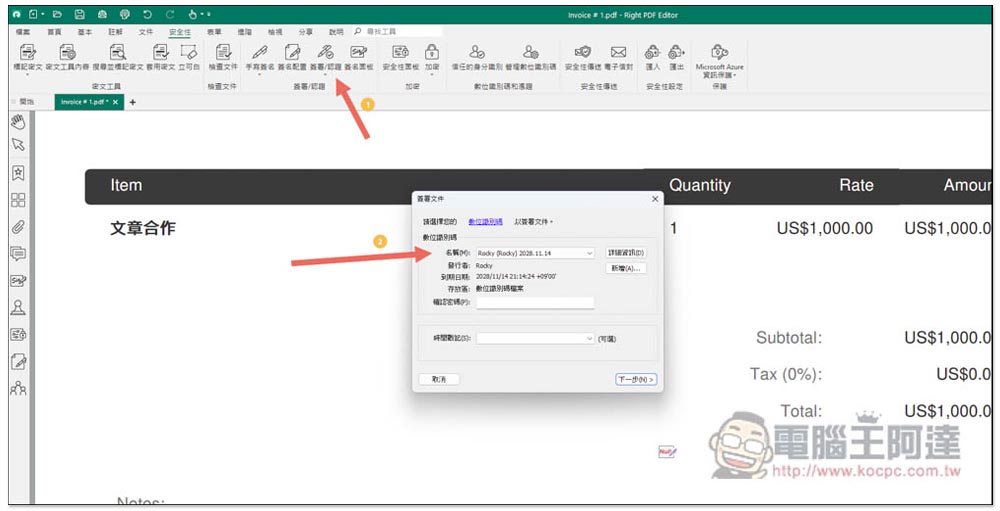
Enter the security menu to find the “Signature/Authentication” option. There are three ways to sign a handwritten signature: “Hand Drawing, Input, Image”. Multiple signatures can be created:
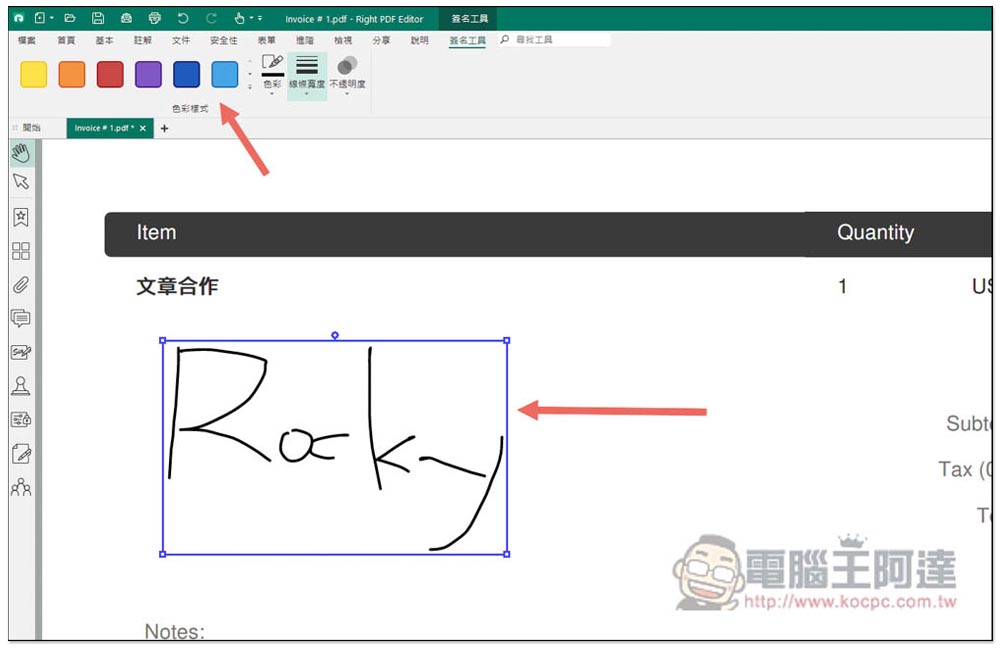
When you want to use it in the future, after drawing the location where you want to place it, the signature will appear and can be freely moved to any position, as shown in the figure below. If it is a hand-drawn or entered signature, the color, line width, and transparency can be modified:
If the digital identification code has been created before, you should be able to find it when you open it. If it does not appear, you can import it yourself. If you have not created one before, click Add to create a digital identification code with a certificate:
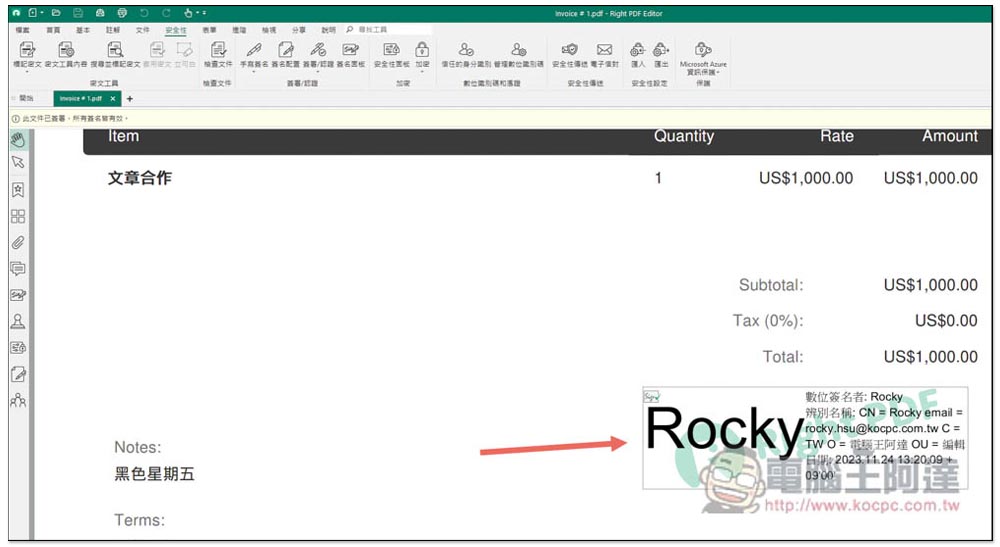
After signing, it will look like this, with the Right PDF logo stamped on it:
Built-in conversion function, Office, image, TXT and other formats are supported
This is pretty good, one software can meet all your PDF needs. Many people may be like me and sometimes need to use PDF conversion. Although there are many free tools on the Internet, if it is a more important PDF file, online tools are not suitable. With the professional version of Bundentsu, you can not only edit, sign, and read, but also convert files.
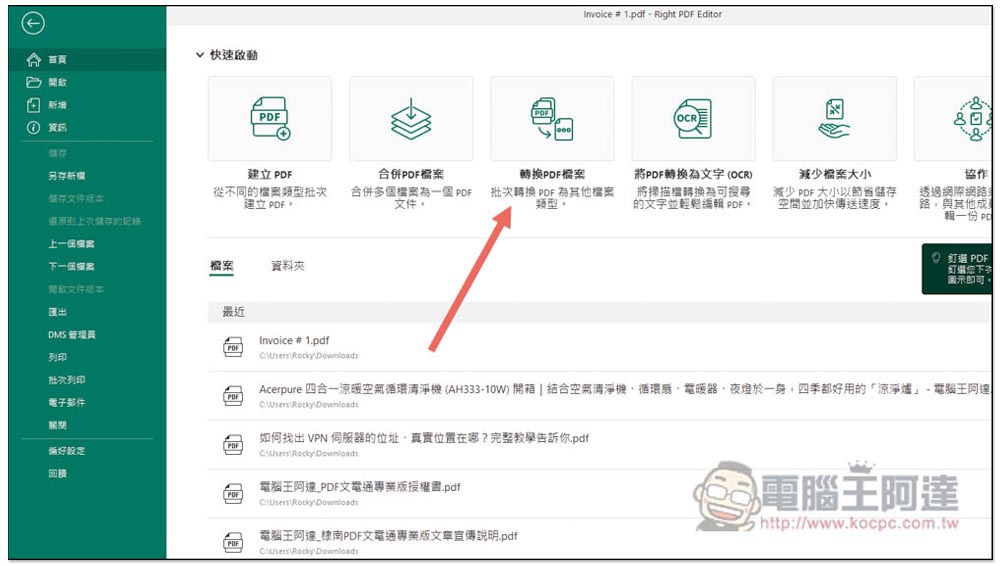
After opening the Bundentsu software, you can find “Convert PDF Files” at the top of the homepage block. There are also useful functions such as PDF merging and weight loss:
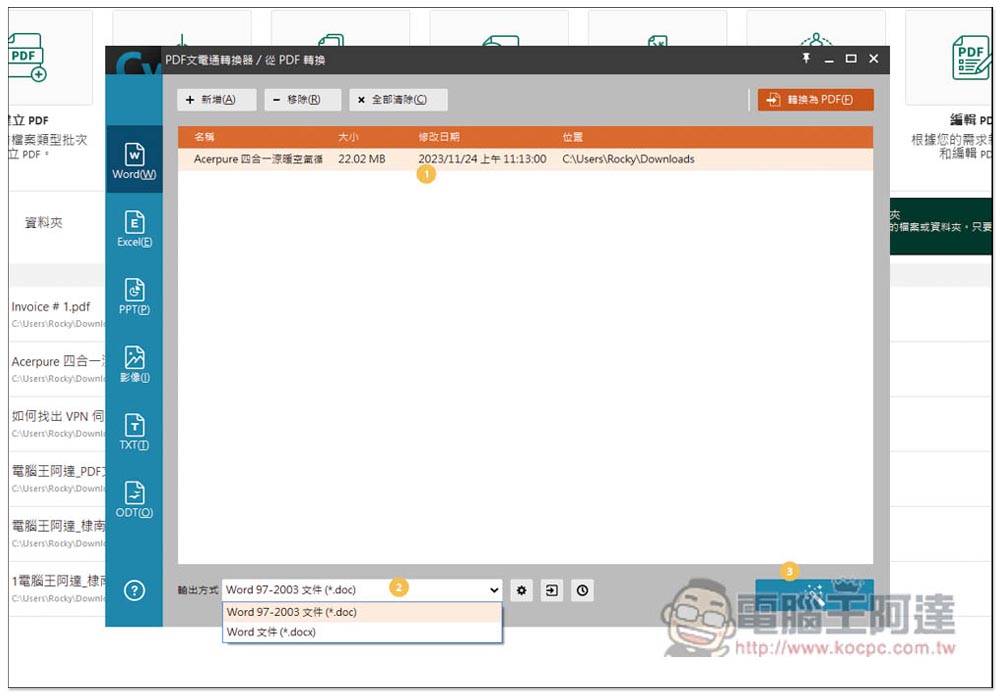
Supported formats include converting to Word, Excel, PPT, video, TXT and ODT. Commonly used formats are available, and the operation is very simple. After selecting the PDF file to be converted, confirm the desired output method, such as: Word can choose .doc and .docx, and then look at the magic wand icon in the lower right corner, and the conversion will begin. Conversion speed is very fast:
It also provides some file settings, such as whether to convert images, fonts, etc. If there are no special needs, there is no need to adjust, just use the defaults:
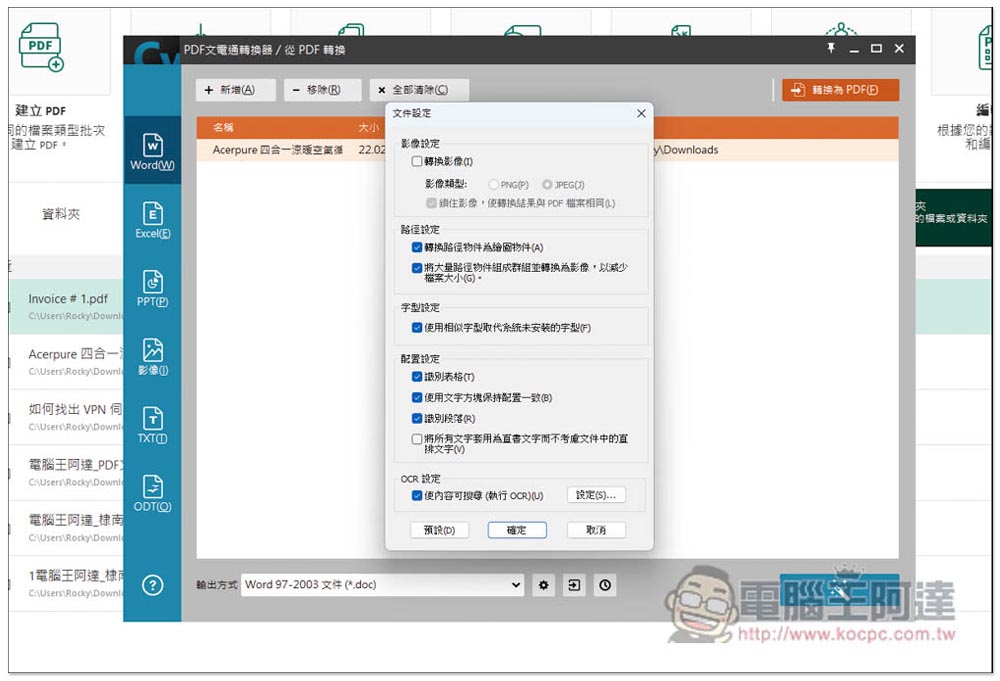
And the conversion quality is also very amazing, much better than I expected. Not only can most of the layout be kept the same as the PDF file, but also the ligatures. It will find the fonts in the computer that are similar to the original PDF file. It is not just using any one. It is much better than Adobe (the left side of the picture below is converted to Word, and the right side is the original PDF file):
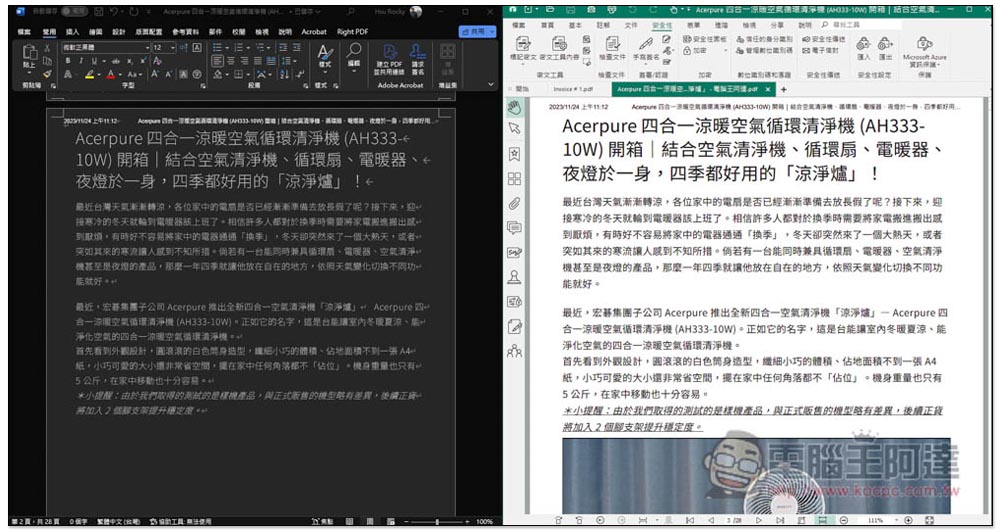
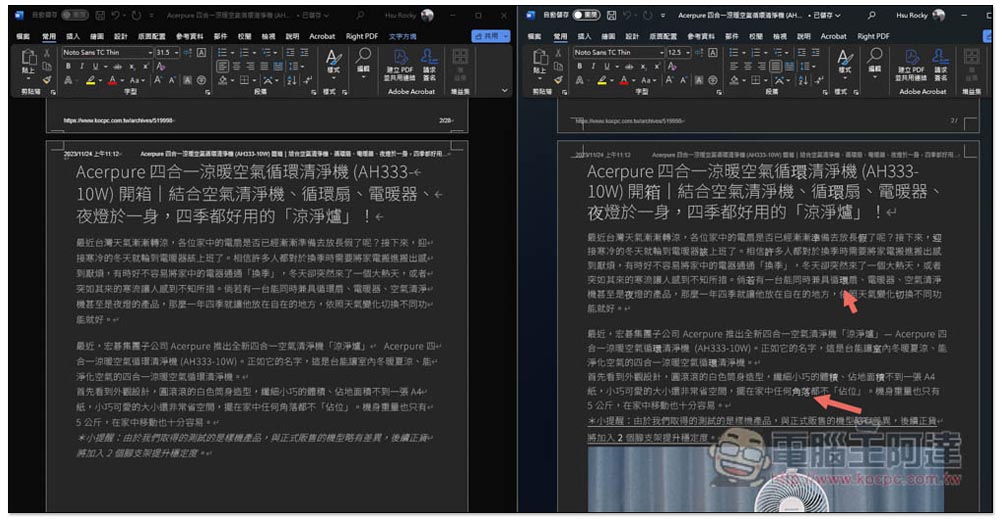
The same paragraph was converted by Bundentsu Professional Edition on the left and Adobe Acrobat on the right. Adobe Acrobat’s fonts will change:
As for the pictures in the article, I would recommend using the method of saving all the pictures in PDF with one click instead of converting, because the effect will be better and the picture files can also be obtained. Next, I will quickly share a few small functions that are also quite practical.
Other useful functions
Save all image files in PDF with one click
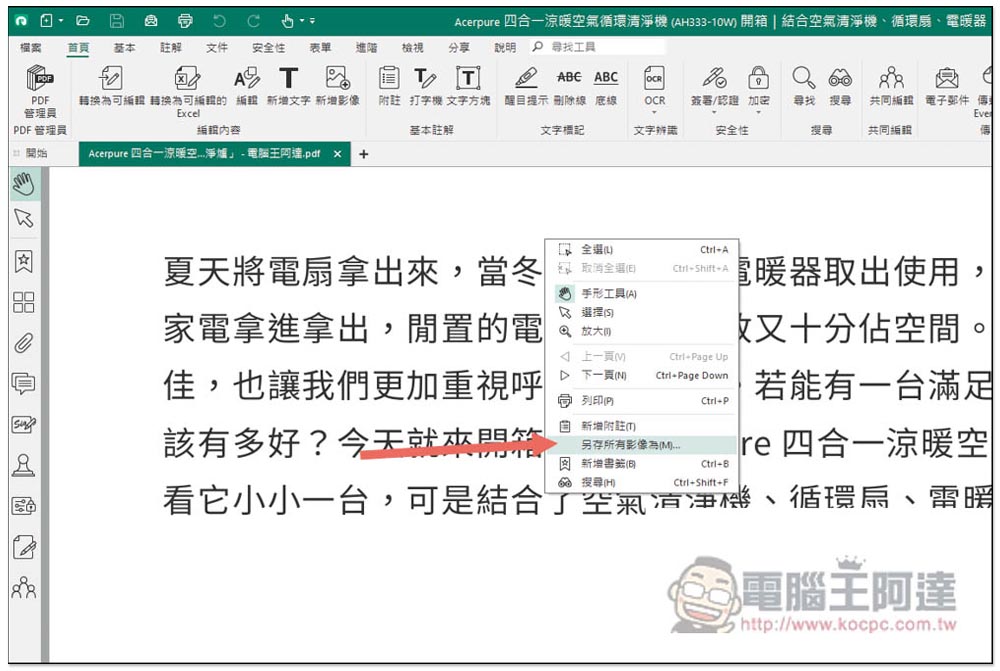
When you need to use images in PDF, open the right-click menu anywhere and you will find the “Save All Images As” function. It supports BMP, JPG and TIFF formats, and the saved image files are large:
mark ciphertext
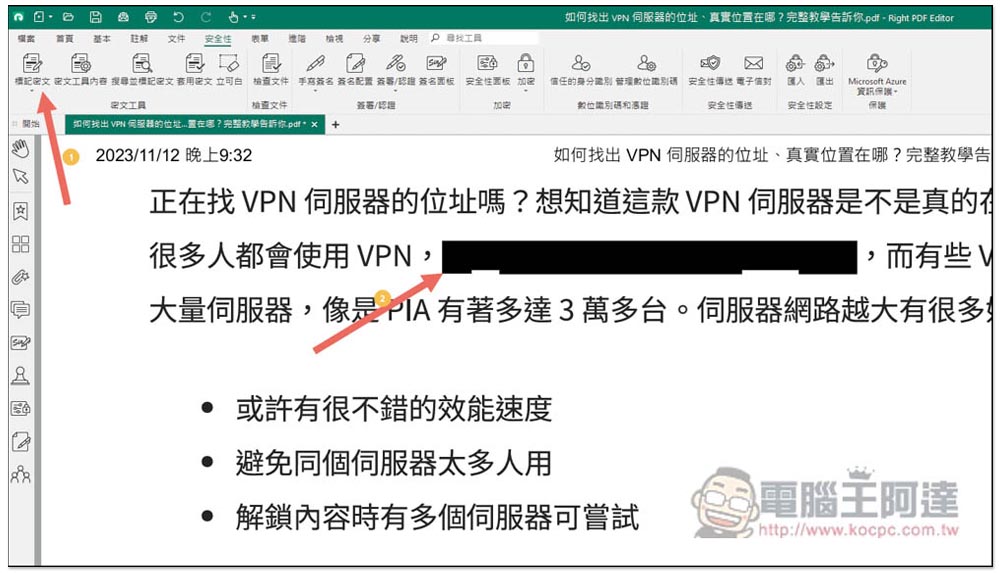
When editing a PDF, if you want to delete important sensitive information, such as names, numbers, etc., some people may directly cover it with black squares. This method is actually not safe because it only visually blocks it, but the blocked area can actually be copied. It is recommended to use the “Mark Cipher Text” function. Not only is it much simpler than editing or using black squares, it will truly “permanently delete” this sensitive information and no one can recover it. Click on the marked red text in the upper left corner, then select the content you want to delete and click Apply. The content will be permanently deleted and turned black:
PDF manager
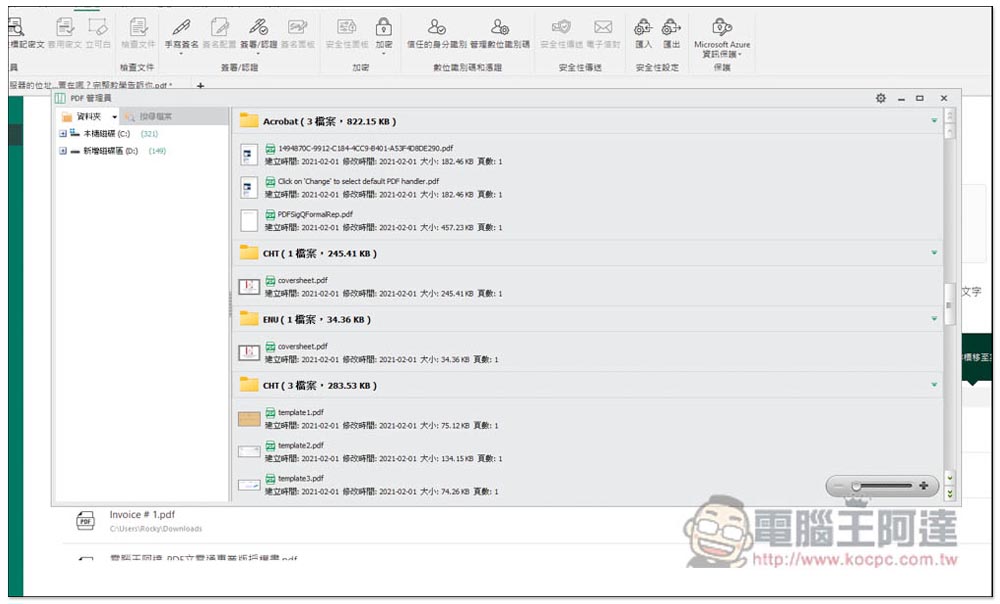
For those who have a lot of PDF files on their computer, they will probably like the PDF manager function, which can scan PDF files on their computer with one click. Not only can they quickly find the PDF files they want to edit, but they can also manage PDF files in this operation interface, such as moving locations, deleting, copying, renaming, etc. It also supports search function, you can enter keywords to find PDF files:
The official PDFhome teaching website provides ultra-complete functional teaching videos
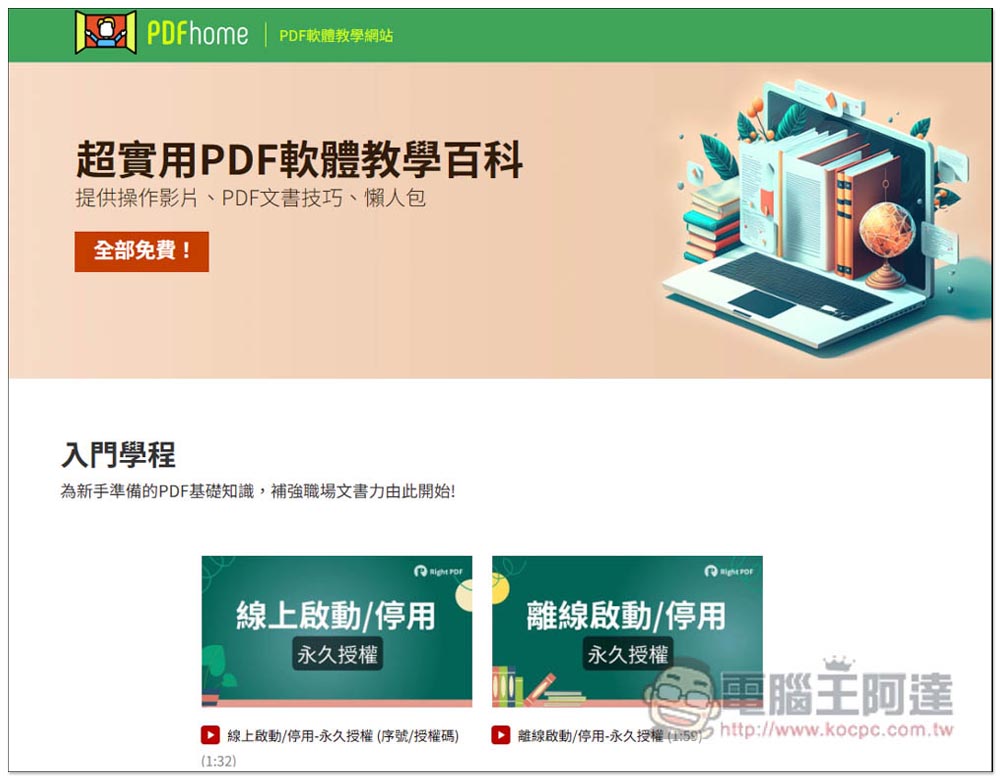
DiNan PDF Professional Edition has many functions. In order to allow users to quickly get started and understand how to use each function, a “Official PDFhome teaching website”, not only are all the teachings presented in Chinese videos, but there are also complete categories, such as introductory courses, format conversion, PDF editing, annotation and review, etc. I really think this website is great.
Many PDF software have support areas, but most of them are presented in the form of text, and it is a question and answer kind. You have to search slowly by yourself, and often you may not find the answer you want.
As for Di Nan, “Official PDFhome teaching website” You can quickly find the part you want to know. For example, if I want to know how to use text markers, I click on the tutorial video of text markers and learn the relevant operating skills at once. In addition, compared with text, videos can clearly explain each operation step, making it much easier to learn.
DiNan should be the only one of all the PDF software I have used that provides such a complete tutorial.
DiNan PDF Professional Edition vs Adobe Acrobat
If you are currently using Adobe Acrobat, or are considering getting it, the following are the advantages of PDF Bundentsu Professional Edition compared with Adobe Acrobat:
- Have PDF manager
- The text recognition ability is better, and the layout is less likely to run away.
- Shifting speed is much faster
- Easy-to-use Microsoft Office interface
- Supports multiple people on the Internet or local area network to edit a document together
- Protect PDF files with Microsoft Azure Information Protection (AIP)
- Multiple commonly used signature, authentication and encryption schemes can be established
- There is a lifetime version
The lifetime version can be said to be a very big advantage of PDF Bundentsu Professional Edition. Adobe Acrobat only has a subscription version, and the monthly price is NT$641, which means it will cost NT$7,692 a year. The “Lifetime Plan” of PDF Bundentsu Professional Edition only costs NT$5,800, which is a lot less than Adobe. Moreover, if you buy multiple sets of the lifetime plan at a time, the price will be cheaper.
Di Nan PDF Wendentong Professional Edition Price
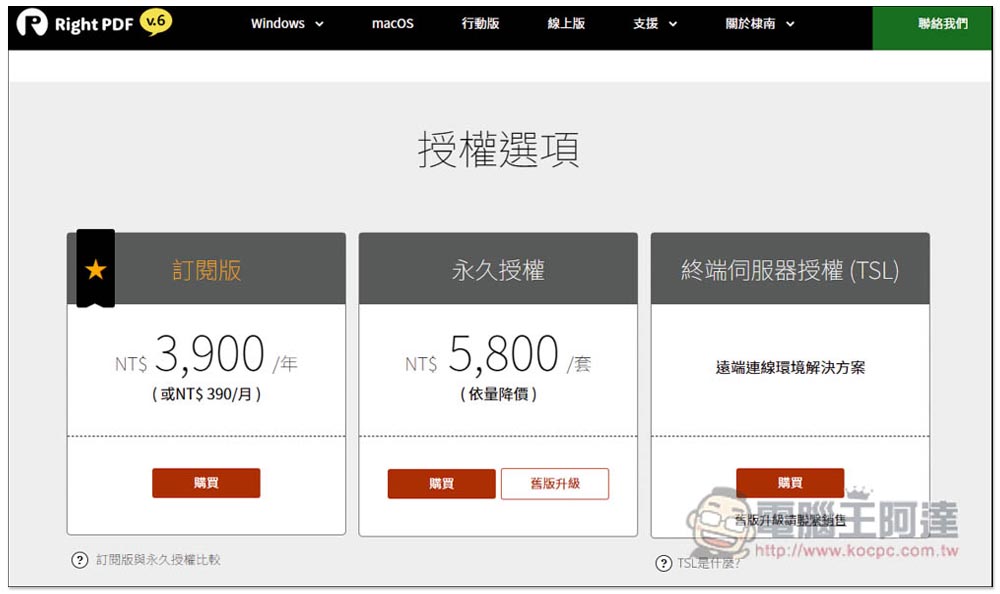
DiNan PDF Professional Edition has three authorizations:
- Subscription version: NT$3,900/year or NT$390/month
- Permanent license: NT$5,800/set. The more quantities you order at one time, the cheaper the price will be.
- Terminal Server Licensing (TSL): Solution for remote connection environments
For people who often need to use PDFs, I highly recommend buying the permanent license version directly, because the price is only less than two years for the subscription version, which is very cost-effective. You can use it for life after paying once, so you don’t have to worry about the cost. In the future, if Bundentsu launches a new version and there are new features you want to use, you can also upgrade at a discounted price.
However, it should be noted that only the first two versions can be upgraded. For example, Bundentsu 6 can only be upgraded to Bundentsu 5 and Bundentsu 4.
PDF Bundentsu Professional Edition provides a free 14-day trial, which means you can try it out first to see if it meets your needs before making a decision. In addition, Di Nan now offers a “one-month trial” for Computer King Ada readers. After application, an electronic authorization letter will be sent out within 1 to 2 days.Limited to 200 copies, don’t miss it if you need it.
Apply for a one-month free trial (limited to 200 copies)
PDF Bundentsu Professional Edition free 14-day trial download link
Promotions:From now until 2024/1/22, purchase “PDF Bundentsu Professional Edition” or “PDF Bundentsu macOS Permanent Edition” and enter the discount code to enjoy a 12% discount and be eligible for the lucky draw! Find out now!

Summarize
DiNan PDF Professional Edition is really a very good PDF editing software. Not only does it have comprehensive functions, it has everything you need. It is not easy to run the PDF when editing. It also has a built-in conversion function, and the conversion speed is very fast. It also has a PDF manager for easy organization. What’s more, a lifetime version is available. For those who often need to edit PDFs, it is definitely worth a try and highly recommended.
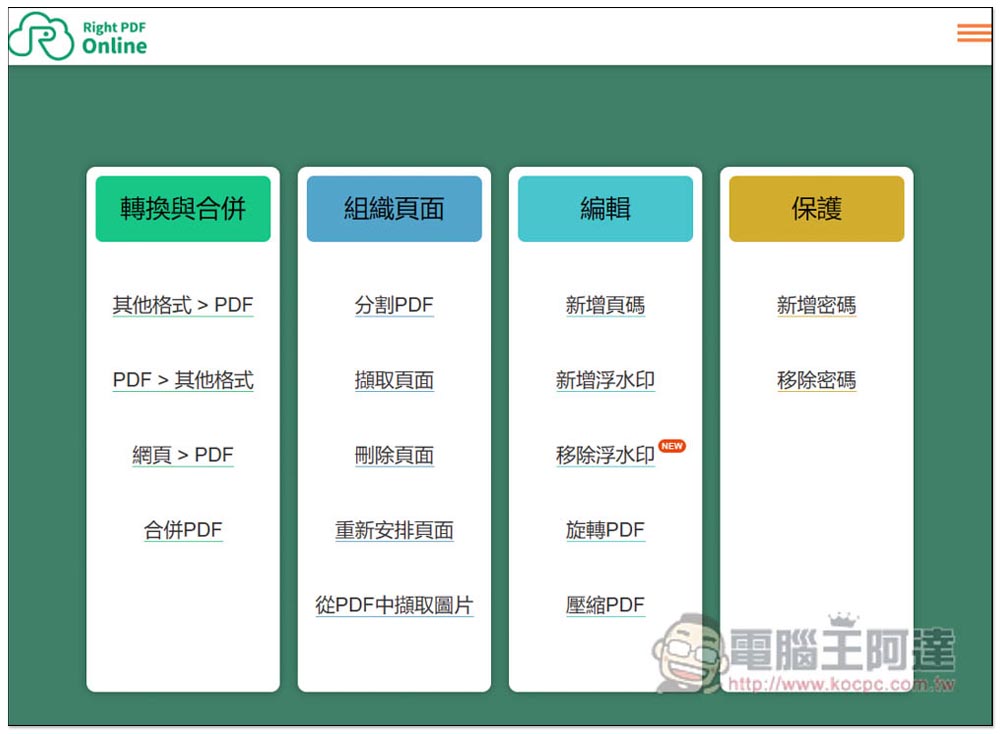
In addition, they also provide “Bundentsu online version”, you can perform some basic PDF editing work:
Source: KOCPC Chinese