


Many people use Spotify, but you may not know what a Spotify barcode is. If you are also a Spotify user and like to share the great music you recently discovered with your friends, this time we will teach you how to create and scan and read these barcodes on Windows, Mac, iPhone, iPad and Android devices.
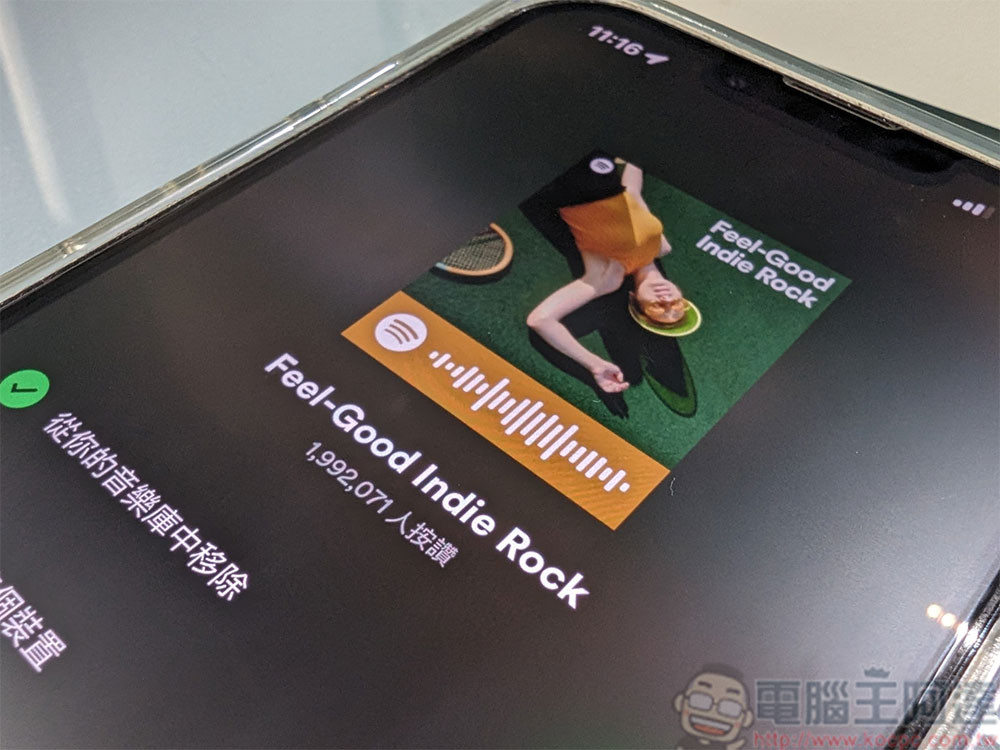
Sharing music is so easy! How to create and scan Spotify barcodes?
What is a Spotify barcode?
The Spotify barcode looks a lot like something like a QR Code that you’re probably already familiar with, but you can’t read it with a regular scanner, but you can with the Spotify app on your iPhone, iPad, or Android. It’s also a great way for Spotify users to share music simply without dictating track names and artist names.
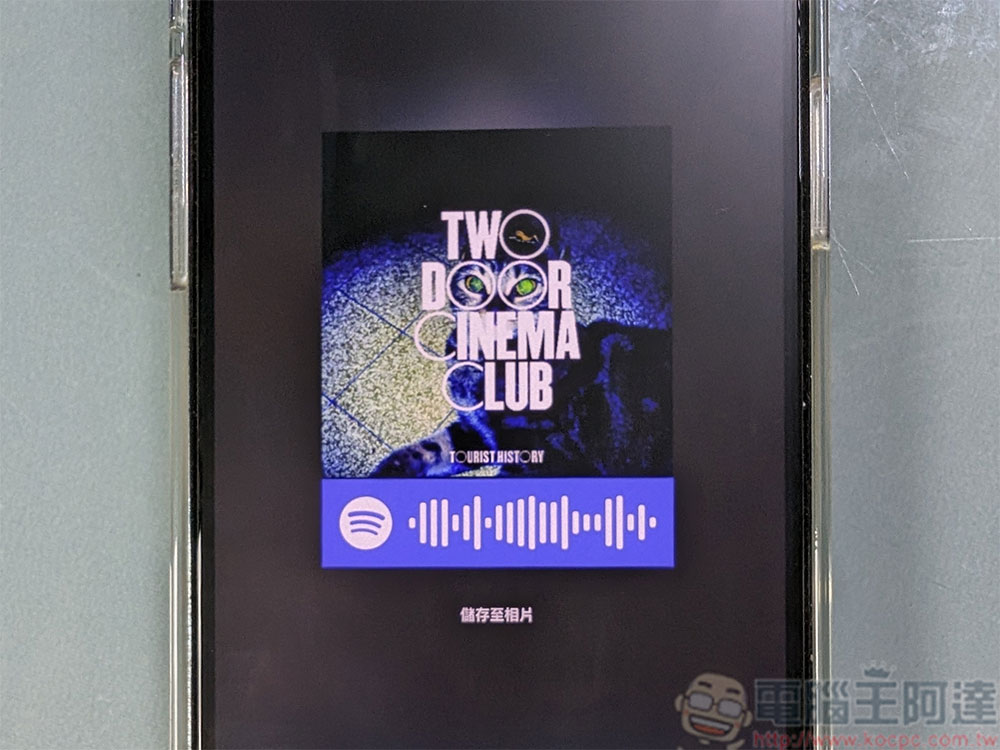
When users scan these barcodes with their mobile phones, Spotify will direct users directly to the project without having to copy and paste the link. You can create barcodes for Spotify songs, albums, artists, playlists, podcasts, and even your profile, both as a free user and as a premium user.
Create barcodes on Windows and Mac computers or the web version
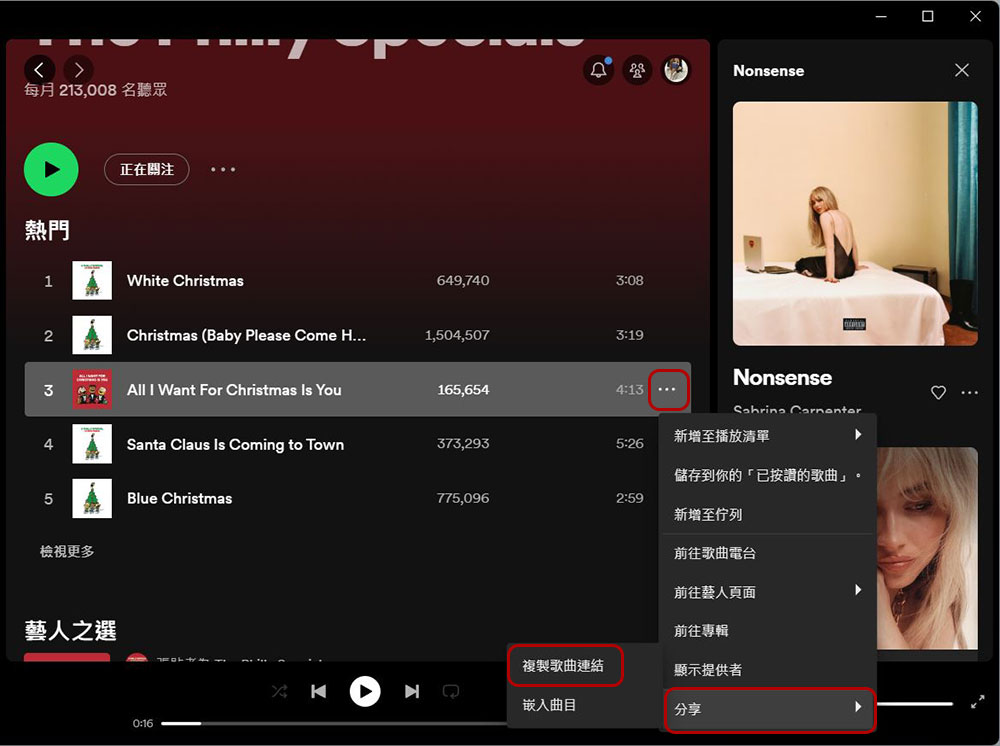
To start creating barcodes for your Spotify project, first launch the Spotify app on your Windows and Mac computers, but you can also use the web version of Spotify. Click the three-dot menu next to the Spotify project, then select “Share” to copy the song link.
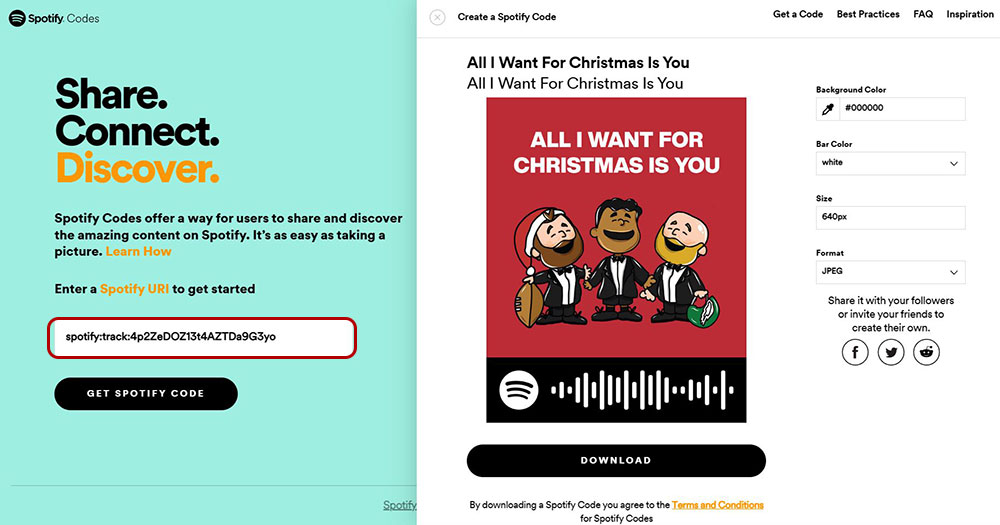
Go to the Spotify Barcode website (Click here), paste the link you just copied into the input box on the website, click the “Get Spotify Code” button, read the instructions displayed next to it, and click “Continue” at the bottom. Then you can customize some details on the Spotify barcode label, and finally click “Download” to download the barcode label to your computer and send it to others. The four setting items from top to bottom are background color, barcode color, size and file format.
Create barcodes on mobile devices
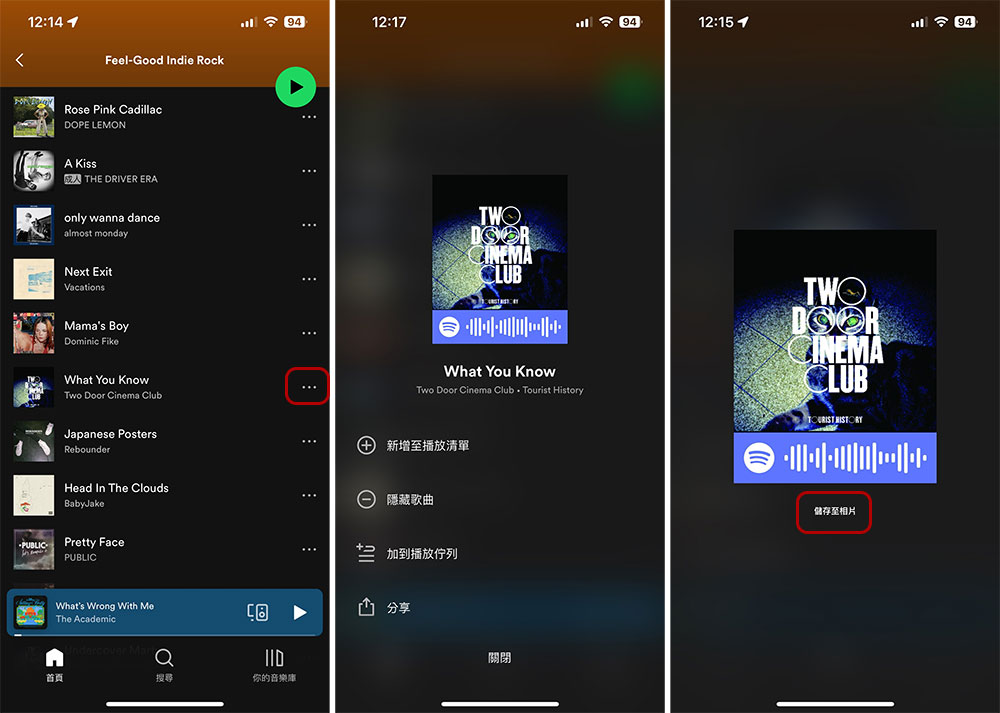
On an iPhone, iPad, or Android phone, you can use the Spotify app itself to create scannable barcodes. First, open the Spotify app on your phone. Click the three-dot menu next to the project you want to create, and then you can see the barcode displayed below the opened image. Click on the image and select “Save to Photos” to save it in the album and send it to others.
How to scan and read Spotify barcodes?
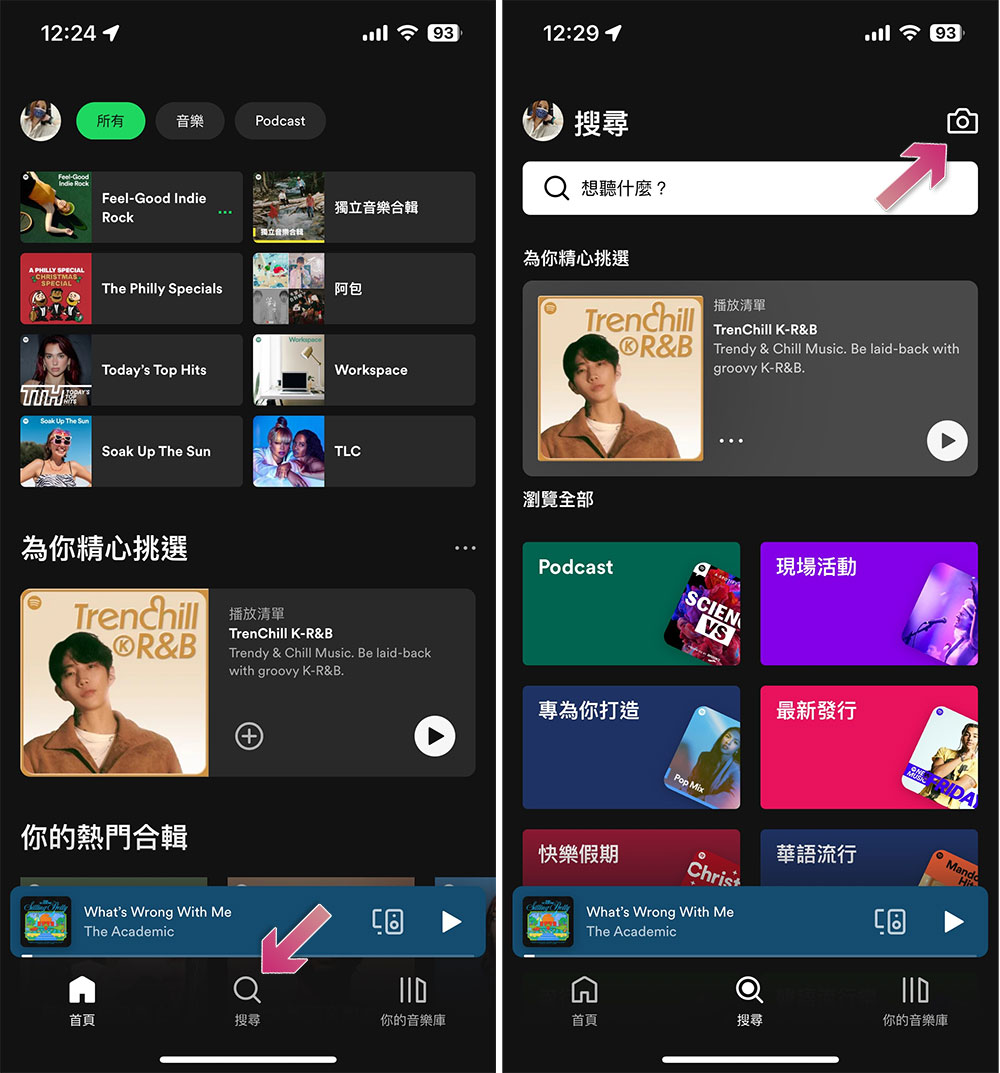
To scan the Spotify code, you’ll need to use the Spotify app on your iPhone, iPad, or Android. Launch the Spotify app on your phone. In the app, select “Search” from the bottom bar and click the camera icon in the upper right corner to start reading Spotify barcodes using the built-in scanner.
Source: KOCPC Chinese