


Most people nowadays are accustomed to using mobile phones instead of body cameras, and Apple has a certain standard in this department. Most iPhones have at least two rear main lenses (three in the case of iPhone Pro). The main lens is dedicated to wide-angle, and the secondary lens is ultra-wide-angle (the third lens of iPhone Pro is telephoto). The iPhone camera app has a simple user interface that makes it easy to switch between modes and filters, and you can take beautiful photos with a simple swipe. However, sometimes the iPhone camera may not work as expected, such as not focusing on the subject, or the photos taken may look a bit blurry.
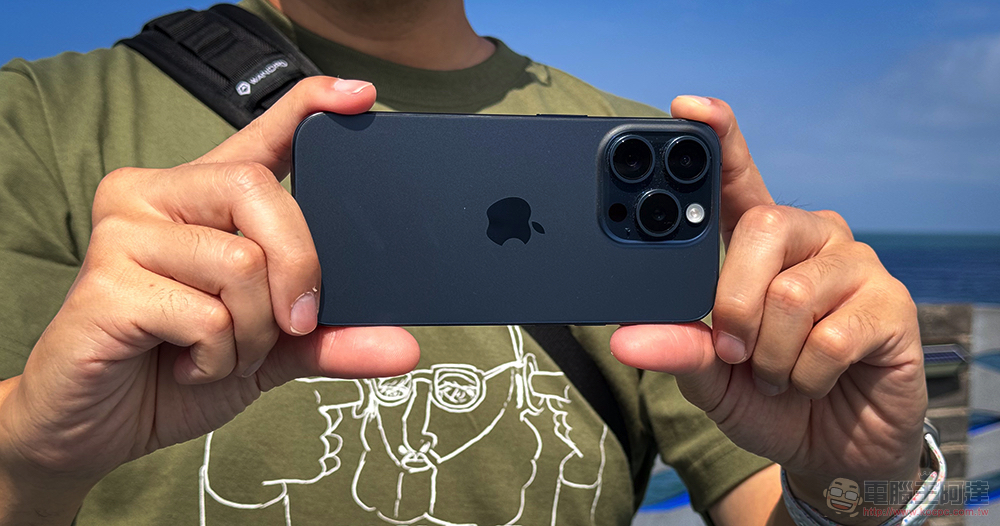
Common causes of iPhone camera flickering and fixes you can try
Another annoying problem you may encounter is the iPhone camera screen flickering when you try to take a photo. This screen flickering will make focusing more difficult and may also cause image distortion. Camera flickering can be a software or hardware issue and can usually be resolved by changing certain settings on your iPhone.
Disable macro control
iPhone 13 Pro and newer models have built-in macro mode, which uses the ultra-wide-angle lens to achieve close-up shooting. You can take macro photos and videos 2 centimeters away from the subject. Bring the iPhone close to the subject and it will automatically switch to the ultra-wide-angle camera. You can easily take macro photos without manual changes. However, this may also cause the iPhone screen to flicker when changing lenses. You can check to see if macro switching is enabled on your iPhone, as this may be causing flickering, especially when shooting close-ups:
- Open the Settings app.
- Scroll down to enter “Camera”.
- Scroll to the bottom to turn off the “Macro Control” function.
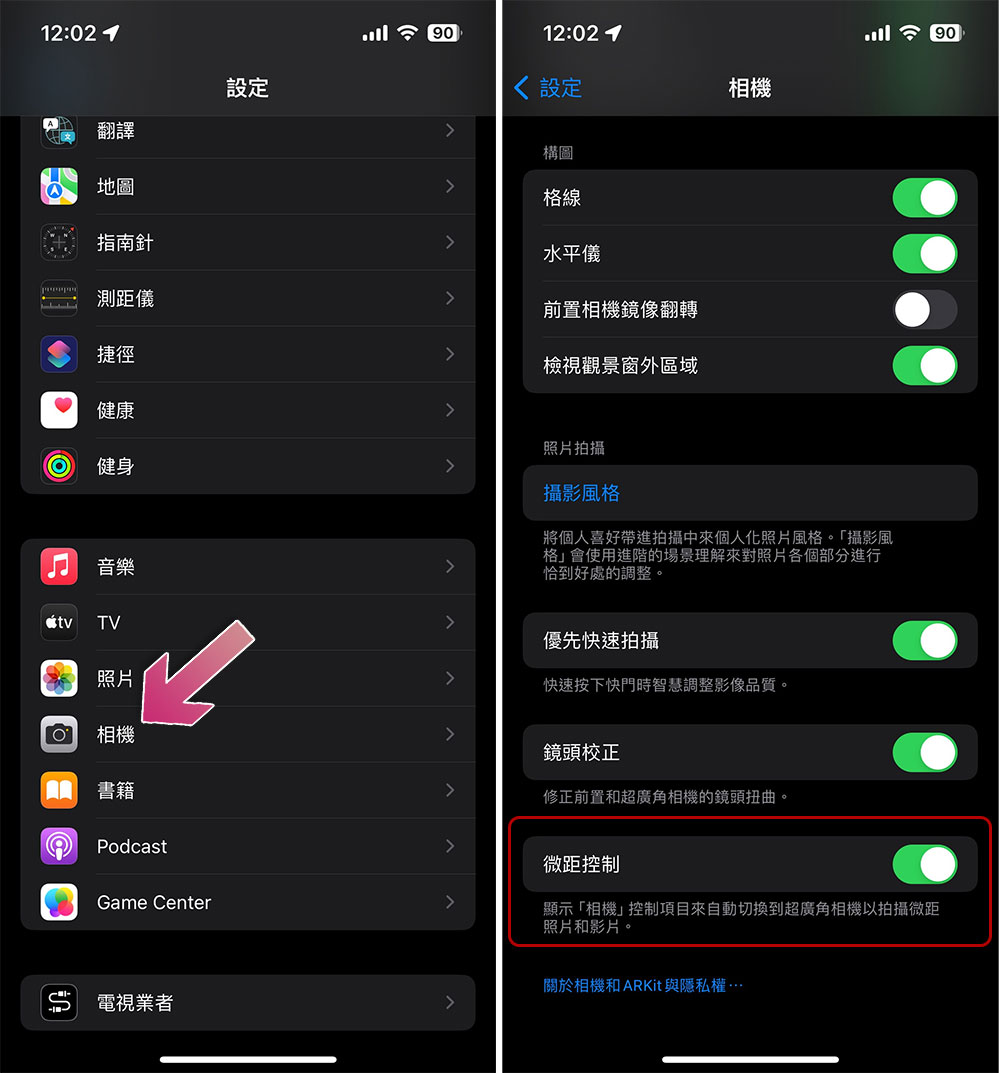
After turning off macro control, open the camera app and try to take a picture. If the screen flickering problem is resolved, there will be no problem. However, keep in mind that if you want to focus up close, you’ll need to manually switch to the ultra-wide-angle lens. While disabling Macro Control can fix flickering camera issues on some iPhones, older iPhone Pro models and non-Pro iPhones don’t have this feature, so you’ll need to try a different troubleshooting method.
Adjust exposure
The iPhone lens may flicker when pointed at the LED light. This is a very common phenomenon and does not mean there is something wrong with your phone lens. This kind of flickering occurs when the frame rate of the iPhone camera does not match the frequency of the light. It may be more obvious in videos. This is called “stroboscopic”. You can prevent flicker around light sources by changing the exposure settings on your iPhone camera:
- Open the iPhone Camera app and aim at the flashing light source.
- Click the white arrow on the interface to call up manual controls.
- Click on the exposure icon (a circle with + – signs inside it).
- Drag the slider that appears on the screen until the flickering is minimized.
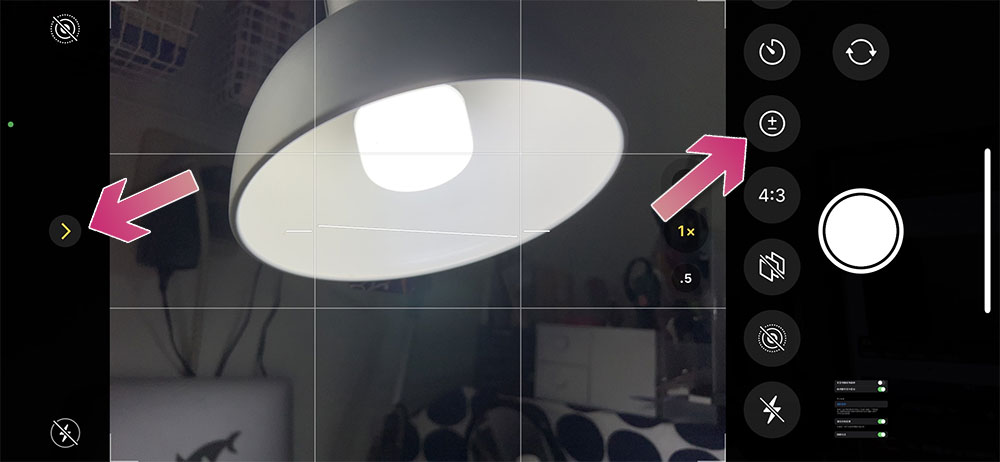
Once adjusted, exposure will remain locked until the next time you open the Camera app. You can also adjust the exposure for specific focus points on the camera screen. To do this, tap the area you want to focus on, then slide your finger up or down on the slider. You can also lock exposure and focus by tapping and holding the screen until AE/AF Lock appears at the top.
Reboot
A temporary glitch may cause the iPhone camera screen to flicker. The easiest way to fix this problem is to restart your iPhone. After the iPhone restarts, all original background processes will stop and the iPhone will start from a clean slate.
- How to restart iPhone X or newer:
- Press and hold the side power button and either volume button.
- Drag the shutdown slider on the screen.
- Wait 30 seconds for iPhone to shut down.
- Press and hold the side power button until the Apple logo appears on the screen.
- Restart models with a Home button (such as iPhone 6, 7, 8, or iPhone SE 2 or iPhone SE 3):
- Press and hold the side power button on your iPhone.
- Drag the shutdown slider on the screen.
- Wait 30 seconds.
- Press and hold the side power button until the Apple logo appears on the screen.
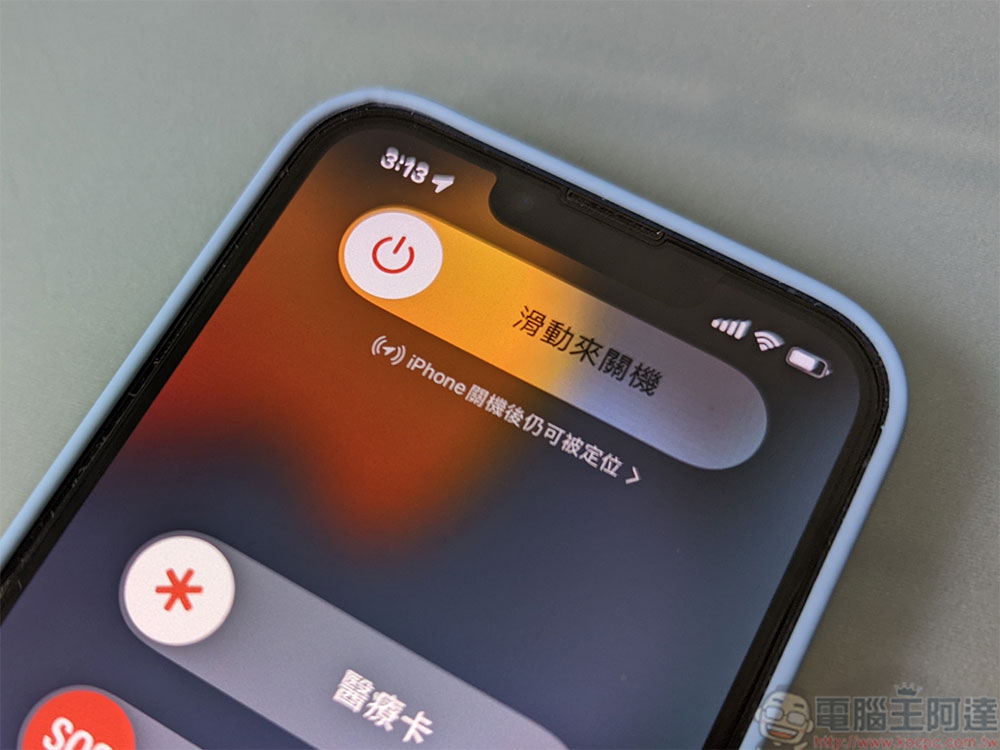
After restarting your iPhone, open the Camera app and check if the flickering issue has been resolved.
Perform a factory reset
If no amount of troubleshooting seems to be able to fix the flickering camera issue on your iPhone, you can try a factory reset as a last resort. This will completely erase the data on your device, so be sure to back up your data and settings beforehand. You can back up your iPhone to iCloud, or connect your iPhone to a Mac or Windows PC via USB for local backup.
- Open the Settings app.
- Click “General”.
- Scroll to the bottom and click “Transfer or Reset iPhone”.
- Click “Clear all content and settings”.
- If prompted, enter your Apple ID or password and click Continue.
- Wait for the iPhone to be erased and reset.
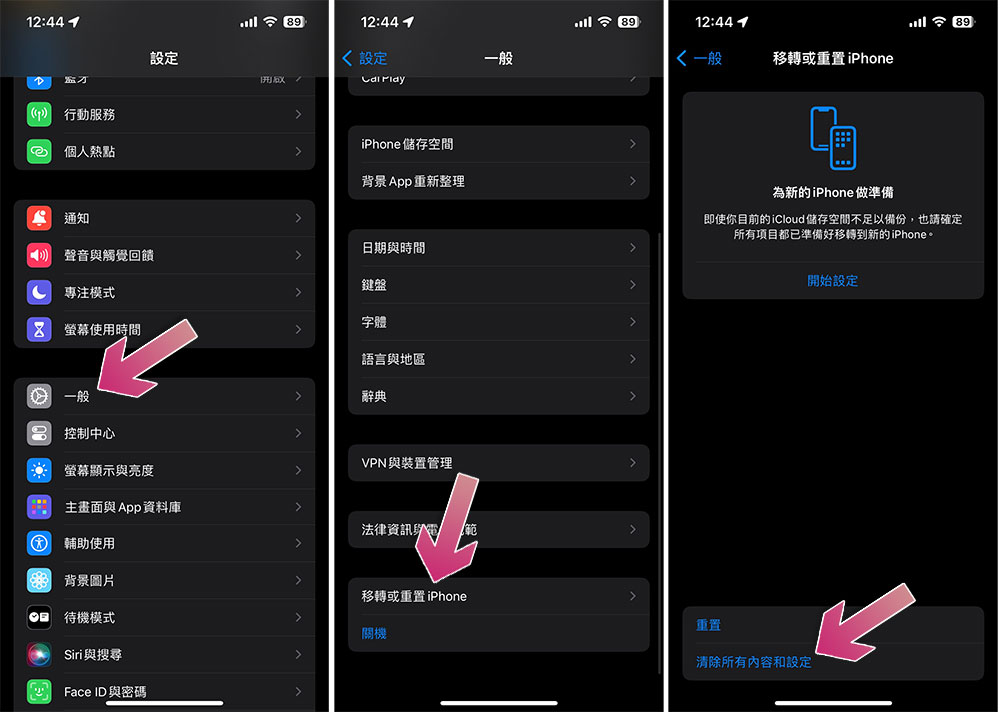
After completion, first check whether the camera screen flickering problem has been solved. If the problem has been eliminated, use the backup to restore the settings of the iPhone; if not, it may be a hardware problem. Since everything has been backed up, let Apple technical maintenance personnel diagnose it!
Source: KOCPC Chinese