


Whether on a computer or an Android smartphone, you can use the standard copy and paste functions to quickly copy text you find in various browsers, but if you copy and paste a lot, it can be a bit difficult to find what you have copied. It’s for this reason that both computers and Android have a clipboard mechanism, a space you don’t normally see that hides any data you copy until you paste it to its destination. Whenever you use the copy function, Clipboard allows you to quickly view the copied content immediately or after copying and pasting content.
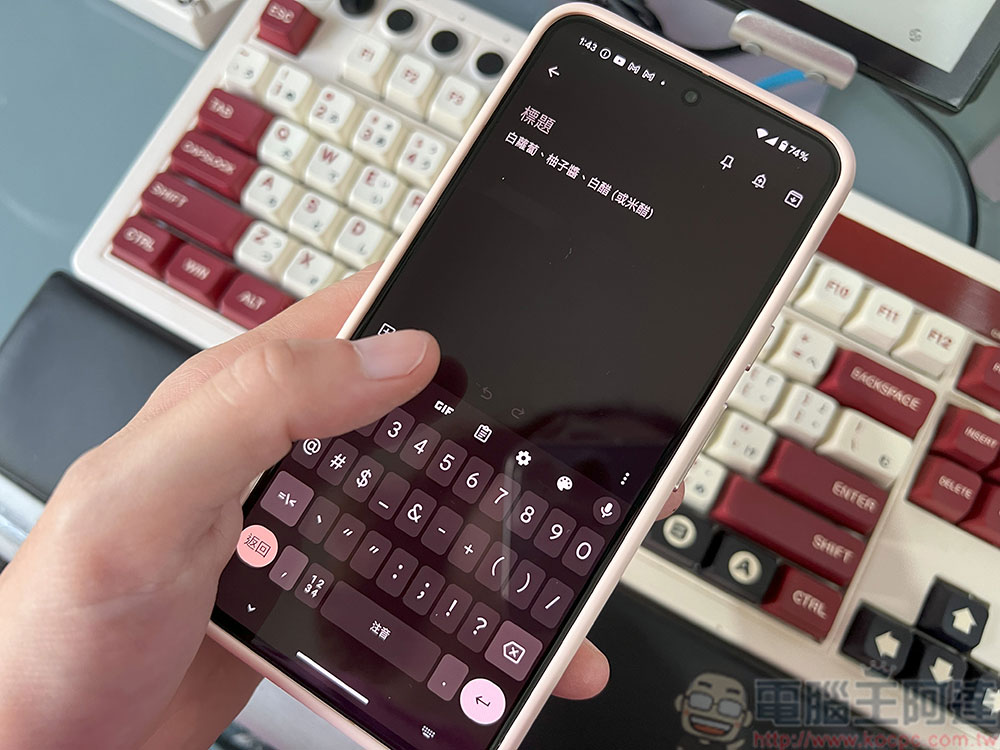
How to quickly view and use the clipboard feature on Android?
While the scrapbook is usually hidden from view, if you want to take a closer look at its contents on your Android phone, it’s just a few quick clicks away. This function is located in the middle of the Android touch virtual keyboard. Unless you are curious and click on it, you will not notice this function even if you have an impression of the icon. This time, the author will teach you how to use this function!
Use Gboard to view your scraps
If you need to quickly see what’s currently in your Android device’s clipboard, Google has an official feature called “Gboard.” Gboard is Google’s keyboard that appears every time you type on your Android device, whether you’re in the Messages app, a web browser, or anywhere else. The Gboard app comes pre-installed on the vast majority of Android devices, with the only exception being Samsung, which has its own keyboard, scrapbooking app, and essentially the same functionality.
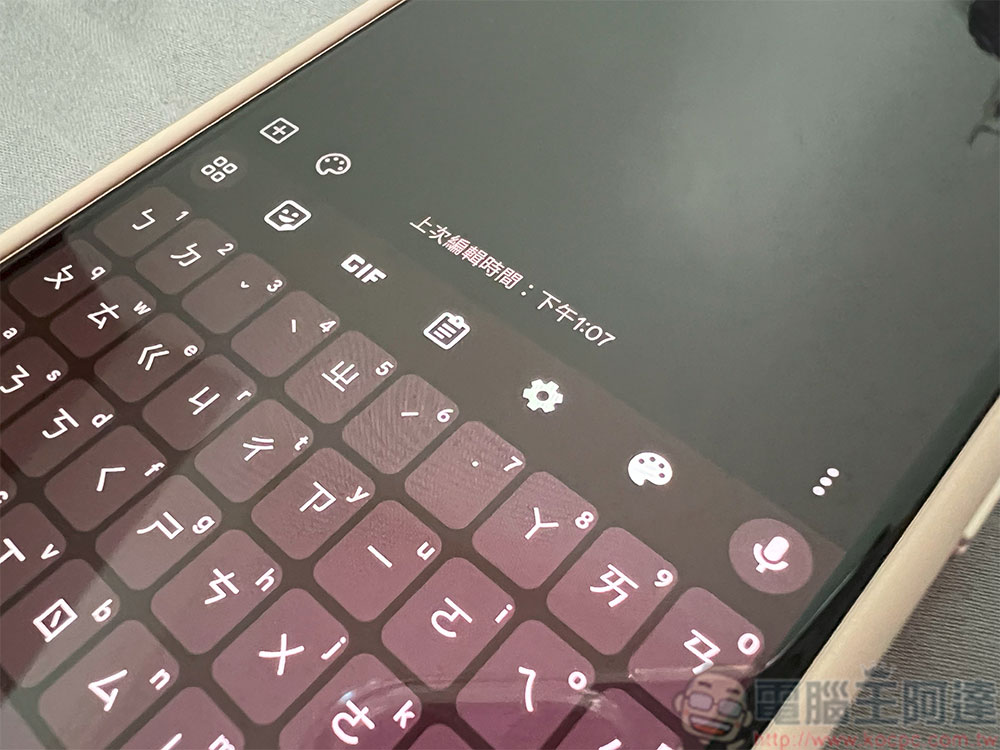
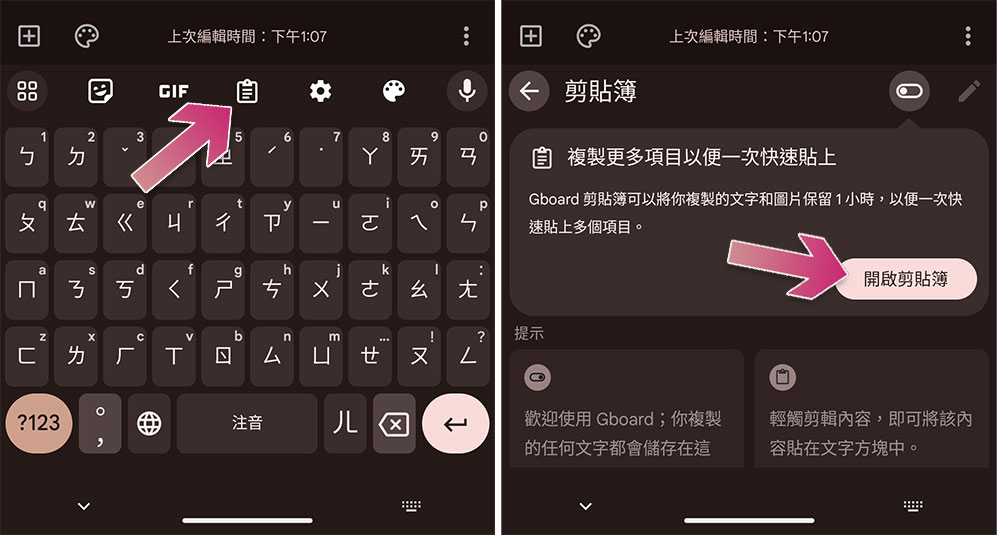
To access Gboard’s clipboard, just tap the text input to bring up the keyboard, then tap the little clipboard icon centered above it. If this is the first time you do this, you need to start Gboard first, but after that, every time you call out the small operation bubbles for copying, cutting, etc. with the usual operation, click on it to automatically paste its content into the currently selected text input area. Enable clipboard mode:
- After calling up Gboard, click the clipboard icon.
- Click “Open Clipbook”.
The method of use is also very simple, not much different from your usual usage habits:
- As usual, long press the text you want to copy and a function bubble will appear.
- Once you click copy, the text will be placed in the clipboard.
- When you need to access it, click the clipboard icon in the destination text input area to see it temporarily stored there.
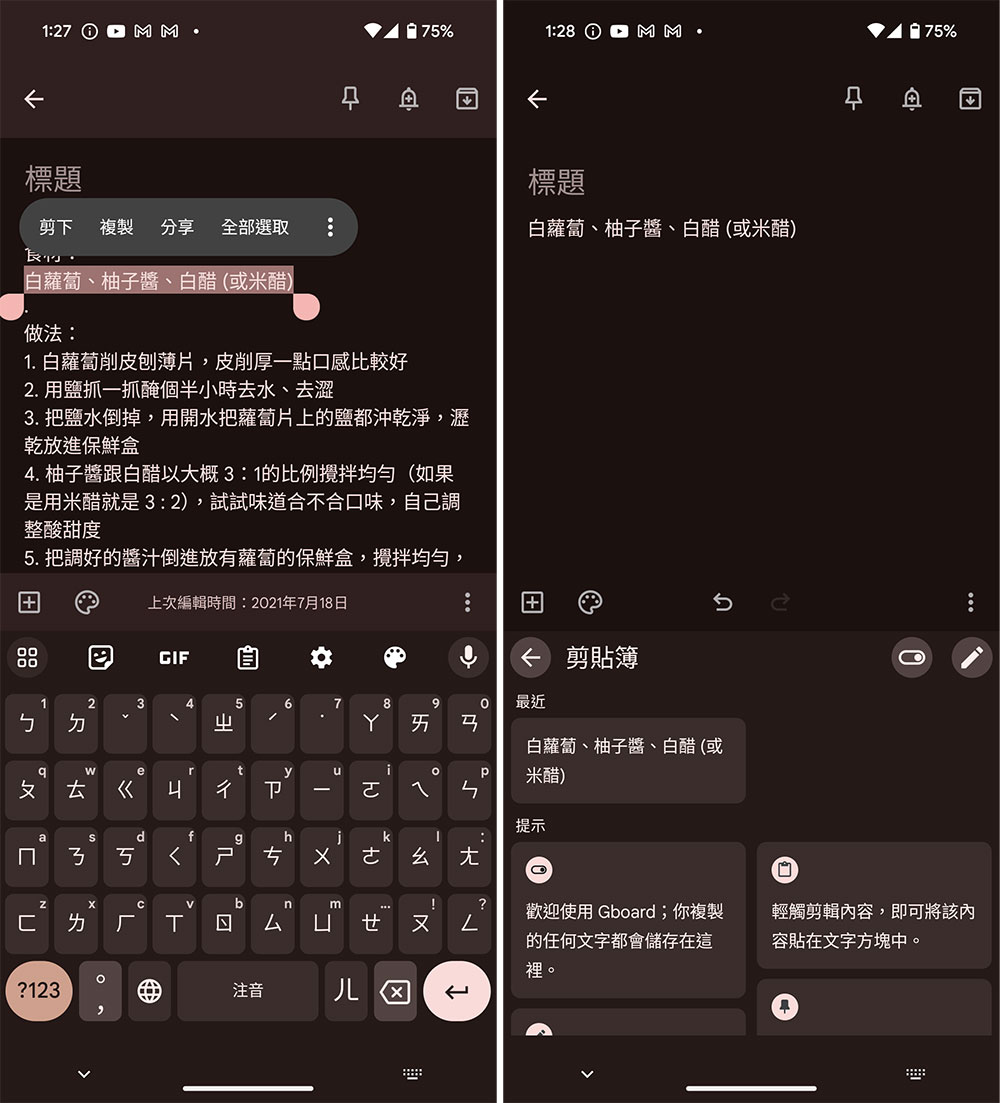
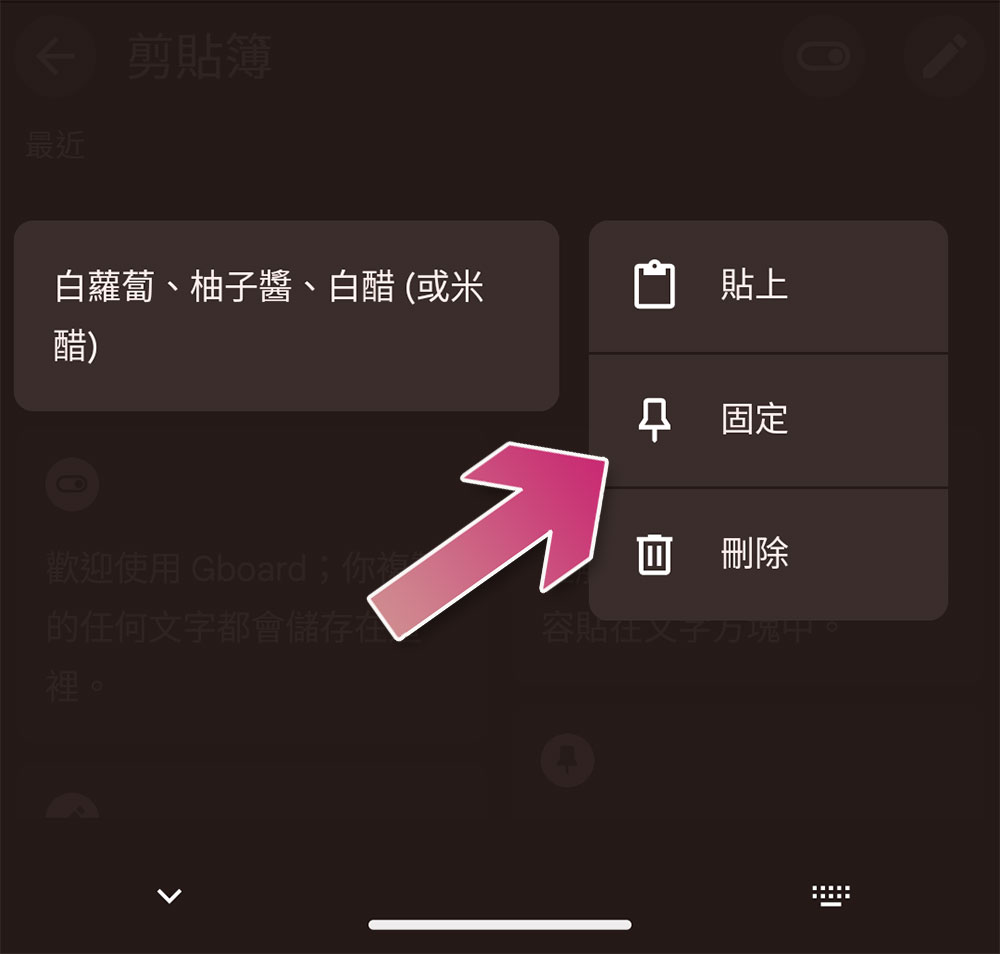
The text you copy will be stored in the clipboard for 1 hour and sorted in order of newer and older, with the newest first. If there is some text that you want to keep for future reference, you can long press and click “Pin” to keep it in the clipboard. After 1 hour, the system will automatically clear the unpinned items.
Source: KOCPC Chinese