


The Android platform is more open than Apple’s iOS, but with it comes a higher possibility of being infected by malware. Gogole is trying to take measures to resist the intrusions of unscrupulous people as much as possible through methods such as Google Play Protect. However, as long as you are careful, you can easily keep your phone safe and stay away from malware.
How to protect your Android device from malware?
What is Android malware?
I’m sure everyone has heard of the term malware. This is common on Windows computers, but you can’t really think of it as the same thing as malware on Android. Because malware on Android doesn’t cause a bunch of pop-ups, delay the browser, etc., but operates in a different way. On the contrary, it rarely shows its face in front of you. Often, people don’t even know they have this crap installed because it’s much more stealthy on Android. Malicious apps may disguise themselves as legitimate, reliable apps, or they may hide from your view entirely. However, it is always running in the background to perform various suspicious activities, such as stealing your personal information and uploading it to remote servers without your knowledge.
For example, 2018’s Skygofree malware did some pretty naughty things, like having the option to execute about 48 different commands, turn on the phone’s microphone, connect to infected Wi-Fi, collect tons of information, etc. It was pretty bad. But please don’t let this stop you from ditching your phone for an iPhone, as long as you’re careful, you can use your Android phone safely.
Stick to official apps and be careful when sideloading
One of the big differences between Android and other mobile operating systems is the ability to sideload apps, which means you can install apps that aren’t from the official Google Play store. Most people won’t need to do this, but this feature can be handy if the app isn’t compatible in your country or the latest version of the app hasn’t been rolled out to your device yet. Unfortunately, this setting can be dangerous. Google is also actively taking measures to reduce the number of malicious apps in the Play Store, but it cannot manually install APK apps for you. These apps that have not been reviewed by Google may put you in a dangerous situation, and the risk of malware is much higher. This is why the sideloading option is disabled by default.
When sideloading any app, take a few seconds to ask yourself if you trust the source, is it coming from a legitimate, trustworthy place? For example, if the app comes from a trusted source (such as APK Mirror) you may be safe because all files are verified and audited before being allowed to be hosted on the website. On the other hand, if you download an APK from a website you don’t recognize, do some research first, is this the developer’s website? Is the developer well-known and trustworthy? Has anyone else reviewed this software? When you browse a download site, just look at how many ads the site has? What is the quality of these ads? If there are a lot of suspicious things happening, it should be avoided to be on the safe side.
Download less apps from third-party stores
Since you can sideload an app’s APK on Android, this means you can head to third-party app stores. There aren’t many valid reasons to do this, but there are exceptions, such as using Amazon’s Appstore for exclusive apps or deals, or using F-Droid for open apps. But here’s the general rule: just use the Google Play Store, and while the Google Play Store isn’t impenetrable, it’s still much safer than using some third-party options that might be full of all kinds of potential junk.
Possible worst-case scenarios: Suppose you install a problematic third-party app store and you must first enable installation of the APK before you can install other apps. But what if the app store itself is malicious? Now, once you enable installable third-party APKs, it will have the power to install more apps, and it will also open the door for more malware to be installed, which is one of the main ways malware spreads through the system.
Make sure you install official apps, even on Google Play
Google Play is not perfect, for example, there once was a fake Whatsapp app on the Play Store and it was downloaded over a million times. This is an impressive fake app, even the name of the developer looks almost identical to the actual developer of WhatsApp. Again, Google is actively taking steps to reduce such issues, but doing a few checks before downloading can be more helpful. When installing a new app, be wary of anything that doesn’t look right, check what permissions it requires, read the description and check the developer’s account, if something doesn’t look right, it’s probably not a real official app.
In addition, do not install pirated or cracked applications. Just like on Windows, pirated software often clutters the device with various problematic software. You think you are installing only cracked genuine software, but in fact, who knows whether there are some extra “scares” included in these pirated software.

Make sure your operating system is always up to date
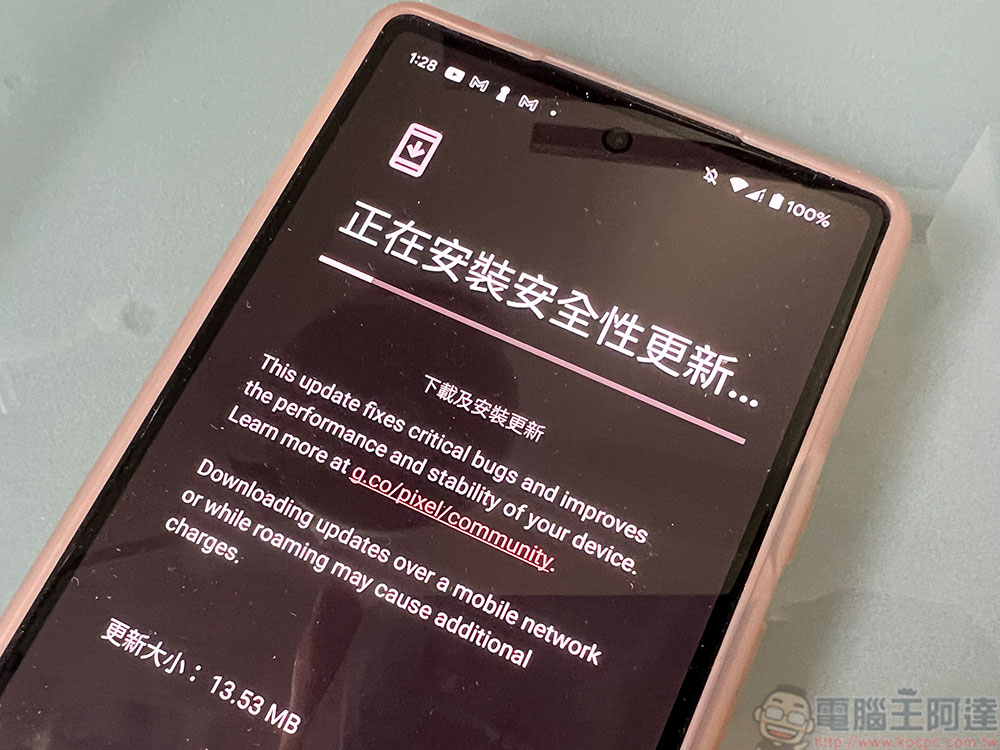
Google rolls out Android security fix updates every month, especially when it discovers malicious applications trying to exploit specific vulnerabilities, to help block vulnerabilities on the system and protect devices from attacks. While not every brand will push out updates right away, it’s your job to install every update they send out. Security updates won’t all bring new features, but the work they do behind the scenes will protect you from attacks that exploit the latest vulnerabilities, and it’s definitely worth your 15 minutes to update. You can also read our past security update articles:What are Android security updates and why are they important?
Source: KOCPC Chinese