


Smart iPhone users will habitually take out their phones when they see a QR Code outside, open the camera app, aim at the QR Code and click on the displayed link to go to the specified website or other place. However, what if you took a photo today and saved it in the photo album or PDF of the QR Code on your phone? Use another phone to scan? In fact, there are smart ways to solve it in iOS.

How to open a QR Code on your phone directly on iOS without scanning it with another device?
Are you still stupidly using someone else’s phone to scan the QR Code stored in your own phone? This is a little secret that many people don’t know, but it’s worth knowing. Just click and hold on the QR Code itself. A menu with a URL will appear, and you can choose to open it, search for it, copy the link, or share it with others. Isn’t it very simple? When you set up two-factor authentication on some websites or services, some will require you to go to a designated webpage to use a QR Code to authenticate yourself when setting up for the first time. You can also use the method taught above to access it directly without relying on any other device or going to a computer and scanning it with your phone.

When Apple introduced support for scanning QR Codes in the iPhone camera app in iOS 11, the pop-up window looked like a notification at the top of the interface. In iOS 13, Apple redesigned the interface by placing a yellow button directly in the camera viewfinder. In iOS 17, Apple further improved the scanning mechanism, finally solving the previous problem of chasing the lively link button on the QR Code like a cat and mouse. Now, when you scan a QR Code, the link button is permanently displayed at the bottom of the camera interface, just above the camera shutter button, making it easier to operate with one hand and without having to chase the button as it moves.
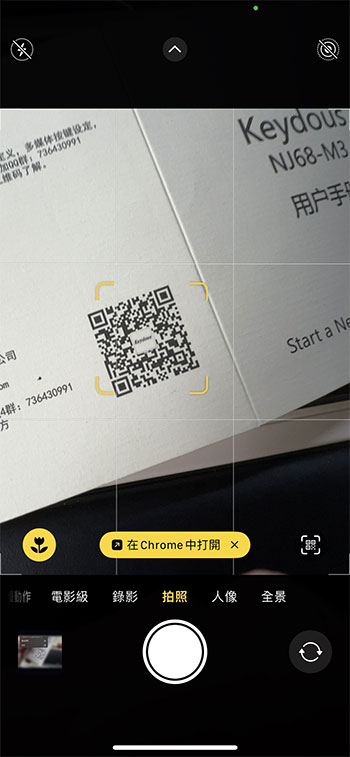
In the development of daily usage habits, most people have regarded QR Code as a scanning block similar to a barcode, and interacting with the links embedded in it does not feel natural enough. The quick operation of iOS may be more helpful to everyone when using it. If you want to know more about QR Code and its operation, you can read our previous reports:How much do you know about the QR Code that can be seen everywhere? How exactly does it work?
Source: KOCPC Chinese