


We previously introduced a model Vibe can also generate for videosSubtitlefile, but if you need to edit it later, Vibe isn’t that easy. Recently I came across Subtitle Edit, a free open-source subtitle editing tool that also has built-in Whisper for generating subtitles. This means that once the subtitles are generated, you can edit them directly, and it also has built-inPlease provide the Traditional Chinese text you would like me to translate.Features: besides common translation services like Google and Microsoft, it can also connect to local LLMs or online AI services such as OpenAI.
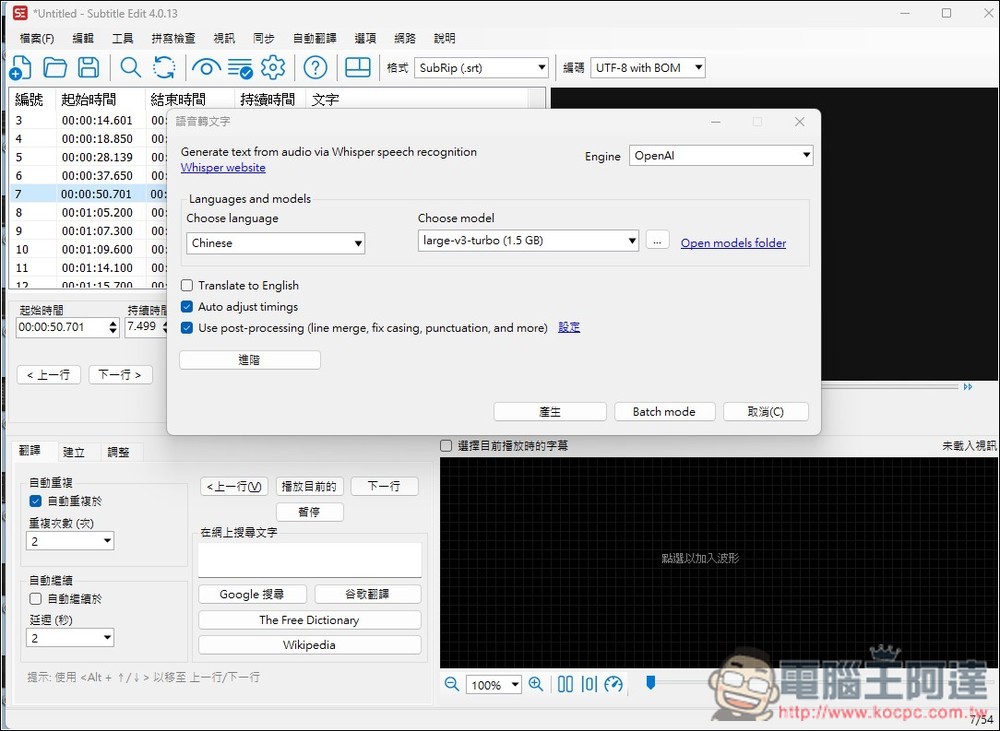
Subtitle Edit is a free, open-source subtitle tool that automatically generates subtitles for videos and also supports translation features.
Subtitle Edit is a fairly versatile subtitle editing tool. Although the interface isn’t very polished (after all, it’s open source), it supports multiple languages, including Traditional Chinese, so it’s very easy to get the hang of. Currently, there is only a Windows version.
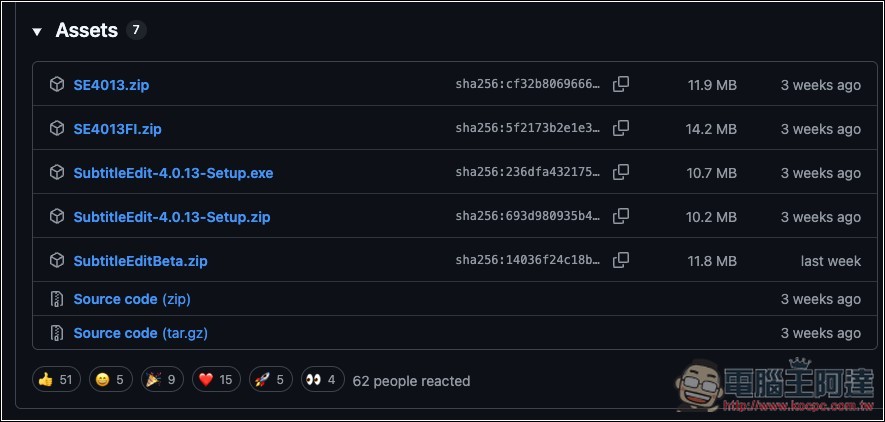
After clicking the link above to go to the Subtitle Edit download page, the current latest version is 4.0.13, download the .exe installer:
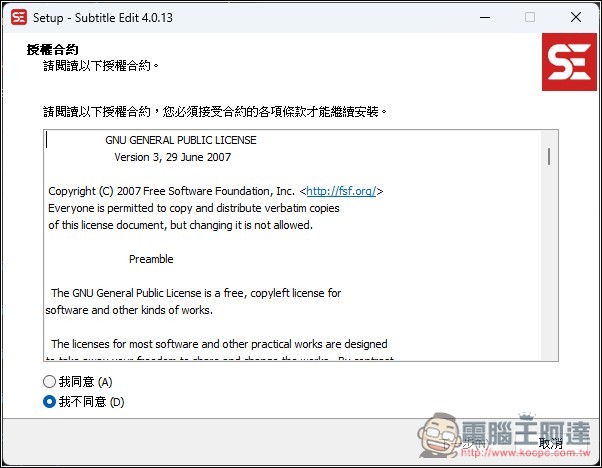
If there are no special requirements during the installation process, just keep clicking Next:
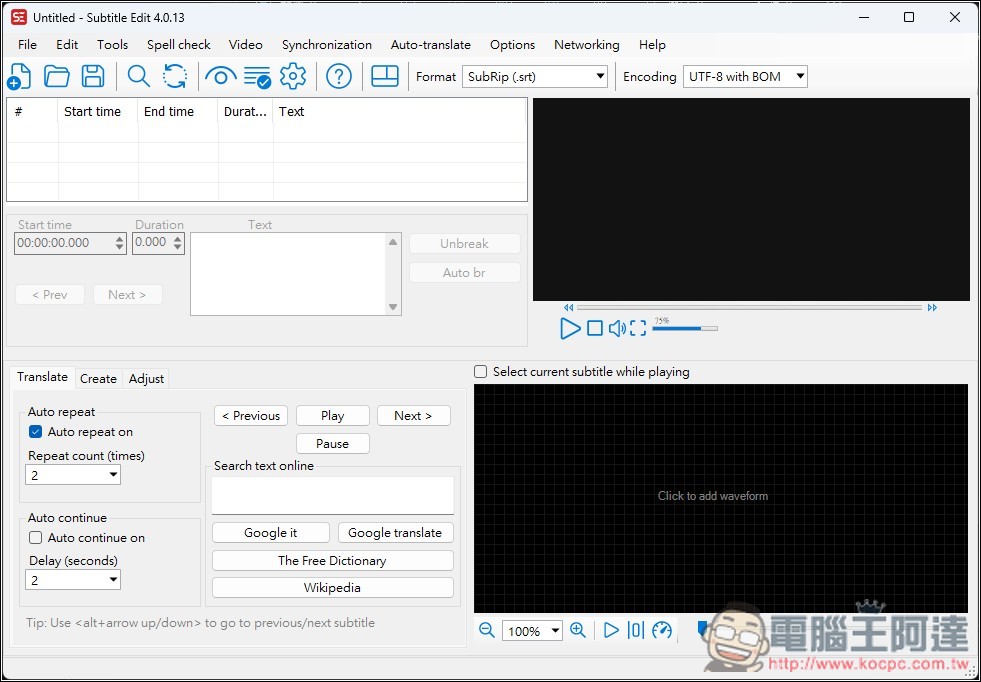
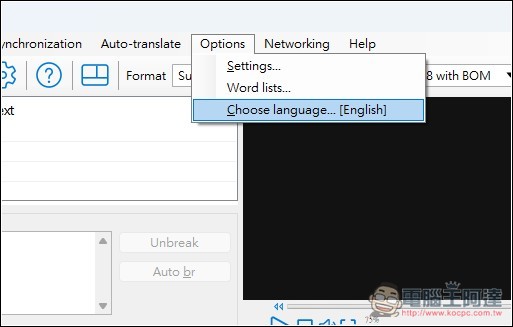
The default interface is English. If you want to change it to Traditional Chinese, please click Options above:
Then you will see the Choose language option:
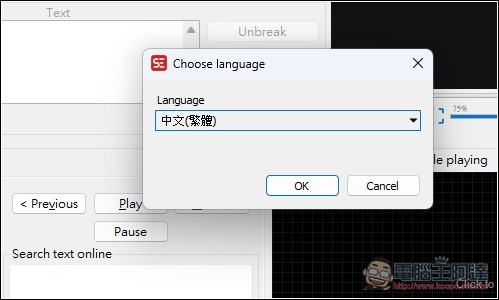
Then select Traditional Chinese and press OK:
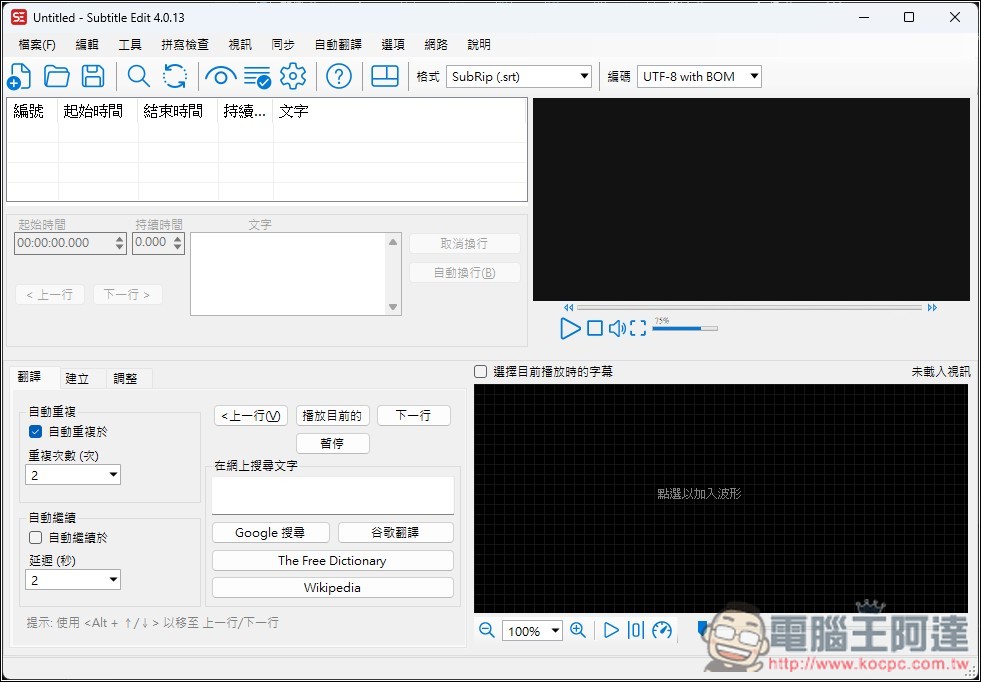
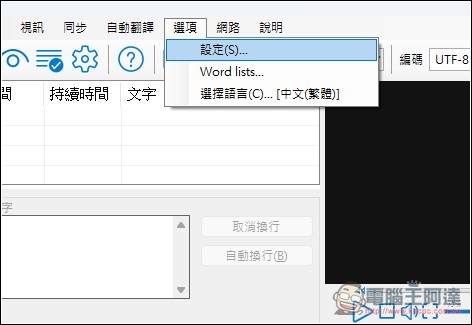
The interface will then become Chinese! Before you start using it, since Subtitle Edit itself does not have a built-in video playback engine, it uses an external player to preview videos and generate and sync subtitles, so you need to configure the video player you use first. Open the option above again:
Enter settings:
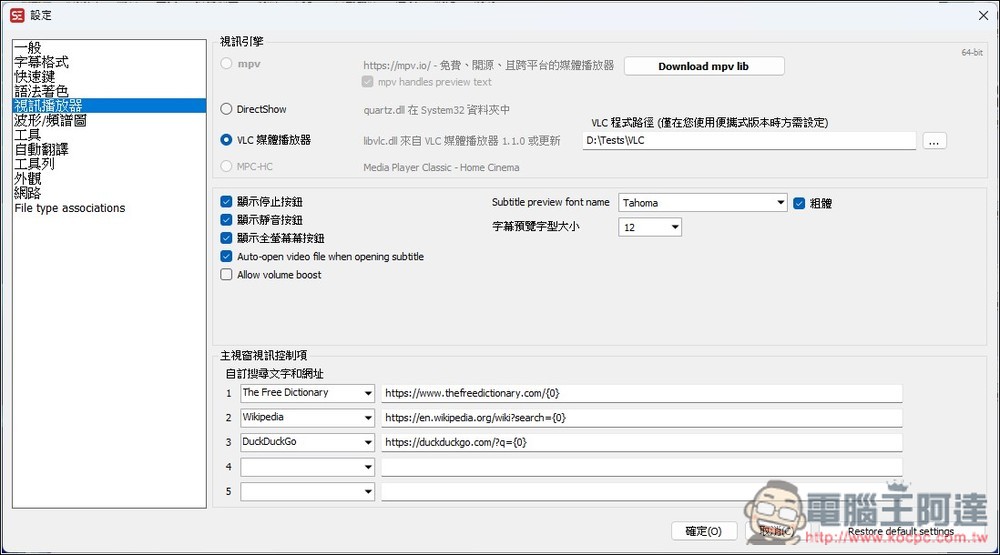
On the left side, select the video player. The default is DirectShow, but it also supports mpv, VLC, and Media Player Classic. I’m using VLC, so select the third one, VLC media player:
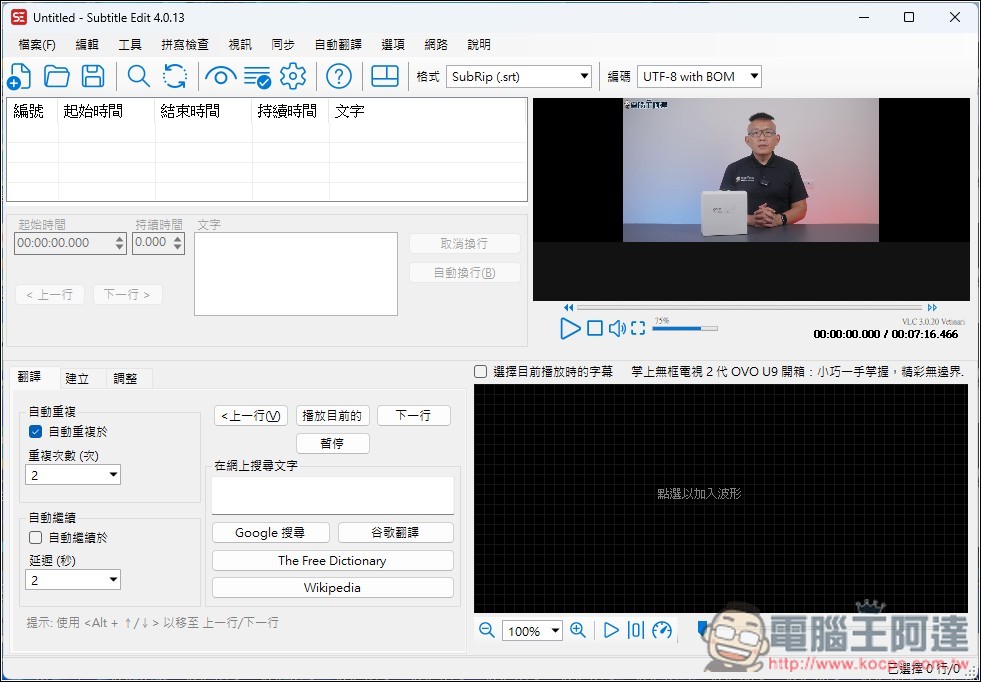
After configuring, open the video you want to generate subtitles for from the video menu at the top. Once it’s loaded, a preview will appear on the right:
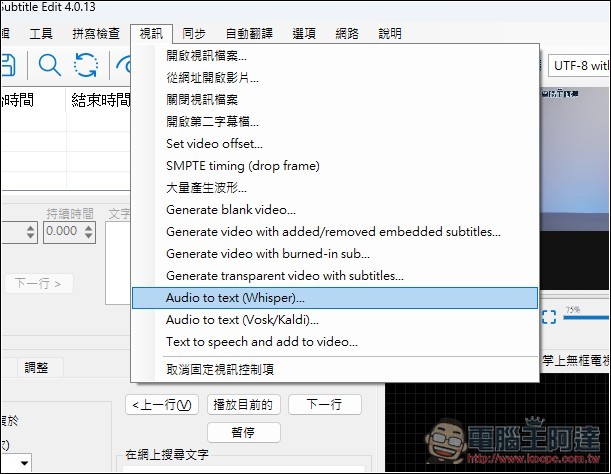
Open the video menu again, and you will see the “Audio to text (Whisper)” feature below:
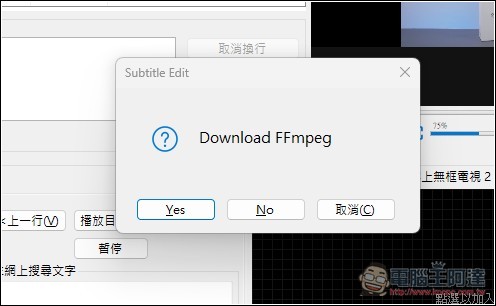
FFmpeg is required, so it needs to be downloaded. Please click Yes:
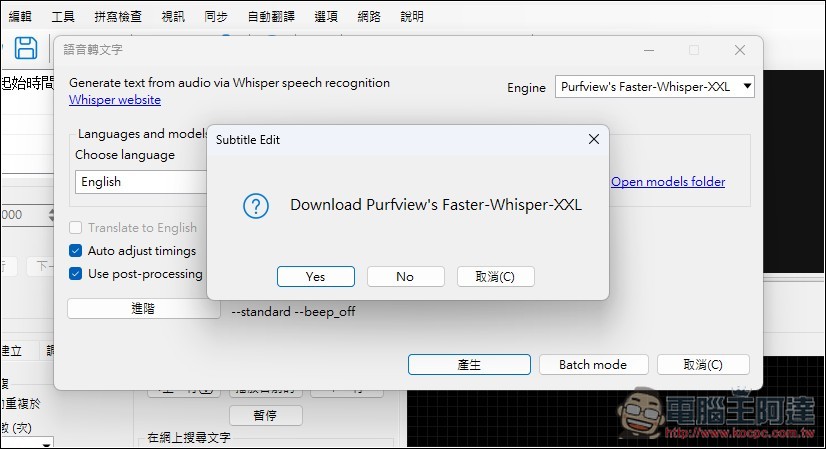
Next, it will ask if you want to download Purfview’s Faster-Whisper-XXL. I’d suggest not doing so, because from my testing of this engine’s Chinese transcription, it seems to only support Simplified Chinese. You can also give it a try yourself.
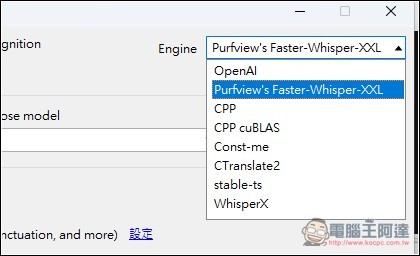
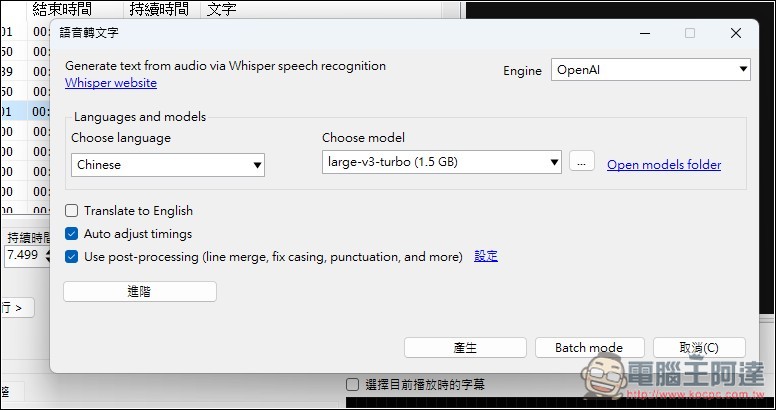
You can switch engines in the upper right corner; I’d recommend using OpenAI’s.
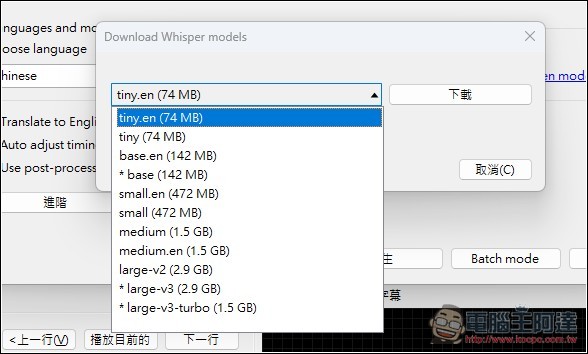
My computer has already downloaded the OpenAI model. If yours hasn’t yet, you can click the … on the right:
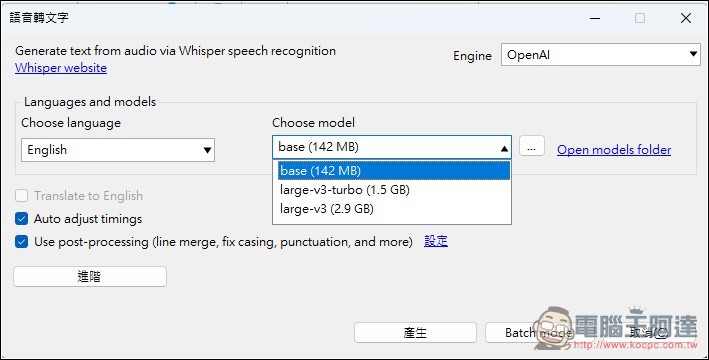
The model menu will appear, and it’s recommended to use large-v3-turbo:
After selecting the model, press Generate below to start creating subtitles:
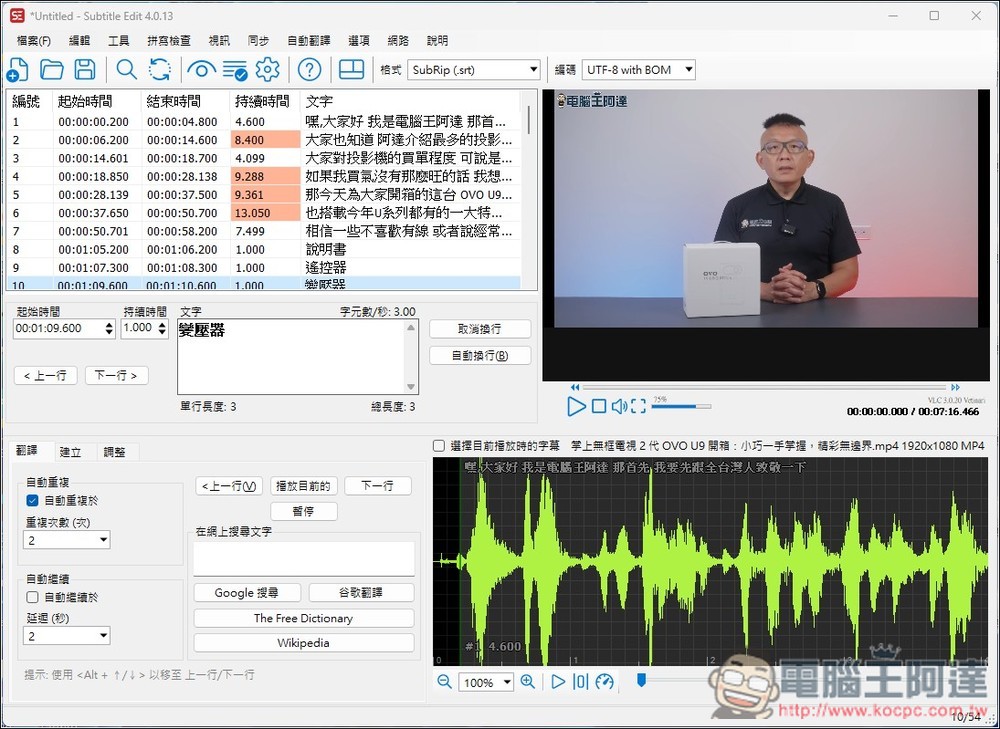
After completion, you’ll return to the main screen with the subtitles on the left. You can play the preview video to check and make changes.
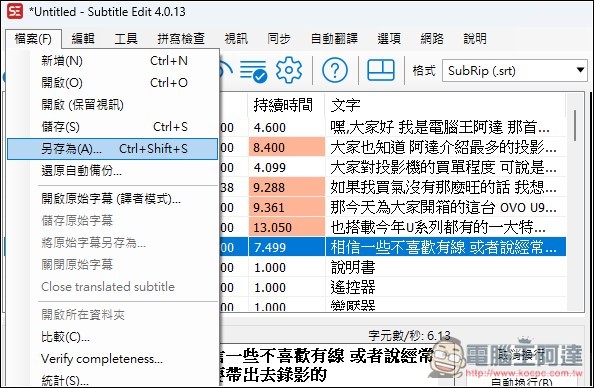
Remember to save the subtitle file after completion.
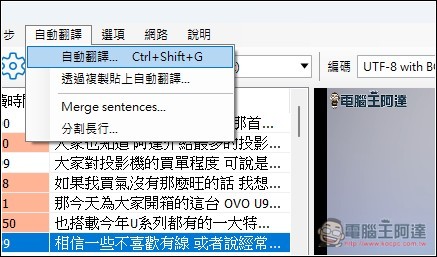
If you need translated subtitles, click the auto-translate above.
The default translation engine is Google. Once the language is selected, clicking Translate will start translating all subtitles:
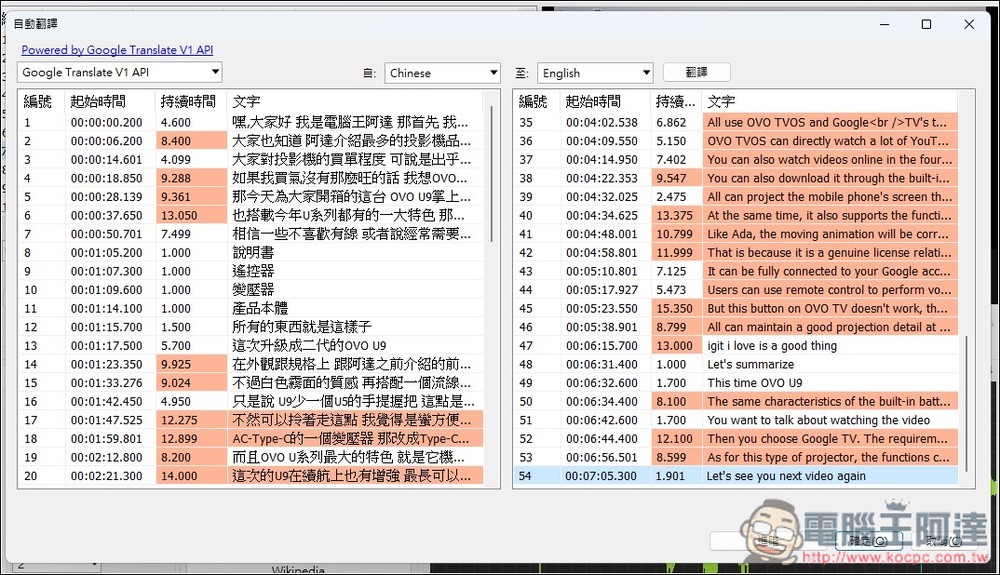
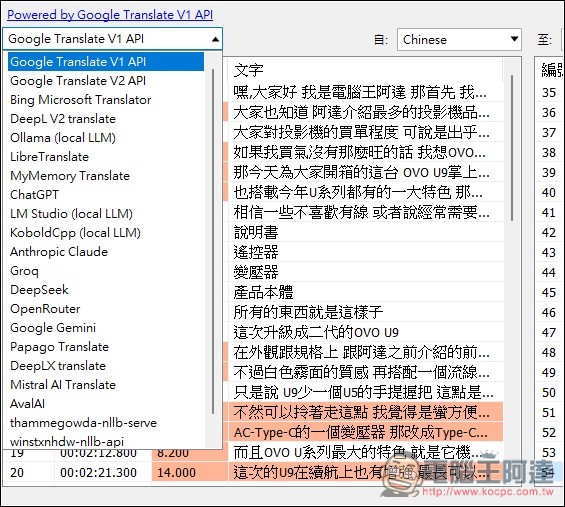
If you want to connect AI for better translation quality, you can switch services in the top left corner—Ollama, LM Studio, Claude, Groq, DeepSeek, ChatGPT, Mistral AI, Gemini, and more are all supported.
Subtitle Edit’s features go beyond just these—you can play around with it more.
Source: KOCPC Chinese