


After debuting on Pixel 8 and Pixel 8 Pro, Google’s new magnifying glass app “Magnifier” is now available for download in the Play Store. It allows you to enlarge text that is too small, view detailed information about objects, enlarge distant text such as logos or restaurant wall menus, and other visual effects. It can also automatically adjust the brightness, which is very convenient and practical.
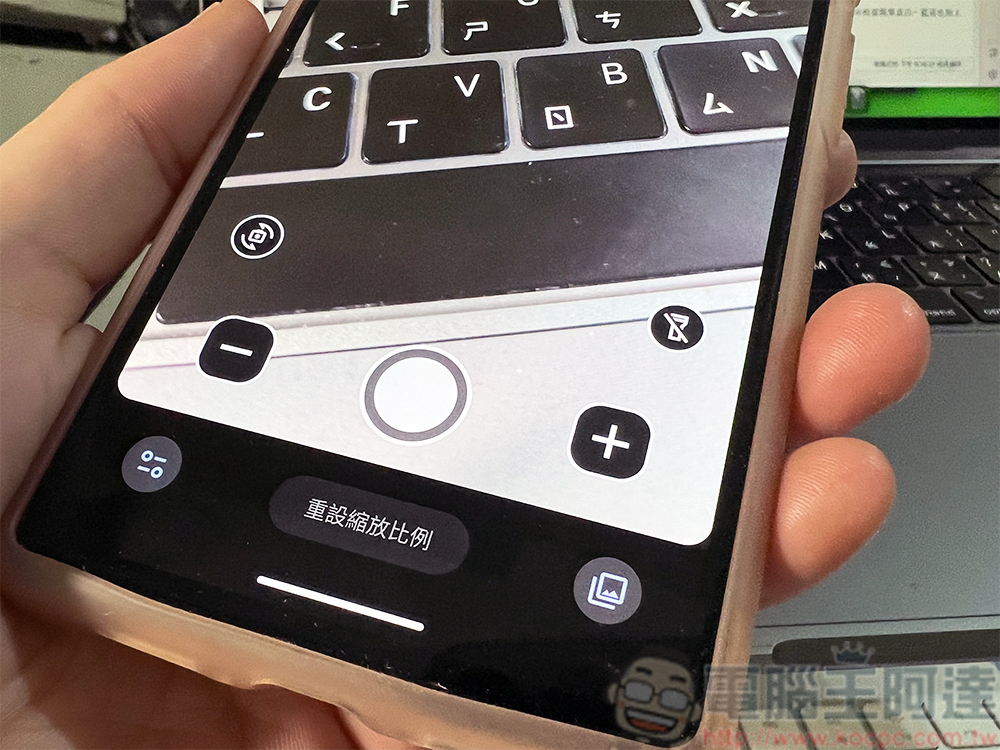
After debuting on Pixel 8 and 8 Pro, Magnifier is now available for download on the Play Store
The Magnifier app is produced by Google and supports Pixel 5 and later models. The app’s icon is quite simple and straightforward, with a blue background and a white magnifying glass. You can easily tell its purpose at a glance.
【Click here to go to Play Store to install】
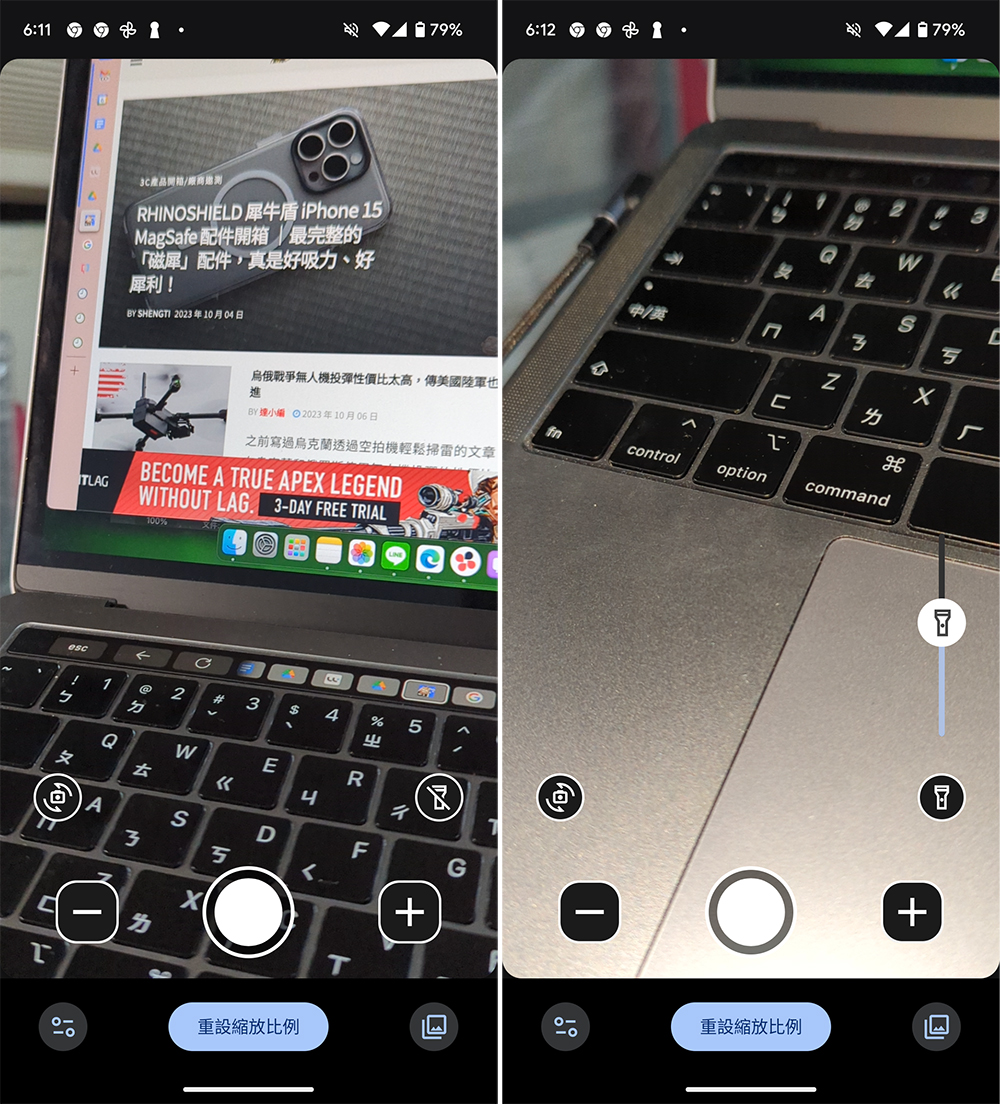
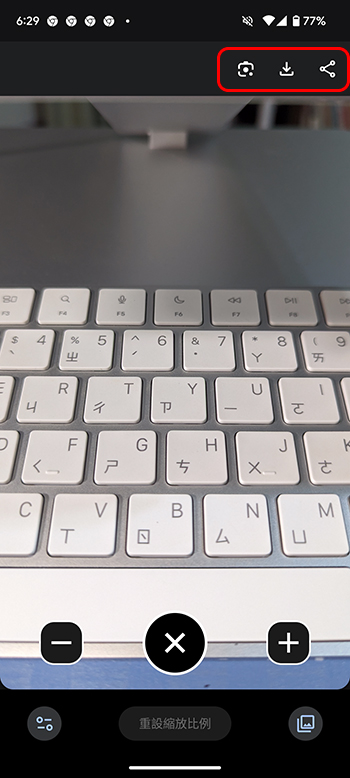
After installing and opening the app, the overall interface will be similar to the camera app on your phone. On both sides of the central shutter button are zoom-in and zoom-out buttons, which can zoom in and out on the screen with smooth transitions. You can also see a flashlight icon on the right side. When you just use your phone as a magnifying glass, you can turn on the flashlight and pull the slider to adjust the brightness so that you can see text content at close range more clearly. If you want to take pictures of text, the flashlight can increase the brightness to make the captured content clearer.
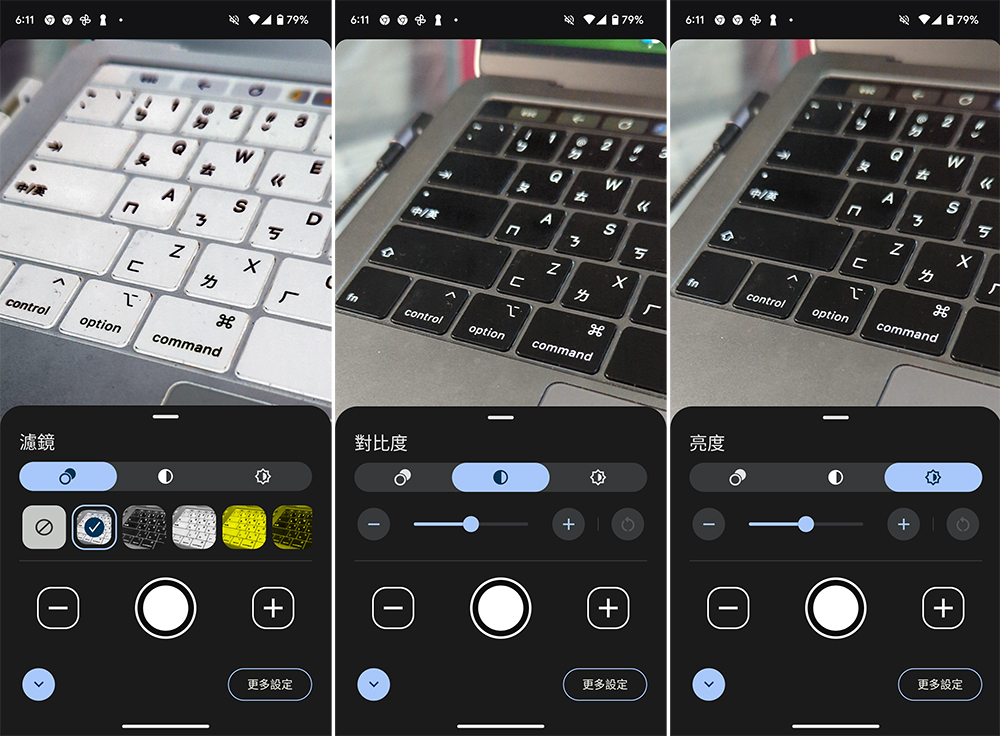
There is a reset zoom ratio in the center at the bottom, and there are settings buttons on the left. Just like the redesigned Google Camera, you can view the color filter you want to apply, adjust brightness and contrast, etc. through the real-time preview on the screen. More settings in the corner allow you to turn displayed items on/off. This so-called filter is not the same as the beauty-style filters we use when taking pictures. Instead, it provides color conversion for people with various visual defects and disabilities, such as color inversion, black text on a yellow background, etc. You can choose the item that suits you best and can see the most clearly.
After you capture the image, you can also continue to apply filters, adjust contrast and brightness, and click the small icon in the upper right corner to hand the image to the smart lens for analysis, text copying, and text to video conversion. In addition, you can save images to a new device folder, browse Magnifier-specific albums from the lower right corner of the home screen, and finally share them through system functions.
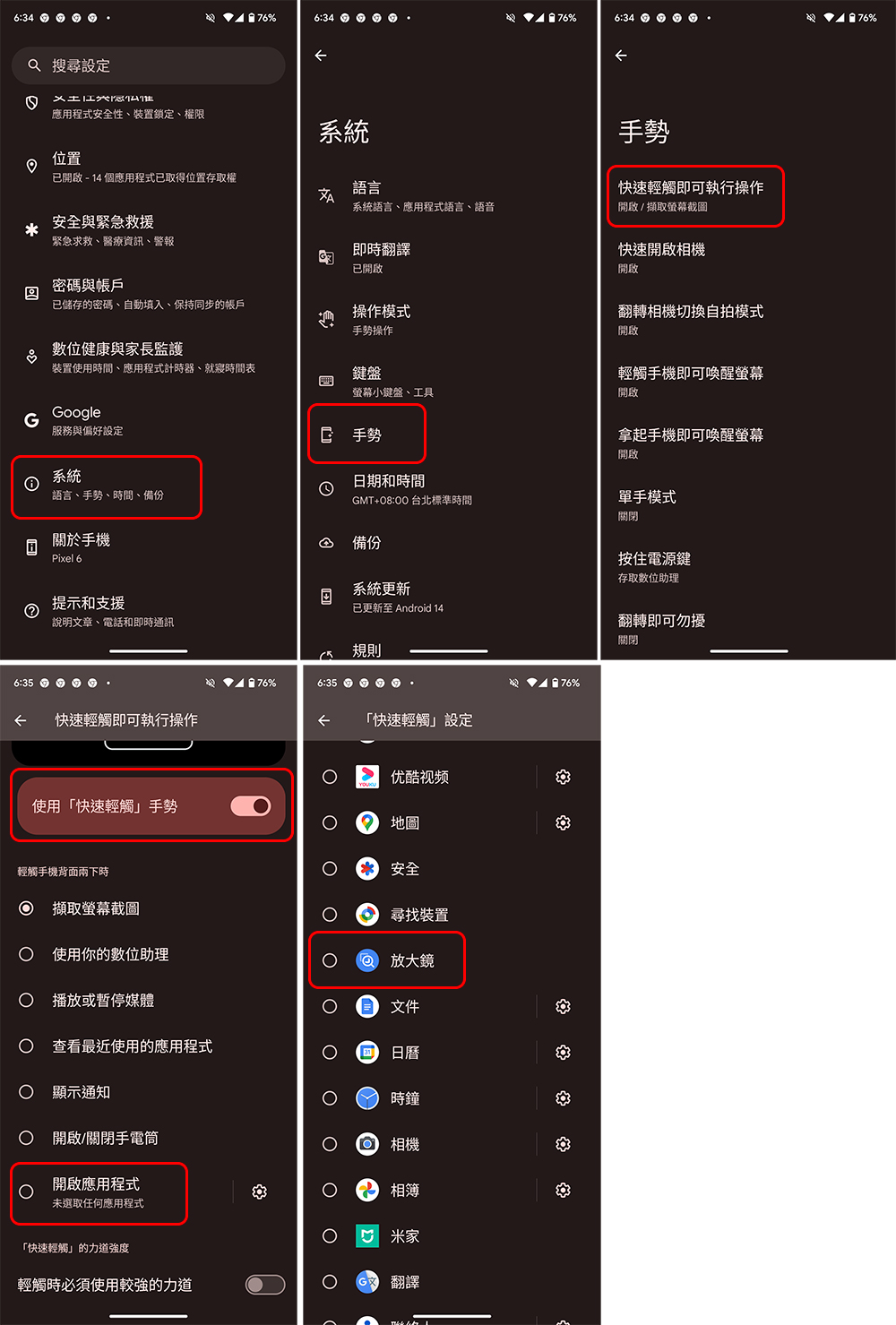
Google recommends that users with weak vision can set the magnifying glass to a quick double-tap on the back of the phone to make it easier for you to access:
- Open the Settings app and click to enter “System”.
- Click Gestures, then click Quickly tap to perform an action.
- First turn on “Use quick tap gestures”, then click “Open App” below.
- Select “Magnifier” from the application list.
Source: KOCPC Chinese