


Windows 11 comes with many excellent new features. One of them that has become inseparable from Windows is the support for HDR (High Dynamic Range) videos. This type of video is more immersive than SDR (Standard Dynamic Range) videos, so many people will choose models that support HDR when purchasing screens. So, can you enjoy the vividness and brightness of HDR videos as long as you connect an HDR screen? Of course, there are some small settings, please follow the author.
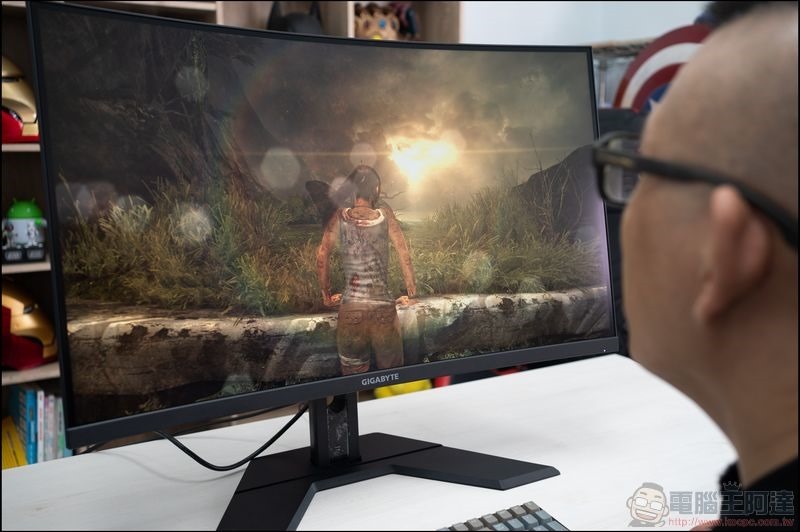
How to stream HDR videos on Windows 11?
When you play HDR videos, your screen gets brighter and the content you’re watching comes to life. However, to enjoy HDR on Windows, you need to meet the following three conditions and adjust some settings.
- The screen itself supports HDR
- Apps for watching videos support HDR
- Watch videos in full screen
How to stream HDR videos on Windows 11
Just like in Windows 10, the ability to use HDR videos lives in the Settings app. If you’re using an HDR-enabled app or watching an HDR-enabled video and your laptop or desktop monitor supports it, you can turn it on or off as needed. Next we’ll take a closer look at how to stream HDR videos.
First, enable the feature
- You can check to see if your system is optimized for HDR videos. Open the Settings application and select “Display” in the system tab.
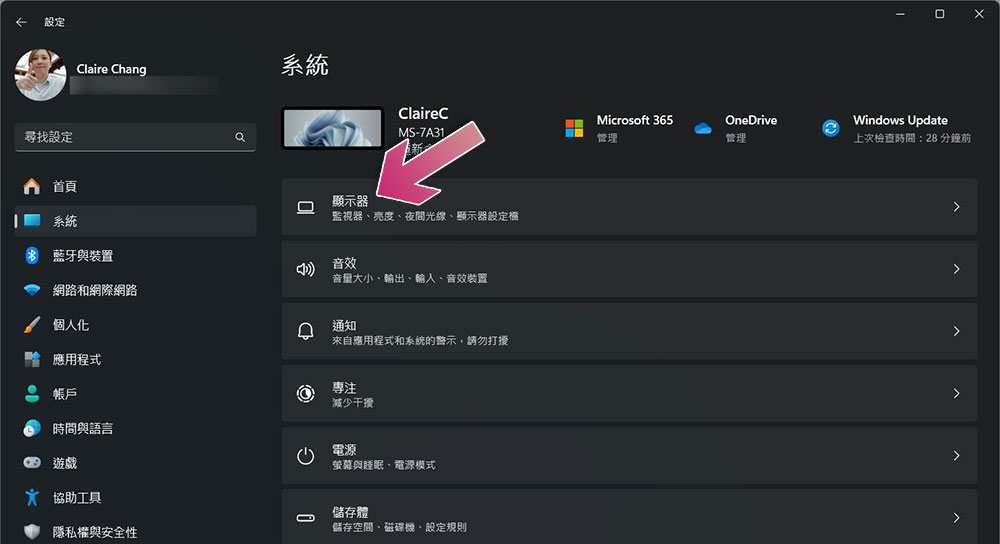
- You must turn on the “Use HDR” switch. The screen will go blank and turn it back on, then click the arrow behind it.
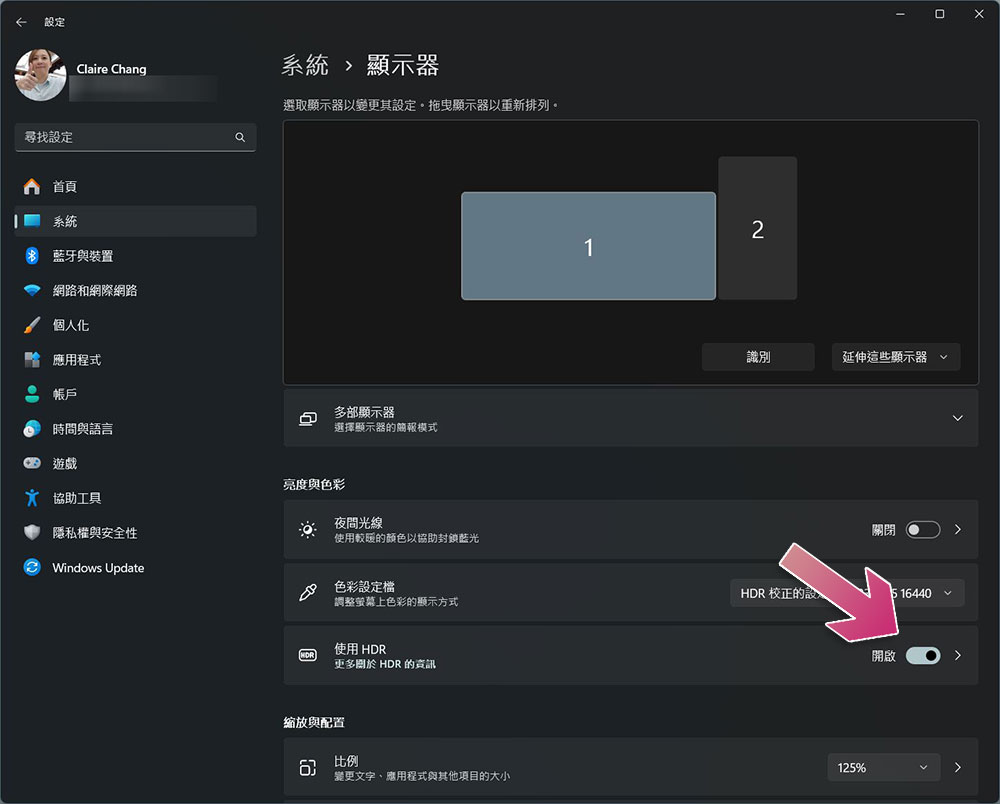
- Please turn on “HDR Video Streaming” on the HDR settings page.
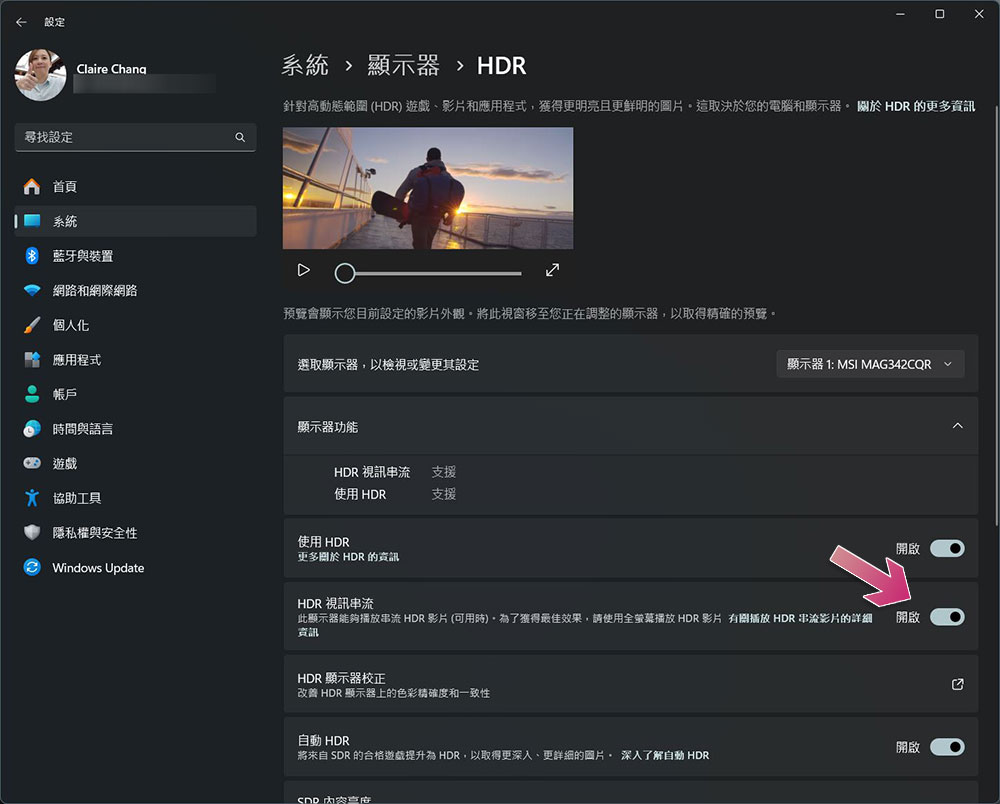
- Start playing your HDR video in full screen.
Change power settings
Depending on your power settings, you may also need some settings to play HDR videos while the laptop is draining battery power.
- Select “Use HDR” from the “Displays” page and make sure the switch is turned on.
- Also click on the arrow behind Use HDR, and after entering, turn on the switches for HDR, HDR video streaming and automatic HDR.
- Make sure Optimize image quality is turned on in battery options.
If all else fails, you must make sure that your computer’s power saver mode is turned off. HDR will not work when power saver mode is on. You can do this by clicking the Wi-Fi icon in the system drawer and turning off the power saver mode icon.
To sum up, streaming HDR videos in Windows 11 is very easy, you just need to go to the right settings page. When you use it, you can also customize the HDR experience. In the same setup, as we mentioned above, press the HDR display calibration button, which will download a dedicated Windows HDR calibration app for you, allowing you to move the slider to get the correct and preferred image, while also changing the brightness as needed. If you don’t have an HDR screen yet, this is the next thing you should consider.
Further reading:How to calibrate HDR in Windows 11? Why calibrate?
Source: KOCPC Chinese