


Many people are probably like me. Every time they go online, they open a lot of tabs. Especially if you are a computer worker, you basically have 10 tabs open at any time. Although browsers now have an adjustment function that will automatically freeze pages that have not been used for a long time to release more memory, after all, it is the browser’s own judgment and there is no way to freeze it when it wants to. This article would like to recommend a recently discovered and useful free extension called Tabs Fast Easy. It is available in Chrome and Edge. It provides a one-click tab freezing function. With just one click, you can immediately freeze tabs on other web pages that are not in use. It is very impressive. When I tested it, more than 5GB of RAM was immediately released as soon as it was frozen. You can also manage tabs directly through this extension.

Tabs Fast Easy freezes browser tabs and paging with one click, frees up more memory usage, and also provides paging management functions.
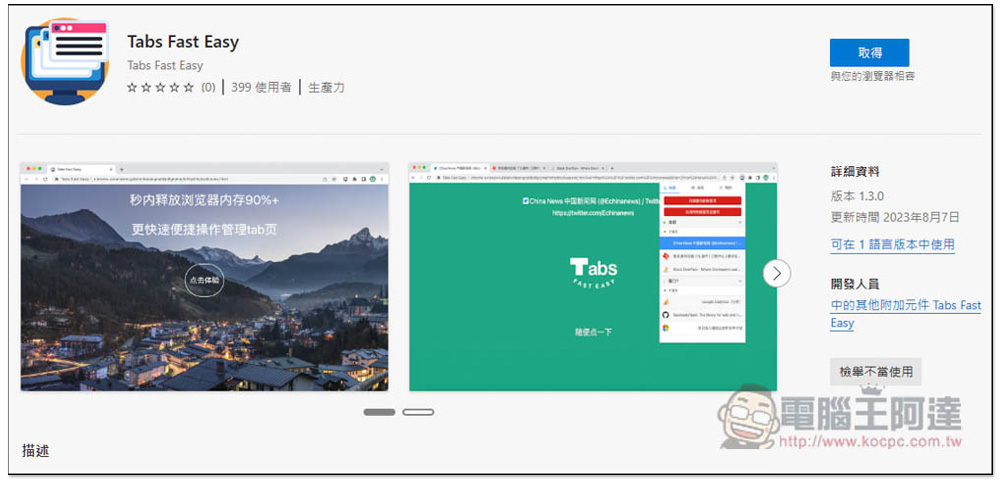
I am using the Edge version, and the operations are the same. After entering the extension store page, click Get to install:
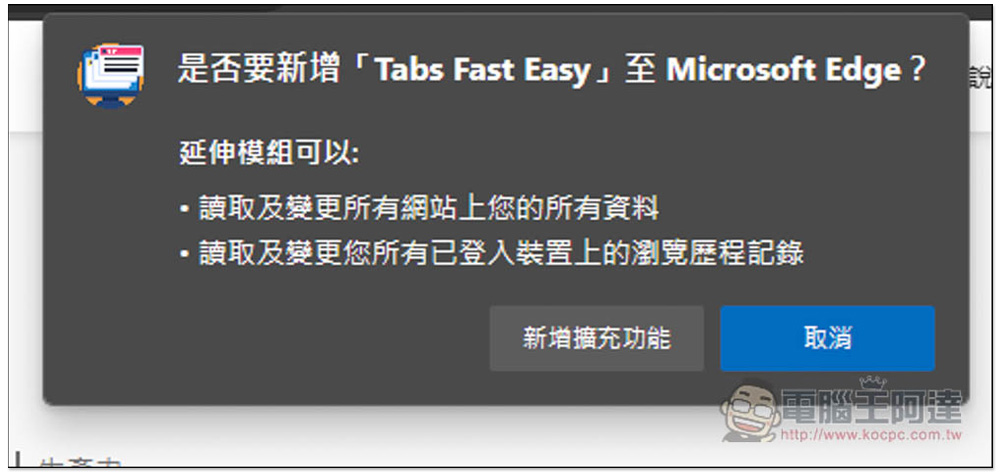
This message window will pop up above, click on Add Extension Function:
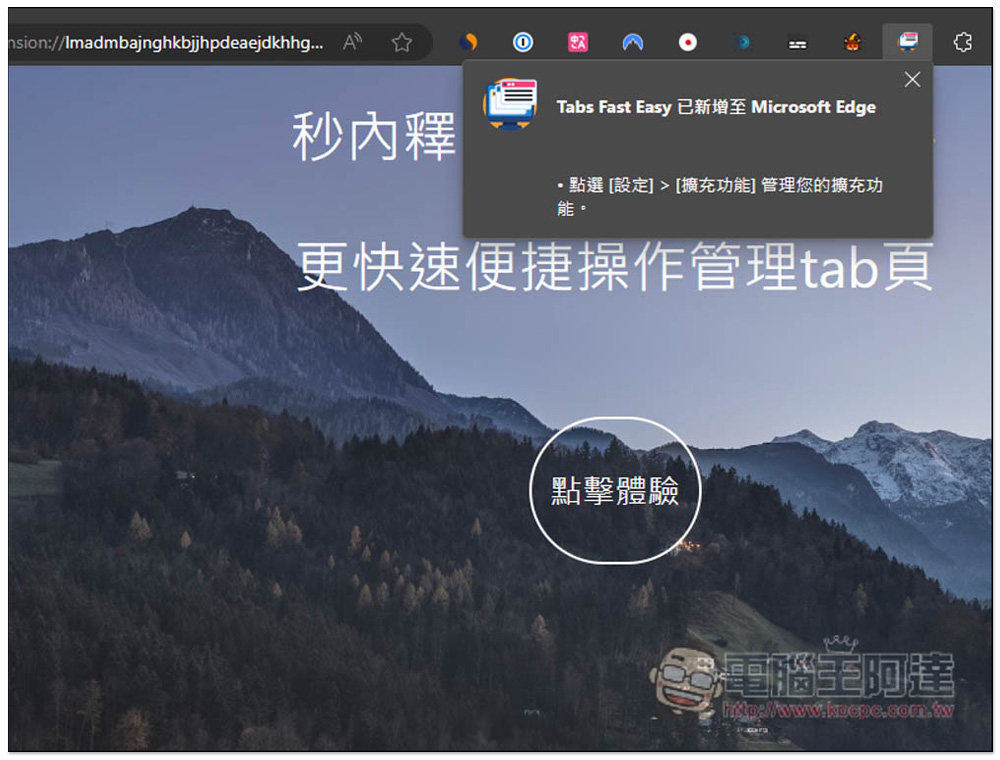
After installation, a new page will automatically open for you to try the feeling of one-click release. You can directly “click to experience”:
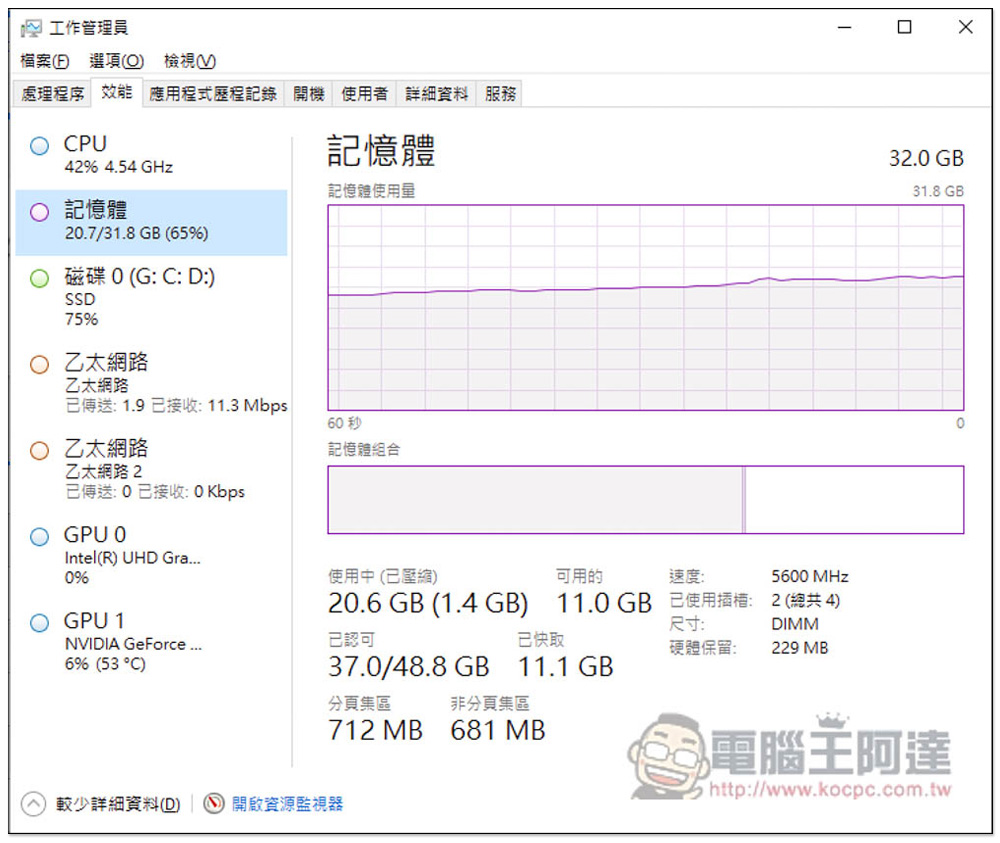
This is my memory usage before using this expansion feature, which is up to 20.7GB:
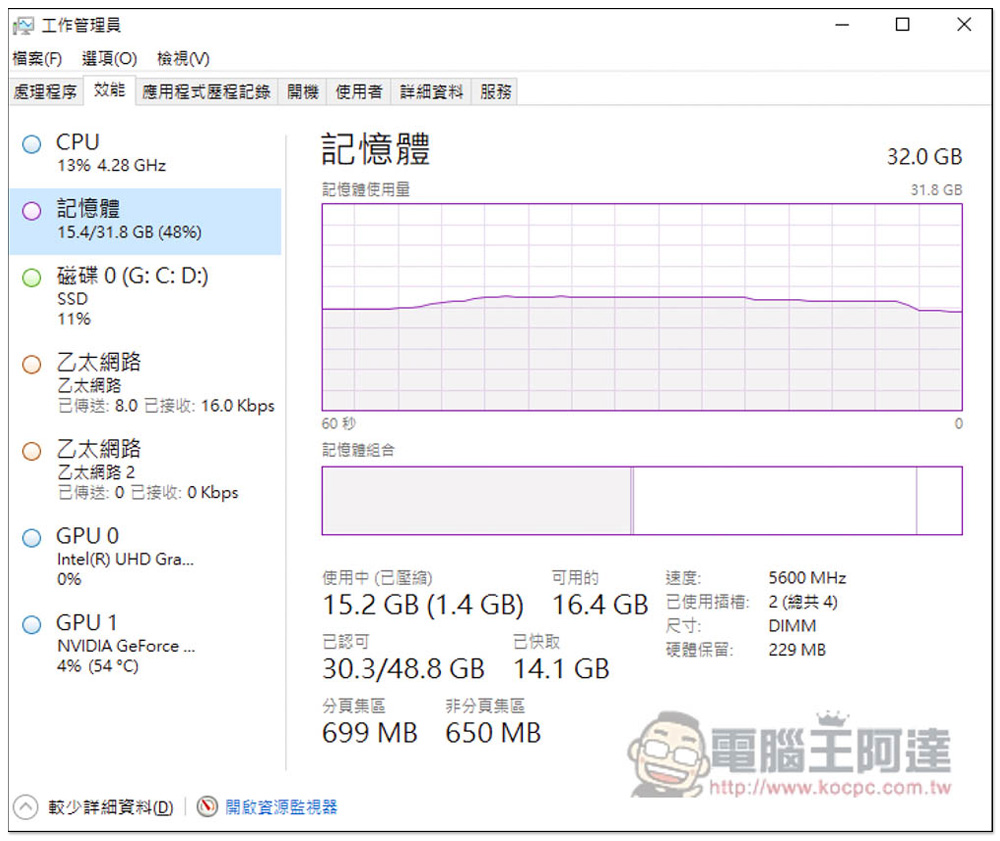
After using one click to freeze tabs. The memory usage instantly dropped to 15.4GB, which is more than 5GB less. The difference is very big:
This screen will appear on all frozen web pages. Click or press the space button anywhere on the screen to reorganize and enable it:

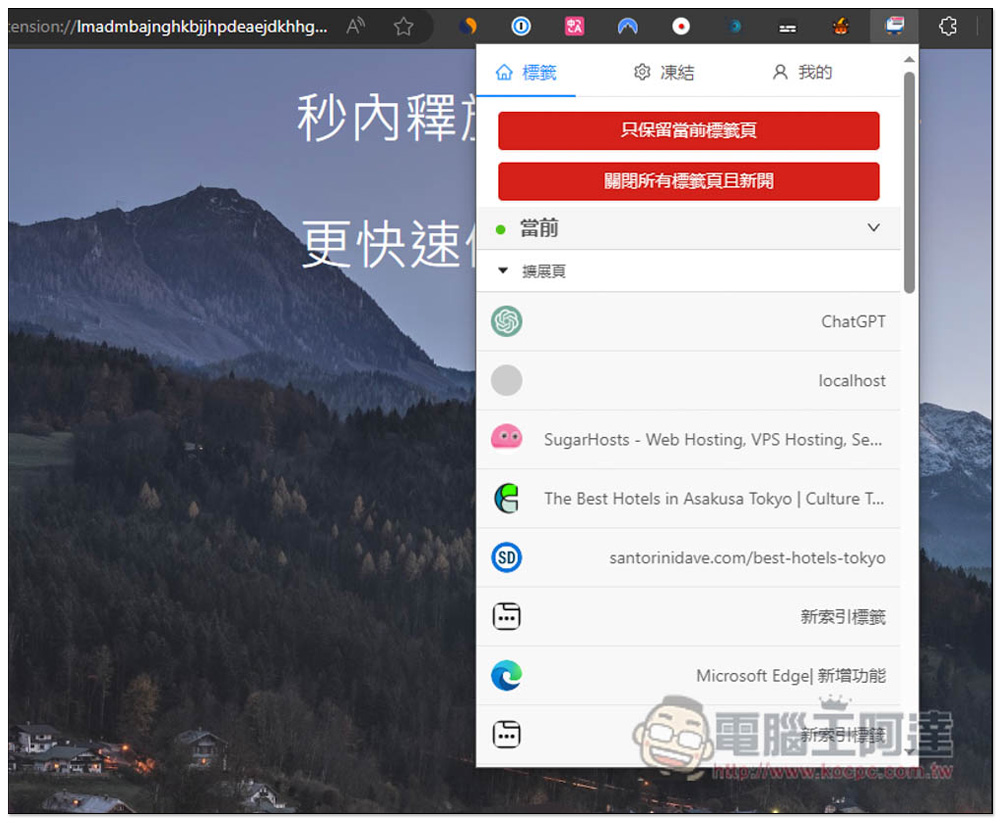
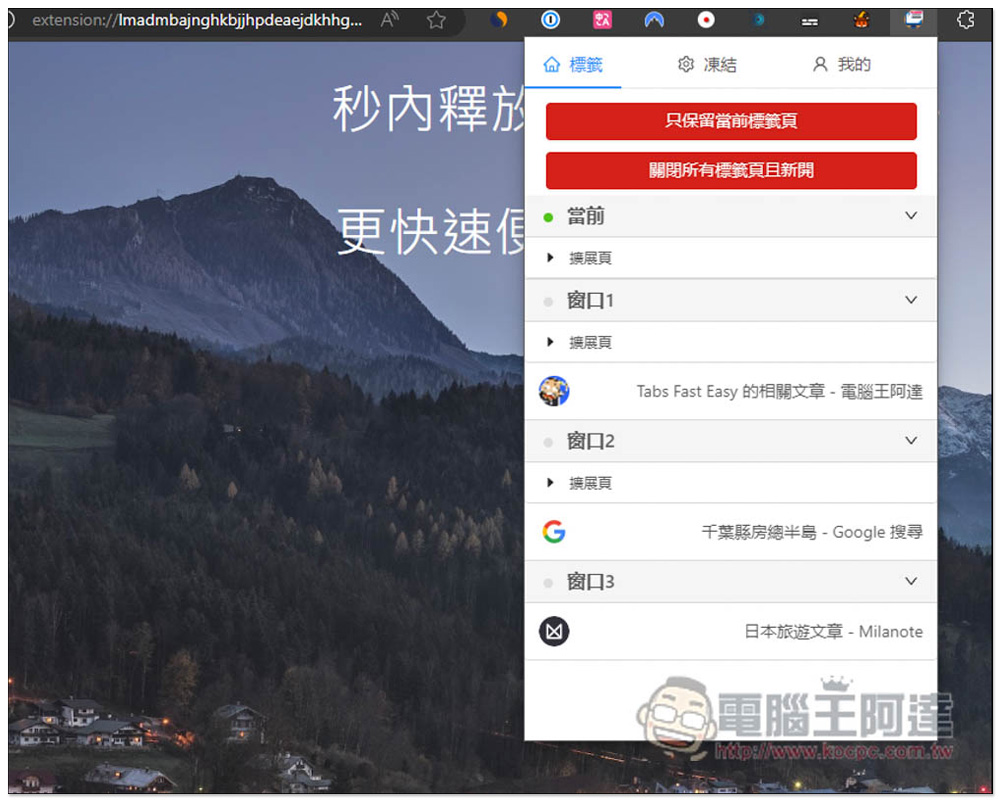
When you open the extension icon, you will find three menus. In the tab menu, you can manage your currently opened web page tabs. Clicking “Keep only current tab” will close all other open tab tabs. “Close all tabs and open new ones” means closing all tabs and opening a new one:
I have a total of four browser windows open, and it will be divided into four, such as current, window 1, window 2, and window 3:
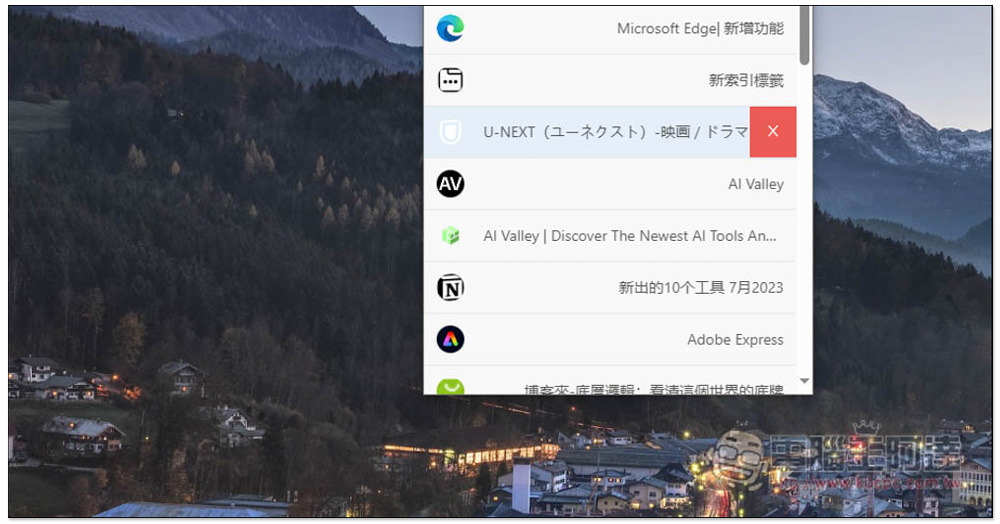
Move the mouse over the tab, and the X close function will appear on the right. Click to close the tab:
In the freeze menu, there are three freeze functions, namely “Freeze this tab”, “Freeze all tabs in multi-windows”, and “Restore all tabs in multi-windows”. There are also some practical freeze page settings, such as whether to freeze fixed tabs, automatically restore when browsing the current page (you don’t have to click anywhere to reorganize, and it will be restored as soon as you click the tab), whether to automatically freeze audio and video tabs, etc.:

It also provides the function of setting how long to automatically freeze tabs. The default is 20 minutes. Of course, there is also a whitelist function.
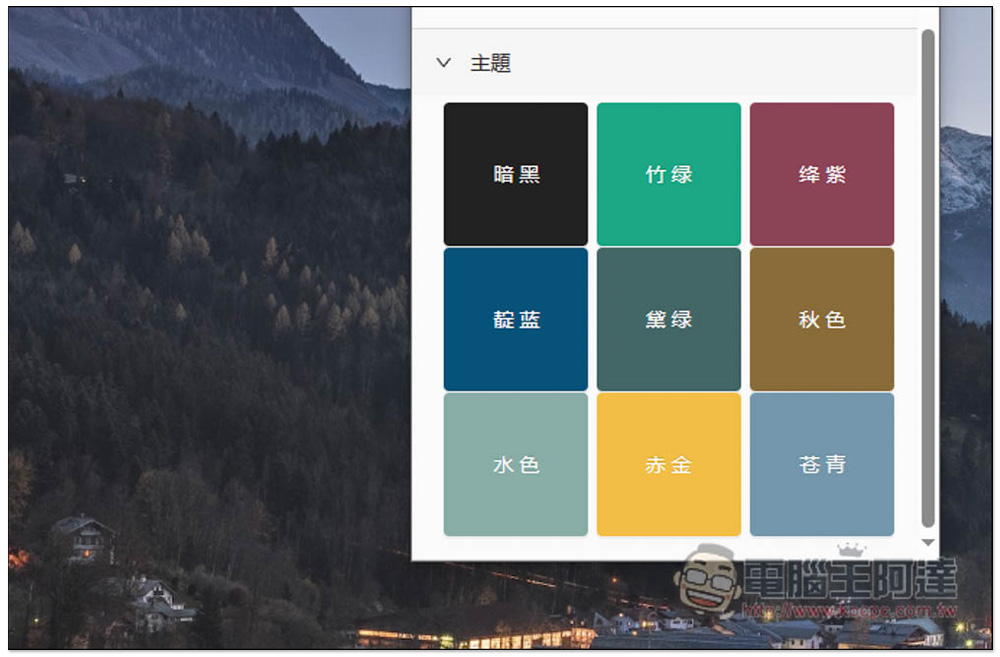
There are also theme settings:
In terms of freezing tabs and freeing up more memory, this extended function is really useful. It is simple and does not have too many complicated functions. Moreover, it is really effective after freezing. Unlike some tools, the memory does not increase much after freezing.
In addition, Tabs Fast Easy also provides a right-click menu function. You can open the right-click menu directly on the web page and quickly use the freeze function. The extended function icon in the upper right corner does not have to be displayed.
Source: KOCPC Chinese