


You will store many files on your computer. Some of them are fine if you see them, but some of them you may not want to be seen at all. Just enter a few keywords in File Explorer to browse any file, but thankfully you can make some simple customizations to hide certain files or folders. This time we have helped you sort out ways to hide personal secrets, especially those who share computers.

How to hide files on Windows 11?
Hide files and folders in File Explorer
If you just need to hide a single file or folder, and you don’t care if someone uses the search on the Windows taskbar to find the content (we’ll get to that later, don’t worry), you have a very simple way to hide files and folders in Windows 11 File Explorer right away.
- Open a File Explorer window.
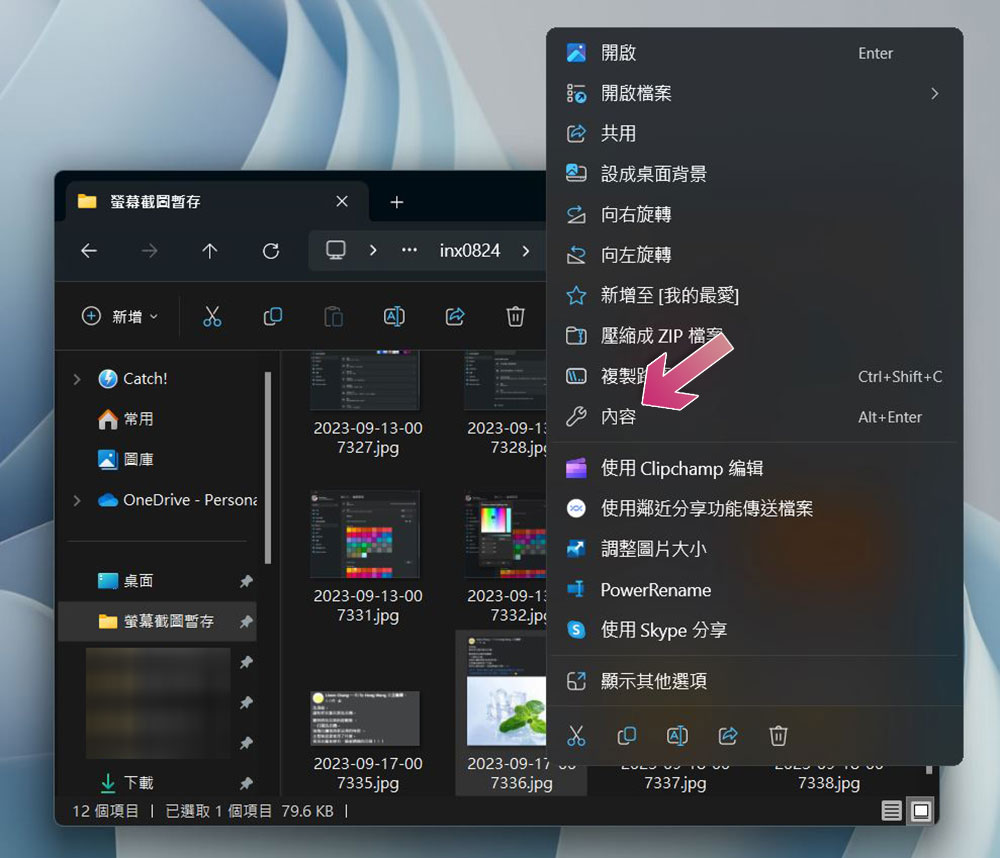
- Right-click the file you want to hide and select Content from the menu.
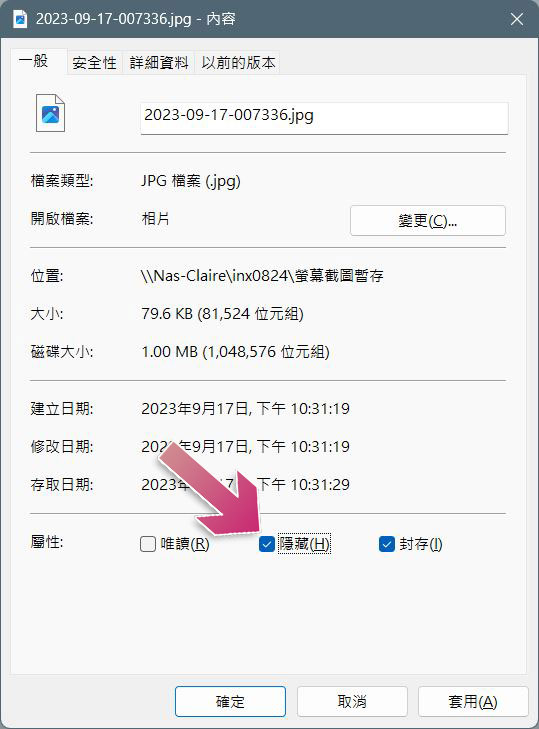
- Then in the “General” tab (the page that is initially displayed), check “Hide” and click OK.
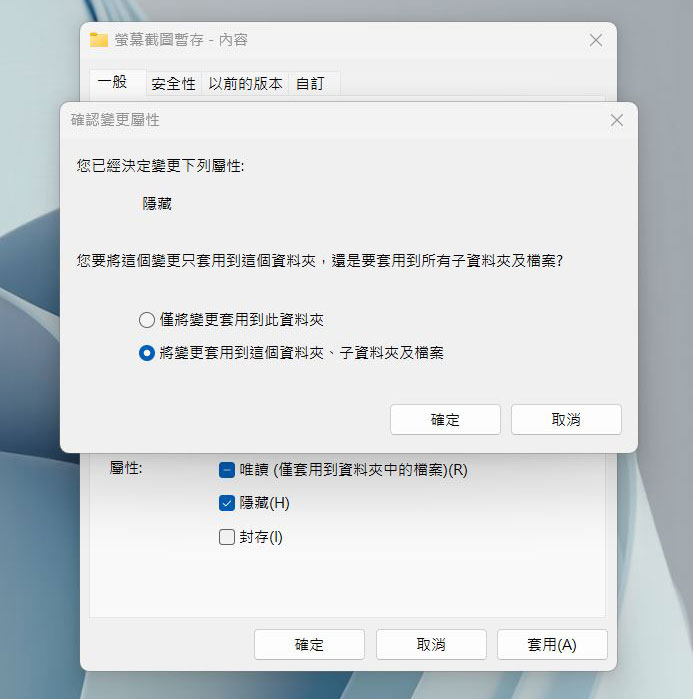
- Next, the system will pop up a window asking you to hide only the selected folder or apply this change to this folder, subfolders and files inside it. After selecting, click OK to apply the change.
View hidden files and folders
Just because files are hidden from view doesn’t mean that they really won’t be found in File Manager at all. Since I taught you how to hide it above, I will teach you how to view all hidden content.
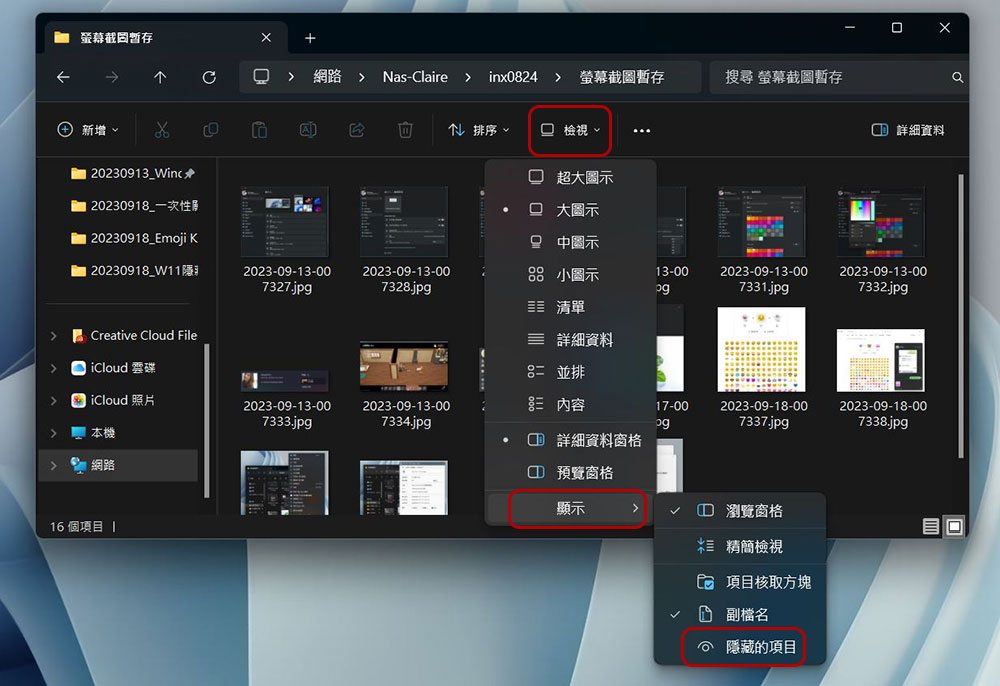
- Open the File Explorer window.
- Click “View” in the top toolbar.
- Click “Show” at the bottom and check “Hidden Items”.
Prevent File Explorer from showing hidden files and folders
Although you can search using keywords, you can make other settings to counteract this, so that those hidden files and folders will not be displayed when someone searches.
- Open a File Explorer window.
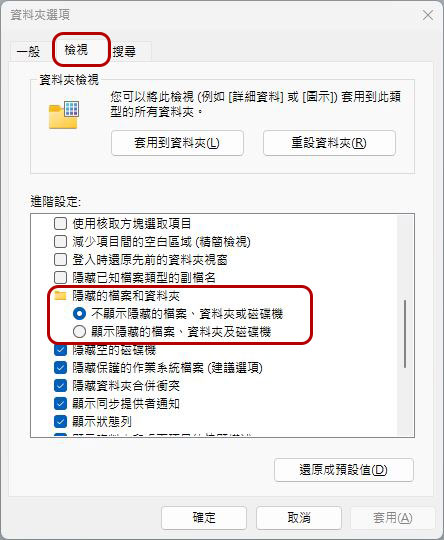
- Click “…” on the toolbar above, then click “Options.”

- In the next options window, switch to the “View” tab, then in the advanced settings, make sure it is set to “Don’t show hidden files, folders, or drives”, and then click OK.
Hide files and folders from settings
One of the easiest ways to find files and folders in Windows 11 is to enter the file name or file extension into the search box, but you can also train your operating system to stop looking for things you don’t want to be seen. Here’s how:
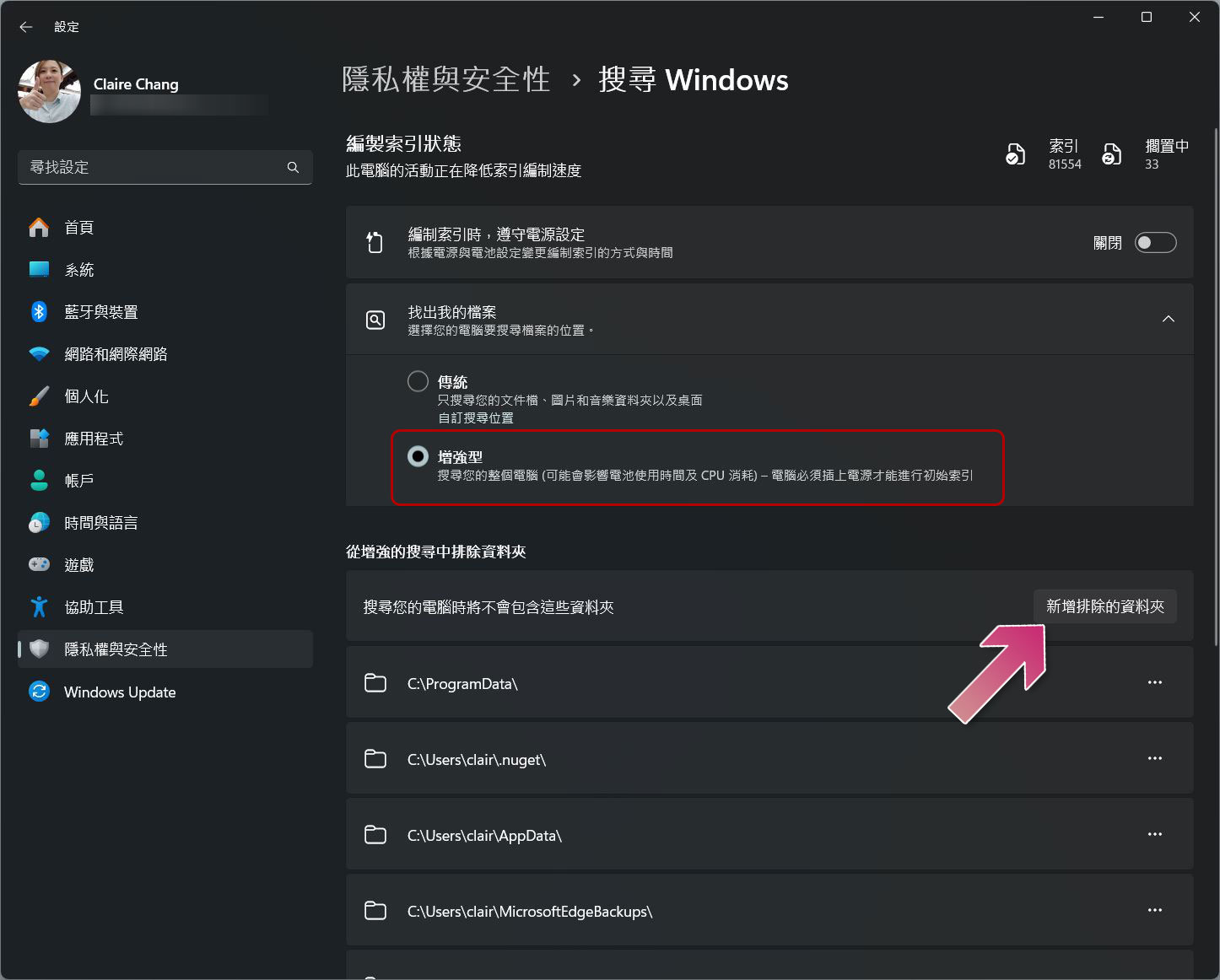
- Open the Settings app, switch to the Privacy & Security tab, and click Search Windows.

- Switch “Find My Files” to “Enhanced”. (default is traditional)
- Then click “Add Excluded Folder” below, and the search window will open. Just select the ones you don’t want to be searched and add them.
Source: KOCPC Chinese