


Modern people are paying more and more attention to network security. Under the advocacy of various technology giants, more secure 2FA verification has become a function that many people will use. In the past, when you wanted to enable 2FA, the first thing you thought of was to download a third-party code generator app from the app store. But if you are an iOS or iPadOS user, there is actually a built-in 2FA function available. Let’s learn about it this time!

You may not know! How to use the built-in 2FA generator on iOS or iPadOS
Everyone loves the latest iPhone and iPad, and they are among the best mobile devices on the market, providing users with a variety of convenient tools. This includes a built-in password manager that enables you to store various login credentials. However, what many people don’t know is that it also supports two-factor authentication (2FA) code generation.
How to use the 2FA code generator on iOS or iPadOS
- Open your iPhone or iPad’s Settings app.
- Scroll down to find “Passwords” (not Face ID and Passwords).
- Your device will first ask you to verify your identity with Face ID / Touch ID or enter a password.
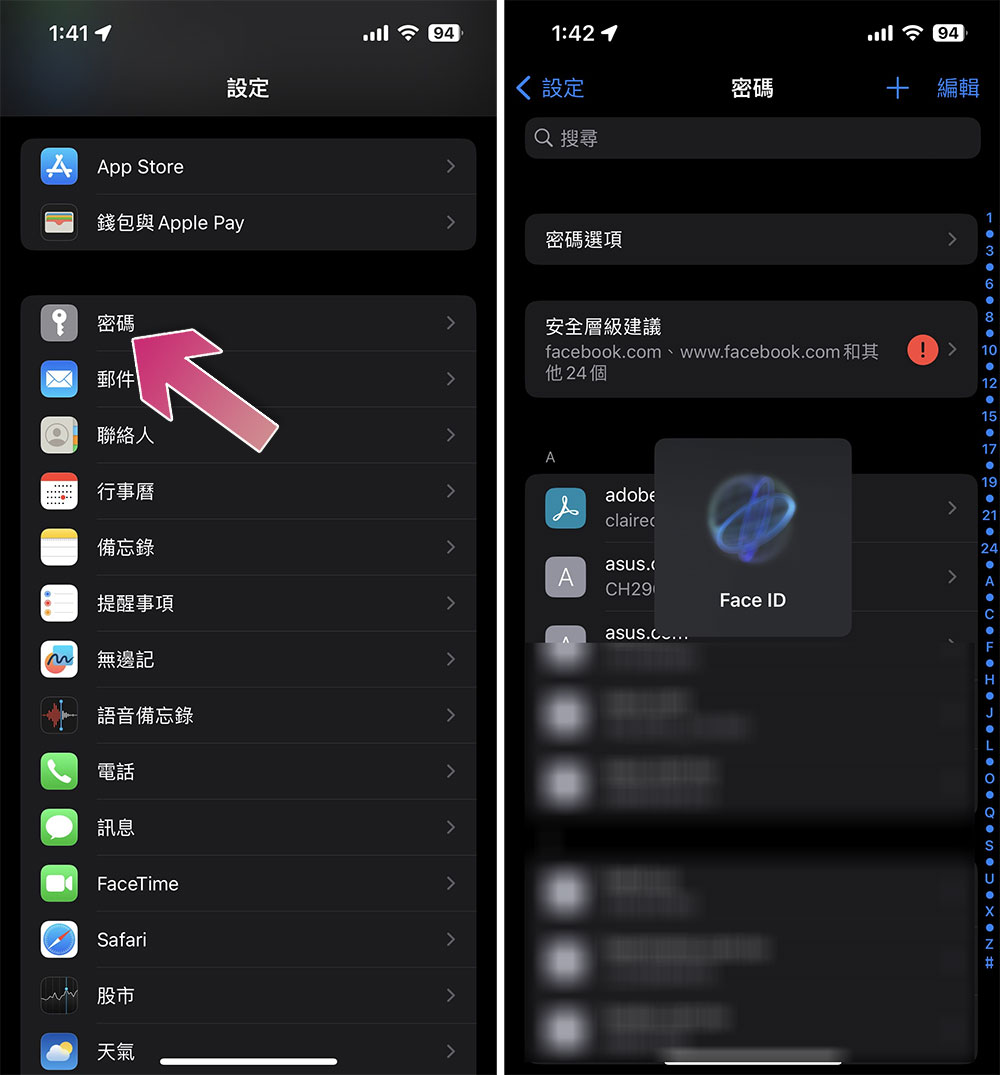
- After verification, you will see a large list of passwords that have been saved in Apple Keychain. Click on the item you want to protect.
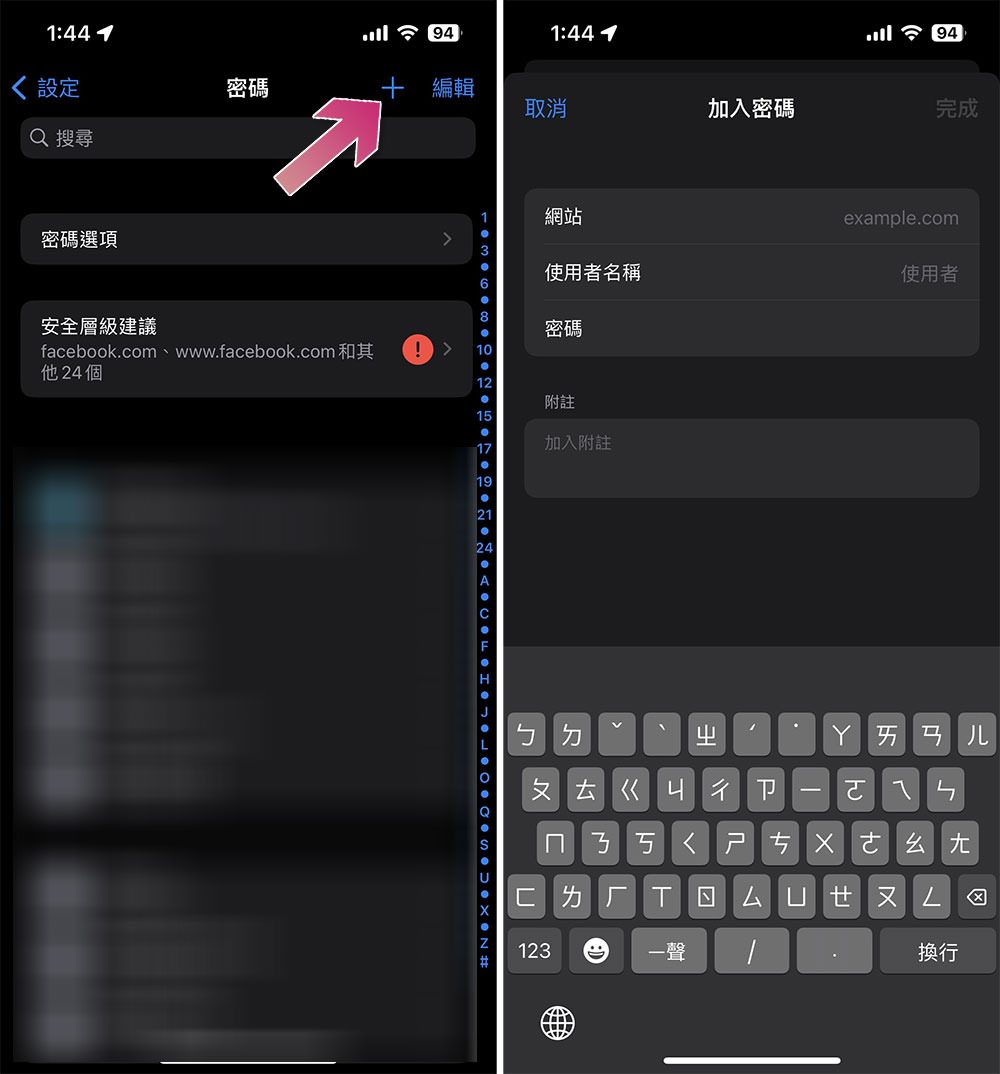
- If the item you want to protect is not among them, you can click the “+” sign in the upper right corner and then add it manually on the “Add Password” page.
- Next, click “Set Verification Code…” on the project page you selected. iOS / iPadOS will prompt you to set a key or scan a mobile barcode to choose one.
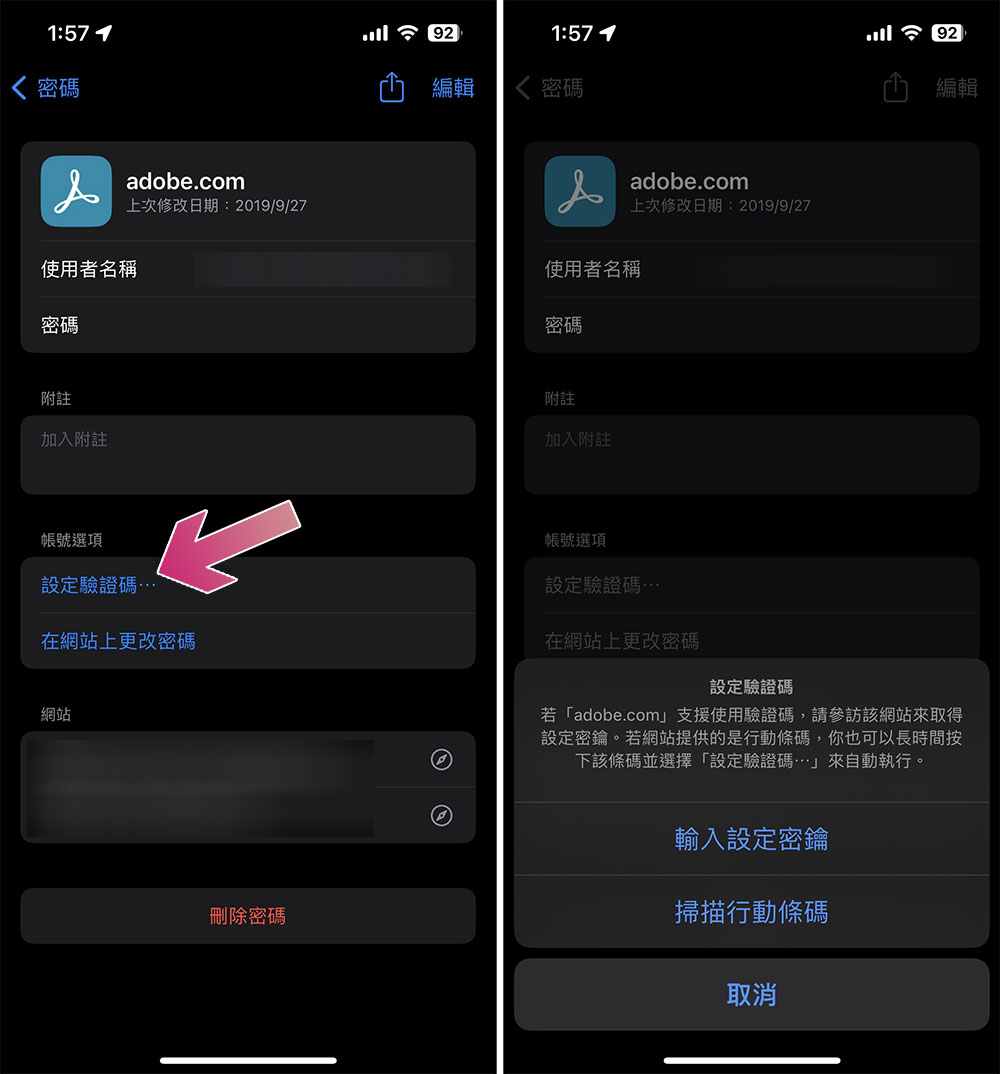
- Then go to another device (not necessarily an iPhone or iPad), open the website or app for the desired service, and enable 2FA in your account settings. If you don’t have another device, you can copy the setup code from the website/app, then navigate to the Settings app when prompted and paste it into the Keys section.
- After scanning or adding, you can see an extra column of “Verification Code” under the password, which will display the expiration countdown; click on the verification code part to copy it directly.

Why is it important to use 2FA?
For those who are not familiar here is a few words. When 2FA authentication is enabled, the website, app, or service will not allow you to log into your account without entering a random verification code. Therefore, you must enter additional login credentials (email/username and password) in addition to the verification code that usually refreshes every 30 seconds. This makes it more challenging for those who already have your user ID and password to gain unauthorized access to your accounts and data, and protects you from hacking and phishing attempts. That’s why it’s important to use 2FA if a service has it, and the free password managers built into iOS and iPadOS can easily help.
Source: KOCPC Chinese