


For a long time, the most effective way to change the peripheral RGB color light connected to a Windows 11 computer, excluding some keyboards and mice whose functions are written directly on the hardware, is to download exclusive applications of each brand. Almost every well-known major manufacturer operates in its own way, including Razer, SteelSeries, Corsair, etc., all have their own applications. If you use different brands of peripherals, you will end up installing many of them in your computer. Fortunately, Microsoft plans to take action to sort out this situation. Windows 11 finally introduces the dynamic lighting function, and those scattered applications can finally ignore them!
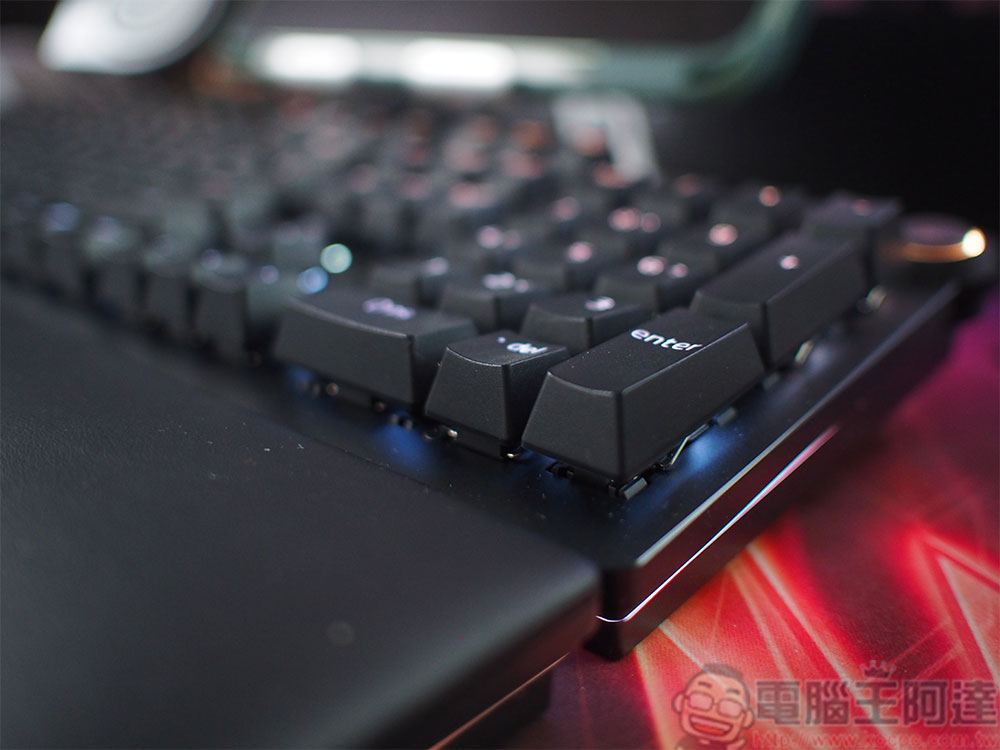
Microsoft unifies RGB lighting effects! How to use dynamic lighting on Windows 11?
Although it’s not expected to be fully available until Windows 11 23H2 rolls out, it’s now been publicly revealed on the Insider channel. The implementation of dynamic lighting functions is not as complicated and sophisticated as the proprietary applications of each brand, but if you just want to simply control RGB light effect lighting, you only need to start with the built-in settings of Wiondows 11.
Configure RGB lighting using the Windows 11 Settings app
If you are a Windows 11 Insider experience member like the author, you should be able to see this feature now; if not, you can wait for Microsoft to launch the official version. So, how to set up dynamic lighting?
- Connect a compatible RGB peripheral to your computer’s USB port. The compatibility list will be compiled at the end of this article.
- Open the “Settings” app and click “Personalization” in the list on the left.
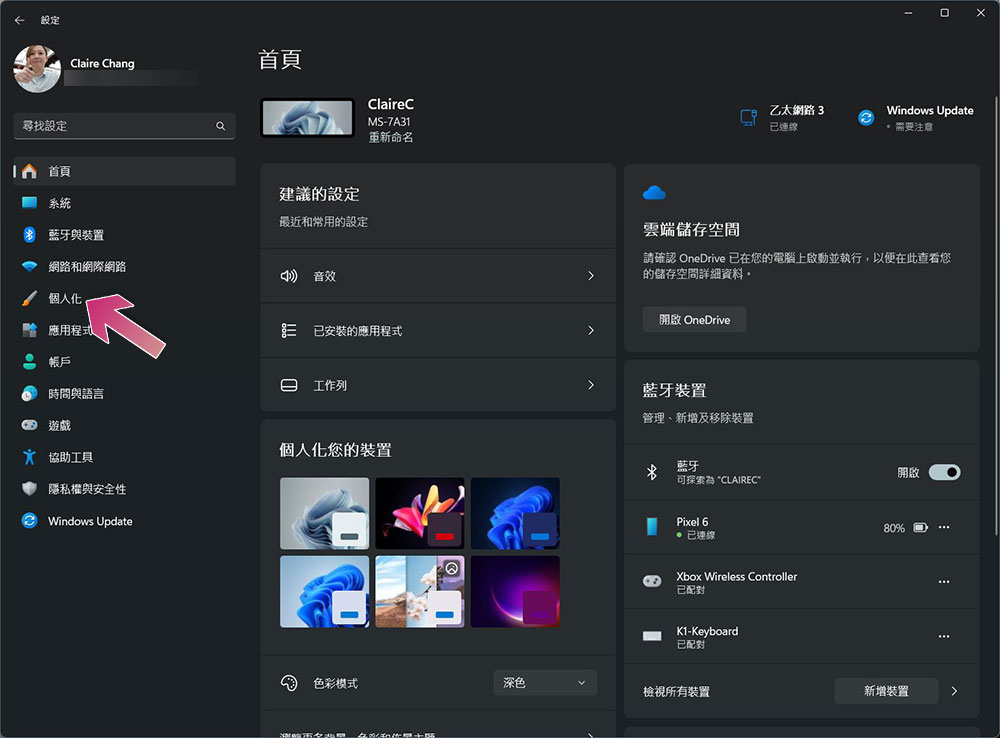
- Next select “Dynamic Lighting”.
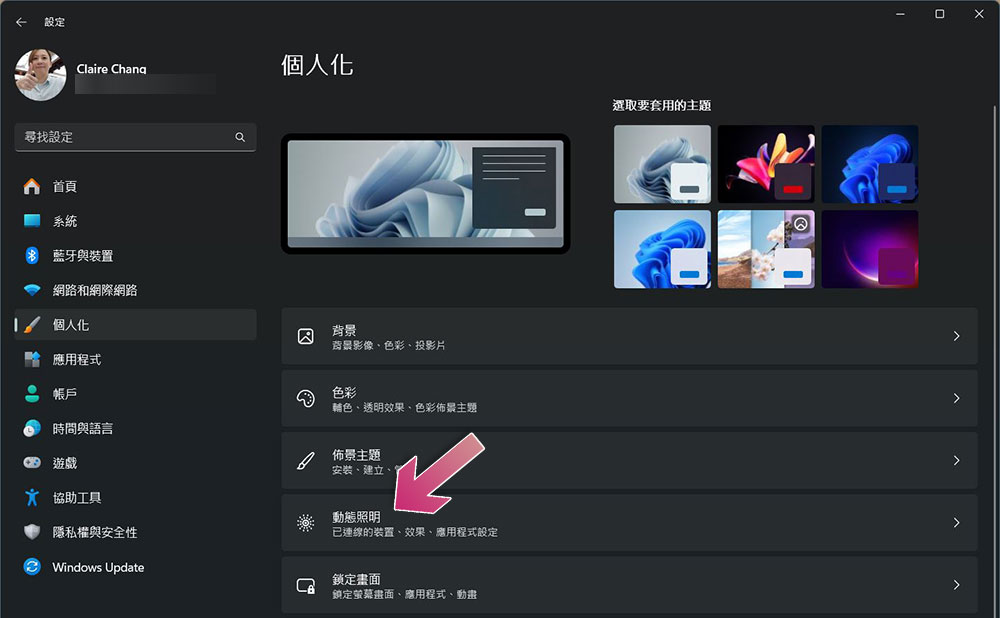
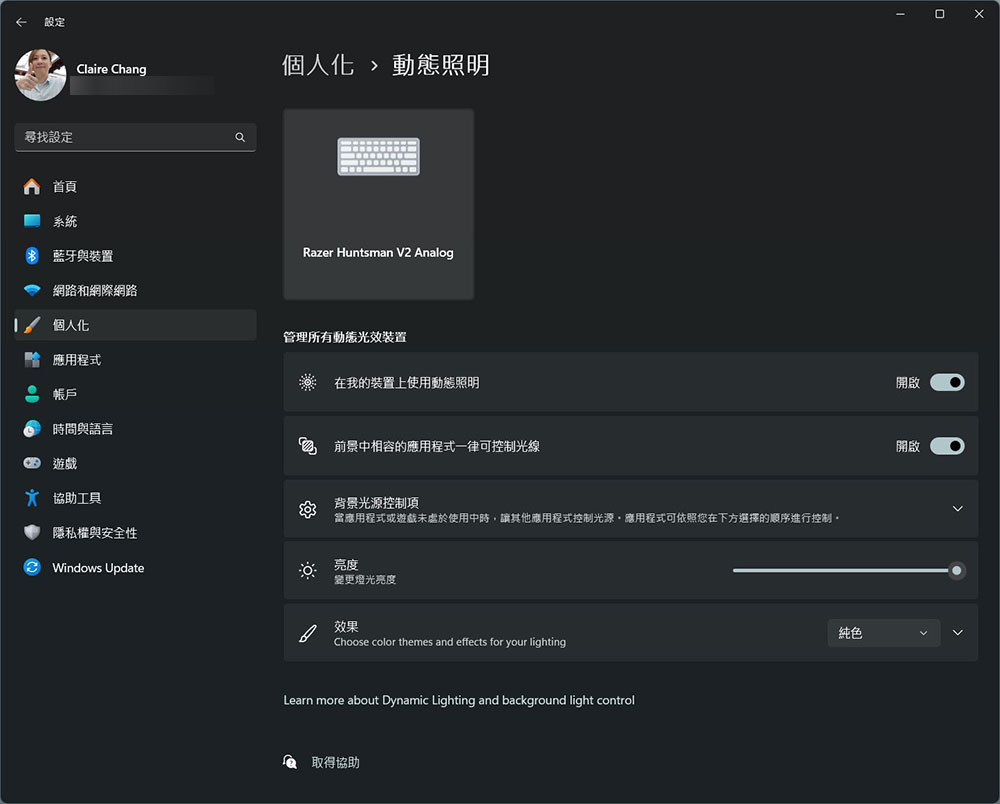
- From this page, you can change global RGB lighting settings for all compatible devices, or select individual items from the connected PC-compatible devices listed at the top to configure them independently. Here are a few setting items that are not easy to understand literally and I will briefly explain them to you:
- Use dynamic lighting on my device
Apply dynamic lighting settings to all connected devices, that is, global RGB applies the same set of settings at once. - Compatible apps in the foreground can control light at once
This setting refers to whether you agree that other applications can override the light effect control of dynamic lighting settings. - Background light control
Select the order in which different background lighting controllers take precedence over each other. This is helpful if you need to install peripheral-specific software for more advanced control.
- Use dynamic lighting on my device
- Pull the slider on the brightness item to adjust the brightness of the light effect.
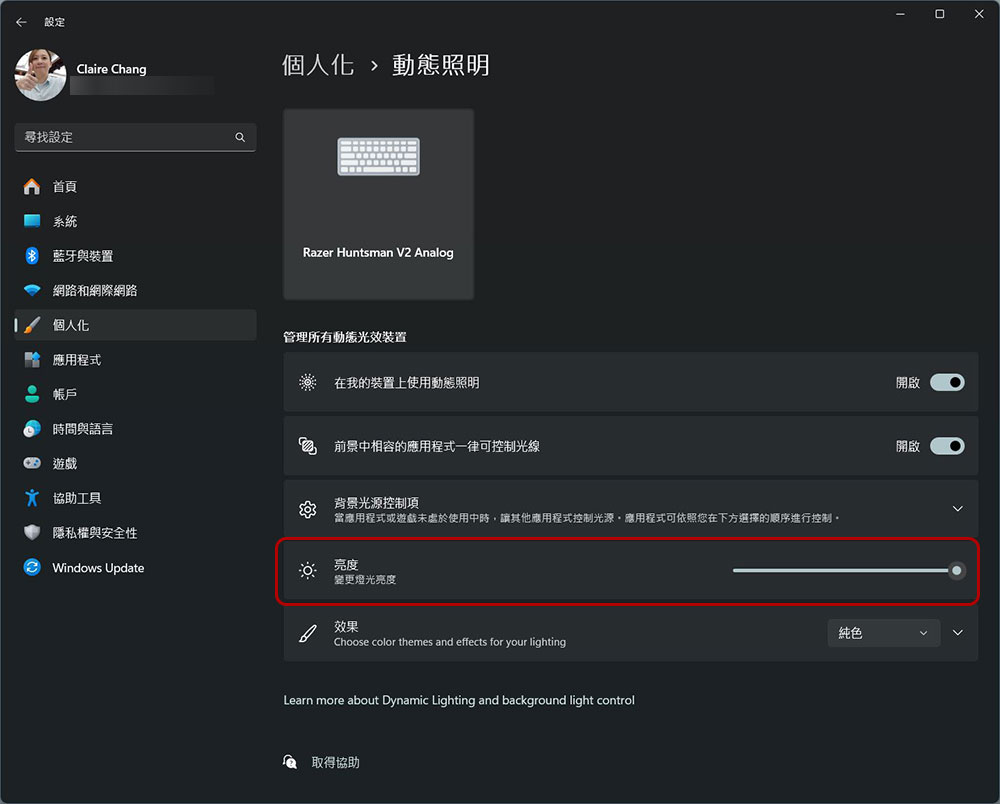
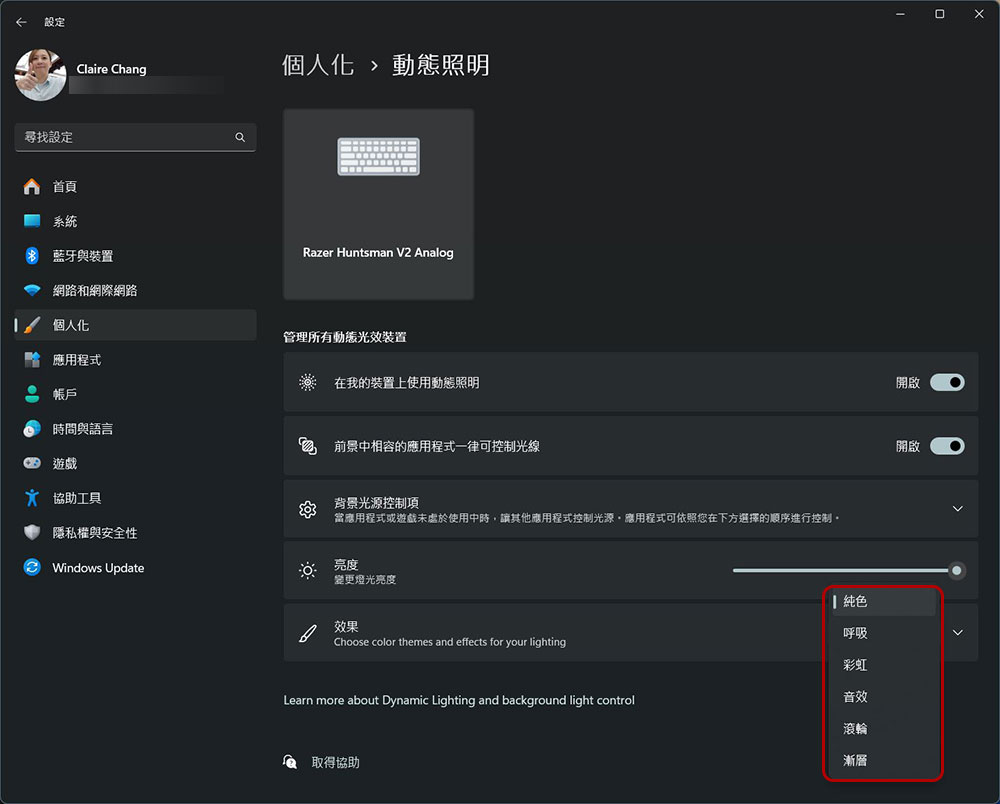
- Effect This item allows you to adjust the light effect. These include:
- solid color
Show selected color continuously - breathe
Alternate lighting on and off in a single color - rainbow
Cycle through the chromatogram - wave
Create a wave effect with two selected colors - roller
Two selected colors shown in spiral animation - Gradient
Display two static colors selected by the user in a gradient manner
- solid color
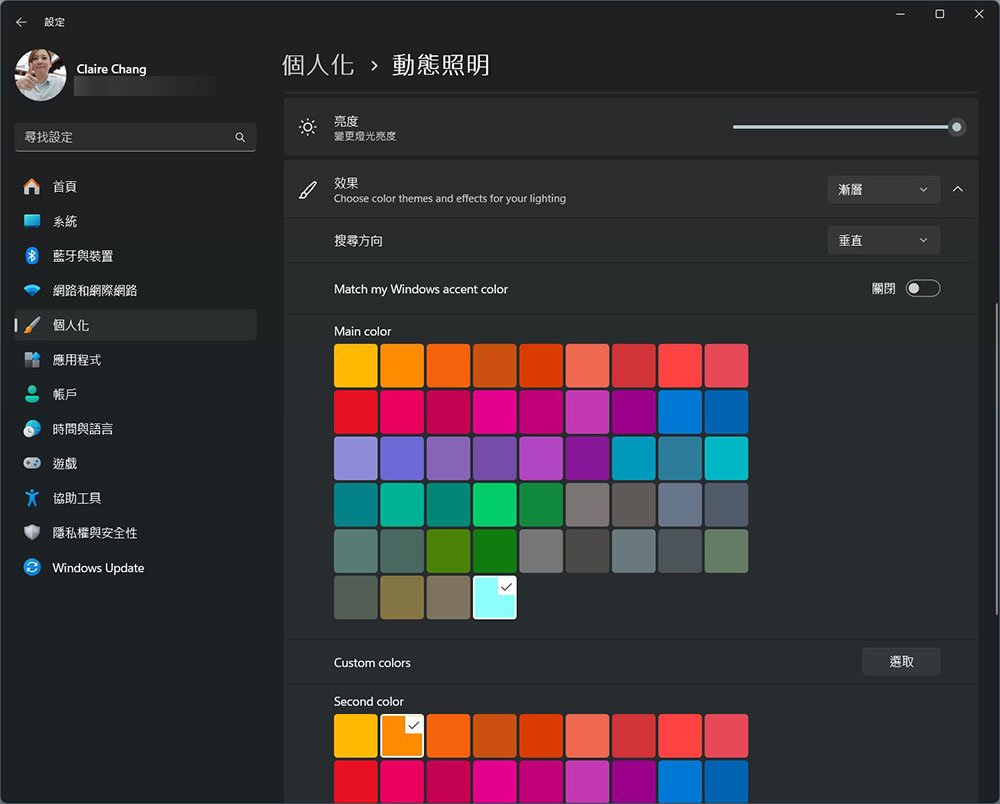
- You can click the down arrow behind the effect to expand the menu, where you can select the color and more settings for the selected light effect mode, such as the color gradient direction of the gradient mode. At the same time, you can also choose to turn on “Match my Windows accent color” to let the device color automatically change with your Windows theme color, but after turning on this switch, you cannot customize the color.
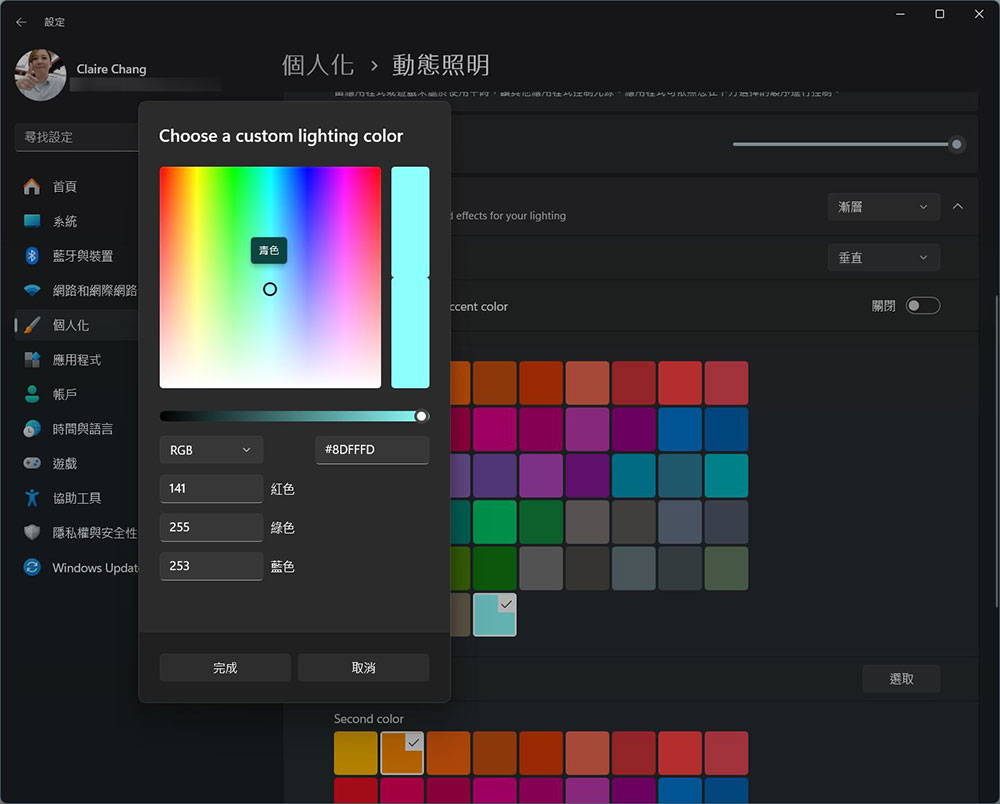
- If there is no color you like in the official color palette, you can click the selection button behind “Custom Colors” to customize the color from the color spectrum.
The settings page for a single device looks almost the same as the global settings, except that the settings will only apply to a specific single device instead of all. You can do this if you want each device to have completely different lighting effects. All your changes are applied instantly and saved automatically, so you can close the app when you’ve tried something you like.
Which devices support dynamic lighting?
At present, there are not many devices supported by dynamic lighting, and it is almost entirely dominated by Razer, but Microsoft said that companies such as Acer, Asus, HP, HyperX, Logitech and Twinkly will also participate in the near future. Eventually, the list should grow, but for now, you can use dynamic lighting with the following keyboards and mice:
- Keyboard
- Razer BlackWidow V3
- Razer BlackWidow V3 Pro
- Razer BlackWidow V3 Mini
- Razer BlackWidow V3 Tenkeyless
- Razer BlackWidow V4 Pro
- Razer DeathStalker V2
- Razer DeathStalker V2 Pro
- Razer DeathStalker V2 Pro TKL
- Razer Huntsman Mini
- Razer Huntsman Mini Analog
- Razer Huntsman Tournament Edition
- Razer Huntsman V2
- Razer Huntsman V2 Analog
- Razer Huntsman V2 Tenkeyless
- Razer Ornata V2
- Razer Ornata V3
- Razer Ornata V3 TKL
- Razer Turret Keyboard Xbox One Edition
- Mouse
- Microsoft Pro IntelliMouse
- Razer Turret Mouse Xbox One
- Razer DeathAdder V2
- Razer DeathAdder V2 Pro
- Razer Naga Left-Handed
- Razer Naga Pro
It’s worth noting that not all devices support the full range of RGB lighting features. For example, the Microsoft Pro smart mouse does not support gradient effects because its hardware can only display one color at a time.
Source: KOCPC Chinese