


In recent years, more and more people like to set their smartphones to silent or vibrate, making the popular personalized ringtones that were once popular in the past become less popular. Nowadays, people use ringtones either to show their taste in music or to make you excited about incoming calls. Otherwise, like me, it is easy to miss the call and have to turn on the ringtone to remind myself. If you own an iPhone, you don’t have to use your phone’s default ringtone every time you receive a call or text message. You can set a ringtone or message alert tone for a specific contact to help you identify people by listening to their voice!

How to set different ringtones/vibrations for various contacts on iPhone?
Why consider using this feature that seems like something you don’t know about or is underutilized by you? The most obvious reason is that you can decide whether it’s necessary to answer a call or read a message more promptly without having to glance at your iPhone screen or hit the reject button. You can assign the same ringtone to people in your address book that you don’t want to talk to on the phone so that you can “effectively” ignore their calls. Likewise, you can save a potential client or boss’s number and assign it a different ringtone to answer their calls before they go straight to voicemail.
Assign a ringtone to specific people in your iPhone contacts
As long as you have an iPhone with iOS 12 or above, you should be able to assign a unique ringtone alert to any contact stored on your device. The setting steps can be as follows:
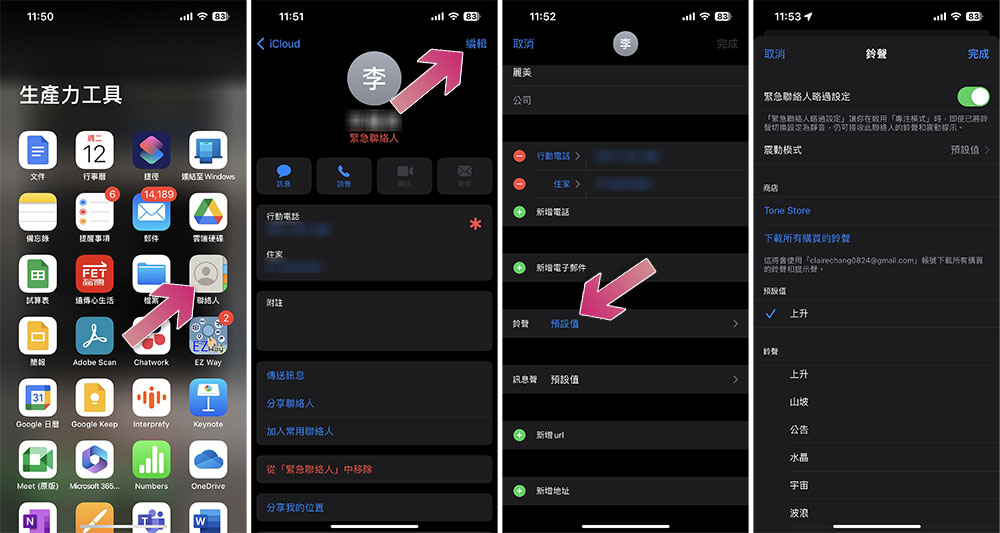
- Open the Contacts app. Or you can click the “Phone” icon to go directly to the Contacts tab.
- Scroll down through Contacts, then click on the name of the person you want to assign a ringtone to, and click Edit.
- Scroll down to select incoming call ringtones and message alerts in the “Ringtone” field.
Assign vibrations to specific people in your iPhone contacts
If you don’t like hearing loud and distracting alerts or ringtones, and prefer to mute or vibrate your iPhone, you can still highlight calls and messages from individual contacts by modifying the vibration pattern of your contacts, or even customize a unique vibration pattern. Here’s how:
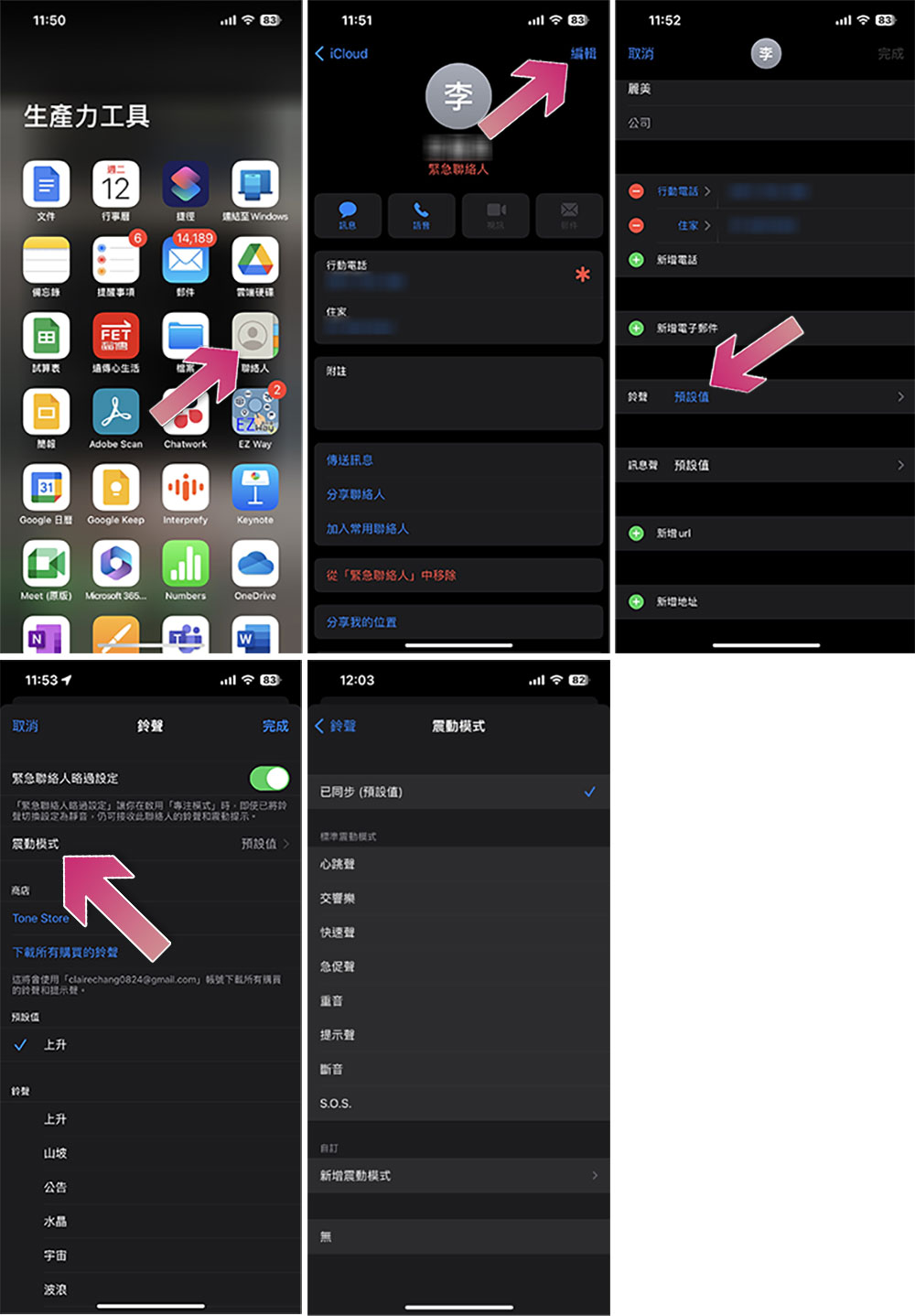
- Open the Contacts app. Or you can click the “Phone” icon to go directly to the Contacts tab.
- Scroll down through Contacts, then click on the name of the person you want to assign vibration patterns to, and click Edit.
- Next click on the “Ringtones” column.
- Click “Vibrate Mode”.
- You can choose to use the built-in vibration mode, or you can choose to add a new vibration mode to customize it for this person (we will teach you how to do this in the next unit).
Incidentally: How to add a vibration mode
If you want to customize the vibration mode for a special person, you can continue from the above steps:
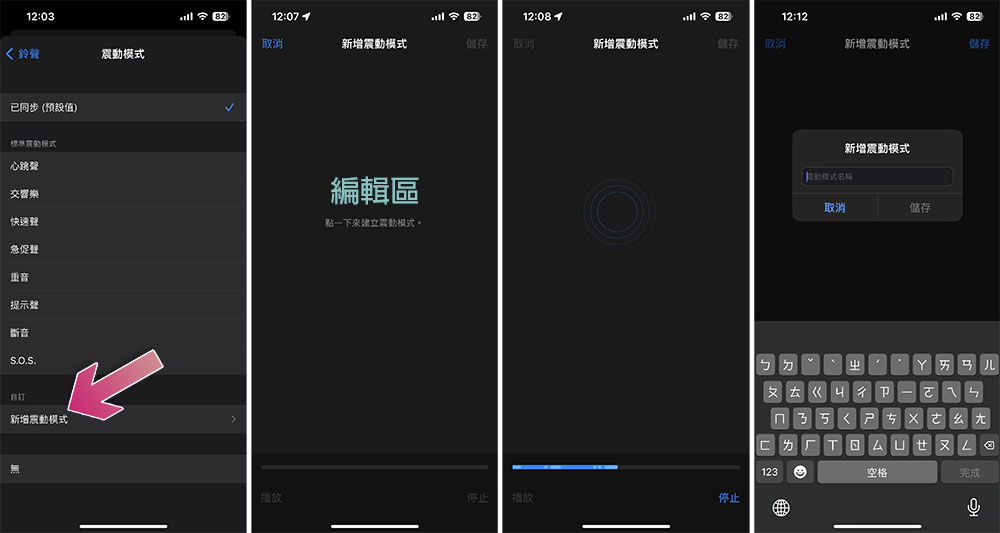
- Click “Add vibration mode” in the vibration mode selection section.
- Then you’ll see the editing panel, which is a bit confusing.
- Click on a blank space with your finger to indicate a short vibration, and long press to indicate a long vibration. You can customize the frequency and method of vibration here, and you can also play the preview after recording.
- When finished, click Save in the upper right corner and enter the name of this vibration mode.
Source: KOCPC Chinese